Queue Studio for Service Bus
Service Bus in the editor: cloud namespaces and the local emulator in one tree, peek of a whole queue without
locks, search in bodies and properties, and a whole dead-letter queue moved back in one operation. Works with
Azure Service Bus and the Service Bus emulator.
Free
- Connections: a connection string (kept in VS Code's secret storage), a fully qualified namespace with
Microsoft Entra ID (default Azure credential or Azure CLI), or the local emulator.
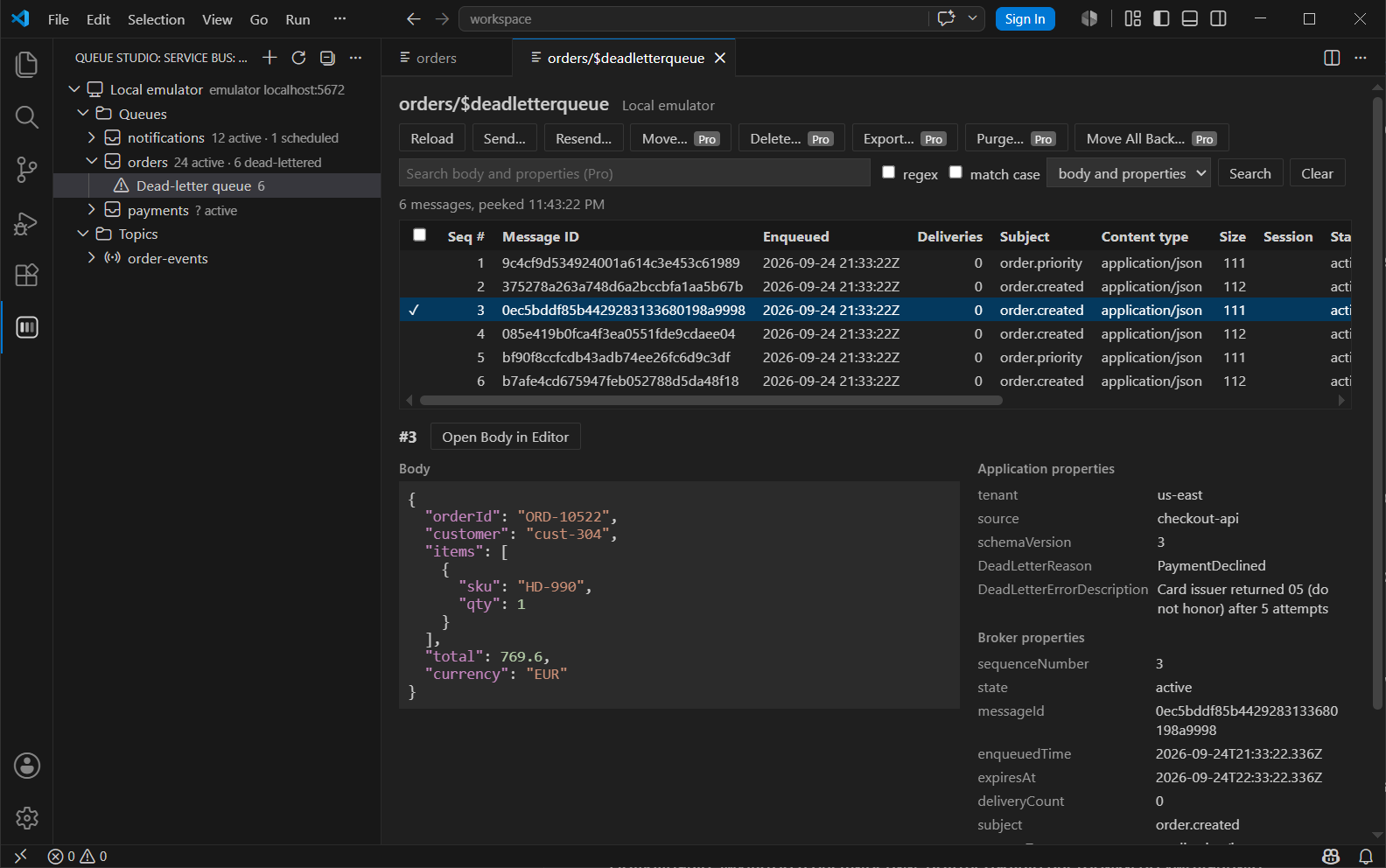
- Tree: queues, topics and subscriptions with active, dead-letter and scheduled counts; every queue and
subscription has its dead-letter queue.
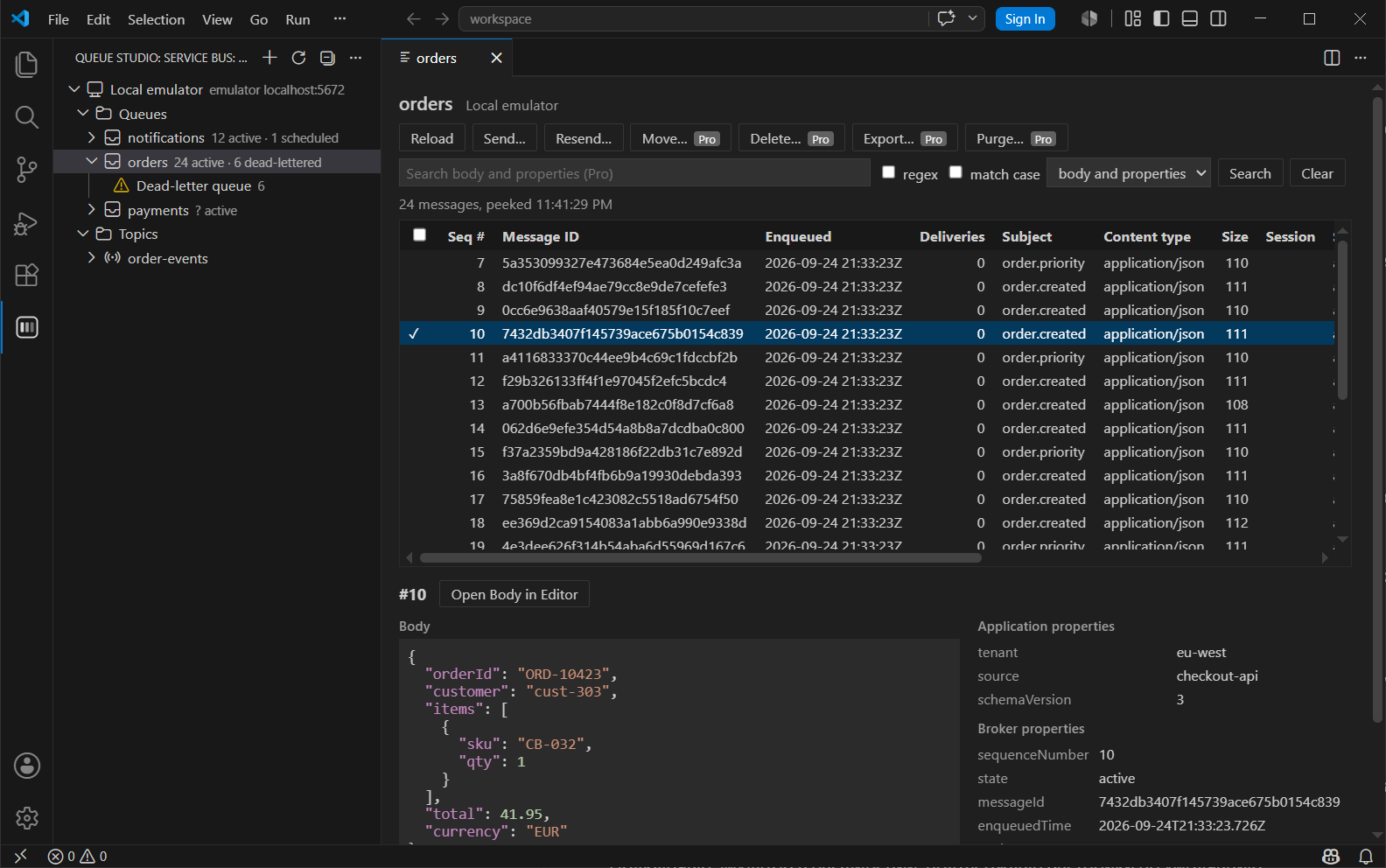
- Peek: walks the whole queue, subscription, dead-letter queue or one session by sequence number, in pages, up
to a limit you set. Nothing is locked, so delivery counts and consumers are not affected. The table shows sequence
number, message id, enqueue time, delivery count, subject, content type, size, session, state and application
properties; the detail shows the body (JSON formatted and coloured) and every property.
- Send: body, content type, subject, message and correlation id, application properties, session id, time to
live and scheduled enqueue time. Resend fills the form from a selected message.
- Entities: create and delete queues, topics and subscriptions; edit max delivery count, lock duration, time to
live, dead-lettering on expiration and forwarding.
Pro
A 14-day trial of everything starts with the first run. After it, Pro needs a license key.
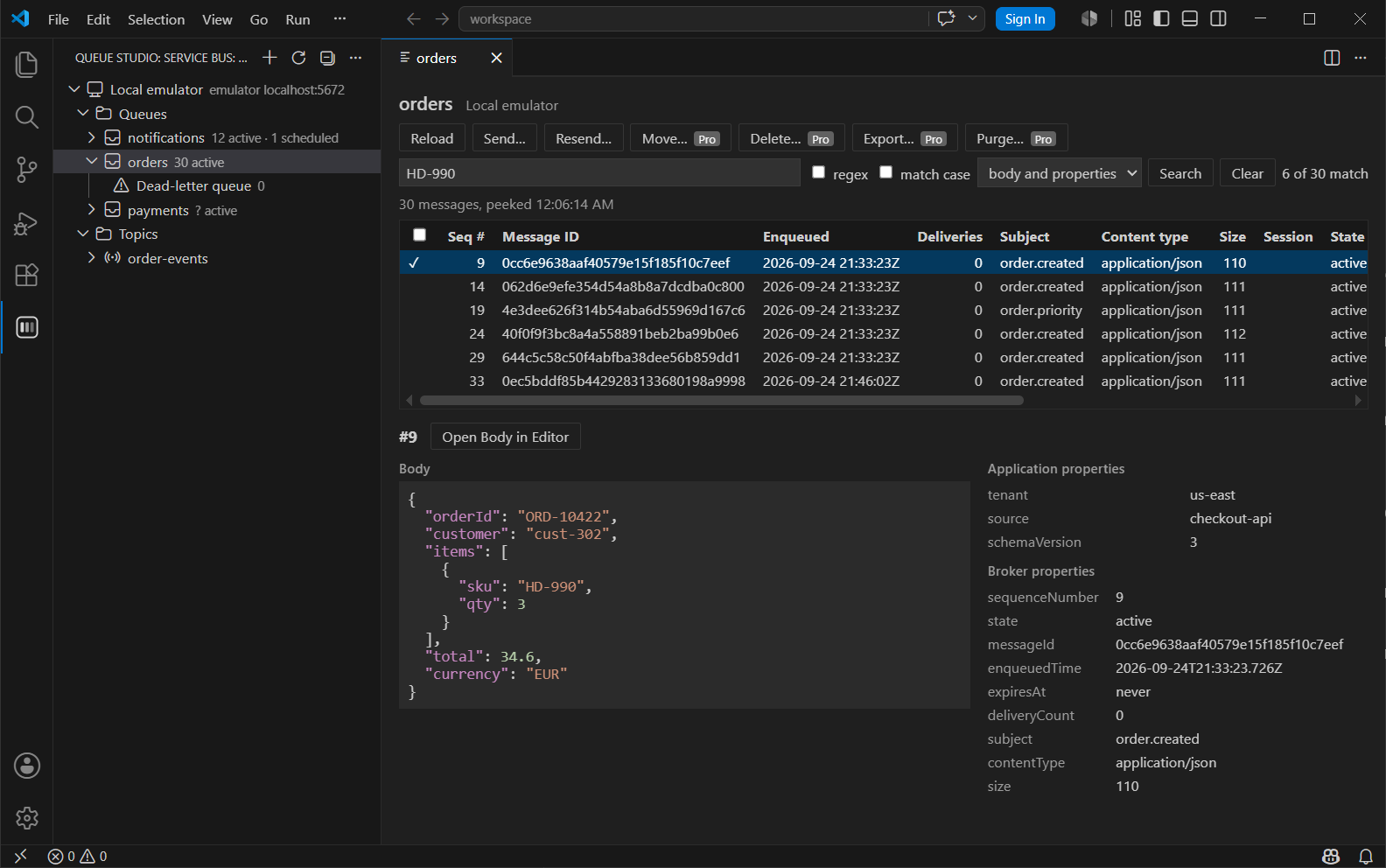
- Search the peeked messages by substring or regular expression, in bodies, application properties
(
name=value) or both.
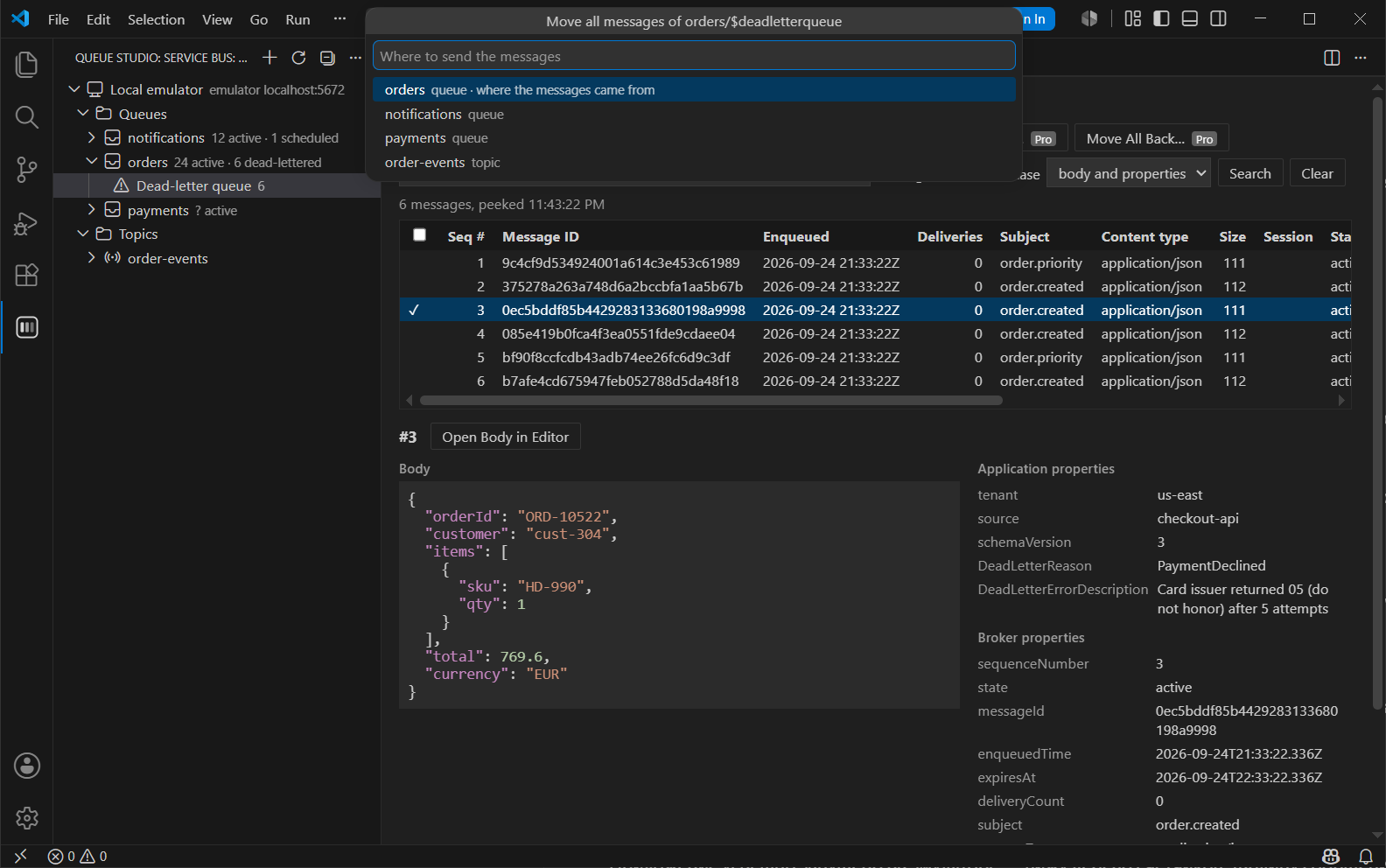
- Move a whole dead-letter queue back to its queue, or to its topic for a subscription, or to any queue or
topic. Each batch is sent first and removed from the dead-letter queue only after the send succeeded, so a failure
leaves the messages where they were. Progress is shown and the move can be cancelled.
- Move or delete selected messages. To reach them, messages are received from the start with a lock and the
others are released. On a main queue each released message counts one more delivery; the confirmation says so.
Selected scheduled messages are cancelled.
- Purge a queue, a subscription, a dead-letter queue or one session.
- Export selected or shown messages to JSON or NDJSON, and send messages from such a file.
Getting started
- Open Queue Studio: Service Bus in the activity bar and press +.
- Choose how to connect:
- Connection string: a namespace-level one from Shared access policies. Entity-level strings with
EntityPath cannot list the namespace.
- Microsoft Entra ID:
contoso.servicebus.windows.net and a credential. Reading needs Azure Service Bus Data
Receiver, sending Data Sender, entity management Data Owner.
- Local emulator: host, AMQP port (5672) and management port (5300) of the emulator container.
- The connection is tried before it is saved. Click a queue, subscription or dead-letter queue to peek it.
Session-enabled queues and subscriptions are peeked one session at a time (Peek Session…). Accepting a session
locks it, so its consumer waits until the peek is done. Their dead-letter queues need no session.
Local emulator
Found while testing against mcr.microsoft.com/azure-messaging/servicebus-emulator 2.0:
- The management API is plain HTTP on port 5300; the JavaScript administration client only speaks HTTPS, so Queue
Studio switches the scheme for emulator connections.
- Queue descriptions carry no count details and subscription counts are always zero. For the emulator, counts come
from a peek walk; the active count of a session-enabled queue or subscription is shown as
?.
- Updating an entity succeeds, but its answer cannot be parsed by the SDK; Queue Studio reads the settings back and
reports any value that did not take effect.
- A plain receiver on a session-enabled entity peeks nothing instead of failing, which is why Queue Studio asks for
a session.
- Limits of the emulator itself: one namespace, 50 entities, 256 KB messages, time to live of at most one hour,
no Entra ID, nothing persists across a container restart.
Settings
| Setting |
Default |
|
queueStudioServiceBus.peek.limit |
1000 |
Messages one peek walk reads at most |
queueStudioServiceBus.peek.pageSize |
100 |
Messages per peek request |
queueStudioServiceBus.operations.batchSize |
50 |
Messages a move, delete or purge takes at a time |
Pricing, license, privacy, support
Pro costs $4 a month or $40 a year for individuals, and $8 a month or $80 a year per person for organizations, see
pricing. License keys are sold through Polar as
merchant of record, which handles payments, taxes, invoices and refunds, under the
terms of sale and the
refund policy.
Proprietary, under the
end user license agreement. The
extension sends the license key and the machine id to Polar to check the license and nothing to anyone else, see the
privacy policy. Questions and bugs:
support. The full
user guide covers every feature.
Microsoft, Azure and Azure Service Bus are trademarks of the Microsoft group of companies. Queue Studio is an
independent product and is not affiliated with or endorsed by Microsoft.
Development
npm test runs the unit tests; npm run test:integration starts the emulator and SQL Server in Docker with
Testcontainers and runs the Service Bus tests against it, plus a smoke test of the commands inside VS Code (set
QS_VSCODE_EXECUTABLE to an installed VS Code, otherwise @vscode/test-electron downloads one). npm run package builds the .vsix; it refuses to build
without the production Polar organization id and purchase URL in licensing.config.json.
| |

