
MiniMax AI AssistantAI coding assistant powered by MiniMax M3 Installation Launch VS Code Quick Open ( Ctrl+P), paste the following command, and press enter.Copied to clipboard |

|
 MiniMax AI Assistant for VS Code

| Mode | Description |
|---|---|
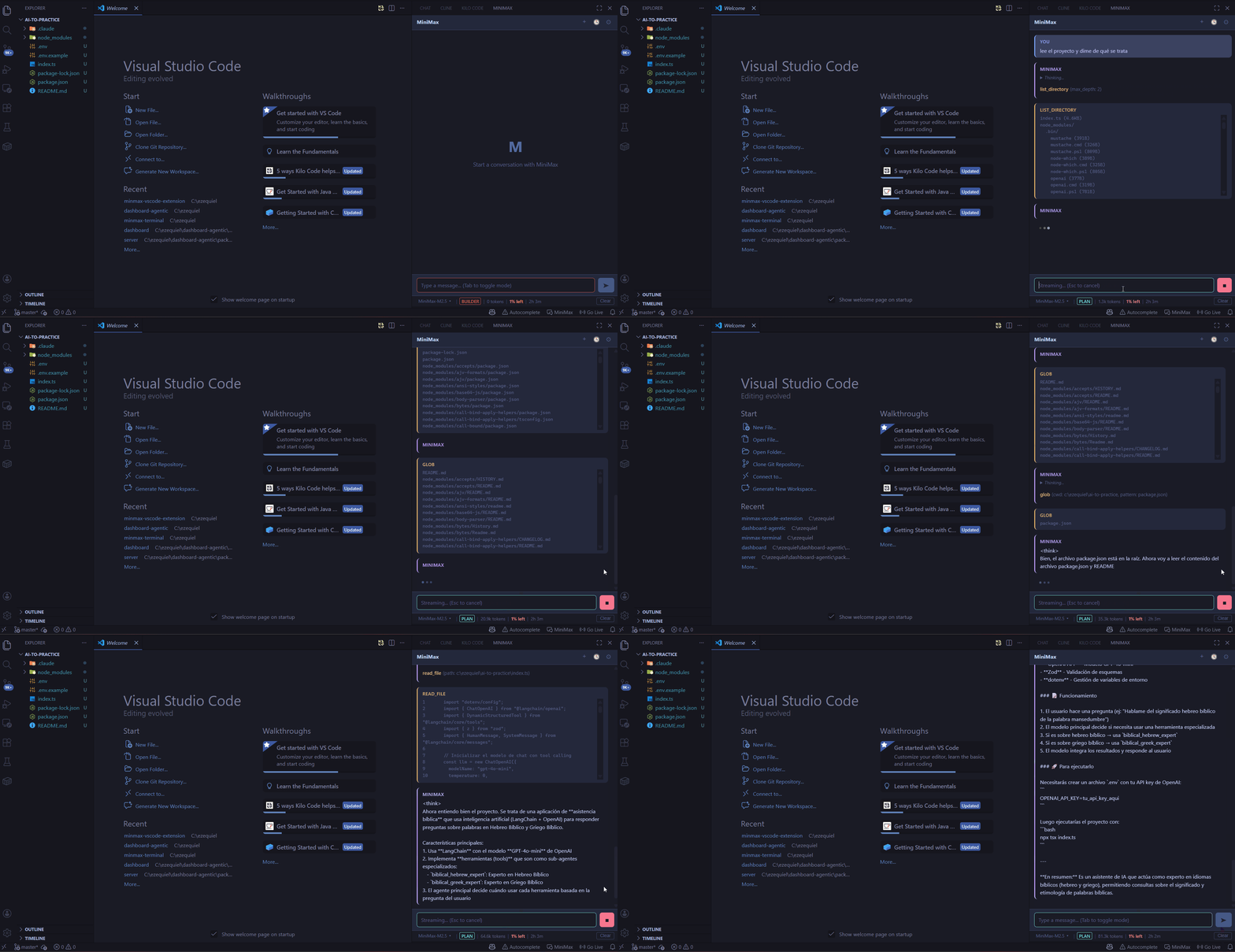
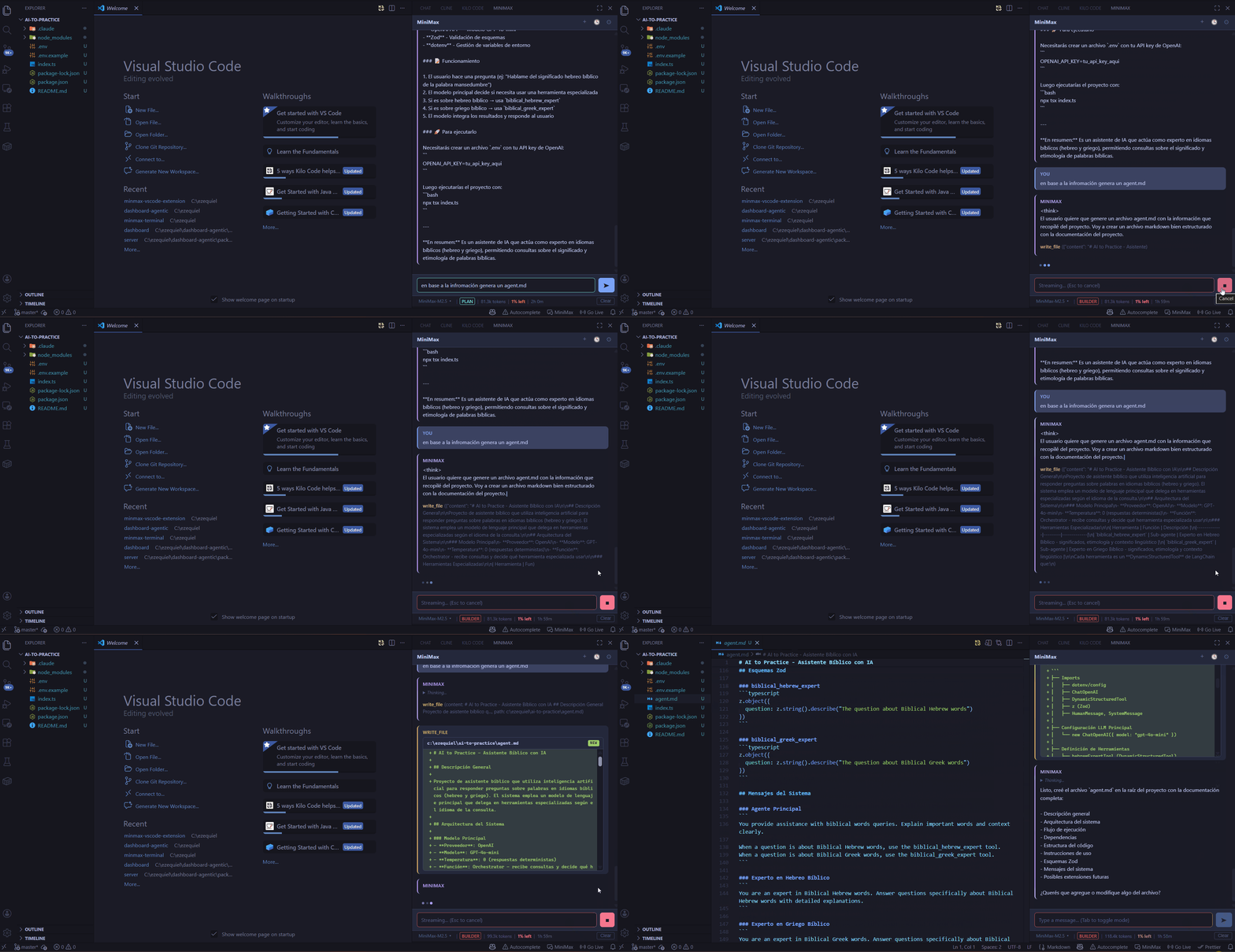
| Builder | Full access — reads, writes, edits files, runs CLI commands |
| Plan | Read-only — explores and analyzes code without making changes |
Toggle between modes with Tab in the input box or click the mode badge.
| Plan Mode | Builder Mode |
|---|---|
 |
 |
Built-in Tools
The agent has access to 8 tools that operate directly on your workspace:
- read_file — Read file contents with optional line ranges
- write_file — Create or overwrite files (auto-creates directories)
- edit_file — Targeted find-and-replace within files
- bash — Run shell commands (git, npm, scripts, etc.)
- glob — Find files by pattern (
**/*.ts,src/**/index.*) - grep — Search file contents with regex and context lines
- list_directory — Browse directory structure with depth control
- cwd — Manage the working directory
Inline Diff Viewer
File changes are displayed as color-coded diffs directly in the chat — see exactly what was added, removed, or modified before anything is saved.
Session History
Conversations are auto-saved and persist across restarts. Resume any previous session from the history panel (up to 50 sessions).
Quota Tracking
Real-time display of your MiniMax API usage with color-coded indicators and reset timers.
MCP Tool Support
Extend the agent's capabilities by connecting Model Context Protocol servers. Add custom tools for databases, APIs, or any external service.
Getting Started
1. Install
Search for MiniMax AI Assistant in the VS Code Extensions marketplace, or install the .vsix file:
code --install-extension minmax-vscode-0.1.0.vsix
2. Set your API key
Run the command palette (Ctrl+Shift+P) and select:
MiniMax: Set API Key
Or click the gear icon in the chat header.
3. Start chatting
Click the MiniMax icon in the activity bar (left sidebar), or press Ctrl+Shift+M / Cmd+Shift+M.
Models
| Model | Context | Notes |
|---|---|---|
| MiniMax-M3 | 1,000,000 tokens | Latest M-series model for coding and agent workflows |
| MiniMax-M2.7 | 204,800 tokens | ~60 tokens/s |
| MiniMax-M2.7-highspeed | 204,800 tokens | ~100 tokens/s |
| MiniMax-M2.5 | 204,800 tokens | ~60 tokens/s |
| MiniMax-M2.5-highspeed | 204,800 tokens | ~100 tokens/s |
| MiniMax-M2.1 | 204,800 tokens | ~60 tokens/s |
| MiniMax-M2.1-highspeed | 204,800 tokens | ~100 tokens/s |
Switch models from the dropdown in the status bar.
Keyboard Shortcuts
| Shortcut | Action |
|---|---|
Ctrl+Shift+M / Cmd+Shift+M |
Open / focus chat |
Enter |
Send message |
Shift+Enter |
New line |
Tab |
Toggle Plan / Builder mode |
Escape |
Cancel streaming response |
Settings
Configure via VS Code settings (Ctrl+,) under the MiniMax section:
| Setting | Default | Description |
|---|---|---|
minimax.model |
MiniMax-M3 |
Model to use |
minimax.theme |
tokyo-night |
Chat theme (tokyo-night, rose-pine, gruvbox) |
minimax.defaultMode |
BUILDER |
Starting mode (BUILDER or PLAN) |
minimax.mcpServers |
{} |
MCP server configurations |
MCP Server Configuration
Add MCP servers in your settings.json:
{
  "minimax.mcpServers": {
    "my-server": {
      "command": "npx",
      "args": ["-y", "@my/mcp-server"],
      "env": {
        "API_KEY": "..."
      }
    }
  }
}
Themes
Three built-in themes optimized for dark environments:
- Tokyo Night — Cool blues and cyans
- Rose Pine — Muted pastels with mauve accents
- Gruvbox — Warm earthy tones
Project-Specific Instructions
Drop an agent.md file in your workspace root to give the agent project-specific context, conventions, or guidelines. It will be loaded automatically into every conversation.
Commands
| Command | Description |
|---|---|
MiniMax: Open Chat |
Open the chat sidebar |
MiniMax: Set API Key |
Configure your API key |
MiniMax: Cancel Stream |
Stop the current response |
MiniMax: Toggle Plan/Builder Mode |
Switch agent mode |
MiniMax: Clear Chat |
Clear the current conversation |
File Context
Mention files in your message using @filename to attach them as context. The agent will see the file contents along with your message.
License
MIT