A lightning-fast, distraction-free mind map editor built directly into VS Code. Edit beautiful tree-structured diagrams with an intuitive visual interface backed by a clean, portable text format.
Visual Editor - Create and edit mind maps in an interactive graph editor
Text-Based Format - Store your mind maps in plain .swiftmap files for version control
Instant Sync - Switch between visual and text editor seamlessly
Status & Priority - Mark nodes with status (in progress, blocked, done, rejected) and priority levels
Tags - Organize with tags (question, task, idea)
Undo/Redo - Full undo/redo support with keyboard shortcuts
Export - Export your mind maps as PNG images
Auto Layout - Automatic hierarchical layout - just focus on content
Keyboard Friendly - Quick keyboard shortcuts for power users
Example Visualizations
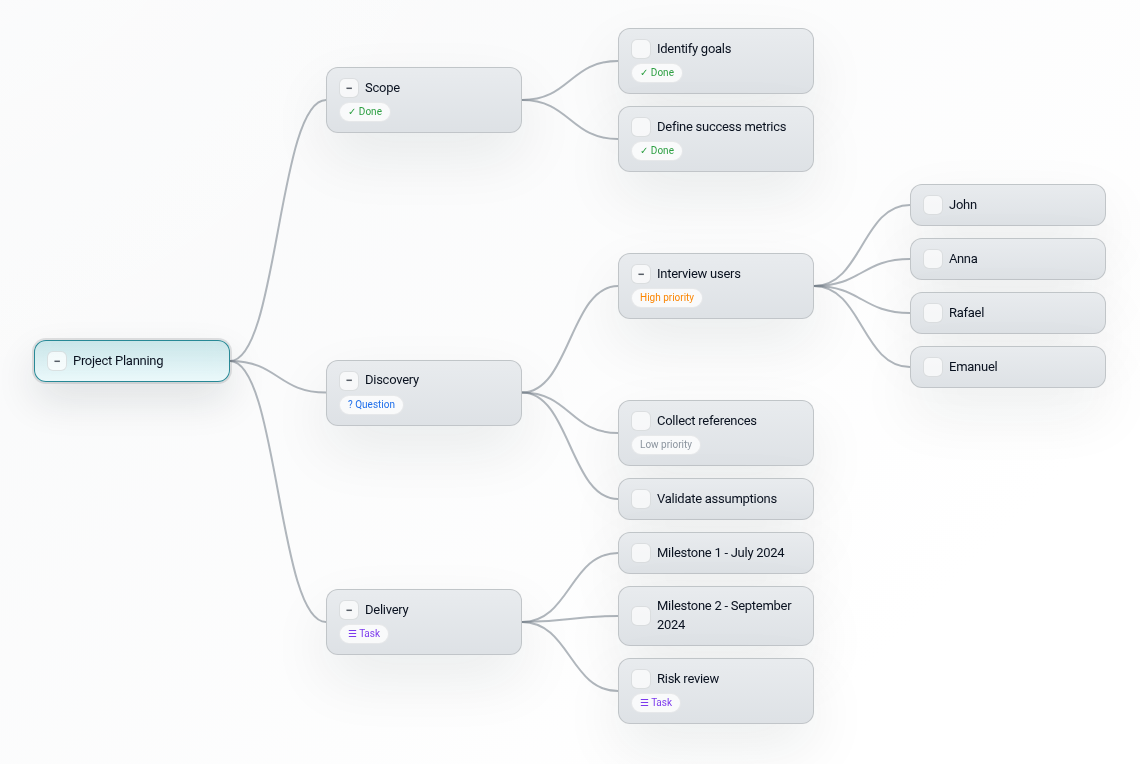
Project Planning
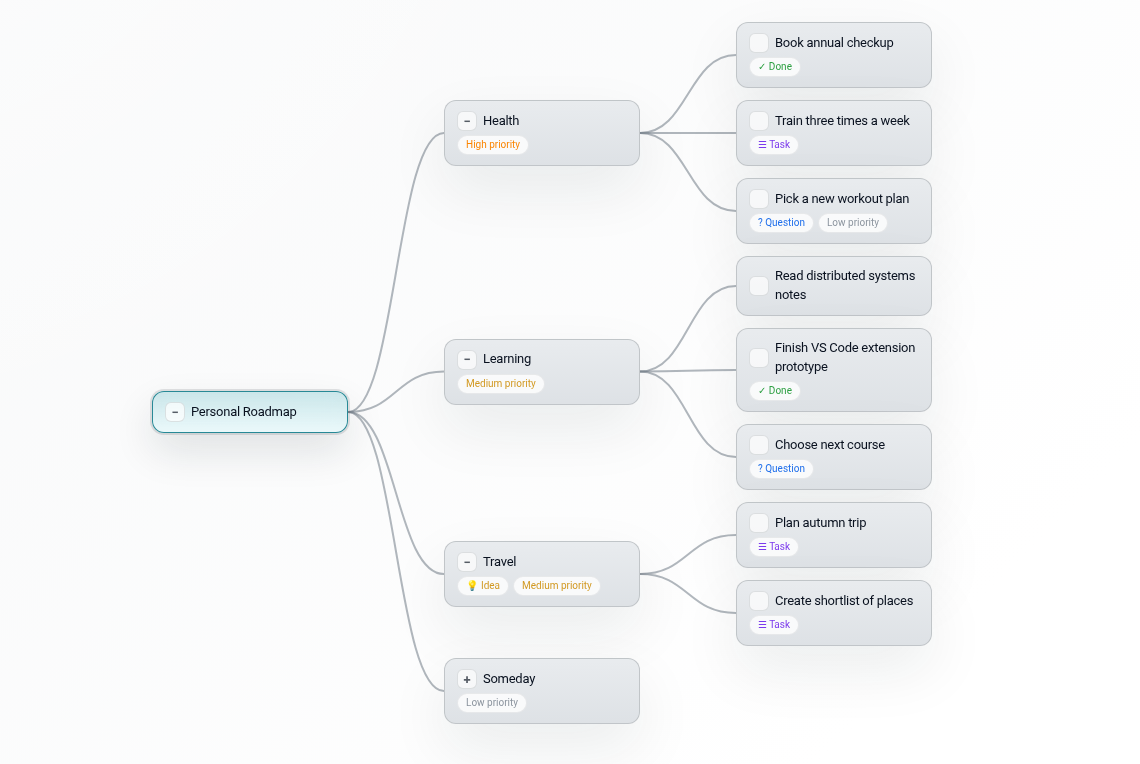
Personal Roadmap
Getting Started
Create a New Mind Map
Open VS Code command palette (Ctrl+Shift+P / Cmd+Shift+P)
Type "SwiftMap: New Mind Map"
Start organizing your thoughts
Open Existing Files
Simply open any .swiftmap file - it automatically opens in the visual editor.
Switch Between Views
Visual Editor → Source: Click the "Open Source" icon in the editor title bar
Source → Visual Editor: Click the "Open Visual Editor" icon in the editor title bar
Status & Priority Management
Status: In Progress, Blocked, Done, Rejected
Priority: Low, Medium, High
Tags: Question, Task, Idea
Or use the right-click context menu for easy access to all options.
Use Cases
Project Planning - Break down projects into hierarchical tasks
Personal Roadmaps - Plan your learning and career goals
Brainstorming - Capture and organize ideas visually
Documentation - Create structured outlines for documentation
Decision Trees - Map out decision processes and workflows
File Format
SwiftMap uses a simple, text-based format that's easy to version control and share. The format is fully documented - see the project repository for details.
Tips & Tricks
Multi-select: Hold Ctrl (or Cmd on Mac) and click nodes to select multiple nodes
Drag & Drop: Drag selected nodes onto another node to move them
Right-click Menu: Get quick access to all node operations via context menu
Zoom: Use scroll wheel or pinch gestures to zoom in/out