FileFerry




The actively maintained vscode-sftp alternative: deploy files from VS Code or Cursor to remote servers over SFTP, FTP, or FTPS, without leaving the editor.
Right-click changed files in the Source Control panel and pick FileFerry: Upload, or open the FileFerry → Changed Files view, select files, and press Alt+U. No config file juggling, no manual path entry: just deploy what git knows you changed.
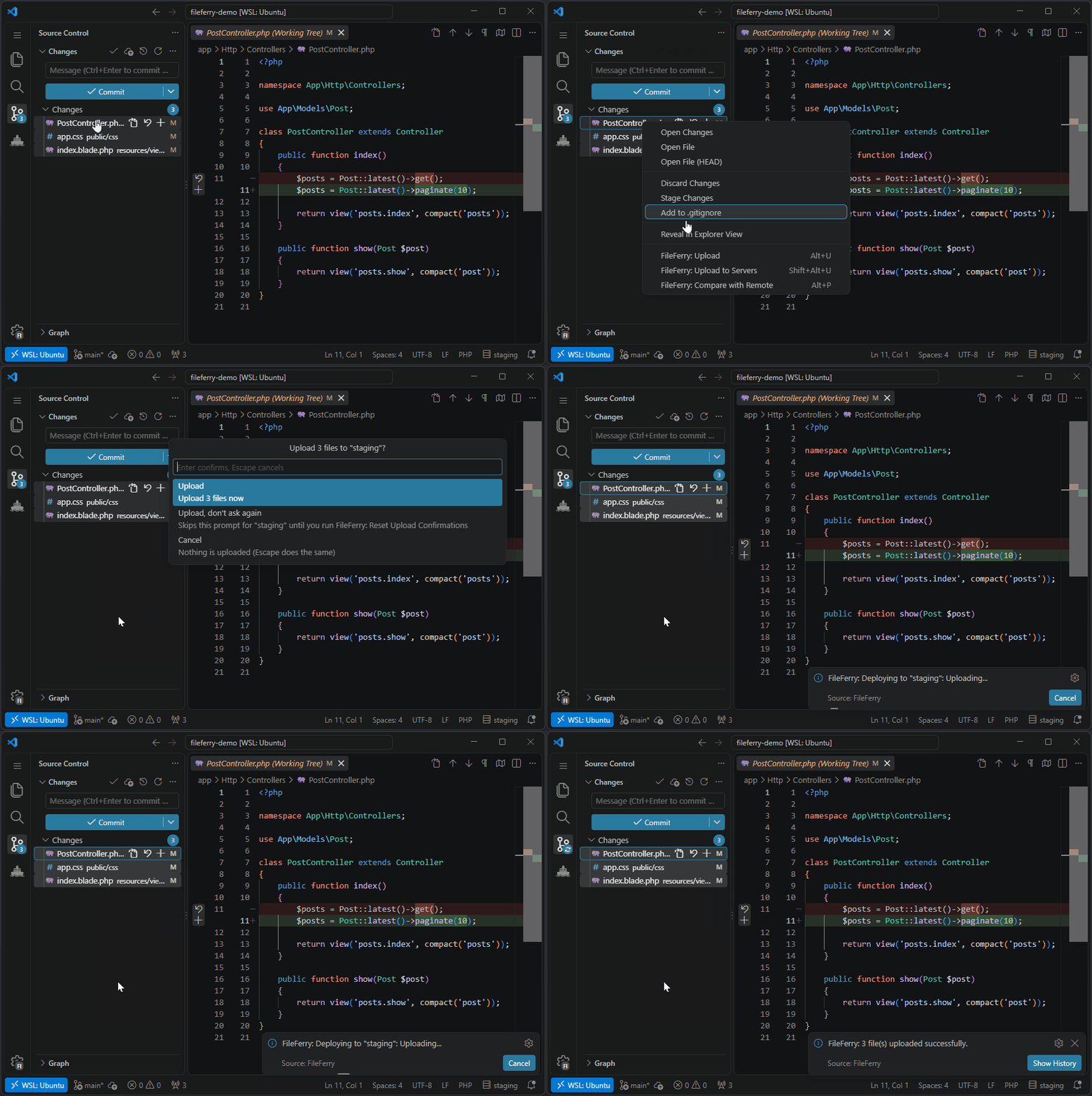
Built on these principles:
- Deploy what changed: git-aware upload from the FileFerry Changed Files view or the Source Control panel; deploy exactly the files you edited, nothing more
- Credentials never on disk: passwords and keys live in the OS keychain (macOS Keychain, Windows Credential Manager, Linux libsecret); your
.vscode/fileferry.json is safe to commit
- Confirm before every deploy: no silent uploads; you always see what will be sent before it goes
- Full visibility: dry run mode, upload history, and file date guard mean you always know what happened and why
- Modern SSH: works with your existing
~/.ssh/config aliases (including ProxyJump), OpenSSH 8.8+, 1Password agent, PEM keys, keyboard-interactive 2FA, and SSH jump hosts (single or chained, with 2FA on any hop) out of the box
Documentation: User guide · Configuration reference · Changelog
Coming from vscode-sftp?
If vscode-sftp stopped working on Ubuntu 22.04+, AWS EC2, or after a server upgrade, the cause is almost always missing modern OpenSSH algorithms (rsa-sha2-256, ed25519, curve25519-sha256). FileFerry supports them out of the box.
A few practical differences:
| Area |
vscode-sftp |
FileFerry |
| Credentials |
plaintext sftp.json in the workspace |
OS keychain (Keychain / Credential Manager / libsecret) |
| Modern OpenSSH (8.8+) |
manual algorithm config required |
works by default |
| SSH agent (1Password, gpg-agent, Pageant) |
partial |
auto-detected |
| Git-aware uploads |
not built-in |
first-class: deploy from the Source Control panel |
| Project config in git |
unsafe (contains secrets) |
safe: .vscode/fileferry.json has no credentials |
| Jump hosts |
hop entries, password or key per stage |
ordered chains on the credential, 2FA on any hop, ProxyJump from ~/.ssh/config, one bastion login reused across a deploy |
| Active maintenance |
last meaningful release 2022 |
actively maintained |
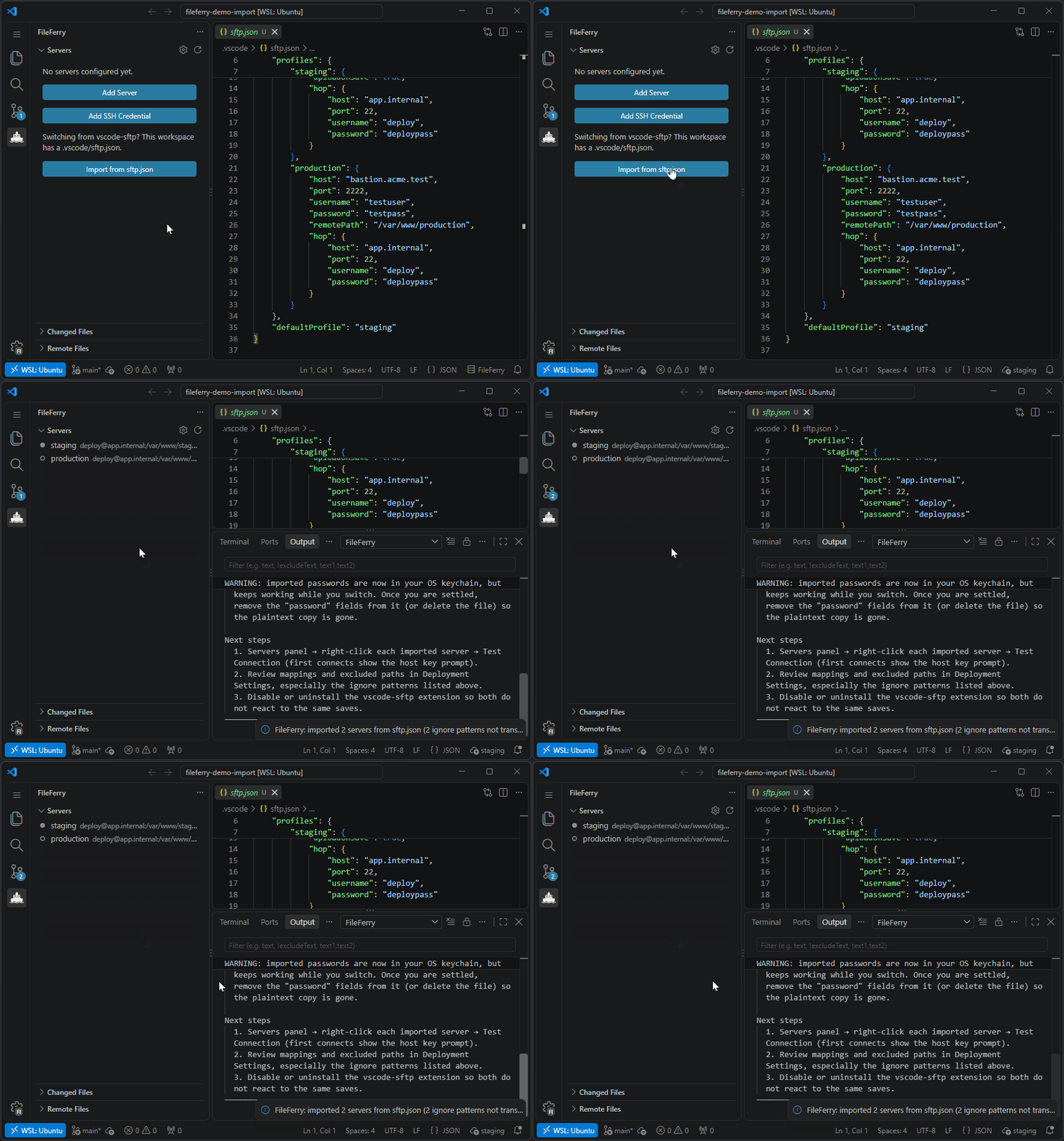
Switching from vscode-sftp? Run FileFerry: Import from vscode-sftp (sftp.json) and your .vscode/sftp.json comes over in one go: every server (single, array, or profiles), path mappings, ignore patterns, per-profile upload-on-save, and hop chains as jump hosts. Plaintext passwords move into the OS keychain, and sftp.json itself is never touched, so the old extension keeps working until you are ready to remove it. Open a workspace that has a sftp.json and FileFerry offers the import once; the report in the output channel names anything that could not be translated instead of guessing.
Upload changed files
Two ways to deploy what you've changed:
- SCM right-click: select files in the Source Control panel, right-click → FileFerry: Upload.
- Changed Files view: open the FileFerry sidebar, focus the Changed Files view, select one or more files, press
Alt+U. The view auto-refreshes as you edit.
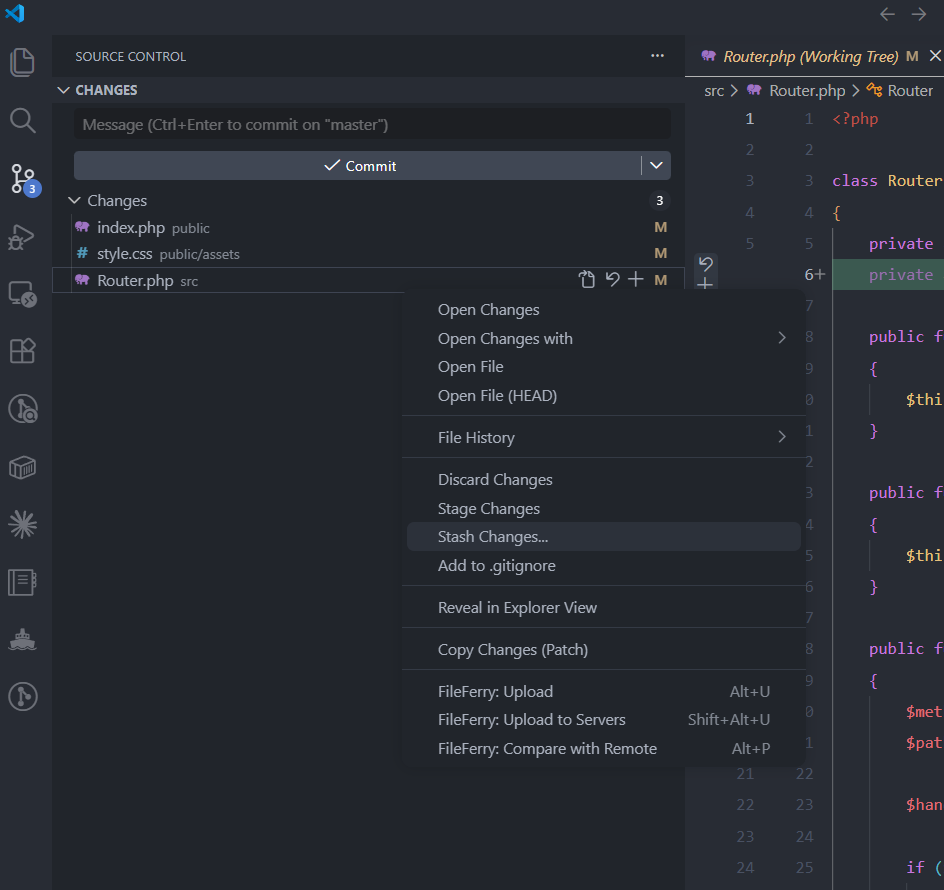
FileFerry asks before every deploy. Upload to multiple servers at once with Shift+Alt+U.

- Multi-select upload: Source Control right-click or the FileFerry Changed Files view; select any number of files and deploy in one action
- Upload all changed files:
Ctrl+Alt+U deploys everything git considers changed, no selection required
- Upload only what's newer: a smart-sync variant that skips any file whose remote copy is the same age or newer, so re-running a deploy only pushes what actually moved forward (the
$(sync) button on the Source Control title bar, and a history-icon button in the Changed Files view that adapts to your selection)
- Upload from commit: pick one or more recent commits and deploy every file they touched (working-tree version)
- Multi-server push: deploy to dev, staging, and prod in one action
- Folder upload: right-click a folder in Explorer to upload its contents recursively
- Upload on save: auto-deploy on file save, toggled from the status bar; pin it on or off per server, so it stays armed for dev and off for production
- Watch & auto-upload: opt-in file-system watcher for build outputs and other generated files that never fire an editor save; matches an explicit glob allowlist and uploads even when git-ignored (configure under Project Settings)
- Delete deployment: git-deleted files appear in Source Control; deploying removes them from the server
- Dry run mode: preview exactly what would be uploaded without touching the server
- Atomic upload: files land as a temp file and are renamed on completion, no partial states
- Backup before overwrite: optionally download the remote version before replacing it
- File date guard: asks before overwriting a remote file newer than your local copy
Sync your whole tree to the server
Beyond deploying individual changes, FileFerry: Sync to Remote mirrors your entire mapped local tree to the server in one action. It walks both trees and reconciles them: uploads new and locally-newer files, skips anything the remote already holds at the same age or newer, and, only when you opt in per run, deletes remote files that no longer exist locally.
- Sync to Remote: full-tree one-way mirror (local → remote), from the Command Palette or the status-bar menu
- Sync Folder to Remote: right-click any folder (or several) in the Explorer to mirror just that subtree
- Delete extras is off by default and wrapped in defense-in-depth: a dry-run-first preview of the full plan, a modal confirmation naming the exact delete count, deletes restricted to the mapped remote root (or the folders you right-clicked), and exclude-aware detection so
excludedPaths / .fileferryignore files are never pruned
- Back up before deletes: an on-by-default project setting downloads each to-be-deleted file to
.vscode/fileferry-backups/ first
.git and node_modules are always skipped; synced transfers appear in Upload History under a Sync source
When the server holds files your project does not, Sync asks what to do with them before anything is transferred.

Run commands before and after a deploy
Give a server deploy hooks and FileFerry runs them around a deliberate deploy: build assets before upload, then reload a service or run migrations after.
- Local or remote: a local hook runs in your shell at the workspace root; a remote hook runs over the deploy's own SSH connection (SFTP only; on FTP it's skipped with a warning)
- Safe by default: hooks never run in an untrusted workspace, and the deploy confirmation names every command before anything executes. They only fire on deliberate deploys; upload-on-save and the watcher never run them
- Predictable failure: a failed pre-deploy hook aborts the deploy before anything is transferred; a failed post-deploy hook is reported without rolling back what already uploaded. Each hook can opt into continue on error and a timeout
- Secrets stay out of git: store a value once in the Secrets section and reference it as
${secret:NAME}
Keychain-backed secrets
Type a token once in the Hooks tab and FileFerry puts it in your OS keychain; the committed fileferry.json holds only a ${secret:NAME} reference, so it stays safe to commit.
- Secrets are per-project and machine-local: a teammate cloning the repo re-enters them, and the Hooks tab flags any referenced secret that isn't set on this machine
- Resolution happens the moment a hook runs: dialogs, logs, and dry-run always show the unresolved
${secret:NAME}, and values FileFerry resolved are masked as •••• in the output
- Local hooks receive the value as an environment variable, so it never enters the command string
- A deploy aborts before transferring anything if a hook that would run references a missing secret, so a post-deploy migration can't be silently skipped after your files are already live
- Pasted a raw secret by mistake? The inline warning offers a one-click Move to keychain that stores it and rewrites the command for you
Browse and manage remote files
A dedicated sidebar panel is a full remote file manager: browse, edit, create, rename, duplicate, move, chmod, upload, download, compare, and delete, directly on the server.
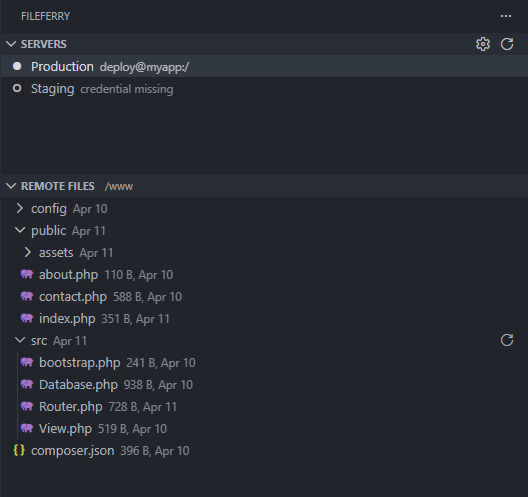
- Remote File Browser: expandable directory tree with persistent connection, idle timeout, and multi-select (Ctrl/Shift-click; delete, download, duplicate, move, and chmod all act on the whole selection)
- Edit in place: open a remote file, edit, save: it uploads straight back to the server it came from. If the file changed on the server in the meantime, a warning offers Overwrite or a side-by-side diff before anything is lost
- New File / New Folder: right-click a folder (or use the panel menu's "in Current Path" variants) to create entries on the server; a new file opens immediately, ready to type into and save back
- Rename & Move: with a destination browser for moves, into-itself guards, and one crucial nicety: files you have open for editing follow a rename or move, so the next save lands on the new path
- Duplicate: files or whole folders; folder copies scan first and confirm with real counts ("214 files, 132 MB"), recreate empty subfolders, and abort up front rather than ever producing a silently partial copy
- Change Permissions: octal prompt prefilled with the current mode; honest errors on FTP servers that reject
SITE CHMOD
- Upload Files / Folder Here: put local files at exactly the path you're looking at, bypassing mappings by design (the confirmation says so, with exact counts); cancellable mid-run
- Collisions are never merged: overwriting a file always asks; folders always abort; multi-select operations never prompt and never overwrite
- Compare with Remote: side-by-side diff of local vs server version (
Alt+P). Identical files, and files differing only in line endings, are reported directly instead of opening an empty diff
- Compare with Local: right-click a remote file to diff against the local counterpart
- Download to Workspace: right-click a remote file to download it to the mapped local path
- Delete from Server: right-click to delete with confirmation; multi-select confirms once with the exact count
- Copy Remote Path: copy any remote path (or several, newline-joined) to clipboard
Jump hosts and a terminal, without an ssh binary
Reach servers that only a bastion can see, and open a shell there, using the same credentials and host-key verification as every deploy.
- SSH jump hosts: give a credential an ordered chain of hops in the Credentials panel and every connection to that server dials through them: deploys, Test Connection, diffs, backups, sync, and the Remote Files panel. Each hop authenticates on its own terms (password, key, agent, or 2FA) and is host-key verified
- 2FA asked once, not per file: the bastion login is pooled, so a deploy's burst of connections reuses one authenticated hop until it sits idle; Test Connection names the hop that failed
ProxyJump from ~/.ssh/config: a credential that resolves from your SSH config follows the alias's ProxyJump chain (nested, comma lists, user@host:port literals), authenticating those hops with their IdentityFile, your agent, or a prompt- Open SSH Terminal: a shell on the active server in its root path, on any server from the Servers panel, or in the folder you are viewing in the Remote Files panel; through the same jump hosts, reusing a bastion a deploy already opened
The terminal names the route it took, here through a bastion to a server the workstation cannot reach directly.

Simple configuration
Manage servers and credentials through a form, no JSON editing required.
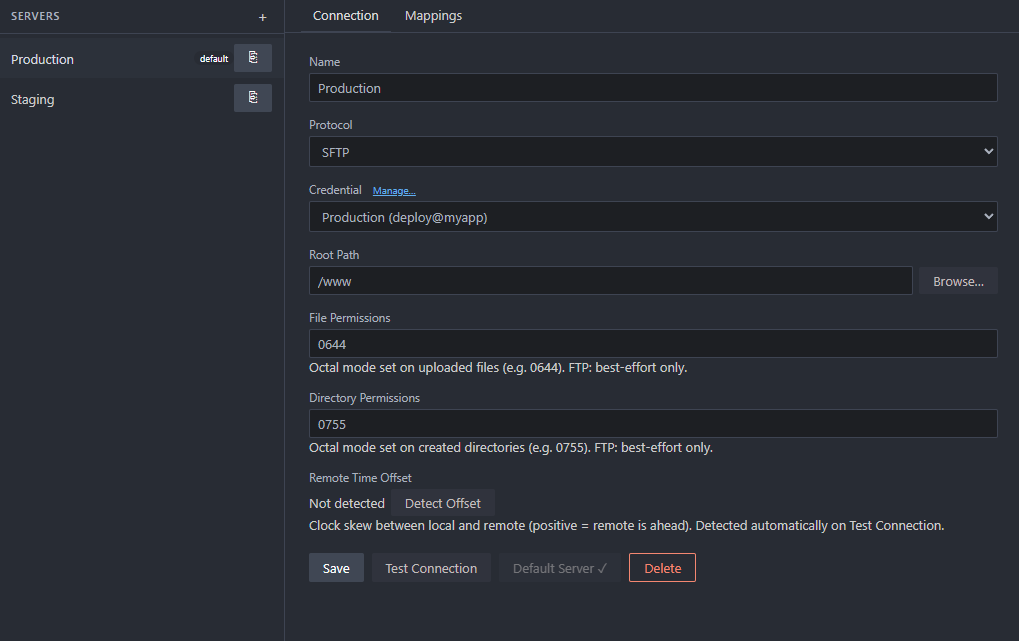
- Multiple servers: define production, staging, and dev servers; switch with one click
- Path mappings: map workspace subfolders to different remote paths per server
- File and directory permissions: set octal permissions (
0644, 0755) on uploaded files
- Remote time offset detection: automatically corrects clock skew when comparing timestamps
- Excluded paths: glob patterns to skip files that should never be deployed
- Clone server: duplicate an existing server config as a starting point
- Project settings: per-project toggles for upload-on-save, file date guard, backup before overwrite, dry run, watch & auto-upload, and back up before sync deletes, separate from server config
Secure credential storage
Passwords and passphrases are stored in the OS native keychain (macOS Keychain, Windows Credential Manager, Linux libsecret), never written to disk or committed to git.
Supported auth methods: password, private key, SSH agent (including 1Password), and keyboard-interactive (2FA).
~/.ssh/config aware: tick "Resolve from ~/.ssh/config" on a credential and reference a Host alias instead of a hostname; FileFerry reads HostName, Port, User, IdentityFile, and ProxyJump from your SSH config at connect time (SFTP).
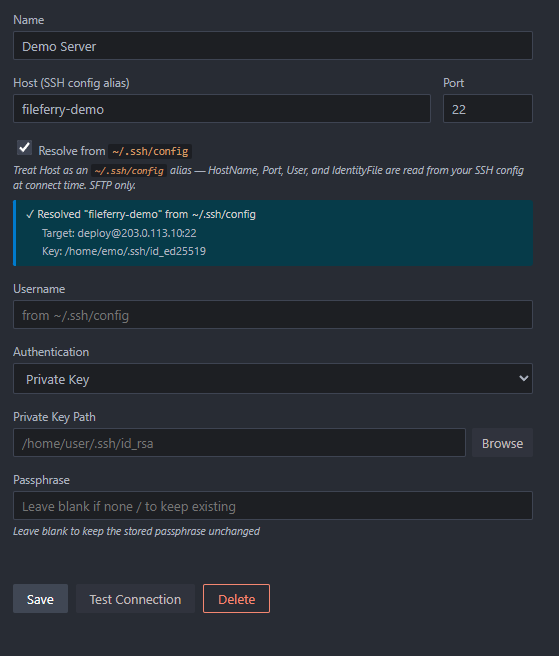
Every SSH connection verifies the host key: the first connection to a server shows its fingerprint and prompts for trust (TOFU), and if a previously-trusted key changes, FileFerry refuses to connect until you accept the new one. Background triggers (upload on save, the watcher) never prompt; they fail fast with a warning instead.
.vscode/fileferry.json stores server references and path mappings, but no secrets. It is safe to commit.
{
  "defaultServerId": "a1b2c3d4-...",
  "servers": {
    "a1b2c3d4-...": {
      "mappings": [
        { "localPath": "/", "remotePath": "html" }
      ],
      "excludedPaths": ["node_modules", "*.log", ".env"]
    }
  }
}
This file is created and managed by FileFerry; you do not need to edit it manually.
Upload history
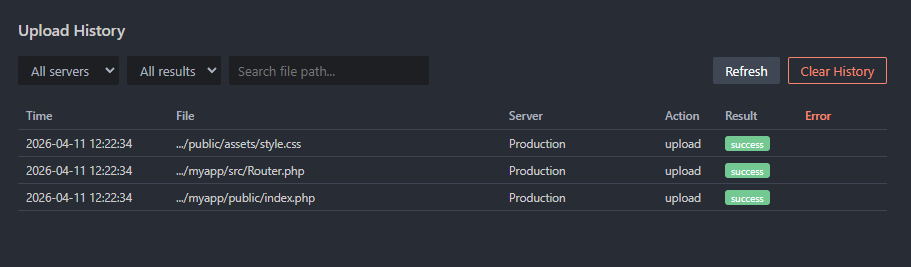
Every deploy is logged. Each entry records how it was triggered (Manual, On Save, Multi-Server, Watch, Sync, Remote Edit, Remote Create, Remote Duplicate, or Remote Upload), shown in a Source column. Filter by server, result, source, or file path.
Status bar
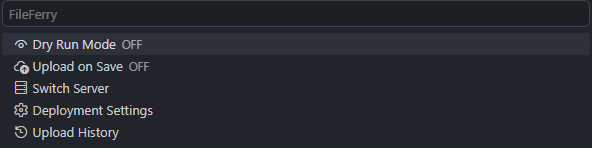
The active server is always visible. Click to switch servers, toggle upload on save, enable dry run, sync the whole tree to the remote, or open upload history.

Quick Start
- Install FileFerry from the marketplace
- Open
Ctrl+Shift+P → FileFerry: Deployment Settings
- Add a credential: click Manage... next to the credential dropdown
- Add a server and configure path mappings
- Open the FileFerry sidebar → Changed Files, select changed files, press
Alt+U (or right-click changed files in the Source Control panel → FileFerry: Upload)
Keyboard Shortcuts
| Key |
Where |
Action |
Alt+U |
Active editor |
Upload the file in the editor |
Alt+U |
FileFerry → Changed Files view |
Upload the rows you have selected |
Alt+P |
Active editor |
Compare current file with remote |
Shift+Alt+U |
Active editor |
Upload to multiple servers |
Ctrl+Alt+U |
Anywhere |
Upload all changed files |
Configurable via Preferences → Keyboard Shortcuts → search fileferry.
Troubleshooting
"No project binding found": Open Deployment Settings and configure a server for this project.
"Default server not found": The server in .vscode/fileferry.json no longer exists. Open Deployment Settings and save again.
"Authentication failed": Open Credentials Manager, edit the credential, and re-enter the password.
Upload goes to the wrong path: Check path mappings. The most specific (longest) matching local path wins.
SSH key not working: Permissions must be 600: chmod 600 ~/.ssh/id_rsa.
Keychain not working on Linux: Install libsecret: sudo apt install libsecret-1-0.
FileFerry can overwrite or delete remote files. Always verify your configuration before deploying to a production server.
Cursor, VSCodium, and other VS Code forks
FileFerry is published to Open VSX as well as the VS Code Marketplace, so editors that cannot use the Microsoft Marketplace can install it. In Cursor, open the editor window (the IDE button at the top right of the agent window), press Ctrl+Shift+X, and search for FileFerry. If Cursor offers an older version than the one listed on Open VSX, its mirror has not caught up yet: try again in a minute, or download the latest .vsix from the Open VSX page and use Extensions: Install from VSIX. The original vscode-sftp is not available on Open VSX at all, and its most popular fork has not been updated there since 2023.
Requirements
- VS Code 1.85 or later
- An SFTP or FTP-capable remote server
- For private key auth: an SSH key pair (
ssh-keygen)
- For SSH agent auth:
ssh-agent running with your key added (ssh-add)
- On Linux:
libsecret for OS keychain support
Changelog
See CHANGELOG.md for release notes.
License
MIT, see LICENSE
Releases up to and including v0.12.0 were published under GPL-3.0-or-later
and remain available under that license.

