ECIT Lakehouse Studio
A VS Code extension for developing Microsoft Fabric notebooks and exploring Fabric lakehouses. All code execution runs on Fabric via the Livy Sessions API — no local Spark engine required.
Note: This extension was originally built as internal tooling at ECIT and is now available for broader use. While it has been used in production internally, it has not yet been widely tested outside our environments. Issues are quickly resolved in frequent updates — feedback and bug reports are welcome.
Features
- Lakehouse Explorer — Browse schemas, tables, columns, and files. Create schemas and delete tables directly from the tree view
- Livy Spark Execution — Run notebooks and SQL on Fabric directly from VS Code
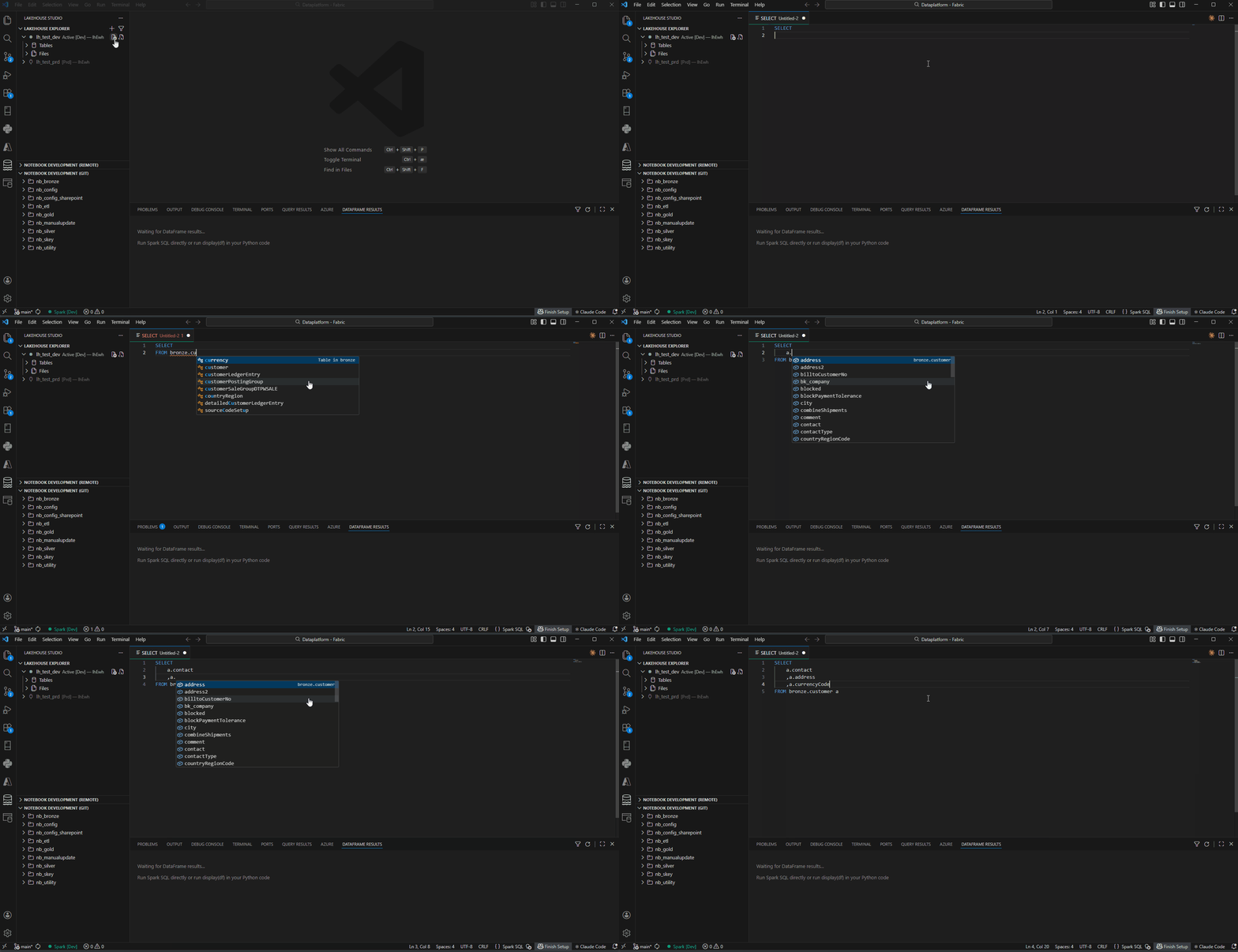
- SQL Intellisense — Auto-completion for table/column names in
spark.sql() and .sparksql files, with cross-lakehouse support for 3-part naming (lakehouse.schema.table)
- Generate Script — Right-click a table → Generate script... → INSERT INTO / UPDATE / MERGE INTO. Opens a new
.sparksql tab prefilled with the right syntax and column list. Audit columns (e.g. ewhTimestamp) auto-excluded via the lakehouseStudio.scriptGenerationExcludeColumns setting
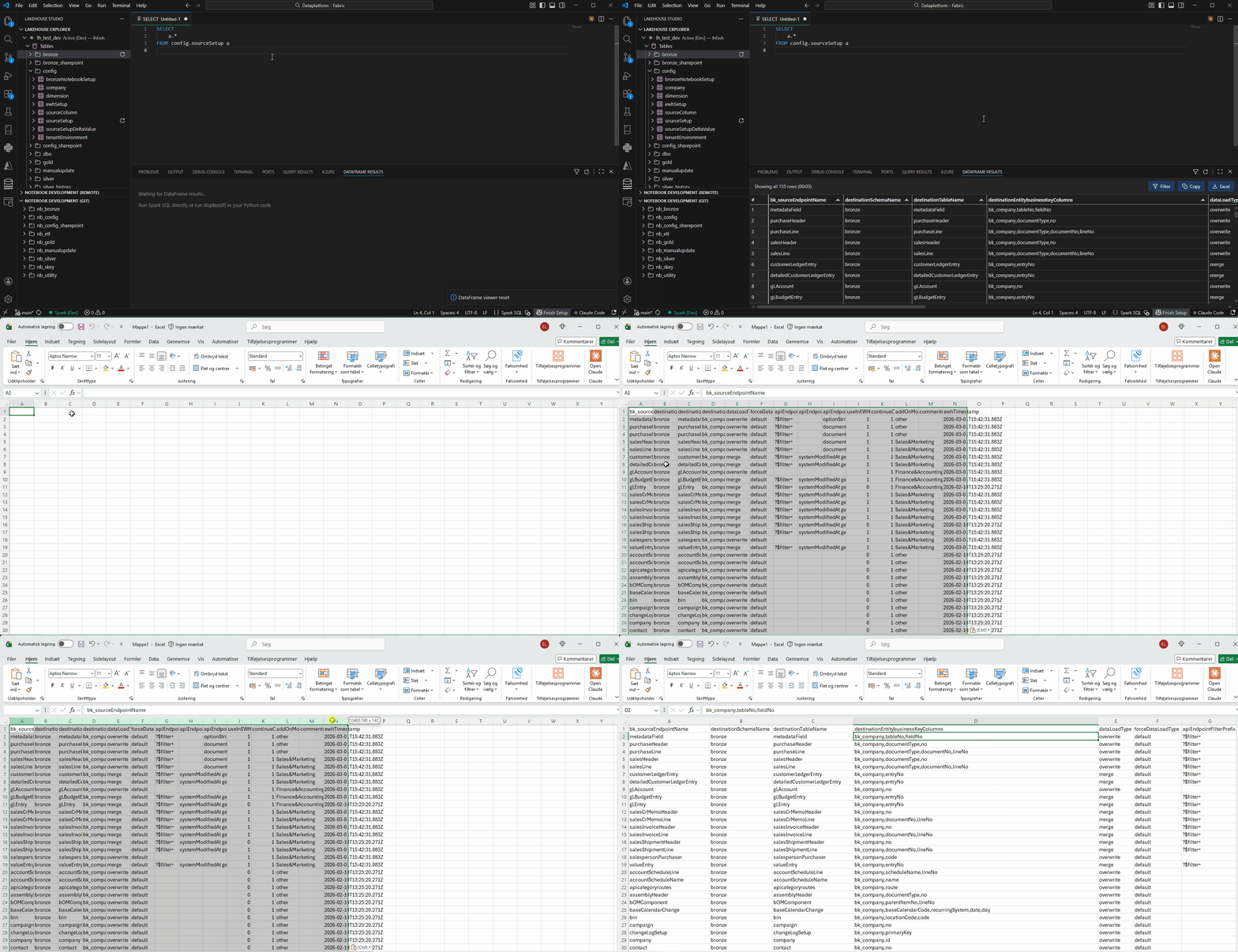
- DataFrame Viewer — View query results in a grid panel with Filter, Copy, and Excel export
- Notebook Development — Native Fabric
.py notebook files serialize as real VS Code notebooks with cells, syntax highlighting, and remote execution — no conversion needed
- Fabric Compatibility — Supports
%run, %pip install, notebookutils.notebook.run(), and notebookutils.notebook.runMultiple() via Livy
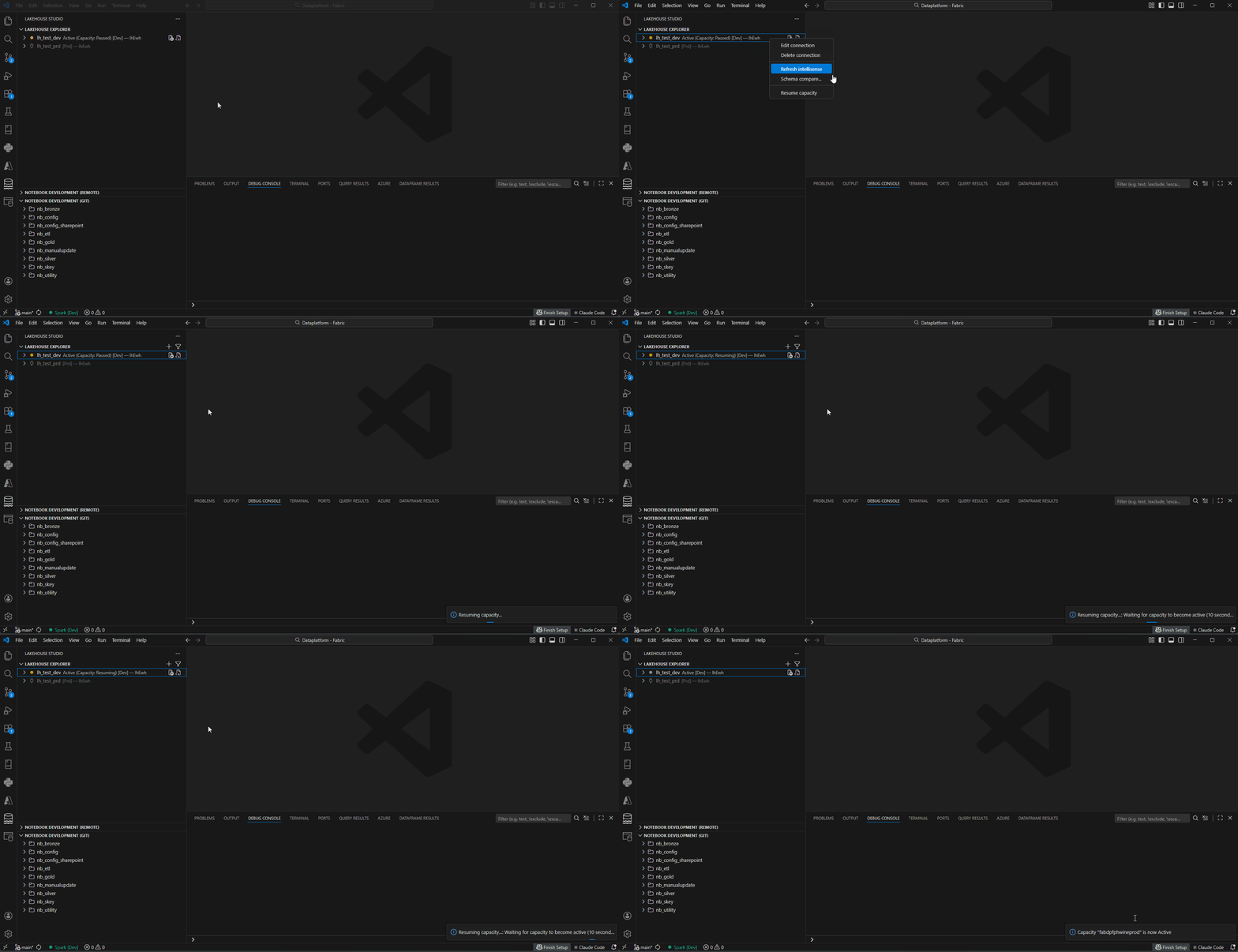
- Capacity Management — Monitor, resume, and pause Fabric capacity from the explorer
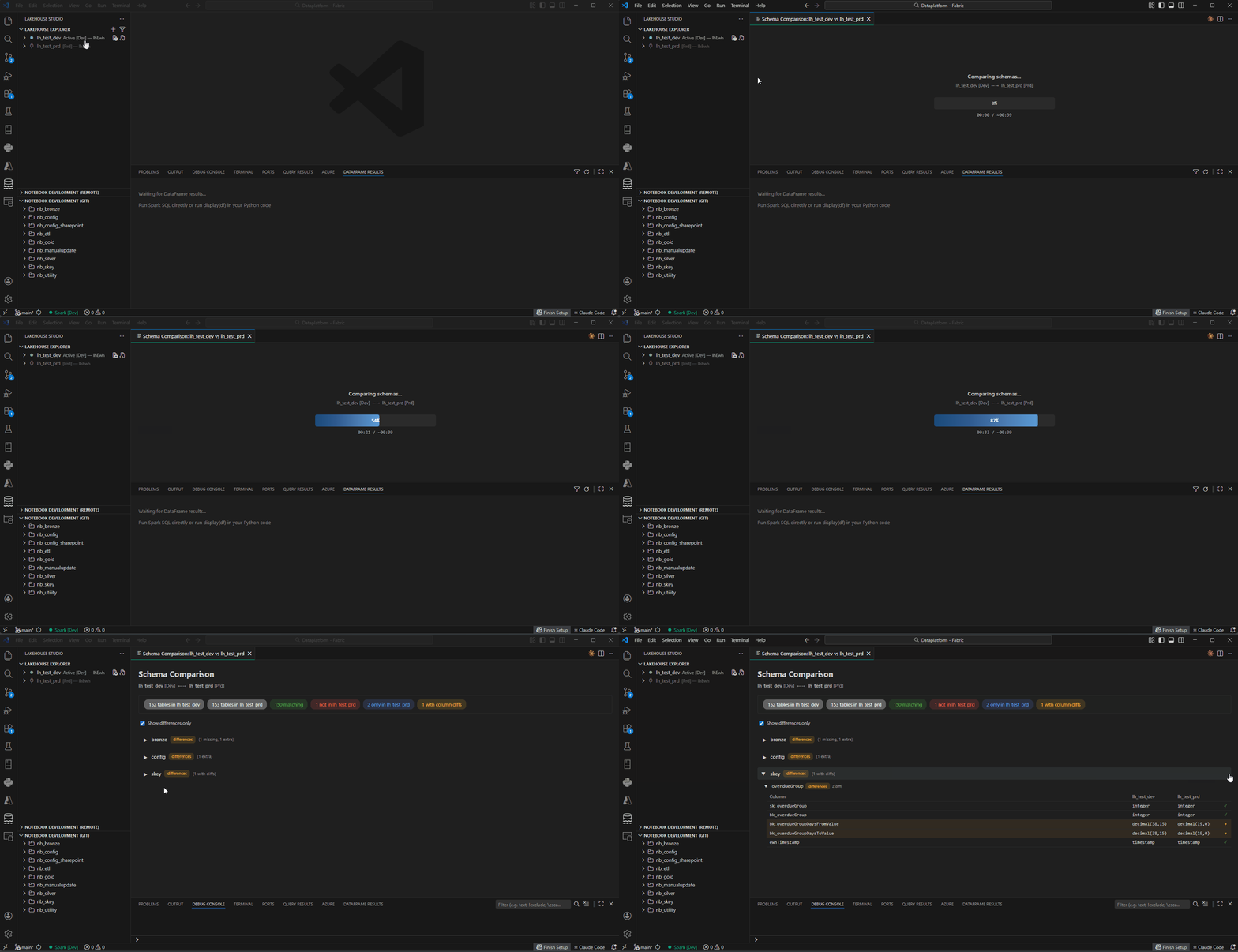
- Schema Compare — Compare schemas between two lakehouse connections (no Spark needed)
- Files Browser — Browse, upload, download, rename, and delete files in OneLake
- Multi-Connection — Run DEV and PRD sessions simultaneously with isolated connections
- Spark (Local mode) — Run notebooks and
.sparksql tabs on the native Aileron engine on your own machine: reads and writes OneLake directly under the active connection's identity, with no Spark session and no cluster to wait for. Set it up once with Lakehouse Studio: Setup local Spark. Remote Fabric Spark via the Livy API stays available for anything Aileron doesn't support
- Git-Synced Workflow — Works with a git-synced Fabric workspace
- Authentication — Azure CLI / Interactive or Service Principal with secrets stored securely in VS Code
- AI-Assisted Development — Work with Claude Code, GitHub Copilot, or any VS Code AI tool directly alongside your Fabric notebooks — something not possible in the Fabric portal
Feature Demos
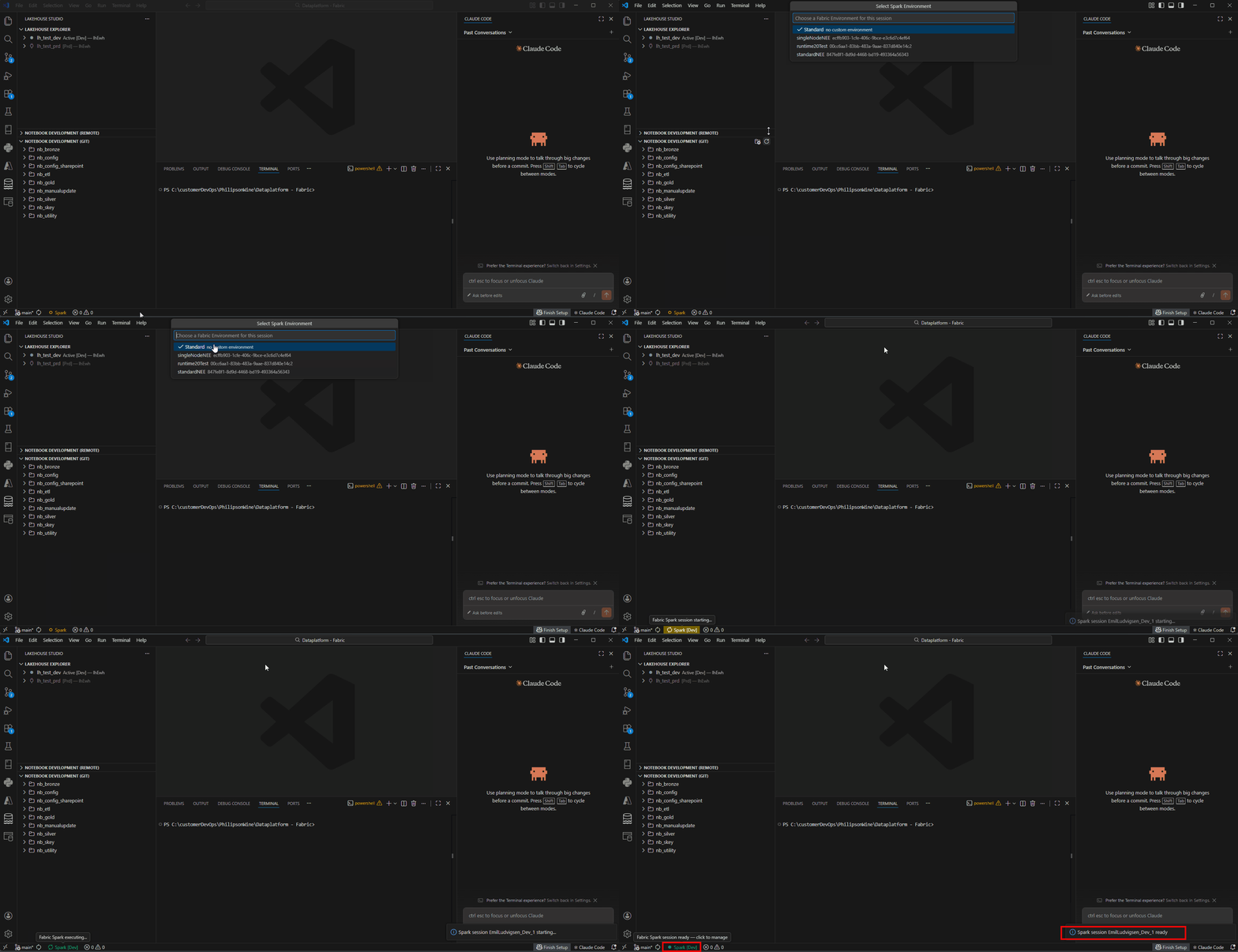
Remote Spark (Livy session) — Select between environments
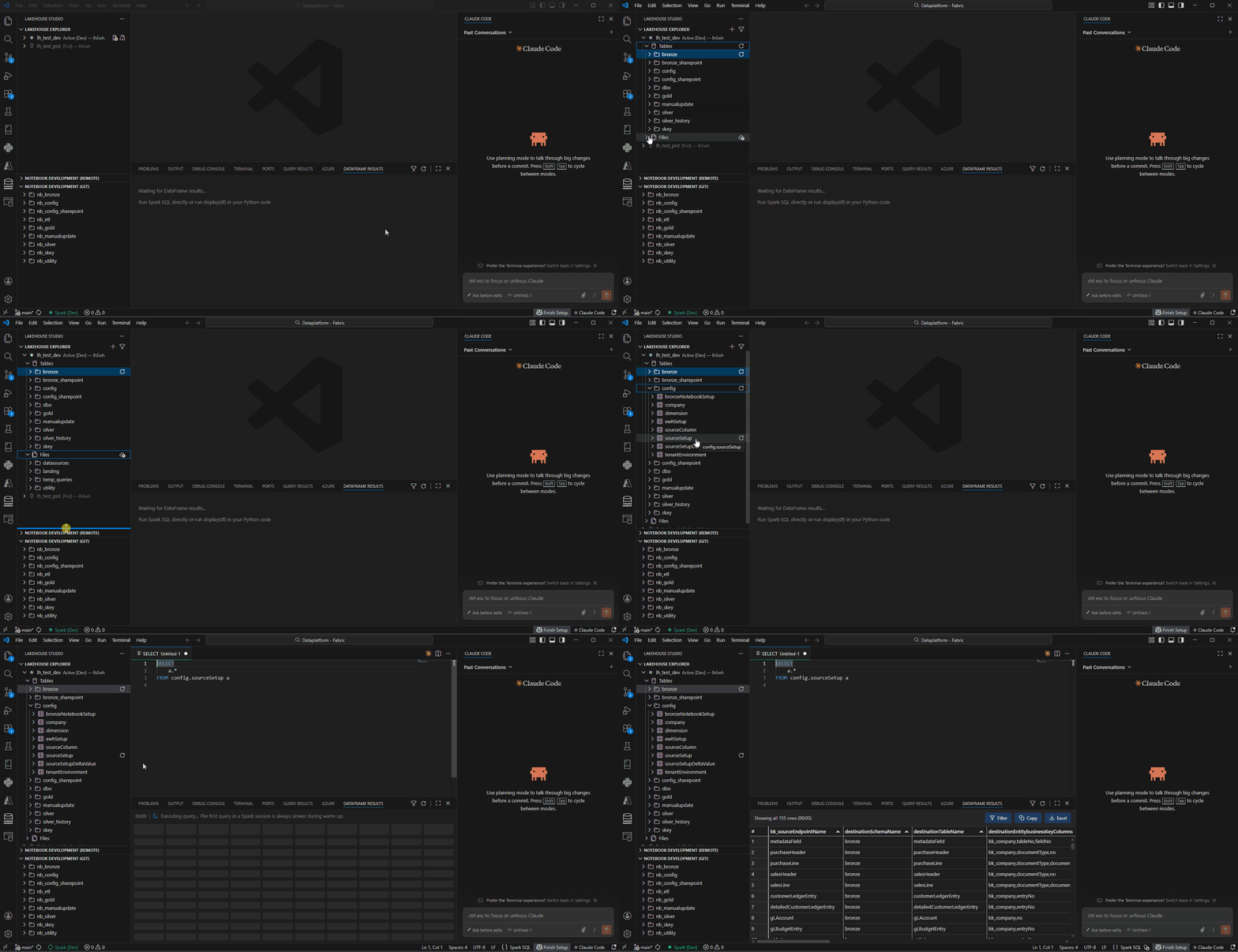
Lakehouse Explorer — Browse schemas, tables, columns, and files
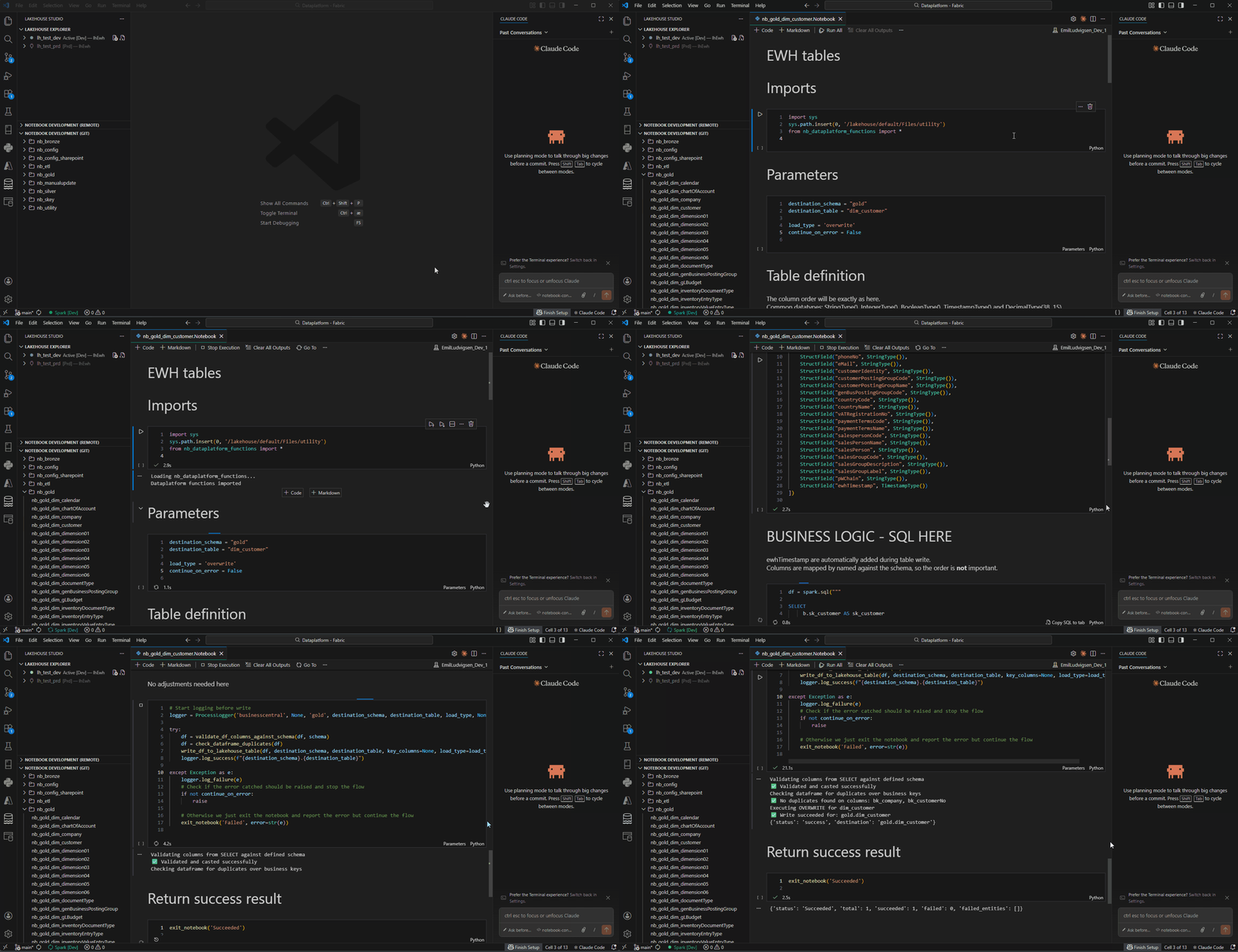
Edit and Execute Notebooks — Native Fabric notebooks with remote Spark execution
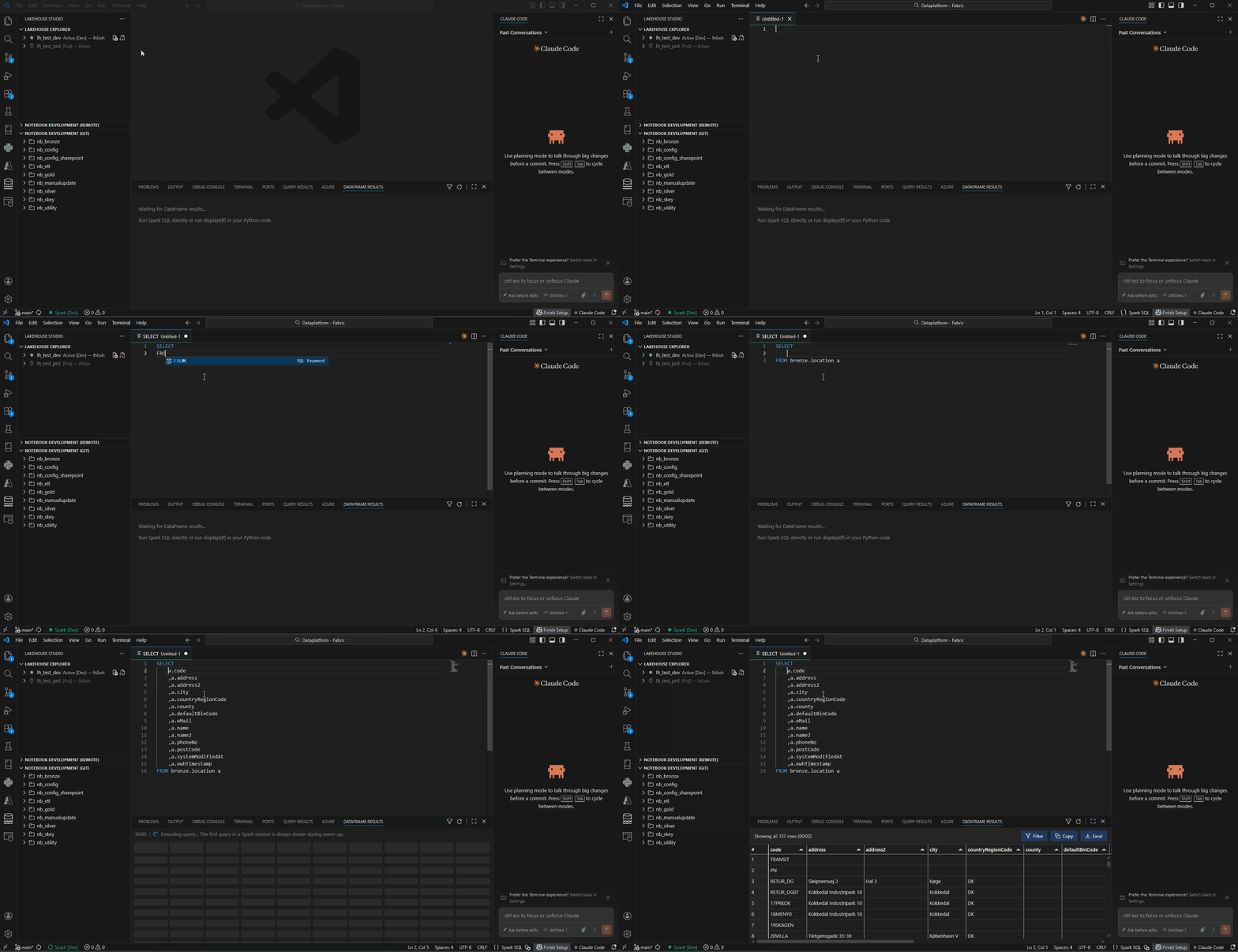
Spark SQL Files — Standalone .sparksql with intellisense and F5 execution
DataFrame Viewer — Query results with Filter, Copy, and Excel export
SQL Intellisense — Auto-completion for tables, columns, and functions
Schema Compare — Compare schemas between two connections
Capacity Management — Monitor, resume, and pause Fabric capacity
Quick Start
- Install the extension from the VS Code marketplace
- Prerequisites — install Python, Python packages, and Azure CLI (see Requirements below)
- Open a folder containing Fabric
.Notebook files (or any workspace)
- Add a connection — click the "+" in the Lakehouse Studio sidebar
- Start a Spark session — click "Spark" in the status bar (lower left)
- Build intellisense — expand the Tables section in the Lakehouse Explorer to initiate schema sync
- Run queries — press
F5 in a .sparksql file or Ctrl+Enter in a notebook cell
- Recommended settings — see Recommended VS Code Settings for the best experience
Requirements
| Requirement |
Notes |
| Python 3.11+ |
For Pylance intellisense (not for execution) |
| Azure CLI |
Required for interactive authentication (az login) |
Install Azure CLI (if not already installed):
winget install -e --id Microsoft.AzureCLI
Python packages (for intellisense only, not execution):
python -m pip install pyspark==3.5.1 requests pytz pandas openpyxl
Authentication
Two authentication methods are supported. In both cases, the user or service principal must have at least Contributor role on the Fabric workspace(s) used in the connection.
Azure CLI / Interactive (recommended)
Uses DefaultAzureCredential from @azure/identity, which tries Azure CLI, environment variables, and managed identity in order. Best for individual developers.
- Run
az login in your terminal
- When adding a connection, select "Azure CLI / Interactive"
- Only Workspace ID and Lakehouse ID are required
Tip: If the interactive login popup doesn't appear or gets stuck, run az login manually in the VS Code Terminal, then switch back to the DataFrame Results pane.
Service Principal
Uses ClientSecretCredential for automated scenarios or shared team environments.
- Create an App Registration in Azure Entra ID
- Grant it Contributor access to the Fabric workspace
- When adding a connection, select "Service Principal" and enter Tenant ID, Client ID, and Client Secret
The client secret is stored securely in VS Code's secret storage.
Connection Setup
Click Add Connection in the Lakehouse Studio sidebar:
| Field |
Required |
Description |
| Connection Name |
Yes |
Friendly name (e.g., my-lakehouse-dev) |
| Environment |
Yes |
Dev or Prd (auto-detected from name) |
| Workspace ID |
Yes |
GUID from Fabric portal URL |
| Lakehouse ID |
Yes |
GUID from Fabric portal URL |
| Auth Method |
Yes |
Azure CLI / Interactive or Service Principal |
| Tenant ID |
SP only |
Azure tenant GUID |
| Client ID |
SP only |
App registration GUID |
| Client Secret |
SP only |
App registration secret |
| Key Vault Name |
Optional |
Populate fields from Azure Key Vault |
| Capacity fields |
Optional |
Enable resume/pause from the explorer |
| Environment Variables |
Optional |
Key-value pairs injected as os.environ in Livy sessions |
Workspace Structure
The extension creates a local_development/ folder in your workspace root (add it to .gitignore):
your-repo/
├── local_development/                    # Auto-created, git-ignored
│   ├── active_connection.json
│   ├── workspace_imports/                # Auto-generated Python modules
│   └── connections/
│       └── {uuid}/
│           └── schema_reference.json     # Table/column metadata
├── *.Notebook/                           # Fabric notebook folders
│   └── notebook-content.py
└── utility/                              # Shared Python modules (optional)
The extension auto-discovers .Notebook folders anywhere in your workspace. Override with the lakehouseStudio.notebookSearchPath setting.
Key Commands
| Command |
Keybinding |
Description |
| New Spark SQL Query |
Ctrl+N |
Open new .sparksql tab |
| Execute Spark SQL |
F5 |
Execute .sparksql file |
| Run Selection |
Shift+Enter |
Execute selected Python code |
| Run Cell |
Ctrl+Enter |
Execute current cell |
| Preview Table |
Ctrl+3 |
Preview table under cursor |
| Toggle Spark Session |
Status bar |
Start, stop, or switch sessions |
Spark SQL Files (.sparksql)
Standalone SQL files with SSMS-like experience:
- Syntax highlighting for Spark SQL
- Intellisense for tables, columns, and functions
- Press
F5 to execute and see results in DataFrame Viewer
- Multiple statements separated by semicolons (
;)
SQL Cells in Notebooks (%%sql)
Write SQL directly in notebook cells:
%%sql
SELECT
    a.customer_id
    , a.name
FROM bronze.customer a
WHERE a.active = true
Type %%sql on the first line → full SQL highlighting and intellisense.
DataFrame Viewer
Two result modes controlled by the "All Rows" toggle:
- Fast mode (default) — JSON via Livy stdout, capped at 500 rows
- Full mode — Parquet via OneLake, up to 100K rows with true row count
Results are cached per .sparksql tab for instant switching.
Settings
| Setting |
Default |
Description |
lakehouseStudio.livyStatementTimeout |
30 |
Livy statement timeout (minutes) |
lakehouseStudio.notebookSearchPath |
"" |
Notebook search path (empty = auto-discover) |
lakehouseStudio.notebookWarnings |
false |
Show destination/schema/key column warnings |
lakehouseStudio.autoSwitchToDevOnStartup |
true |
Auto-switch away from production on startup |
lakehouseStudio.utilityModulesPath |
utility |
Path for shared Python utility modules |
lakehouseStudio.scriptGenerationExcludeColumns |
["ewhTimestamp"] |
Columns omitted from generated INSERT / UPDATE / MERGE scripts (case-insensitive). Typical use: hide audit columns populated by the load process |
Recommended VS Code Settings — For the best experience with notebooks and SQL
Add or adjust these in your settings.json (Ctrl+Shift+P → "Preferences: Open User Settings (JSON)"):
{
  "editor.autoIndent": "keep",
  "workbench.editor.enablePreview": false,
  "python.analysis.autoIndent": false,
  "editor.autoIndentOnPaste": false
}
| Setting |
Why |
editor.autoIndent: keep |
Line breaks maintain indentation level (SSMS-like behavior) |
workbench.editor.enablePreview: false |
Each file opens in its own tab instead of reusing a preview tab |
python.analysis.autoIndent: false |
Prevents Pylance from overriding indentation on new lines |
editor.autoIndentOnPaste: false |
Pasted code keeps its original indentation |
Capacity Management
Configure capacity fields (Subscription ID, Capacity Name, Resource Group) on a connection to enable:
- Status indicator — green (Active), orange (Paused/Resuming)
- Resume/Pause — right-click the connection in the explorer
Required permissions: The user (interactive) or service principal must have Contributor role on the Fabric capacity resource in Azure (not the Fabric workspace — the Azure resource Microsoft.Fabric/capacities).
Changelog
2.1.5
- The local kernel no longer starts itself behind your back: with a Livy session running, opening a notebook could have VS Code auto-select (or restore) the Spark (Local mode) kernel, and our selection handler booted the local kernel as a side effect — so two engines ended up running when you had asked for one. Notebook
Preferred is now revoked from the local controller while a Livy session is up, and warming up on selection is skipped when a selection looks like VS Code restoring a remembered binding (arriving within 5s of the notebook opening) rather than a pick you just made. The heuristic's failure modes are both harmless — one warm-up we didn't need, or one cold start on a cell that could have been warm — since running a cell always calls ensureReady first
- Engine picker: three-way, and visible whenever there is a choice: the
.sparksql status-bar engine item now opens a quick pick over Spark SQL (Livy API) · Spark SQL (Local mode) · T-SQL endpoint instead of flipping between two. It is shown based on availability rather than on both kernels being green: Livy when a session is running, Local mode whenever the engine is installed (picking it is how you ask for it — F5 starts it lazily, exactly as Spark starts a session at execution time), T-SQL whenever the active connection has an endpoint. The old rule hid the item in the now-common case where only one kernel is actually up, and T-SQL had been unreachable from it since the local engine arrived
- A manual engine choice now survives kernel state churn: the pin set by the picker was cleared on any kernel state change — harmless while the picker only offered the two kernels, but it silently reverted a T-SQL choice the moment a Livy session went idle→busy→idle mid-query. The pin now holds as long as the engine it named is still on offer
- Files touched:
src/aileronController.ts, src/extension.ts, package.json, README.md, CLAUDE.md
2.1.4
- Local mode replaces the External VM, and is now the default engine: the native engine that shipped opt-in on an Azure dev VM in v2.1.0 now runs on your own machine — a loopback Jupyter server started by the extension, reading OneLake directly under the active connection's identity. No VM, no SSH tunnel, nothing to provision. The VM's entire measured advantage was ~2s on the first touch of each table (a Delta-log + token cost that amortizes) against 30+ per-customer machines to provision, grant Managed Identity, patch and keep on a matching engine build — and the laptop is the faster machine (16 physical cores vs 4). Removed:
sshTunnel.ts, vmManager.ts, devVmConfig.ts, the Start/Stop VM commands, the SSH memory poller and the externalVm* context keys. A customer who mandates that data stay in-region uses Livy (remote Fabric Spark), which needs no infrastructure of ours
Lakehouse Studio: Setup local Spark (palette): builds the kernel environment once per machine — a venv at %LOCALAPPDATA%\EcitLakehouseStudio\venv, deliberately outside every repo so one environment serves all customers — then installs the engine, the bundled platform baseline, and this workspace's optional setup/kernel-requirements.txt overlay, and verifies by importing what the kernel actually imports rather than trusting pip's exit code- The engine ships separately from the extension: downloaded from a private feed with your own Azure sign-in and SHA-256-verified before install, with a once-a-day check that offers Update engine when a newer build is published. New machine-scoped settings:
aileron.wheelFeed, aileron.wheelTenantId, aileron.wheelSource (a local wheel for engine development — deliberately wins over the feed), aileron.pythonPath
- Engine naming: every user-facing label now reads Spark (Local mode) (status bar, kernel picker, engine toggle, results footer) or "the local engine" — the internal component name no longer appears in any notification, tooltip, progress title or error, so nobody has to learn it to read a message in front of a customer. All labels route through one helper, since these names previously lived in ~20 literals across four files and every one was wrong the day the name changed. Setting keys, the controller id, output-channel names and log lines keep the real name on purpose (renaming keys would orphan configured values, and support conversations need the unambiguous name)
- Lost query results now fail loud instead of rendering as "0 rows" — the most serious bug fixed in this release.
jupyter_server rate-limits kernel output and drops (not truncates) any message over budget, so a ~2.6 MB result worked while a ~2.7 MB one returned nothing and the grid showed "Showing all 0 rows" — indistinguishable from an empty table. The limit is now disabled at server startup (our payloads are bounded by construction via the 1000-row display cap), and on top of that a missing or unparseable result payload is reported as an explicit error — in the local SQL path, the notebook cell renderer, and the Livy notebook path — instead of empty rows or a grid still holding the previous query's data
- Local writes are attributed to the connection's identity everywhere: the
.sparksql tab and tree-view paths never passed the connection to the engine's connect call, so they silently fell back to your personal az login — a service-principal connection's writes were committed as the consultant instead of the SP, and an SP-only lakehouse failed on those paths while notebooks worked. All three entry points now follow the connection
- Python environment hygiene for every interpreter we spawn:
PYTHONUTF8=1, because an unqualified open() defaulted to UTF-8 on the Linux VM and on Fabric but to cp1252 on a Danish Windows laptop — æøå files would mojibake or raise UnicodeDecodeError in extracts that "worked yesterday"; and inherited PYTHONPATH/PYTHONHOME are dropped, since an Anaconda value is prepended to the venv's sys.path and the kernel then imports a foreign pyarrow and dies with "DLL load failed"
- Setup robustness: the
py launcher's -3 selector now travels with every invocation (without it py.ini/PY_PYTHON silently picks the wrong Python); a configured interpreter path that neither exists nor looks like a venv is no longer "repaired" in place (two blind dirnames on C:\Python312\python.exe derived C:\, and setup would then build a venv into the drive root); a missing bundled requirements file now fails at that actual cause instead of marching on to a misleading "cannot import pandas"; and a failed download shows its message modally with an explicit "Pick a wheel file…" rather than dropping you into a silent file dialog
- Engine-download errors say what to do: a sign-in that exists only in the customer tenant is named as such (with the guest-account fix) instead of an unreadable
AggregateAuthenticationError; a missing Azure CLI, corporate TLS inspection (NODE_EXTRA_CA_CERTS) and a black-holed proxy each get their own message; whole-request timeouts (60s for the manifest, 10 min for the ~50 MB engine) stop a hung download from freezing the progress notification; and the 403/404 message now lists storage-firewall IP allow-listing as a third cause that looks identical to the other two
- No automatic
git pull at startup: a silent pull on activation could hang on a credential prompt, and pulling is the user's call. The long-inactivity notification now offers a plain Reload (was "Pull & Reload")
- No first-run setup prompt: local mode is rolled out person-to-person, so activation stays silent — the pointer to
Setup local Spark appears when someone actually tries to start the local kernel without an engine installed
- Quieter local-kernel status bar: the item stays hidden until the engine is actually installed (so a colleague is never offered a kernel that cannot start), and its colours are deliberately subdued — Livy is the production engine and should be the item that draws the eye. Cold start narrates its phase; a start failure offers Setup local Spark / Retry. Machine memory is read from Node instead of polled over SSH
- No kernel memory-pool overrides: the previous
greedy pool at 0.7 was sized for the VM's 58 GiB cgroup backstop. A laptop has no such backstop — it pages — so we now inherit the engine's own conservative default
- Packaging hygiene:
.claude/, CLAUDE.md, __pycache__, *.pyc and stray *.vsix files are excluded from the published extension; pyarrow and tzdata are now declared explicitly in the kernel baseline (both arrive transitively today, the verify step imports both, and tzdata is the timezone database Windows does not ship)
- Fixed: the palette entry for the local kernel still read "Aileron kernel: start / stop / restart" — it now matches the rest of the UI
- Files touched:
src/aileronKernelManager.ts (renamed from vmKernelManager.ts), src/aileronKernelConfig.ts (new), src/localKernelServer.ts (new), src/kernelTransport.ts (new), src/setupLocalSpark.ts (new), src/engineFeed.ts (new), src/aileronController.ts, src/extension.ts, src/fabpyNotebookController.ts, src/jupyterWsClient.ts, src/notebookQueueManager.ts, src/notebookSequenceRunner.ts, src/dataFrameViewerProvider.ts, src/sparkSessionManager.ts, src/sparkSqlCodeLensProvider.ts, python/kernel-requirements.txt, .vscodeignore, package.json, README.md, CLAUDE.md; removed src/sshTunnel.ts, src/vmManager.ts, src/devVmConfig.ts, UX_IMPROVEMENTS_PLAN.md
2.1.3
- Grid range selection (SSMS-style): drag a rectangular cell range in the results grid — Shift+click / Shift+arrows to extend, Ctrl+arrows to jump to data edges, click/drag the
# gutter to select whole rows — and Ctrl+C copies the range with column headers (with the familiar green flash). Required upgrading the bundled Tabulator 5.5.0 → 6.3.1; single- and multi-result grids share the range options/CSS so they can't drift
- Restore table to version…: right-click a table → pick a version from its Delta history (newest first, current version marked) → one confirm modal (with an extra PRODUCTION warning line on PRD connections) →
RESTORE TABLE … TO VERSION AS OF n via Livy. On success the table row and intellisense refresh, since a restore can change the schema. Spark/Livy-only — requires a running Spark session; a restore writes a new commit so it's undoable by restoring again
- Ctrl+3 previews temp views: Preview Table now also works on bare temp-view names — a dot-less identifier previews via
SELECT * FROM <view> in the live Spark/Aileron session (T-SQL tabs fall back to Spark, since the SQL endpoint has no temp views)
- Aileron cold start narrated: the first VM query of the day now shows where in the boot it is (Waiting for SSH → Starting Aileron kernel → Connecting to Aileron) in the progress toast, results panel, and status bar — with a "first query of the day, ~40s" heads-up when the VM isn't running yet. If the kernel doesn't come up, the error offers Start VM / Retry buttons instead of a bare message
- Aileron per-query cache metrics: the engine's metrics envelope (total/planning/execute ms + per-table cache source: resident/refresh/fill_pending/remote) is captured per query, logged in the "External VM Kernel" output channel's PERF line, and attached to the result. The kernel memory pool fraction was lowered 0.8 → 0.7 to leave headroom for the engine's resident table cache
- Results footer badge: Aileron results now read "via Spark (Local VM)" (matching the v2.1.1 engine rename; was "via Aileron")
- Clearer mid-run session death (Livy): if the Fabric Spark session dies mid-statement (404 on the poll), the extension tears the session down and reports "Fabric Spark session ended during execution…" instead of a raw polling error; statement errors are headline-first (
ename: evalue on line 1, traceback below)
- Cleanup round: removed the long-deprecated
autoLoadModules setting, dead HC-era code and stale comments, and unused dependencies (uuid, hyparquet, @azure/storage-blob); the duplicated table/column diagnostic logic in the Python and .sparksql providers was consolidated into shared sqlParser.ts helpers
- Files touched:
src/dataFrameViewerProvider.ts, src/extension.ts, src/vmKernelManager.ts, src/sqlParser.ts, src/sqlDiagnosticProvider.ts, src/sparkSqlDiagnosticProvider.ts, src/sparkSqlCompletionProvider.ts, src/sqlSchemaRegistry.ts, src/lakehouseProvider.ts, src/abfssClient.ts, src/utils.ts, src/fabpyNotebookController.ts, src/schemaComparisonProvider.ts, src/sparkSessionManager.ts, resources/vendor/* (Tabulator 6.3.1), package.json, README.md, CLAUDE.md
2.1.2
- Faster runMultiple progress grid (Livy): streaming statement polling now runs at 1s (was 2s) and the first poll fires 0.5s after submit (was 2s), so the
notebook.run / runMultiple progress grid refreshes roughly twice as fast and the first grid appears ~1.5s sooner. The Python-side emit throttle (~1.5s) is unchanged, so the large-DAG stdout-flood protection from v2.0.0 is untouched
- Queue counter recalculates on mid-run enqueue: queuing another notebook from the tree Play button while a run is in progress now grows the overall cell total immediately (e.g.
2/6 → 2/12) instead of waiting until that notebook starts. Cell counts are computed at enqueue with the same parser the runner uses, and reconciled at start if the notebook file changed in between
- Files touched:
src/sparkSessionManager.ts, src/notebookQueueManager.ts, src/notebookSequenceRunner.ts, src/dataFrameViewerProvider.ts, python/notebookutils_shim.py (comment only), package.json, README.md, CLAUDE.md
2.1.1
- Engine rename (UI-only): the two engine status-bar items now read Spark (Livy API) and Spark (Local VM) (the underlying engine is still Aileron), with the env/memory suffix in a trailing paren —
Spark (Livy API) (DEV), Spark (Local VM) (3.2 / 64 GB). The .sparksql engine toggle shows Spark SQL (Livy API) / Spark SQL (Local VM). Internal ids, context keys, output channels, and Python error names keep the real "Aileron" name
- Aileron cancel that actually cancels: Escape (on a
.sparksql tab) and the notebook Stop button now interrupt (SIGINT), wait a 1.5s grace so pure-Python work cancels cheaply and keeps its session state, then hard-restart the kernel when a query is still running — aileron's native layer ignores SIGINT mid-query, so a cancel previously hung 30–60s. The restart reuses the live SSH tunnel (~2–4s, no cold start); the killed query renders "Cancelled", and a hard cancel warns that temp views/variables were cleared
- Engine-aware tree Run / queue: the notebook-tree Play button (and its queue) now run on the active engine instead of Livy only — Spark wins when both engines are green (a manual engine-toggle pin is honored); otherwise whichever is running.
notebook.run / runMultiple notebooks stay blocked from the tree on both engines (run those from the editor)
- Transactional DML result grid (both engines): UPDATE / MERGE / DELETE now render in the normal result grid —
operation | rows_affected for a single write (Spark MERGE adds its updated/deleted/inserted breakdown), or one row per statement for an all-write batch — instead of the centered checkmark. Spark now captures Delta's metrics DataFrame it previously discarded; T-SQL is read-only and unaffected
- Fresh column metadata: expanding a table or schema in the Lakehouse Explorer now revalidates it in the background against the OneLake Unity Catalog API (on-demand, 60s throttle, offline-safe) so a column/table added elsewhere appears without a manual refresh; "SELECT top 1000 rows" on Spark/Aileron fetches live columns (with a status-bar spinner) like the T-SQL preview already did. Credential instances are cached per auth identity so these calls stay sub-second
- Snappier result grid: the results panel keeps its per-tab grids alive when hidden (
retainContextWhenHidden), and tab switches now activate the cached pane without re-shipping row data — switching between many result tabs is instant. Each tab shows its own execution duration in the footer
- Honest execution feedback: the indeterminate "Executing…" spinner is now a live
Phase · mm:ss timer; the Livy path reports Submitting → Queued → Running
- Grid libraries bundled locally: Tabulator and SheetJS now ship in the extension (
resources/vendor/) instead of loading from a CDN, so the grid and Excel export work offline / behind corporate proxies; multi-result grids are virtualized
- Files touched:
src/vmKernelManager.ts, src/aileronController.ts, src/notebookQueueManager.ts, src/notebookSequenceRunner.ts, src/dataFrameViewerProvider.ts, src/lakehouseProvider.ts, src/authProvider.ts, src/connectionManager.ts, src/sparkSessionManager.ts, src/extension.ts, resources/vendor/* (new), package.json, README.md, CLAUDE.md
2.1.0
- External VM (Aileron) execution engine (experimental, opt-in): a third backend alongside Livy (Spark) and the SQL Endpoint (T-SQL). Notebook cells and
.sparksql tabs run on a native Aileron engine hosted on an Azure dev VM, reading OneLake directly via managed identity — no Spark cluster, no Livy session. Off by default; the feature is purely additive and the existing Spark/T-SQL paths are unchanged when it's disabled
- Opt-in per workspace: enabled by a workspace-local
setup/external_vm/dev_vm.json with { "enabled": true, "sshHost": "…" } (not bundled in the extension, so the published build ships with VM mode off). Connects over an SSH tunnel to a token-less Jupyter kernel on the VM
- Notebook "External VM" kernel: appears in VS Code's Select Kernel picker and becomes the preferred kernel for Fabric notebooks when VM mode is on. SQL cells,
%%sql, and PySpark-style code (spark.sql, df.write, from pyspark.sql import …) run unchanged via aileron's aileron.spark compatibility layer; local utility/*.py imports are inlined (the VM has no Fabric Files mount); notebook.run / runMultiple reuse the same registry + live progress grid as the Livy path
.sparksql Aileron engine: the per-tab engine toggle becomes a 3-way cycle Spark → Aileron → T-SQL; results render in the DataFrame Viewer with a "via Aileron" badge. Display is capped at 1000 rows (OOM guard — the engine materializes the whole result before the grid slices it)- Azure VM lifecycle + health: Start / Stop (deallocate) the dev VM from the connection's right-click menu; a dedicated "Aileron" status-bar item shows kernel state and whole-VM memory. The VM power state is polled (on activation, every 60s, and on window focus) so the UI stops showing the kernel as runnable after Azure deallocates the VM out-of-band
- Files touched:
src/devVmConfig.ts, src/vmKernelManager.ts, src/aileronController.ts, src/vmManager.ts, src/sshTunnel.ts, src/jupyterWsClient.ts (all new), src/extension.ts, src/dataFrameViewerProvider.ts, src/queryHistory.ts, src/sqlParser.ts, src/sparkSqlCompletionProvider.ts, src/sparkSqlCodeActionProvider.ts, src/sparkSqlCodeLensProvider.ts, python/notebookutils_shim.py, package.json, README.md, CLAUDE.md
2.0.5
- Pipeline Explorer (new GIT-mode tree view): scans the repo for
*.DataPipeline folders (mirroring the Notebook Development (Git) view) and offers exactly two actions per pipeline — Run pipeline… and Cancel pipeline. Execution is connection-aware: it resolves the pipeline's Fabric item id in the active connection's notebook workspace (getNotebookWorkspaceId) and runs there, so the same tree row runs DEV on a DEV connection and PRD on a PRD connection
- Parameter prompting from the local repo: if
pipeline-content.json declares properties.parameters, Run prompts for each value with the repo defaultValue pre-filled (e.g. "All"), coerces by declared type (int/float/bool/array/object/string), and passes them as executionData.parameters. Parameter-less pipelines run immediately
- Live execution monitor (webview): opens on Run and polls
Get pipeline job instance + Query activity runs every 4s, rendering a status grid styled like the runMultiple progress grid — columns Activity · Status · Run start (Copenhagen time) · Duration · Error. ForEach iterations collapse under one group row; Invoke-Pipeline activities expand (one level, on demand) to show the child pipeline's activities first, with raw Input/Output demoted to secondary collapsible toggles; click any activity to inspect its input/output JSON
- Honest cancel state: clicking Cancel shows "Cancelling…" and keeps polling until Fabric actually reports the terminal status (the job-level status lags after a cancel), then flips to the real "Cancelled" and freezes the elapsed timer — no more a spinner stuck on "InProgress" forever
- Elapsed/Run-start parsed as UTC: Fabric's
*Utc timestamps sometimes arrive without a Z; they're now normalized to UTC so the elapsed counter starts near 0 instead of being skewed by the local timezone offset
- Notebook Development (Remote) removed: the unused REMOTE tree view, its provider, and all
remoteNotebook.* commands/menus/welcome entries are gone
- "Connect to Azure…" renamed to "Login to Azure…": and the best-effort
az account set --subscription step was dropped from the login (capacity/ARM calls embed the subscription id in their URLs and the token is tenant-scoped, so it added latency without value); the post-login toast no longer lingers with a misleading "Refreshing…"
- Files touched:
src/pipelineProvider.ts (new), src/pipelineMonitorProvider.ts (new), src/fabricApiClient.ts, src/extension.ts, src/connectionManager.ts, src/remoteNotebookProvider.ts (deleted), package.json, README.md, CLAUDE.md
2.0.4
%pip install works from the notebook tree "Run": the tree/queue runner now converts %pip install / !pip install to a subprocess.check_call just like the in-editor controller does (Livy can't parse pip's plain-text stdout). Previously a queued/tree-run notebook sent the raw magic to Livy and failed with "unknown command". Both paths now share a single convertPipInstallMagic() helper so they can't drift- DataFrame Viewer shows the literal string
"None" instead of masking it as NULL: the viewer used to render a string-valued "None" as a grey NULL, which made WHERE col IS NULL look broken (it returned nothing) while WHERE col = 'None' worked. The value is genuinely the string "None" in Spark (it matches server-side), so the viewer now shows it verbatim; only real null/undefined render as NULL
- Spinning refresh icon while a table/Tables refresh runs: clicking Refresh on a table row now spins that row's icon (
$(sync~spin), always visible — not just on hover) until the column sync completes; the Tables-category refresh button spins too. Only the clicked table's row spins, not every table
- Cloned notebooks no longer produce a phantom per-cell METADATA diff: opening + saving a duplicated notebook used to reconstruct every cell's
# METADATA block in a canonical form, diffing against a source whose block was formatted differently. NotebookSerializer.serialize() now preserves each cell's original METADATA block verbatim (falling back to reconstruction only for genuinely new cells, guarded by a language match), so an unchanged round-trip is byte-stable
- "Connect to Azure…" command on every connection: a new right-click action runs
az login --tenant <tenantId> (pinned to the connection's tenant, falling back to plain az login when none is set) and then best-effort az account set --subscription <id> so the CLI state and DefaultAzureCredential token acquisition match the connection
- SQL Endpoint "SELECT top 1000" resolves live columns (SSMS-style): the T-SQL preview now queries
INFORMATION_SCHEMA.COLUMNS over the pooled tedious connection for the real, current column list instead of trusting the possibly-stale schema_reference.json, falling back to the cache on any error. The Spark preview is unchanged (no TDS connection)
- Files touched:
src/utils.ts, src/fabpyNotebookController.ts, src/notebookSequenceRunner.ts, src/dataFrameViewerProvider.ts, src/lakehouseProvider.ts, src/notebookSerializer.ts, src/connectionManager.ts, src/sqlEndpointExecutor.ts, src/extension.ts, package.json, README.md, CLAUDE.md
2.0.3
- Drag table/column names from the Lakehouse Explorer into the editor: dragging a table node inserts
schema.table (e.g. bronze.customer); a column node inserts the bare column name. Drops land at the mouse position in .sparksql tabs and notebook cells. Implemented via a private-MIME TreeDragAndDropController + DocumentDropEditProvider so the inserted text is exact (no text/uri-list table: prefix from the node's decoration resourceUri). Columns drop directly; dotted schema.table shows VS Code's "hold Shift to drop" hint and inserts on Shift-drop
- "+" Add Connection now bootstraps
local_development\: previously the Add-Connection command bailed out when the folder was missing — but the folder is only created on connection save, so the very first connection could never be created (chicken-and-egg). The command now only requires an open workspace folder; saveNewConnection() creates the folder as before
- Queued notebook runs inline non-
nb_ function modules: the tree Play/queue runner only inlined from <name> import * when <name> had the nb_ prefix, so a renamed from dataplatform_functions import * reached Livy raw and failed with ModuleNotFoundError. It now inlines any from <name> import * resolvable to a local utility .py / .Notebook (honoring the utilityModulesPath setting) and leaves genuine stdlib imports (e.g. from typing import *) untouched — matching the in-editor controller
- Files touched:
src/lakehouseDragController.ts (new), src/extension.ts, src/connectionManager.ts, src/notebookSequenceRunner.ts, package.json, README.md, CLAUDE.md
2.0.2
- Notebook saves no longer create phantom git diffs:
NotebookSerializer.serialize() now ends notebook-content.py with the final # META } line + a single newline (no trailing blank line), matching what Fabric's git integration writes today. Earlier versions appended an extra blank line (Fabric used to write one), which produced a one-line diff on every Fabric re-sync. Verified byte-identical round-trip on real Fabric-synced notebooks
- Spark "SELECT top 1000 rows" preview forces the Spark engine: the right-click Spark preview now sets the new
.sparksql tab's engine to Spark (mirroring the SQL-Endpoint variant), so backtick-quoted preview SQL no longer gets routed to the T-SQL endpoint when T-SQL was the last-used engine
- T-SQL
alias. column completion works with bracketed identifiers: parseTableAliases/parseAllTables now match bracketed ([schema].[table]) and backticked table references and strip the delimiters, so column completions appear immediately after typing alias. in T-SQL FROM [bronze].[table] a (previously empty until a character was typed)
- No auto-save on Run All: running all cells in a notebook no longer force-saves the file
local_development/ is created lazily: the folder is now created on first connection save (the moment we know it's Fabric work) instead of on every activation — non-Fabric repos stay clean. All readers already tolerate its absence- Files touched:
src/notebookSerializer.ts, src/extension.ts, src/sqlParser.ts, src/fabpyNotebookController.ts, src/connectionManager.ts, package.json, README.md, CLAUDE.md
2.0.1
- "SELECT top 1000" expands all columns (SSMS-style): the right-click preview commands now emit every column explicitly (one per leading-comma line, alias-prefixed) instead of
SELECT a.*, with engine-aware quoting via quoteColumnForScript — T-SQL brackets every column and the schema/table (FROM [bronze].[customer] a), bulletproof against reserved-keyword columns like [open]/[lineNo] with no keyword list to maintain; Spark backticks only names that need it. Falls back to a.* when columns aren't cached, and the cursor lands on the blank line below the statement
- T-SQL "fetch up to 100k" via the Count-all-rows toggle: for a T-SQL single SELECT, turning the DataFrame Viewer "Count all rows" toggle ON raises the fetch cap from 1,000 to
SQL_ENDPOINT_MAX_ROWS = 100000 (with the background COUNT_BIG(*) still filling the true total → Showing 100.000 of X rows). Spark and multi-statement runs stay at 1,000
- Count-all-rows toggle resets OFF on fresh starts: opening a new
.sparksql tab or running a "SELECT top 1000" preview (either engine) forces the toggle back OFF, so previews/new tabs always default to the fast capped path
- Auto-size columns button: a new first button in the DataFrame Viewer toolbar sizes every column on the active tab to its widest visible value — the same effect as double-clicking a column border, applied to all columns at once
- Auto-load utility modules is folder-only: at Spark session startup the extension always scans
lakehouseStudio.utilityModulesPath (default utility/) and loads every top-level .py (skipping __init__.py and _/. prefixes); a missing folder is a clean no-op. The legacy comma-separated lakehouseStudio.autoLoadModules setting is deprecated and ignored
- Files touched:
src/extension.ts, src/sqlParser.ts, src/dataFrameViewerProvider.ts, src/utils.ts, package.json, README.md, CLAUDE.md
2.0.0
- Connection row text reworked: the tree description now reads
workspace | lakehouse | <capacityState> (<SKU>) — e.g. ecit-dpf-store-dev | lhEwh | Active (F8), or … | Paused (F8) / … | Resizing… (F8). The [DEV]/[PRD] tag is dropped from the row (env shows via icon color + tooltip, and conventionally in the connection name); inactive rows and active rows without capacity info show just workspace | lakehouse. Friendly-name placeholder updated to E.g. "Philipson Wine [Dev]"
- "Default Lakehouse…" uses the active connection: the picker now scopes strictly to the active connection's lakehouse workspace (previously fell back to the Dev connection, which could surface another customer's lakehouses). A modal hard-stop fires when the notebook already has more than one
known_lakehouses (set those in the Fabric portal), and a modal warning fires before pointing a notebook at a production connection. The notebook's existing kernel_info is preserved, and only the top # META block is rewritten (per-cell metadata untouched)
- Special-character columns are auto-quoted, engine-aware: column names that aren't plain identifiers (contain
., -, æøå, whitespace, or a leading digit) are wrapped on intellisense insert and alias.* expansion — backticks for Spark SQL (`Art.nr`), square brackets for T-SQL ([Art.nr]). .sparksql providers follow the focused tab's engine; Python spark.sql() providers always use backticks
- Parallel multi-statement Spark SQL: multiple
SELECTs in a .sparksql file now run concurrently inside one Livy statement via an in-session ThreadPoolExecutor (up to 5), results rendered in original editor order. A single statement is unchanged (keeps its async row count)
- runMultiple stable on large DAGs: ~80-notebook DAGs previously crashed the Livy session (
json4s MappingException, session alive but mute). Fixed on both size axes — the notebook registry is chunked across separate Livy statements (256 KB budget) instead of a single ~1 MB payload, and the shim's progress markers are throttled (≤1 emit/~1.5 s + forced final state) instead of re-serialising all activities on every transition
- Files touched:
src/lakehouseProvider.ts, src/connectionManager.ts, src/notebookSerializer.ts, src/sqlParser.ts, src/sqlCompletionProvider.ts, src/sparkSqlCompletionProvider.ts, src/sqlCodeActionProvider.ts, src/sparkSqlCodeActionProvider.ts, src/extension.ts, src/fabpyNotebookController.ts, python/notebookutils_shim.py, README.md, CLAUDE.md
1.9.9
- Cold start drops from ~3 min to ~8-12 s: HC Livy (
/highConcurrencySessions) replaced with the legacy /sessions endpoint + a minimal POST body ({name} + optional spark.fabric.environmentDetails). Fabric attaches the standard-size starter pool when no extra conf keys are sent — same path the in-portal notebook UX uses. One Spark session per connection — no 5-REPL subsessions, no auto-spin, no (n/5) status-bar counter, no sessionTag. The 5 spark.sql.parquet.*RebaseMode* / spark.python.worker.faulthandler.enabled conf keys that v1.9.x sent are gone (they disqualify starter pool attach and were not load-bearing for our customer code). Public API of SparkSessionManager preserved (replId == sessionId 1:1) so callers don't change
- Multi-SELECT in
.sparksql is sequential: each statement runs to completion on the single Spark session before the next is submitted. Matches the "multiple notebook cells run one after another" mental model. notebookutils.notebook.runMultiple stays parallel (ThreadPoolExecutor in the shim with predecessor-event gates)
- Capacity SKU on the connection row: active connection description now reads
F4 — Active [DEV] — lhEwh. getCapacityStatus() parses data.sku.name from the Azure ARM GET. While a scale is in flight the row reads F8 — Active (Capacity: Resizing…) [DEV] — lhEwh
- Scale capacity… right-click command: new entry next to Resume/Pause. Picker offers F2 / F4 / F8 (current size hidden); PUT to
/Microsoft.Fabric/capacities/{name} does a read-modify-write so admins/location/tags survive. Tree flips to Resizing… immediately; polled at 15s / 45s / 90s. Allowed in both Active and Paused state. Re-entry blocked while a scale is in flight via isScaleInFlight()
- "Refresh All Columns (Full Rebuild)" moved to command palette only: rarely needed (auto-runs on first connection save, background sync handles steady state). Now palette-only as
Lakehouse Studio: Refresh All Columns (Full Rebuild) for emergency rebuilds. Handler accepts palette invocation (no tree-item arg required — falls back to the active connection)
- Env picker is tighter: when the workspace has exactly one Fabric environment, the session auto-attaches to it with no picker. When two or more envs exist, the picker shows only those envs — "Standard" is no longer offered as an override (it remains the implicit default only when the workspace has zero envs)
- Status bar polish:
$(circle-filled) green when idle, $(circle-outline) yellow when no session. Click with no session skips the one-entry menu and fires the env picker directly
- Files touched:
src/sparkSessionManager.ts (substantial rewrite — legacy /sessions model, single-session-per-connection, tighter env picker), src/capacityManager.ts (SKU on CapacityStatus, new scaleCapacity() + in-flight guard), src/lakehouseProvider.ts (SKU prefix on tree description), src/extension.ts (Scale capacity command + handler, sequential multi-SELECT, palette-only refresh-all-columns), src/models.ts ('Resizing' state + skuName field), src/fabpyNotebookController.ts (string renames), package.json (new command, removed orphan debug command, menu entry), README.md, CLAUDE.md
- Removed:
src/hcSessionSpike.ts + its lakehouseStudio.debug.testHcSession command def; src/sessionStartupExperiment.ts + its 7-variant picker. Both were diagnostic harnesses for the HC era that are no longer needed
1.9.8
- Danish characters in HC session names fixed: Fabric's HC Livy API (
POST /highConcurrencySessions) returns HTTP 400 when name or sessionTag contain non-ASCII. Developers with æ/ø/å in their Windows username (e.g. Søren) or Fabric environments named with Danish letters (e.g. Miljø-DEV) could no longer acquire a session. New sanitizeForFabricSessionName() in utils.ts maps æ→ae, ø→o, å→a (and capitals) and strips any remaining non-[A-Za-z0-9_-] chars as a safety net. Applied to firstName, envText, envName before they flow into sessionTag and hcPostName in sparkSessionManager.ts. ASCII-only developers see byte-identical names, so existing sessionTag packing keeps working
1.9.7
- Subsession runaway fixed: starting a session no longer spawns endless subsessions.
_acquireRepl now decides create-vs-join on an atomic re-read of the group (closing the concurrent-first-acquire race that created multiple groups, each auto-spinning), background auto-spin acquires are join-only (can never resurrect/spawn a group), and a disposed flag makes in-flight acquires abort instead of repopulating after an End
- End during cold-start now works: the underlying
sessionId is captured onto the group as soon as it appears during polling (before replId), so "End main session" can DELETE it mid-startup; the real hcId is stamped onto the placeholder so ending a starting subsession no longer 400s; and the HC poll aborts within ~3s when the group is disposed
- Smart keepalive heartbeat: one timer per group fans a
SELECT 1 to every idle subsession every 10 min (Fabric enforces a fixed ~20-min idle timeout per subsession attachment and ignores heartbeatTimeoutInSecond). The beat window is livySessionKeepAlive − 20 min measured from the last real execution, so an active session never expires and an idle one reaps ~livySessionKeepAlive min after its last run. Default livySessionKeepAlive raised to 120 min
- Status bar
(n/x) after connection switch: the in-use count now aggregates across all groups' live subsessions, so switching connection (which retargets subsessions via env vars) keeps the count instead of dropping to a bare "Spark"
- DataFrame row count is opt-in: Spark queries default to "Showing 1000 rows" (the slow background count no longer auto-runs). A "123" toggle in the DataFrame Viewer title bar (green when on) enables the total count for subsequent queries; OFF at every activation. T-SQL still always counts
- DataFrame Viewer fixes: dotted column names like
Art.nr render correctly (Tabulator nestedFieldSeparator: false — no more phantom NULLs); multi-result grids match single-result font/row size; multi-result mode gains a per-result Copy button and a right-click "Copy Cell" with the green-flash feedback; the single-result Copy button now flashes green too
- Connection edit hardening: switching a connection from Service Principal to Interactive now wipes the stale
tenantId/clientId and the SecretStorage secret, and the access-token cache is dropped on any connection change. First-time connection save no longer blocks the dialog on the initial intellisense build (fire-and-forget with a non-modal toast)
- Per-statement timeout default raised from 60 to 180 min (
livyStatementTimeout); startup-failure red status-bar flash extended to 5 s
1.9.6
- Multi-lakehouse writes via Fabric native 4-part naming: new
python/spark_sql_shim.py wraps spark.sql and rewrites every schema.table reference to Fabric's native 4-part identifier `<workspace>`.`<lakehouse>`.schema.table based on FABRIC_WORKSPACE_NAME / FABRIC_LAKEHOUSE_NAME env vars. Switching the active connection in the tree view re-injects those env vars into every subsession in parallel — subsequent queries write to the new target lakehouse without restarting Spark. Works universally (SELECT, INSERT, MERGE, ALTER, OPTIMIZE, DROP TABLE — including the silent-no-op DROP that earlier abfss-path approaches couldn't solve). Tokenizer-based; 3-part and 4-part user identifiers pass through unchanged
- ABFSS path qualifier: new
python/spark_path_shim.py monkey-patches DataFrameReader.csv/json/orc/text/load/parquet and DataFrameWriter.csv/parquet/json/orc/text/save so relative Files/... and Tables/... paths auto-qualify to the active connection's abfss://<ws>@onelake.dfs.fabric.microsoft.com/<lh>/.... Customer notebooks no longer hand-build ABFSS URLs. Pass-through for already-qualified abfss://, s3a://, https://, POSIX paths
- High Concurrency Livy sessions: extension now exclusively uses Fabric's HC Livy API (
/highConcurrencySessions), packing up to 5 isolated REPLs ("subsessions") onto one underlying Spark session via sessionTag. Each subsession is a separate Python interpreter on the shared Spark JVM — true driver-level parallelism. New python/notebookutils_shim.py is injected per-REPL alongside the spark-sql / path shims. Internal model: Repl (replaces SparkSession) keyed by replId + HcGroup per connection tracking shared livySessionId, env choice, heartbeat timer
- Auto-spin background pre-warming: after the first subsession of a group is ready (~44s Spark cold-start), the remaining 4 subsessions spin up in parallel (~6s each, joining the existing Spark session) under a single notification-area progress bar:
Starting subsessions in background… 1/5 → 5/5. Opening a 2nd notebook immediately attaches to a pre-warmed subsession instead of waiting for a fresh one
- One
NotebookController per subsession: kernel-picker (top-right of notebook editor) shows DEV / Subsession 1, DEV / Subsession 2, ..., one entry per REPL. New notebooks auto-attach to the lowest-numbered idle subsession via notebook.selectKernel command (affinity alone isn't enough when multiple controllers exist — needs the explicit command). Subsessions are tracked in _notebookKernels: Map<uri, replId> via each controller's onDidChangeSelectedNotebooks so a user's manual kernel switch is respected
- Status bar shows in-use count:
Spark (0/5) = all 5 subsessions idle (full capacity), (5/5) = all in use (saturated). Spinner appears when ANY subsession is busy or starting. Aggregated across all subsessions in the active connection's group — no per-subsession "active" concept anymore. Click for management menu sorted by subsession number
- 'End main session' verb: status-bar menu's bottom item fires
DELETE /sessions/{livySessionId} against the regular Livy endpoint, terminating the whole Spark backend and cascading server-side to release every subsession. Auto-fires when the last subsession of a group is individually released, so ending subsessions one-by-one ends with a clean Fabric monitor too. Solves the v1.9.5 era issue where releasing all REPLs left the underlying session orphaned until Fabric's idle timeout reclaimed it
- Sparksql late-bind to first-idle subsession: F5 in a
.sparksql tab picks the first idle subsession at execution moment (not at tab open). Multiple tabs F5'd in rapid succession spread across distinct subsessions atomically — _executeOnRepl marks repl.state='busy' synchronously before the first await, so call N+1's first-idle scan sees call N's claim
- Multi-SELECT real parallelism (replaces ThreadPoolExecutor):
.sparksql with semicolon-separated SELECTs now dispatches each statement to a different idle subsession in parallel via Promise.all(executeStatement(...)), instead of building a Python ThreadPoolExecutor inside ONE Livy statement. Real driver-level parallelism, granular cancel, simpler code. Results render in editor order (not completion order) — fastest-finishing query doesn't jump to top. Spinner notification during execution, no per-statement progress grid. buildSingleSelectCode(sql, limit) extracted as shared helper; inline .count() per query preserves the synchronous total in the multi-result footer
- Multi-execution cancel tracking:
_activeExecution? → _activeExecutions: Map<token, {repl, statementId, abortController}> keyed by ${execCounter}-${replId}. Escape during a multi-SELECT batch cancels every in-flight statement at its per-REPL /statements/{id}/cancel endpoint, not just the most recent
- Connection switch blocks on busy subsessions: clicking a different connection in the tree view while any subsession is mid-execution shows
Wait for active queries to finish before switching connection. Busy: … instead of silently queueing the env-var re-injection behind the running statement. Clean refusal, user retries
- 5-REPL cap with explicit toast: attempting to spawn a 6th subsession (manually or via auto-affinity) surfaces
HC session has max no of attachments. Close a notebook or end an idle session attachment to free one. No auto-eviction, no second HC session spawn — user-controlled
- Per-group heartbeat (one per HC group, not per REPL): one
SELECT 1 every 10 minutes per HC group keeps the underlying Spark session alive past Fabric's idle timeout. Picks any idle subsession in the group as the carrier. Previously every REPL fired its own heartbeat, multiplying API churn 5×; new model is one keep-alive per backend. Per-REPL liveness GETs (separate concern — detects server-side reclaim) remain
- Env-init injection per subsession: env vars (
FABRIC_WORKSPACE_NAME/ID, FABRIC_LAKEHOUSE_NAME/ID, IS_LOCAL_LIVY_SESSION, KEY_VAULT_NAME) + the three Python shims are injected into each newly-acquired subsession's namespace, because each subsession has its own isolated os.environ. Fabric environment is captured on the HC group at first acquire and reused for subsequent subsessions (HC packing means the underlying session's config is fixed anyway)
- Subsession name in Fabric monitor: HC POST
name is HC_<firstName>_<envText>_<fabricEnvName> (e.g. HC_Emil_DEV_env_r2_light) so the monitor entry tells you who started it, which env, and which Fabric environment. sessionTag stays <firstName>_<envText> so packing is by user+env
- Hidden verification spike:
lakehouseStudio.debug.testHcSession (Ctrl+Shift+P only — not in any menu) runs a 7-step HC API smoke test (acquire / poll / sessionTag packing / env-var isolation across REPLs / parallel statements / cancel / selective DELETE). Logs structured [HC-SPIKE] lines to the Livy output channel. Useful as an integration smoke test when troubleshooting against any connection
- SQL Endpoint submenu on table right-click:
SELECT top 1000 rows defaults to Spark SQL again (v1.9.5 had defaulted to T-SQL when an endpoint was configured). A new SQL Endpoint submenu surfaces the T-SQL variant explicitly — opens a new tab pre-set to the SQL endpoint, instant preview without a Spark session. Future endpoint-specific actions (refresh metadata, T-SQL templates) drop cleanly into the same submenu
- Notebook controller field renames + display tweaks:
_sessionControllers / _sessionStates / _sessionConnectionIds / _sessionQueues / _executeHandlerForSession / addSession / updateSessionState / removeSession → _replControllers / _replStates / _replConnectionIds / _replQueues / _executeHandlerForRepl / addRepl / updateReplState / removeRepl. Controller id fabpy-session-<id> → fabpy-repl-<replId>. Display label <env> / Subsession <n> (dropped the redundant "Spark" prefix — kernel picker is already clearly "Spark")
- Subsession terminology in UI strings: REPL internals stay (matches Fabric's API documentation) but all user-facing strings now say "subsession" — kernel picker label, status bar tooltip, menu items, toasts. "REPL" is too jargon-y for the target audience; "subsession" is self-documenting (session-within-a-session). Status-bar menu title:
Spark Subsessions (n/5)
- Connection edit dialog shows resolved names: two new readonly fields below the existing connection settings —
Workspace Name (auto) and Lakehouse Name (auto) — populated from _resolveDisplayNames on save/lakehouse-pick. Mirrors the SQL endpoint readonly fields styling. Lets users see the human-readable names that env-var injection uses without trawling the JSON
MismatchedInputException / JsonParseException recovery messaging: when a notebook cell's runMultiple invocation triggers Livy's Jackson parser to choke (stdout overflow on large multi-notebook batches + progress markers), the error message now reads Livy failed to parse the runMultiple response — stdout buffer likely overflowed. Mitigations: End this subsession and start a fresh one before retrying. Reduce batch size — split into 2–3 runMultiple calls instead of one big DAG. Trim notebooks that print a lot to stdout. Non-runMultiple cells keep the existing pip-style guidance- Files touched:
python/spark_sql_shim.py (new, ~700 LOC incl. inline tests), python/spark_path_shim.py (new, ~200 LOC), python/test_big_sql.py (new regression test for ~50 JOIN customer query), python/notebookutils_shim.py (unchanged shape, injected per-REPL), src/sparkSessionManager.ts (substantial refactor — HC endpoints, Repl/HcGroup model, auto-spin, per-group heartbeat, end-main-session, multi-execution cancel, busy-block on connection switch), src/fabpyNotebookController.ts (REPL renames + force-attach via notebook.selectKernel), src/extension.ts (multi-SELECT parallel dispatch, simple spinner HTML, SQL Endpoint submenu wiring, lakehouseStudio.debug.testHcSession hidden command), src/hcSessionSpike.ts (new diagnostic command), src/connectionManager.ts (readonly workspace/lakehouse name fields), package.json, CLAUDE.md
1.9.5
- Fabric SQL Analytics Endpoint as a second execution backend: new
src/sqlEndpointExecutor.ts runs T-SQL SELECTs against the lakehouse's SQL endpoint via the tedious TDS driver (added as a pure-JS dependency). Reuses the connection's existing AAD identity (SQL_ENDPOINT_SCOPE = 'https://database.windows.net/.default'). Sub-second results for 1000-row SELECTs against 40M+ row tables — no Spark session needed. One pooled Connection per workspace connection, 45-minute TTL safely under the AAD token lifetime
- Per-tab engine indicator (status bar): left-side item shown only when a
.sparksql editor is focused. $(flame) Spark SQL [DEV] (no background) or $(zap) T-SQL [DEV] with yellow statusBarItem.warningBackground. Click to flip the active tab between engines. Per-tab state lives in _engineByUri: Map<fileUri, 'spark' | 'sql'> on the DataFrame viewer. Re-renders on connection switch so [DEV]/[PRD] follows the active connection. Command: lakehouseStudio.toggleSqlEngine
- Engine-aware Run CodeLens:
▶ Run (Spark SQL) or ▶ Run (T-SQL · read-only) above each statement in .sparksql files. Flips immediately when the tab's engine is toggled. Sits inline with the code so the engine + read-only constraint is impossible to miss
- Single fast result path — Parquet + "All Rows" toggle removed: hard cap at
RESULT_ROW_LIMIT = 1000 for both engines. executeSelectViaParquet, executeMultiSelectViaParquet, FULL_MODE_HARD_LIMIT, getEffectiveLimitForFullMode, stripLimitZero, all OneLake temp_queries/ write/download/cleanup code, and the fabricDataFrameResults.enableAllRows/disableAllRows commands + menu items + viewer state all deleted (~280 LOC + 2 commands + 4 menu entries). Single JSON path is now the only path
- Async background row count: when displayed rows hit the cap, footer reads
Showing 1000 rows (Counting total rows…) and a background spark.sql(…).count() (Spark) or SELECT COUNT_BIG(*) FROM (<sql>) AS _ecit_ct (T-SQL) populates the final total in place. Race-safe across webview boot ordering — latest values ride along on the next dataChunk postMessage. T-SQL count strips trailing ; and any top-level ORDER BY (paren/quote-aware walker) before wrapping; silently bails on parse errors. Spark multi-SELECT computes per-statement count synchronously inside the same Python via .cache() + .count() + .limit(N).toJSON().collect()
- T-SQL multi-statement support:
runSqlEndpointBatch now handles semicolon-separated SELECT/WITH statements sequentially on the same pooled connection (TDS can't multiplex). Same multi-result Tabulator view as Spark, with progress grid via __ECIT_PROGRESS__. Non-SELECT statements error before execution (endpoint is read-only)
- Auto-injected
TOP 1000 for T-SQL: injectTopLimit(sql, 1000) rewrites a leading SELECT [DISTINCT] to add TOP N so the server stops streaming early. Skips CTE queries (WITH …) and queries that already specify TOP. Client-side row cap still applies either way
- Connection warm-up:
warmupSqlEndpoint(connection, mgr) pre-establishes the tedious connection (AAD token + TDS handshake) on extension activation and on every connection switch when hasSqlEndpoint(connection). First query skips the ~300-500ms handshake — feels instant
- Cancel T-SQL queries: Escape (or the existing cancel icon) now interrupts in-flight T-SQL queries by dropping the tedious connection (Fabric SQL endpoint doesn't honor TDS attention reliably). Wired through
lakehouseStudio.cancelExecution. Active request tracked per pool entry via activeRequest
- Lakehouse
SELECT top 1000 rows right-click defaults to T-SQL: single menu entry — when the connection has a SQL endpoint configured, opens a new tab pre-set to T-SQL engine and auto-runs (sub-second). Falls back to Spark when no endpoint is configured. The earlier separate (SQL Endpoint) variant was removed — one obvious action, matches SSMS. Ctrl+N and other "new SQL tab" entry points continue to default to Spark SQL (no behavioural change there)
- Ctrl+3 "Preview Table" honors the tab's engine: when invoked from a
.sparksql tab with engine = T-SQL, routes the SELECT * FROM schema.table preview through the SQL endpoint. Falls back to Spark elsewhere (Python files, notebooks). Backticks stripped from dbo.customer-style selections so Spark-quoted names still work against T-SQL
- Refresh SQL Endpoint metadata (right-click on active connection): new command
lakehouseExplorer.refreshSqlEndpoint calls POST /workspaces/{ws}/sqlEndpoints/{id}/refreshMetadata via the existing requestWithLro helper. Reflects recent table/column changes from the underlying lakehouse without restarting anything
- Connection model + Edit dialog: new fields
sqlEndpointConnectionString and sqlEndpointId on LakehouseConnection, auto-populated from getLakehouse's properties.sqlEndpointProperties.{connectionString, id}. Both shown as readonly inputs in the connection edit webview, themed to match other fields (var(--vscode-input-foreground/background/border))
- Auto-backfill of SQL endpoint info for existing connections:
resolveNamesIfMissing() extended to fill sqlEndpointConnectionString + sqlEndpointId when they're blank. Runs on extension activation and connection switch — older connections created before this feature populate themselves silently on next use, then warm up immediately. No manual re-save needed
parseConnectionString accepts three formats: bare hostname (what Fabric's "Copy SQL connection string" gives) → database defaults to the connection's lakehouseName; ADO.NET Server=tcp:…,1433;Database=…;; and JDBC jdbc:sqlserver://…. Auth always uses the AAD token; embedded user/password is ignored- T-SQL type mapping for the grid:
describeType() maps TDS column types to Spark-ish display names (Int → IntegerType, NVarChar → StringType, DateTime2 → TimestampType, etc.) so the column type column in the result grid reads naturally next to Spark results
- Query history records the engine:
appendQuery(connectionId, sql, engine) stores engine?: 'spark' | 'sql' on each entry. Backward-compatible: missing field treated as 'spark'
- DataFrame Viewer plumbing: new
dataFrameViewerProvider.updateTotalRows(uri, total) for async count delivery; getEngine(uri) / setEngine(engine, uri) / refreshEngineContext() for per-tab engine state; showLivyResult / showResult gain engine and countPending parameters threaded through the cached CachedResult.grid, the initial HTML render, and the _sendUpdateData / _sendDataToWebview postMessage payloads. Webview JS updates the row count footer dynamically via a new updateRowCountText message
- Spark session no longer required to open a new SQL editor:
lakehouseExplorer.newSparkSqlQuery (Ctrl+N) lost its isSparkActive() guard. The tab opens regardless of engine readiness; F5 prompts for a Spark session only when actually targeted at Spark. Lets users compose T-SQL queries without a Spark session running
- Language display renamed "Spark SQL" → "SQL" in the VS Code language picker (id stays
sparksql internally so all keybindings, completion providers, and editorLangId == sparksql when clauses keep working). Reflects that .sparksql files can run T-SQL too
- New SQL editor seed comment points at the new engine toggle:
-- Write plain SQL and press F5 to run. -- You can also run T-SQL against the SQL endpoint (read-only) by switching language in left lower corner …
- Files touched:
src/sqlEndpointExecutor.ts (new, ~370 LOC), src/models.ts, src/authProvider.ts, src/queryHistory.ts, src/connectionManager.ts, src/fabricApiClient.ts, src/sparkSqlCodeLensProvider.ts, src/dataFrameViewerProvider.ts, src/extension.ts, package.json, CLAUDE.md. Bundle size grew ~1 MB from tedious (pure JS, no native binaries, bundles cleanly with esbuild)
1.9.3
- Generate Script... submenu on tables: right-click any table in the Lakehouse Explorer → Generate script... → INSERT INTO / UPDATE / MERGE INTO. Opens a new
.sparksql tab prefilled with the right syntax, leading-comma column lists, NULL placeholders, and TODO markers (e.g. WHERE 1 = 0 guard on UPDATE; --TODO: real join key on MERGE). MERGE uses Delta's UPDATE SET * / INSERT * shortcuts so wide tables stay readable. Audit columns are excluded via the new lakehouseStudio.scriptGenerationExcludeColumns setting (default ["ewhTimestamp"], case-insensitive). Columns come from the in-memory sqlSchemaRegistry (loaded at session start), so generation is instant. Sits directly under "SELECT top 1000 rows" in the right-click menu — that command stays standalone
- Local Spark mode removed: Livy is now the only backend. Two architectural mitigations on the Fabric side closed the gaps Local Spark was solving — Fabric custom live pools (
min-instances=1) collapse session startup to seconds, and Single Node environments cut per-session capacity so an F4 hosts 3+ concurrent sessions. Deleted: src/localSparkBackend.ts, python/local_spark_driver.py, bundled jars/ (~150 MB), hadoop/bin/winutils.exe + hadoop.dll, tools/fetch-jars.ps1. Settings lakehouseStudio.localSparkPythonPath and lakehouseStudio.localSparkDriverMemory removed. Java/JDK is no longer required locally; Python 3.12 is still required (used by the notebookutils shim executed in Livy sessions)
notebookutils shim trimmed: python/notebookutils_shim.py keeps only the Livy path. Removed _Credentials (Key Vault REST), _Fs (Hadoop py4j), _RuntimeContext / _Runtime classes, the install(mode='local') branch that registered a fake notebookutils module in sys.modules, plus the _http_request_with_retry / _redact / urllib helpers. install() now takes no args and only monkey-patches notebookutils.notebook.run / runMultiple / exit onto Fabric's real module. notebook.run and runMultiple are preserved end-to-end (the v1.9.1 port stays in place)- TS dispatch un-branched: dropped
session.backend === 'local' checks across executeStatement, endSession, suspendCurrentSession, _waitForSessionReady, _startSessionPoll, updateStatusBar. _createLocalSession() deleted. Env picker no longer shows the Local Spark entry; Service Principal gate removed. getActiveBackend() removed (callers updated). Status bar always reads "Fabric Spark"
- Display path collapsed:
__ECIT_LOCAL_PARQUET__ marker handlers removed from src/extension.ts (handleLocalParquetMarker, parquet wrapper in executeSelectViaJson, Preview Table parquet branch) and from src/fabpyNotebookController.ts (inline notebook cell handler). Three markers down to two (__ECIT_DF__ JSON + __ECIT_PARQUET__ OneLake). "All Rows" toggle is always visible
- Delete Table simplified: always runs
spark.sql("DROP TABLE IF EXISTS …"). The notebookutils.fs.rm(abfss_path, recurse=True) branch that handled OSS Delta 4.0's metadata-only DROP is gone — Fabric's metastore DROP wipes the folder too
- DataFrame Viewer improvements preserved: header-fit column widths (
Math.max(c.length * 9 + 40, 100)), Tabulator fitDataFill layout, typed CachedResult union, per-tab Tabulator caching, fast tab switching via setColumns + replaceData. All untouched — they're backend-agnostic
- Code shrink: ~1500 lines of TS + Python deleted, ~150 MB of bundled JARs/winutils dropped from the .vsix. The SQL rewriter, class-level monkey-patches (
SparkSession.sql, DataFrameReader.json RDD overload, DataFrameWriter.saveAsTable, Catalog.tableExists, TimestampType.fromInternal, createDataFrame parquet roundtrip), Windows-hostility shims, and JAR version management are all gone
- Click-to-cache table feature removed: the per-table cloud-download icon, green-when-cached state, and right-click "Uncache" command are gone. Originally added in v1.8.2 mainly as a Local Spark win (cache lived in local JVM); on Livy the cache lives in the Fabric cluster and is wiped on every session restart, making the UX marginal and the state-tracking a small recurring source of tree-provider bugs. Deleted:
src/cacheManager.ts (253 lines), tree-provider cache rendering, three commands, three menu entries
- Python worker faulthandler on Livy:
spark.python.worker.faulthandler.enabled=true now set at Livy session creation. Surfaces real Python tracebacks when a worker crashes instead of an opaque Java EOFException. Diagnostic only, no perf cost. Other Local Spark perf configs (broadcast threshold, partition sizes, AQE knobs) deliberately not ported — they were laptop-tuned and risk OOM on small Fabric executors
Historical: If a local kernel is ever needed again, the full implementation (driver, shim local-mode, class-level monkey-patches, Windows fixes) is recoverable via git log --grep "Local Spark" — see v1.9.0 (8edc157) and v1.9.1 (100e5e8). Click-to-cache: git log --grep "cache".
1.9.1
notebookutils.notebook.run / runMultiple ported into the Python shim: replaces ~600 lines of brittle TS regex orchestration (multi-line normalization, signature capture, marker-then-DAG two-statement flow, _buildRunMultipleCode Python-code generator) with real Python functions in python/notebookutils_shim.py. Customer code's own if/for flow drives execution — no more regex-parsing customer cells. Same implementation runs on both backends: Local Spark via sys.modules['notebookutils'], Livy via surgical monkey-patch on Fabric's real notebookutils.notebook (install(mode='local'|'livy')). notebook.exit(value) now returns the value to the caller via _NotebookExitSignal(BaseException) so except Exception: in the target can't accidentally swallow it. Per-thread recursion guard prevents a notebook running itself transitively- Per-cell notebook registry preload: before submitting any customer cell, TS does a cheap
includes() short-circuit, then (if matched) runs a discovery-only regex to collect notebook.run("name") literal names, walks the transitive closure via WorkspaceNotebookResolver, and prepends _ecit_notebook_registry.update({...}) to the cell. Customer's git checkout is the single source of truth for notebook content on both backends — no Fabric REST involved. File edits picked up on next cell run, no session restart needed. Dynamic names (notebook.run(f"nb_{x}")) surface a clear FileNotFoundError with a manual-preload hint
- Cell-boundary progress reset: TS prepends
_ecit_reset_progress() to any cell with notebook.run / runMultiple so the progress grid shows only the current cell's activities. Multiple sequential notebook.run calls in one cell still accumulate into one grid (reset is per-cell, not per-call) — fixes leakage from previous cells
- Builtins shadowing fix in shim: on Livy the shim source is exec'd directly into the session namespace, which is polluted by
from pyspark.sql.functions import * shadowing max, round, etc. with column-functions of the same name. Calling max(0, x) raised TypeError: max() takes 1 positional argument but 2 were given in _pop_depth cleanup. Fix: capture _max, _min, _round, _sum aliases at module top, immune to downstream import *. Local Spark dodged it via its own module namespace; Livy now safe too
- TimestampType Windows-safe deserialization (Local Spark): monkey-patched
TimestampType.fromInternal and TimestampNTZType.fromInternal to fall back to datetime(1970,1,1) + timedelta(microseconds=ts) when datetime.fromtimestamp(ts) raises OSError [Errno 22]. Windows' C runtime _localtime64 rejects timestamps outside roughly years 1970–3000; BC's 9999-12-31 "end of time" sentinels were crashing .collect() on Local Spark. Linux/Livy unaffected by the underlying issue
- Python worker faulthandler re-enabled: re-added
spark.python.worker.faulthandler.enabled=true and spark.sql.execution.pyspark.udf.faulthandler.enabled=true to Local Spark. They surfaced the actual TimestampType OSError when a Python worker crashed mid-.count(). Cheap to keep, occasionally diagnostic
- TS controller simplification: deleted
_normalizeMultilineNotebookRun, the notebook.run / runMultiple signature-capture regex paths, the two-statement marker-then-DAG flow, and _buildRunMultipleCode. _executeViaLivy is now a single-statement send: preload → executeStatement → render. fabpyNotebookController.ts shrinks ~1378 → ~997 lines
%run_multiple magic → shim call: TS now translates %run_multiple nb_a, nb_b (list form) and %run_multiple { "activities": [...] } (DAG-JSON form) into notebookutils.notebook.runMultiple([...]) calls so both flow through the shared shim path
1.9.0
- Local Spark — full customer-notebook compatibility: every common "Python data → Spark DataFrame" entry point now routes around the Windows + Spark 4.0 Python-worker crash by materializing through a local file. Patched in
_install_spark_patches (class-level monkey-patches in python/local_spark_driver.py): spark.createDataFrame(pandas_df), createDataFrame([list_of_dicts], schema), createDataFrame([], schema) (synthesized via spark.range(0).selectExpr(...), no Python workers), and the RDD overload of spark.read.json(rdd) (collect → write JSONL → read from path). Customer notebooks across BC API extraction, SharePoint Excel ingest, skey notebooks, and gold dim/fact transforms now run unchanged on Local Spark
- Local Spark —
Catalog.tableExists patch: spark.catalog.tableExists("schema.table") now checks for _delta_log/ at the ABFSS path (via Hadoop FileSystem.exists over py4j) instead of consulting the empty local catalog. Fixes silent data loss where add_skeys always started from sk=1 and write_df_to_lakehouse_table(..., load_type='append') silently fell into its overwrite branch
- Local Spark — env var forwarding:
connection.environmentVariables (notably KEY_VAULT_NAME) is now passed in the init envelope and applied to the driver's os.environ. Customer get_secret(...) resolves to the right Key Vault locally, matching Livy behaviour
- Local Spark — local-disk parquet display path:
.sparksql fast-mode + display(df) in notebook cells + Preview Table (Ctrl+3) now emit __ECIT_LOCAL_PARQUET__: instead of JSON-over-stdout on Local Spark. Driver writes a 500-row parquet file to a session-scoped tmp dir, Node reads it with hyparquet (same decoder used by Livy "All Rows"). Drops per-row JSON serialization for the visible result-display path; tmp dir is recursively deleted by LocalSparkBackend.stop() on session end / connection switch / VS Code reload (load-bearing cleanup; Python atexit is a defensive fallback). All Rows toggle is hidden on Local Spark (500-row cap is fixed)
- DataFrame Viewer — header-fit column widths +
fitDataFill layout: column widths now derived from header text length (Math.max(c.length * 9 + 40, 100)) at all three column builders; Tabulator layout switched from fitData to fitDataFill. Skips Tabulator's per-cell text measurement (the slow path that took 5-10s on 500 rows × 40+ cols with fitData) — wide tables now render in well under a second. Applies to both Livy and Local Spark since they share the single viewer
- Delete Table — backend-aware: on Local Spark, Delete Table now runs
notebookutils.fs.rm(abfss_path, recurse=True) instead of spark.sql("DROP TABLE …"). OSS Delta 4.0's path-based DROP only removes the catalog entry and leaves orphaned parquet + _delta_log/ behind; folder-delete actually wipes the table. Confirmation modal mentions which mechanism will run. Inactive-connection warning now names the connection so the user knows which one to switch to. Livy backend unchanged
- Class rename:
LivySessionManager → SparkSessionManager, file src/livySessionManager.ts → src/sparkSessionManager.ts, helpers getLivySessionManager() → getSparkSessionManager() and isLivyActive() → isSparkActive(). The class manages both backends; the old name was misleading
notebookutils_shim resilience: _get_token() and getSecret() now retry on transient failures (3 attempts, 1s/2s/4s backoff, only URLError / HTTP 5xx — 4xx surfaces immediately). Bearer <token> substrings redacted in any error body that leaks out- CacheManager polish:
_failAll(message) dedupes per-table change events via a Set<string>; failure error stored on each entry is now prefixed with the op kind ("cache failed: <reason>"). "No active session manager." replaced with the actionable "No Spark session available. Click the Spark status bar to start one."
- Status bar tooltips backend-aware: "Fabric Spark session …" vs "Local Spark session …" depending on the active backend
- Driver config cleanup: dropped both
spark.python.worker.faulthandler.* configs (output never reached our terminal; never helped diagnose anything). Documented optimizeWrite=false / autoCompact=false as defensive-not-load-bearing. Driver _install_spark_patches collapsed _wrap_single_path + _wrap_parquet_reader into one parameterised helper. SQL rewriter docstring documents the known string-literal limitation
- Documentation: prerequisites list
pyarrow + pandas as required for Local Spark (used by the createDataFrame parquet roundtrip). Patch-layer convention documented at the top of local_spark_driver.py so future layers land in the right place
1.8.2
- Click-to-cache tables in the Lakehouse Explorer: a cloud-download icon next to each table runs
CACHE TABLE schema.table in the background; the table icon turns green when cached. Re-clicking a cached table runs REFRESH TABLE. Right-click → "Uncache" to free memory. Multiple clicks queue (FIFO, one in-flight) — Spark status bar spins while the queue drains. Cache state is per-session; ending the Spark session or switching connections clears it. Works for both Livy and Local Spark. Implementation: src/cacheManager.ts mirrors the notebookQueueManager pattern, dispatches via executeStatement, fires onDidChangeCacheState events that the tree provider listens to. Also adds local-Spark tuning configs aligned with the SPIP-Feather proposal: spark.sql.files.maxPartitionBytes=256MB (small dim tables in one partition) and spark.sql.execution.arrow.pyspark.enabled=true (Arrow optimization on result-marshaling paths)
1.8.1
- Local Spark:
notebookutils shim: a subset of Fabric's notebookutils API is now re-implemented in python/notebookutils_shim.py and installed as a real module in sys.modules['notebookutils'] before user code runs. Customer code's import notebookutils / bare notebookutils.xxx resolves to our local re-implementation transparently — no if IS_LOCAL branches needed. Supported methods (same signatures as Fabric): credentials.getSecret(vault_url, name) (AAD OAuth2 → Key Vault REST), fs.rm(path, recurse) (Hadoop FileSystem.delete via py4j), runtime.context dict (currentWorkspaceName/Id, currentLakehouseName/Id), notebook.exit(value) (no-op print). See README "Supported notebookutils surface" for the full table
- Local Spark: DataFrame API write/read rewriting:
df.write.saveAsTable("schema.table"), spark.table("schema.table"), and spark.read.table("schema.table") are now monkey-patched in the local driver so 2-part names are rewritten to delta.\abfss://@onelake.dfs.fabric.microsoft.com//Tables//`` against the active connection. Mirrors the existing SQL rewriter at the DataFrame API boundary so customer utility modules (e.g. dataplatform_functions.py's write_df_to_lakehouse_table) work unchanged in local mode
- Local Spark picker: Local Spark entry moved to the bottom of the environment picker (was top). Icon changed to
$(device-desktop) (PC monitor) to make local-vs-Fabric distinction obvious
1.8.0
- Local Spark mode (opt-in, niche): optional PySpark 4.0 execution path for
.sparksql iteration. Pick Local Spark at the bottom of the environment picker. Useful for saving capacity CU during heavy iteration or working around session quotas — Livy remains the default and is faster for one-shot queries against uncached data. Requires Service Principal auth, an active Fabric capacity, Python 3.12, PySpark 4.0 (pip install 'pyspark>=4.0.0,<4.1'), and Java 17+ (21 recommended). See README "Local Spark Setup" for the full guidance on when to use it vs. Livy. Bundled Scala-2.13 JARs live in jars/, refresh via tools/fetch-jars.ps1. Settings: lakehouseStudio.localSparkPythonPath (default python), lakehouseStudio.localSparkDriverMemory (default 32g)
- SQL execution path:
CACHE, UNCACHE, REFRESH, TRUNCATE, USE, ANALYZE statements are now treated as non-display statements (previously silently dropped → "0 statements executed"). Affects both Livy and Local Spark
1.7.9
- Folder-driven auto-import for Spark sessions: leave
lakehouseStudio.autoLoadModules empty and the extension now auto-loads every top-level .py file from the configured utility folder (default utility/) at session start, sorted alphabetically. A populated comma-separated list still narrows to those modules. Same resolution drives scratchpad import lines so renaming or adding a utility no longer needs a settings update
- Drop the
nb_ prefix requirement for utility module imports: from <name> import * (cell-level, nested in .Notebook, and nested in utility .py) now matches any module name. Stdlib/3rd-party imports like from typing import * pass through untouched. Renamed modules without the legacy nb_ prefix work everywhere
- Fix
SyntaxError: import * only allowed at module level when calling notebookutils.notebook.run("X") against a target notebook with renamed (non-nb_) utility imports. The DAG builder now widens its hoist + strip regex to match any from <name> import * and pre-resolves utilities across all activities (was only the first), so utility imports never leak into the def _run_<activity>(): wrapper
1.7.8
- Default Lakehouse menu: right-click any notebook →
Notebook metadata → Default Lakehouse... to pick a lakehouse and write default_lakehouse + default_lakehouse_workspace_id into notebook-content.py metadata. The picker lists lakehouses from the Dev-environment connection's lakehouse workspace (falls back to the active connection). Quick-pick shows <Lakehouse Name> with the workspace name as subtle context
- Notebook tree warning: notebooks whose
default_lakehouse GUID isn't in any configured connection now show a yellow $(warning) icon and tooltip — catches notebooks copied from another customer's workspace before they break execution. Cached by file mtime so refresh stays cheap
- DataFrame Viewer instant tab return: each
.sparksql tab now keeps its own Tabulator instance inside the webview (tablesByUri map, max 10, LRU-evicted). Switching back to a previously-loaded tab is just a CSS show/hide instead of destroy + recreate Tabulator — wide tables (50+ columns) that previously took ~700 ms now switch in <50 ms. Initial query rendering unchanged
- Auto-build intellisense on first connection save: new connections trigger
Refresh All Columns (Full Rebuild) automatically so the modal no longer asks the user to do it manually
- Rename
Rebuild Intellisense → Refresh All Columns (Full Rebuild) to clarify what it does compared to the background incremental sync
- Trailing blank line on notebook save: serializer now ends
notebook-content.py with a final blank line, matching what Fabric's git integration writes — no more phantom one-line diff after every commit
- Spark status bar: green text is now applied immediately on activation (previously the orange placeholder lingered until the first state change). Idle/busy use the original brighter green tones for better visibility on light theme
1.7.7
▶ Run CodeLens above each statement in .sparksql files — click to execute just that statement without positioning the cursor. F5 / Ctrl+Enter still run the whole file (or selection)- Subtle blue separator line under each terminating
; in .sparksql files for visual multi-statement rhythm
- Double-click a cell in DataFrame Viewer → copies the value with a brief green flash. Right-click menu (Copy Cell / Row / Column) unchanged
- New CSV export button in DataFrame Viewer toolbar, next to Excel. UTF-8 BOM + RFC-correct escaping for commas, quotes, and newlines
- Query history:
$(history) icon in DataFrame Viewer title bar opens a QuickPick with the last 10 queries for the active connection. Each entry shows timestamp + first 80 chars of SQL (searchable via matchOnDetail); selecting opens the query in a new untitled .sparksql tab. Persisted per-connection at local_development/connections/{id}/query_history.json
- NULL now renders as italic brand-grey "NULL" in the data grid (cleaner than the previous purple tint). Light theme keeps the yellow cell background
- Rename "Show all rows (Parquet)" → "Show all rows"
- Remove first-query warm-up hint from the Executing screen — just "Executing..." now
1.7.6
- Reduce Livy session keepalive default from 480 min (8 h) to 60 min (1 h) — most sessions don't need to stay warm for a full workday. Configurable via
livySessionKeepAlive setting
- Redesign DataFrame Viewer loading UI: the 10×12 pulsing skeleton grid is replaced with a compact rotating arc spinner (primary-blue, 32 px) above an "Executing..." label. Post-execution "Loading data..." now shows a full green bar instead of the 3-dot pulser, signalling completion
- Rename Lakehouse Explorer commands for clarity: "New Spark SQL query" → "SQL editor" (Ctrl+N), "New notebook scratchpad" → "Draft a notebook"
1.7.5
- Fix DROP TABLE in
.sparksql files: DROP was missing from the non-display statement regex, causing DROP TABLE commands to be silently ignored
- Fix "first time can be slow" warm-up message appearing on every query instead of only the first: flag is now consumed in
showPreparing() (covers all outcomes) and reset on new session start
- Escape triple-quotes and backslashes in SQL before wrapping in
spark.sql("""...""") for single-statement execution paths (multi-select and notebook controller already escaped correctly)
1.7.4
- Session keepalive heartbeat: sends
SELECT 1 every 10 minutes to prevent Fabric from timing out idle Spark sessions. Controlled by new livySessionKeepAlive setting (default 480 min / 8 hours, set to 0 to disable)
- Also passes
heartbeatTimeoutInSecond to the Livy API at session creation as an experimental server-side idle timeout
1.7.3
- Subtle executing query text: timer, pipe, and message now match the "Showing X rows" muted style instead of bright secondary text
- Enhanced column refresh on Ctrl+Shift+R: detects
schema.table references in the active editor (.sparksql files and Python spark.sql() blocks) and refreshes their columns from OneLake — no more stale columns after table schema changes
1.7.2
- Brighter "Executing query..." text in DataFrame Viewer: switched from faded hint color to secondary text color for better visibility
- Preview Table (Ctrl+3) now supports backtick-quoted table names (e.g.
schema.\some_table``) — common for Spark tables with special characters
1.7.1
- Fix multi-line
notebookutils.notebook.run(...) hijacking: calls spanning multiple lines (e.g. with keyword args like timeout_seconds, arguments={}) are now normalized and intercepted correctly
- Fix keyword args support in
notebook.run parameter passing: handles both positional (name, timeout, {params}) and keyword (name, arguments={params}) signatures
- Fix Shift+Enter (
executeCodeInCell) now delegates to _executeViaLivy, giving it full preprocessing (inlining, hijacking, %pip transform) instead of raw execution
- Fix notebook auto-discovery for nested folder structures:
findFirstNotebookRoot now finds the common parent when notebooks are spread across sibling subfolders (e.g. nb_silver/, nb_gold/)
- Fix multiple
from workspace.xxx import * in the same cell: all imports are now inlined, not just the first
- Fix progress grid duration: shows each notebook's individual run time instead of cumulative elapsed time
1.7.0
display(df) support: injected at Livy session startup, routes DataFrame results to the DataFrame Viewer panel (works in both Ctrl+Enter and Shift+Enter)- Auto-load modules on session start: new
autoLoadModules setting loads configured modules (e.g. nb_dataplatform_functions) automatically when a Spark session starts, and pre-fills them in new scratchpad notebooks
- Simplified "Open with Read Code": parquet/CSV/Excel snippets now use simple relative
Files/ paths instead of FILES_BASE_PATH with IS_FABRIC conditionals
- Removed
scratchpadImports setting (replaced by autoLoadModules) and notebookWarnings setting
- Settings reorganized:
utilityModulesPath and autoLoadModules grouped together for discoverability
1.6.3
- Redesigned Add/Edit Connection form: authentication moved to top, workspace and lakehouse pickers via Fabric API ("Select..." buttons) replace manual GUID entry
- Connection name is now optional ("Connection Friendly Name") — defaults to the lakehouse display name from Fabric API
- Unified Add and Edit connection forms into a single codebase, eliminating ~400 lines of duplication
- Renamed right-click menu "Refresh intellisense" to "Rebuild Intellisense"
- Post-save modal dialog guides new users on starting a Spark session and rebuilding intellisense
1.6.2
- Feature demo GIFs added for all major features (Livy sessions, Lakehouse Explorer, notebooks, Spark SQL, DataFrame Viewer, intellisense, Schema Compare, capacity management)
- README overhaul: added internal tooling disclaimer, authentication requirements, recommended VS Code settings, and login troubleshooting tip
- Removed old Setup-guide.md and screenshot attachments — all setup info now lives in README
- Included docs folder in .vsix package so GIFs render on the marketplace
License
MIT
|
|

