Claude Code Personae
One Claude Code. Every backend. Point Claude Code at Anthropic, AWS Bedrock, a local model running on your own machine, or a proxy like OpenRouter — and switch in a single click.
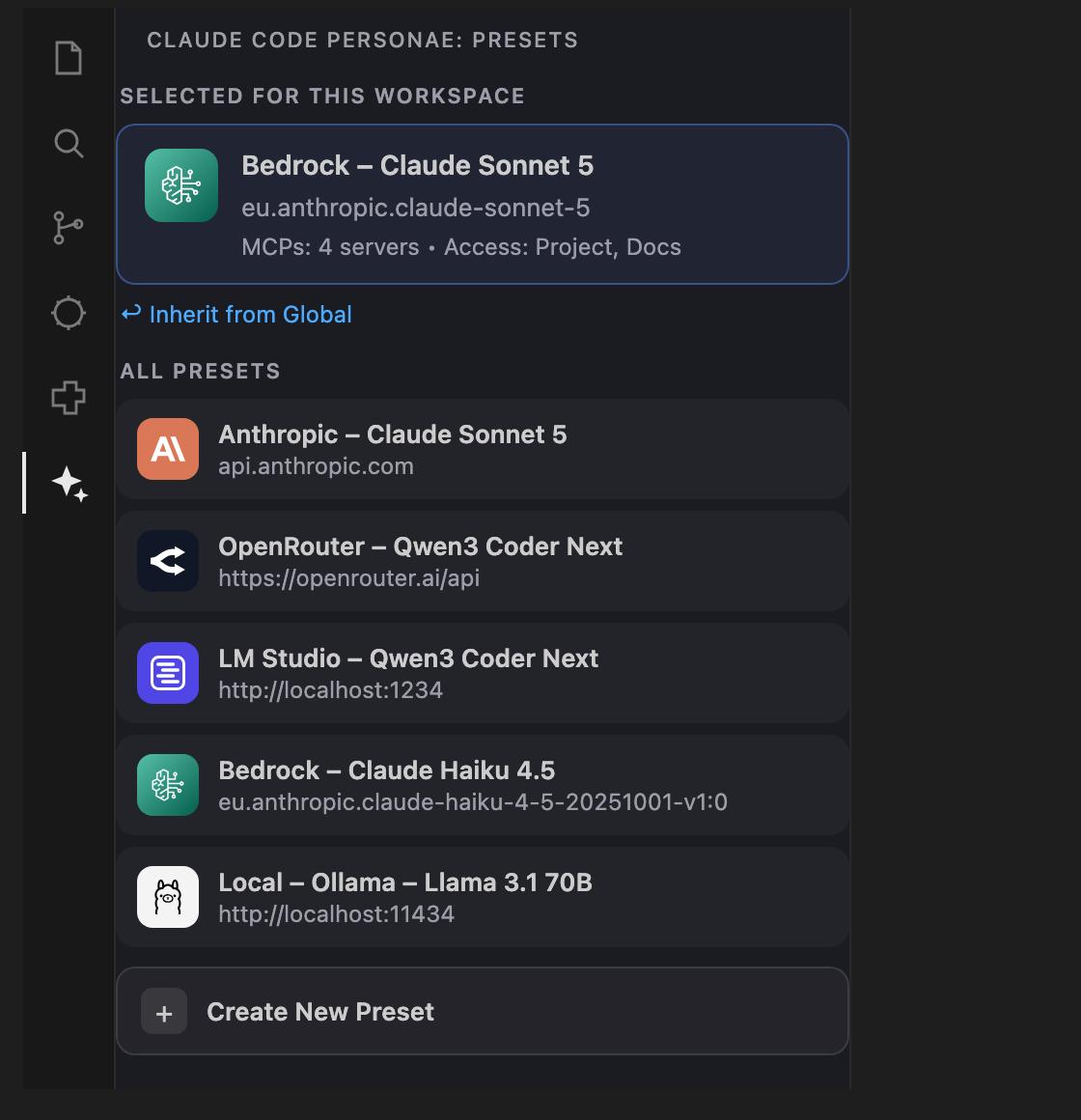
Four ways to run Claude Code
| Backend |
Use it when |
| Anthropic Direct |
You want the latest Claude models from the official API — Max/Pro login, or an sk-ant-… key from console.anthropic.com. |
| AWS Bedrock |
You're billed through AWS, need a specific region, or your workplace requires it. Full support for named profiles, regions, auth-refresh, and aws-envs. |
| Local models |
You want everything on-device — no API key, no telemetry, no data leaving the laptop. Ollama, LM Studio, oMLX, vLLM, and SGLang all work out of the box. |
| Proxies / Gateways |
You want to mix Anthropic models with OpenAI, Llama, or anything else through a single API. OpenRouter and LiteLLM are first-class; any custom Anthropic-compatible endpoint also works. |
Each combination of backend + MCP servers + allowed directories is a Preset you build once and switch between all day. Mix and match freely — "Bedrock for client work, Ollama offline, OpenRouter for niche models".
Two surfaces: pick vs. compose
The extension deliberately splits everyday use from setup:
| Surface |
Who / how often |
What it does |
| Sidebar (sparkle icon in the Activity Bar, shown above) |
Everyone, all day |
See which preset the current workspace uses; switch it in one click. The status bar item does the same via a quick-pick. |
| Main panel (Command Palette → Open Claude Code Personae) |
Whoever curates the setup, occasionally |
Compose Providers, MCP Server Groups, and Directory Groups into Presets, and set the Global default preset. |
Every VS Code Workspace inherits the Global preset by default. Picking a preset in the sidebar overrides it for that workspace only — the main panel never deals with individual workspaces.
Concept
Build presets from three types of building blocks:
- Providers — the backend (Anthropic, Bedrock, a local server, or a proxy). One Provider dropdown lists Anthropic plus every supported 3rd-party backend; the drawer below adapts to show only the Connection, Authentication, Models, and Options sections that apply.
- MCP Server Groups — named collections of MCP servers
- Directory Groups — additional directories Claude Code may access
A preset bundles one provider + any number of MCP server groups + any number of directory groups into a single switchable configuration.
Building blocks and presets are composed in the full editor panel:
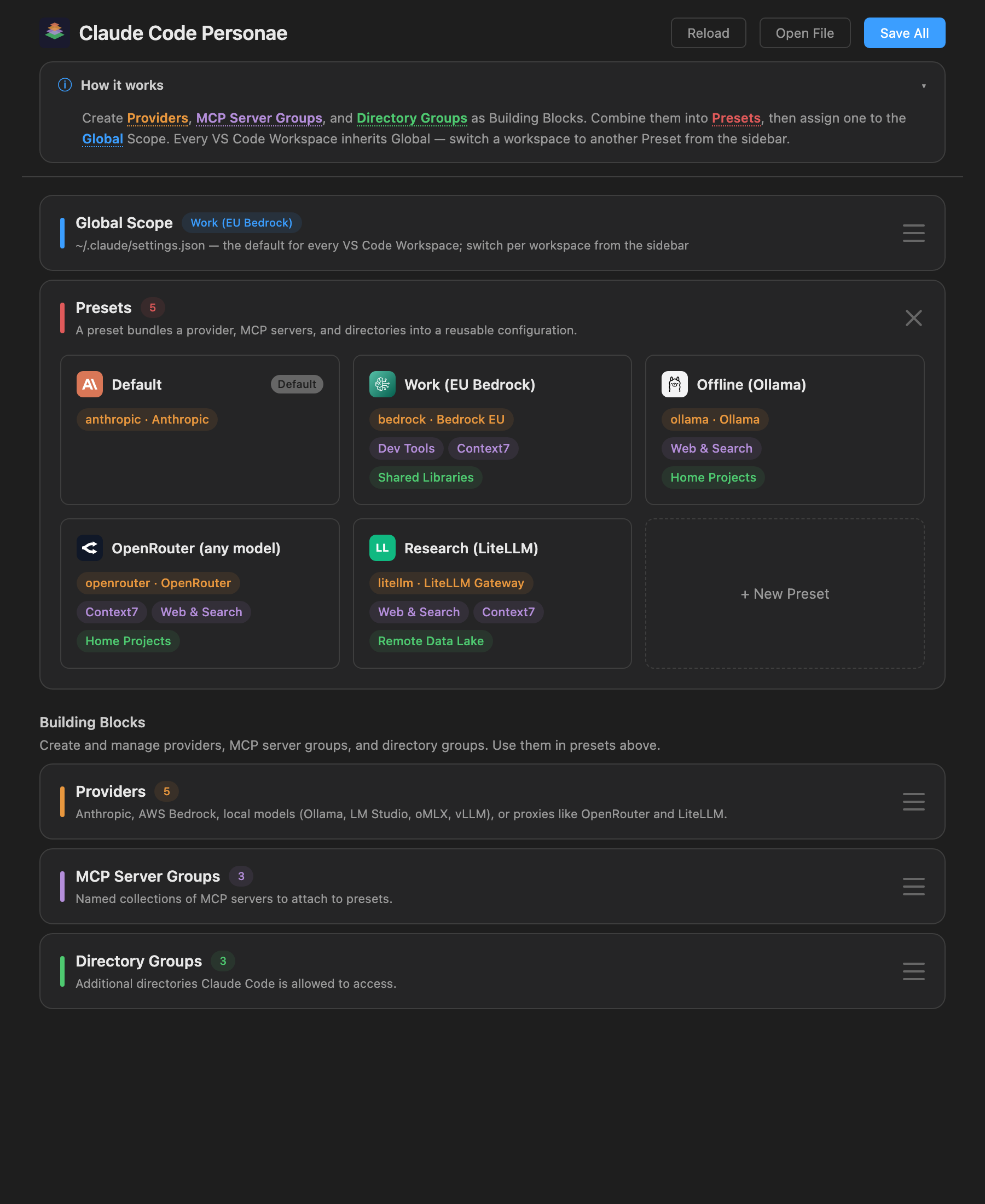
Presets are then active at one of two scopes:
| Scope |
Set from |
Config files written |
| Global |
the main panel (or the status bar quick-pick) |
~/.claude/settings.json, ~/.claude.json |
| VS Code Workspace |
the sidebar (or the status bar quick-pick) |
{workspace}/.claude/settings.json, ~/.claude.json (per-project MCP servers) |
Workspaces inherit Global until you pick something else in the sidebar; Inherit from Global is one click to go back. Switching a scope's preset instantly reconfigures Claude Code — no manual file editing required.
Storage
All building blocks, presets, and scope assignments are stored in a single file:
~/.claude/coder-profiles.json
On Save All, the extension resolves the active presets and writes the resulting flat configuration into Claude Code's own files. When a workspace scope is set to Inherit from Global, any previously written workspace-level settings are cleaned up automatically.
A sample configuration is included in examples/coder-profiles.json.
Getting Started
Set up once, in the main panel:
- Click the Claude Code Personae sparkle in the Activity Bar, then Create New Preset (or open the Command Palette → Open Claude Code Personae)
- Create a Provider (e.g. AWS Bedrock with your profile and region)
- Optionally create MCP Server Groups and Directory Groups
- Create a Preset that combines your provider with any groups
- Assign a preset to the Global Scope — the default for every workspace
- Click Save All
Then switch as you work: open the sidebar and click a preset to use it for the current workspace (or use the status bar quick-pick).
The Provider dropdown lists Anthropic first, then every supported 3rd-party backend (Amazon Bedrock, OpenRouter, Ollama, LM Studio, oMLX, vLLM, SGLang, LiteLLM), plus an Other / Custom… escape hatch. Selecting one adapts the rest of the drawer into up to four sections:
- Connection — the Base URL (3rd-party proxies only; Bedrock uses AWS config instead)
- Authentication — a card for each credential type the selected provider's server actually accepts (see below)
- Models — pick, fetch, or test models for the provider
- Options — max context tokens, prompt caching, and standalone mode, where applicable
Authentication cards
Credentials are entered by picking a card — None, API Key, Bearer Token, or 1Password reference — each labeled with exactly what it writes (env.ANTHROPIC_API_KEY, env.ANTHROPIC_AUTH_TOKEN, or apiKeyHelper). Only the cards a given provider's server actually validates are shown:
| Provider |
Cards offered |
Notes |
| Anthropic |
API Key, 1Password |
No Bearer Token — Anthropic direct API only accepts x-api-key |
| OpenRouter |
Bearer Token, 1Password |
Required — no None. Generate a key at openrouter.ai/keys |
| Ollama |
(none) |
The local server has no credential mechanism to configure |
| LM Studio, vLLM, SGLang |
None, Bearer Token |
Auth is opt-in on the server; when enabled it's always Authorization: Bearer |
| oMLX |
None, API Key, Bearer Token |
The only local server that natively validates both header styles |
| LiteLLM |
None, Bearer Token |
LITELLM_MASTER_KEY, sent as Authorization: Bearer |
| Other / Custom |
None, API Key, Bearer Token, 1Password |
All four — the target is unknown, so nothing is assumed |
The 1Password reference card only appears when the 1Password CLI (op) is detected on PATH — checked once per panel session. Enter op://Vault/Item/field; the extension writes apiKeyHelper for Claude Code to resolve at startup.
Anthropic Direct
- Pick Anthropic in the Provider dropdown
- Optionally choose the API Key or 1Password Authentication card
- Without a credential, you'll need to run
/login with an Anthropic Max or Pro plan
- Model selection is not shown — Claude Code uses its built-in defaults (Sonnet for primary, Haiku for small/fast tasks, Opus for complex tasks)
Amazon Bedrock
- Pick Amazon Bedrock in the Provider dropdown
- Fill in your AWS profile name and region
- Pick models from the smart presets, or the picker auto-fetches your account's real models once an AWS profile is set (also available on demand via Fetch models from AWS) — newest versions first. A Region scope pill limits the list to your region's geography (US/EU/APAC/JP/AU — most restrictive selected by default), and models that share inference data with the model provider (Claude Fable/Mythos) stay hidden unless you flip Allow provider data share to Yes
- Use Mantle — flip this pill to Yes to route requests through the Bedrock Mantle endpoint (native Anthropic API shape instead of the Bedrock Invoke API). Restricts the model pickers to Mantle-format IDs (e.g.
anthropic.claude-sonnet-5), clears any non-Mantle selections, and auto-selects a model per slot so the picker is never left empty
- Test models — each model slot has a Test pill that verifies profile and model access:
aws bedrock-runtime converse for regular Bedrock models, or a signed request to the Mantle endpoint for Mantle-format models. Results (OK / Fail) are persisted on the provider
- Optionally set an auth-refresh command (e.g.
aws sso login --profile my-profile)
- Claude Code's login/logout commands are automatically disabled when using Bedrock
- If
$AWS_CONFIG_FILE is set or ~/.aws/config is a symlink, the resolved config path is shown as AWS Config (read-only). If you use easytocloud aws-envs, an AWS Env dropdown appears instead — each provider stores its own env selection in coder-profiles.json, so different providers can point to different AWS environments independently
Local models — Ollama, LM Studio, oMLX, vLLM, SGLang
For when you want everything on-device. Pick the matching entry from the Provider dropdown.
- The Base URL is pre-filled with the catalog default (
http://localhost:11434 for Ollama, http://localhost:1234 for LM Studio, http://localhost:8000 for oMLX/vLLM, http://localhost:30000 for SGLang)
- Host and port stay editable — point Ollama at another machine on your LAN, or move LM Studio to a non-default port. Scheme and path are locked
- Ollama has no Authentication section at all. LM Studio, vLLM, and SGLang default to None with an optional Bearer Token card. oMLX additionally offers API Key
- Click Fetch available models to discover models from
/v1/models. Test models verifies the slot speaks Anthropic's /v1/messages API
- Standalone mode is forced on — local models never need an Anthropic login
Proxies and gateways — OpenRouter, LiteLLM
For accessing many model families through a single API.
- Pick OpenRouter for the public OpenRouter gateway, or LiteLLM for a self-hosted gateway
- OpenRouter's Authentication card is Bearer Token (required) — paste the key from openrouter.ai/keys. LiteLLM defaults to None with an optional Bearer Token card for its master key
- The URL is locked to the correct scheme + path so common mistakes (missing
/api, stray /v1) can't break the setup
- Standalone mode is forced on — these gateways never need an Anthropic login
Other / Custom
- Pick Other / Custom… for any Anthropic-compatible endpoint not in the catalog
- The Base URL is fully free-form. Typing a URL that matches a known provider's host/port (e.g.
openrouter.ai) automatically switches the dropdown to that provider
- All four Authentication cards are offered — None, API Key (
x-api-key), Bearer Token (Authorization: Bearer), and 1Password
- Standalone mode is shown as an explicit toggle and on by default — disable it only if your proxy forwards requests to Anthropic directly and you need the Anthropic login flow
"Asked to log in" even with a 3rd-party preset?
After picking a 3rd-party preset, click Save All in the panel header, then fully quit and restart VS Code (Cmd/Ctrl-Q — a window reload is not enough). Claude Code reads ~/.claude.json and ~/.claude/settings.json once at startup, so cached state from a previous session may still trigger the Anthropic OAuth login flow until the IDE process restarts. If the prompt still appears after a clean restart, re-open the panel, re-pick the preset, Save All, and quit-restart once more — that guarantees hasCompletedOnboarding: true is written and picked up.
Features
| Feature |
Detail |
| Composable presets |
Mix and match providers, MCP servers, and directories |
| Scope management |
Global and per-workspace configurations with inheritance |
| Provider types |
Anthropic Direct, plus a unified Provider dropdown: Amazon Bedrock, OpenRouter, Ollama, LM Studio, oMLX, vLLM, SGLang, LiteLLM, and Other / Custom |
| Authentication cards |
None / API Key / Bearer Token / 1Password — only the modes a provider's server actually validates are shown, each labeled with the exact env var or apiKeyHelper it writes |
| MCP server groups |
Reusable named collections of MCP servers (stdio, HTTP, SSE) |
| Directory groups |
Additional directories Claude Code may access |
| Live model discovery |
Fetch available models queries /v1/models; auto-selects single-model endpoints |
| Model compatibility testing |
Per-slot Test pill verifies the model speaks Anthropic's /v1/messages API; results persisted per provider |
| 1Password support |
Enter op://Vault/Item/field on the 1Password Authentication card — shown only when the op CLI is detected — and the extension writes apiKeyHelper for Claude Code to resolve at startup |
| Filterable dropdowns |
Type-to-filter combobox for AWS profiles (100+) and model lists (500+ OpenRouter) — slot-matching models grouped first, alphabetical sort, keyboard nav, match highlighting |
| Sidebar preset switcher |
Activity Bar view with the active preset for the workspace and one-click switching — provider brand icons, MCP/directory summary, Inherit from Global |
| Quick-switch status bar |
Click the status bar item to switch presets for global or VS Code Workspace scope without opening the panel |
| Import / Export |
Share presets between machines or team members — credentials are scrubbed on export, recipients fill in their own. Merge-importing an updated export refreshes existing items in place (no duplicates) |
| Draft auto-save |
Unsaved changes persist across panel close and are restored on re-open |
| Dirty indicator |
Save All button pulses with a ● indicator when unsaved changes exist |
| Drawer-based editing |
Slide-out panels for editing all building blocks; closing with unsaved edits prompts a confirmation |
| Sticky toolbar |
Header and intro banner stay visible while scrolling; intro banner can be collapsed |
| Inherit mode |
VS Code Workspace scope can inherit from global — cleans up workspace files |
| Login prompt suppression |
Every applyAllScopes writes hasCompletedOnboarding: true to ~/.claude.json — the actual fix for the OAuth /login wizard. Also sets CLAUDE_CODE_DISABLE_NONESSENTIAL_TRAFFIC=1 for all known 3rd-party presets (forced on, telemetry/login traffic muted) and writes a placeholder ANTHROPIC_AUTH_TOKEN when no credential is configured so local servers don't trigger OAuth fallback. claudeCode.disableLoginPrompt is set at the right VS Code scope. If the login prompt still appears after applying a 3rd-party preset, Save All and quit-restart VS Code (Cmd/Ctrl-Q) — a window reload is not enough. |
Requirements
- VS Code 1.98 or later
- For Bedrock: AWS CLI configured with a named profile (
aws configure --profile <name>)
- For 3rd-party providers: a running Anthropic-compatible server (
/v1/messages endpoint)
- For 1Password credentials: 1Password CLI (
op) installed and signed in
Extension Settings
This extension does not add VS Code settings. All configuration is managed through ~/.claude/coder-profiles.json and resolved into Claude Code's own files on save.
Release Notes
See CHANGELOG.md.
| |

