Polyscope for VS Code
Read files and logs wherever they live, without leaving VS Code. Browse a local folder, an S3 bucket, the files inside a Kubernetes pod, or every container log in a namespace, all from one sidebar and all read the same way.
Chasing a problem across systems usually means a terminal per place: tail -f for a server's files, aws s3 cp for archived logs, kubectl logs and kubectl exec … cat for a cluster. Polyscope puts them in one tree, opens them in the editor you already know, and never writes to any of them.
Features
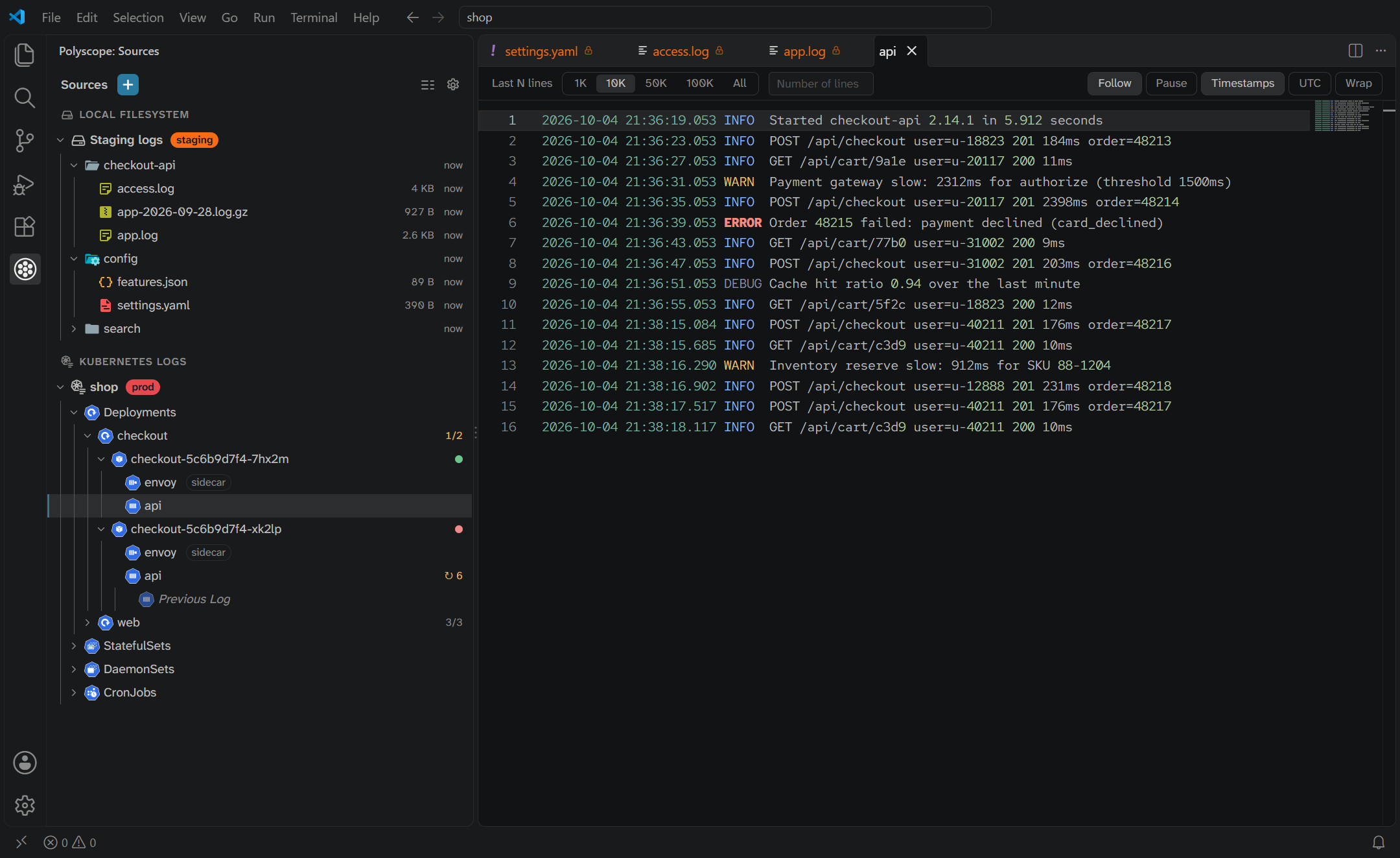
- Every place in one sidebar. Local folders, S3-compatible buckets, files inside pods, and pod logs, each configured once as a Source.
- Logs that keep up. Follow a container's log, or a growing file, live. Pause to read, and pick up where you left off. A crashed container's Previous Log is a toggle away, in the same tab.
- Files of any size. A multi-gigabyte file opens end-first in a paged viewer, without downloading all of it. Compressed files (
.gz, .zst) open decompressed.
- Always know where you are. Label Sources with an Environment like prod or staging. Its colour tints every tab from that Source, so a file from prod stands out.
- Feels like VS Code. Files open read-only in VS Code's own editor, with its search, highlighting and keybindings. The sidebar and viewer tabs take the colours of your theme.
- Read-only and private. Polyscope never writes to what it reads and collects no telemetry.
What it reads
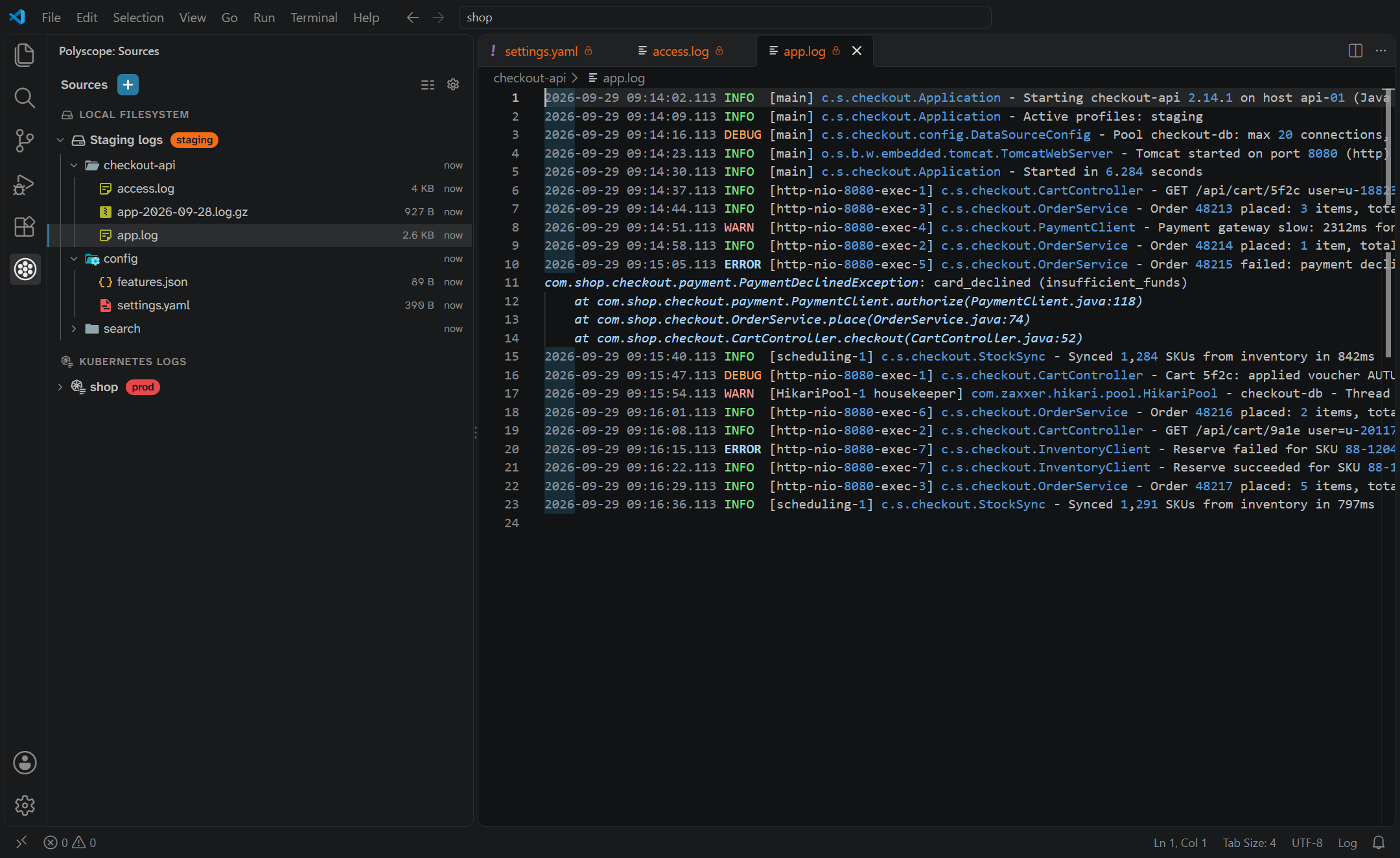
| Source Type |
What it shows |
Signs in with |
| Local Filesystem |
A folder on this machine, or a UNC share on Windows |
Your own file permissions |
| S3-compatible Storage |
A bucket, or the keys under a prefix, on AWS S3, MinIO, Ceph and others |
Access keys, or an AWS profile (SSO included) |
| Kubernetes Files |
A folder inside every pod of one Deployment, StatefulSet or DaemonSet |
Your kubeconfig, as kubectl does |
| Kubernetes Logs |
The logs of every container in a namespace, grouped by Workload, with pod health and restarts |
Your kubeconfig, as kubectl does |
Getting started
- Choose the Polyscope icon in the activity bar to open the Polyscope sidebar.
- Choose + next to Sources, pick a Source Type, fill in where it points, and choose Test connection, then Add Source.
- Expand the Source to connect to it, and click a file or a container to open it. Choose Follow to watch it grow.
Viewer tabs
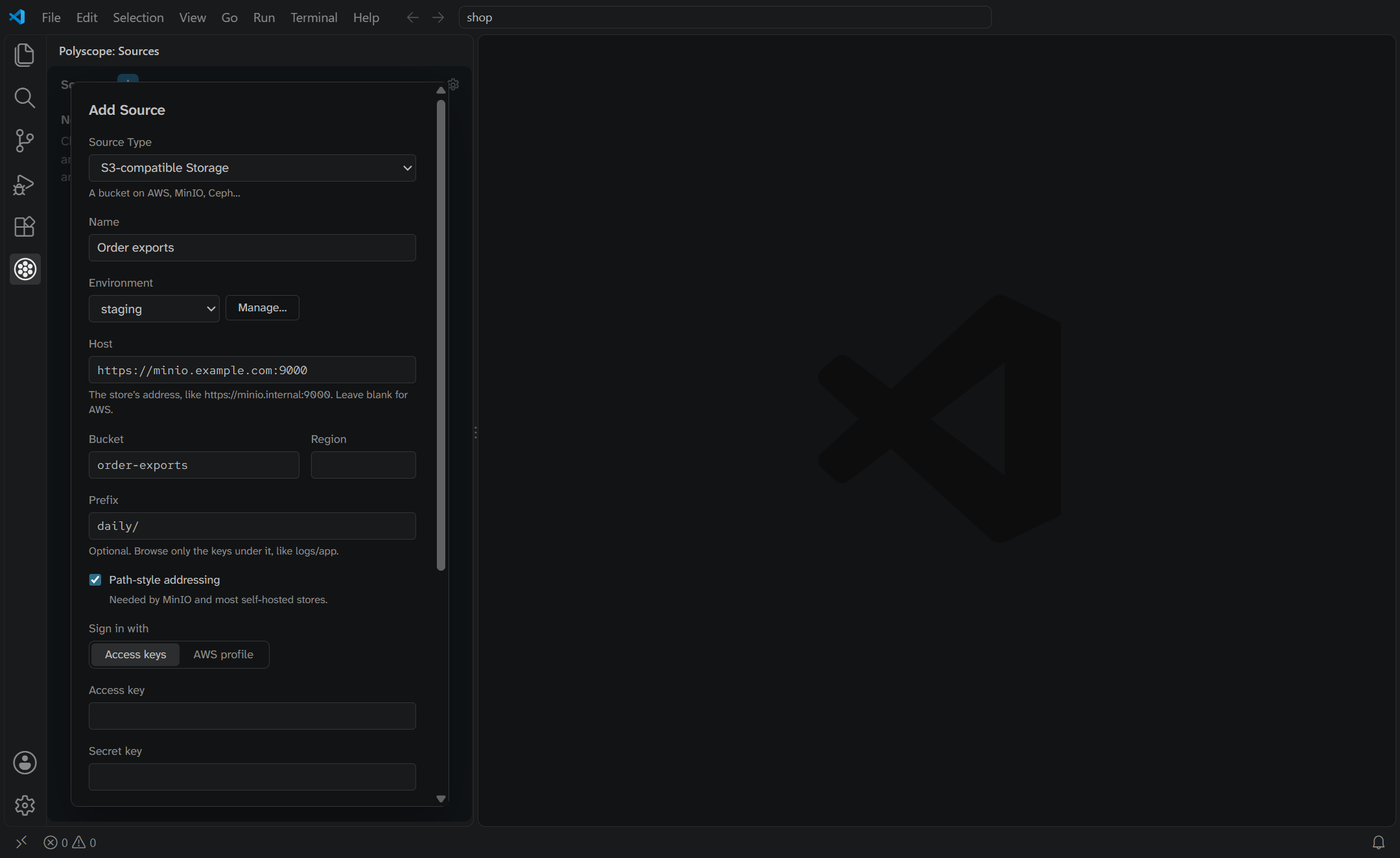
Followed files, Kubernetes Log Streams and Large Files open in a Polyscope viewer tab, which appends live lines and pages through a multi-gigabyte file. Turn off the polyscope.ownViewer setting to open everything in VS Code's editor instead: Log Streams as a snapshot of their Last N lines, with no way to switch to a container's Previous Log, Large Files only up to the "open anyway" limit in Polyscope's Settings, and no Follow.

Remote development
Under Remote-SSH, WSL and Dev Containers, Polyscope runs on the remote machine. A Local Filesystem Source browses the remote's disk, and Kubernetes Sources use the remote's kubeconfig, with its auth plugins.
UNC shares on Windows
VS Code blocks UNC paths to any server it hasn't been told to allow, even ones File Explorer opens without a password. A Local Filesystem Source on such a share (\\server\share\logs) then fails with "VS Code blocks this share's server". Add the server's name, without backslashes, to the security.allowedUNCHosts setting, and restart VS Code:
"security.allowedUNCHosts": ["server"]
Setting security.restrictUNCAccess to false lifts the restriction for every server instead. That turns off a VS Code security protection, so prefer the allow list.
Secrets and settings
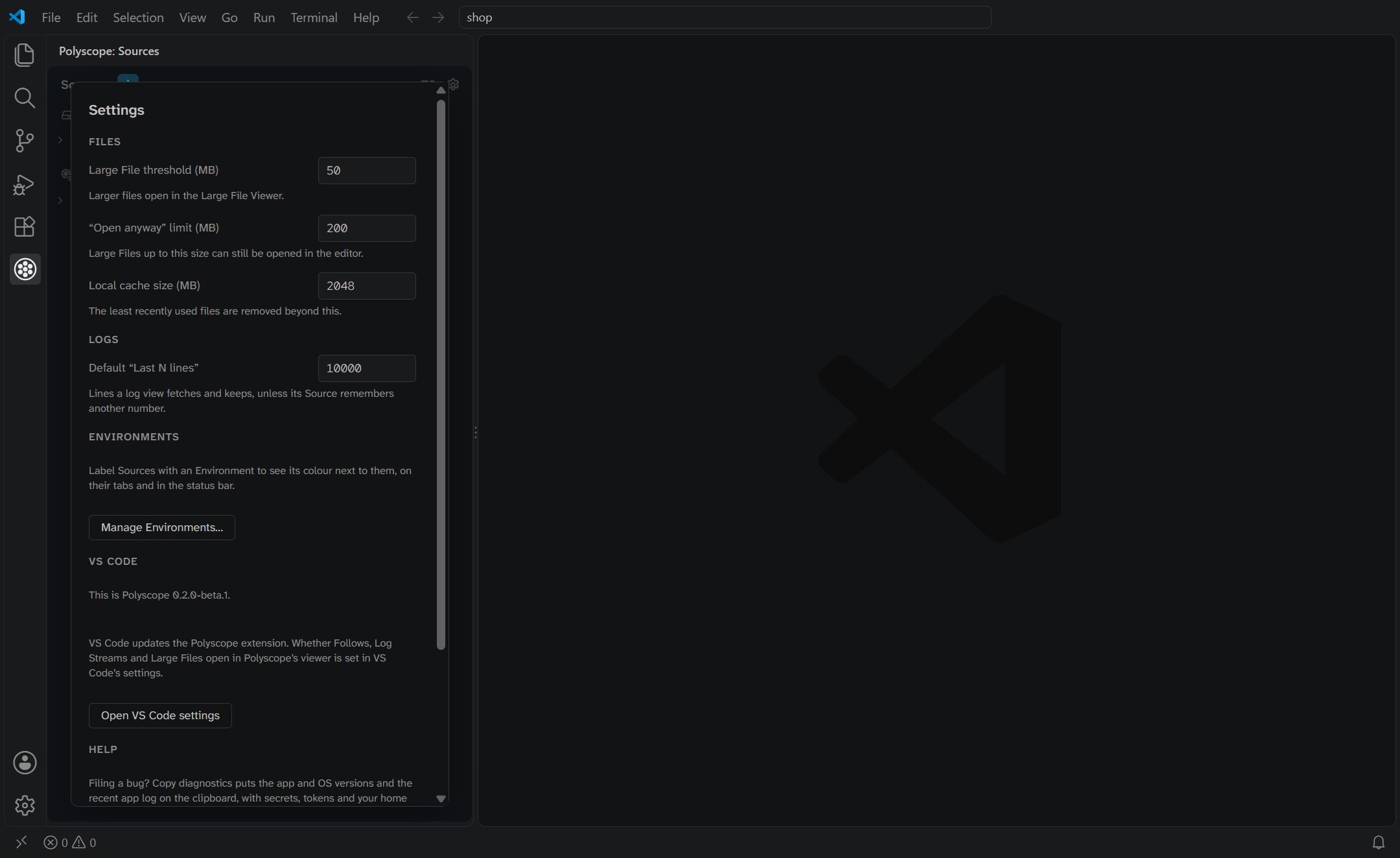
S3 secret keys are kept in VS Code's secret storage, encrypted by your operating system's keychain where it has one. Polyscope for VS Code keeps its own Sources and settings, apart from the desktop app's. The gear at the top of the sidebar opens them.
Also a desktop app
Polyscope is also a standalone app for Windows, macOS and Linux, with the same Sources tree. Get it from the Polyscope repository.
Feedback
Found a bug or missing a Source Type? Open an issue.

