MyVsRead for VS Code

A simple and secure way to encrypt and decrypt files directly within your editor. MyVsRead provides a dedicated side panel and integrated commands to manage a secret "seed" for protecting your sensitive file content.
✨ Features
MyVsRead is designed to be lightweight and intuitive, keeping your workflow fast and secure.
- Dedicated Side Panel: A dedicated icon in the Activity Bar opens the
MyVsRead panel to manage your seed.
- Secure Seed Management:
- Set a secret seed for your current session.
- A Set Seed button to deliberately confirm your new seed.
- A Reset Seed button to securely clear the current seed.
- A Show/Hide toggle (👁️/🙈) to safely view the seed you are typing.
- Persistent State: Your seed is securely saved and reloaded whenever you open VS Code. No need to re-enter it every time!
- Integrated Commands:
MyVsRead: Encrypt Current FileMyVsRead: Decrypt Current File
- Smart Dialog Fallback: If you run a command without a seed set, a dialog box will prompt you for one, ensuring you're never blocked.
- Status Bar Indicator: A subtle
$(key) Seed Set item appears in your status bar, giving you an at-a-glance confirmation that a seed is active. Clicking it opens the side panel!
🚀 Getting Started
It's easy to get started with MyVsRead.
1. Open the MyVsRead Side Panel
Click on the MyVsRead icon in the Activity Bar (the far left bar) to open the control panel.
2. Set Your Seed
In the side panel, you have two options:
- Enter a new seed: Type your secret seed into the input box and click the Set Seed button. You will see a confirmation and the status bar will update.
- Reset the seed: Click the Reset Seed button to clear the currently active seed.
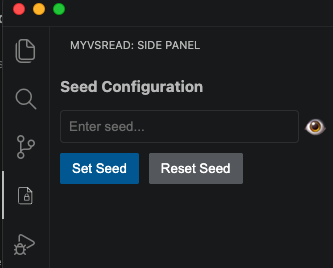
Note: The input box will revert to the last saved seed if you type something but don't click "Set Seed" and then close the panel. This prevents accidental changes.
3. Use the Commands
Once a seed is set, open any file you wish to encrypt or decrypt.
- Open the Command Palette (
Ctrl+Shift+P on Windows/Linux, Cmd+Shift+P on Mac).
- Type and select either
MyVsRead: Encrypt Current File or MyVsRead: Decrypt Current File.
- The action will be performed using the seed you've set.
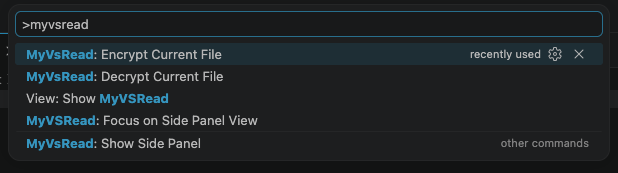
Tip: If you run a command without a seed, a dialog box will pop up, allowing you to enter a seed for that operation. This new seed will then become the active seed for your session.
Extension Commands
MyVsRead: Encrypt Current File: Encrypts the content of the currently active editor.MyVsRead: Decrypt Current File: Decrypts the content of the currently active editor.MyVsRead: Show Side Panel: Opens the MyVsRead side panel. (This is also triggered by clicking the status bar item).
Release Notes
1.0.0
Initial release of MyVsRead.
- Added side panel for seed management.
- Implemented Encrypt/Decrypt commands.
- Added status bar indicator.
- Seed now persists between sessions.
Enjoy!

