A VS Code extension for keeping several environments (develop, qa, staging…) of .NET User Secrets per project and switching between them with one click.
Features
Multiple environments per project: each one is stored as secrets.<environment>.json next to the secrets.json used by .NET.
One-click activation: the active environment is copied to secrets.json, so dotnet run picks it up with no code changes.
Built-in JSON editor with validation, protection against losing unsaved changes, and environment creation from scratch or from a copy.
Environment deletion with confirmation. The active environment and a project's last environment are protected.
Configured secrets browser for every application with User Secrets on the machine: rename projects that only show their ID, activate or delete environments, and view values as colored JSON, hidden by default, with buttons to copy each value or the whole JSON.
10 UI languages: English, 简体中文, हिन्दी, Español, Français, العربية, বাংলা, Português (Brasil), Русский and اردو (with right-to-left layout).
Screenshots
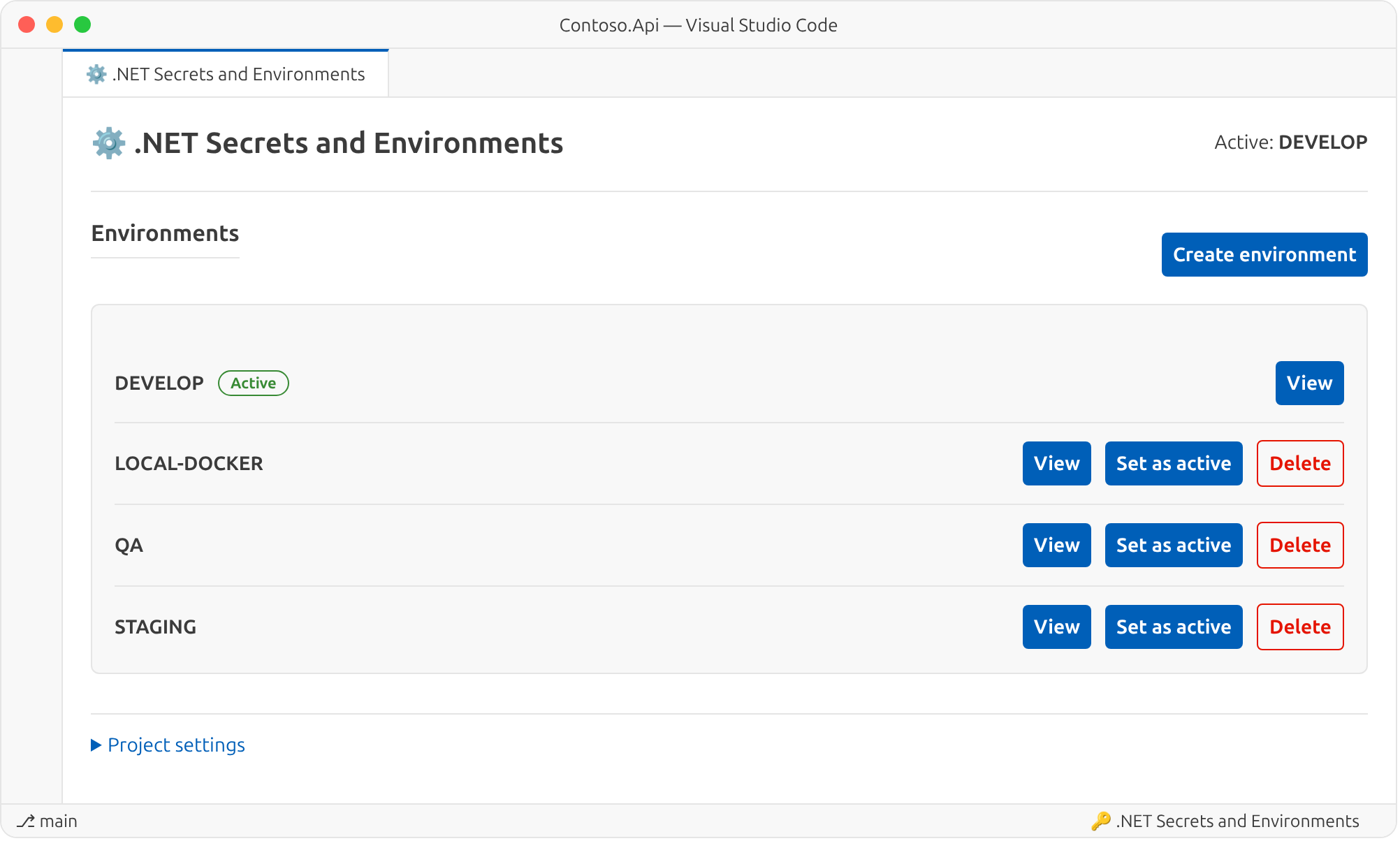
Environment list: the active environment is marked, and any other one can be activated from the list.
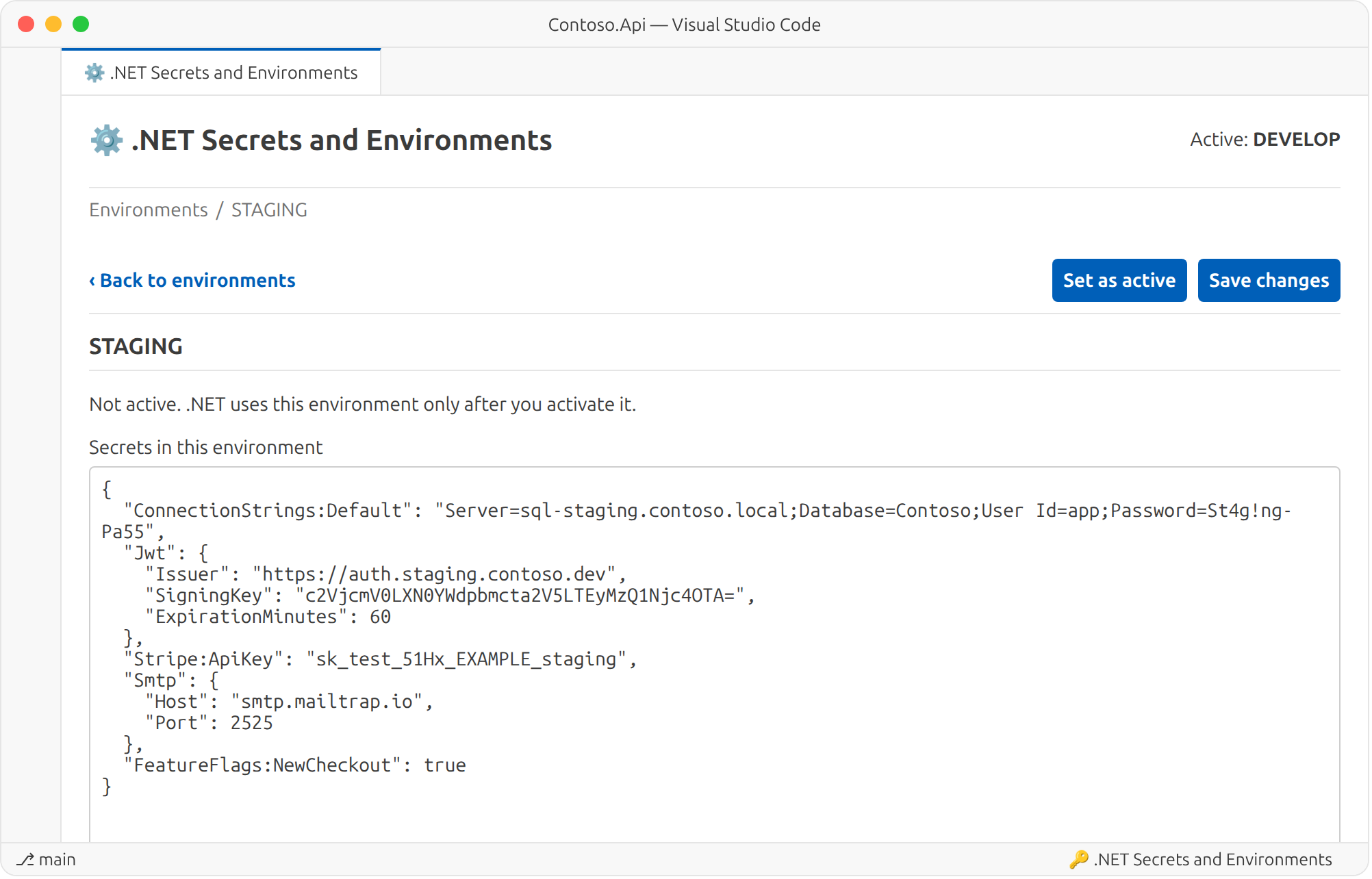
Secrets editor: edit the JSON of an environment without activating it.
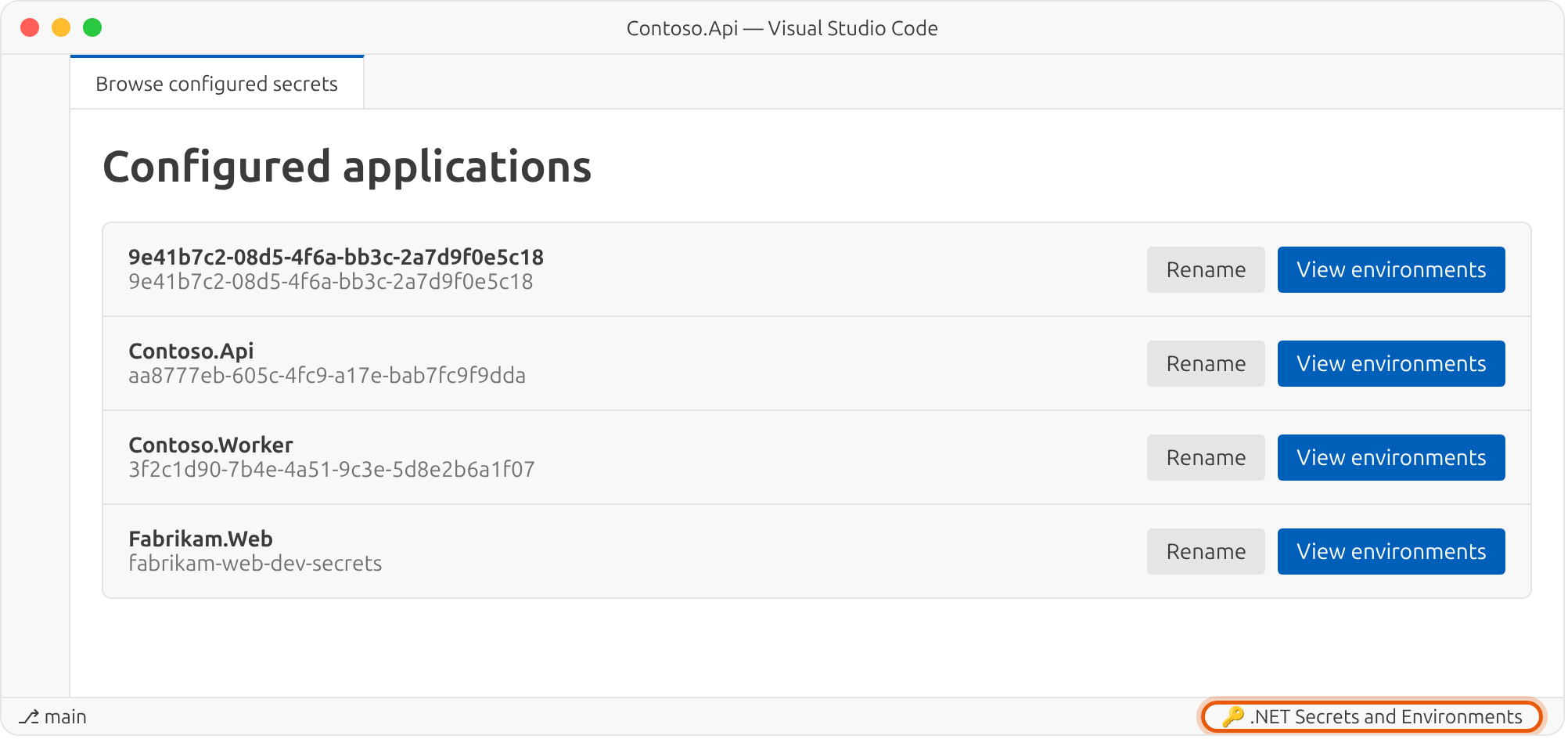
Configured secrets browser: opened from the status bar, it lists every application on the machine.
Requirements
VS Code 1.142 or later.
A .NET project with a .csproj file.
A UserSecretsId element in the .csproj. If it is missing, run this from the project folder:
dotnet user-secrets init
Quick start
Right-click your .csproj in the Explorer and choose Open .NET secrets manager (or run that command from the Command Palette while the .csproj is open in the editor).
The DEVELOP environment is created automatically. If secrets.json already existed, its content is used as the starting point.
Click Create environment, type a name (qa, staging, local-docker…) and choose whether to copy secrets from another environment or start empty.
Click View to edit the JSON and Save changes to save it.
Click Set as active to make .NET use that environment.
To work with every application, click 🔑 .NET Secrets and Environments in the status bar or run Browse configured secrets. There you can Rename a project, Set as active or Delete an environment, and open View values to reveal and copy secrets.
After creating the qa and staging environments, the User Secrets folder looks like this:
~/.microsoft/usersecrets/aa8777eb-605c-4fc9-a17e-bab7fc9f9dda/
├── .active-env              # active environment and display name
├── secrets.json             # copy of the active environment (read by .NET)
├── secrets.develop.json
├── secrets.qa.json
└── secrets.staging.json
The application code does not change. It keeps reading User Secrets as usual:
var builder = WebApplication.CreateBuilder(args); // loads User Secrets in Development
var connectionString = builder.Configuration.GetConnectionString("Default");
var issuer = builder.Configuration["Jwt:Issuer"];
When you activate staging, secrets.json gets its content, and the next dotnet run uses those values.
Linux and macOS: ~/.microsoft/usersecrets/<UserSecretsId>/
Sync: when you save the active environment, secrets.json is updated too. If you edit secrets.json directly in VS Code and save it, the changes are copied back to the active environment.
Names: environments only accept letters, numbers, hyphens and underscores, and are saved in lowercase.
Deletion: deleting an environment removes its secrets.<environment>.json after confirmation. The active environment cannot be deleted (activate another one first), and neither can a project's last environment.
Display name: renaming a project only saves projectName in .active-env; secrets files are not changed.
Migration: if .active-env, secrets.json or secrets.*.json files exist in the project folder, they are moved to the User Secrets store. Existing files are never overwritten; a warning is shown instead.
Security
[!WARNING]
Files are not encrypted, just like .NET User Secrets. Use this extension only for development secrets, and protect the operating system account where they are stored. Do not use it for production credentials.