
Zentra Studio
Premium Markdown authoring for Visual Studio Code — a live, in-preview editable
document with a formatting ribbon and design templates.
Features ·
Design templates ·
Getting started ·
Keyboard shortcuts ·
Requirements ·
Release notes
Zentra Studio turns the Markdown preview into a first-class writing surface. The rendered
document is fully editable — type, split a paragraph, press Enter inside a
heading or list, and Zentra Studio serializes your changes back into the source as precise
range edits. No context switching between source and preview, no flicker, no guesswork.
Features
Two-way preview editing
The preview is a live, editable document. Every change you make in the rendered view
is parsed back to Markdown and applied to the source file as a minimal, precise edit —
the two always stay in sync.
- Type, delete, and merge paragraphs directly in the preview
- Press Enter inside a heading, list, or blockquote to continue it naturally
- Full
contenteditable behavior, with Markdown-aware serialization
A formatting ribbon at the top of the preview gives you everything you need —
text styling, block styles, lists, links, and undo/redo — no keyboard shortcuts
required.
| Inline |
Blocks |
History |
| Bold |
Heading 1 / 2 / 3 |
Undo |
| Italic |
Bulleted / numbered / task lists |
Redo |
| Strikethrough |
Blockquote |
Clear formatting |
| Inline code |
Code block / HR |
|
| Link |
|
|
Active formats highlight in a pressed state, and the ribbon slides up to keep the
document unobstructed.
Screenshot
Design templates
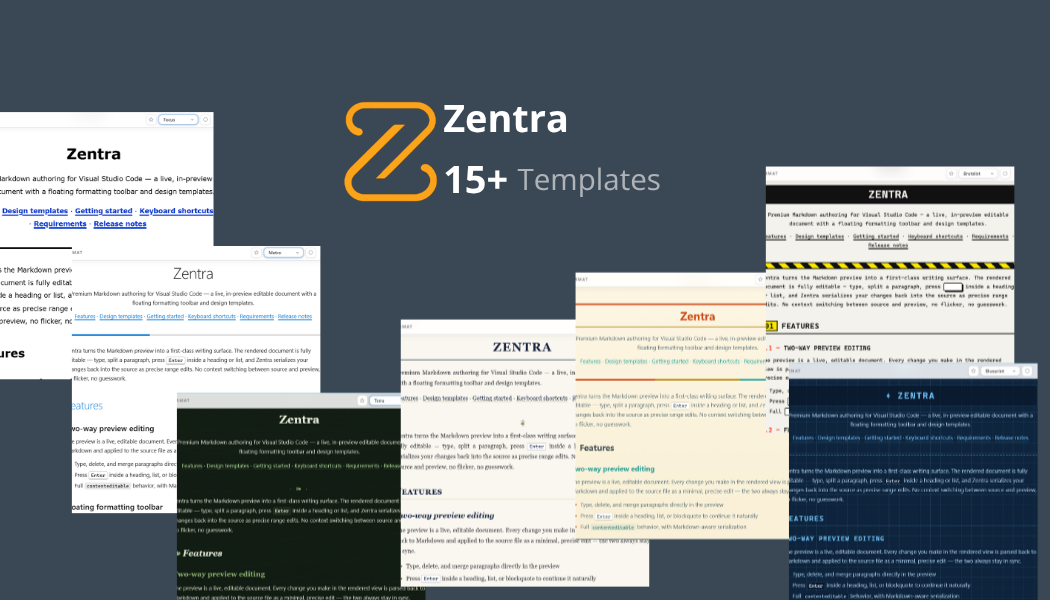
A template switcher in the ribbon strip lets you restyle the document instantly. Your
chosen template is remembered per document. 18 hand-crafted templates are bundled:
| Template |
Aesthetic |
| Cupertino |
Minimal, native-feeling typography — personal notes, readmes |
| Ledger |
Crisp, high-contrast — API documentation, technical specs |
| Sprint |
Dark-mode, dense — changelogs, project-management docs |
| Edge |
Stark monochrome, oversized headings — blogs, manifestos |
| Manuscript |
Elegant serifs, print margins — academic papers, essays |
| Academia |
Scholarly navy & gilt — theses, formal writing |
| Arctic |
Low-contrast frost, soft cards — calm quiet notes |
| Blueprint |
Engineering drawing sheet — specs, manuals |
| Brutalist |
Raw mono print, offset shadows — manifestos, zines |
| Focus |
Accessibility-first, large type — high-legibility reading |
| Gazette |
Broadsheet newspaper — journals, newsletters |
| Metro |
Flat tile design — interface docs, guides |
| Noir |
Film-noir charcoal & crimson — cinematic docs |
| Notebook |
Ruled paper, handwritten — planning, journals |
| Phosphor |
Retro CRT terminal glow — hacker logs, sci-fi |
| Solstice |
Solarized warmth, burnt orange — long-form reading |
| Synthwave |
Neon retro-future — vibrant docs |
| Terra |
Botanical greenhouse — environmental topics, field notes |
Live code highlighting
Fenced code blocks render with syntax highlighting from a curated
highlight.js subset — applied lazily only when a block
scrolls into view, so large documents stay fast.
Getting started
Install
- Open the Extensions view (Ctrl+Shift+X).
- Search for Zentra Studio and select Install.
Or from a Markdown file, use the built-in editor-title preview button.
Open a preview
- Open a Markdown (
.md) file.
- Run one of the commands below — or click the split-screen icon in the editor title bar.
| Command |
Shortcut |
Zentra Studio: Open Preview |
Ctrl+Shift+V |
Zentra Studio: Open Preview to the Side |
Ctrl+Shift+Z or Ctrl+K V |
Switch templates
Use the template switcher in the ribbon at the top of the preview to change designs.
The active template persists for the current document.
Keyboard shortcuts
| Shortcut |
Action |
| Ctrl+Shift+V |
Open the Zentra Studio preview |
| Ctrl+Shift+Z |
Open the Zentra Studio preview to the side |
| Ctrl+K V |
Open the Zentra Studio preview to the side |
All shortcuts only fire while a Markdown editor is focused, so they never interfere
with other workflows.
Requirements
- Visual Studio Code 1.90.0 or later
- Markdown files are the only supported document type
Release notes
See the CHANGELOG for the full history of every release.
Website
websit link
github repo
Made with ❤️ by dotHP

