Valuepad
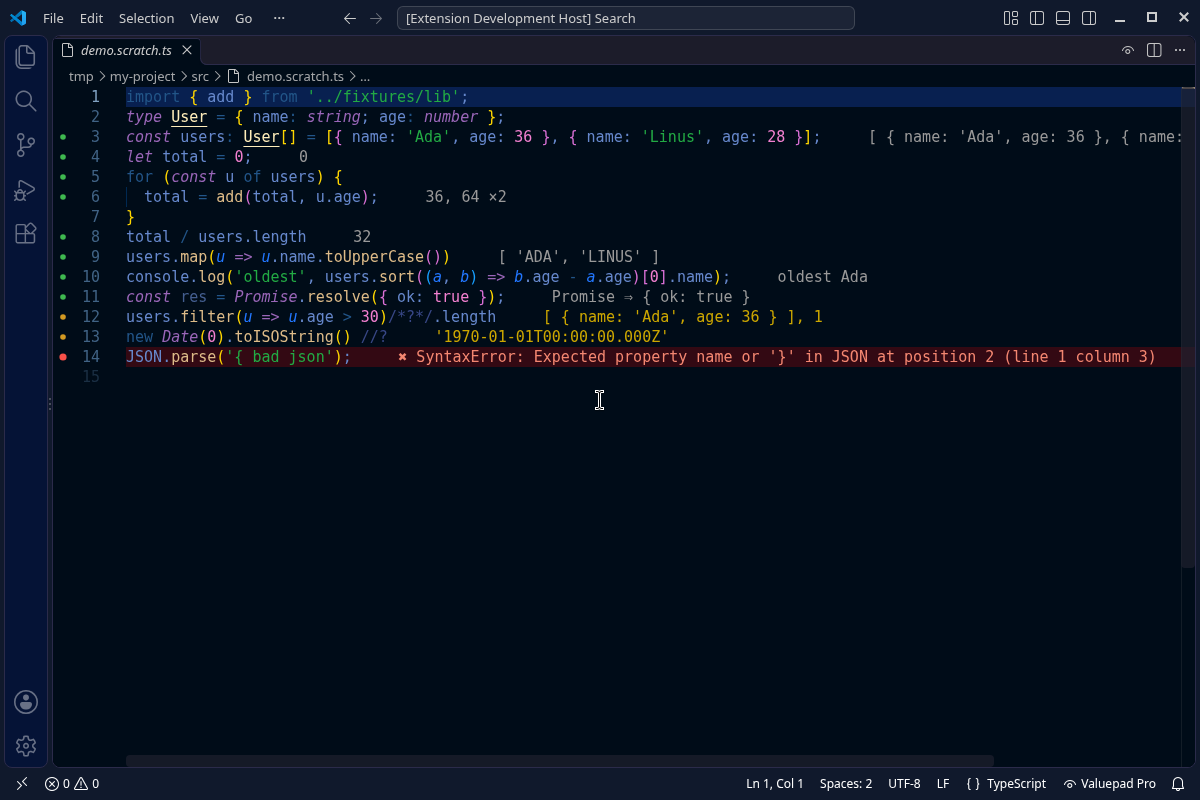
Live values for JavaScript and TypeScript in VS Code. Write code in a scratch file and see what every line evaluates to, right at the end of the line, while you type.
Free features
- Inline values for every expression and variable, in
.js, .mjs, .cjs and .ts files.
- Console output on its line.
console.log, warn, error and friends show next to the call that printed them. Everything also goes to the Valuepad output panel.
- Promises show the value they resolve to (
Promise ⇒ 42) or the reason they were rejected.
- Loop counts. Lines that run more than once show
×N and their latest values.
- Errors on the line that caused them, including errors inside functions, timers and rejected promises. The line is highlighted red.
//? and /*?*/ to pick a value. Turn off valuepad.showAllValues to show only the lines you mark. /*?*/ shows the value of the expression just before it, in the middle of a line: items.filter(x => x.ok)/*?*/.length.- Run while typing, on save, or on demand (
valuepad.runOn).
- Imports from local files (
.js and .ts) and from node_modules. TypeScript and ES module syntax work without any setup. Top-level await works.
- Gutter dots on the lines that ran: green for values, yellow for marked lines, red for errors.
- 5-second limit per run, so an endless loop is stopped and reported on its line instead of hanging.
Pro features (Web Dev Pro)
- Logpoints from breakpoints. Add a logpoint in the gutter (right-click, Add Logpoint) with a message such as
user is {user.name}. Valuepad shows each message on that line every time it runs, without starting a debugger.
- Per-line timing with
//?.: shows the value and how long the line took ([ 1, 2, 3 ] 0.42 ms).
- One-click npm install for scratch files. When an import is not found, Valuepad offers to install the package into its own scratch folder, so your project's
package.json is not touched.
- Values panel: a table of every line that ran, with all its values, console output, errors and timings.
Pro is part of Web Dev Pro. Run Valuepad: Enter licence key and paste your key.
Getting started
- Run Valuepad: New TypeScript scratch file (or JavaScript) from the Command Palette, or
- open any
.js or .ts file and click the eye icon in the editor title bar (Valuepad: Start on this file), or
- name a file
something.scratch.ts or something.scratch.js: it starts automatically when opened.
Click Valuepad in the status bar to stop. Valuepad: Run now (Ctrl+K Ctrl+Enter, Cmd+K Cmd+Enter on macOS) runs the file at any time.
Settings
valuepad.runOn: type (default), save or command.valuepad.delayMs: pause after typing before a run. Default 300.valuepad.showAllValues: show every line (default) or only lines marked with //? and /*?*/.valuepad.timeoutSeconds: run limit, 1 to 5 seconds. Default 5.valuepad.autoStartPattern: files that start automatically. Default **/*.scratch.{js,ts,mjs,cjs}.
How it works and limits
- Your file runs in a separate Node.js process (the one bundled with VS Code), with the folder of the file as working directory. It has the same access to your files and network as any script you run yourself, so only run code you trust. Valuepad does not run in untrusted workspaces.
- Each run starts fresh, so state does not carry over between runs.
- Code is compiled with Sucrase: types are removed, not checked.
- Browser APIs such as
document and window are not available.
- Values longer than one line are shortened inline; hover a line to see its latest values, console output and run count.
Privacy
Valuepad runs your code on your machine and sends nothing anywhere. The only network request it makes is the licence check, which sends your licence key and the product id to Gumroad. See https://digivibetech.com/privacy/valuepad/
Support
https://digivibetech.com/support/ · DigiVibeTech, Amersfoort, the Netherlands
| |

