Commit Graph Viewer
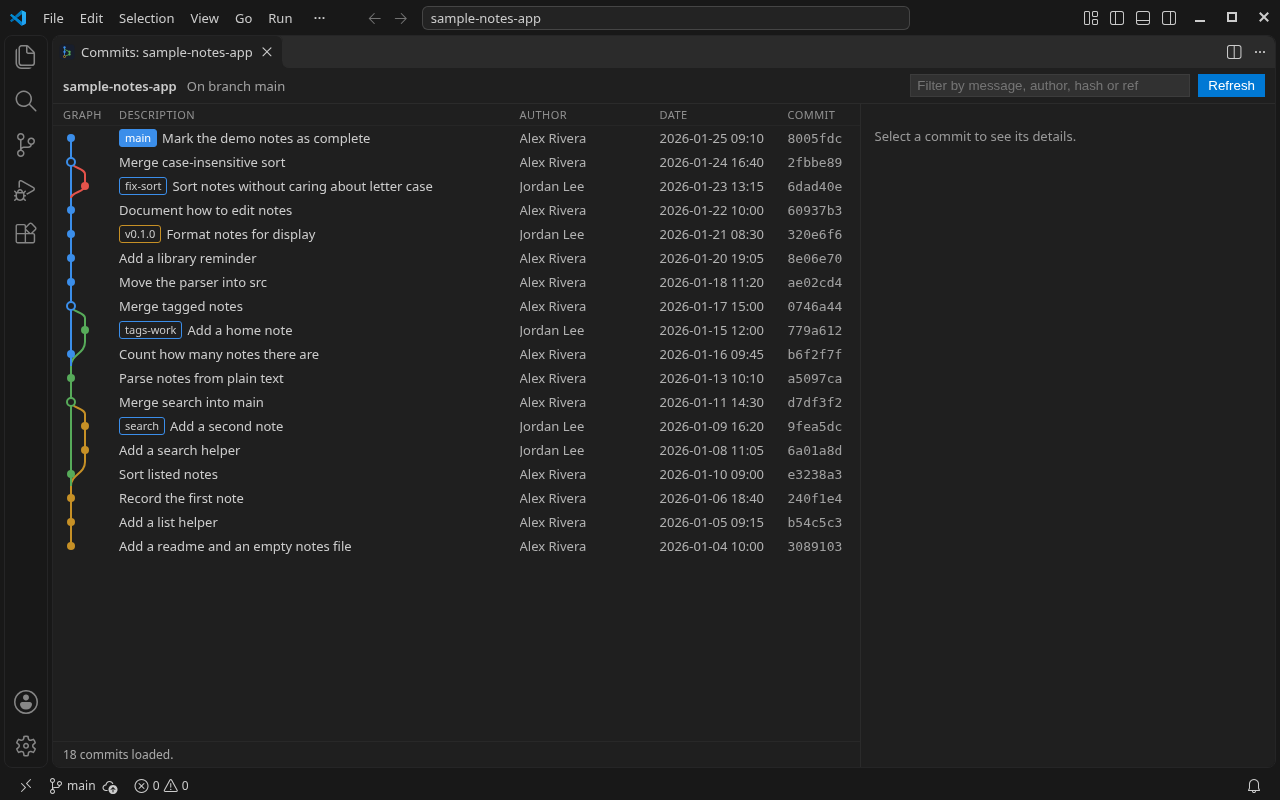
A simple, free, read-only view of your Git history inside VS Code. It draws the commits of the current repository as a graph with branch and merge lines, and shows the details of any commit you click.
Screenshot sample repository
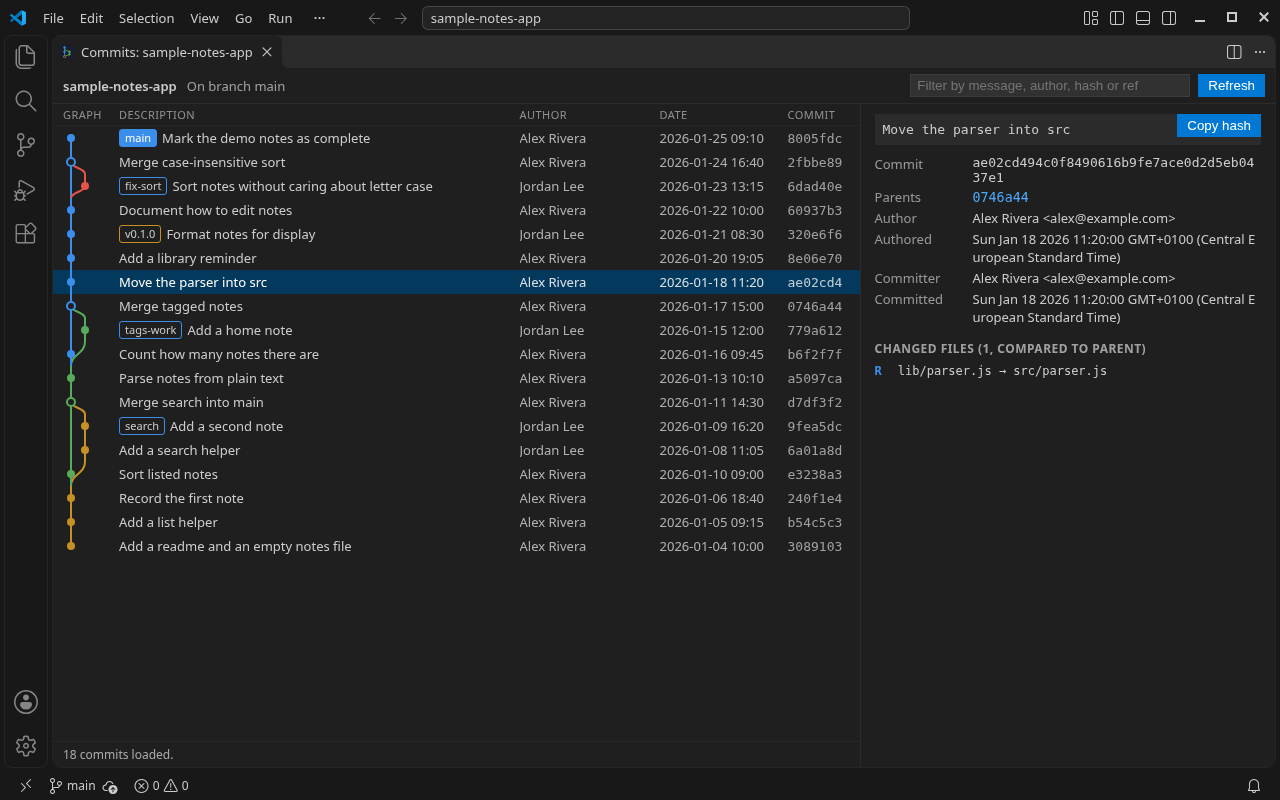
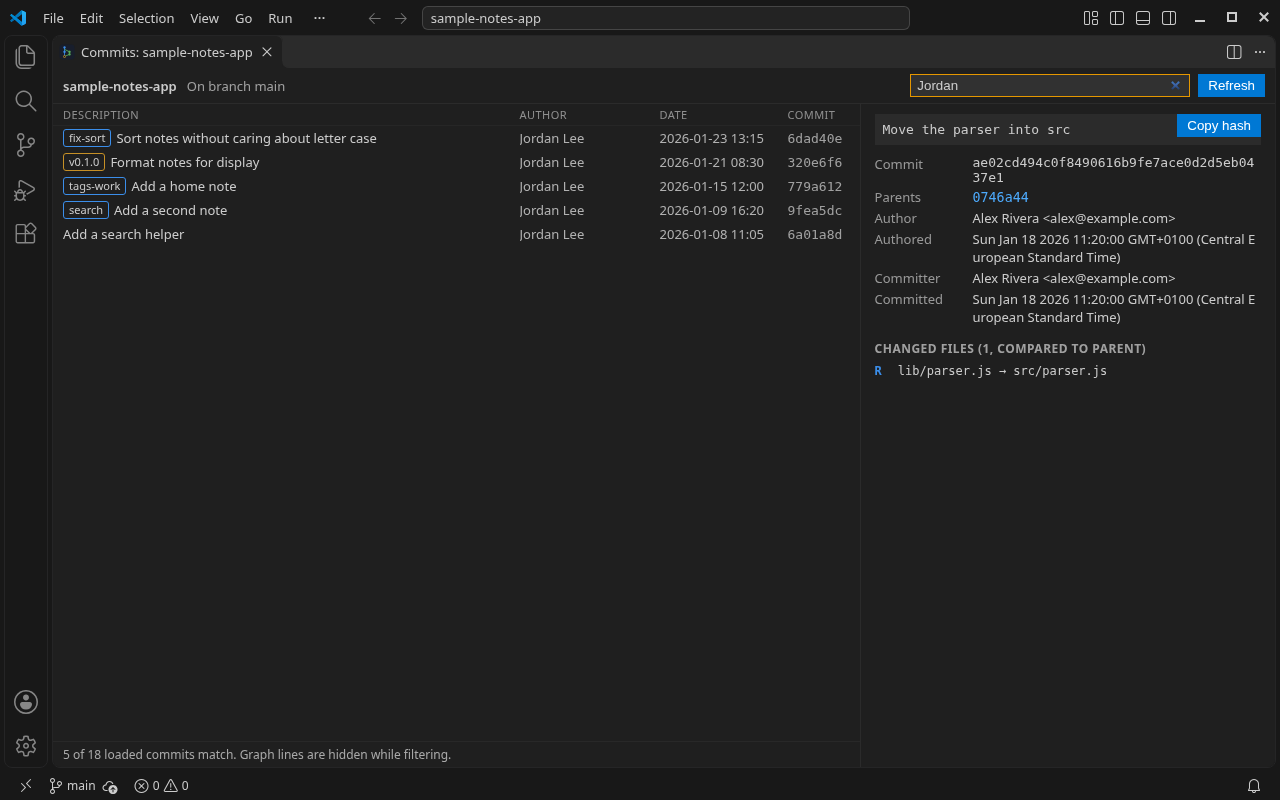
The listing screenshots use a purpose-built sample repository (sample-notes-app, 18 commits) with fictional author names (Alex Rivera and Jordan Lee, @example.com addresses) so no real people’s mailboxes appear. The viewer itself works on any local Git repository.
What it shows
- Each commit on one row: graph lines, branch and tag labels, subject, author, date and short hash.
- Local branches, remote-tracking branches, tags and HEAD (the current branch is highlighted).
- Merge commits as hollow dots, with one line per parent.
- Commit details when you click a row: full message, author and committer with dates, full hash, parent commits (click to jump) and the list of changed file names with their status (added, modified, deleted, renamed).
- A filter box that narrows the loaded list by message, author, hash or branch/tag name. Graph lines are hidden while a filter is active, because filtered rows are no longer neighbours.
How to open it
- Command Palette: Commit Graph Viewer: Open Commit Graph.
- Or the commit-graph button in the title bar of the Source Control view.
With several repositories open, you are asked which one to show. Use Refresh after outside changes; when VS Code's built-in Git extension is enabled, the view also refreshes after commits, branch switches and fetches.
Keyboard: click the list (or Tab to it), then use Up/Down, Home and End to move the selection.
Read-only
The viewer only runs these git commands: rev-parse, symbolic-ref, log, show and diff-tree. Anything else is refused in code. It runs them with optional locks turned off so viewing does not even refresh the index file. It has no checkout, reset, rebase, commit, push or delete actions. The only action is Copy hash, which puts the full commit hash on your clipboard.
How Git is found
- If VS Code's built-in Git extension is enabled, the viewer uses its Git program path and its list of open repositories.
- Otherwise it uses the
git.path setting, or git from your PATH, and looks for a repository in each workspace folder (a subfolder of a repository works too).
Plain explanations instead of errors
- Folder is not a Git repository: the view says so and shows nothing else.
- Repository has no commits yet: the view says so; make a first commit and refresh.
- Detached HEAD: a notice says you are not on a branch, and the HEAD commit is labelled in the graph.
- Git not installed: the view asks you to install Git or set
git.path.
Settings
commitGraphViewer.maxCommits (default 1000): how many commits to load at first. Load more at the bottom of the list reads further back.commitGraphViewer.showAllBranches (default on): when off, only the history of HEAD is shown.
Limits
- Large histories are loaded in steps (1000 commits at a time by default); the filter only searches commits that are loaded.
- Changed files for a merge commit are compared to its first parent. At most 500 file names are listed per commit.
- Stashes are not shown.
- Works in trusted local folders only. It does not run in Restricted Mode or in virtual (remote-file-system) workspaces, because it runs your local Git program.
- Remote SSH, WSL and dev containers have not been tested yet.
Privacy
Everything stays on your computer. The viewer reads your repository with your local Git program and sends nothing anywhere: no account, no telemetry, no network requests. The full privacy policy is included with the extension. Support: https://digivibetech.com/support
Price
Free. There is no paid version and no sign-up.
Support
https://digivibetech.com/support

