Codex Workspace Manager
Independent VS Code extension for browsing and resuming local Codex sessions associated with the open workspace:
- reads
CODEX_HOME/sessions/YYYY/MM/DD/rollout-*.jsonl and, optionally, CODEX_HOME/archived_sessions/;
- filters sessions by the
cwd stored in session_meta;
- sorts and searches by title, ID, path, and first message, with a short first-message preview;
- lets you pin favorite sessions; pinned state is stored in VS Code without modifying Codex JSONL files;
- tries to open the original visual chat through the official Codex extension;
- opens the most recent session automatically when VS Code starts, if enabled and the session does not already have a tab;
- falls back to
codex resume <id> in an integrated terminal when visual opening is unavailable;
- provides a separate read-only virtual view for the rollout JSONL;
- never writes, renames, archives, or repairs Codex session files.
MVP status
The extension is designed around the session format currently observed in Codex's public code. Codex documents rollouts as JSONL files stored under sessions/YYYY/MM/DD/, with each line containing a timestamp and serialized item. Current session_meta records include id and cwd. Because the format is not presented as a stable extension API, the parser accepts known variants and skips incomplete or incompatible rollouts.
The optional session_index.jsonl file is used only to improve titles. The extension does not query Codex's internal SQLite database or private APIs from the official extension.
Architecture
workspaceFolders
      │
      ▼
SessionRepository ── discoverRollouts ──> paths.ts
      │                    │
      │                    └────────────> parser.ts (bounded read)
      ▼
SessionTreeProvider ──> TreeView
      │
      ├── vscode.openWith + chatgpt.conversationEditor (primary integration)
      ├── terminal: codex resume <id> (fallback)
      └── codex-session://...  (read-only fallback)
The extension uses public VS Code APIs: TreeDataProvider, registerTextDocumentContentProvider, createFileSystemWatcher, commands, the integrated terminal, and configuration.
Requirements
- VS Code 1.90 or later.
- Node.js 20+ and npm for development and packaging.
- The official OpenAI Codex extension (
openai.chatgpt) is declared as a dependency and VS Code will try to install it automatically.
- The Codex CLI is needed only for the “Resume in terminal” fallback. Browsing sessions does not require it, and the fallback remains available if the official extension cannot be installed or activated.
Development and packaging
npm install
npm test
npm run compile
npm run package
The package command generates a .vsix. In VS Code, run Extensions: Install from VSIX... and select that file. For development, open the folder in VS Code and press F5.
The publisher-ready command is:
npm run publish
It requires the diginperu Marketplace publisher to be authenticated locally.
Configuration
Codex Workspace Manager: Codex Home lets you set a specific Codex root folder. When empty, the extension resolves it in this order:
- the extension setting;
CODEX_HOME;- the default
~/.codex folder.
includeArchived, maxSessions, sort, and scanByteLimit control the session list. cliCommand sets the CLI command or path used by the resume action. nativeTabs controls visual integration, and openLatestOnStartup controls automatic opening of the most recent session.
The gear button in the sessions panel opens the filtered Codex Workspace Manager settings page directly.
Reference screenshots
The following screenshots are anonymized and use generic text. They contain no real session names, IDs, local paths, private messages, or developer project names.
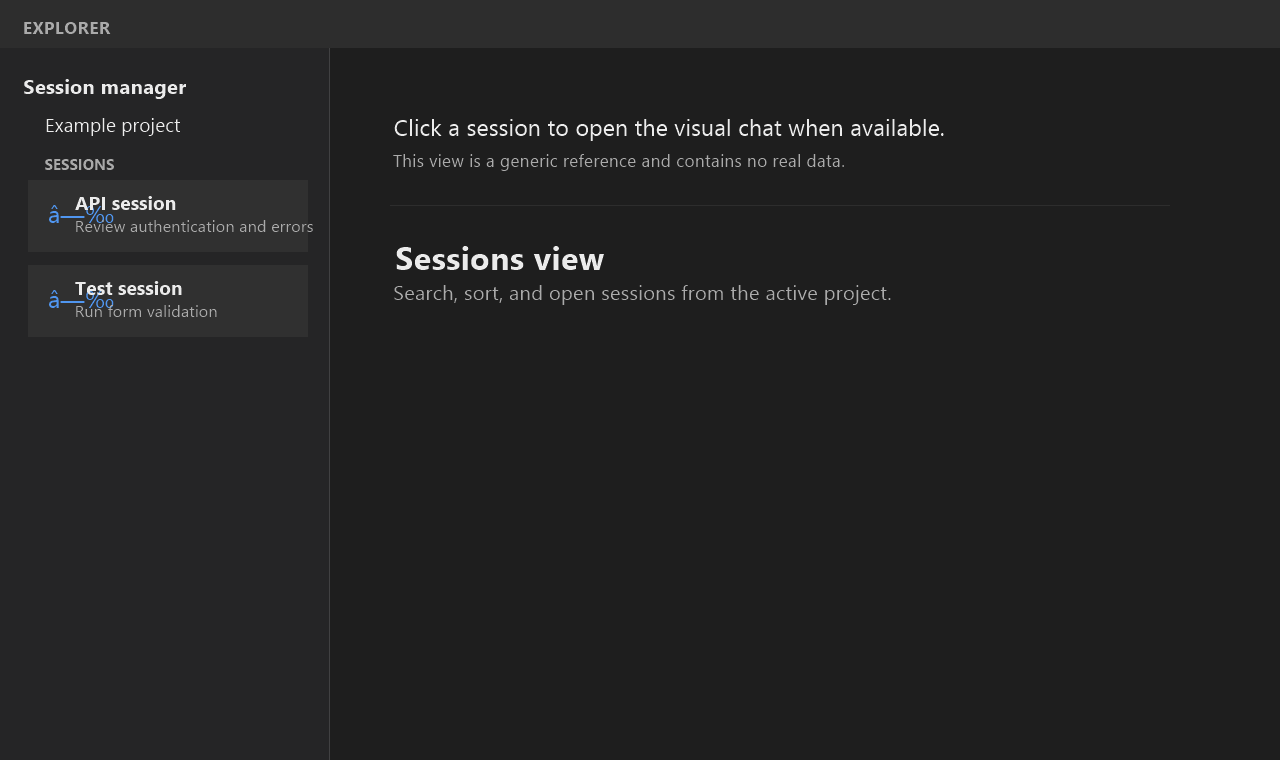
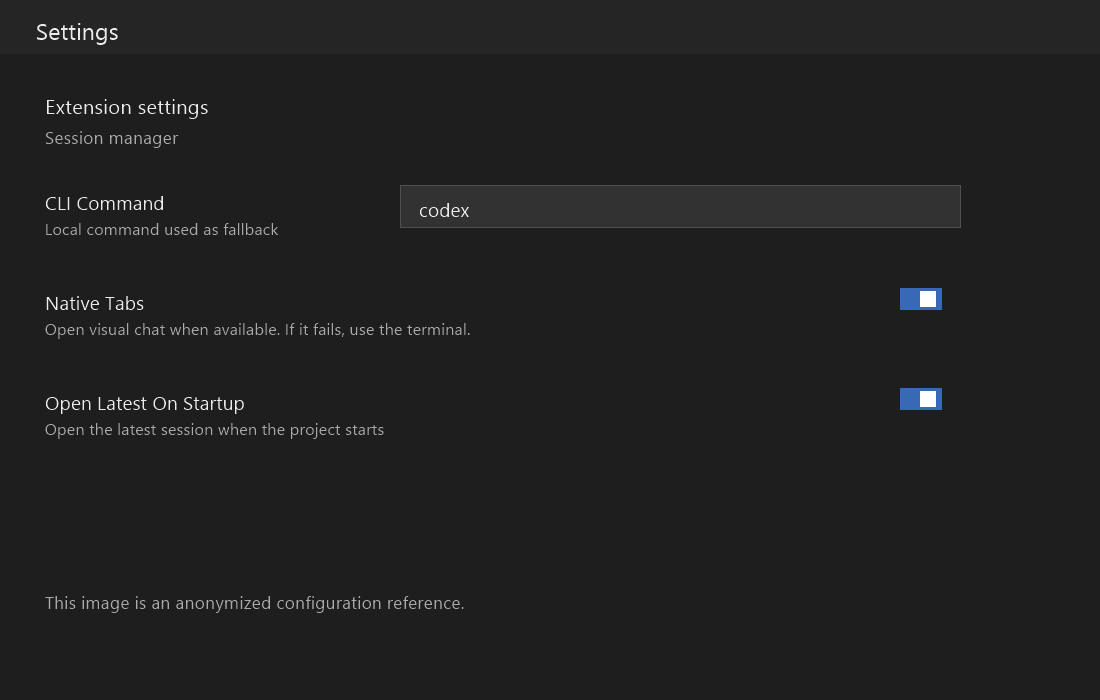
The release history is included in CHANGELOG.md.
Visual integration limitation
The primary visual-opening flow currently uses this internal route shape:
openai-codex://route/local/<id>
The extension passes it to VS Code through vscode.openWith and the chatgpt.conversationEditor editor from openai.chatgpt. The openai-codex scheme, route authority, /local/<id> format, viewType, and internal command are not stable public APIs of Codex or VS Code. They are implementation details observed in a local installation.
An update to the official extension may change the route, editor, or identifier format. Codex Workspace Manager checks whether the official extension is available and catches visual-opening failures. If visual opening fails, it uses codex resume <id> in the integrated terminal. If the CLI is unavailable, the rollout remains accessible through the read-only virtual JSONL view. The Codex Workspace Manager: Native Tabs setting can disable this integration voluntarily.
Known behavior
- A workspace with no matching
cwd sessions appears empty; sessions from other projects are not mixed automatically.
- The parser reads only the configured initial bytes of each rollout. The complete file is not loaded into memory to build the list.
- The update time is based on the file
mtime, because a JSONL rollout may still be growing while Codex is active.
- The visual integration depends on internal details and may stop working after an official extension update.
- If the official extension is missing, the ID is incompatible, or visual opening fails, the extension runs
codex resume <id> in an integrated terminal.
- Automatic opening never starts a terminal as a side effect. If visual opening is unavailable, it shows a warning and keeps manual actions available.
- The explicit “Resume in terminal” action always keeps the CLI flow available.
- “Open JSONL” uses a virtual
codex-session: URI and reads the source file without exposing an editable path to the original file.
- The extension cannot navigate directly to an official visual chat through a public API. If the CLI is unavailable, the read-only JSONL view remains available.
- The local session format may change without backward compatibility; the extension does not promise format stability.
References

