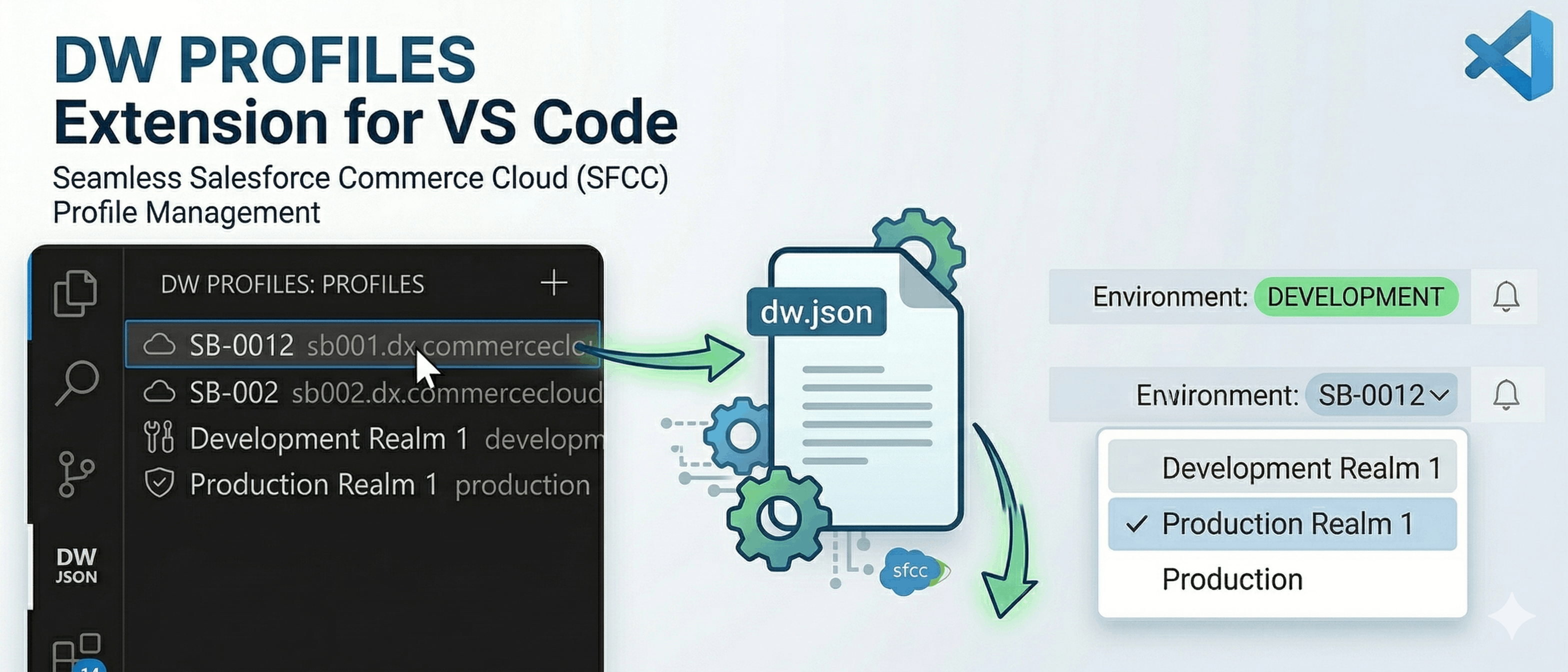
Ever wanted to manage multiple dw.json profiles for your Salesforce Commerce Cloud (SFCC) projects (e.g., Development and Sandbox environments) and switch between them easily? This extension allows you to maintain different SFCC connection details in named profiles and seamlessly apply them to your workspace's dw.json file.
- Key Features
- Unified Profile Editor - Edit all profile fields at once in a modern, full-form Webview instead of sequential prompts.
- Environment-Specific Icons - Instantly recognize your environment in the sidebar with dynamic icons for Development and Sandbox environments.
- Extended dw.json Support - Full support for
hostname, username, password, code-version, plus cartridge and cartridgePath (Prophet compatible). Unknown fields are preserved on save.
- Easy Profile Management - Create, edit, apply, and delete multiple
dw.json profiles via a dedicated Sidebar view or the Command Palette.
- Private Profile Selections - Profile definitions and workspace selections are stored in your user settings, keeping your credentials off git.
- Sidebar Integration - A custom DW Profiles section in the Activity Bar to manage all your profiles at a glance with environment-specific icons.
- Status Bar Integration - Quick access to the active profile from the status bar for fast environment switching.
- Multi-Root Workspace Support - Store different profile selections for each workspace folder.
Usage
Managing Profiles
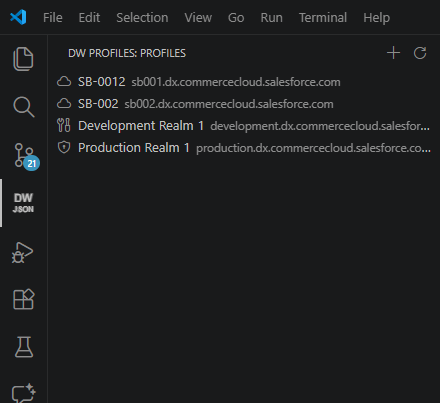
Once you install the extension, you'll see a new "DW Profiles" icon in the Activity Bar. Click on it to open the Profiles view.
From here, you can:
- Create a Profile: Click the
+ icon or use the Command Palette DW Profiles: Create Profile.
- Edit a Profile: Hover over a profile and click the pencil icon.
- Delete a Profile: Hover over a profile and click the trash icon.
- Apply a Profile: Hover over a profile and click the checkmark icon, or click the current profile in the Status Bar to select a different one.
Applying Profiles (Status Bar)
 The extension adds an item to your Status Bar indicating your currently applied DW Profile.
- Click on the DW Profile indicator in the Status Bar.
- A quick pick dropdown will appear showing all your configured profiles.
- Select the desired profile (e.g.,
Sandbox).
- The extension will automatically overwrite your workspace's
dw.json with the connection details of the selected profile.
- The Status Bar will update to show the newly selected profile.
Unified Profile Editor
When editing a profile, a modern Webview form opens, allowing you to update all fields (including cartridges and custom data) in one place.
Environment-Specific Icons
The sidebar dynamically updates icons based on the profile's hostname:
- Sandbox: Shield (
$(shield))
- Development: Tools (
$(tools))
- Additional Sandbox: Package (
$(package))
- Default: Cloud (
$(cloud))
Configuration
The extension stores your configured .dw profiles in your VS Code Global Settings.
You can manually edit them in your settings.json:
{
  "dwProfiles.profiles": [
    {
      "name": "Development Sandbox 1",
      "hostname": "development-1-xxx.demandware.net",
      "username": "myuser",
      "password": "mypassword",
      "code-version": "version1"
    },
    {
      "name": "Development Sandbox 2",
      "hostname": "development-2-xxx.demandware.net",
      "username": "myuser",
      "password": "mypassword",
      "code-version": "version2"
    }
  ]
}
The selected profile for each workspace is stored independently to allow separate projects to use different profiles simultaneously.
If you have any questions, need support, or want to discuss feature requests, feel free to reach out:
|