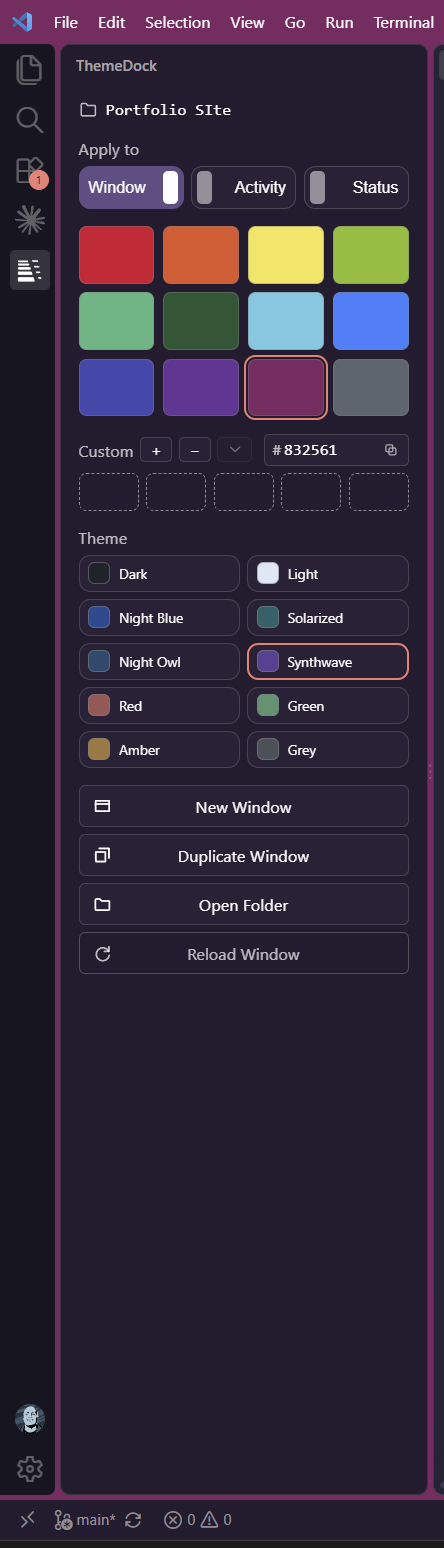
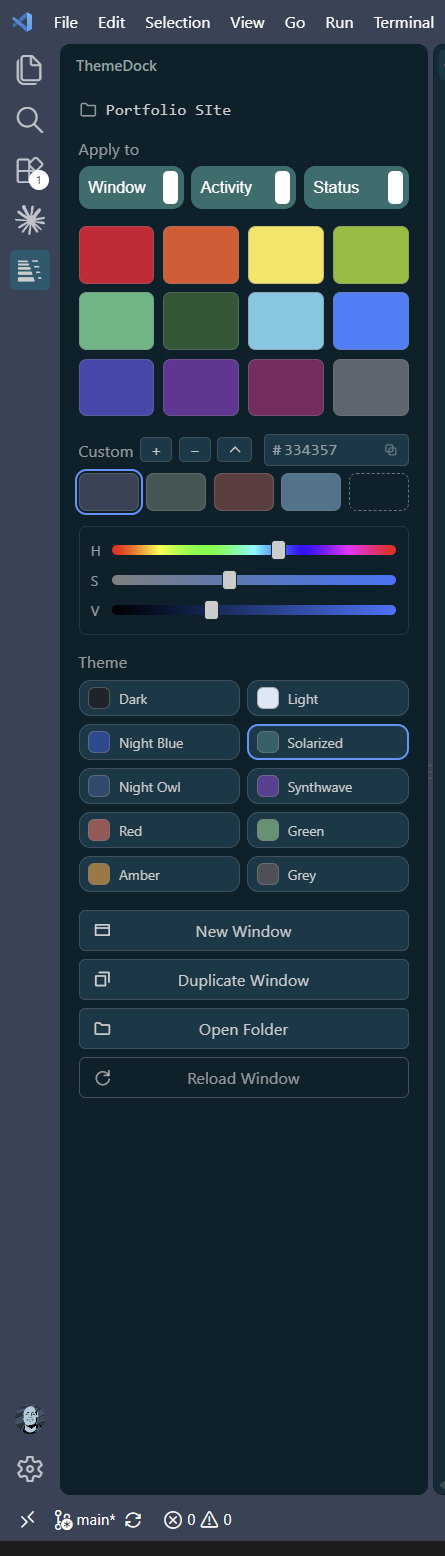
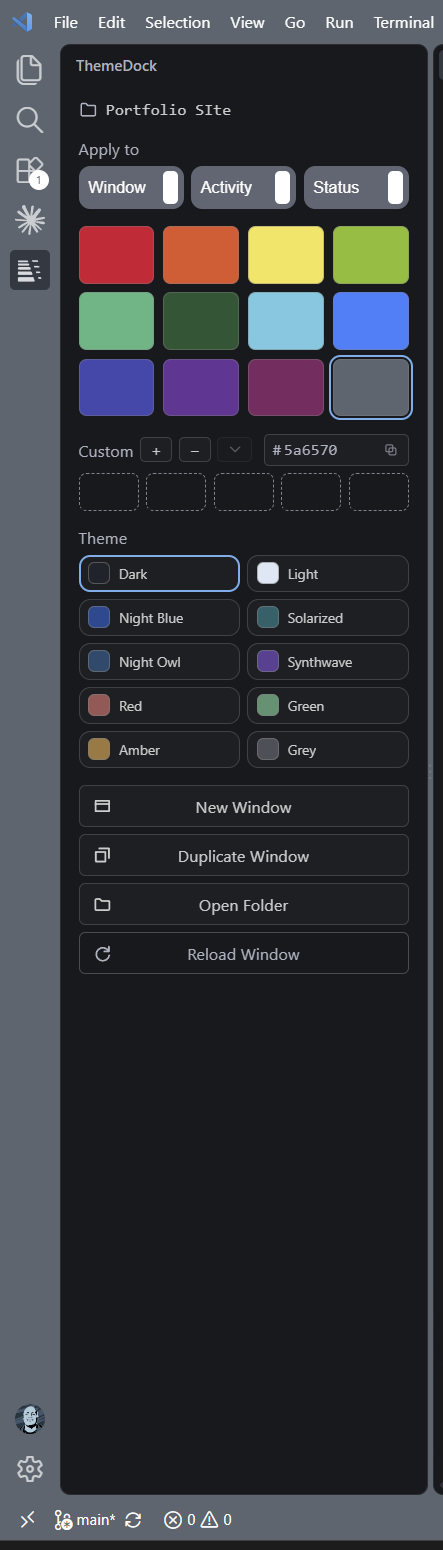
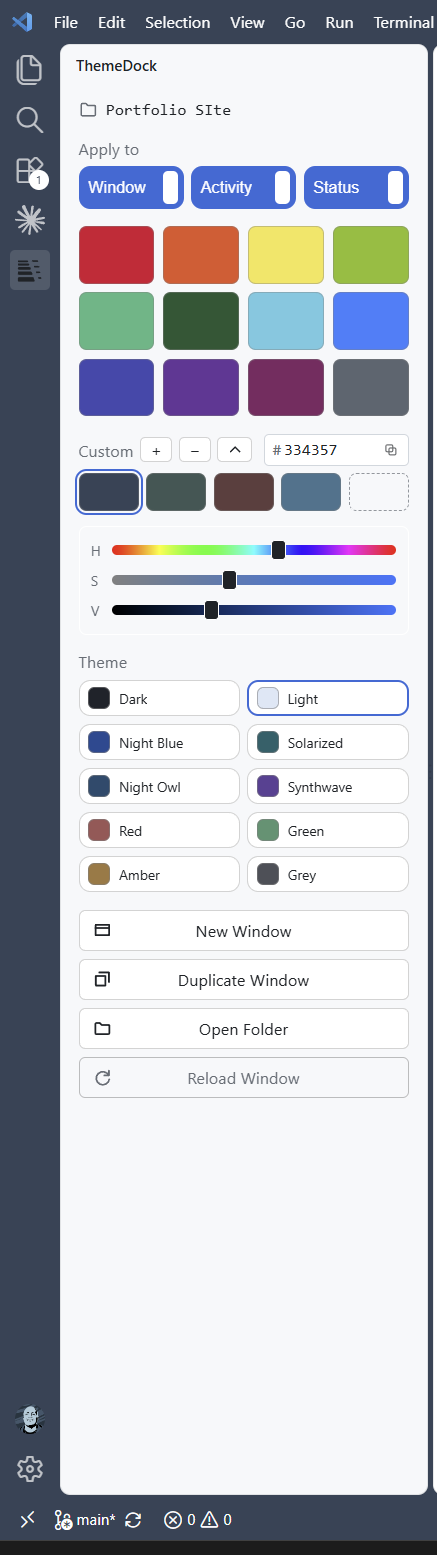
ThemeDockColour your VS Code window from a swatch grid in the sidebar, and switch themes without the command palette. Open a dozen windows and they all look identical. ThemeDock gives each one a colour so you know which is which before you read a single tab.
What it doesPick a colour, one click. A grid of swatches in the sidebar. Click one and this window takes it — no command palette, no editing JSON, no reload. Choose what it paints. Three switches for the window frame, the activity bar and the status bar. Any combination. Mix your own. Five custom slots, growable to twenty, with HSB sliders and a hex field. Nothing needs saving; the colour applies as you drag. Your custom palette follows you into every window. Ten themes, all included. Set for one folder only, applied live. Nothing to install and nothing to click twice. Window controls. New window, duplicate this one, open a folder, reload — without hunting through menus. How the colour is storedIn If you would rather these choices did not land in git, add
Worth knowingTwo windows on the same folder cannot have different colours. They read the same settings file. VS Code has no per-window settings scope — the levels are user, workspace and folder, and nothing narrower exists. The "Window" switch colours the whole frame, not just the title bar. Modern VS Code paints the window backdrop from the title bar colour, so the two cannot be separated. Use the activity bar or status bar switch if you want a marker without the backdrop. With no folder open, only the colour is unavailable. The theme picker and the window buttons still work — themes go to your user settings in that case, since there is no folder to attach them to. Syntax highlighting is not touched. Themes are a user-level setting in every other respect; this colours the chrome around your code. Bundled themesTen in the picker: One Dark Pro Night Flat, GitHub Light, Tomorrow Night Blue, Solarized Dark, Night Owl, Synthwave '84, Red, Retro Green, Kimbie Dark and Vitesse Dark Soft. Several more ship alongside them and are selectable from VS Code's own theme picker. Every bundled theme is MIT licensed, built from its own project's source and
unmodified. Licence texts are in Monokai Pro is deliberately absent — it is paid software, so bundling or linking it would be piracy. ContactBuilt by Dex Cimino.
LicenceMIT. See |