Makefiles Runner - derDere Fork
Make runner for VsCode. Simplify your development by easily running your makefiles commands directly from your IDE interface.
This extension is a fork of Makefiles Runner by Akecel. It lists every target the way GNU make reads it, shows ## descriptions from above and behind a rule, adds icons to the commands and places run buttons above each rule in the editor.
Usage
- Create your
Makefile at the root of your project
- Open the Makefile Commands view in the Explorer side bar
- Run any command with one click 🚀 – from the view or from the run button above its rule in the editor
Features
Run your makefile commands from the side bar panel or straight from the Makefile in the editor.
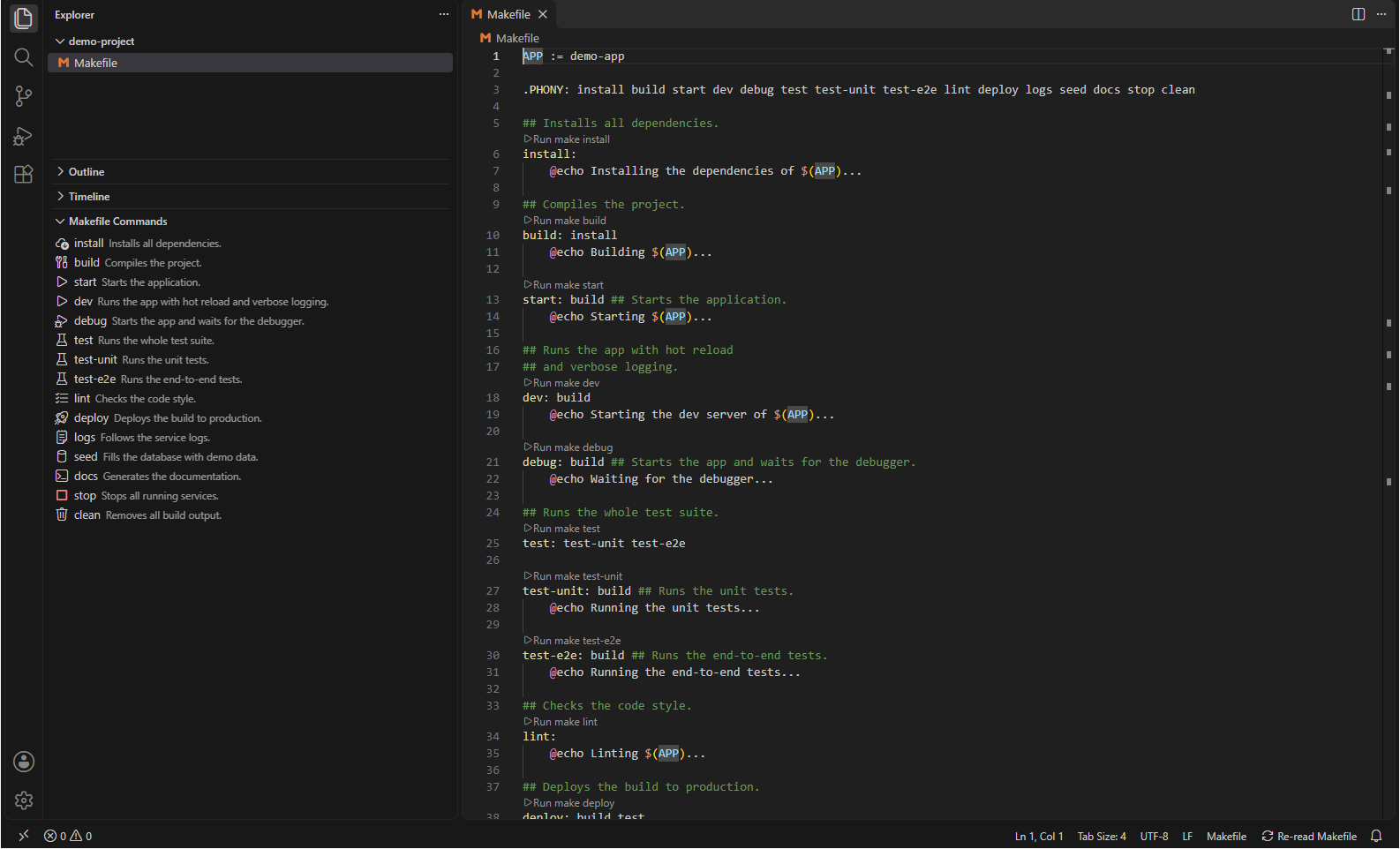
Listed commands
The panel lists the targets the way GNU make reads them: every name left of the rule colon is a command, with or without prerequisites (build: install). A rule with several targets (lint format: deps) lists each of them, and a target defined by several rules appears once.
These lines stay out of the list:
- variable assignments (
APP := demo, CFLAGS += -O2) and target-specific variables (build: CFLAGS = -O2)
- special targets such as
.PHONY and suffix rules such as .c.o:
- pattern rules (
%.o: %.c) and targets built from variables ($(OUT):)
- recipe lines, directives (
include, ifeq, export …) and the content of define blocks
The extension reads the file named Makefile in the root of the first workspace folder; rules in files pulled in with include stay out of the list. After editing the Makefile, the Re-read Makefile button in the status bar refreshes the panel.
Command descriptions
Comments starting with ## describe a command. They stand on the lines directly above the rule, behind the rule, or both:
## Builds the server and the app.
build: install ## Requires the installed dependencies.
Consecutive ## lines are joined into one description; a blank line or any other line ends the block. Comments with a single # are regular comments and stay out of the description. When a rule lists several targets, each of them gets the description. The description appears next to the command in the panel and as its tooltip.
Icons
Every command shows a codicon that matches its name:
| Icon |
Command names |
play |
start, run, up, serve, dev |
debug-stop |
stop, down |
debug-alt |
debug |
cloud-download |
install, restore, deps, pull |
tools |
build, compile |
beaker |
test |
trash |
clean, clear |
checklist |
lint, format |
rocket |
deploy, release, publish |
output |
logs |
database |
seed, init |
terminal |
every other command |
A name also matches when it starts with the key followed by - or _, so test-live and test_unit show the test icon; letter case does not matter. The icons setting adds and overrides entries:
"makefilesRunner.icons": {
  "record-fixture": "record",
  "build": "package"
}
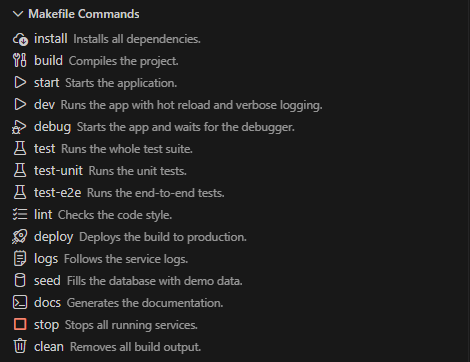
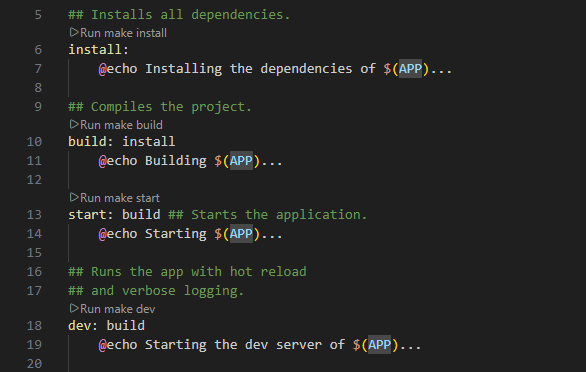
While the Makefile at the root of the workspace is open in the editor, a ▶ Run make <target> button stands above each rule and runs the command like a click in the panel. The buttons follow the file as you edit it.
Extension Settings
sortAlphabetically: Sorts the makefile commands shown in the panel in alphabetical order, defaults to false. When disabled, commands are shown in the same order as they appear within the makefile itself.displayDescriptionCommentsInPanel: Shows the ## description of each command as text next to the command in the panel, defaults to true. The tooltip shows the description regardless of this setting.alwaysCreateNewTerminal: Creates a new terminal rather than reusing an existing one when set true, defaults to false.reuseMatchingTerminal: Reuses the first terminal with a matching command label when set true, defaults to false. Overrides alwaysCreateNewTerminal if both set true, so new terminals will only be created when running a command with no matching terminal.icons: Assigns codicon ids to commands, e.g. { "record-fixture": "record" }. Keys match a command with the same name or a command starting with the key followed by - or _; the longest matching key wins. Entries extend and override the built-in mapping, commands without a match show the terminal icon.
Contributing
Please read CONTRIBUTING.md for details on our code of conduct, and the process for submitting pull requests to us.
Authors
Licence
This project is licensed under the MIT License - see the LICENSE file for details.
Show your support
Give a ⭐️ if this project helped you!

