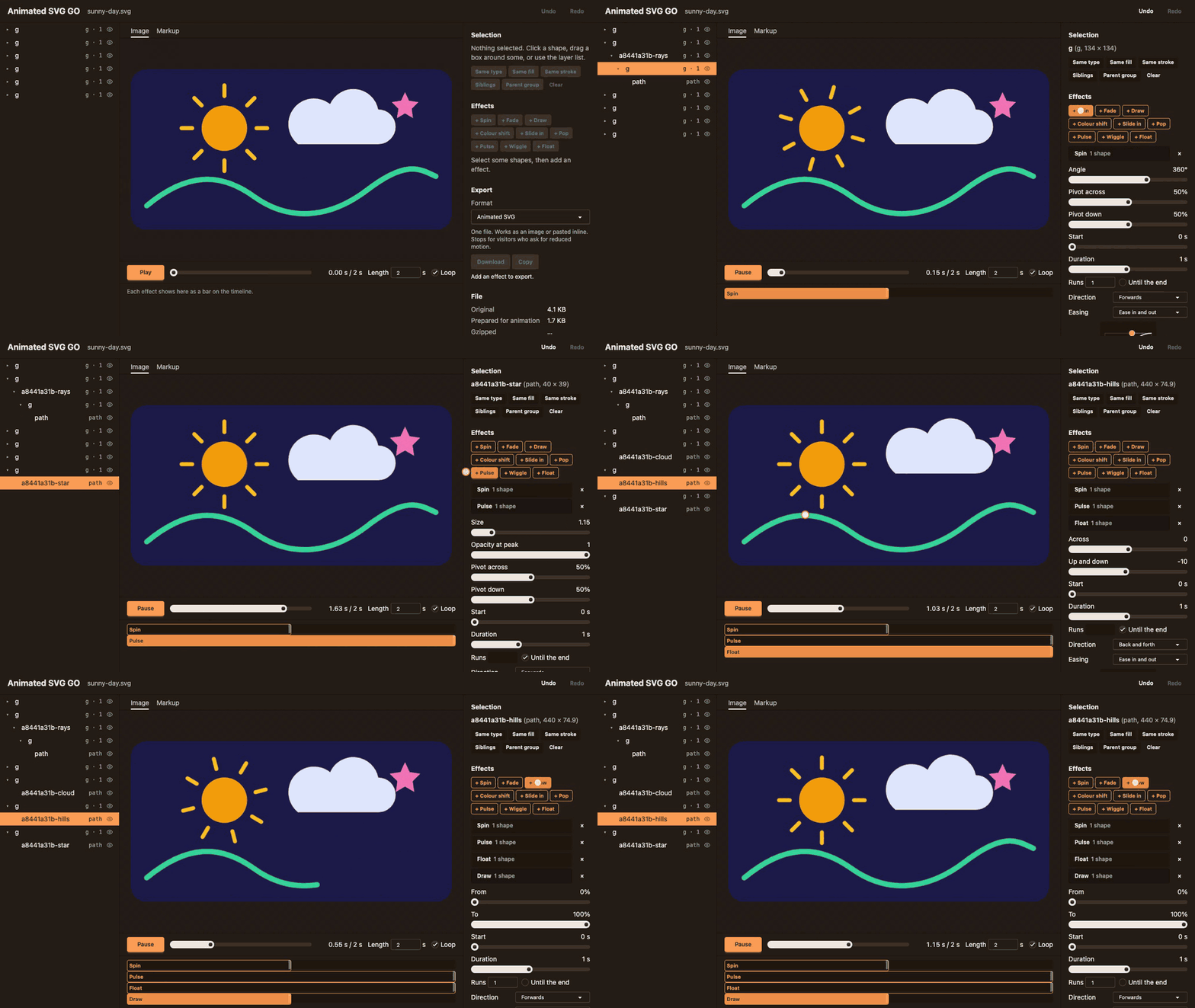
Right-click an .svg file and choose Open with Animated SVG GO. Or open the file and press the play button in the editor's title bar.
Nine effects: Spin, Fade, Draw, Pop, Float, Wiggle, Pulse, Slide in and Colour shift.
Stagger them, pick easings, drag a pivot, scrub the timeline.
Export an animated SVG, an SVG + CSS snippet, an SVG + JS snippet, a GIF or an MP4. Each one is saved where you choose.
Your file stays put
Your SVG is never changed. Exports are new files. Your effects are kept in VS Code's own storage, and come back when you reopen the file. If the file has changed since, it starts fresh.
Nothing leaves your machine. No accounts, no uploads, no analytics in the extension.
Notes
Tested on VS Code for Mac. MP4 needs an H.264 encoder, and VS Code may not have one on Windows or Linux. GIF works everywhere.
Every SVG, CSS and JS export respects prefers-reduced-motion. GIF and MP4 can't.