

|
 Line King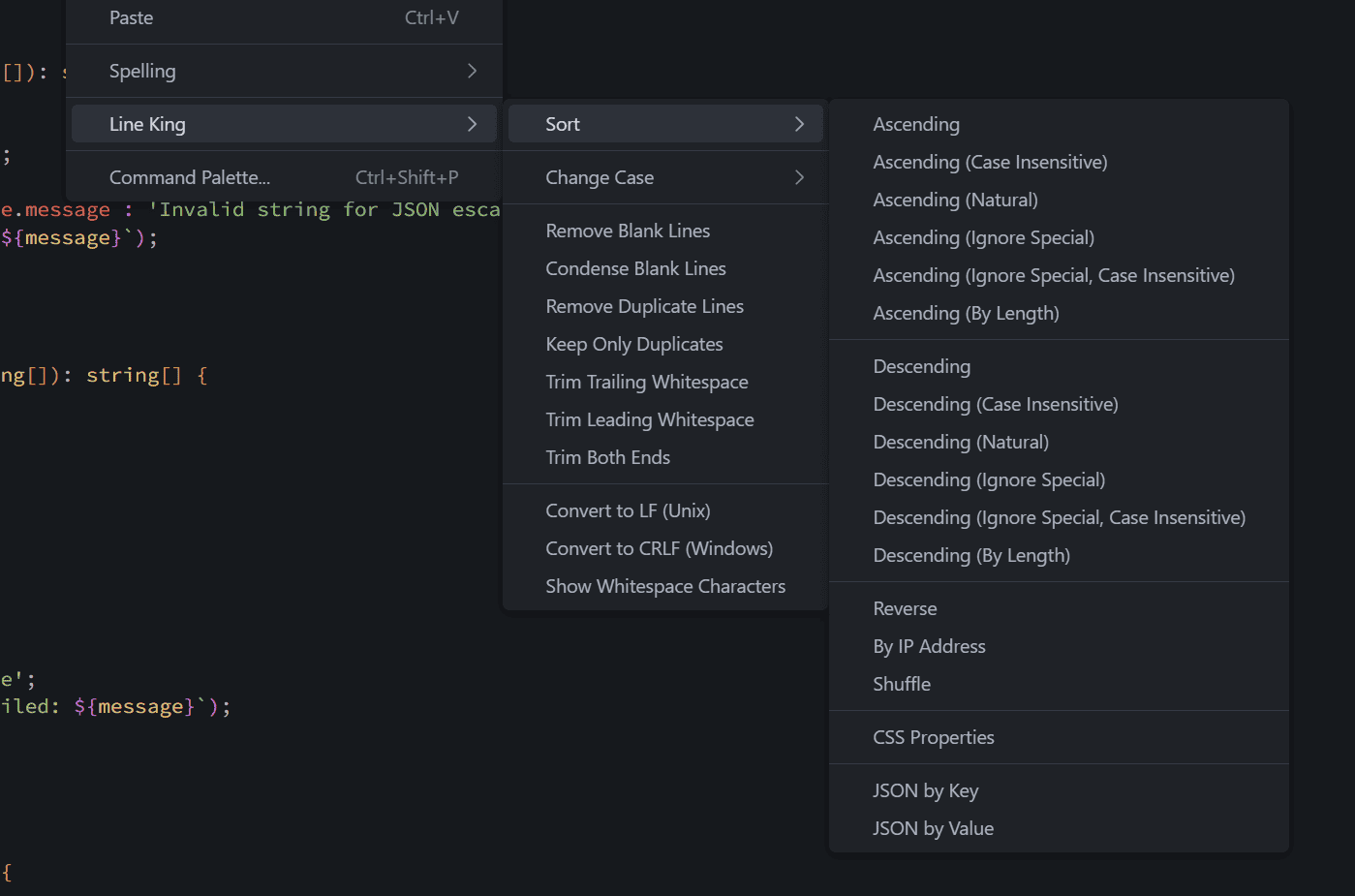
| Setting | Description | Default |
|---|---|---|
lineKing.joinSeparator |
Character or string used when joining lines together. | " " (Space) |
lineKing.cleanupOnSave |
Action to run on save: none, removeBlankLines, trimTrailingWhitespace, or sortCssProperties. |
none |
lineKing.cssSortStrategy |
Strategy for CSS sorting: alphabetical (by property name) or length (by line length). |
alphabetical |
Example Configuration
{
    "lineKing.joinSeparator": ", ",
    "lineKing.cleanupOnSave": "trimTrailingWhitespace",
    "lineKing.cssSortStrategy": "alphabetical"
}
Commands
All commands are available through the Command Palette (Ctrl+Shift+P / Cmd+Shift+P):
Sort Commands
Ascending:
Line King: Sort: AscendingLine King: Sort: Ascending (Case Insensitive)Line King: Sort: Ascending (Natural)Line King: Sort: Ascending (Ignore Special)Line King: Sort: Ascending (Ignore Special, Case Insensitive)Line King: Sort: Ascending (By Length)
Descending:
Line King: Sort: DescendingLine King: Sort: Descending (Case Insensitive)Line King: Sort: Descending (Natural)Line King: Sort: Descending (Ignore Special)Line King: Sort: Descending (Ignore Special, Case Insensitive)Line King: Sort: Descending (By Length)
Other:
Line King: Sort: ReverseLine King: Sort: By IP AddressLine King: Sort: ShuffleLine King: Sort: CSS PropertiesLine King: Sort: JSON by KeyLine King: Sort: JSON by Value
Tidy Commands
Line King: Tidy: Remove Blank LinesLine King: Tidy: Condense Blank LinesLine King: Tidy: Remove Duplicate LinesLine King: Tidy: Keep Only DuplicatesLine King: Tidy: Trim Trailing WhitespaceLine King: Tidy: Trim Leading WhitespaceLine King: Tidy: Trim Both Ends
Case Commands
Line King: Case: UPPERCASELine King: Case: lowercaseLine King: Case: Sentence caseLine King: Case: Title CaseLine King: Case: camelCaseLine King: Case: PascalCaseLine King: Case: kebab-caseLine King: Case: snake_case
Dev Tools Commands
Line King: Dev: URL EncodeLine King: Dev: URL DecodeLine King: Dev: Base64 EncodeLine King: Dev: Base64 DecodeLine King: Dev: JSON String EscapeLine King: Dev: JSON String UnescapeLine King: Dev: Minify JSON
Tools Commands
Line King: Tools: Duplicate SelectionLine King: Tools: Join LinesLine King: Tools: Split Selection...Line King: Tools: Align to Separator...Line King: Tools: Insert Numeric Sequence (1,2,3...)
Util Commands
Line King: Util: Show Whitespace CharactersLine King: Util: Hide Whitespace CharactersLine King: Util: Convert to LF (Unix)Line King: Util: Convert to CRLF (Windows)
Examples
Sorting a List
Before:
Zebra
Apple
banana
Cherry
After (Ascending, Case Insensitive):
Apple
banana
Cherry
Zebra
Sorting CSS Properties
Before:
.container {
    z-index: 10;
    background-color: white;
    padding: 20px;
    margin: 0 auto;
    display: flex;
}
After:
.container {
    background-color: white;
    display: flex;
    margin: 0 auto;
    padding: 20px;
    z-index: 10;
}
Aligning to Separator
Before:
name = "John"
age = 30
email = "john@example.com"
After (Align to =):
name  = John
age   = 30
email = john@example.com
Requirements
- Visual Studio Code v1.109+
- No additional dependencies required
Extension Compatibility
Line King is designed to work in:
- ✅ Local VS Code
- ✅ VS Code Web (browser)
- ✅ Virtual Workspaces
- ✅ Untrusted Workspaces
Performance Benchmarks
Line King is optimized for fast startup with lazy initialization. Benchmark metrics track extension activation time to ensure performance remains optimal.
Running Benchmarks Locally
# Run startup benchmark
bun run benchmark
This will:
- Compile the extension
- Run VS Code extension host
- Measure activation timing across multiple runs
- Display aggregated results with statistics
- Compare against baseline if available
Benchmark Metrics
The following metrics are tracked during extension activation:
| Metric | Description |
|---|---|
| Logger Init | Time to initialize logging system |
| Commands Registered | Time to register all commands |
| Save Handler Registered | Time to register document save handler |
| Context Deferred | Time to defer context manager initialization |
| Total | Complete extension activation time |
CI Benchmarking
Benchmarks run automatically on:
- Push to
mainordevelopbranches - Pull requests to
mainordevelop
Results are posted as comments on PRs to track performance changes.
Support
Please report issues and feature requests to Line King issues.
License
MIT.