DataStep Studio for R
See what your R program did. Stop where it goes wrong. Prove your fix.
🌐 Website · Get started · Manual ·
How-to guide · dsr commands
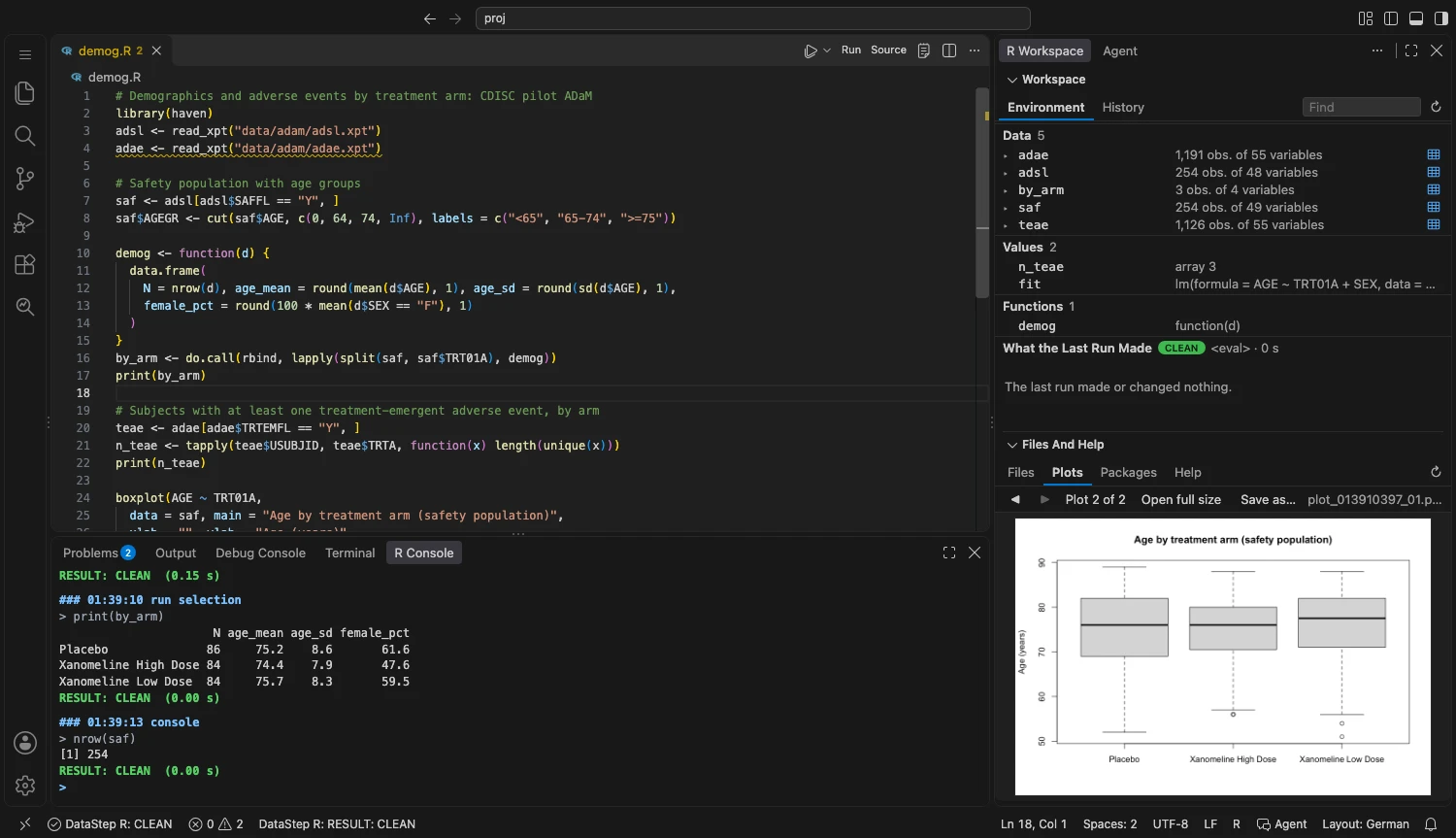
DataStep Studio for R gives VS Code the four panes you know from RStudio, a log that explains every step of your
program, four ways to find why a value is wrong, and an optional AI agent whose work you can check. It is made for
statistical programmers in clinical trials (ADaM, TLFs, pharmaverse) and works with any R code.
Preview 0.20.1, free for evaluation. Built and tested on macOS with VS Code; Windows, Linux and Positron are
not tested yet. Tell us what breaks in the Q & A tab of this page.
Why DataStep Studio for R
- Know what each step did. After every run, the log says what happened to each data frame:
dm has 12 rows and 9 columns (was 12 x 8). New: BMIGRP (1 missing).
- Find the cause, not only the error. A debugger, a line-by-line trace, a pipeline debugger that shows the records
each step dropped and why (a condition that was NA, a join key without a match), and
pry() stops inside a real
run, also in the middle of a pipeline.
- Change code with proof. Format, rename and call edits are written only when the tool proves the code still means
the same.
dsr verify gives one verdict for a fix.
- Use AI you can check. An agent works in your R session through the same tools you use. You see every run, log and
stop. Everything works without AI, too.
- Keep your data on your computer. No telemetry, no account. Data leaves your computer only when you choose it.
Community and Professional
Community is free, always. Run your programs, read the log and the Suspicious Log, work in the RStudio layout,
look at data in the data viewer (WHERE, Ask, filters, Summary, export), format and lint with proof, go to definitions
and rename, run batch jobs and tests, and connect your own AI agent. Professional adds the tools that save hours on
a study.
All Professional features are free during Early Access, until 17 February 2027. You need no licence and no
account for it. After that date Professional may need a paid licence; Community stays free.
| Community: always free |
Professional: free during Early Access |
| Run a program, a selection or a file; the log with a NOTE per data frame; the Suspicious Log |
The R debugger: breakpoints, F5, Stop at Line, Break on Value Change, stop at a warning |
| R Console, the RStudio layout, Environment, History, Files, Plots, Packages, Help |
pry(): a stop in the code, and everything at the stop |
The data viewer with everything it has, and the data tools (dsr describe, freq, means, dups, compare, query, ...) |
Trace Function Call; Call a Function with a Form |
| Format R Program, lint, the style check, the Style Report |
The pipeline debugger: why each record left, joins, follow a subject, try a fix |
| Autocomplete, hover, snippets; Go to Definition, Find Every Use, Rename, Outline |
Enlarge and Optimize Function Call |
| Check Setup, Report a Problem, the keys of DataStep Studio for SAS |
The Program Graph: dependency order, parallel runs, only what changed |
dsr batch and dsr test (plain runs) |
Coverage; dsr verify; dsr snapshot and compare --expect |
The MCP server, dsr agent setup, the Agent chat |
The clinical checks (dsr adam check, spec, numbers, cdisc, app check, gate) and the analysis tools (dsr understand, model, review, claim, findings, ...) |
One DataStep Studio Professional licence works in DataStep Studio for SAS and for R. DataStep R: License and
Edition shows your edition; DataStep R: Enter License… (or dsr license enter <file>) enters a licence. The check
is offline: no account, no telemetry, nothing is sent.
Start in five minutes
- Install this extension (or run
code --install-extension datastep-labs.datastep-r).
- Open a folder with R code. The DataStep R icon appears in the activity bar. The walkthrough
Get started with DataStep Studio for R on the Welcome page shows the next steps.
- Start the R session with the play button in the Session view. If R lacks a package, the session names it and
gives the install command. DataStep R: Check Setup (or
dsr doctor in a terminal of the editor) checks everything
at once.
- Run a program. Open an R file and press F4 (or Cmd/Ctrl+Shift+Enter). The R Console shows the log.
- Look inside. Press F12 to open the last data frame the run made. Click in the margin of a line and press
F5 to stop there.
The manual ships inside the extension and is on the website. Its chapter 1,
Get started in five minutes, uses an example study of 12 made-up subjects with a planted bug.
The layout you know
DataStep R: RStudio Layout arranges the window in one step. It is offered once and never forced. It changes no
setting, and Reset Layout undoes it.
| Pane |
What you find there |
| Top left |
The editor, with Run and Source in its title. A data frame opens as a tab beside the program. |
| Bottom left |
The R Console. Enter runs a line, the arrow keys go through the history, Tab completes objects, functions and the columns after $, and an incomplete line continues with +. |
| Top right |
Environment (for example adsl 254 obs. of 48 variables; a click opens the data viewer) and History. |
| Bottom right |
Files, Plots, Packages and Help (the help page of your installed version, with Run example). |
The function keys of DataStep Studio for SAS work too: F4 runs the selection or the file, F12 opens the last
data frame, F2 clears the log, and F9 lists every key.
A log that explains your program
Every run writes a log with the line of every message and a NOTE for every data frame a step makes. The run ends with
one verdict: RESULT: CLEAN, CHECK, or ERROR with its first cause.
The Suspicious Log lists the messages that matter: text that became NA, a join that added rows, a type that
changed. Each one shows its line, why it matters and how to fix it.
Four ways to find why a value is wrong
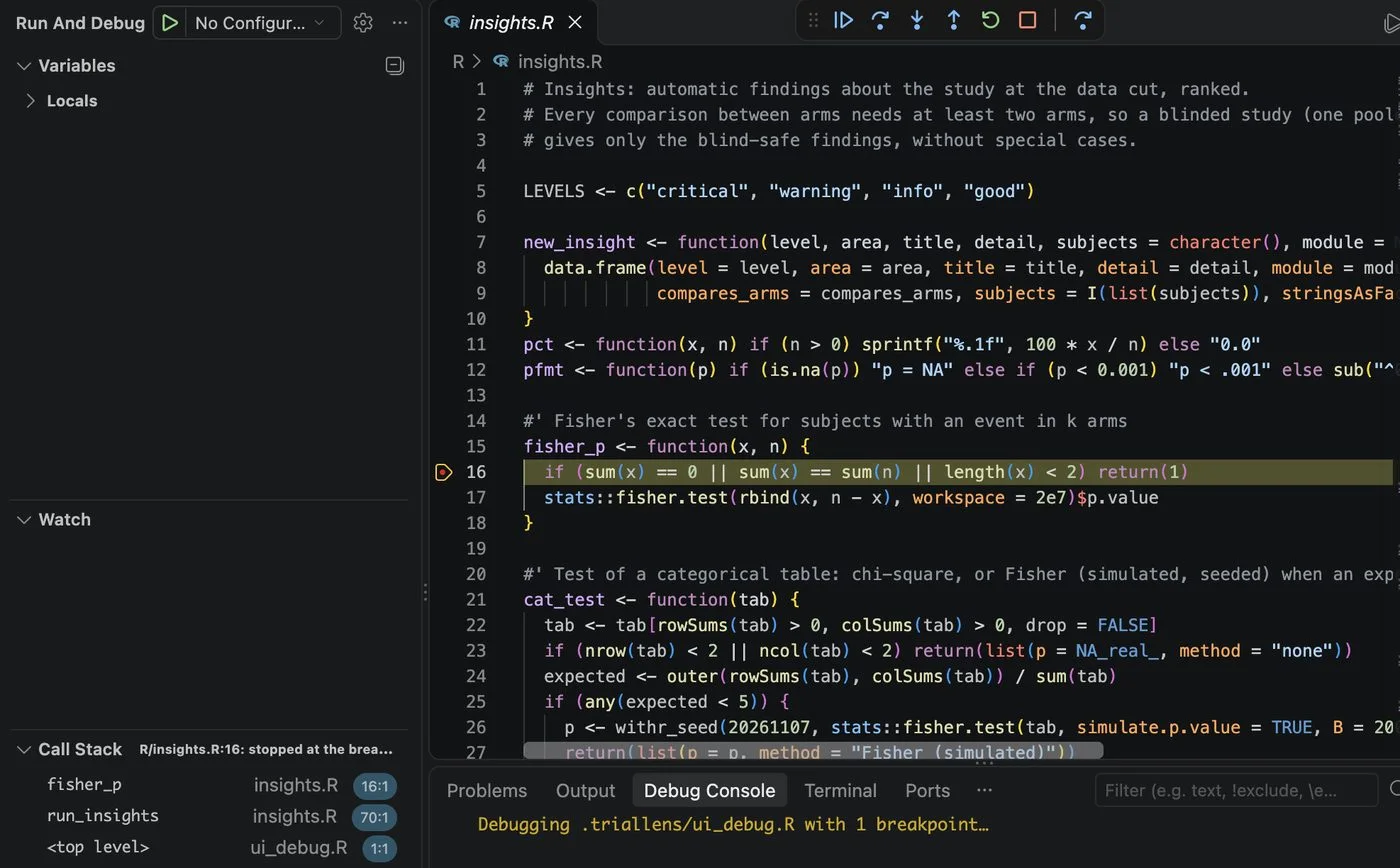
1. The debugger. Press F5 on an R file, or set a breakpoint in the margin (Ctrl+F9).
- The run stops at the breakpoint, also inside a function. You see the call stack, the variables of every frame
(a data frame opens to its columns and labels), and a Debug Console that runs R in the frame.
- Step over, step into, step out, continue, and Run to Cursor.
- Give a breakpoint a condition, a hit count (
>= 3, % 10), or a log message that writes without stopping.
- Break on Value Change stops after a variable changes and names the line that changed it.
- Stop at a warning stops where R gives a warning, with its frames still open.
- Edit a value at the stop and continue. Attach to a run of your agent that waits at its stop.
- An error keeps its frames open, so you can look at the objects where it failed without a second run.
2. Trace. Trace Function Call runs one call and lists every line that ran, what each line changed, and each if
with the values it compared. The whole story of one call on one page, without stepping.
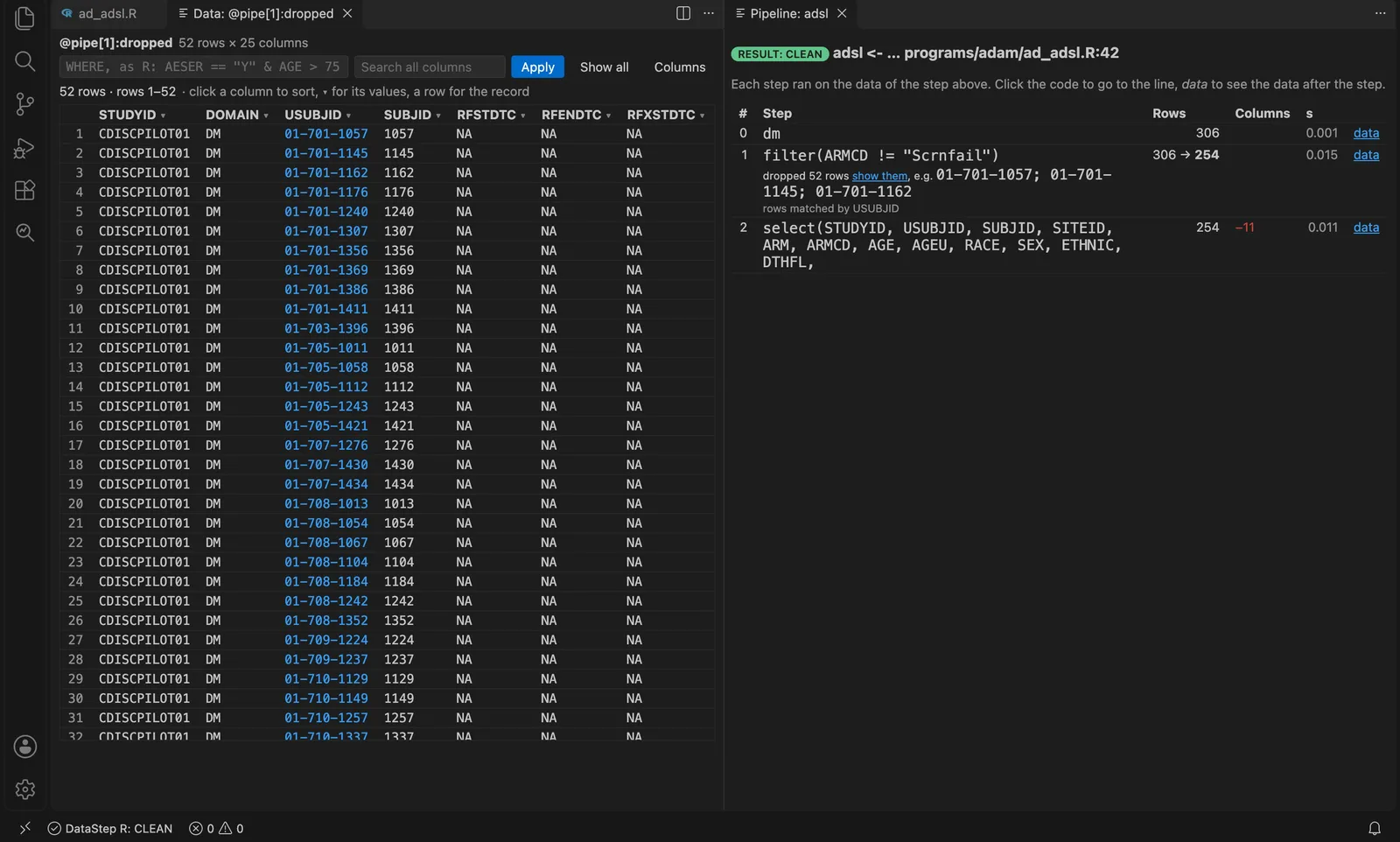
3. The pipeline debugger. Debug the Pipeline runs a pipeline step by step. It shows the rows before and after
each step, the columns each step added, and the records each step dropped, by USUBJID and sequence number. It
answers "where and why did my records go":
- Why a filter dropped each record. The condition was FALSE, or NA:
subset() and dplyr::filter() drop an NA
without a word, a top source of wrong counts. A condition of several parts names the part.
1 row: ASTDY > 1 is NA (subset() drops NA without a word), e.g. S-105 / 4 (ASTDY = NA)
- What a join did. The keys of each side without a match, and what the join did with them; the keys that copy
rows (
17 -> 20: USUBJID S-105 is 2 times in lab); the columns that got a .x / .y.
- Follow one subject. Type
S-105 in the Follow field, or click a key: its rows at every step, where each one
leaves and why, the values each step adds.
- Try a fix. try a fix on a step runs the pipeline again with your code and shows each later step with
"(was n)". The file does not change until you accept the proposed edit.
- Stop where a record leaves.
dsr run prog.R --stop-on-drop S-105 stops at the first pipeline step of the run
where a record of S-105 leaves; --stop-on-dup 'USUBJID AESEQ' where a key stops being unique.
- Every set is data for the viewer and the data tools:
@pipe[3]:dropped:na, @pipe[1]:unmatched:x,
@pipe[1]:multiplied.
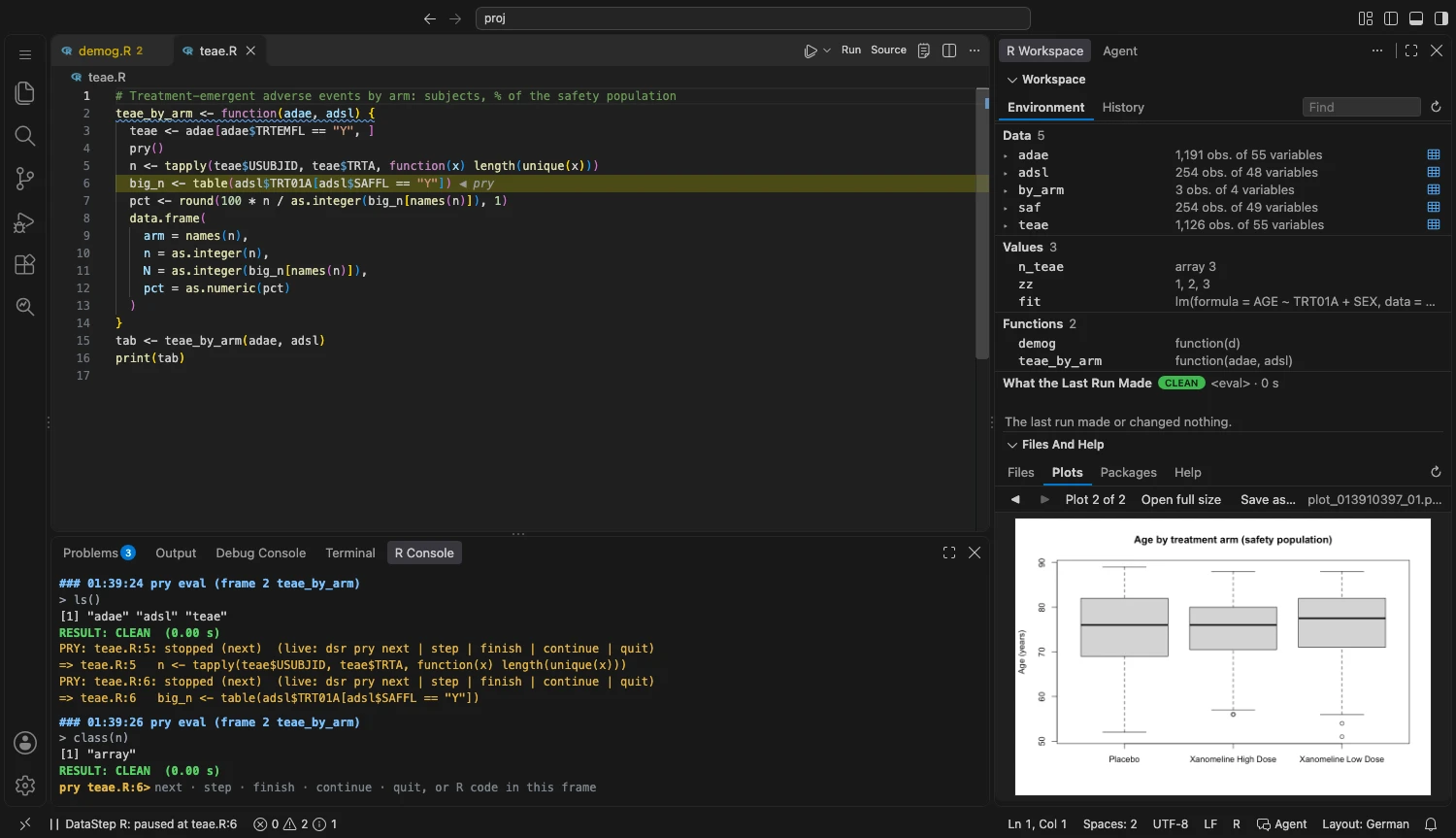
4. pry. A breakpoint belongs to the editor. pry() belongs to the program: you write the stop where your question
is, and the real run stops there, with the real data.
- Stop for one subject in a loop:
pry(when = dm$USUBJID[i] == "S-110") stops only when the condition is true.
- Stop in the middle of a pipeline:
x |> f() |> pry(when = anyNA(.$ASTDY)) |> g(). At the stop . is the data
at that point; pnext, pback and pstep 3 walk the steps; continue passes the data on unchanged.
- The Console becomes the frame. The prompt changes to
pry teae.R:6>, and what you type runs in that frame.
next, step, finish, continue and quit move the run on; up, down and stack move between frames.
- The data tools work at the stop:
dsr describe, freq and compare read the objects of the frame (@pry:adsl).
- An agent can stop there too:
dsr run prog.R --stop-at 'R/derive.R:11 if any(bmi == 30)', then dsr pry next.
The status bar shows the waiting stop, and you can take it over in the debugger.
Your data, one key away
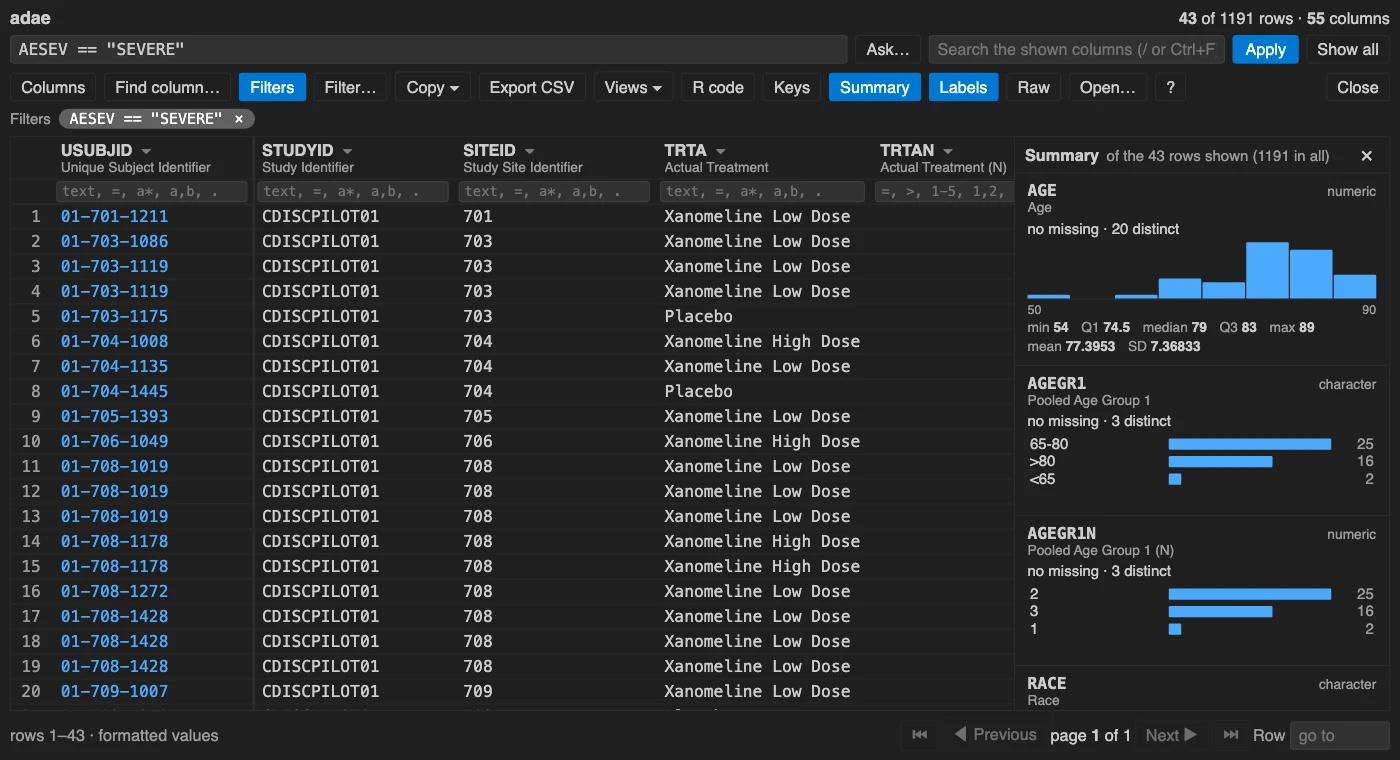
Press F12 to open the last data frame. The data viewer gives you:
- the keys of the data viewer of DataStep Studio for SAS: the value picker, the column filters, Find column, the sort
keys (below);
- a WHERE box that completes column names and values, and a filter builder that needs no R;
- a Summary card for each column, computed on the rows you see;
- a menu on each column, pinned key columns, copy, CSV export and saved views;
- each view as dplyr and base R code;
- quick work with 200,000 rows.
The data viewer of DataStep Studio for SAS, now for R
Coming from SAS? Your hands already know this viewer. The keys of the data viewer of DataStep Studio for SAS work
here, and every filter you make is written for you as an R condition that you can see, edit and paste.
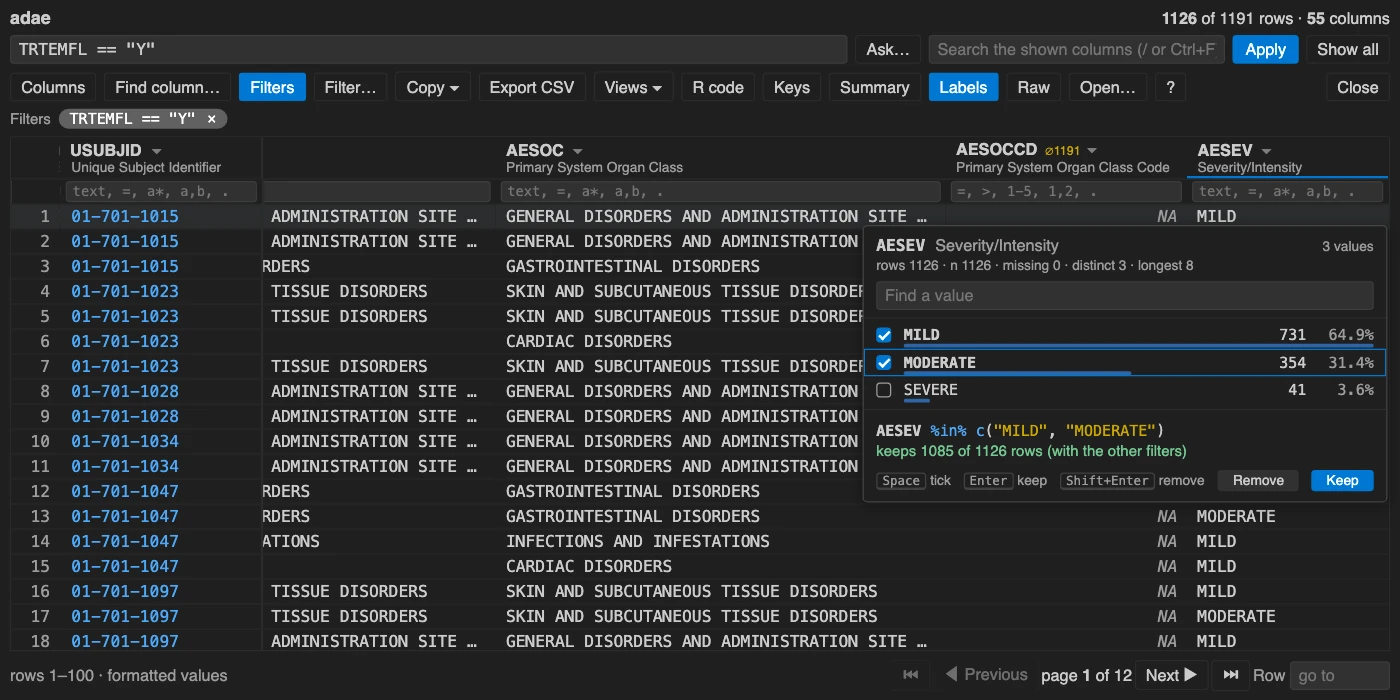
- Ctrl+Alt+I picks values. Tick values of a column; the R condition and its row count appear as you tick.
NA is a value you can tick (is.na(AESEV)), so missing values are never lost by accident.
- Enter keeps, Shift+Enter removes. On a cell, Enter keeps its value; Shift+Enter or
x removes it and keeps
the NA rows, as <> does in SAS. Ctrl+Alt+E puts column == value into the WHERE box; Ctrl+Alt+R
shows every row again.
- The filter forms you know. Under each column:
rash (contains, any case), =RASH, <>RASH, >=65,
65..80, a,b,c, !a, R*, . for missing, 01JAN2014 for a date, Male for a labelled value.
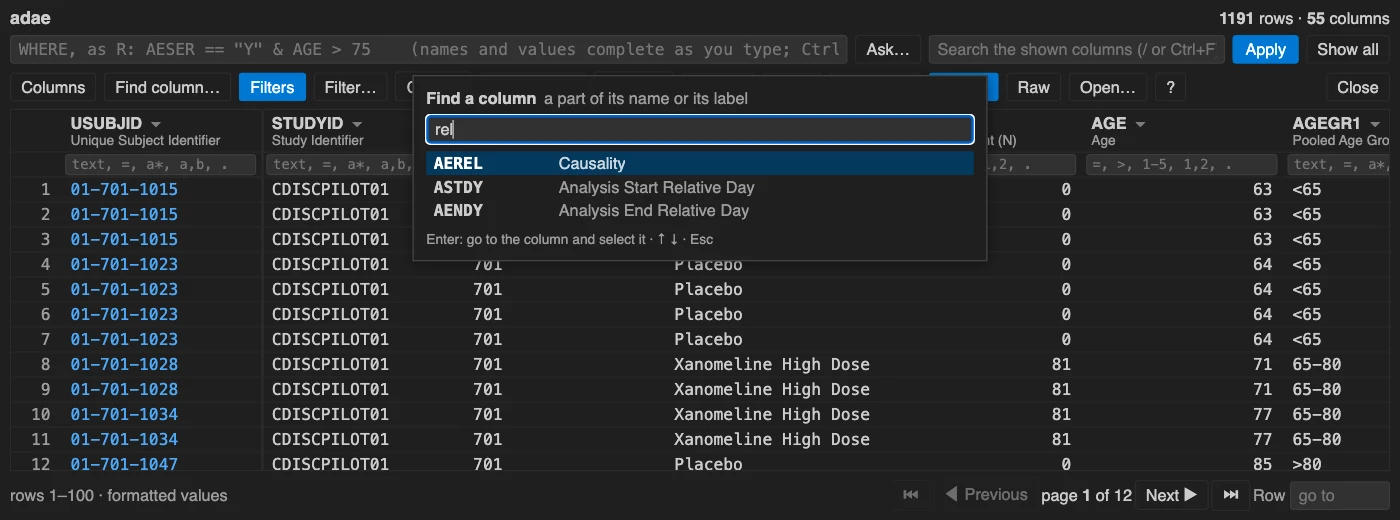
f for the values and statistics of a column: n, missing, distinct, min, max, mean, SD.- Ctrl+Alt+F finds a column by a part of its name or label (
rel finds AEREL) and selects it.
s, a, d sort, Shift+S adds a key; t filters the column; g goes to a row; F3 closes.
For an agent the same tools are commands: dsr values adae AESEV --keep 'MILD,NA' writes the condition and counts
its rows; dsr filter adsl AGE '65..80' turns a SAS-style filter into R.
Ask in words. Click Ask… and type, for example, "which subjects have a serious adverse event". Your chosen
model writes the R condition, USUBJID %in% adae$USUBJID[adae$AESER == "Y"]. The viewer checks it, applies it and
shows what it means, with Undo. The model gets the column names, labels, types and the values of coded columns,
never a row. The condition runs only if it is one expression made of allowed functions and of columns and data sets
that exist.
Write R to the standard
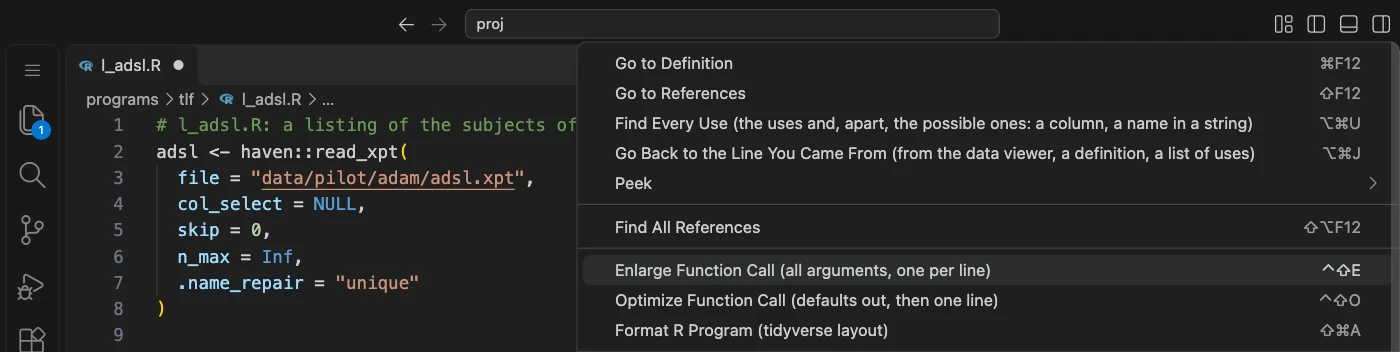
R's standard is the tidyverse style guide. Three commands and one check put a program into that style. Each change is
written only with proof that the code means the same. The commands are also in the editor's right-click menu.
- Format R Program (Ctrl+Shift+A; Cmd+Shift+A on a Mac) runs styler, then breaks each line over 80 characters
(one argument per line, the comma at the end of the line). The status bar shows the proof:
formatted the file: 4 lines changed, the 35 tokens and 2 comments unchanged.
- Enlarge Function Call (Ctrl+Shift+E) shows the call at the cursor with every argument of the function, one
per line, the others with their defaults from your live R session. Optimize Function Call (Ctrl+Shift+O)
removes the defaults and puts the call on one line again.
- The style check finds statements joined with
;, = used to assign, T and F, long lines, functions without
a roxygen header, and cryptic short names. It shows them as information in the Problems panel, never as errors. The
light bulb fixes them, and a Style Report counts them for a folder.
- In a terminal or for an agent:
dsr format, dsr call enlarge|optimize <file>:<line> and dsr style.
Move through a study
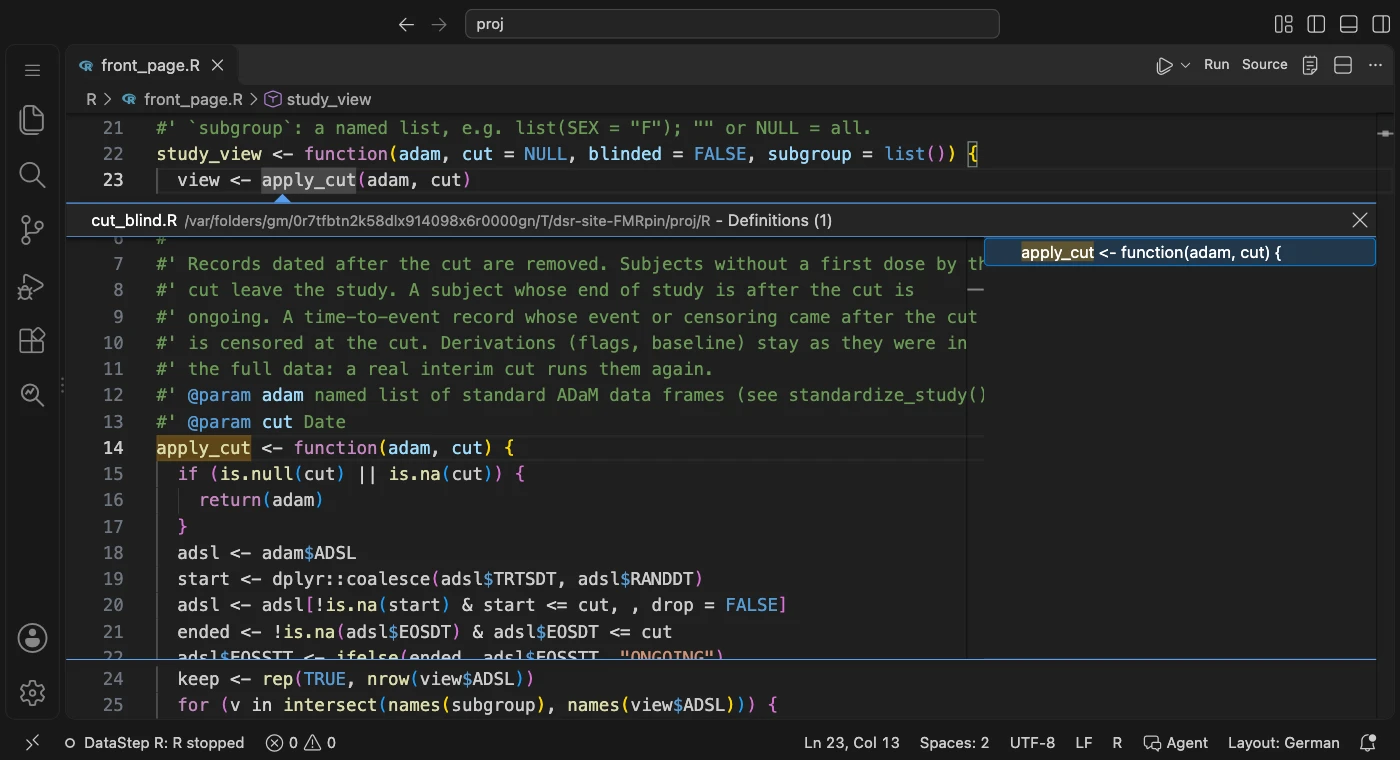
A study has many files. These moves read the files only, so no run and no R session is needed.
- Go to Definition (Ctrl+click, Cmd+click on a Mac, or Ctrl+Alt+G) finds a function (also in a file that
never ran), the program line that writes a data set, the statement that makes a column, or a package's function.
If there is no definition, the message says why. Ctrl+Alt+J goes back.
- Find every use with Shift+F12. Uses in a string or in non-standard evaluation are listed apart.
- Rename Symbol (Shift+F2) renames in every file, with proof that no other token changes.
- The Outline, the breadcrumbs and Ctrl+T show the functions, sections and data frames of a file and of the
project.
- Ctrl+Alt+D opens the data frame under the cursor: a name,
adsl$AGE, a pipeline step or a file path. If the
program has not made it yet, it offers to run to that line.
Programs in the right order
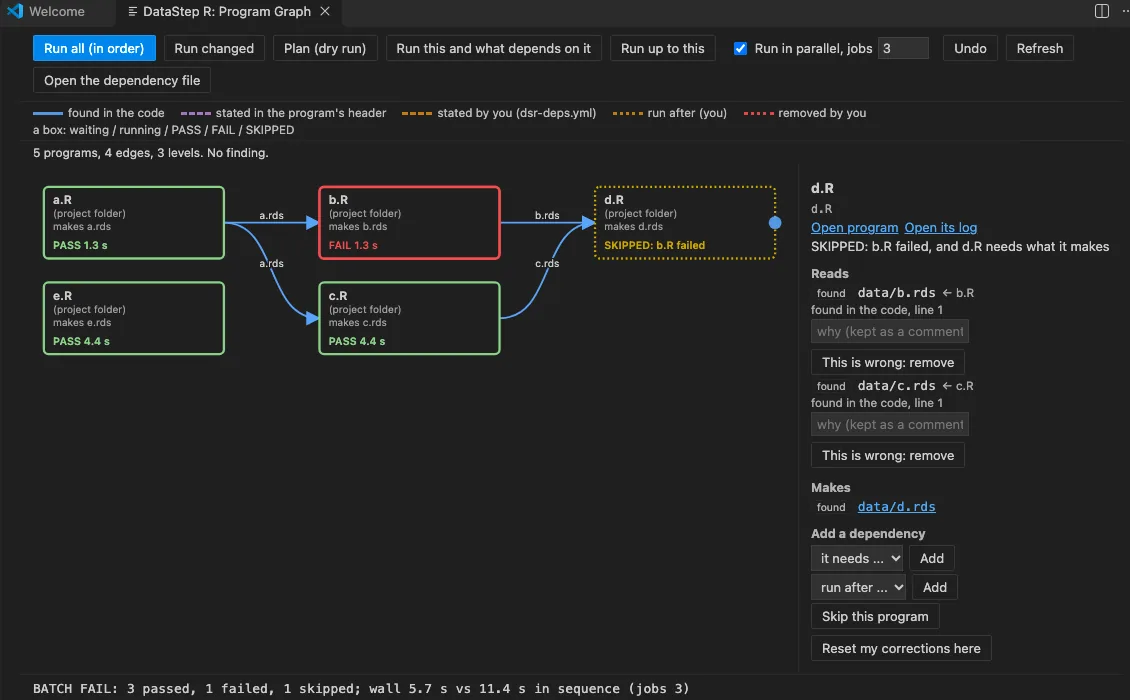
The Program Graph reads your code to find which program makes the data the next one reads, and runs them in that
order: ADSL first, then ADAE and ADLB, then the tables. A failed program skips only the programs that need it. You can
correct the graph (dsr-deps.yml), run only what changed, and run independent programs in parallel.
An AI agent whose work you can check
An agent that writes R is easy to get. An agent whose work you can check is what matters in a clinical study. Here
the agent works in your R session, through the same tools you click, so you see each of its runs, logs and stops.
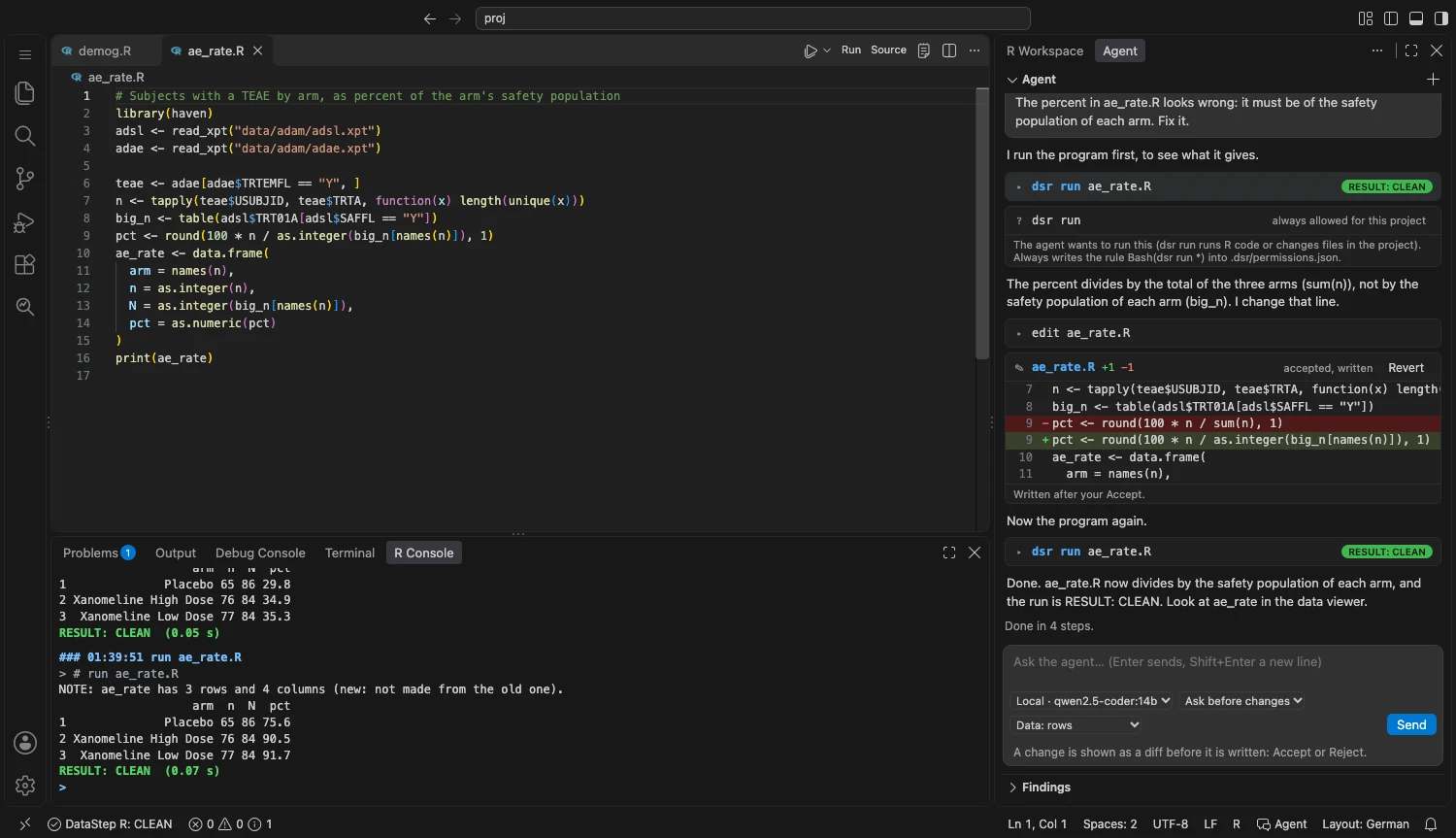
- Bring your own agent. Use the agent you already pay for, under your own login: Claude Code, Codex, opencode, or
a local model with Ollama in the Agent chat. GitHub Copilot keeps its own Chat view and gets the dsr tools.
DataStep R: Set Up Agent Tools (or
dsr agent setup --client ...) registers an MCP server with 71 typed tools,
and dsr agent doctor proves the connection without calling a model.
- See every step. Each tool call is a card with its
dsr command and verdict. With the local agent (Ollama) you
accept or reject each file change before it is written. Claude Code, Codex and opencode write their own edits;
you see the diff afterwards, with Revert.
- One verdict for a change.
dsr verify prog.R lints, runs, reads the log, runs again in a fresh R session and
checks the ADaM specification. It answers VERIFY PASS, CHECK or FAIL, each finding as
file:line: what | why | fix.
- Proof that nothing else changed. Take
dsr snapshot before the fix. Then
dsr compare dm @snapshot:before --expect AGEGR1 answers ONLY THESE CHANGED: AGEGR1 (1 value, 1 subject) and
NOTHING ELSE CHANGED.
- Clinical checks.
dsr adam check compares an ADaM data set with its specification and, cell by cell, with its
double-programmed reference. dsr numbers compares a table with a CSR page, number by number. Also dsr cdisc.
- Understanding before conclusions.
dsr understand describes a data set on one page that a model can reason on:
what one row is, the ADaM or SDTM shape, the populations and what looks wrong. With --stats it adds the N by arm,
missing data and baseline. dsr digest, dsr model and dsr review do the same for a run, a fitted model and a
statistical checklist. Every line is computed; no tool calls a model.
- Conclusions you can check again.
dsr claim records a conclusion with the command that proves it.
dsr findings check runs every check again and shows which claims no longer hold. An agent states a claim; a person
accepts it.
- Permissions you can read.
dsr agent setup writes allow lists for your agent: reading is allowed; deleting,
overwriting, installing, sending data out and running your R code still ask. dsr agent permissions check '<command>'
tells you what would happen before an agent runs a command.
- You decide what the agent sees. The data mode
aggregate gives a cloud agent only counts, summaries and
structure. Before the first message, the chat tells you once what goes to the provider and sends nothing until you
answer.
Tested with the real command: Claude Code and Codex. opencode was built from its documentation (version 1.19.5) and not
run. For GitHub Copilot, the configuration was written and the server proved to start, but it was not run with a
signed-in Copilot.
Everything works without any AI and without an account. The clinical checks are tools for your own QC, not a
validated system.
Everything at a glance
| Your question |
What DataStep Studio for R gives you |
| What did my program do? |
F4 runs the selection or the file. The log shows the line of every message and a NOTE for every data frame a step makes, then one verdict: RESULT: CLEAN, CHECK or ERROR with its first cause. |
| Which messages matter? |
The Suspicious Log and the Problems panel: text that became NA, a join that added rows, a type that changed, each with its line, why and the fix. |
| Why is this value wrong? |
A breakpoint (with a condition) and F5, or Stop at Line (Cmd/Ctrl+Alt+F9). The call stack, the variables of each frame, the Debug Console in the frame. An error keeps its frames open. pry() stops a real run where you wrote it. |
| Which line set this variable? |
Trace Function Call: every line one call ran, what it changed, and each if with the values it compared. |
| Which pipeline step loses records, and why? |
Debug the Pipeline: the rows before and after each step, the columns added, the records each step dropped (by USUBJID and sequence) with the reason (the condition FALSE or NA, a join key without a match, a key that copies rows). Follow one subject through the steps; try a fix of a step without a change of the file; --stop-on-drop stops a run where a record leaves. |
| What is in the data? |
The data viewer (F12): WHERE box, Ask…, filter builder, column chooser, Summary cards (missing values, quartiles, histogram, top values, dates by month), CSV export, saved views, and the view as dplyr and base R code. dsr describe, freq, means, dups and compare are PROC CONTENTS, FREQ, MEANS and COMPARE in R. |
| How do I use this function? |
Shift+F1 on a function opens its help page for your installed version, with Run example, a search over every installed package, and the vignettes (admiral and the pharmaverse guides). |
| Is my machine ready? |
Check Setup gives PASS, FIX and NOTE lines for R, its version and the packages each feature needs, each with an install command that runs only when you click. Report a Problem shows exactly what would be shared (no data values) and sends nothing. |
| What is in my session? |
The Data view (every data frame with rows × columns and its columns; the project's .xpt, .sas7bdat, .rds and .csv files, opened without loading them), What the Last Run Made (data frames created or changed, columns added and dropped, files written, plots) and Values and Functions. |
| Will it run? |
Lint on save finds functions and argument names that do not exist in your installed packages, and typos, with "did you mean". |
| Is it tidy? |
Format R Program (Ctrl+Shift+A; Cmd+Shift+A on a Mac): styler, then lines wrapped at 80 in the tidyverse layout, written only with proof that the tokens and comments stayed the same. |
| What does this call really ask for? |
Enlarge Function Call (Ctrl+Shift+E) shows every argument with its default from the live session; Optimize Function Call (Ctrl+Shift+O) removes the defaults again. Both with proof that the call means the same. |
| Is it written to R's standard? |
The style check against the tidyverse style guide, as information in the Problems panel, with quick fixes, a Style Report for a folder, and dsr style. |
| Where is this made, and who uses it? |
Go to Definition (Ctrl+click, Ctrl+Alt+G) of a function, a data set or a column; Shift+F12 every use; Shift+F2 rename with proof; Ctrl+Alt+D the data frame under the cursor; Ctrl+Alt+J back. |
| In which order do my programs run? |
The Program Graph and dsr batch programs/: dependency order (in parallel as an option); a failure skips only what needs it; --changed runs only what is out of date. |
| Is my fix right? |
dsr verify (lint, run, fresh run, specification, reference or snapshot) and dsr snapshot + dsr compare ... --expect (only the variable you meant changed). |
| Does it run on its own? Are the numbers right? |
dsr batch (a new R session and a .log per program), dsr test (testthat in a clean process), dsr numbers, dsr adam check, spec and cdisc, and for a Shiny or teal dashboard dsr app check and dsr gate. |
Keys. The function keys of DataStep Studio for SAS work in R files and in the extension's views: F4 runs the
selection or the file, F2 clears the log and console, F12 opens the last data frame, F9 lists every key, and Shift+F4
or Esc closes the data viewer. In R files, F2 and F12 replace VS Code's Rename Symbol and Go to Definition: use
Shift+F2 and Ctrl+click (or Ctrl+Alt+G) instead, or set dsr.f12 to definition. The setting dsr.functionKeys
turns the function keys off.
Also included: autocomplete that knows the session's functions and your data's columns with their labels, hover,
signature help, coverage (which lines never ran) and clinical snippets.
Requirements
- VS Code 1.85 or later, or Positron. Positron, VSCodium and other editors install from another store: there,
install the
.vsix file with Extensions: Install from VSIX.
- R 4.4 or later, with
Rscript on the PATH (or set dsr.rscript). Tested with R 4.4.1.
- Node.js 18 or later, for the
dsr command.
- R packages for the session: httpuv, later, promises, evaluate, jsonlite, testthat and callr. Optional, each for
one tool: styler (format), lintr (more lint checks), yaml (specifications), haven (
.xpt and .sas7bdat files),
shiny, shinytest2 and chromote (the dashboard checks). The session uses your project's R library (its renv library,
when it has one), and dsr doctor names each missing package with its install command.
- The
dsr command: the extension puts it on the PATH of every terminal you open in this editor window. Outside
the editor, run node <extension folder>/bin/dsr.js (dsr doctor prints the folder).
Your data and privacy
The extension collects nothing: no telemetry and no usage data. The R session listens on 127.0.0.1 only, on a random
port, and answers only requests that carry its random token. The editor, dsr and the MCP server talk only to it.
Something leaves your computer only when you choose it:
- An AI agent in the cloud. Your questions and what the agent reads (code, logs, what the tools return, which can
include rows and values of your data, screenshots) go to its provider under your account: Claude Code to Anthropic,
Codex to OpenAI, opencode to the provider you configured there, and GitHub Copilot to GitHub (Microsoft). With Ollama
on this machine, nothing leaves it.
- New Dashboard Project: Set up downloads R packages (renv) and the public CDISC pilot data.
- In a dashboard that New Dashboard Project makes, the page loads two fonts from Google Fonts. Its Ask Claude tab
sends your question, variable names with labels and some values, and the result table (not the subject-level data)
to the model.
STUDYLENS_AI=none turns this off; ollama keeps it local.
How this was checked: every place in the extension's code that can reach a network was searched (src/, bin/,
r/), and the sockets of a running session were listed: one, 127.0.0.1:<port> (LISTEN). The full table is in the
manual's chapter Privacy.
Your data and AI agents: your responsibility
DataStep Studio for R sends nothing to DataStep Labs. An AI agent is your choice and works under your own account with
its provider.
With a cloud agent (Claude Code, GitHub Copilot, Codex, or opencode with a cloud provider), your questions, the code,
and what the tools return to the agent leave your computer and go to that provider. This can include rows and values
of your data.
Before you use the agent, check that you may send this data: your agreement with the provider, the rules of your
company and of the sponsor, the consent of the trial's participants, and data protection law (for example GDPR or
HIPAA). DataStep Labs cannot check this for you and is not liable for data that you or your agent send to a provider.
To keep data on your computer:
- use a local model (Ollama on this machine): nothing leaves it;
- or set the aggregate data mode (
dsr agent permissions data aggregate): the dsr tools then give an agent counts and
summaries only, no rows and no identifiers. This lowers the risk but does not remove it (the manual's chapter
Privacy says what it does not protect against). It does not limit an agent that reads files by other means than
dsr, so keep the read rules for data files;
- or work on dummy or public data.
This is plain information about what the software does, not legal advice.
Settings
| Setting |
Default |
What it does |
dsr.rscript |
Rscript |
The Rscript that starts the session. |
dsr.lintOnSave |
on |
Checks an R file when you save it. |
dsr.format.* |
|
How much Format R Program and Format Document may change (styler's scope, indent, strict), and the wrap step (dsr.format.wrap, on). |
dsr.style.enabled |
on |
The style check against the tidyverse style guide, as information in the Problems panel (dsr.style.off leaves rules out). |
dsr.style.lineLength |
80 |
The line limit of the style check, the wrap step and Optimize Function Call. |
dsr.f12 |
lastData |
F12 in an R file: the last data frame, or definition for Go to Definition. |
dsr.functionKeys |
on |
F4, F2, F12, F9 and the other function keys in R files. |
dsr.agent.provider |
claude_code |
The Agent chat and Ask: claude_code, codex, opencode (your own agent and login) or ollama (a model on this machine). |
dsr.claude.model |
empty |
Empty: Claude Code's default. |
dsr.codex.model |
empty |
Empty: Codex's default. |
dsr.opencode.model |
empty |
As provider/model; empty: opencode's default. |
dsr.ollama.model |
qwen2.5-coder:14b |
The model of the local agent. |
Known limits of this preview
- Tested on macOS (Apple silicon) only. Windows and Linux are not tested yet.
- A folder with an
.Rproj file opens like any folder; the .Rproj settings are not read.
- The extension's R session is its own R process. Next to Positron's console or the R extension for VS Code, the
objects of one session are not in the other.
- The clinical checks are tools for your own QC, not a validated system.
Learn more
🌐 https://datastep-studio-r.pages.dev: Get started, the manual, the
how-to guide and the dsr commands. Questions and problems: the
Q & A tab of this page.
Licence
Copyright (c) 2026 DataStep Labs. All rights reserved. Preview build for evaluation; not for redistribution (see the
file LICENSE: the Community and Professional editions, Early Access). Third-party notices: THIRD-PARTY-NOTICES.md. An independent product: not affiliated with or endorsed by
the R Foundation, Posit PBC or SAS Institute Inc. R is a trademark of the R Foundation; RStudio is a trademark of
Posit PBC.
| |

