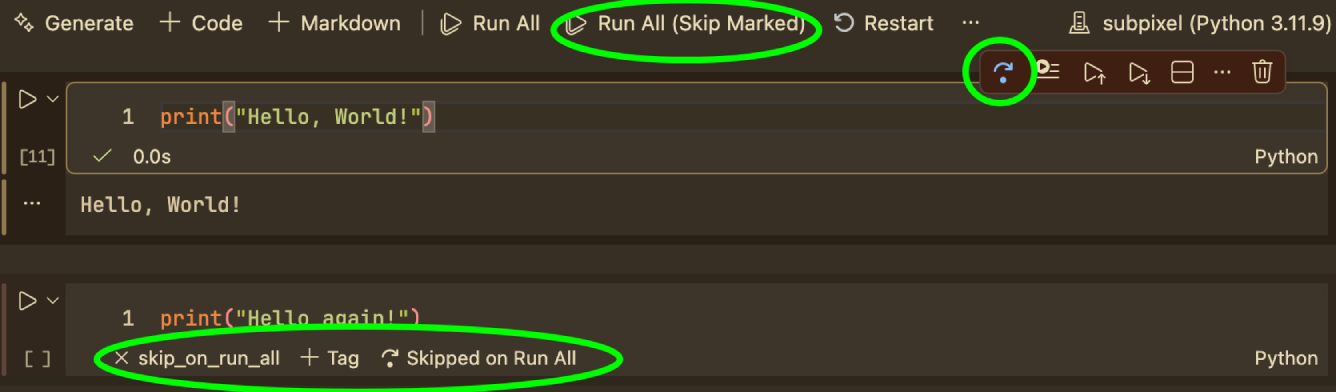
Notebook Cell SkipMark Jupyter notebook cells to be skipped during Run All while remaining individually executable Installation Launch VS Code Quick Open ( Ctrl+P), paste the following command, and press enter.Copied to clipboard |

Notebook Cell SkipMark Jupyter notebook cells to be skipped during "Run All" while keeping them individually executable. Perfect for cells containing one-time setup, debugging snippets, or exploratory code that shouldn't run as part of your full notebook pipeline.
FeaturesCycle Cell TagClick the skip icon in the cell toolbar (right side of each code cell) to cycle through tags: Run All (Skip Selected)Located in the notebook toolbar next to the built-in Run All. Runs all cells except those tagged with a currently skipped tag. Select Tags to SkipClick the filter icon in the notebook toolbar to open a dropdown where you can:
Add Tagged CellAvailable from the command palette ( Reset Tags to DefaultsAvailable from the command palette ( How It Works
LicenseMIT |