ParallelDocs for VS Code / Cursor
Side-by-side authoring for ParallelDocs:
out-of-file Markdown "side tracks" for any source file in your
workspace.
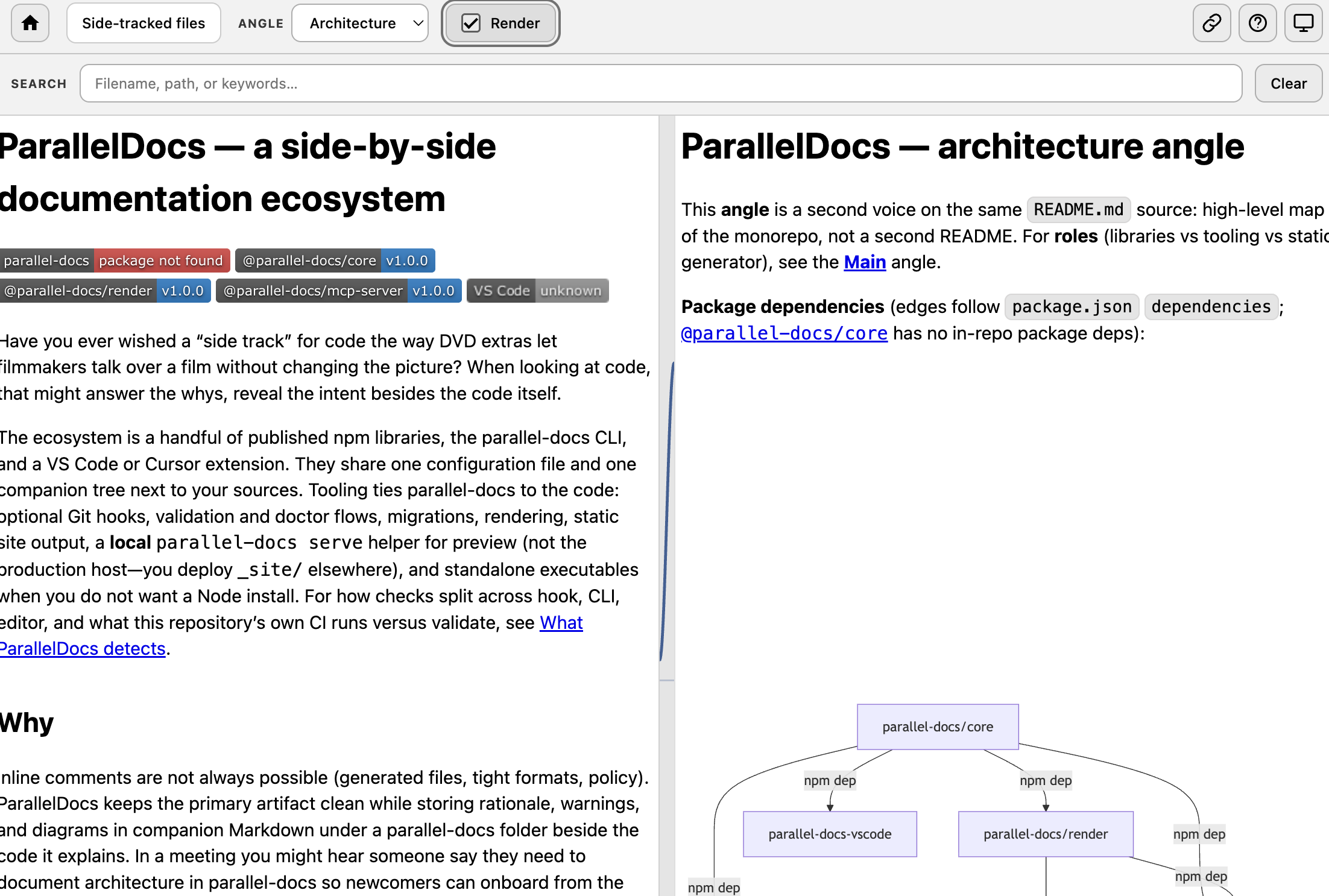
How it works
flowchart LR
  src["src/foo.ts"] <-->|"anchored pair"| md[".parallel-docs/source/src/foo.ts/main.md"]
  md -->|"render"| view["side-by-side code + docs"]
  ext["VS Code extension"] -->|"Open paired markdown beside"| view
  cli["parallel-docs CLI"] -->|"serve / pages build"| view
Walk-through (desktop VS Code)
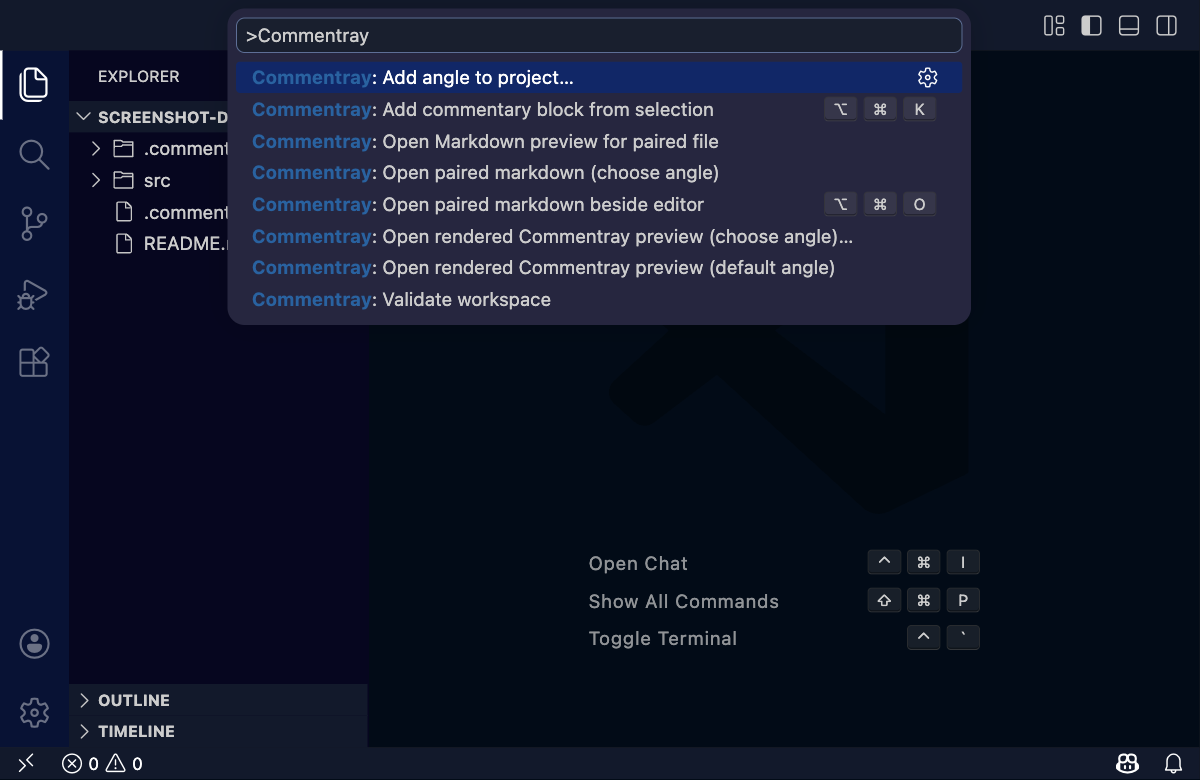
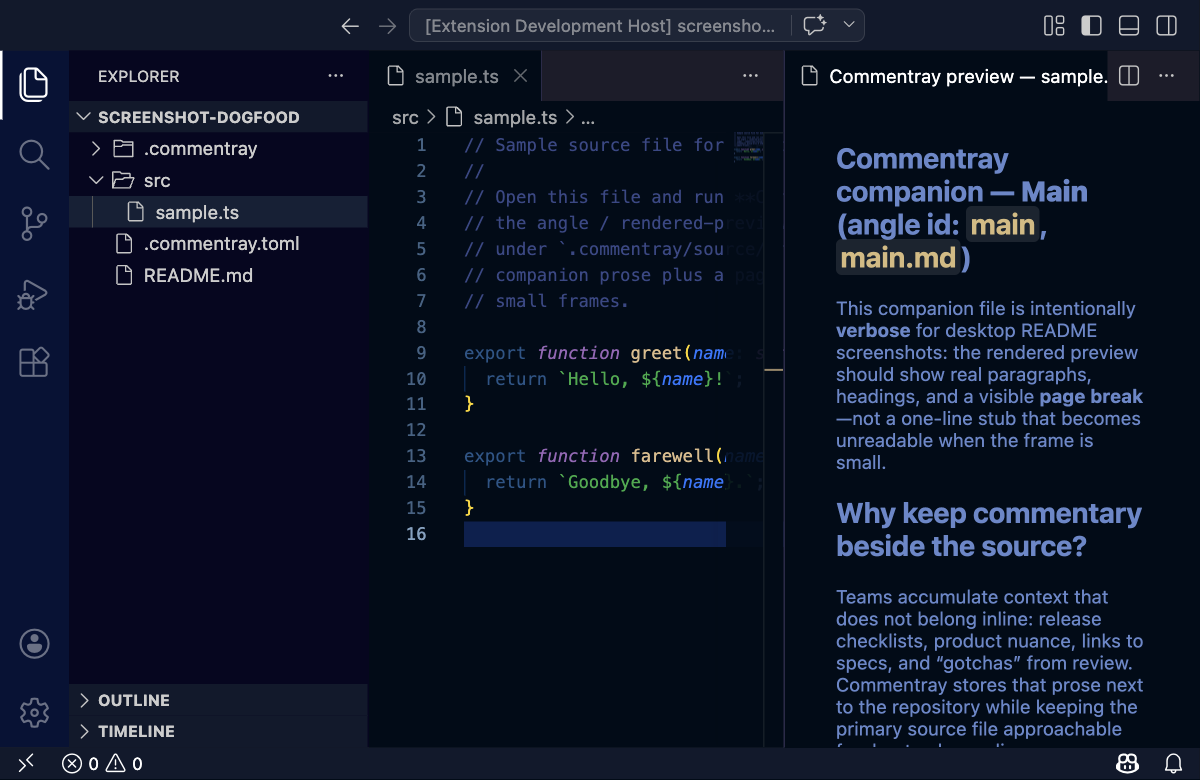
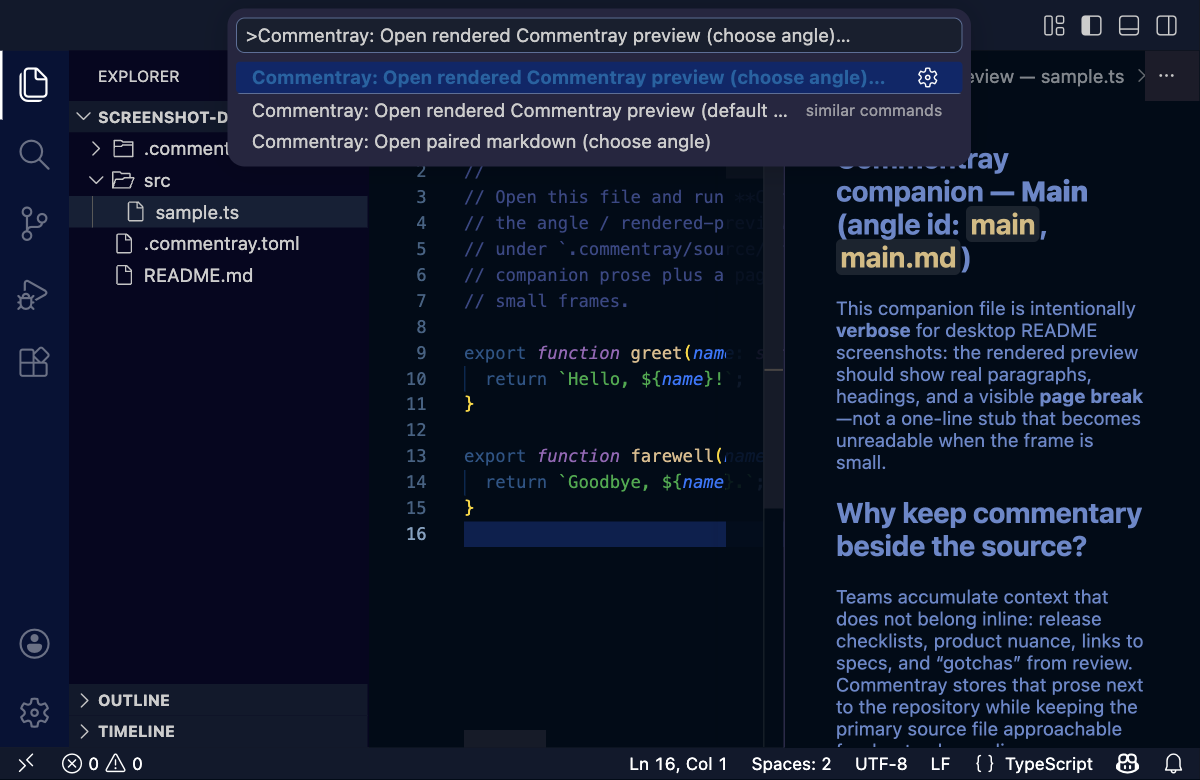
Captured from Extension Development Host + dogfood. In the palette, use > then ParallelDocs so you see commands, not file search hits.
Find ParallelDocs commands
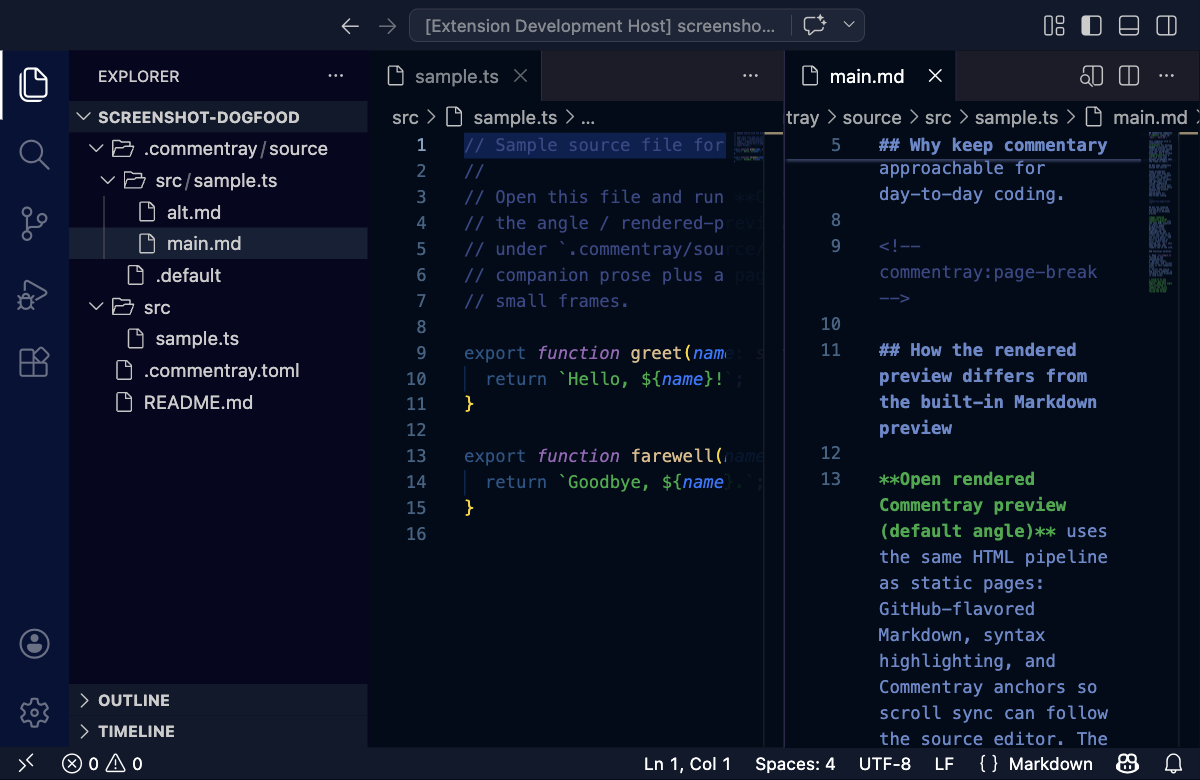
Open paired markdown beside the editor
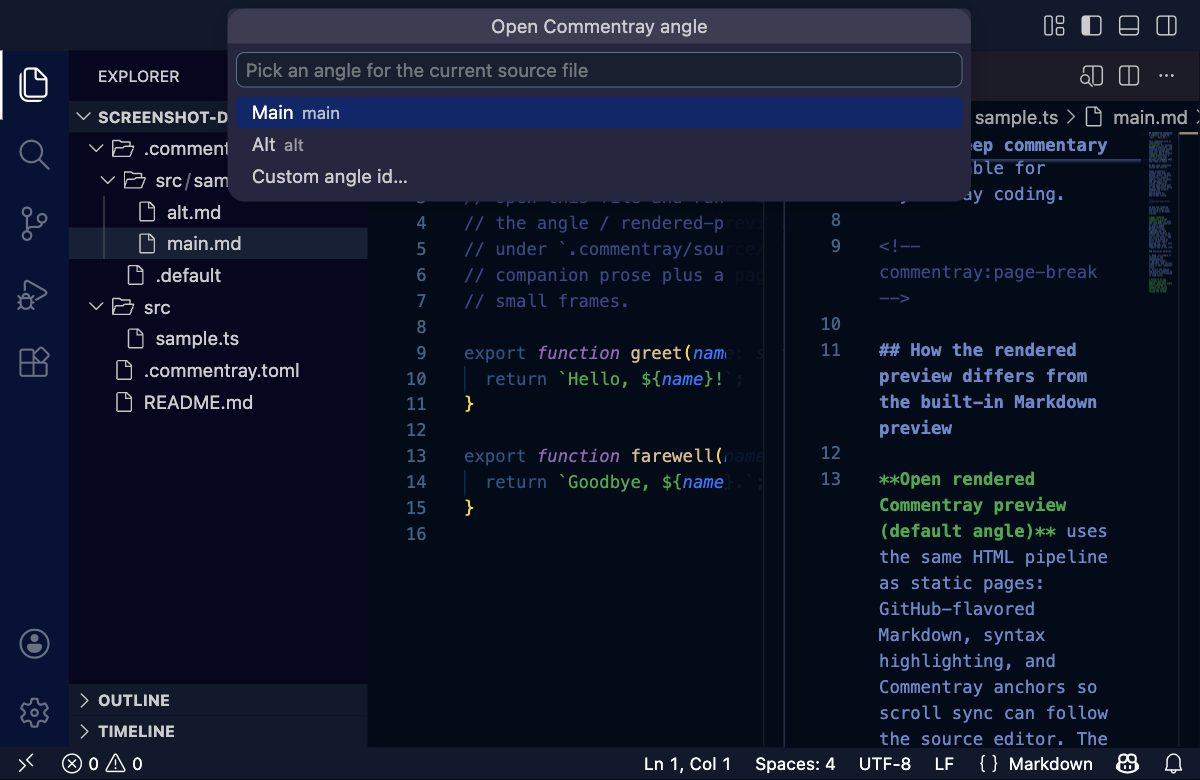
Open paired markdown (choose angle)
Add side-track block from selection
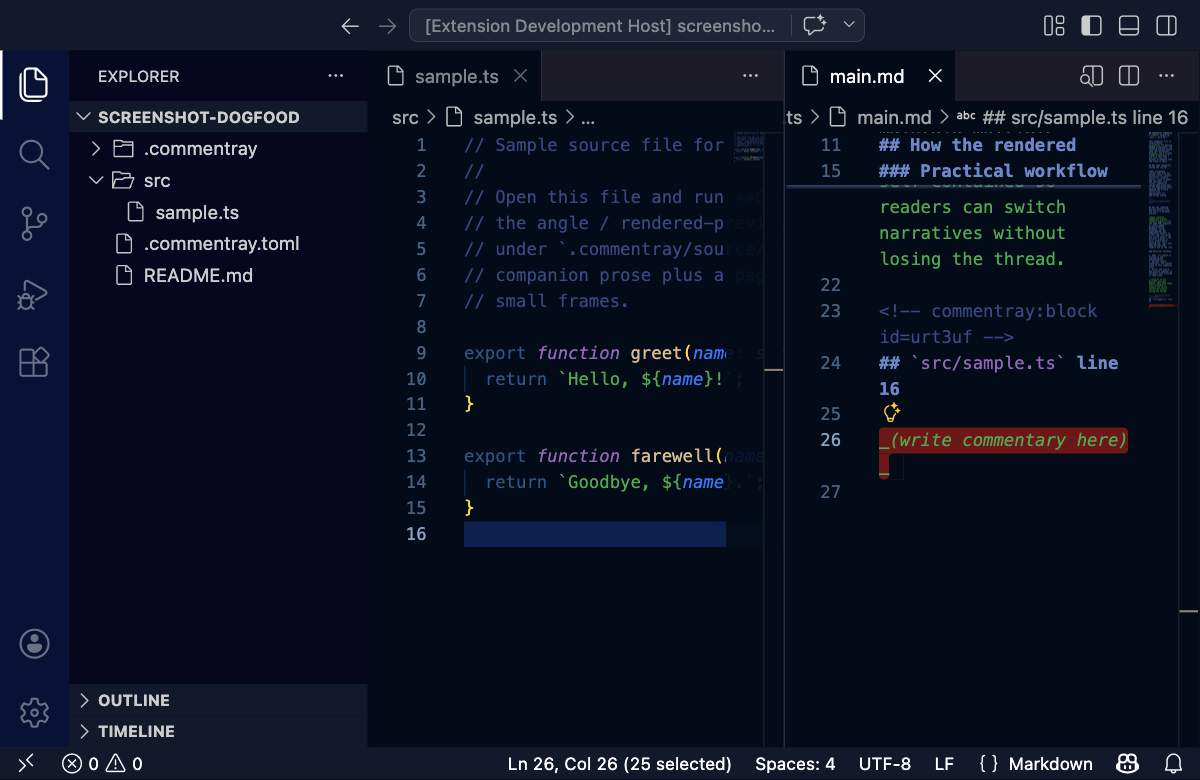
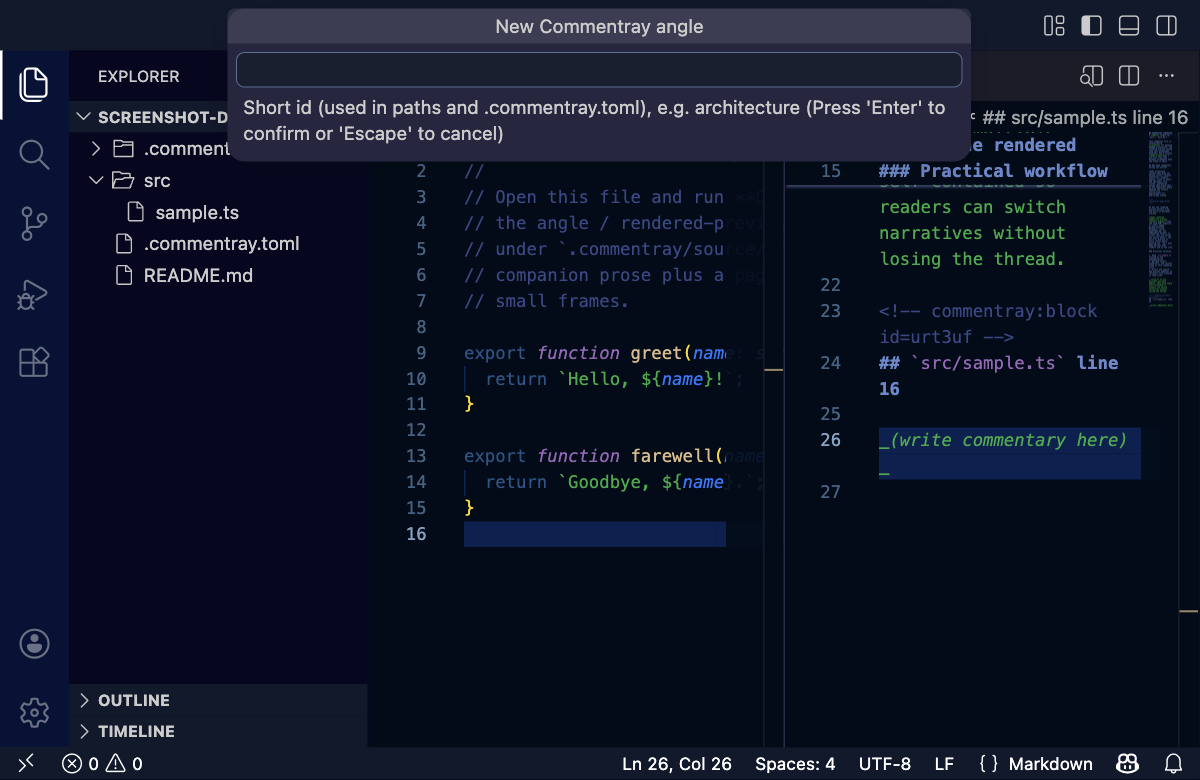
Add angle to project
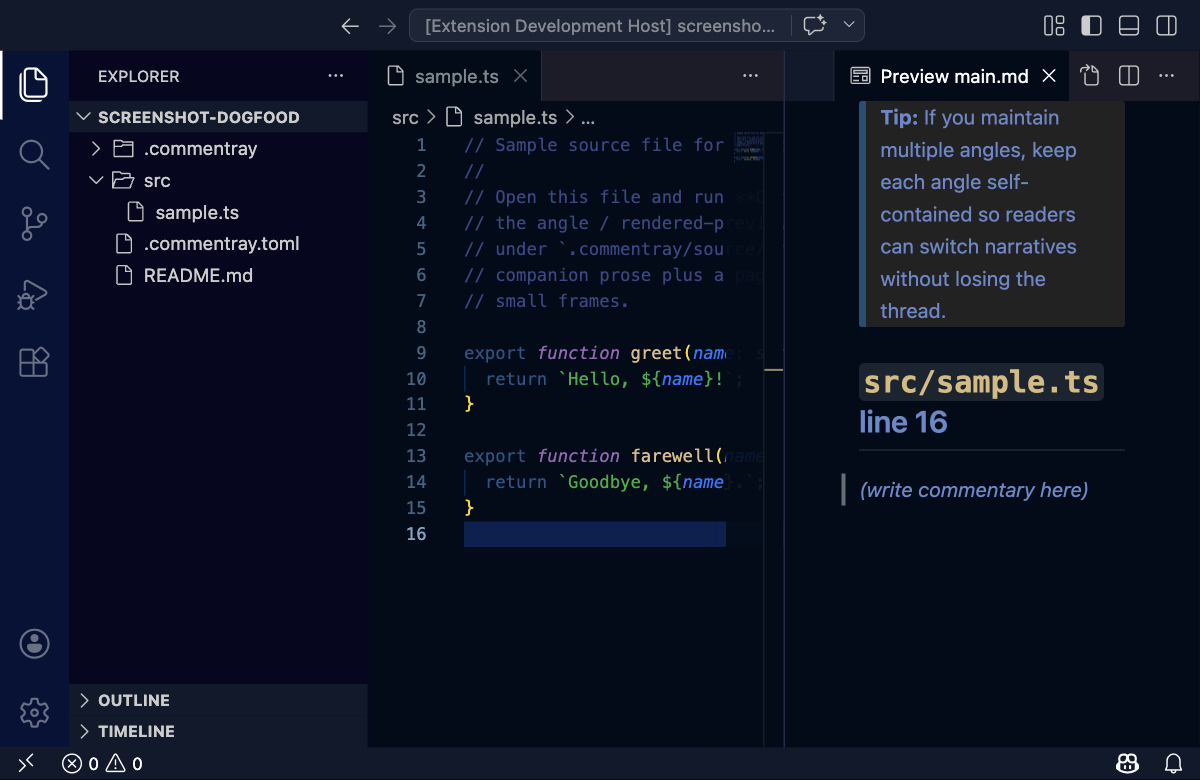
Open Markdown preview for paired file
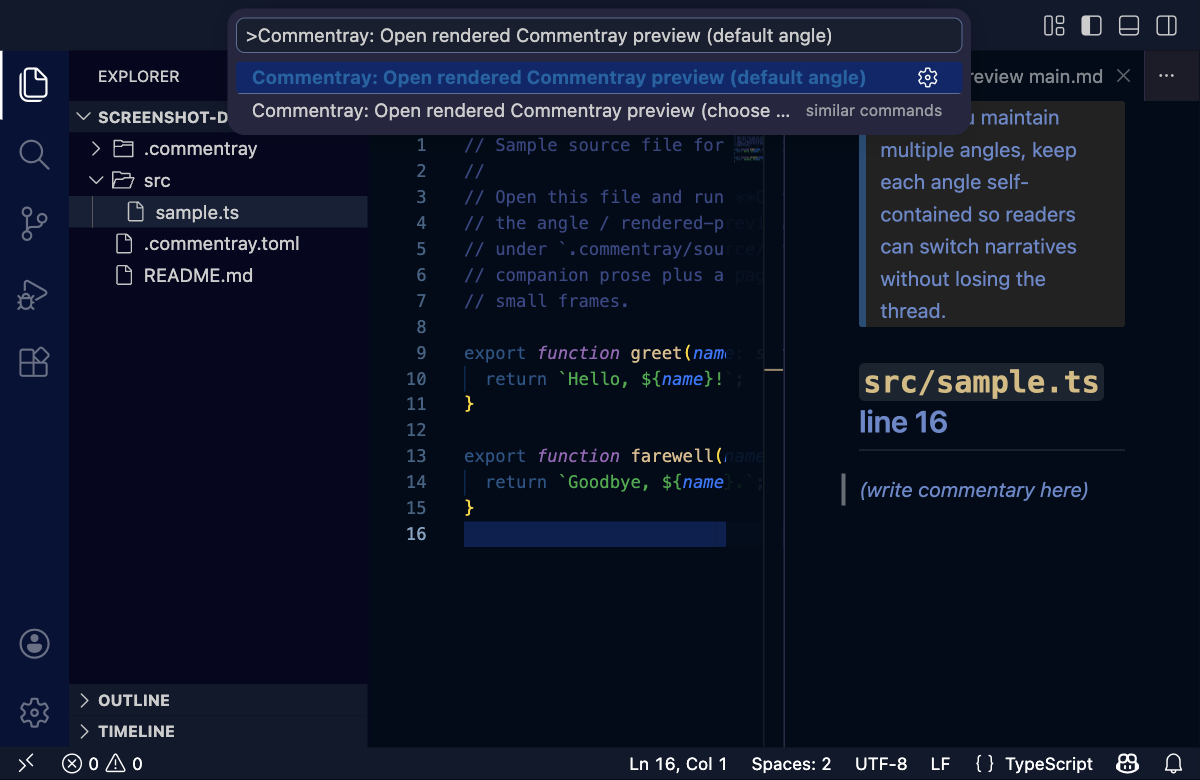
Open rendered ParallelDocs preview (default angle)
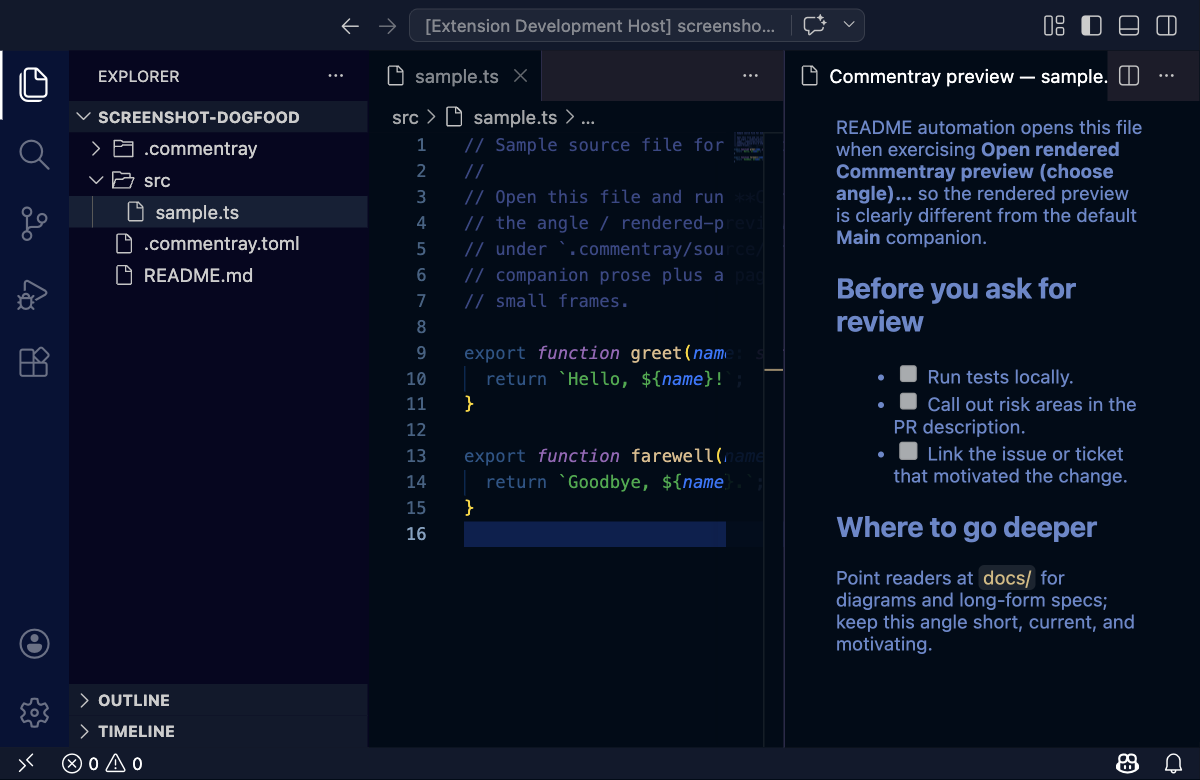
Open rendered ParallelDocs preview (choose angle)
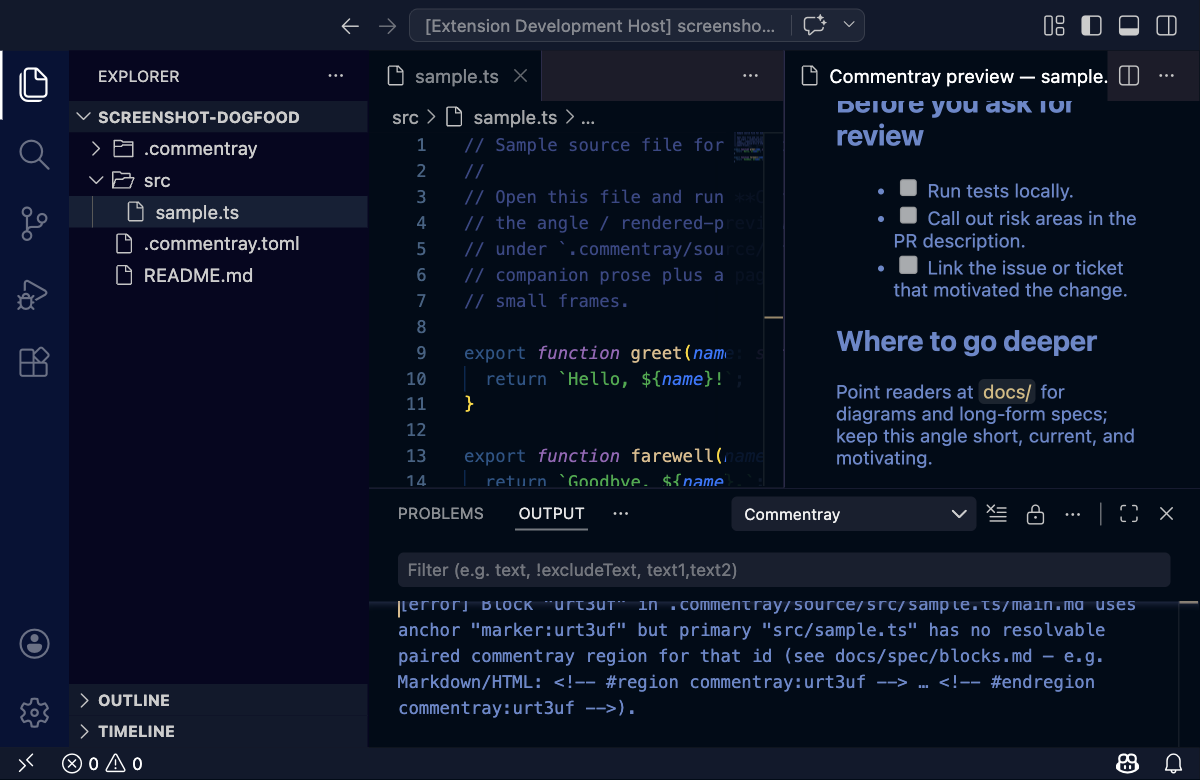
Validate workspace
AI Coding Assistants (MCP)
The ParallelDocs MCP server is distributed through the
CLI, not bundled inside the extension. For a portable,
commit-safe setup, run parallel-docs mcp install in your repo to register it with
VS Code Copilot, Claude, or any MCP client.
Commands
Palette entries use the ParallelDocs category (search ParallelDocs or the command name).
- Open paired markdown beside editor — opens (or creates) the parallel-docs
Markdown file paired with the active primary source file, side-by-side.
While the pair is active, scroll sync (toggle under Settings →
ParallelDocs → Scroll Sync: Enabled) keeps the two panes aligned when enabled:
scrolling the source updates the parallel-docs view, and scrolling the
parallel-docs snaps the source to the block you are reading. With
blocks
(metadata index +
<!-- parallelDocs:block id=… --> markers), sync prefers
those anchors; otherwise it falls back to a simple proportional map.
Keybinding: Cmd+Alt+O (macOS) / Ctrl+Alt+O (Windows/Linux) when the
editor has focus. Also in the editor context menu and Explorer
right-click on a file (opens that file, then the pair—useful when the file
was not already active).
- Add side-track block from selection — appends a new block for the current
selection (or current line) to the paired Markdown, updates
.parallel-docs/metadata/index.json, opens the pair, and selects the
placeholder so you can type immediately. Default keybinding: Cmd+Alt+K
(macOS) / Ctrl+Alt+K (Windows/Linux). Also in the editor context menu.
- Open Markdown preview for paired file — opens VS Code's built-in Markdown
preview for the paired companion
.md when a primary source file is
active; if a companion .md under the ParallelDocs storage tree is already
focused, previews that file.
- Open rendered ParallelDocs preview (default angle) — opens a webview beside
the editor using the same Markdown HTML pipeline as static pages (scroll sync
with the source when the preview is active).
- Open rendered ParallelDocs preview (choose angle)… — picks an angle, then
opens that companion’s rendered preview the same way.
- Validate workspace — runs the same validation as
parallel-docs validate and
prints issues to the ParallelDocs output channel. Uses the workspace folder
that contains the active editor’s file when possible (helps in multi-root
workspaces).
Angles — Open paired markdown (choose angle) and Add angle to project…
use the same workspace-folder rule as validate when picking the repo root.
For automation or keybindings, you can skip the picker with
vscode.commands.executeCommand("parallel-docs.openParallelDocsAngle", { angleId: "main" })
(angles layout and .parallel-docs.toml definitions must already be enabled).
You can also add angles without prompts via
vscode.commands.executeCommand("parallel-docs.addAngleDefinition", { id: "architecture", title: "Architecture", makeDefault: false }).
Screenshots for docs
Automated (desktop): bash scripts/refresh-vscode-readme-screenshots-desktop.sh (or npm run extension:vscode-readme-screenshots:desktop) writes vscode-*.png under .parallel-docs/source/packages/vscode/README.md/assets/. The script copies fixtures/dogfood into a temp folder and enables Angles there so the “choose angle” frame shows the real Quick Pick without touching the tracked fixture. Fresh worktree: bash scripts/parallel-docs-screenshots-in-fresh-worktree.sh. Scenario order and keys: .parallel-docs/source/packages/vscode/README.md/main.md (Maintainer section).
Manual (extension README): bash scripts/refresh-vscode-readme-screenshots-manual.sh.
Show latest screenshots in editor: bash scripts/show-vscode-readme-screenshots.sh (or npm run extension:vscode-readme-screenshots:show) opens vscode-*.png from .parallel-docs/source/packages/vscode/README.md/assets/ in newest-first order.
Manual (root README): bash scripts/refresh-root-readme-screenshots.sh → save under .parallel-docs/source/README.md/assets/. See storage — images.
Integration tests
From the repo root, run extension integration tests (Extension Development Host):
bash scripts/test-vscode-extension.sh
# or: npm run test:vscode-extension
ParallelDocs keeps block records (anchor, optional snippet, verification fields) in
.parallel-docs/metadata/index.json under each companion file path. The Markdown
track holds <!-- parallelDocs:block id=… --> markers so tools know where
each block’s prose lives and can scroll-sync; parallel-docs init / migrate update
shape (e.g. legacy fingerprint → snippet), they do not move the canonical
block list out of the index.
Troubleshooting
Unsupported schemaVersion: … — the extension’s bundled @parallel-docs/core does not accept the current index.json shape. From the ParallelDocs repo run bash scripts/install-extension.sh, then reload the editor window.
Dogfood (npm run extension:dogfood) matches bash scripts/install-extension.sh (build, package .vsix, install), then opens a new editor window on a folder. Use npm run extension:dogfood:repo for this repo, or npm run extension:dogfood -- . (use -- so npm forwards .). Reload the window if that workspace was already open.
Install from repo (bash scripts/install-extension.sh) performs the same packaging and install steps without opening a folder afterward.
When index.json has a higher schemaVersion than the bundled library, the extension writes a timestamped backup next to index.json (index.schema-<N>-backup-<ms>.json) and rewrites index.json to a schema this build understands.
Pairing convention
For a source file at repo-relative path src/foo.ts, the paired parallel-docs
file is .parallel-docs/source/src/foo.ts.md. Missing files are created on
demand (with a # ParallelDocs placeholder) the first time you invoke
Open paired markdown beside editor.
Install
From a release .vsix:
code --install-extension parallel-docs-<version>.vsix
# or: cursor --install-extension parallel-docs-<version>.vsix
From the monorepo (builds + bundles + installs into your editor):
npm run extension:install
License
MPL-2.0

