ctlim SFTP
English | 한국어
Simple and Powerful VS Code SFTP/SSH File Synchronization Extension


Safely synchronize remote servers and local files with Auto Upload on Save and Intelligent Conflict Detection.
🔥 Key Features Highlight
1. Auto Upload on Save & Intelligent Conflict Detection
Press Ctrl+S to instantly upload to the remote server. If the remote file has been modified by someone else, the intelligent conflict detection system will alert you immediately.
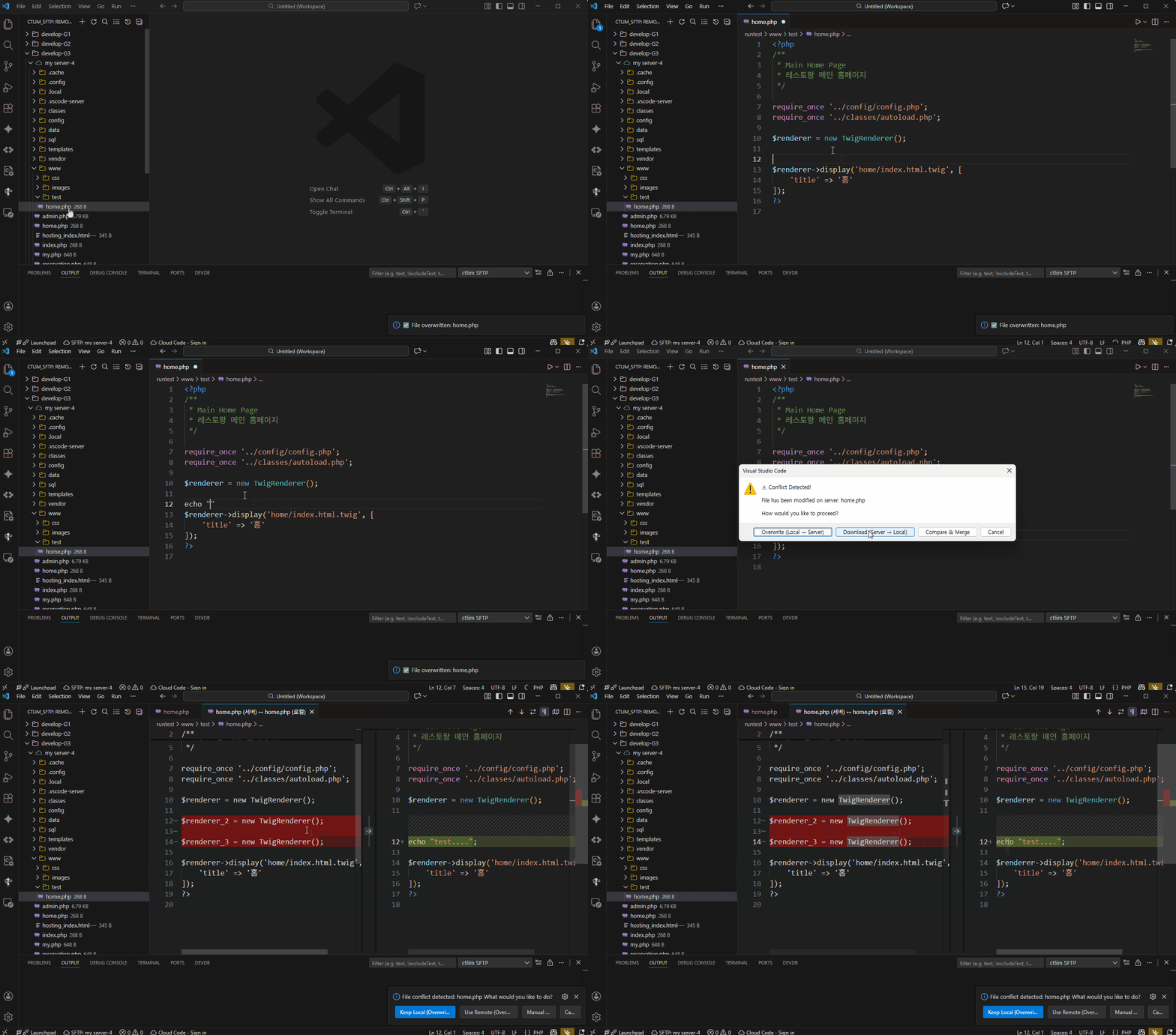
- Overwrite: Force upload with local content
- Compare: Visually check changes with Diff Viewer
- Download: Update local file with remote content
2. Smart Bookmark System
No need to navigate complex paths every time. Register frequently used remote folders or files as bookmarks and access them with a single click.
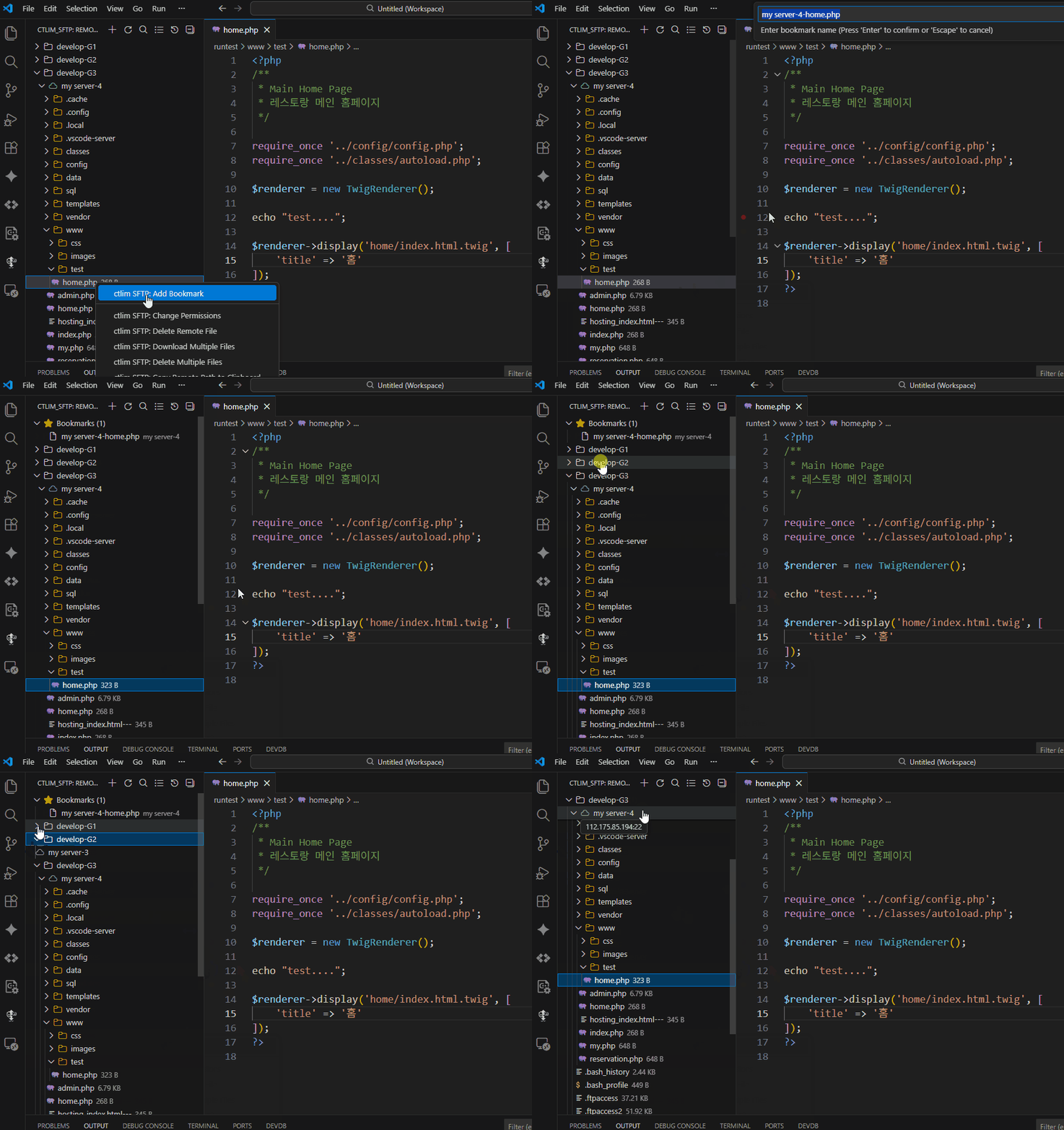
- File/Folder Favorites: Easily add via right-click in Tree View
- Frequent List: Auto-sort based on usage frequency
- Activity Bar Integration: Instant access from the sidebar
3. Intuitive Remote File Explorer
Browse the remote server's file system in real-time with a tree structure, just like VS Code's Explorer.
- Multi-Server Support: Manage Dev/Prod/Test servers in groups
- Icon Themes: Auto-apply icons by file type
- Real-time Status: Check connection status and file modification times
4. Powerful Search (Filename & Content)
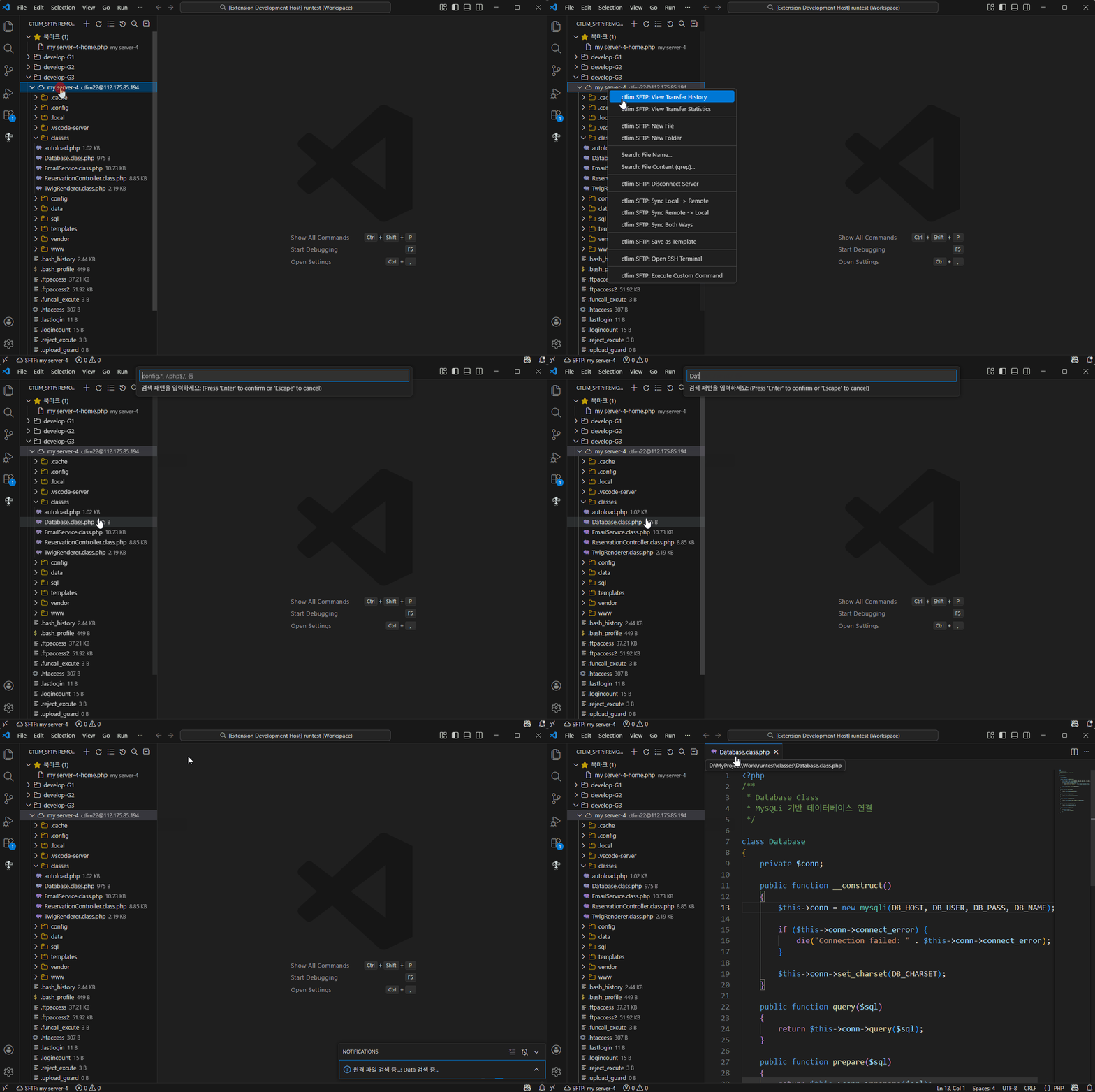
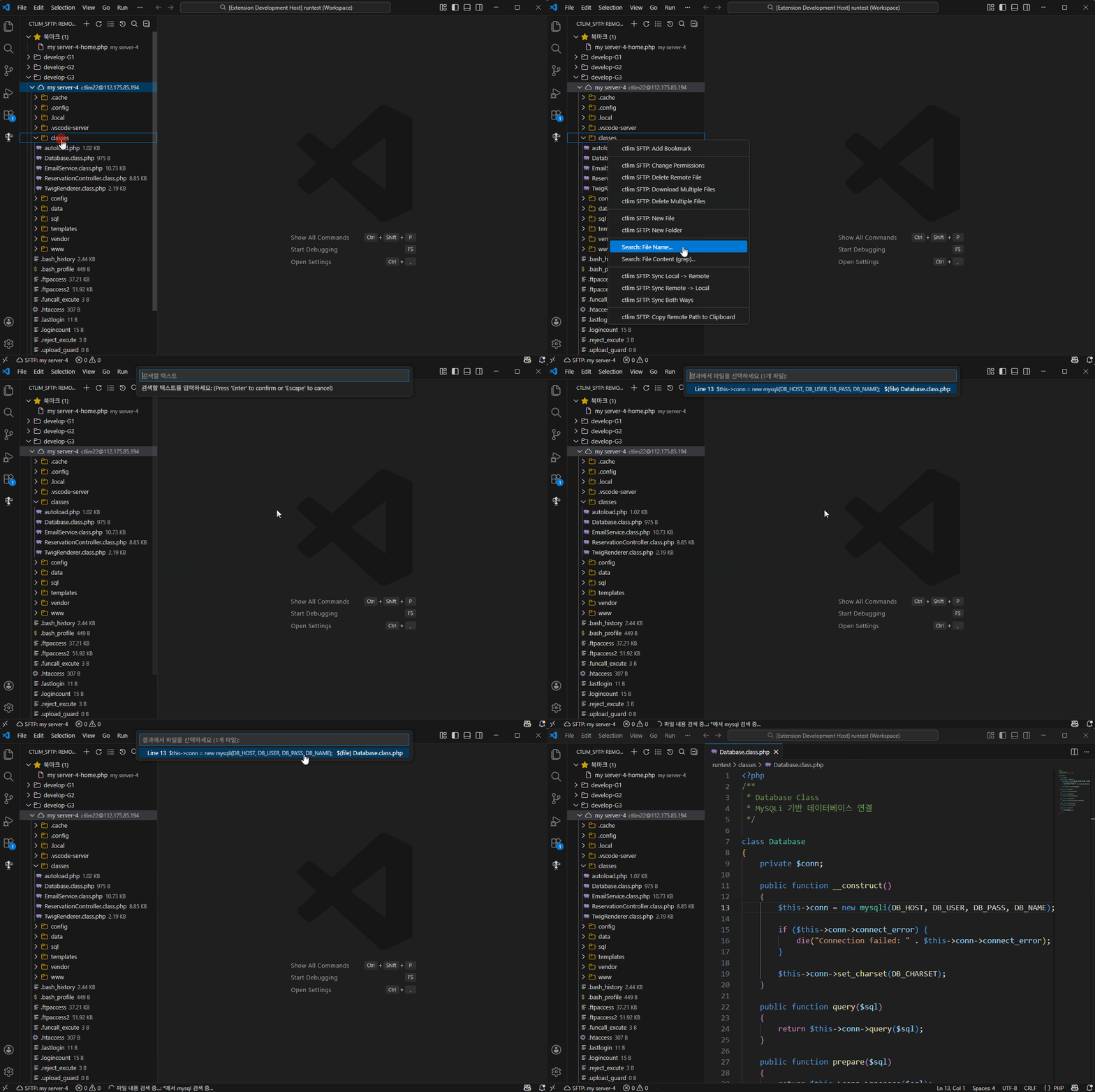
Search remote files not just by name, but also by content (grep). Supports regex for precise searching.
Search by Filename
[Search by Content]
- Search: File Name: Quickly find files by name
- Search: Content (grep): Deep search into file contents (utilizing server-side grep)
5. Powerful Diff Comparison
When you suspect a conflict or want to verify changes, compare local and remote files side-by-side (Diff).
- Highlight code differences line by line
- Verify content before merging
✨ Detailed Features
🚀 Core Functionality
- Auto Upload on Save - Press
Ctrl+S to instantly sync to remote server
- Conflict Detection System - Choose to overwrite/compare/cancel when remote file changes detected
- Multi-Server Management - Manage multiple servers (dev/production) in one configuration
- Remote File Explorer - Browse server file structure in real-time from Activity Bar
🔐 Security & Compatibility
- SSH Key Authentication - Supports Password or Private Key (with passphrase)
- Legacy Server Support - Compatible with legacy SSH algorithms (DES, SHA1, etc.)
- Metadata-Based Sync - Safe uploads with file modification time tracking
💡 Developer Convenience
- Smart Bookmarks - Favorite frequently used files/folders
- Save As Remote - Enter remote path directly or select from tree
- Diff Comparison - Visually compare local/remote files on conflict
- Selective Ignore - Exclude unnecessary files like
.git, node_modules
- Auto Reconnection - Automatically retry on connection loss
📊 Monitoring & Analysis
- Transfer History - Auto-save upload/download records (last 100)
- Transfer Statistics - Real-time analysis of transfer volume, speed, success rate
- Retry Failed Transfers - One-click retry for failed transfers
- Server Statistics - Transfer stats and performance comparison by server
🔍 Advanced Operations
- Remote File Search - Search by filename or content (regex support)
- Permission Management - One-click chmod changes (755, 644, etc.)
- SSH Terminal - Open SSH terminal to remote server directly
- Multi-File Operations - Download/delete multiple files simultaneously
📦 Installation
- ✅ VS Code - Visual Studio Code
- ✅ Cursor - AI-powered code editor (VS Code-based)
- ✅ Other VS Code Compatible Editors
Method 1: VS Code/Cursor Marketplace
- Press
Ctrl+Shift+X (Open Extensions Tab)
- Search "ctlim SFTP"
- Click Install
Method 2: Command Line
# VS Code
code --install-extension ctlim.ctlim-sftp

# Cursor
cursor --install-extension ctlim.ctlim-sftp
🚀 Quick Start (3 Minutes)
1️⃣ Create Configuration File
Open Command Palette:
- Windows/Linux:
Ctrl+Shift+P
- macOS:
Cmd+Shift+P
Enter command: ctlim SFTP: Config
→ .vscode/ctlim-sftp.json auto-generated ✅
Enter server information in the generated configuration file:
Basic Configuration (Password Authentication)
{
    "name": "My Development Server",
    "host": "host ip",
    "protocol": "sftp",
    "port": 22,
    "username": "username",
    "password": "password",
    "remotePath": "/var/www/html",
    "context": "d:/MyProject/Project/vss1",
    "uploadOnSave": true,
    "downloadOnOpen": "confirm",
    "downloadBackup": ".vscode/.sftp-backup",
    "webUrl": "http://dev.example.com",
    "ignore": [
      ".vscode",
      ".git",
      "node_modules",
      "*.log"
    ]
}
Multi-Server Configuration (with Groups)
[
  {
      "name": "Dev Server 1",
      "group": "Development",
      "host": "dev1.example.com",
      "protocol": "sftp",
      "port": 22,
      "username": "username",
      "password": "password",
      "remotePath": "/var/www/html",
      "context": "d:/MyProject/Project/dev1",
      "uploadOnSave": true,
      "downloadOnOpen": true,
      "webUrl": "http://dev1.example.com",
      "ignore": [
        ".vscode",
        ".git",
        "node_modules",
        "*.log"
      ]
  },
  {
      "name": "Dev Server 2",
      "group": "Development",
      "host": "dev2.example.com",
      "protocol": "sftp",
      "port": 22,
      "username": "username",
      "password": "password",
      "remotePath": "/var/www/html",
      "context": "d:/MyProject/Project/dev2",
      "uploadOnSave": true,
      "downloadOnOpen": true,
      "ignore": [
        ".vscode",
        ".git",
        "node_modules",
        "*.log"
      ]
  },
  {
      "name": "Production Server",
      "group": "Production",
      "host": "prod.example.com",
      "protocol": "sftp",
      "port": 22,
      "username": "username",
      "password": "password",
      "remotePath": "/var/www/html",
      "context": "d:/MyProject/Project/prod",
      "uploadOnSave": false,
      "downloadOnOpen": true,
      "ignore": [
        ".vscode",
        ".git",
        "node_modules",
        "*.log"
      ]
  }
]
3️⃣ Connect to Server and Use
- Click ctlim SFTP icon in Activity Bar (left sidebar)
- Expand server or group, click server name → auto-connect
- Browse file tree and double-click file → auto-download & edit
- Save file (
Ctrl+S) → auto-upload ✨
Server Display by Group:
📁 Development
  ☁ Dev Server 1
  ☁ Dev Server 2
📁 Production
  ☁ Production Server
⚙️ Configuration Options
| Option |
Type |
Default |
Required |
Description |
name |
string |
- |
❌ |
Server identification name (displayed in tree view) |
group |
string |
- |
❌ |
Server group name (servers with same group displayed together) |
context |
string |
"./" |
❌ |
Local workspace root (relative/absolute path) |
protocol |
string |
"sftp" |
❌ |
Protocol: 'sftp' (default) |
host |
string |
- |
✅ |
Server host address |
port |
number |
22 |
❌ |
Server port number |
username |
string |
- |
✅ |
Server login username |
password |
string |
- |
❌ |
Password (or use privateKey) |
privateKey |
string |
- |
❌ |
Path to private key file |
passphrase |
string |
- |
❌ |
Private key passphrase |
remotePath |
string |
"/" |
❌ |
Remote server default path |
uploadOnSave |
boolean |
false |
❌ |
Enable auto-upload on save |
downloadOnOpen |
boolean|'confirm' |
false |
❌ |
Auto-download on file open
- true: Auto-download
- false: Manual download
- 'confirm': Confirmation dialog before download |
downloadBackup |
string |
- |
❌ |
Download backup path (relative/absolute path) |
webUrl |
string |
- |
❌ |
Web server base URL (for browser open feature) |
ignore |
string[] |
[] |
❌ |
Upload exclusion patterns (glob support) |
watcher |
object |
- |
❌ |
File watch settings |
connectTimeout |
number |
10000 |
❌ |
Connection timeout (milliseconds) |
readyTimeout |
number |
20000 |
❌ |
Ready timeout (milliseconds) |
keepaliveInterval |
number |
10000 |
❌ |
Keep-Alive interval (milliseconds) |
keepaliveCountMax |
number |
3 |
❌ |
Keep-Alive max retry count |
🔒 Authentication Methods
Password Authentication (Simple)
{
  "username": "user",
  "password": "your-password"
}
SSH Key Authentication (Recommended)
{
  "username": "user",
  "privateKey": "C:/Users/YourName/.ssh/id_rsa",
  "passphrase": "your-passphrase"  // Optional
}
Password Prompt (Secure)
{
  "username": "user"
  // No password field → prompt shown on connect
}
🔍 Conflict Detection System
ctlim SFTP ensures remote file safety with metadata-based conflict detection.

How It Works
sequenceDiagram
    participant User
    participant VS Code
    participant ctlim SFTP
    participant Remote Server

    User->>VS Code: Open Remote File
    VS Code->>ctlim SFTP: openRemoteFile
    ctlim SFTP->>Remote Server: Download File
    ctlim SFTP->>ctlim SFTP: Save Metadata<br/>(modification time, size)

    Note over User,Remote Server: Another user modifies server file...

    User->>VS Code: Save File (Ctrl+S)
    ctlim SFTP->>Remote Server: Query Current File Info
    ctlim SFTP->>ctlim SFTP: Compare Metadata

    alt Conflict Detected
        ctlim SFTP->>User: ⚠️ Conflict Alert
        User->>ctlim SFTP: Choose (Overwrite/Compare)
    else No Conflict
        ctlim SFTP->>Remote Server: Upload File
        ctlim SFTP->>ctlim SFTP: Update Metadata
    end
Conflict Detection Flow
On Download: Save remote file's modification time and size as local metadata
- Storage location:
.vscode/.sftp-metadata/
On Upload: Compare remote server's current file info with metadata
On Conflict Detection: Display modal dialog
⚠️ Conflict Detected!

File has been modified on server: test.php

Do you want to overwrite with local changes?

[Overwrite]  [Compare]  [Cancel]
User Options
Overwrite 🔄
- Force overwrite remote file with local file
- Remote changes will be lost
Compare 📊
- Compare local ↔ remote files in Diff view
- Manual merge possible after reviewing changes
Cancel ❌
- Abort upload
- Keep local file as-is
🔄 Auto-Reconnection System
ctlim SFTP provides auto-reconnection for stable connection maintenance.
Keep-Alive Mechanism
- Periodic Connection Check: Check server connection status at set intervals (default 10 seconds)
- Auto-Reconnect: Automatically attempt reconnection on connection loss detection
- User Notification: Show notification message on reconnection success/failure
Connection Configuration Options
{
  "connectTimeout": 10000,        // Connection attempt timeout (10 seconds)
  "readyTimeout": 20000,          // Connection ready timeout (20 seconds)
  "keepaliveInterval": 10000,     // Keep-Alive check interval (10 seconds)
  "keepaliveCountMax": 3          // Max retry count
}
Reconnection Behavior
- Connection Loss Detection: When Keep-Alive check fails
- Auto-Reconnect Attempt: Immediate background attempt
- On Success: "🔄 SFTP Reconnection Successful" notification
- On Failure: "⚠️ SFTP Reconnection Failed" warning + manual reconnection guide
💡 Usage Scenarios
Scenario 1: Real-Time Development Server Testing
{
  "name": "Dev Server",
  "host": "dev.mysite.com",
  "remotePath": "/home/dev/public_html",
  "uploadOnSave": true,
  "ignore": [".git", "node_modules", "*.log"]
}
Workflow:
- Modify PHP/HTML files locally
- Save with
Ctrl+S → auto-upload
- Check results immediately in browser ✨
Scenario 2: Safe Production Server Deployment
{
  "name": "Production",
  "host": "prod.mysite.com",
  "remotePath": "/var/www/production",
  "uploadOnSave": false
}
Workflow:
- Complete local development (
uploadOnSave: false prevents auto-upload)
- Right-click file →
ctlim SFTP: Upload File for manual upload
- Ensure safety with conflict detection 🛡️
Scenario 3: Multi-Environment Management
[
  {
    "name": "🧪 Test",
    "context": "./",
    "host": "test.server",
    "remotePath": "/home/test"
  },
  {
    "name": "🚀 Staging",
    "context": "./dist",
    "host": "staging.server",
    "remotePath": "/var/www/staging"
  },
  {
    "name": "🔥 Production",
    "context": "./dist",
    "host": "prod.server",
    "remotePath": "/var/www/production"
  }
]
Workflow:
- Select environment from Activity Bar, then connect/deploy individually
- Independent metadata management for each server
🛠️ Advanced Features
1. Bookmark System
Save frequently used remote files or folders as bookmarks for quick access.
Add Bookmark
Method 1: Tree View Right-Click
- Right-click remote file/folder in Activity Bar
- Select
Add Bookmark
- Enter bookmark name and description
Method 2: Command Palette
Use Bookmarks
View Bookmarks:
⭐ Bookmarks (5)
├── 📄 Config File
├── 📁 Log Directory
├── 📄 Database Config
└── 📁 Backup Folder
Quick Access:
- Click bookmark in Activity Bar → instantly open file or navigate to folder
ctlim SFTP: View Bookmarks - View bookmark listctlim SFTP: Frequent Bookmarks - Frequently used bookmarks (top 10)
Bookmark Management
Delete: Right-click bookmark → Delete Bookmark
Statistics:
- Auto-track access count
- Record last access time
- Sort by frequency of use
Usage Scenarios:
- Quick config file modification
- Real-time log directory monitoring
- Favorite frequently edited code files
2. Remote File Search
Search by Filename
Command Palette: ctlim SFTP: Search Remote Files by Name
Enter search pattern:
- Plain text: config.php
- Regex: /\.php$/
Search Results:
$(file) config.php
  /var/www/html/config.php
  Size: 2.5 KB | Modified: 2024-12-30 14:30

$(file) app-config.php
  /var/www/html/includes/app-config.php
  Size: 5.1 KB | Modified: 2024-12-29 10:15
Search File Content
Command Palette: ctlim SFTP: Search in Remote Files
Search text: database_connect
File pattern: *.php
Search Results (with matching lines):
$(file) config.php (2 matches)
  Line 15: function database_connect() {
  Line 45: $conn = database_connect();

$(file) admin.php (1 match)
  Line 102: require_once('database_connect.php');
Advanced Options:
- Regex support:
/function\s+\w+/
- File patterns:
*.php, config.*, **/*.js
- Max results limit
3. Save As Remote
Right-click in editor → ctlim SFTP: Save As Remote Path
Enter remote save path:
/var/www/html/backup/test_v2.php
Option B: Tree Selection
Current location: /var/www/html
├── 📁 public/
├── 📁 admin/
└── 📁 backup/   ← Select
    └── Save as test_v2.php
4. File Ignore Patterns
{
  "ignore": [
    ".git",
    ".vscode",
    "node_modules",
    "*.log",
    "*.tmp",
    "**/.DS_Store",
    "**/Thumbs.db"
  ]
}
Supported Patterns:
node_modules - Exact folder name match*.log - Extension matching**/.DS_Store - All subdirectories
5. Context Path Utilization
Map different local folders to different remote paths:
[
  {
    "name": "Frontend",
    "context": "./client",
    "remotePath": "/var/www/frontend"
  },
  {
    "name": "Backend",
    "context": "./server",
    "remotePath": "/var/www/backend"
  }
]
6. Download Backup Feature
Automatically backup existing local files when downloading remote files.
Configuration
{
  "downloadBackup": ".vscode/.sftp-backup"  // Relative path
}
Or specify absolute path:
{
  "downloadBackup": "D:/MyBackup/sftp-backup"  // Absolute path
}
Backup Method
- Storage Location: Recreate remote path structure as-is
- Folder Structure: Remote server directory structure maintained in backup folder
- Filename Format:
filename.YYYY-MM-DD_HH-mm-ss.backup
- Auto-Cleanup: Keep only last 5 backups per file
Example
Remote file: /var/www/html/data/test.php
Backup files:
.vscode/.sftp-backup/
└── var/
    └── www/
        └── html/
            └── data/
                ├── test.php.2025-12-24_10-30-45.backup
                ├── test.php.2025-12-23_15-43-20.backup
                └── test.php.2025-12-22_09-12-30.backup
Usage Scenarios
- Mistake Prevention: Backup local modifications before download
- Version Control: Preserve multiple versions of remote files
- Conflict Recovery: Restore previous version if problems occur after download
7. Transfer History and Statistics
Automatically record and analyze all file transfer activities.
View Transfer History
Command Palette: ctlim SFTP: View Transfer History
✅ 📤 config.php
   Dev Server | 2.5 KB | 512 KB/s
   Success | 2025-12-24 14:30:45

❌ 📥 database.php
   Prod Server | 15 KB | N/A
   Failed | 2025-12-24 14:28:12 | ❌ Connection timeout
- Success Records: Filename, server, size, transfer speed, time
- Failure Records: Includes error message
- Retry: Select failed transfer → one-click retry
View Transfer Statistics
Command Palette: ctlim SFTP: View Transfer Statistics
📊 Transfer Statistics (Dev Server)

📤 Uploads: 127
📥 Downloads: 43
✅ Success: 165
❌ Failed: 5
📈 Success Rate: 97.1%
💾 Total Transfer: 2.8 MB
⚡ Average Speed: 485 KB/s
- Server Statistics: Compare transfer performance of each server
- Overall Statistics: Comprehensive statistics for all servers
- Success Rate Analysis: Check transfer reliability
Delete History
Command Palette: ctlim SFTP: Clear Transfer History
- Delete all transfer records
- Reset statistics data
Auto-Recording Scope
- ✅ Upload: Auto on save, manual upload, sync
- ✅ Download: Open remote file, manual download, sync
- ✅ Reconnection: Includes retry after connection loss
- ✅ Failures: Record error message and timestamp
Storage Location
- File:
.vscode/.sftp-history.json
- Max Storage: Last 100 records
- Auto-Cleanup: Automatically delete old records
8. Permission Management
Easily change remote file permissions.
Usage:
- Right-click remote file/folder
- Select
Change Permissions
- Choose permission mode
Recommended Permissions:
$(file-code) 755 - rwxr-xr-x
  Executable files, directories
  Owner: All permissions | Group/Others: Read+Execute

$(file) 644 - rw-r--r--
  Regular files (HTML, CSS, JS, etc.)
  Owner: Read+Write | Group/Others: Read only

$(lock) 600 - rw-------
  Secret files (SSH key, config files)
  Owner only: Read+Write

$(warning) 777 - rwxrwxrwx
  All permissions (⚠️ Security risk! Not recommended)
Custom Input:
- Enter permission code directly (e.g., 754, 640)
- 3-digit octal format (000-777)
Usage Scenarios:
- Add execute permission after upload
- Strengthen config file security
- Restrict log file access
9. SSH Terminal & Remote Commands
Open SSH Terminal
Open connected server's SSH terminal directly in VS Code.
Usage:
- Right-click server →
Open SSH Terminal
- Or Command Palette:
ctlim SFTP: Open SSH Terminal
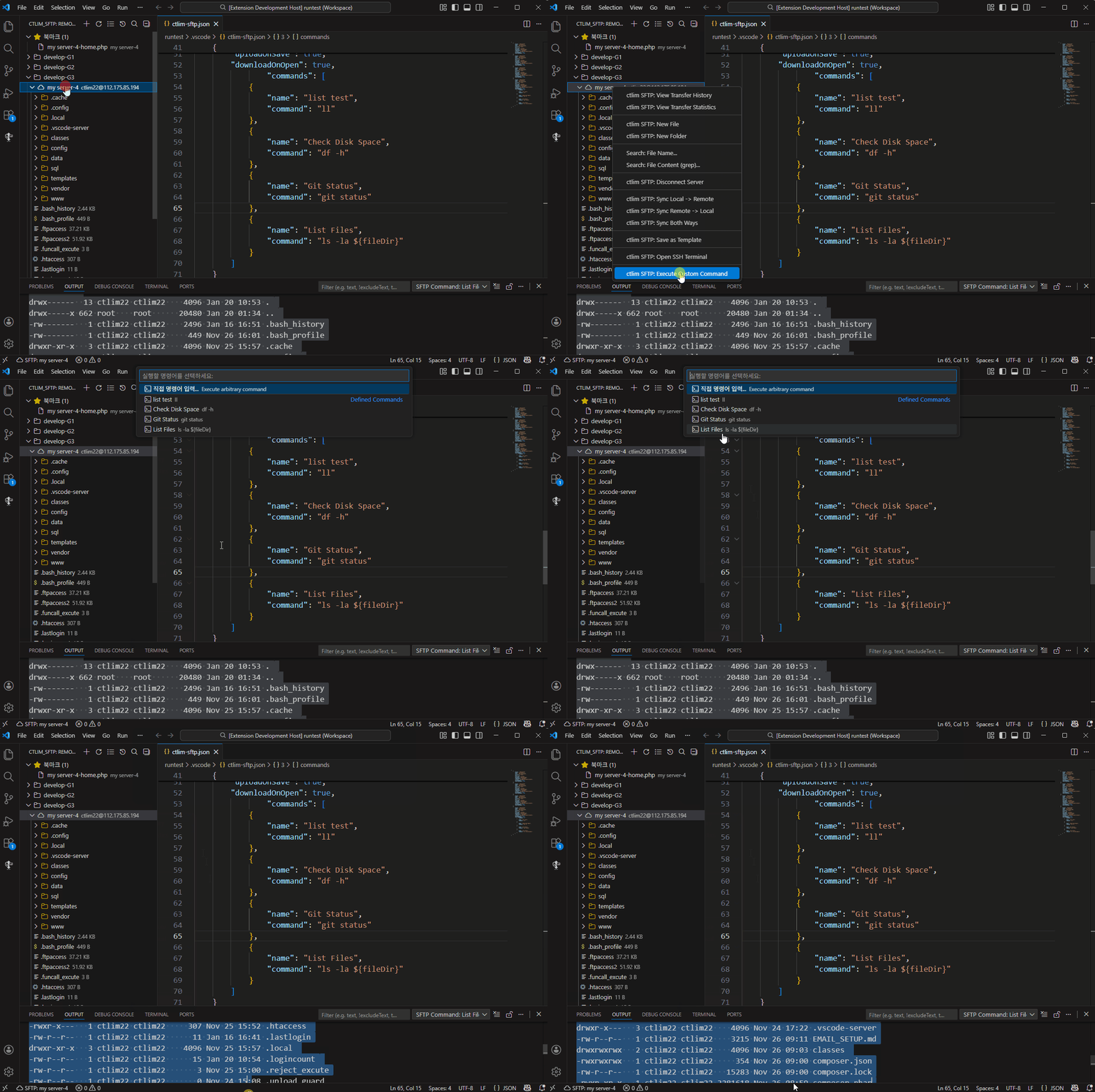
Execute Custom Command
Execute pre-defined or custom shell commands on the remote server instantly.
Usage:
- Right-click server, file, or folder →
Execute Custom Command
- Choose from list or enter command manually
Dynamic Variables:
${file}: Full path of selected file${fileDir}: Directory path of selected file${fileName}: Name of selected file${input:Prompt}: Request user input
Example 1: Manual Input
ls -la ${fileDir}
grep "error" ${file}
Example 2: Config Definition (.vscode/ctlim-sftp.json)
"commands": [
    {
        "name": "Check Disk",
        "command": "df -h"
    },
    {
        "name": "Git Status",
        "command": "cd ${fileDir} && git status"
    }
]
10. Multi-File Operations
Select multiple files simultaneously for batch operations.
Multi-Selection
- Ctrl + Click: Add individual files to selection
- Shift + Click: Range selection
Multi-Download
Usage:
- Select multiple files (Ctrl/Shift + Click)
- Right-click →
Download Multiple Files
- Progress indicator displayed
Result:
✅ 5 files downloaded successfully
- config.php
- database.php
- functions.php
- index.php
- style.css
Multi-Delete
Usage:
- Select multiple files
- Right-click →
Delete Multiple Files
- Confirmation dialog
Caution:
- Confirmation required before deletion
- Permanently deleted from remote server
- Cannot be recovered
Perform various operations by right-clicking remote files/folders.
Copy Remote Path
Copy full path of remote file to clipboard.
Usage:
- Right-click remote file/folder in Activity Bar
- Select
Copy Remote Path
- Path copied to clipboard
Example:
Copied path: /var/www/html/public/index.php
Usage Scenarios:
- Paste file path in SSH terminal
- Share path with other tools or documents
- Reference path when writing scripts
Open in Browser
Open web server files directly in browser for verification.
Usage:
- Right-click remote file
- Select
Open in Browser
- Enter web URL (first time only) or auto-load from settings
- File opens in browser
Add Web URL to Settings (optional):
{
  "name": "Web Server",
  "host": "example.com",
  "remotePath": "/var/www/html",
  "webUrl": "http://example.com"  // Add this
}
URL Conversion Example:
Remote path: /var/www/html/admin/dashboard.php
Web URL: http://example.com
→ Browser: http://example.com/admin/dashboard.php
Usage Scenarios:
- Verify PHP/HTML files in browser immediately after modification
- Web server debugging and testing
- Real-time frontend change validation
New File / New Folder
Create files or folders directly on remote server.
Usage:
- Right-click server or remote folder
- Select
New File or New Folder
- Enter file/folder name
- Created immediately on remote server
Usage Scenarios:
- Quick test file creation
- Set up new directory structure
- Create directly on remote without creating locally
❓ FAQ (Frequently Asked Questions)
Q1: SSH connection not working
A:
- Check host address and port (default 22)
- Check firewall settings
- Check SSH key permissions (Windows:
icacls, Linux: chmod 600)
- Legacy servers automatically use compatible algorithms
Q2: Do I need to enter password every time?
A: If you leave the password field empty in config file, you only need to enter it once on connection.
Q3: Conflict detection not working
A:
- First download file with
ctlim SFTP: Open Remote File
- Check metadata file:
.vscode/.sftp-metadata/
- Conflict detection only works when remote file was directly modified
Q4: Can I connect to multiple servers simultaneously?
A: Yes! Click each server in Activity Bar to connect to them individually.
Q5: How to use SSH Key authentication?
A: Add privateKey field to configuration:
{
  "username": "user",
  "privateKey": "C:/Users/YourName/.ssh/id_rsa",
  "passphrase": "your-passphrase"  // If key has passphrase
}
Q6: How to sync entire folder?
A: Use Command Palette:
ctlim SFTP: Sync Local -> Remote - Upload all local changesctlim SFTP: Sync Remote -> Local - Download all remote changes
🐛 Troubleshooting
Connection Loss Issue
Symptom: "Server connection lost" message
Solution:
- Check server timeout settings
- Check network stability
- Auto-Reconnect - Click "Connect" in dialog
Upload Failure
Symptom: "❌ Upload failed" message
Check:
- Remote path permissions (
chmod, chown)
- Check disk space
- Remove special characters from filename
Symptom: Conflict detection malfunction
Solution:
# Windows
Remove-Item -Recurse .vscode\.sftp-metadata\

# Linux/Mac
rm -rf .vscode/.sftp-metadata/
Re-download files to regenerate metadata
Private Key Permission Error
Symptom: "Bad permissions" error with SSH key
Solution:
# Windows
icacls "C:\Users\YourName\.ssh\id_rsa" /inheritance:r /grant:r "%USERNAME%:R"

# Linux/Mac
chmod 600 ~/.ssh/id_rsa
🔗 Links and Resources
🤝 Contributing
Bug reports, feature suggestions, and Pull Requests are welcome!
- Fork the repository
- Create your feature branch (
git checkout -b feature/AmazingFeature)
- Commit your changes (
git commit -m 'Add some AmazingFeature')
- Push to the branch (
git push origin feature/AmazingFeature)
- Open a Pull Request
📄 License
MIT License - See LICENSE file for details
Copyright (c) 2026 ctlim2
🌟 Support
If you find this project useful, please give it a ⭐ Star!
Developer: ctlim
Version: 1.1.23
Last Updated: 2026-01-21

