CStar IDE
Functionality
This CStar IDE works for C files (referred to as CStar files). It is a client for
the cstarc lsp language server.
It has the following features:
Enjoy the Features
Preparatory Work
- Install the CStar toolchain. If
cstarc is not found when the extension
activates, it offers to download and install the toolchain for you; you can
also run the CStar IDE: Download CStar Toolchain command at any time.
- Make sure the
cstarc binary is on your PATH, or set Cstar: Path to the directory that
contains it. The server resolves its include / lib runtime directories
relative to the binary, so keep the standard layout.
- Fix your configuration in Settings
- This extension depends on the clangd
extension, which VS Code installs automatically. Set
Clangd: Path
(clangd.path) to cst_clangd, the clangd binary distributed within the
CStar toolchain, so C language features match the CStar dialect. If you
also have Microsoft's C/C++ extension installed, disable it — it conflicts
with clangd, and the extension will warn you on activation.
- Start the HOL server by running the
CStar IDE: Start HOL Light Server
command. It serves on 127.0.0.1:7000 by default.
Show Symbolic State
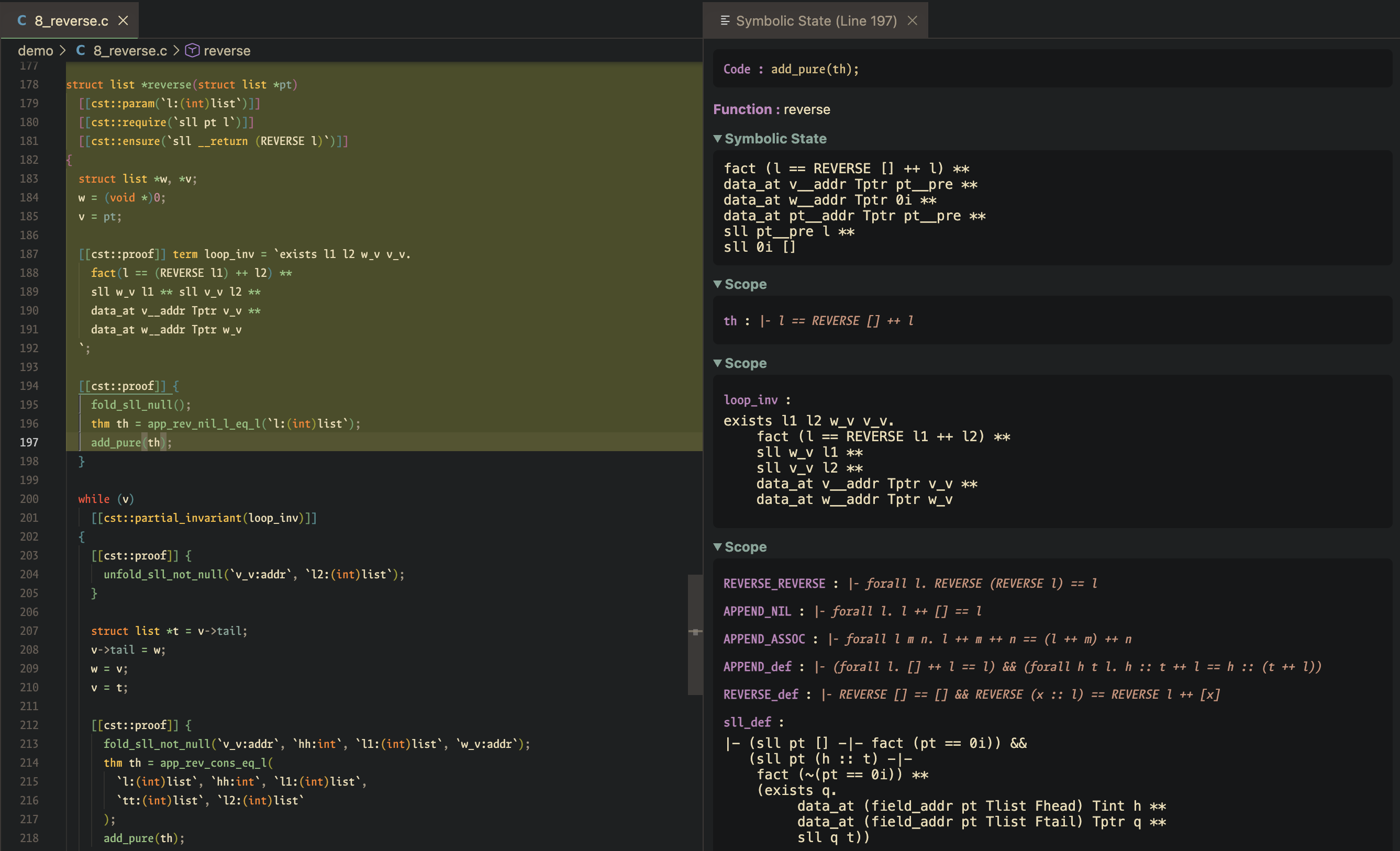
Show the symbolic state and in-scope variables at the current line:
- Open your CStar file.
- Make sure the HOL server is running, and you may need to restart it from time to time.
- Move your cursor to the line of interest, then run the
CStar IDE: Show Symbolic State
command (keybinding Ctrl+Alt+Right, or Alt+Right on Linux).
- The panel shows the enclosing function, its symbolic state, and the in-scope
ghost variables grouped by scope; each section is collapsible, and an
item's fold/unfold status is preserved across updates even when its content
changes or it is temporarily absent.
- Each symbolic-state branch has its own tab. Within a branch, outer
existential binders, pure
fact resources, local-variable data_at and
undef_data_at resources, and the remaining heap resources are shown as
Existentials, Facts, Locals, and Heap. A cell resource is a Local only when
its address is a program-variable address such as x__addr; field and
computed addresses stay in Heap.
- If the preceding successful query was for an earlier line in the same file,
and the document has not been edited between queries, the panel shows the
previous and current symbolic states side by side. An old conjunct consumed by
the transition is marked on the left, a new conjunct is marked as produced on
the right, and matching frame conjuncts are left unmarked. Each changed
existential binder or resource is highlighted independently rather than
highlighting its whole row. Conjuncts and binders are compared as multisets
within order-aligned outer
|| branches. Matching is currently textual and
does not use alpha equivalence.
- When the server also returns verification conditions, they
appear as an additional collapsible section in the same panel, alongside the
symbolic state and scopes.
- The code from the top of the file through the queried line is backlit in the
editor to show what has been symbolically executed so far. The backlight rolls
back to the line before your edit when you change the highlighted region, and
clears when the file is closed.
Stop Symbolic State Daemon
To speed up repeated queries, the server keeps a warm incremental-verification
daemon per file. If it gets into a bad state, run the CStar IDE: Stop Symbolic State Daemon command (keybinding Ctrl+Alt+Left, or Alt+Left on Linux)
to tear down the daemon for the backlit file (or the active file)
and clear the backlight; the next Show Symbolic State respawns a fresh one.
| |

