Claude Control
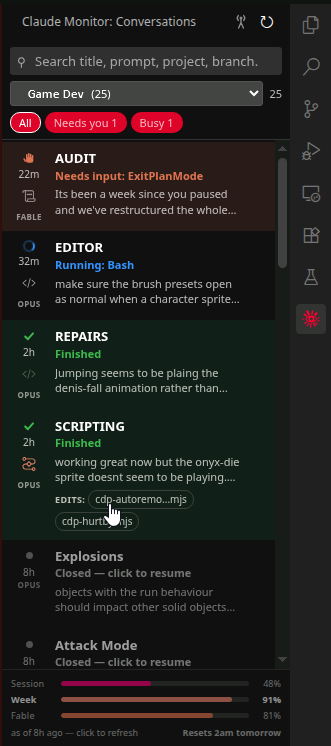
The missing UI for Claude Code Extension. See every Claude Code conversation on your machine in one sidebar - which are working, which are waiting on you, and which are done.
If you run more than one Claude session at a time, you know the problem: a session hits a permission prompt or asks a question, and then just sits there. Claude Control puts them all in one list, newest first, so nothing stalls unnoticed.
What you get
- Live status at a glance — a blue spinner while Claude works, an orange hand when it needs you, a green tick when it finishes.
- Every project, one list — sorted by recency, filtered to the folder you're in by default. The count of conversations waiting on you always shows, even when the filter hides them.
- Search across titles, prompts, branches.
- Click to jump straight in — opens or reveals that conversation in the Claude Code panel. If it's waiting on a plan, the plan opens alongside it.
- Changed files as chips when a run finishes — click one for a diff of what that run actually did.
- Permission mode and model shown per conversation, so you can see at a glance which session is on Opus in plan mode and which is bypassing permissions.
- Remote Control — one click sends
/remote-control to a conversation so you can carry on from the Claude mobile app.
- Usage limits pinned to the bottom — three mini bars for your session, weekly and model-scoped caps, with the one currently constraining you in bold.
Status legend
|
Meaning |
| blue spinner |
working |
| orange hand |
waiting for your input |
| faded orange hand |
probably waiting — inferred, see below |
| green tick |
finished |
| grey tick |
finished, opened from the panel since |
| grey dot |
closed — click to resume |
| red dot |
API error |
Precise status (recommended)
Out of the box, status is inferred from Claude's transcripts. That works well, with one blind spot: a slow shell command and a permission prompt look identical on disk, so "waiting" can take up to a minute to appear and is marked as a guess.
Enabling precise status fixes that. It adds seven hook entries to ~/.claude/settings.json — each simply writes a small file, so there's no measurable overhead. It also keeps the permission-mode icon live: Claude records a mid-run mode change nowhere on disk, so without hooks a Shift+Tab only shows up at your next prompt. Your settings are backed up first, and Claude Control: Disable Precise Status removes the entries exactly.
You'll be offered this on first run. Declining is fine — everything else works either way. It will just be slower to detect status changes.
Settings
| Setting |
Default |
|
preciseStatus |
false |
Use hooks for exact status |
showClosed |
true |
Include conversations with no running process |
pinNeedsInput |
true |
Float waiting conversations to the top |
defaultProjectFilter |
active |
active or all |
groupByProject |
false |
Group under project headings |
notifyOnNeedsInput |
false |
Notify when a conversation starts waiting |
promptPreviewLines |
2 |
Lines of the latest prompt per row |
tailBytes |
131072 |
Bytes read from each transcript |
staleToolSeconds |
90 |
How long before an unanswered tool call is doubted |
claudePath |
"" |
Override claude binary detection |
Requirements
VS Code 1.94+ (or a fork such as Cursor or Antigravity) with the Claude Code extension installed. Reads Claude's own local files — nothing leaves your machine.
Development
npm install
npm run build      # bundle to dist/
npm run watch      # rebuild on change
npm test           # 114 checks, no IDE needed
npm run probe      # print the table the panel would show
npm run package    # build a .vsix
The whole data layer is free of vscode imports, so it runs headlessly against your real ~/.claude. npm test is the fast way to check a change didn't break parsing.
See docs/INTERNALS.md for how the status detection works and what was learned about Claude Code's on-disk formats.
Credits
Permission-mode icons are taken from the Claude Code extension so the panel matches what Claude itself shows.
MIT © cronoklee

