CoreFix
Find vulnerabilities in your code, review AI-generated fixes, and merge the ones you trust - without leaving VS Code.
Overview
The CoreFix extension runs the CoreFix code scanners on your repository and shows what they find right in the editor. With Scan & Fix, CoreFix also writes a proposed fix for each finding. Nothing touches your working tree until you decide: you review the fixes chunk by chunk, accept or reject them, and merge the accepted ones into your branch with one click.
How it works:
- Scan - the extension runs the
corefix CLI, which scans your repository in a Docker container.
- Fix - with Scan & Fix, the proposed changes are applied on a separate fix branch (
codefix@<commit>/<branch>) in an isolated git worktree. Your files and your current branch are not changed.
- Review and merge - you accept or reject the changes, then merge the fix branch into your current branch locally. Nothing is pushed anywhere.
Features
- Scan from the sidebar - Scan Now (findings only), Scan & Fix, Apply Fixes, Rescan, and Rescan & Fix, offered according to what CoreFix reports for your repository.
- Scan profiles and scanners - Fast Scan, Deep Scan, AI/LLM Security, Kubernetes, Supply Chain, or pick your own scanners. Apply Fixes shows which scanners the last scan used and lets you change them.
- Live progress - a banner follows the scan and the fix phase: scanners finishing, findings as they are reported, files fixed (for example "47 of 50 files"), and lines added and removed.
- Findings in the editor - flagged lines are highlighted, files get badges in the Explorer, and each finding opens with its description, severity and remediation steps.
- Chunk-by-chunk review - every proposed change shows as a diff with Accept and Reject. A file is only rewritten once every one of its chunks has a decision.
- Clear review status - each file shows Not reviewed, In review, Accepted, Rejected or Partial.
- Safe merging - the merge tells you what will happen before it does, and blocks on anything that needs your attention.
- Edit-safe - if a file in the fix branch was changed outside CoreFix, the extension leaves it alone and asks before replacing anything.
Requirements
| What |
Details |
| Visual Studio Code |
1.85.0 or newer |
| CoreFix CLI |
Install with curl -fsSL https://get.corefix.dev/corefix \| sudo sh. It installs corefix in /usr/local/bin, which is where the extension looks for it. See Installing the CoreFix CLI. |
| Docker |
Scans run in containers. The CLI installer installs Docker if it is missing. |
| A git repository |
The folder you scan must be a git repository. |
| A CoreFix account |
Free for open source. Sign up if you do not have one. |
| Platform |
Linux and macOS. Windows is not supported yet; use WSL or a Remote-SSH window. |
Quick start
- Install the CoreFix CLI (see Requirements) and check it with
corefix --version.
- Install this extension and open the CoreFix view in the Activity Bar.
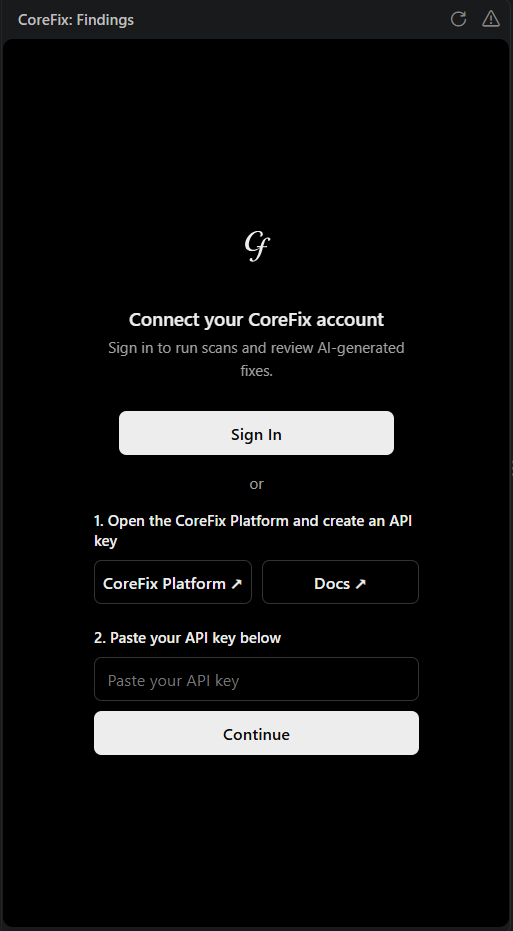
- Sign in - choose the browser sign-in, or paste an API key. You can create one at app.corefix.dev/api-keys; see Creating an API Key.
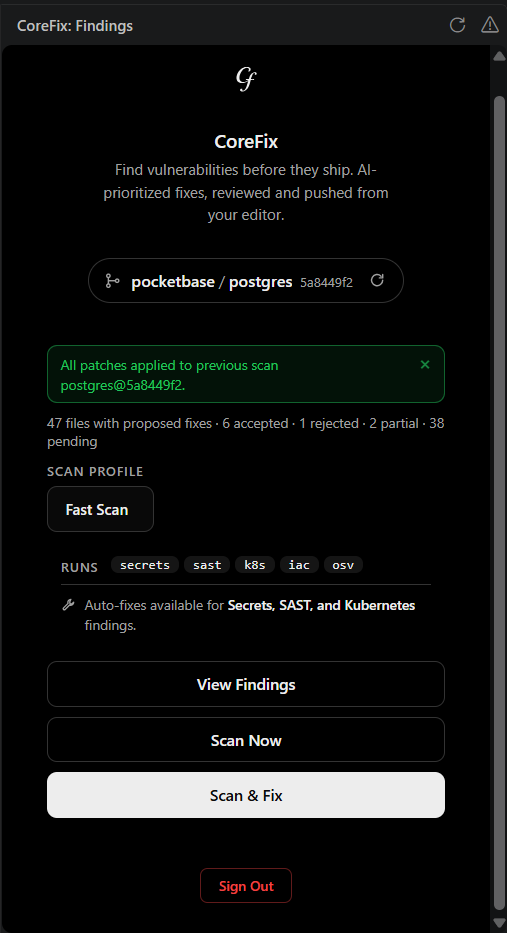
- Open a folder that is a git repository. The project card shows its repository, branch and commit.
- Pick a scan profile and click Scan & Fix. Watch the progress banner until it finishes.
- Review the proposed fixes, accept the ones you want, then click Raise Merge Request to merge them into your branch.
Using the extension
The Home panel
The project card shows the repository, branch and commit, followed by any messages from CoreFix (for example that a previous scan exists, or that the fixes belong to another branch, with a link to switch). Only the actions CoreFix allows for the current state are shown. The refresh icon asks CoreFix for fresh status, and the status also refreshes by itself when the repository changes.
If the folder contains several projects, choose the one to work with; each shows its own branch and commit.
Scan profiles and scanners
| Profile |
Scanners |
| Fast Scan (recommended) |
Secrets, SAST, Kubernetes, IaC, OSV |
| Deep Scan |
All scanners (slower) |
| AI/LLM Security |
AI/LLM |
| Kubernetes |
Kubernetes |
| Supply Chain |
OSV, Malware |
| Custom |
Your own selection |
Secrets, SAST, Kubernetes and Sonar can be fixed automatically. IaC, OSV, Malware and AI/LLM are scan-only. Scan & Fix needs at least one scanner that can fix.
After a scan, Apply Fixes shows a Runs row with the scanners the scan used. Click + to change them; choosing different scanners runs a new scan.
Reviewing findings
- Scan Now results open as a read-only list: search it, expand a finding for its details, and click a location to jump to the file and line.
- Findings are also highlighted in the editor, with badges on files in the Explorer.
Reviewing fixes
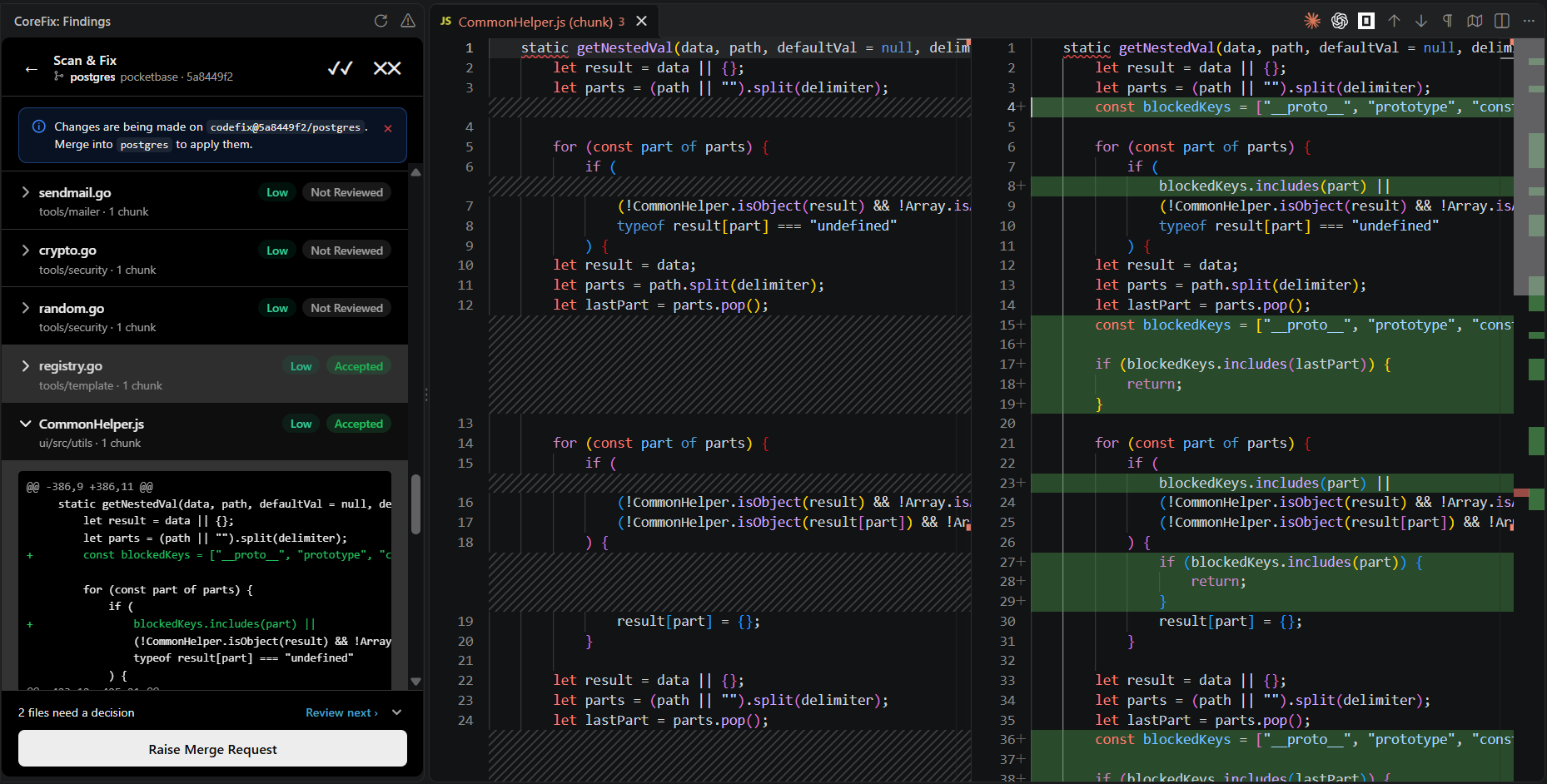
Scan & Fix results open as a list of files, each with a status:
| Status |
Meaning |
| Not reviewed |
You have not decided on any chunk of this file yet. |
| In review |
Some chunks are decided and some are not. |
| Accepted |
Every chunk was accepted. |
| Rejected |
Every chunk was rejected. |
| Partial |
Every chunk was decided, with a mix of accepted and rejected. |
Open a file to see its chunks. View Diff opens the change in VS Code's diff editor, Accept keeps it, Reject reverts it. The buttons at the top of the screen accept or reject everything at once. A file in review has an Accept the rest action to accept its remaining chunks.
Chunks that build on each other (a later change that edits the output of an earlier one) are handled in order. If you reject an earlier change that a later one needs, the extension says so and changes nothing.
Merging
Raise Merge Request merges the fix branch into the branch you are on, with a normal git merge, then removes the fix branch and its worktree. Nothing is pushed.
- Nothing reviewed - you are asked to confirm: every fix will be merged as accepted. This is safe to do because the fixes are already in the fix branch.
- Some reviewed - you are told how many files you reviewed; the rest are merged as accepted.
- Files in review - the merge is blocked until every chunk of those files has a decision. The footer shows how many files need a decision, a Review next link, and a list you can expand.
- Everything rejected - there is nothing to merge; the extension says so and offers to discard the fix branch.
- Local edits - files you changed that the merge would also change block it; commit or stash them first. Edits to other files do not matter.
- Conflicts - if git reports conflicts, resolve them in the editor and commit as usual. The fix branch is kept in that case.
Files and branches the extension creates
| What |
Where |
| Scan results and fixes |
~/.corefix/scan-results/<repo>/<branch>/<commit>/ |
| Fix worktree |
~/.corefix/scan-results/<repo>/<branch>/<commit>/fixes/<repo> |
| Fix branch |
codefix@<commit>/<branch> (deleted after a clean merge) |
| Sign-in |
~/.corefix/session.json, shared with the CoreFix CLI |
Commands
| Command |
What it does |
CoreFix: Run scan |
Scans the project without generating fixes |
CoreFix: Scan and Fix |
Scans and generates proposed fixes for review |
CoreFix: View Findings |
Reopens the results of the last scan |
CoreFix: Refresh findings |
Refreshes the screen you are on (also the icon in the view title) |
CoreFix: Sign Out |
Signs out. If a scan is running you are asked first, and it is cancelled. |
Troubleshooting
| You see |
What to do |
| CoreFix can't find the CoreFix CLI |
Install it (see Requirements) and check that /usr/local/bin/corefix exists. Use the retry icon afterwards; Show log has the details. |
| Docker is not installed or not running |
Start Docker, or install the CLI with the installer, which installs Docker. |
| CoreFix couldn't verify your API key |
Sign out and sign in again, or create a new key. Keys expire and cannot be regenerated. |
| Your session expired |
Click Sign In. |
| The fixes belong to another branch |
Use the link in the message to switch to that branch. |
| A file "was edited outside CoreFix" |
The extension did not change it. Choose Show changes to compare, or Overwrite my edits to replace them. |
| Findings disappeared after a commit |
Results belong to the commit that was scanned. Run a scan on the new commit. |
| A scan is already running |
One scan runs at a time. Wait for it, or cancel it from the banner. |
| Something else |
Open Show log on the banner or the "CoreFix" output channel. |
Known limitations
- One scan at a time.
- Results are tied to the commit that was scanned; committing changes afterwards hides them until you scan again.
- On the Free plan, Scan & Fix fixes up to five files per run. See CodeFix - Automated Remediation.
- Windows is not supported yet.
- Merging is local only; there is no push or pull request from the extension.
- After a merge, the Explorer badges keep showing the merged scan (accepted files resolved, rejected files still flagged) until your next commit or scan; they do not draw line highlights, because the lines moved.
Settings
The extension needs no configuration. Two developer-only settings (corefix.apiBaseUrl, corefix.frontendBaseUrl) can point it at a different CoreFix environment and should be left empty.
Documentation and support
License
Proprietary. Copyright (c) 2026 Corefix (Corefix HQ). All rights reserved. See LICENSE; licensing questions: help@corefix.dev.
| |

