Retro Lavender Sky
A soft pastel + dark editor hybrid theme for VS Code with retro neumorphic UI styling.
Preview
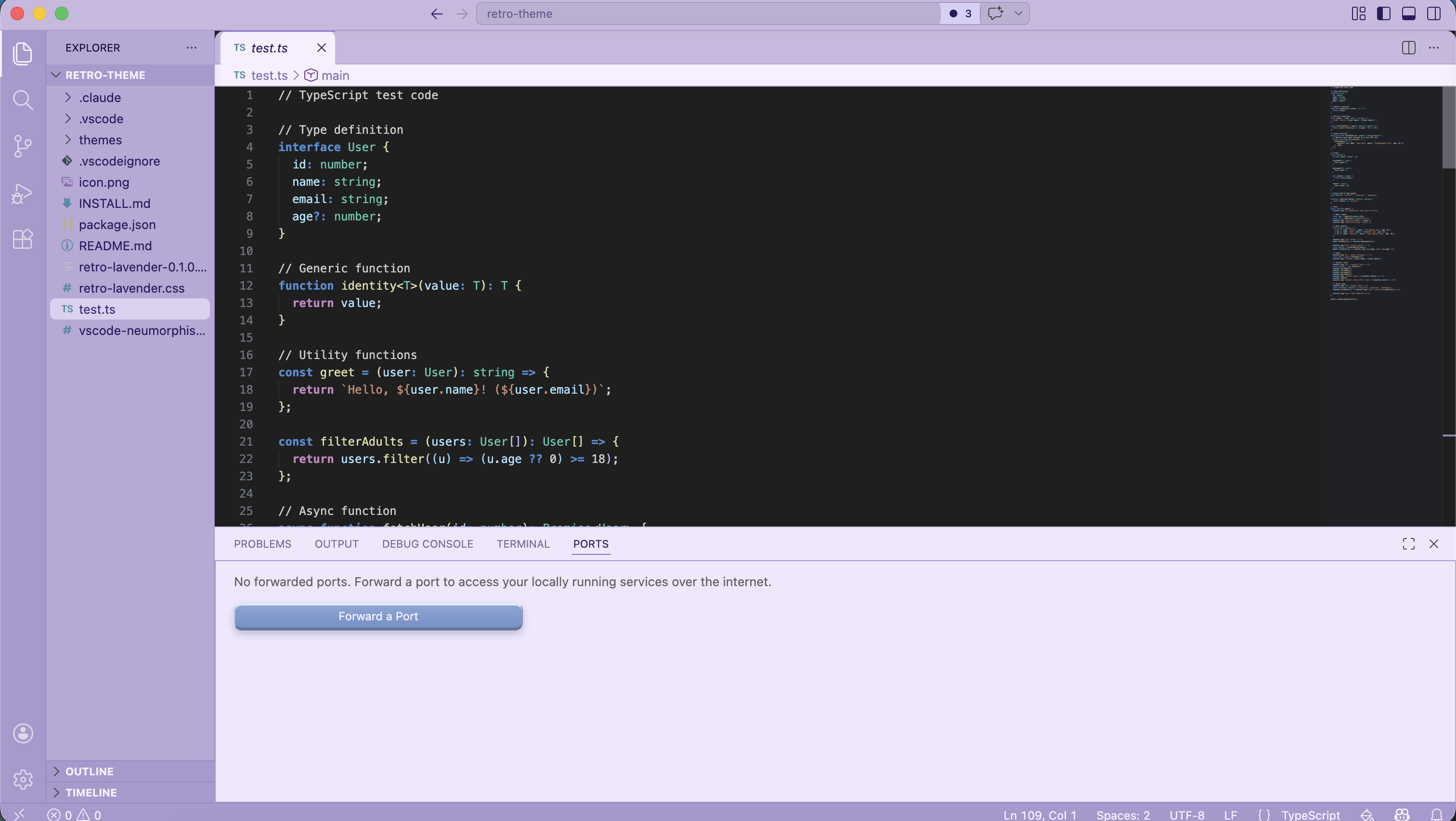
Features
- Lavender pastel UI with dark editor for eye comfort
- Rounded corners, soft shadows, raised/embossed buttons
- Custom scrollbar, tabs, command palette, and autocomplete styling
- Requires Custom CSS and JS Loader for full visual experience
Installation
Step 1 — Install the color theme
Option A: From VSIX (recommended)
# Download the .vsix from Releases, then:
code --install-extension retro-lavender-0.1.0.vsix
Option B: From source
git clone https://github.com/your-username/retro-lavender
cd retro-lavender
npm install -g @vscode/vsce
vsce package
code --install-extension retro-lavender-0.1.0.vsix
Then activate: Ctrl+K Ctrl+T → Retro Lavender Sky
Step 2 — Apply custom CSS (full experience)
The color theme alone gives you the color palette. For the full neumorphic look (rounded tabs, raised buttons, custom scrollbars), you need the CSS.
1. Install the extension
Search "Custom CSS and JS Loader" in the VS Code marketplace and install it.
Extension ID: be5invis.vscode-custom-css
2. Copy the CSS file to a permanent location
# macOS / Linux
cp retro-lavender.css ~/.vscode/retro-lavender.css

# Windows
copy retro-lavender.css %USERPROFILE%\.vscode\retro-lavender.css
3. Add to settings.json
Open Ctrl+Shift+P → Preferences: Open User Settings (JSON) and add:
// macOS / Linux
"vscode_custom_css.imports": [
  "file:///Users/YOUR_USERNAME/.vscode/retro-lavender.css"
]

// Windows
"vscode_custom_css.imports": [
  "file:///C:/Users/YOUR_USERNAME/.vscode/retro-lavender.css"
]
Replace YOUR_USERNAME with your actual username.
4. Enable the custom CSS
Ctrl+Shift+P → Enable Custom CSS and JS
VS Code will ask to restart — click Restart.
Note: After every VS Code update, run Enable Custom CSS and JS again. Updates overwrite the patched files.
macOS note: If VS Code shows "corrupted" warnings, run Ctrl+Shift+P → Fix Checksums: Apply, then restart.
Recommended Fonts

