XLSX Diff
A VS Code extension for visually comparing and editing .xlsx workbooks — directly inside the editor, with first-class Git / SVN / SCM integration.
Features
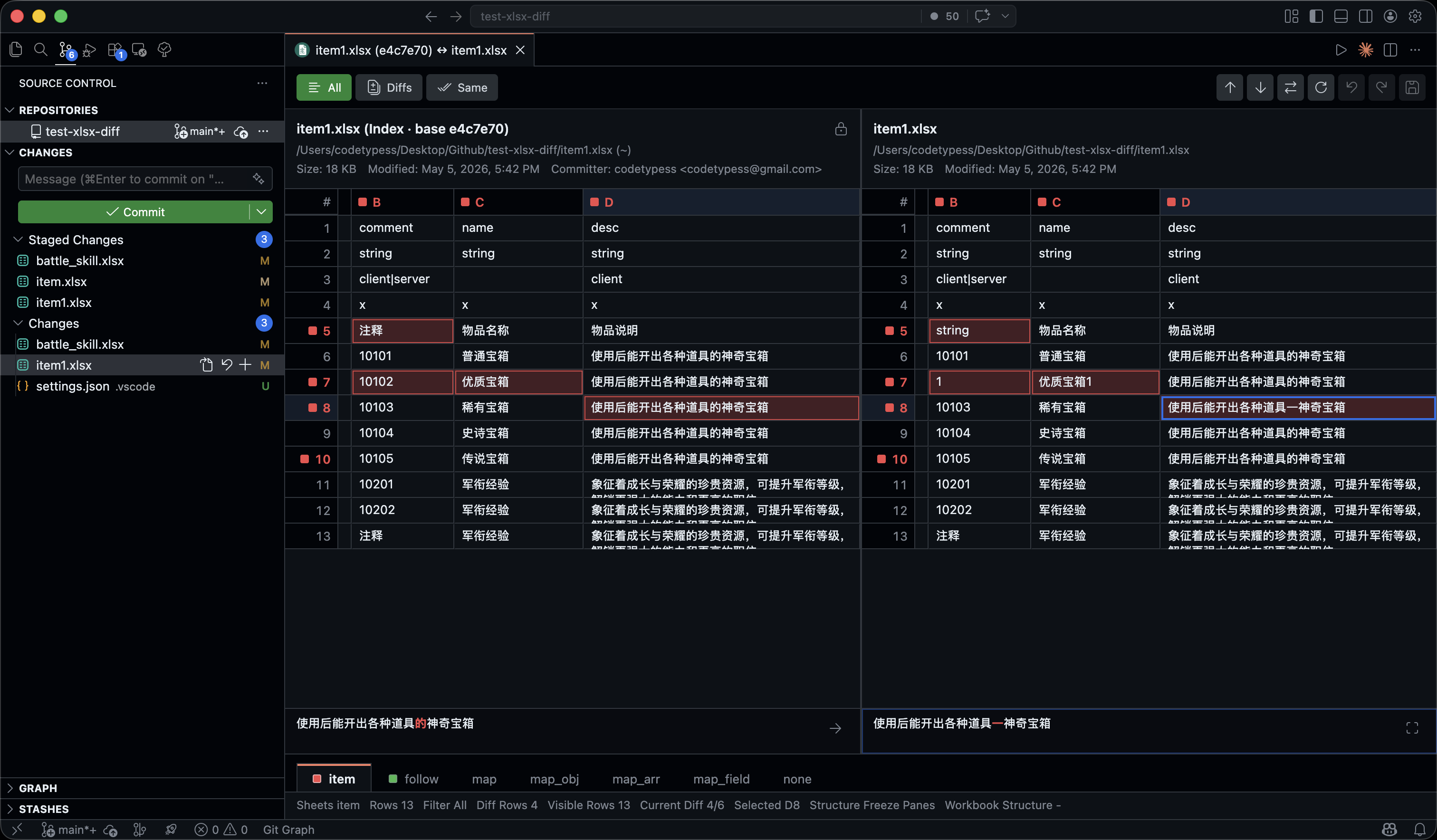
- Side-by-side spreadsheet diff — compare left and right workbooks in a clean table layout with colour-coded modified, added, and removed cells.
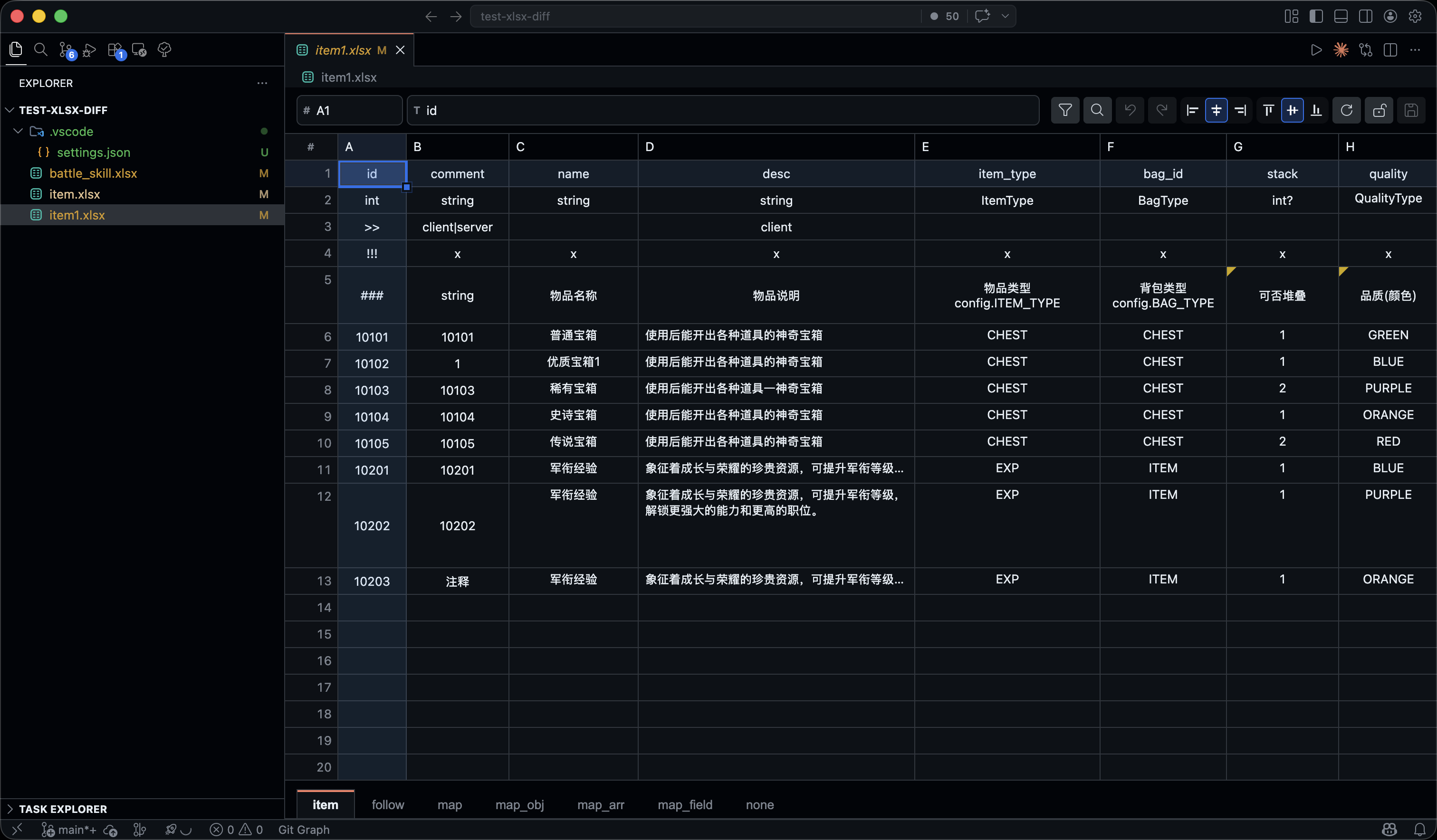
- Single-file XLSX editor — open local
.xlsx workbooks directly in VS Code, edit values inline, paste tab-separated data, and save changes back to disk.
- Git, SVN & SCM integration — click
.xlsx resources in Source Control, Git history, or supported SVN views to open a workbook-aware diff instead of a binary diff.
- Sheet tabs with markers — navigate worksheets quickly; tabs indicate sheets with value, formula, structure, or pending-edit changes.
- Filtering and navigation — switch between all rows, changed rows, unchanged rows, or filtered sheet rows, then jump between changed cells.
- Large-workbook loading — the editor uses fast workbook manifests and active-sheet window loading so inactive worksheets are hydrated only when needed.
- Formula-aware comparison — formulas are visible with an
fx badge, and formula text can optionally participate in diff detection.
- Structure indicators — merged range and freeze-pane structure changes are surfaced as sheet-level warnings while scroll-position-only freeze-pane changes are ignored.
- Worksheet comments — the editor shows note markers and tooltips, and supports creating, updating, or deleting traditional worksheet comments.
- Cell-level merge actions — accept the selected left cell into the right workbook, or the selected right cell into the left workbook, then save through the existing pending-edit flow.
- Bilingual UI — English and Simplified Chinese, following the VS Code display language by default.
Usage
Open the single-file editor
Opening a local .xlsx file now uses the XLSX editor automatically. You can still run XLSX Diff: Open XLSX Editor from the Explorer, editor context menu, or Command Palette if you want to open it explicitly.
In the editor view you can:
- browse sheets with tabs
- move between cells with the arrow keys,
Enter, and Tab
- page through large used ranges with
PageUp and PageDown
- press
Cmd/Ctrl+F to search workbook values and formulas, then step through matches
- press
Cmd/Ctrl+G to jump to a cell such as A1 or Sheet1!B2
- double-click a cell to edit it inline
- paste tab-separated spreadsheet data into the current selection rectangle
- press Backspace or Delete to clear the selected cell
- press Cmd/Ctrl+Z and Shift+Cmd/Ctrl+Z or Ctrl+Y for session undo / redo
- press ⌘S / Ctrl+S or click Save to write staged edits back to the workbook
- right-click a cell to edit or delete a worksheet comment
- hover the note marker on a commented cell to see the comment text and author
- use the toolbar Undo, Redo, Search, and Go controls for mouse-driven editing
- keep a workbook open in read-only mode when the file system is not writable
- leave formula cells read-only; formula cells are visible but cannot be edited or overwritten from the editor
Compare two files
- Right-click an
.xlsx file in the Explorer and choose XLSX Diff: Compare Active XLSX With… — then pick the second file.
- Or open the Command Palette (
⌘⇧P / Ctrl+Shift+P) and run XLSX Diff: Compare Two XLSX Files.
Compare from Source Control
Open the Source Control panel, then click any .xlsx file listed under Changes. The XLSX diff view opens automatically instead of VS Code's built-in binary diff.
Git support works with VS Code's built-in Git extension. SVN support works with the johnstoncode.svn-scm extension and its svn: read-only resources.
Diff view actions
In the diff view you can:
- switch sheets with tabs and inspect sheet-level structure warnings
- toggle row visibility between all, changed, unchanged, and filtered rows
- click ↓ Next Diff or ↑ Prev Diff to move between changed cells
- double-click a writable non-formula cell to stage an inline edit
- right-click a selected changed cell to accept the opposite side's value into the writable workbook
- click Swap to reverse the left and right sides
- click Save to write staged local edits back to disk
Editing a cell
- Make sure the target file is a local
.xlsx file (not a Git/SVN history version or read-only file).
- Double-click a non-formula cell you want to edit.
- Type the new value.
- Press Enter or Tab to stage the change in the current session.
- Press ⌘S / Ctrl+S or click Save to write all staged edits to disk.
- Press Escape to cancel without saving.
Formula cells stay read-only. Cell edit undo / redo remains available after save during the current editor session. Structural edit history still resets on save.
- Right-click a writable cell in the single-file editor.
- Choose Edit Comment to create or update a traditional worksheet comment, or Delete Comment to remove one.
- Enter comment text in the editor modal and apply it to save immediately.
Comment changes are immediate saves. If the workbook already has pending value or structure edits, save or discard those edits before changing comments.
Settings
| Setting |
Values |
Default |
Description |
xlsx-diff.displayLanguage |
auto, en, zh-CN |
auto |
Controls the language used in diff panel prompts and UI labels. auto follows the active VS Code display language. |
xlsx-diff.compareFormula |
boolean |
false |
Controls whether formula changes count as cell diffs when the displayed value is unchanged. |
The extension already exposes a vscode:// compare entrypoint. This repository ships CLI helpers that forward external tool arguments into that entrypoint and open the XLSX Diff panel in VS Code.
If you want stable commands on your PATH, run this once from the repository root:
npm link
That gives you:
xlsx-difftool for tools that pass two workbook pathsxlsx-svn-diffwrap for Subversion-style external diff arguments
If you are using a different publisher ID, set it before invoking either helper:
export VSCODE_XLSX_DIFF_EXTENSION_ID=your-publisher.xlsx-diff
Direct CLI usage
xlsx-difftool left.xlsx right.xlsx
If you do not want to link the commands globally, invoke the script directly:
node /absolute/path/to/vscode-xlsx-diff/scripts/xlsx-difftool.mjs left.xlsx right.xlsx
You can configure Git to use this extension as the difftool for .xlsx files.
~/.gitconfig:
[diff]
    tool = xlsx-vscode
[difftool "xlsx-vscode"]
    cmd = "xlsx-difftool" "$LOCAL" "$REMOTE" "$MERGED"
    prompt = false
If you prefer not to install the helper on PATH, point Git at the script directly:
[difftool "xlsx-vscode"]
    cmd = "node /absolute/path/to/vscode-xlsx-diff/scripts/xlsx-difftool.mjs" "$LOCAL" "$REMOTE" "$MERGED"
    prompt = false
.gitattributes in your repository:
*.xlsx diff=xlsx
Running git difftool on an .xlsx file will then open the XLSX Diff panel in VS Code.
SVN external diff integration
Subversion passes GNU diff-style arguments to external diff tools. The xlsx-svn-diffwrap helper consumes those arguments, forwards the workbook pair to VS Code, and exits with the standard diff status code 1.
Direct command-line usage:
svn diff --diff-cmd xlsx-svn-diffwrap
If you prefer repository-wide or user-wide configuration, point Subversion's diff-cmd helper at the installed xlsx-svn-diffwrap command or the script path directly.
Any tool that can launch a command with two workbook paths can reuse the same helper:
xlsx-difftool "$LEFT_XLSX" "$RIGHT_XLSX"
The helpers are non-blocking: they ask VS Code to open the XLSX Diff panel and then return immediately.
Local development
# Install dependencies
npm install

# Start watch build (extension + webview)
npm run watch

# Press F5 in VS Code to launch the Extension Development Host
# The default launch config opens res/item.xlsx automatically
# Use the secondary "Run Extension" config if you only want a blank dev host

# Type-check all targets
npm run check-types

# Run tests
npm test
License
MIT.
Current behavior notes
- Comparison is value/formula oriented; worksheet comments do not currently create diff markers.
- Renamed sheets are matched by content signature.
- Merged range and freeze-pane split changes are surfaced as sheet-level warnings.
- Freeze-pane stored scroll-position-only changes are ignored to avoid false-positive diffs.
- Row pagination defaults to
200 rows per page in the diff view.
- The single-file editor lazily hydrates inactive worksheets; search and filter flows may fully load the active sheet when needed.
Known gaps
- no style-level diff visualization yet
- no chart / pivot / macro diff yet
- no row-, column-, or sheet-level merge flow yet
- worksheet comments are editable in the single-file editor, but are not shown or compared in the diff panel yet
- diff-panel workbook parsing still uses the full snapshot path

