mapitect: interactive D2 diagrams for VS Code
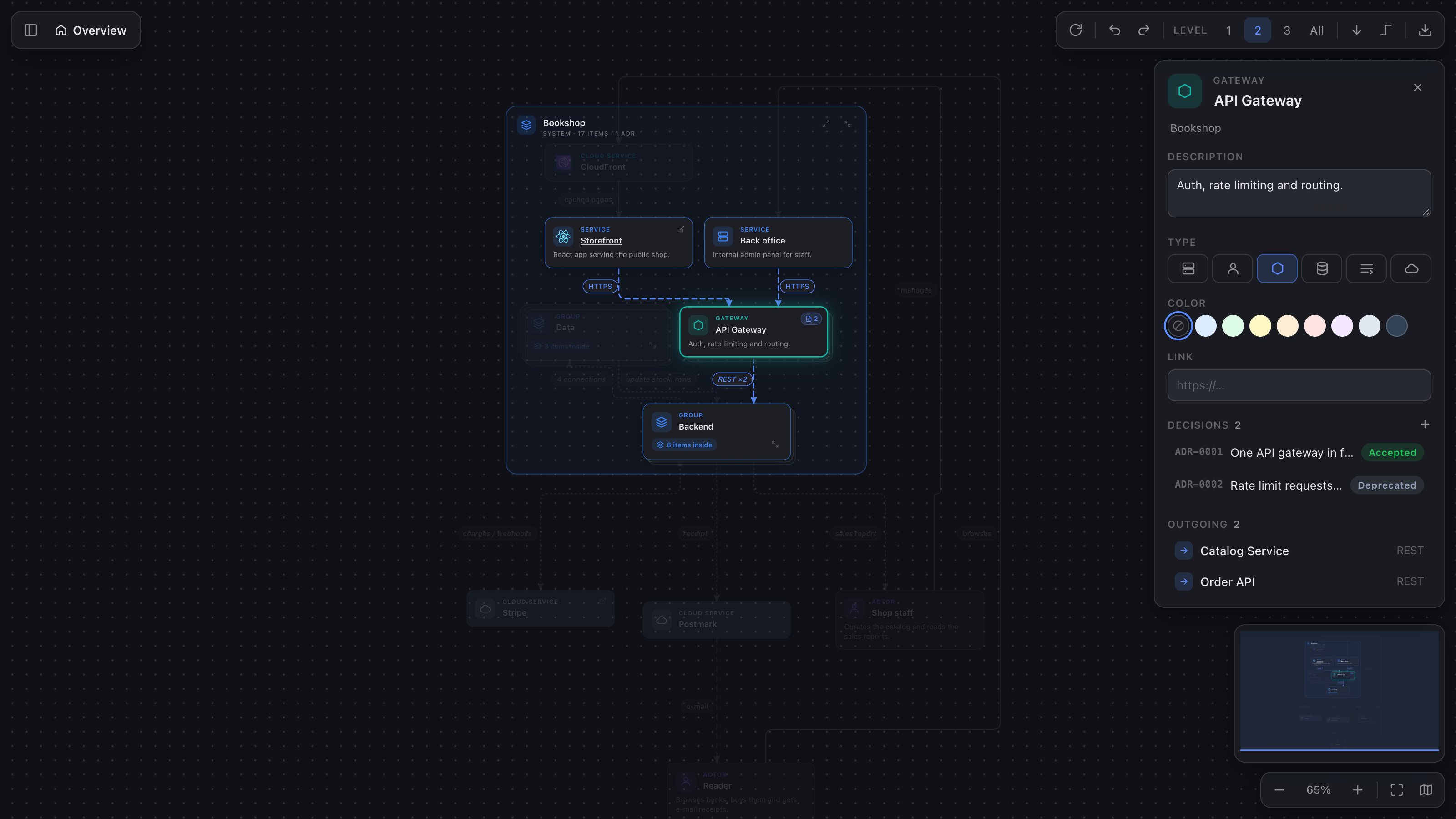
mapitect renders D2 files as interactive architecture maps. You can zoom, pan, drill into systems, collapse groups, jump between the diagram and its source, and edit names, descriptions and node appearance right in the diagram. Those edits are written back into the .d2 file.
Parsing uses the official D2 compiler (@d2lang/d2, the WASM build of D2), so the preview understands exactly what d2 itself does: classes, vars, globs, imports and the rest.
Features
- Live preview: open any
.d2 file and press Cmd+K V (Ctrl+K V), or use the preview button in the editor title bar. The diagram re-renders as you type and animates between layouts.
- Zoom & pan: drag the canvas to pan. Use the wheel, a trackpad pinch,
+/- or the zoom bar to zoom. Trackpad scrolling pans; see mapitect.wheel to change that. F fits the diagram, 1 resets to 100%.
- Drill-down navigation: double-click a container to focus on it, like moving between C4 levels. External elements it talks to stay visible as dashed context cards. Breadcrumbs,
Esc or Backspace take you back up.
- Detail levels: the Level 1 / 2 / 3 / All switcher collapses nested containers. Previews open at Level 1, showing only top-level elements, and the switcher always highlights the level you're looking at. When a container is collapsed, the connections to its contents are merged into dashed implied connections that show a combined label.
- Collapse / expand any container in place with its corner button or
[ / ].
- Model tree & search: the sidebar (collapsed by default; open it with the button at the top left) lists the whole hierarchy. Press
/ or Cmd+F to search, which also opens it, and Enter reveals the first match.
- Details panel: shows an element's description (
tooltip), link, incoming and outgoing connections, and children, each clickable.
- Selection highlighting: selecting an element animates its connections and dims everything else. Arrow keys move the selection to the nearest element in that direction.
- Source sync: selecting an element or connection highlights its declaration in an editor that already shows the file, and scrolls it into view, without moving your cursor or opening the file. The colours are themable as
mapitect.sourceHighlightBackground and mapitect.sourceHighlightRuler. The other way round, the element under the editor cursor is outlined in the diagram. Cmd/Ctrl+click an element to jump into its source.
- Semantic zoom: descriptions and labels fade out as you zoom away, and group names grow so large maps stay readable.
- Minimap: click or drag it to navigate (
M toggles it).
- Export: save the diagram as SVG or PNG.
- Editor support: syntax highlighting, bracket matching, folding, and the D2 compiler's errors as diagnostics. While the file doesn't compile, the preview keeps showing the last valid diagram.
- Follows the VS Code light, dark and high-contrast themes.
Editing in the diagram
The diagram lets you change texts and how nodes look. Structure stays in the code: elements and connections are added, removed and rewired only in the .d2 file. Every change is applied to the source as a small, targeted text edit based on the compiler's syntax tree, so your formatting and comments elsewhere are left alone.
- Rename: double-click an element, a group's title or a connection label, or press
F2.
- Details panel: edit an element's name, description (
tooltip) and link, pick its type (service, actor, gateway, data store, queue or cloud service), or set a fill color. For a connection, edit its label. Other D2 shapes still display, but you set them in the code.
- Right-click an element or connection for Rename / Edit label, Go to source and navigation.
- Layout direction: the arrow button in the toolbar cycles right → down → left → up and writes it to the file as the board's
direction:.
- Undo / redo visual edits with
⌘Z / ⇧⌘Z in the diagram. If you've typed in the file since then, use the editor's own undo instead.
Editing pauses while the file has compile errors, because the source positions would be out of date. Positions are always computed automatically.
Architecture decisions
mapitect shows MADR decision records next to the elements they belong to.
List the folders that hold them in the adr-folders variable at the top of the .d2 file, relative
to the file or absolute. One folder or several:
vars: {
  adr-folders: [adr; ../shared/decisions]
}
Each folder has one subfolder per component, named after the element, with the ADR files inside:
platform.d2
adr/
  gateway/                     # matches the element whose key is "gateway"
    0001-single-api-gateway.md
    0002-rest-between-gateway-and-services.md
  shop.services.orders/        # or the element's full id
  shop/services/payments/      # or a path mirroring the diagram's nesting
../shared/decisions/
  gateway/                     # decisions from every folder are merged per element
    0001-rate-limits.md
- On the diagram: elements with decisions get a badge with their count. Groups list the
count in their header.
- Details panel: lists an element's decisions with number, title and status.
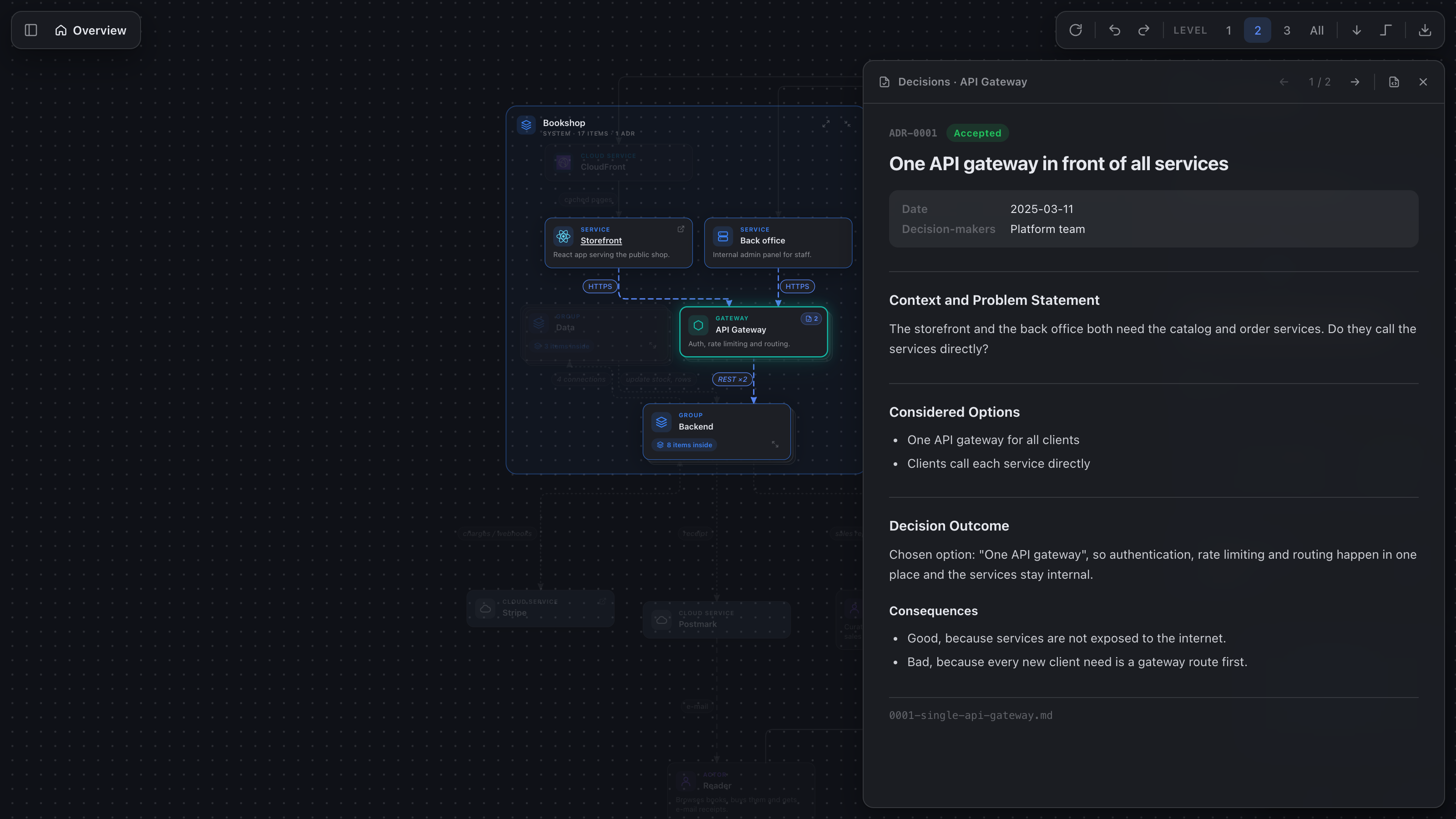
- Decision reader: click a decision or a badge to read it, with status, date and
decision-makers.
← / → step through the component's decisions, and links between ADRs
open in the reader.
- New decision: right-click an element and choose New decision…, or use the
+ next to
Decisions in the details panel. mapitect asks for a title, creates the next numbered MADR file
with status: proposed and today's date, and opens it in the editor. The file goes next to the
element's existing decisions (in the first root that has some), numbered after the highest of
them. An element without decisions gets a new folder in the first root, named after its key, or
its full id when another element shares the key.
- Metadata: MADR 3/4 YAML front matter (
status, date, decision-makers, consulted,
informed) or MADR 2 bullets (* Status: …). Statuses are shown as accepted, proposed,
rejected, deprecated or superseded.
- Live: adding or editing Markdown files, or changing
adr-folders, updates the preview.
Folders that match no element are flagged in the sidebar footer.
Without adr-folders no decisions are looked up. README.md, index.md, template.md and
files starting with . or _ are ignored. The repository's
examples folder holds an example
diagram with 9 sample decisions in adr and adr-shared.
Supported D2
Whatever the official compiler accepts. Imports resolve against other .d2 files in the same folder (up to two levels deep). Only the main board is shown: layers, scenarios and steps are compiled but not displayed yet. mapitect lays diagrams out itself with ELK so it can collapse and drill into them, so width, height, top, left, grid settings and the D2 layout engine choice are ignored.
Each element type gets its own icon and accent color: actors (person), services, gateways (hexagon), data stores (cylinder), queues, cloud services, tables, and more.
Keyboard
| Key |
Action |
F2 |
Rename the selection |
⌘Z / ⇧⌘Z |
Undo / redo a visual edit |
F / 1 |
Fit to screen / 100% |
+ - |
Zoom |
| Arrows |
Move the selection (pan when nothing is selected; Shift for bigger steps) |
Enter |
Expand, drill into, or open the source of the selection |
Esc / Backspace |
Clear the selection, then go up a level |
[ ] |
Collapse / expand the selected container |
/, Cmd+F |
Search |
M |
Toggle the minimap |
Settings
mapitect.wheel: auto (default; trackpad pans, mouse wheel zooms), zoom, or pan.mapitect.defaultDepth: detail level a preview opens at (default 1; 0 expands everything).mapitect.syncSelection: highlight the element under the editor cursor.
| |

