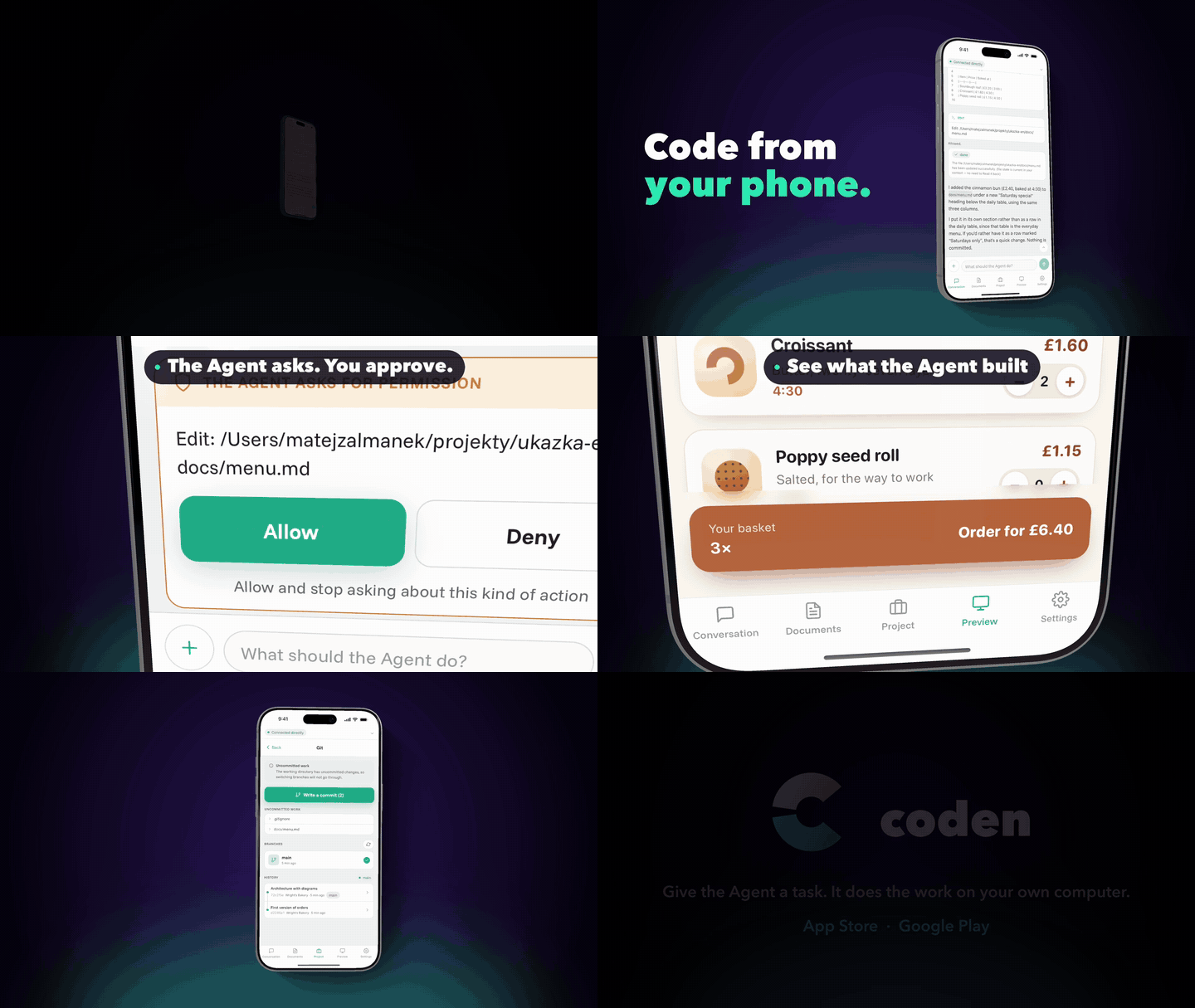
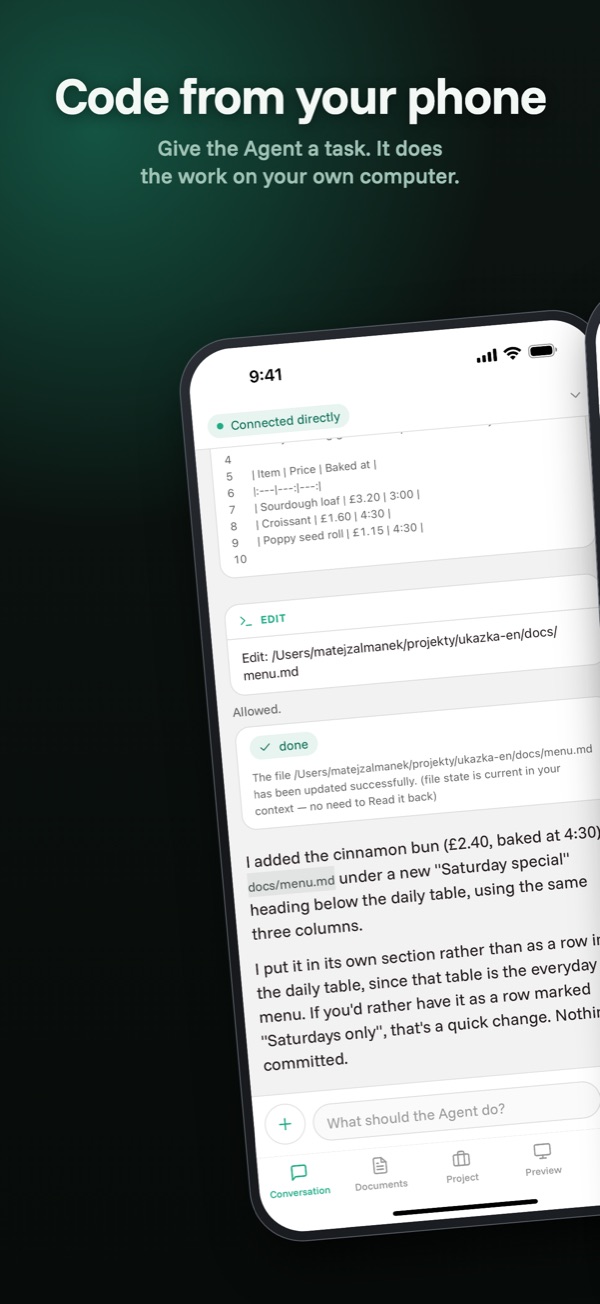
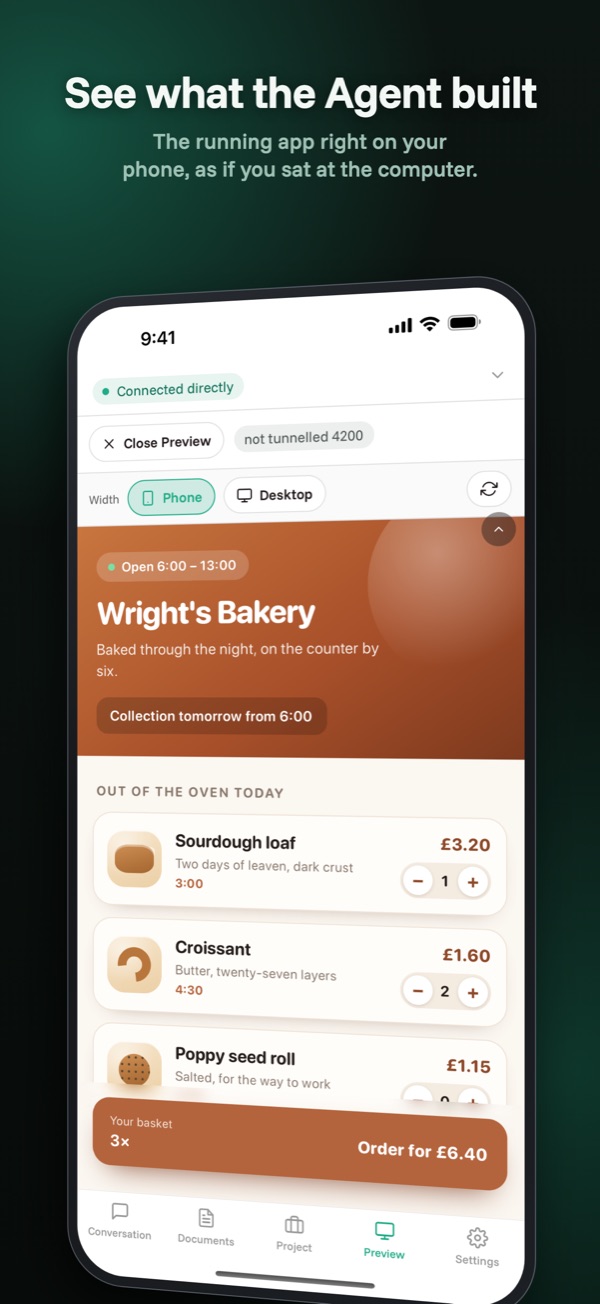
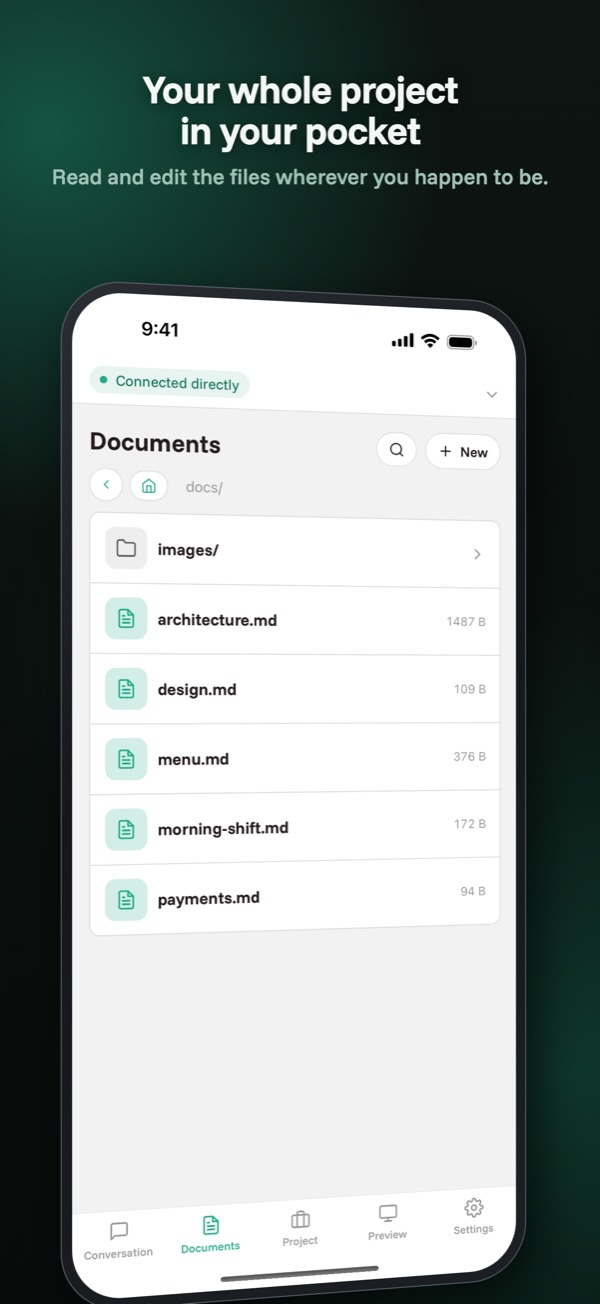
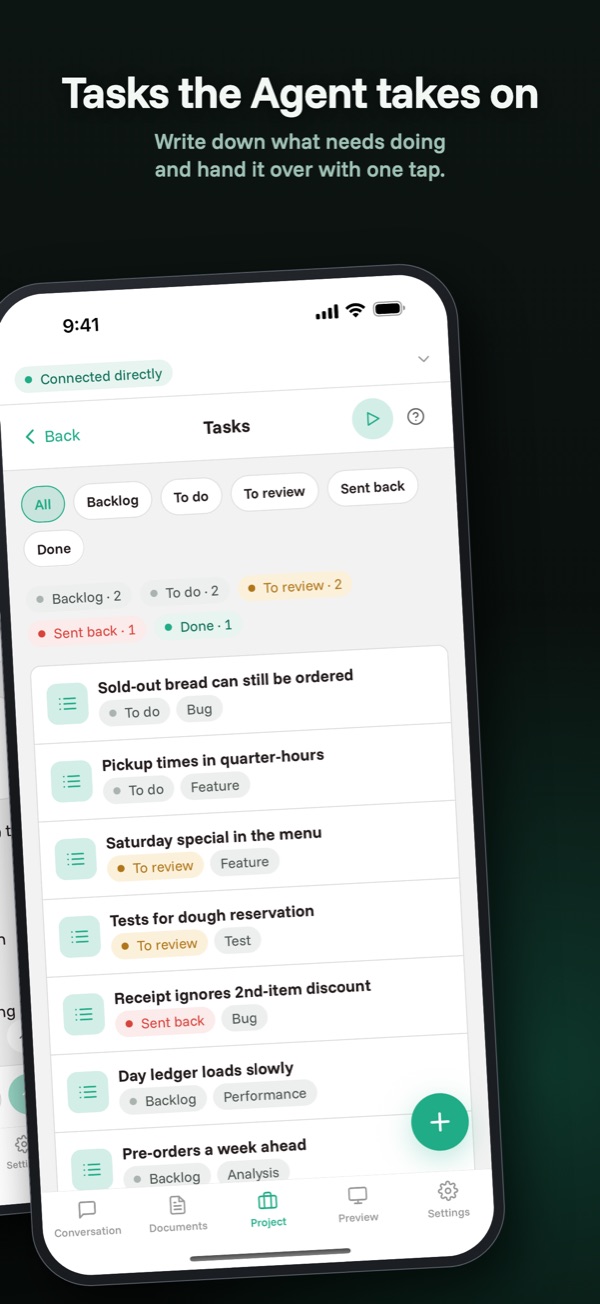
Keep working with Claude Code from your phone. This extension runs the coden Server
for the folder you have open; the coden app on your phone
connects to it — the conversation with the agent, approvals, documents, tasks, preview.
The extension only runs the Server. Everything else happens on the phone.
Getting started
Open a folder.
Click coden in the status bar (or run coden: Start Server).
You need Claude Code installed and signed in. If it is
not, the status bar says so and coden: Set Up Claude Code walks you through it in a
terminal.
What to know
The Server keeps running when you close the window, so the agent can finish its
work and your phone stays connected. Next time the extension picks it up again. To stop
it, use coden: Stop Server, or turn on coden.stopOnClose.
It starts on its own only in folders where it has run before. A new folder needs a
click. It does not start at all in a folder you have not trusted.
Its data is not in your project. The Server's identity, the paired phones and the
log live in the extension's storage, not in the folder.
Remote development works: over Remote-SSH, in WSL, a dev container or Codespaces, the
Server runs where your code is.
On macOS the system asks whether Visual Studio Code may find devices on the local
network — that is the Server, started by the editor. Allow it for a direct connection on
your Wi-Fi; without it the phone connects through the relay, which works but is slower.
Settings
Setting
Default
coden.serverPath
empty
Path to coden-server. Empty: the newer of the installed one and the one bundled with the extension.
coden.autoStart
true
Start the Server on opening a folder where it has run before.