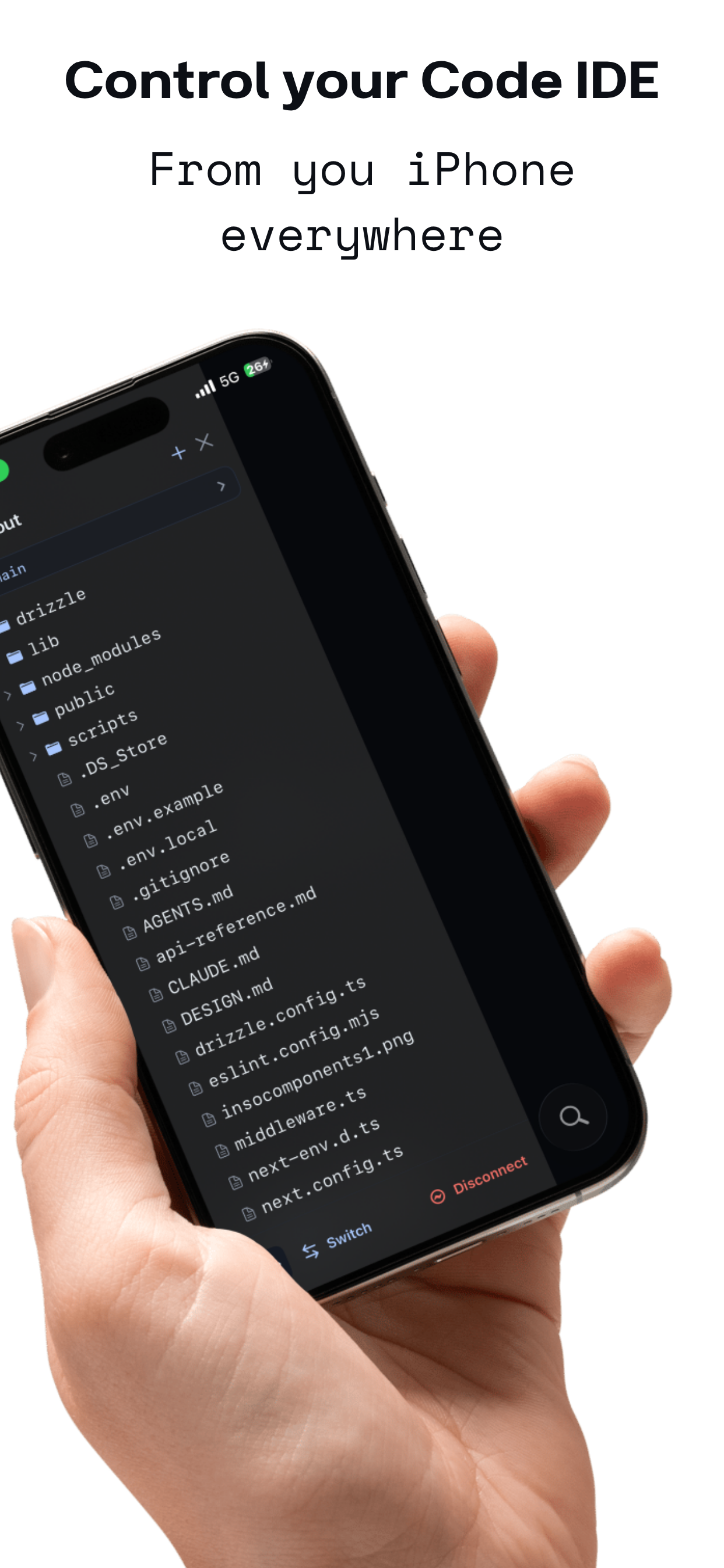
CodeMote lets you reach the VS Code workspace on your desktop from a native
iOS app. No file-syncing and no cloud copy of your code: the phone is a remote
control for the editor that's already running on your computer.
This extension is the desktop half. You also need the CodeMote iOS app on
your iPhone or iPad.
New in 2.0
- ⚡ Zero-setup connection. Cloudflare quick tunnels are the new default —
Start Mobile Session just works, no
devtunnel install and no login.
Prefer a stable URL that survives restarts? Pick ngrok, Tailscale, or devtunnel
with CodeMote: Change Connection Method.
- 🔀 Git PR review. Open, diff, close, and merge pull requests from your phone.
- 📝 Notes. A first-class notes editor on the phone.
- 🖼️ In-editor media. View images & Markdown and play video/audio right in the
mobile editor.
Want AI agent chats from your phone? The extension host can't run agents,
so native Claude Code chats live in the companion
codemote-cli — run
npx codemote-cli start in any project (no IDE needed) to steer Claude from a
native chat UI with tool-permission prompts, sub-agents, and rewind.
Features
- 📁 Browse your workspace — navigate the open folder's file tree from your phone.
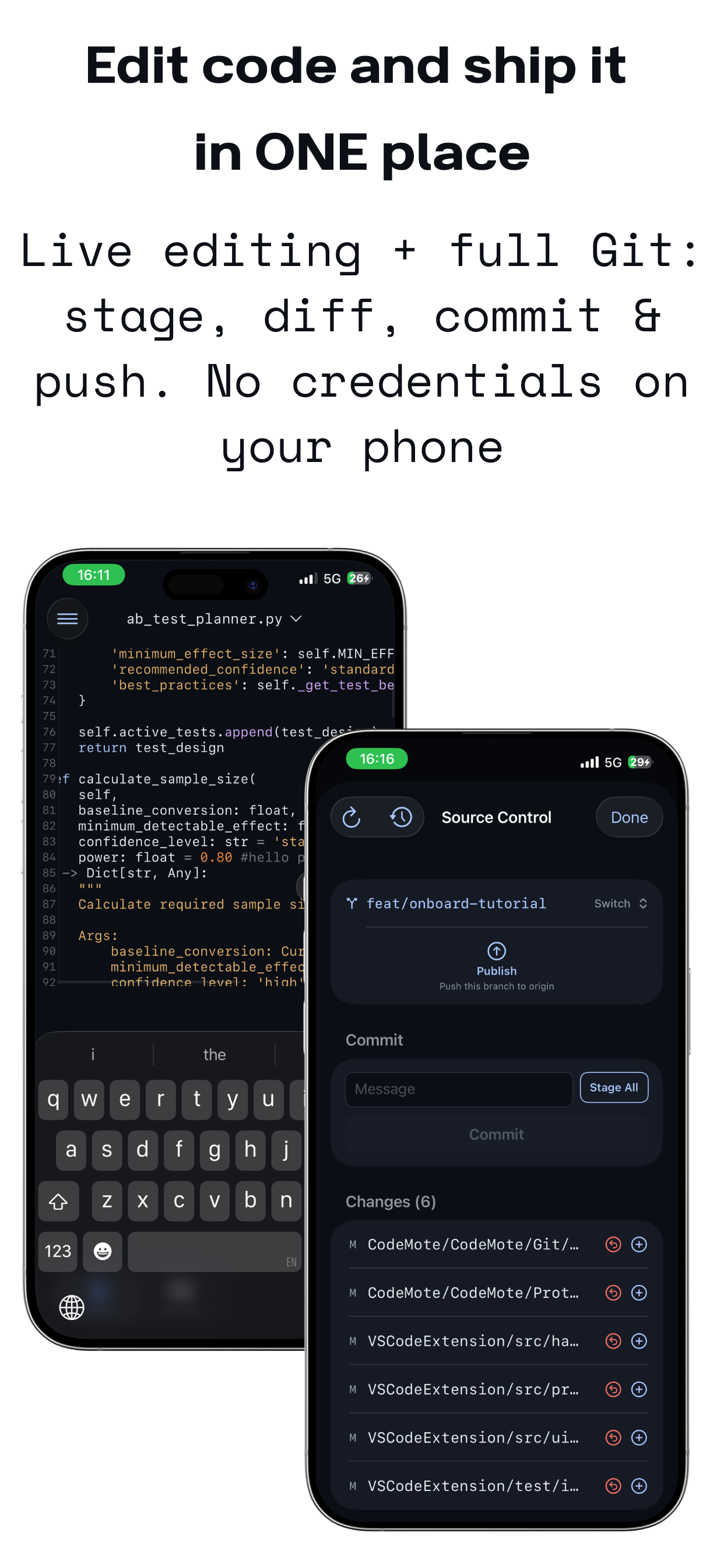
- ✏️ Edit & save — open files in a mobile editor with conflict protection so you never clobber a newer version.
- 🖼️ View media — images, Markdown, and video/audio playback in the mobile editor.
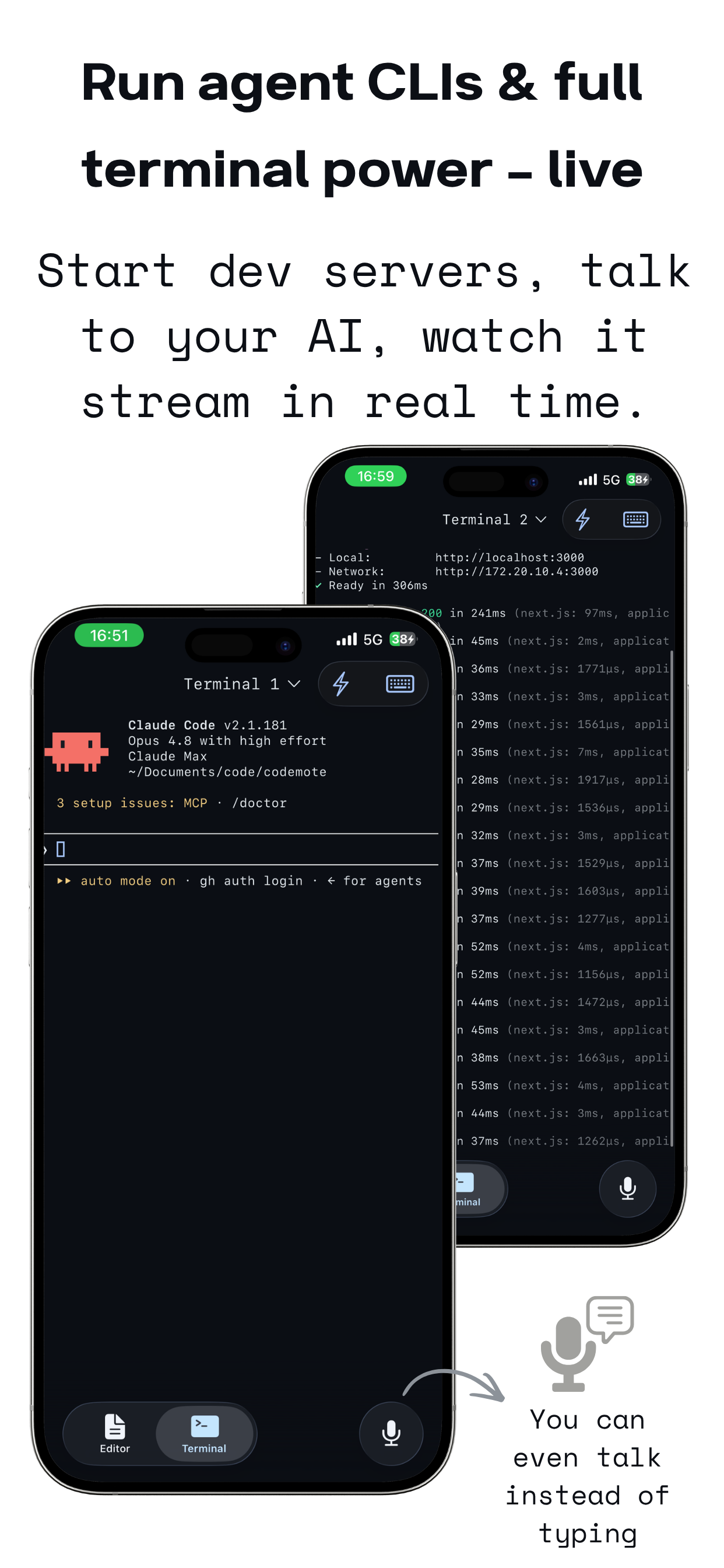
- 💻 A real terminal — run any command on your actual machine, with persistent sessions that survive backgrounding the app.
- 🔀 Shared terminals — mirror one terminal between VS Code and your phone, or promote a phone-only session to the desktop.
- 🌿 Git & PRs — status, diff, commit, push, branches, plus pull-request review (open, diff, close, merge) — no credentials ever leave your machine.
- 📝 Notes — jot and edit notes from the phone.
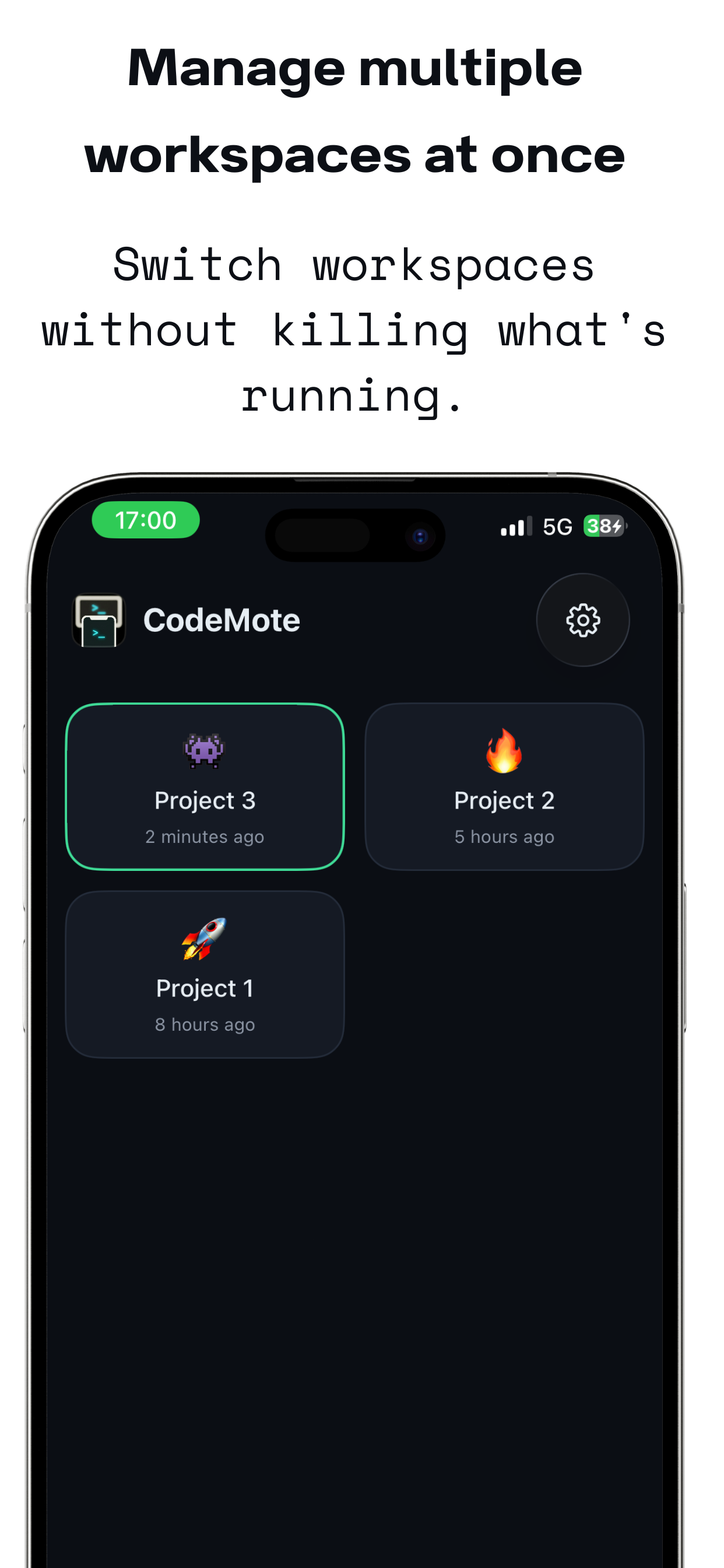
- 🗂️ Multiple workspaces — switch between open folders without killing what's running.
- 🔌 Your choice of tunnel — Cloudflare (zero setup, default), ngrok, Tailscale, or Microsoft devtunnel.
- 🔐 No CodeMote server — your code streams directly between your devices over an encrypted tunnel you control.
- 🔄 Auto-reconnect — cold-launch the app and it reconnects to your last workspace.
How it works
When you start a session, this extension makes your open workspace reachable to
your phone through a tunnel — by default a Cloudflare quick tunnel, with
ngrok, Tailscale, and Microsoft devtunnel as stable-URL alternatives. The app
connects to that tunnel over an encrypted connection. Your code stays on your
machine and streams only to your own paired device — there is no CodeMote
server in the middle.
What you need
- VS Code with this extension installed.
- The CodeMote iOS app on your iPhone or iPad.
That's it for the default (Cloudflare) connection — no CLI to install, no login.
A stable URL (one that survives restarts, so your phone reconnects without
re-scanning) needs one extra one-time step; see Choosing a connection below.
Setup
1. Start a session
- In VS Code, open the folder you want to work on.
- Command Palette (
Cmd/Ctrl+Shift+P) → "CodeMote: Start Mobile Session".
- A panel opens with a QR code. On the default Cloudflare tunnel there's
nothing else to configure.
2. Pair your phone
- Install and open the CodeMote app.
- Scan the QR code — or tap paste and paste the pairing string shown under
the QR.
- You're in. Browse files, open the editor, switch to the terminal.
The status bar shows CodeMote: N devices while connected.
Choosing a connection
CodeMote reaches your phone through a tunnel. Cloudflare (the default) needs zero
setup but hands out a fresh URL each restart, so your phone re-pairs next
time. The other three give a stable URL that survives restarts.
Run CodeMote: Change Connection Method to switch — CodeMote remembers your
choice.
| Provider |
One-time setup |
URL |
Notes |
| Cloudflare (default) |
none |
ephemeral (changes each restart) |
zero setup, no account; binary auto-downloaded |
| ngrok |
free account + one API key |
stable |
binary auto-downloaded; static domain auto-assigned |
| Tailscale |
install + tailscale up + enable Funnel |
stable |
your own tailnet; most private |
| devtunnel |
install devtunnel + devtunnel user login |
stable |
Microsoft; the login can expire and prompt again |
All four run on your own machine under your own account, use no CodeMote
server, and work behind NAT/firewalls (outbound-only).
Using Microsoft devtunnel
If you pick devtunnel, install Microsoft's free devtunnel tool and sign in
once:
| OS |
Install command |
| macOS |
brew install --cask devtunnel |
| Windows |
winget install Microsoft.devtunnel |
| Linux |
curl -sL https://aka.ms/DevTunnelCliInstall \| bash |
devtunnel user login --github # or: --microsoft
Sign in with a GitHub or Microsoft account. This authorizes your machine
to host the tunnel — it is not the same as VS Code's "Turn on Remote Tunnel
Access" menu item (don't use that one).
Commands
Open the Command Palette and type "CodeMote":
| Command |
What it does |
| CodeMote: Start Mobile Session |
Starts the session and shows the pairing QR. |
| CodeMote: Show QR Code |
Shows the QR again with a fresh, single-use pairing code (use this to pair another device, or if a code was already used). |
| CodeMote: Change Connection Method |
Switch tunnel provider (Cloudflare / ngrok / Tailscale / devtunnel); the choice is remembered. |
| CodeMote: New Shared Terminal |
Opens a terminal mirrored between VS Code and your phone. |
| CodeMote: Stop Mobile Session |
Ends the session and disconnects all devices. |
| CodeMote: Disconnect All Devices |
Revokes every device's access; they must re-pair. |
You can also click the CodeMote status bar item to start a session.
Managing your devtunnel
(Only relevant if you use the devtunnel provider. Cloudflare, ngrok, and
Tailscale don't apply here.)
With devtunnel, CodeMote gives each workspace its own persistent tunnel named
codemote-<hash> (the hash is derived from the folder path, so the URL stays
the same every time you start a session from that folder).
Find the tunnel for your workspace
devtunnel list                 # CodeMote's are named codemote-…
devtunnel show codemote-<hash> # inspect a specific one
⚠️ Don't switch login providers without cleaning up first
Dev tunnel IDs are global and single-owner: a tunnel named codemote-<hash>
can only ever be owned by one account. If you signed in with GitHub and later
sign in with Microsoft (or a different account of either kind), the new account
does not own your existing codemote-<hash> tunnel — so CodeMote can't start
or reconnect to it, and you can't recreate it under the new account.
Before switching accounts, delete the old tunnel while still signed into the
account that created it:
# while logged in as the ORIGINAL account
devtunnel delete codemote-<hash>     # delete one workspace's tunnel
devtunnel delete-all                 # or delete every tunnel you own
Then sign in with the new account and start the session again — CodeMote will
recreate the tunnel under the new owner. (The public URL will change, so re-show
the QR and re-pair your phone.)
If you've already switched accounts and lost access to the old tunnel, sign
back into the original account, run the delete command above, then switch back.
Security — please read
A connected phone has the same power as sitting at your desktop: it can read
and write any file in the open workspace and run any command in the terminal
on your machine. That's the whole point — but it means you should treat pairing
like handing someone your keyboard.
- The connection is encrypted end-to-end, and access is protected by a
single-use pairing code that the app exchanges for a private credential.
Knowing the address is not enough to get in.
- Treat the QR / pairing code like a password. Don't share screenshots of it.
- End the session (or Disconnect All Devices) when you're done. Closing the
workspace or quitting VS Code also disconnects everything.
Privacy
CodeMote has no CodeMote-operated server. Your files and terminal stream
directly between your phone and your computer, relayed through the tunnel
provider you choose (Cloudflare, ngrok, Tailscale, or Microsoft devtunnel — all
running under your own account). No CodeMote service ever sees your code.
Troubleshooting
| You see… |
Fix |
| The app can't connect / times out |
Make sure the session is running (status bar shows "CodeMote: …"), and re-show the QR (codes are single-use). |
| The URL keeps changing / phone re-pairs every time |
That's Cloudflare (the ephemeral default). Switch to a stable provider with Change Connection Method for a URL that survives restarts. |
| "devtunnel CLI not found" |
Only applies if you chose devtunnel. Install it (table above); make sure devtunnel --version works in a fresh terminal, then restart VS Code. |
"Run devtunnel user login…" |
Run that command in a terminal, then start the session again. |
| "Open a folder before starting…" |
CodeMote serves the open workspace — open a folder first. |
| "Failed to start the tunnel" |
On devtunnel, your login may have expired — run devtunnel user login again. On other providers, re-run Change Connection Method. |
| Can't start/reconnect after changing accounts (devtunnel) |
You switched devtunnel login providers — the new account doesn't own your codemote-<hash> tunnel. Sign back into the original account, run devtunnel delete codemote-<hash> (find it with devtunnel list), then start again. See Managing your devtunnel above. |
Support
Questions or issues? Contact s.castellitti.dev@gmail.com.
© 2026 CodeMote. All rights reserved.