
Unfold - AI Code Tutor


A VS Code extension that helps beginners read code in a guided order.
初心者がコードを読む順番で迷わないための VS Code 拡張です。
日本語 / Japanese | English
English
What Is Unfold?
Unfold is a VS Code extension for understanding unfamiliar code step by step.
Instead of dumping a full explanation at once, it guides you through the code in a reading order such as:
Overview -> Current block -> Related reading -> Internal steps
The goal of this version is simple: help beginners grasp what a file does, what to read next, and how each block connects.
Quick Start
- Install Unfold from the VS Code Marketplace.
- Open Settings and choose a provider (
Gemini, OpenRouter, Ollama, or llama.cpp).
- Use one of the recommended setups below, or configure your API key / local server settings manually.
- Open a code file and run
Start Explanation.
- Start from the reading guide, then open a block to read it step by step.
For a screenshot-based setup guide, see the Quick Start page.
If you hit a bug or want to request a change, use the Report Issue / Request button in the sidebar or open the GitHub Issues templates.
Recommended setups
- Quickest cloud setup:
Gemini + the recommended Gemini model in Settings
- Lowest-cost local setup:
Ollama + a model that matches your machine size
- Local server setup:
llama.cpp + your local /completion server URL
- Free-model setup:
OpenRouter + a free or low-cost model, with Economy Mode enabled if you want to reduce requests
Setup notes
- If you want the smoothest first run, start with a single function or one class instead of a whole file.
- If you see a format error, try regenerating once, then switch to a larger model or disable
Economy Mode.
- If you use a local model, make sure the server is already running before opening Unfold.
Who this is for
- Programming beginners who do not know how to start reading code
- Developers trying to understand unfamiliar codebases
- People who want to understand AI-generated code instead of just using it
- Learners who prefer guided, step-by-step reading over long one-shot explanations
Not designed for
- Full-repository code search or large-scale architectural analysis
- Autonomous code generation or agent-style implementation work
- Team documentation or knowledge management for entire projects
Current Features
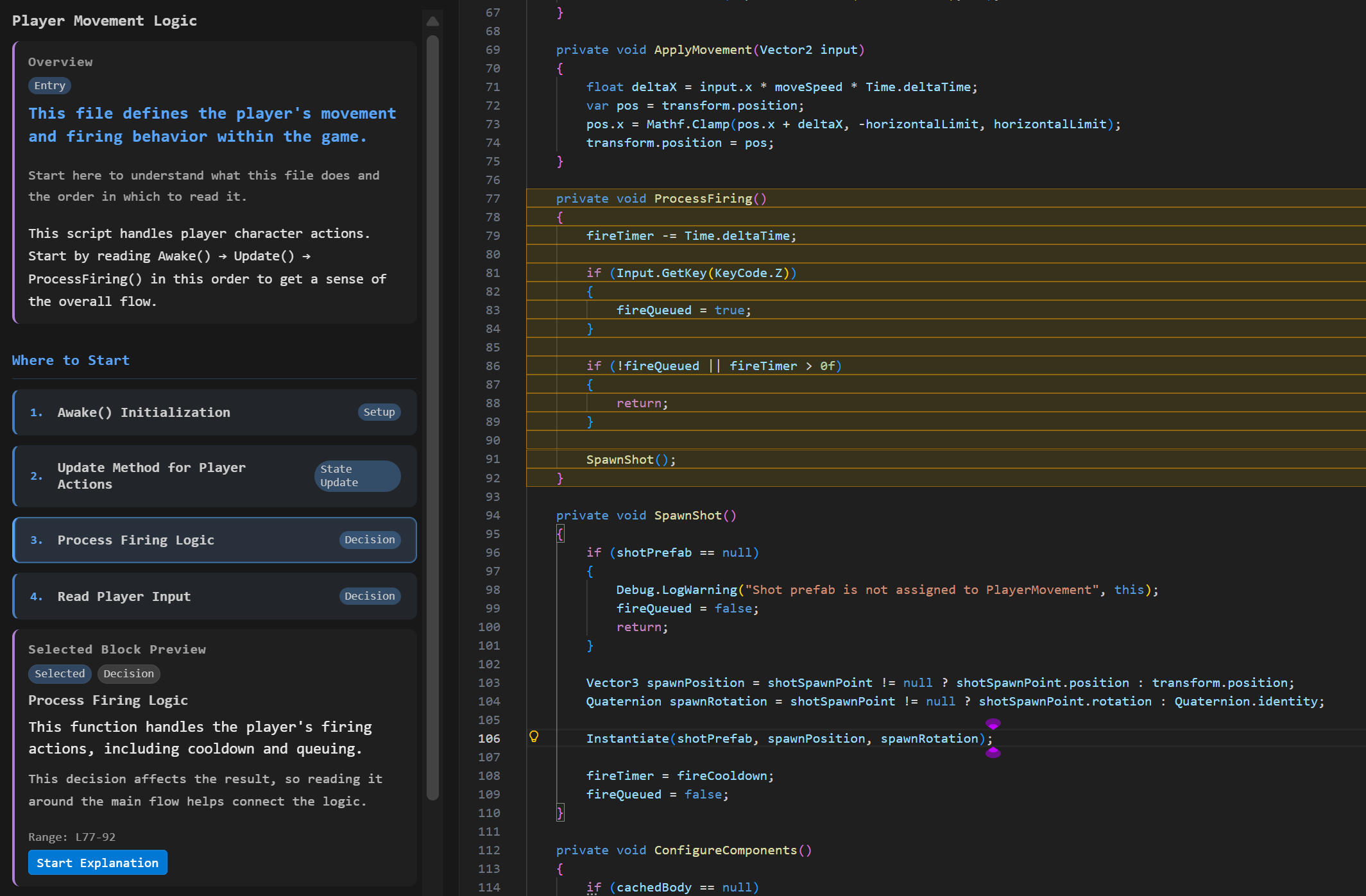
1. Overview and reading order
- Generates an overview of the selected file or range.
- Shows a "Where to Start" guide so the user can begin from the right block.
- Keeps the top screen focused on choosing where to read first.
2. Block detail screen
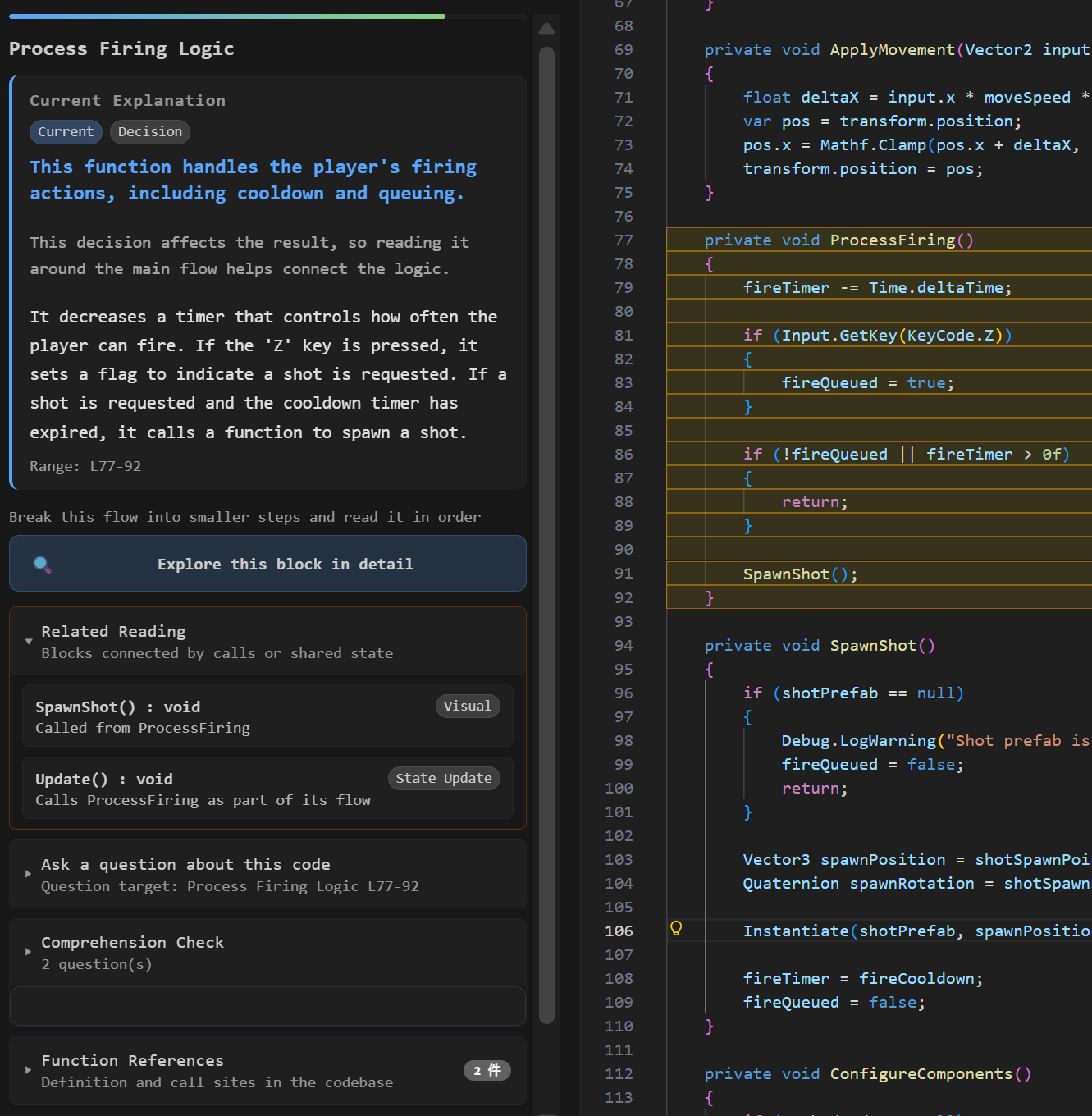
- Explains the current block in plain language.
- Keeps the current explanation as the main content, with drill-down and support tools placed below it.
- Shows why the block matters now.
- Includes related blocks to read next.
- Lets the user drill down into internal steps when the block is complex.
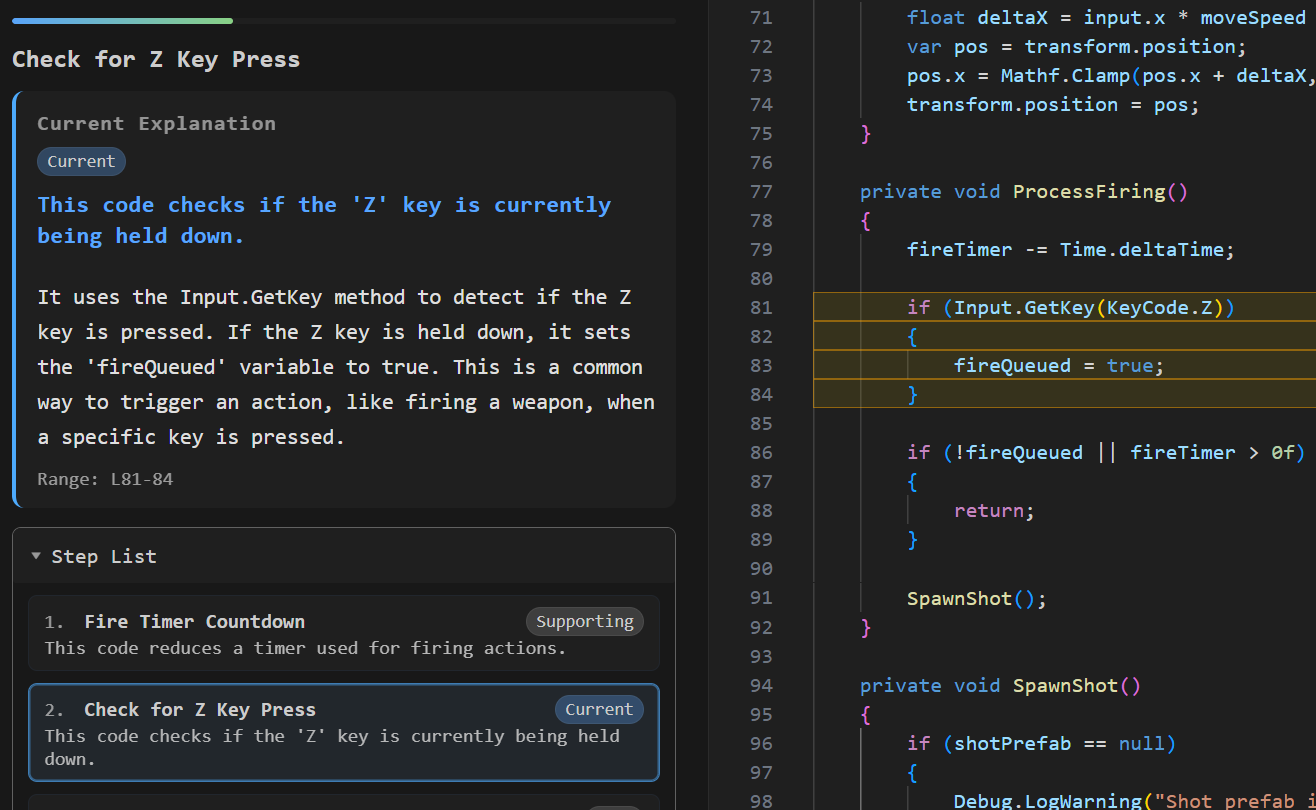
- When you select a single function, Unfold tries to begin from the function's internal flow instead of only showing the outer wrapper first.
3. Code highlighting and sync
- Highlights the target code range in the editor.
- Keeps the explanation panel and code location aligned while reading.
The main experience in this version is the reading guide, the current block explanation, step-by-step detail reading, and code highlighting. The following tools are optional support features.
- Function reference info
- Context-aware Q&A for the current block and drilldown steps
- Markdown copy for the current block explanation
- A small comprehension quiz for the current block (shown on the block detail screen only)
- An all-blocks list you can open when you want to look across the whole file
- A manual regenerate action when you want to rebuild the explanation instead of simply restoring the recent cache
5. Understand Changes
- Lists your uncommitted git changes inside the panel (added / deleted / modified / renamed).
- Lets you choose Work in progress or PR / past changes without typing a commit ID.
- Keeps the target type, comparison method, base, head, and final confirmation together in the sidebar.
- Compares local or remote-tracking branches from their actual merge-base, or directly compares any two commits selected from recent history.
- Shows selected names, frozen short OIDs, the effective range, and the changed-file count before analysis starts.
- Breaks each changed TS/JS file into functions and classes, each tagged with the kind of change (added / deleted / signature changed / body only / comments only / formatting only).
- Provides reduced block-level classification for Python and C# (added / deleted / body changed; declaration changes are marked unanalyzed).
- Switch between whole working tree, unstaged-only, and staged-only views.
- Click a file or block to jump to it, or open a side-by-side diff.
- Lockfiles, binaries, and generated files are labeled automatically.
- Detects when displayed results become stale and lets you reanalyze them manually.
- Shows results file by file and supports cancellation without replacing a previous completed result.
- Can optionally generate an experimental Change Story with a summary, key changes, and suggested review order. Every non-unknown claim links to extension-validated evidence.
- Shows a mandatory send preview every time, including provider, cloud/local destination, repository-relative paths, exclusions, masked-value counts, estimated tokens, and coverage.
- Applies sensitive-file deny rules and secret masking before sending.
localOnly, allow/deny glob, and input-token settings are available under unfold.changeReview.llm.*.
- Never checks out, fetches, pulls, resets, stashes, or creates a worktree while analyzing a comparison.
Supported Providers
In the current version, the settings screen lets you choose:
GeminiOpenRouterOllamallama.cpp
Unfold uses your own API key or your own local model server.
Recommended starting point:
- If you want the easiest setup, use
Gemini.
- If you want to stay local, use
Ollama or llama.cpp.
- If you want to save requests, turn on
Economy Mode.
Provider and API note
Unfold uses the provider you configure.
If you use a cloud provider (Gemini, OpenRouter), you need to prepare your own API key.
If you use Ollama or llama.cpp locally, no cloud API key is needed, but you need a working local server.
Setup
- Open the
Unfold view from the VS Code Activity Bar.
- Open the
Settings view.
- Choose one provider:
Gemini, OpenRouter, or Ollama.
- Enter the required API key or local URL/model.
- Set the UI/output language if needed.
- Save.
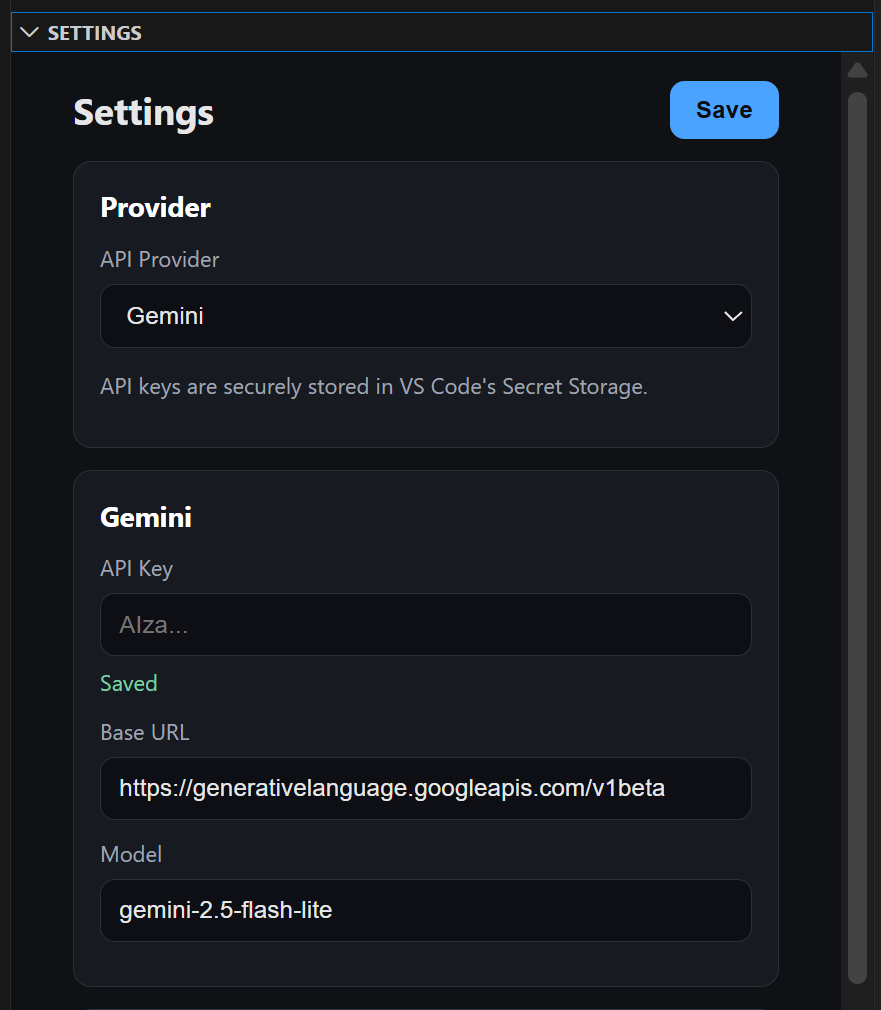
For a screenshot-based setup guide, see the Quick Start page.
How To Use
- Open a code file in the editor.
- Run
Start Explanation from the Unfold sidebar.
- Read the overview.
- Start from the recommended block.
- Use related reading or drill-down when you want to open a block into smaller internal steps.
- Use Q&A or the quiz as optional support tools.
Requirements
- Visual Studio Code
1.107.0 or later
- One of:
- a configured
Gemini API key
- a configured
OpenRouter API key
- a local
Ollama environment
- a local
llama.cpp server
Currently Tested Languages
Unfold is currently tested with the following languages:
- C# (including Unity)
- Python
- TypeScript / JavaScript
Other languages may still work depending on structure, but they are not the main verified targets in this version.
Tested IDE Environment
Unfold is currently tested mainly on VS Code.
Some features, especially block splitting, rely on symbol information provided by the editor. Because of that, behavior may differ in some VS Code fork IDEs.
We have confirmed this issue at least on Antigravity, where block splitting may not work as expected.
Known Limitations
- Understand Changes uses the current repository only. Historical candidates are limited to local branches, remote-tracking branches, and commit objects already available locally; it does not fetch or connect to a hosting-service PR API.
- Unsaved editor buffers, multi-root workspaces, nested repositories, submodules, PR descriptions/comments/CI results, and persistent result caching are not included.
- TypeScript and JavaScript have full block-level classification. Python and C# use the reduced classification described above; other languages and excluded files stay at file level.
- Files with unresolved merge conflicts fall back to file-level display. Git output over 64 MiB stops with an error instead of attempting partial analysis.
- Symbol renames or moves are shown as a deletion and an addition. Transitive impact and call-graph analysis are not included.
- Mechanical classification remains deterministic and available without an LLM. Change Story is optional, may contain interpretation, and is limited to the masked Evidence Pack and its displayed coverage.
- Change Story supports Gemini, OpenRouter, Ollama, and llama.cpp. It requires a trusted workspace and explicit confirmation on every generation; OpenAI/Anthropic are not enabled for this feature in v0.7.0.
- Built-in deny patterns exclude common credential files, but automatic masking cannot guarantee detection of every sensitive value. Review the send preview and use
localOnly or additional deny globs when needed.
- Cancellation is checked between files. While one very large file is being analyzed synchronously, cancellation takes effect at the next file boundary.
Latest Updates
v0.8.0 (2026-07-30, Pre-release)
This pre-release adds selectable PR-like branch comparisons and arbitrary recent-commit comparisons without requiring commit ID input.
- PR-like comparison: Pick base and comparison branches; Unfold analyzes the actual merge-base through the selected branch tip.
- Frozen historical navigation: Review source, diff, structural changes, and Change Story evidence from the exact commit OIDs selected at analysis time.
- Non-destructive and local-only Git access: No checkout or fetch is performed, and hosting-service PR metadata is not requested.
v0.7.0 (2026-07-24, Pre-release)
This pre-release adds the optional Change Story layer without replacing the deterministic Change Review.
- Grounded explanation: Generate summary, key-change, and review-order sections labeled as Observed / Interpreted / Unknown, with validated Evidence navigation.
- Confirm before sending: Review the destination, paths, exclusions, masking counts, estimated tokens, and coverage before every provider call.
- Privacy and fail-closed validation: Sensitive paths and values are filtered, payloads are omitted from debug logs, invalid model output is rejected, and stale/cancelled/late results are never adopted.
v0.6.0 (2026-07-22)
Understand Changes v1 is now stable, with stale-result detection, progressive display and cancellation, reduced Python/C# block support, and safe fallback behavior for edge cases such as merge conflicts.
- Stable change review: Review staged, unstaged, or all working-tree changes at file and block level, then jump to source or open a diff.
- Safer long-running analysis: Results appear file by file. Editing or Git operations mark completed results as stale, and cancellation preserves the previous completed result.
- Broader language coverage: TypeScript/JavaScript retain full classification; Python/C# provide added, deleted, and body-changed classification with unsupported declaration changes clearly marked.
v0.5.2 (2026-07-21, Pre-release)
Understand Changes now breaks each changed file down into functions and classes, with a change tag on each (TypeScript / JavaScript).
- Block-level change classification: See which function or class changed and how — added / deleted / signature changed / body only / comments only / formatting only. Comment- and formatting-only files are de-emphasized so the changes that matter stand out. Files without functions (e.g. data files) stay at file level.
v0.5.0 (2026-07-20, Pre-release)
This update introduces the first version of Understand Changes — a new experimental view for reading your uncommitted git changes.
- Understand Changes (Experimental): See a list of changed files (added / deleted / modified / renamed) inside the panel, switch between staged / unstaged / whole working tree, and jump to source or open a diff with one click. Block-level change classification and explanations are coming in the next updates.
- Reading Guide Fix: Decision-making functions with underscore-prefixed names (like Python's
_decide_action) were missing from the reading guide since v0.4.0. They are now correctly recommended.
v0.4.3 (2026-04-26)
This update adds llama.cpp support and fixes over-splitting in full-file explanation mode.
- llama.cpp Provider: Unfold now supports llama.cpp as a local provider. Point it at your local server URL and it works offline, just like Ollama.
- Cleaner Full-File Block Splitting: Individual assignment lines or small fragments inside a method are no longer extracted as separate blocks when explaining a whole file. The coarse view stays at method/function granularity. Selecting a function and running it still gives the fine-grained internal steps as before.
v0.4.2 (2026-04-19)
This update fixes an editor-sync issue that could interrupt normal coding work after an explanation had been generated.
- No Forced Panel Reopen While Editing: Unfold no longer opens itself just because you click or edit code in a file that already has a cached explanation.
- No Unwanted Scroll Jumps on Cursor Moves: Selection changes now update cache-aware UI state without forcing explanation restore and scroll movement.
- Passive Restore Is Now Quiet: When a cached explanation is restored in the background, Unfold keeps the current editing flow instead of stealing focus.
v0.4.1 (2026-04-19)
This update improves regeneration flow, selected-function analysis, and sidebar polish.
- Manual Regenerate: You can now regenerate an explanation from the sidebar instead of always restoring the recent cache.
- Better Selected Function Splitting: When you select a single function, Unfold is better at starting from internal processing steps rather than only the function wrapper.
- Selection-Aware Refresh: Cache and regenerate state now updates when the text selection changes.
- Cleaner Sidebar Layout: The start screen buttons and top header layout were tightened up for a cleaner first impression.
v0.4.0 (2026-04-09)
This update significantly improves the reading experience on large files and multi-file workflows.
- Incremental Saving & Resume: Explanations are now saved as they are generated. If you switch files or close the sidebar, you can return and click Resume to continue from exactly where you left off.
- Improved Cache Stability: Fixed issues where some blocks might not be saved correctly, and optimized UI states during restore.
- Full Multilingual Support: Completely synchronized English and Japanese UI strings and fixed i18n build errors.
v0.1.0 (2026-03-27)
This update focuses on making Unfold easier to start and more accurate across languages.
- Added a first-run walkthrough to guide setup from install to first use
- Added Related Reading: automatically finds blocks connected by calls or shared state
- Improved Python and TypeScript block detection — classes, methods, and decorators now recognized correctly
- Improved reading guide design: always visible, easier to act on at a glance
- Gemini is now the recommended default provider (free tier available)
See CHANGELOG.md for full release notes.
Notes
- The current version focuses on the sidebar reading experience.
- UI language can be switched between
Japanese and English, and generated output follows the configured language.
- Quiz is available on the block detail screen only.
- The quiz is intentionally lightweight: 1 to 2 multiple-choice questions, no score history.
FAQ
Q. Do I need an API key?
A. Yes, if you use Gemini or OpenRouter. If you use Ollama locally, you do not need a cloud API key, but you do need a working local Ollama setup.
Q. Can I use Ollama locally?
A. Yes. Unfold supports Ollama as one of its providers. Make sure Ollama is running and your model/settings are configured correctly.
Q. Nothing happens when I run Start Explanation.
A. First check your provider, API key, model name, and Ollama settings. Then try selecting a smaller unit such as a single function.
Q. I got a format error or an invalid response.
A. That usually means the model returned output that Unfold could not parse. Try regenerating, switch off Economy Mode, or move to a larger model.
Q. What should I select first?
A. Start with a single function or one class. Smaller selections usually produce a clearer first experience.
Q. Is this a code generation tool?
A. No. Unfold is designed to help you read and understand code in a guided order.
Japanese (日本語)
Unfold とは?
Unfold は、見慣れないコードを段階的に理解するための VS Code 拡張です。
いきなり全部を説明するのではなく、次のような順序で読めるようにします。
全体像 -> 今読んでいるブロック -> 関連して読む -> 内部ステップ
このバージョンの目的はシンプルで、初心者が
- このファイルは何をしているか
- 次にどこを読むべきか
- 各ブロックがどうつながっているか
を迷わず追えるようにすることです。
3分で試す
- VS Code Marketplace から Unfold をインストールします。
- 設定画面で利用するプロバイダー(
Gemini / OpenRouter / Ollama / llama.cpp)を選びます。
- 下のおすすめ構成を参考に、APIキーやローカルサーバーを設定します。
- コードファイルを開き、
解説を開始する を実行します。
- まず「読み始めガイド」から読み、気になるブロックを開いて順に理解します。
スクリーンショット付きの導入手順は Quick Start ページ を参照してください。
不具合報告や要望は、サイドバーの 不具合 / 要望を送る ボタンか、GitHub Issues のテンプレートから送れます。
おすすめ構成
- 最も始めやすい構成:
Gemini + 設定画面で推奨モデルを選ぶ
- ローカルで試しやすい構成:
Ollama + 自分のPCに合うモデル
- ローカルサーバー構成:
llama.cpp + /completion サーバーURL
- 無料枠を節約したい構成:
OpenRouter + 無料または低コストのモデル + 必要に応じて 節約モード
セットアップ時の注意
- 最初はファイル全体ではなく、1つの関数か1つのクラスから始めるとつまずきにくいです。
- 形式エラーが出たら、もう一度生成してから
節約モード を OFF にするか、より大きいモデルへ切り替えてください。
- ローカルモデルを使う場合は、Unfold を開く前にサーバーが起動しているか確認してください。
このツールが向いている人
- コードをどこから読めばよいか分からないプログラミング初心者
- 初めて触るコードを順序立てて理解したい人
- AIが生成したコードを「使うだけ」でなく理解したい人
- 一気に長文説明されるより、段階的に読み進めたい学習者
このツールが主目的としていないこと
- リポジトリ全体を横断する大規模なコード検索や設計解析
- 自動実装やエージェント型のコード生成作業
- チーム全体向けのナレッジ管理やドキュメント基盤
現在の主な機能
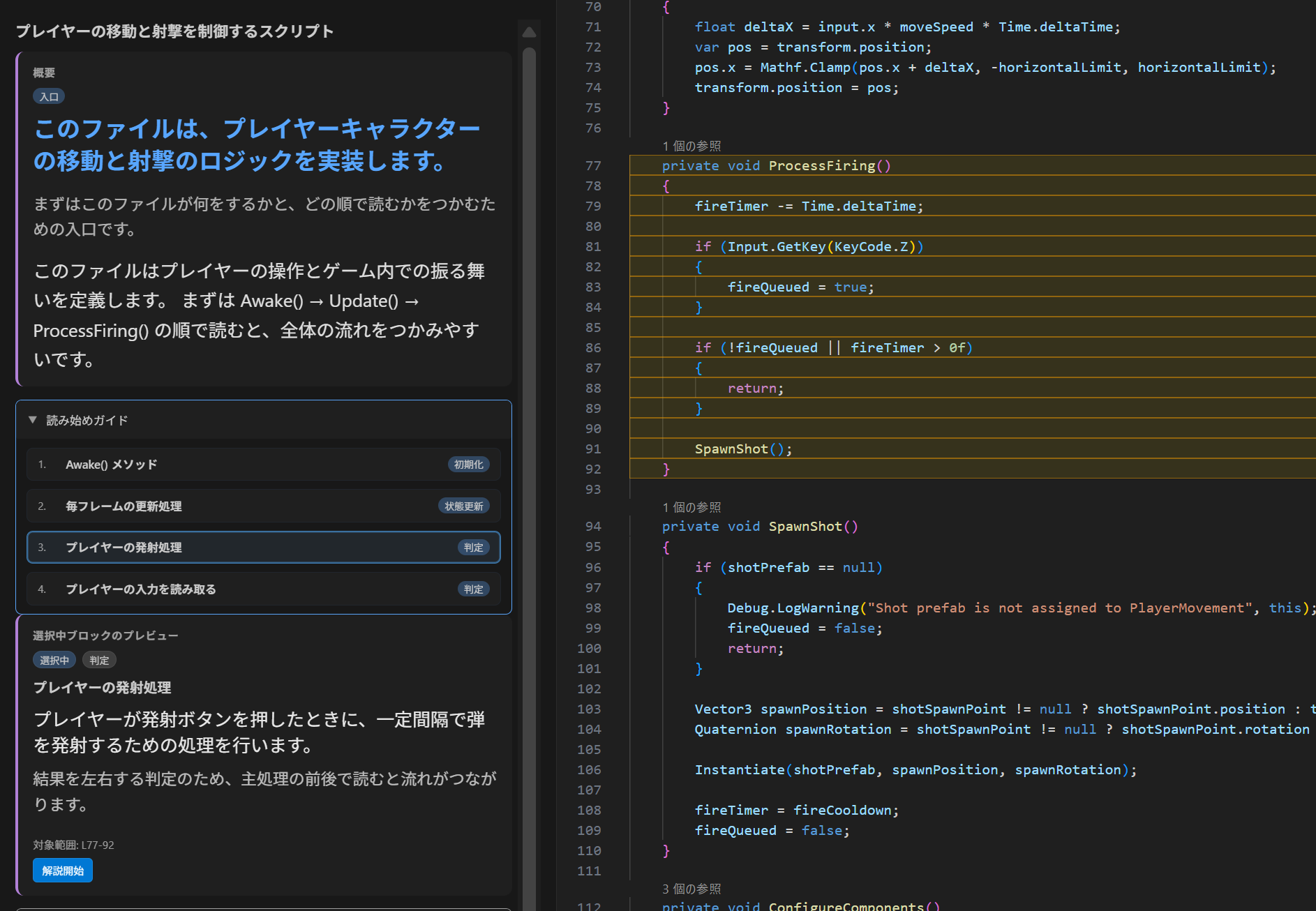
1. 読み始めガイド
- 選択したファイルや範囲の概要を生成します。
読み始めガイド で最初に読むべきブロックを案内します。- トップ画面は「どこから読むかを決める」ことに集中した UI です。
2. ブロック詳細画面
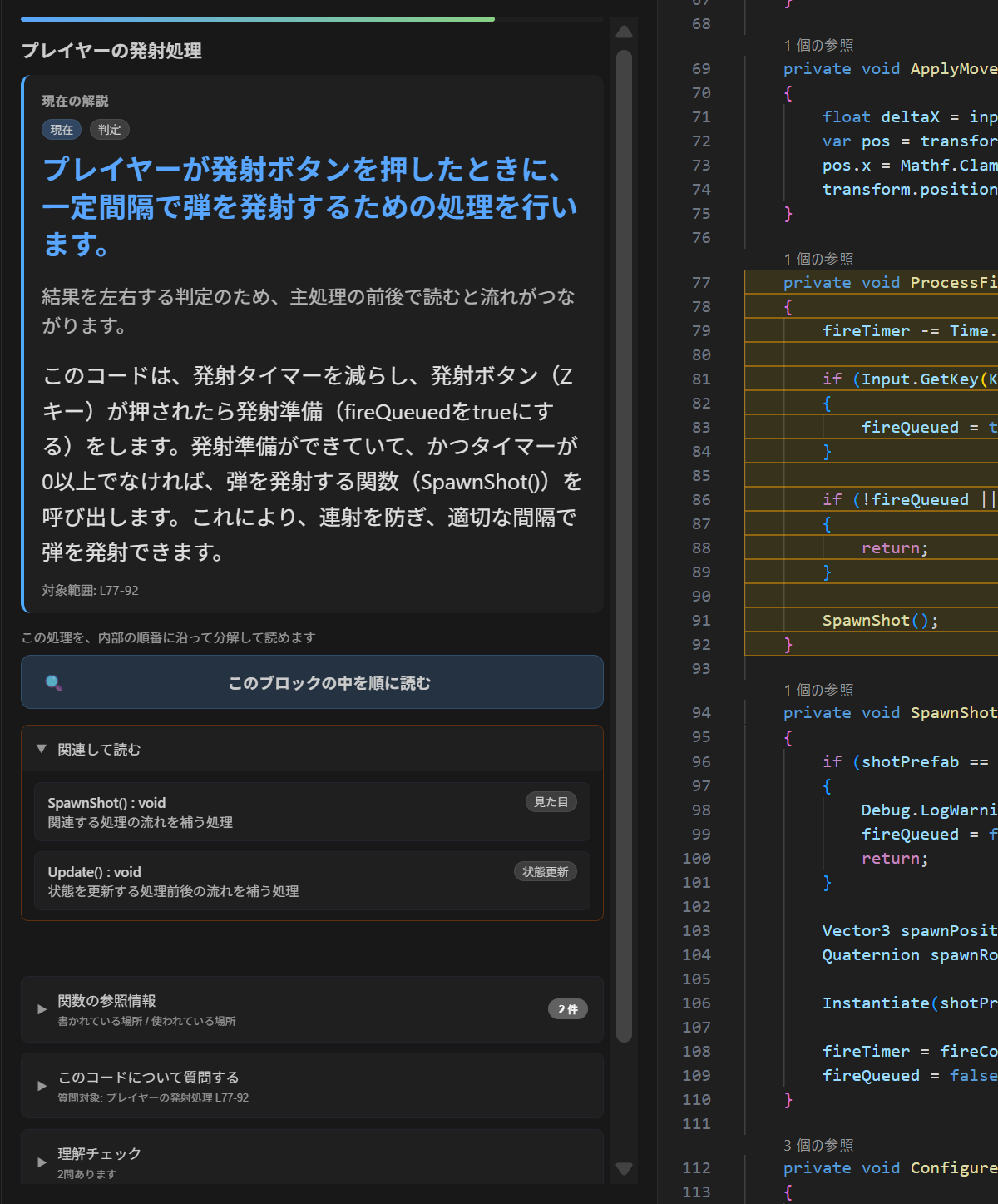
- 今見ているブロックを自然な言葉で解説します。
- ブロック詳細画面では、まず「現在の解説」を主役にし、その下にドリルダウンや補助機能を配置します。
- なぜ今このブロックを読むのかを表示します。
関連して読む で次に読む候補を出します。- 複雑なブロックは、内部ステップに分けて順番に読めます。
- 現在のブロック解説を Markdown でコピーできます。
- ブロック詳細やドリルダウン後のステップから、その場で質問できます。
- 単一の関数を範囲選択した場合は、関数ラッパーだけでなく内部の処理フローから読み始めやすいよう改善されています。
3. コードのハイライトと位置同期
- 解説対象のコード範囲をエディタ上でハイライトします。
- 解説パネルとコード位置を同期しながら読めます。
4. 補助ツール
このバージョンの主役は、読み始めガイド・現在の解説・内部ステップへ分けて読む機能・コードのハイライトです。以下は理解を補助するための機能です。
- 関数の参照情報
- 現在のブロックやドリルダウン後のステップに文脈を合わせた Q&A
- 現在のブロック解説の Markdown コピー
- 現在のブロック向けの軽い理解チェッククイズ(ブロック詳細画面のみ)
- 必要なときに開いて、ファイル全体をたどれる全体ブロック一覧
- 直近キャッシュをそのまま復元するだけでなく、必要に応じて解説を再生成できる手動再生成ボタン
5. 変更を理解する
- git の未コミット差分をパネル内で一覧できます(追加 / 削除 / 変更 / 移動・改名)。
- commit IDを入力せず、作業中の変更 または PR・過去の変更 を選べます。
- 対象、比較方法、base、head、解析前確認をサイドバー内の一画面で操作できます。
- local / remote-tracking branchは実際のmerge-baseから比較側先端まで、最近の2commitはbaseからtargetまで直接比較できます。
- 解析前に選択名、固定した短縮OID、実際の比較範囲、変更ファイル数を確認します。
- TS/JS の変更ファイルは関数・クラス単位に分解し、変更の種類(追加 / 削除 / シグネチャ変更 / 本体のみ / コメントのみ / 整形のみ)を表示します。
- Python / C# は縮退対応として、ブロック単位で追加 / 削除 / 本体変更を分類します(宣言変更は未解析として表示)。
- 比較対象を「作業ツリー全体 / 未ステージのみ / ステージ済みのみ」で切り替えられます。
- ファイルやブロックをクリックしてジャンプ、⇄ ボタンで差分表示ができます。
- lockfile・バイナリ・生成物は自動でラベル付けされます。
- 表示中の結果が古くなったことを検知し、手動で再解析できます。
- ファイル単位で逐次表示し、以前の完了結果を失わずにキャンセルできます。
- 任意で実験的な 変更ストーリー を生成し、要約・主要な変更・確認順の候補を読めます。不明以外の説明は、extension側で検証した根拠へ移動できます。
- 生成のたびにprovider、cloud / local、repository-relative path、除外、マスキング件数、概算token、coverageを送信前に確認します。
- 機密ファイルのdenyと秘密情報マスキングを送信前に適用します。
unfold.changeReview.llm.* でlocal-only、allow / deny glob、入力token上限を設定できます。
- 比較のためにcheckout、fetch、pull、reset、stash、worktree追加を行いません。
対応プロバイダー
現在のバージョンの設定画面では、次のプロバイダーを選べます。
GeminiOpenRouterOllamallama.cpp
APIキーやローカルのモデルサーバーは、ユーザー自身で用意します。
始めやすい順としては、次のように考えると分かりやすいです。
- まず動かしたいなら
Gemini
- ローカルで試したいなら
Ollama または llama.cpp
- リクエスト数を抑えたいなら
節約モード
プロバイダーとAPIについて
Unfold は、ユーザーが設定したプロバイダーを利用します。
クラウド系プロバイダー(Gemini / OpenRouter)を使う場合は、ユーザー自身でAPIキーを用意する必要があります。
Ollama や llama.cpp をローカルで使う場合はクラウドAPIキーは不要ですが、ローカルサーバーが正しく起動していることを確認してください。
初期セットアップ
- VS Code のアクティビティバーから
Unfold を開きます。
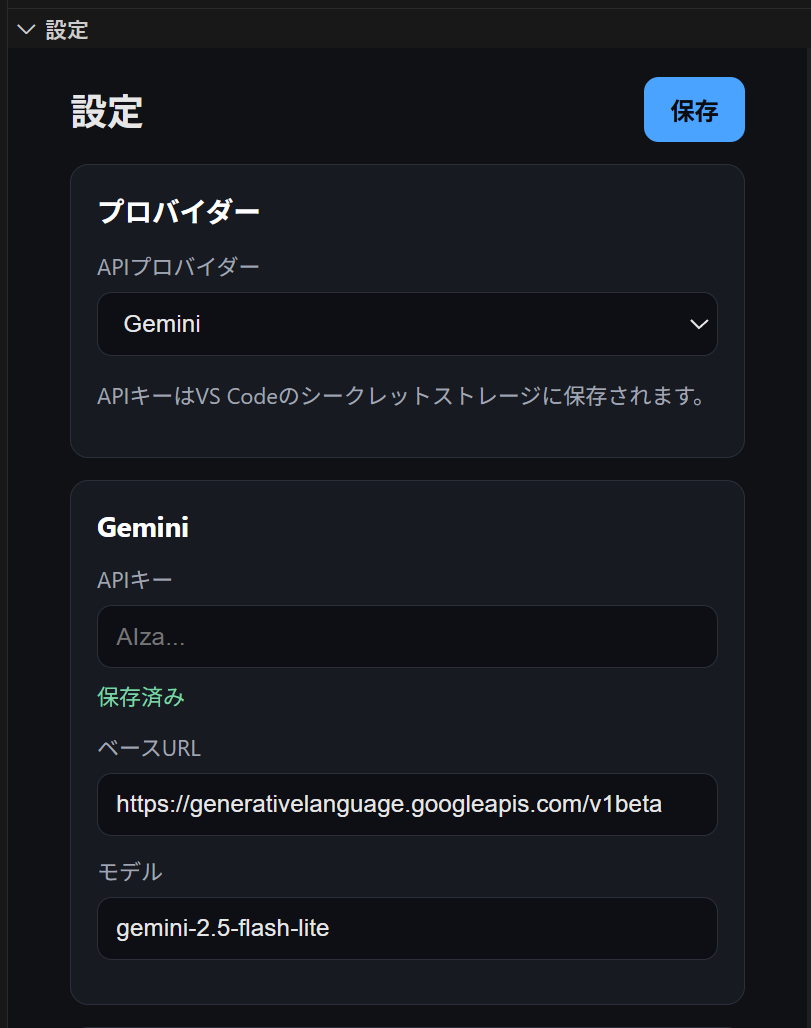
Settings ビューを開きます。Gemini、OpenRouter、Ollama のいずれかを選びます。- API キー、またはローカル URL / model を設定します。
- 必要なら UI・出力言語を設定します。
- 保存します。
スクリーンショット付きの導入手順は Quick Start ページ を参照してください。
使い方
- エディタでファイルを開きます。
- Unfoldのサイドバーから
解説を開始する を実行します。
- まず全体像を読みます。
- 読み始めガイドで案内されたブロックから読み始めます。
- 必要に応じて
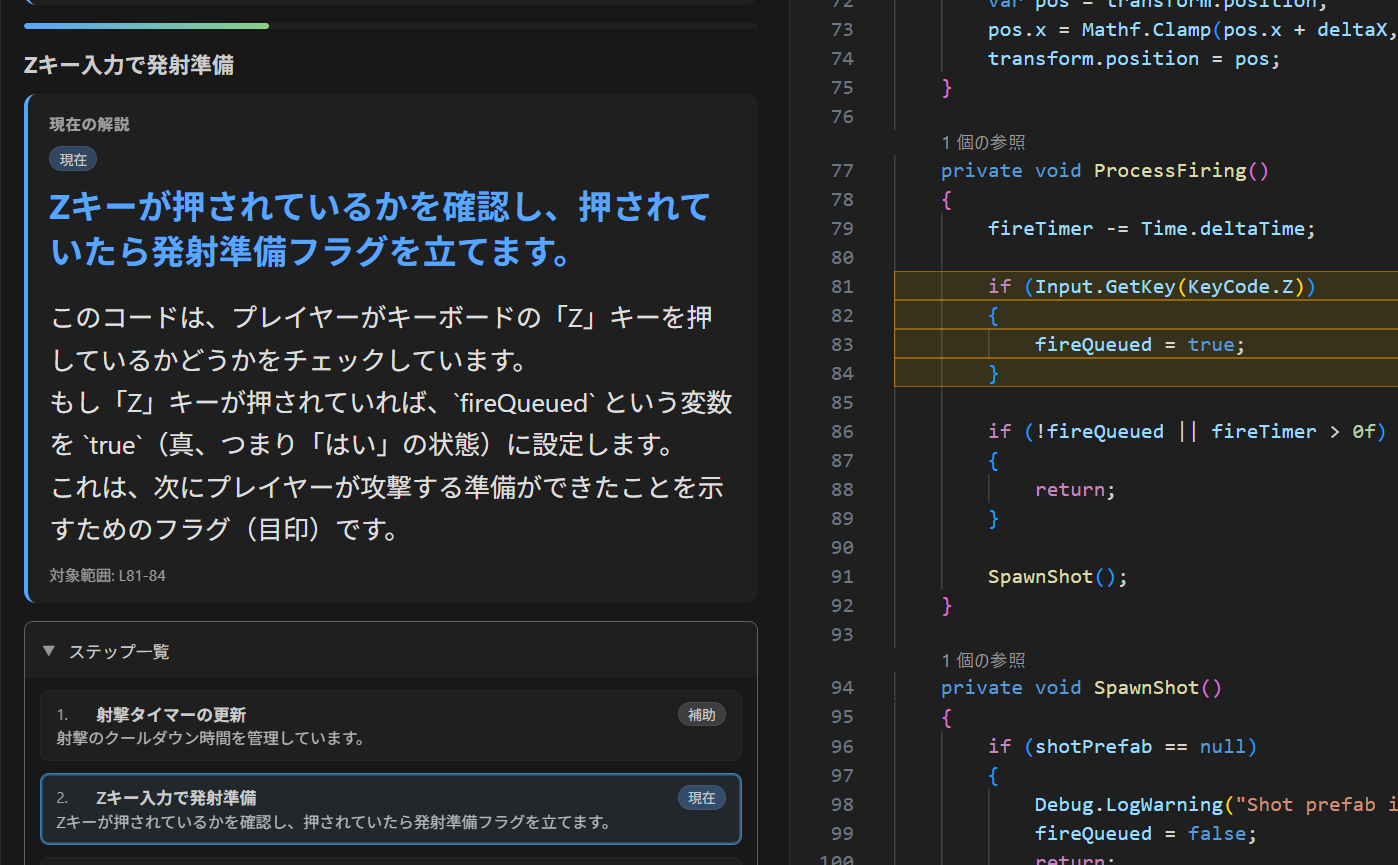
関連して読む や、ブロックを内部ステップに分けて読む機能を使います。
- 補助的に Q&A や理解チェックを使います。
動作要件
- Visual Studio Code
1.107.0 以上
- 次のいずれか
Gemini の API キーOpenRouter の API キー- ローカルの
Ollama 実行環境
- ローカルの
llama.cpp サーバー
現在の検証言語
Unfold は、現時点では以下の言語での動作確認を行っています。
- C#(Unity 含む)
- Python
- TypeScript / JavaScript
それ以外の言語でも動く場合がありますが、このバージョンでの主な検証対象ではありません。
検証済みIDE環境
Unfold は、現時点では主に VS Code 本体で動作確認を行っています。
特にブロック分割は、エディタが提供するシンボル情報に依存する部分があるため、一部の VS Code フォークIDEでは挙動が異なる可能性があります。
少なくとも Antigravity では、この影響によりブロック分割が期待どおりに動かない場合があることを確認しています。
既知の制限
- 「変更を理解する」は現在の単一リポジトリを対象にします。過去比較の候補はローカルに存在するlocal branch、remote-tracking branch、commit objectに限られ、fetchやGitHub等のPR API接続は行いません。
- 未保存のエディタ内容、マルチルート、ネストしたリポジトリ、submodule、PR本文・review comment・CI結果、結果の永続キャッシュは対象外です。
- TypeScript / JavaScript はブロック単位の全分類に対応します。Python / C# は上記の縮退分類で、それ以外の言語と除外対象ファイルはファイル単位表示です。
- 未解決の merge conflict があるファイルはファイル単位表示へ縮退します。Git の出力が 64 MiB を超える場合は、部分解析せずエラーとして安全に停止します。
- シンボルの改名・移動は削除と追加として表示します。推移的な影響分析やコールグラフ解析は含みません。
- 機械的な変更分類は引き続き決定的で、LLMなしでも利用できます。変更ストーリーは任意機能で、解釈を含む場合があり、マスキング済みEvidence Packと表示されたcoverageの範囲に限定されます。
- 変更ストーリーはGemini / OpenRouter / Ollama / llama.cppに対応します。信頼済みworkspaceと毎回の送信確認が必要です。v0.7.0ではOpenAI / Anthropicはこの機能の対象外です。
- 既定denyは一般的なcredentialファイルを除外しますが、すべての機密値を自動検出できる保証はありません。送信前previewを確認し、必要に応じてlocal-onlyや追加deny globを使用してください。
- キャンセル判定はファイル間で行います。非常に大きな単一ファイルを同期解析中の場合、次のファイル境界でキャンセルが反映されます。
最新アップデート
v0.8.0 (2026-07-30, プレリリース)
commit IDを入力せず、PR相当のbranch比較と最近の任意2commit比較を選べるようになりました。
- PR相当比較:baseと比較branchを選び、実際のmerge-baseから比較側先端までを解析します。
- 固定した過去時点の閲覧:解析時に固定したcommit OIDからsource、diff、構造変更、変更ストーリーの根拠を開きます。
- 非破壊・ローカル限定Git操作:checkoutやfetchを行わず、ホスティングサービスのPR情報も取得しません。
v0.7.0 (2026-07-24, プレリリース)
決定的な変更レビューを置き換えず、任意の変更ストーリー層を追加しました。
- 根拠付きの説明:要約・主要な変更・確認順の候補を、観測 / 解釈 / 不明と確信度付きで表示し、検証済みEvidenceへ移動できます。
- 毎回の送信確認:provider、送信先、path、除外、マスキング件数、概算token、coverageをprovider呼び出し前に確認します。
- privacyとfail closed:機密path・値を除外またはマスクし、payloadをdebug logへ残さず、不正出力やstale / cancel / 遅延結果を採用しません。
v0.6.0 (2026-07-22)
「変更を理解する」v1 を stable として仕上げました。stale 検知、逐次表示とキャンセル、Python / C# の縮退対応、merge conflict などのエッジケースでの安全なフォールバックを追加しています。
- 安定版の変更レビュー:ステージ済み / 未ステージ / 作業ツリー全体を、ファイル・ブロック単位で確認し、ソースや差分へ移動できます。
- 長い解析を安全に操作:結果をファイルごとに表示します。編集や Git 操作後は古い結果として明示し、キャンセルしても以前の完了結果を保持します。
- 対応言語を拡大:TypeScript / JavaScript は全分類、Python / C# は追加・削除・本体変更に対応し、未対応の宣言変更は明示します。
v0.5.2 (2026-07-21, プレリリース)
「変更を理解する」が、変更ファイルの中を関数・クラス単位に分解し、それぞれに変更の種類を表示するようになりました(TypeScript / JavaScript)。
- ブロック単位の変更分類:どの関数・クラスが、どう変わったか(追加 / 削除 / シグネチャ変更 / 本体のみ / コメントのみ / 整形のみ)が分かります。コメント・整形のみのファイルは控えめに表示し、読むべき変更が目立ちます。関数のないファイル(データファイル等)はファイル単位のまま表示します。
v0.5.0 (2026-07-20, プレリリース)
今回のアップデートでは、実験的機能として 「変更を理解する」 を追加しました。git の未コミット差分をパネルで読めます。
- 変更を理解する(実験的機能):変更ファイルの一覧(追加 / 削除 / 変更 / 移動)をパネル内に表示し、ステージ済み / 未ステージ / 作業ツリー全体を切り替えながら、クリックでソースへジャンプ・差分表示ができます。関数単位の変更分類と解説は次のアップデートで追加予定です。
- 読み順ガイドの修正:Python の
_decide_action のようなアンダースコア始まりの判断系関数が、v0.4.0 以降ガイドに表示されなくなっていた問題を修正しました。
v0.4.3 (2026-04-26)
llama.cpp 対応と、ファイル全体での解説時のブロック過分割を修正しました。
- llama.cpp プロバイダー追加:ローカルの llama.cpp サーバーをプロバイダーとして使えるようになりました。URL を設定するだけで、Ollama と同様にオフラインで動作します。
- 全体解説のブロック分割を改善:ファイル全体で解説を実行したとき、関数・メソッドの内部にある代入文などの細かい行が独立したブロックとして出てしまう問題を修正しました。全体解説では関数・メソッド単位の粒度を維持します。関数を範囲選択して実行した場合の細かい内部ステップ分割は従来どおりです。
v0.4.2 (2026-04-19)
今回のアップデートでは、解説生成後の通常編集を邪魔していた同期挙動を修正しました。
- 編集中に Unfold パネルが勝手に開かないよう改善:解説済みファイルをクリックしたり編集しただけで、サイドバーが前面に出てこなくなりました。
- カーソル移動でスクロールが勝手に動かないよう改善:選択変更時は UI 状態だけ更新し、説明復元や自動スクロールは行わないようにしました。
- 受動的な復元を静かに実行:キャッシュされた解説を裏で復元しても、現在の編集作業を奪わないようにしています。
v0.4.1 (2026-04-19)
今回のアップデートでは、再生成のしやすさ、関数選択時の分割精度、サイドバーUIを改善しました。
- 手動での解説再生成:直近キャッシュを復元するだけでなく、サイドバーから明示的に解説を再生成できるようになりました。
- 関数範囲選択時の分割改善:単一関数を選択して実行したとき、関数ラッパーだけでなく内部の処理ステップから読み始めやすくなりました。
- 選択変更への追従改善:選択範囲を変えたときも、キャッシュ状態や再生成導線が追従するようになりました。
- サイドバーUIの整理:開始画面ボタンと上部ヘッダーのレイアウトを引き締め、より見やすくしました。
v0.4.0 (2026-04-09)
今回のアップデートでは、大規模なファイルや複数ファイルを跨ぐ読解体験を大幅に改善しました。
- 解説のレジューム(途中再開)機能:解説を生成したそばから自動保存するようになりました。ファイルを切り替えたり、サイドバーを閉じたりしても、戻ったときに 「生成を再開」 ボタンから続きを生成できます。
- キャッシュの安定性向上:一部のブロックが正しく保存されない問題を修正し、復元時のUI表示(スピナーの挙動など)を最適化しました。
- 完全なマルチリンガル対応:英語と日本語のUI表示を完全に同期させ、特定の言語設定で表示が欠落する問題やビルドエラーを修正しました。
v0.1.0 (2026-03-27)
今回の更新では、初回のセットアップのしやすさと、各言語での検出精度の向上を中心に改善しました。
- 初回ウォークスルーを追加:インストール後すぐにセットアップ手順を案内
- 関連して読むを追加:呼び出し・状態共有でつながるブロックを自動検出して表示
- Python / TypeScript のブロック検出精度を改善(クラス・メソッド・デコレータを正しく認識)
- 読み始めガイドのデザインを改善:常時展開でより見やすく
- Gemini を初期推奨プロバイダーに変更(無料枠あり)
詳細は CHANGELOG.md をご覧ください。
補足
- 現在のバージョンはサイドバーでの読解体験に集中しています。
- UI 言語は
Japanese と English を切り替えでき、生成される解説も設定言語に合わせます。
- 現在見ているブロックの解説は Markdown でコピーできます。
- ブロック詳細だけでなく、ドリルダウン後のステップでも質問欄を使えます。
- クイズはブロック詳細画面でのみ表示されます。
- クイズは 1〜2 問の4択で、履歴保存やスコア管理はありません。
よくある質問
Q. APIキーは必要ですか?
A. Gemini または OpenRouter を使う場合は必要です。Ollama をローカルで使う場合はクラウドAPIキーは不要ですが、ローカルの Ollama 環境が正しく動いている必要があります。
Q. Ollama をローカルで使えますか?
A. はい。Unfold はプロバイダーの1つとして Ollama に対応しています。Ollama が起動しており、モデルや設定が正しいことを確認してください。
Q. 解説を開始する を実行しても何も起きません。
A. まずプロバイダー設定、APIキー、モデル名、Ollama設定を確認してください。そのうえで、最初は関数1つなど小さい単位で試してください。
Q. 形式エラーや無効な応答が出ました。
A. モデルの出力が Unfold で読み取れない形式だった可能性があります。もう一度生成してから 節約モード を OFF にするか、より大きいモデルへ切り替えてください。
Q. 最初はどの範囲を選択すればよいですか?
A. まずは関数1つ、またはクラス1つから始めるのがおすすめです。小さい単位の方が最初の体験が安定します。
Q. これはコード生成ツールですか?
A. いいえ。Unfold はコードを順序立てて読み、理解するためのツールです。

