FastDraw for VS Code
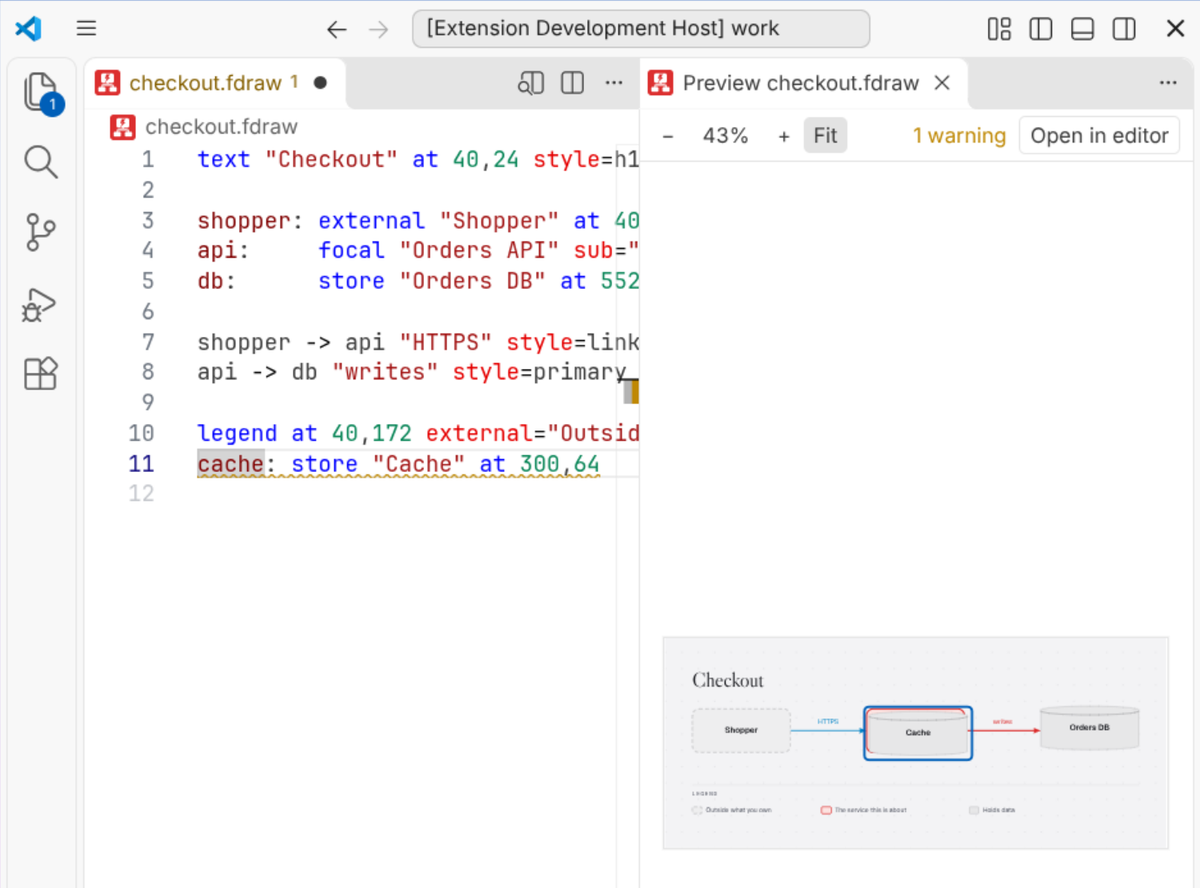
A live preview of FastDraw diagrams (.fdraw files) next to their text, with
fastdraw check's problems in the Problems panel.
What it does
Opens as the diagram. A .fdraw file opens as its drawing, since an agent usually writes the
text. Source in its toolbar (or the button at the top right) puts the text beside it. It redraws
as the file changes, uses the same renderer as fastdraw render, so it shows what the PNG will show.
To open .fdraw files as text instead, add this to your settings, or use Reopen Editor With…
for one file:
"workbench.editorAssociations": { "*.fdraw": "default" }
Preview beside the text. With the text open, FastDraw: Open Preview to the Side (Ctrl+K V,
or the preview button at the top right) shows the drawing next to it, redrawn as you type, before you
save.
Click to find the line. Click a box, a line or a piece of text in the preview to put the cursor
on the line that draws it. The box on the line the cursor is on is outlined in the preview.
Problems. What fastdraw check reports (overlapping boxes, arrows through boxes, colliding
labels, text that does not fit) appears in the Problems panel and as squiggles on the lines, updated
as you type. A problem in a .look file next to the diagram goes on that file.
Light and dark. In a dark VS Code theme the preview draws the diagram in its look's dark version,
as fastdraw render --dark does. The fastdraw.preview.theme setting fixes it to light or dark.
Open in the editor. The Open in editor button opens the diagram in the FastDraw editor in the
browser, as fastdraw open does. Edits there save to the file, and the preview follows them. It
lends the editor the diagram's folder, or the nearest folder that also holds the look file the
diagram names, but never one outside the workspace folder.
Syntax colouring for .fdraw and .look files.
Icons and fonts a look names by web address are fetched once and kept in the same cache folder the
fastdraw command uses. Nothing else leaves the computer, except when you choose Open in editor: then
the browser loads the editor from fastdraw.dev and reads the files from a server on 127.0.0.1.
Settings
| Setting |
Default |
What it does |
fastdraw.preview.theme |
auto |
auto follows the VS Code theme; light always draws the diagram's own look; dark always draws its dark version |
fastdraw.editorUrl |
https://fastdraw.dev/edit/ |
The web editor that Open in editor uses, like fastdraw open --editor |
Building from source
cd vscode
npm ci
npm run build              # dist/extension.js
npm test                   # the core and the preview page, in Node and Chromium
npm run test:integration   # the extension inside VS Code (downloads VS Code; VSCODE_PATH uses an installed one)
npm run package            # fastdraw-<version>.vsix
The extension bundles FastDraw's own sources from ../src, so it draws with the version of FastDraw in
the same commit.
Releasing
Set version in vscode/package.json, merge, then push a tag vscode-v<version>:
git tag vscode-v0.1.0 && git push origin vscode-v0.1.0
.github/workflows/vscode-release.yml runs the tests, publishes the .vsix to the VS Code Marketplace
and to Open VSX (trusted publishing on both, no tokens), and attaches it to a GitHub release. The
one-time setup for both stores is at the top of that file.
License
MIT. The bundled fonts are under the SIL Open Font License and the icons are Phosphor Icons (MIT); the
texts are in fonts/ and licenses/.

