Valence — IBM i Modernization & AI
Modernize IBM i green-screen applications, build new ones with AI, and manage your low-code apps — without leaving your editor.
Overview
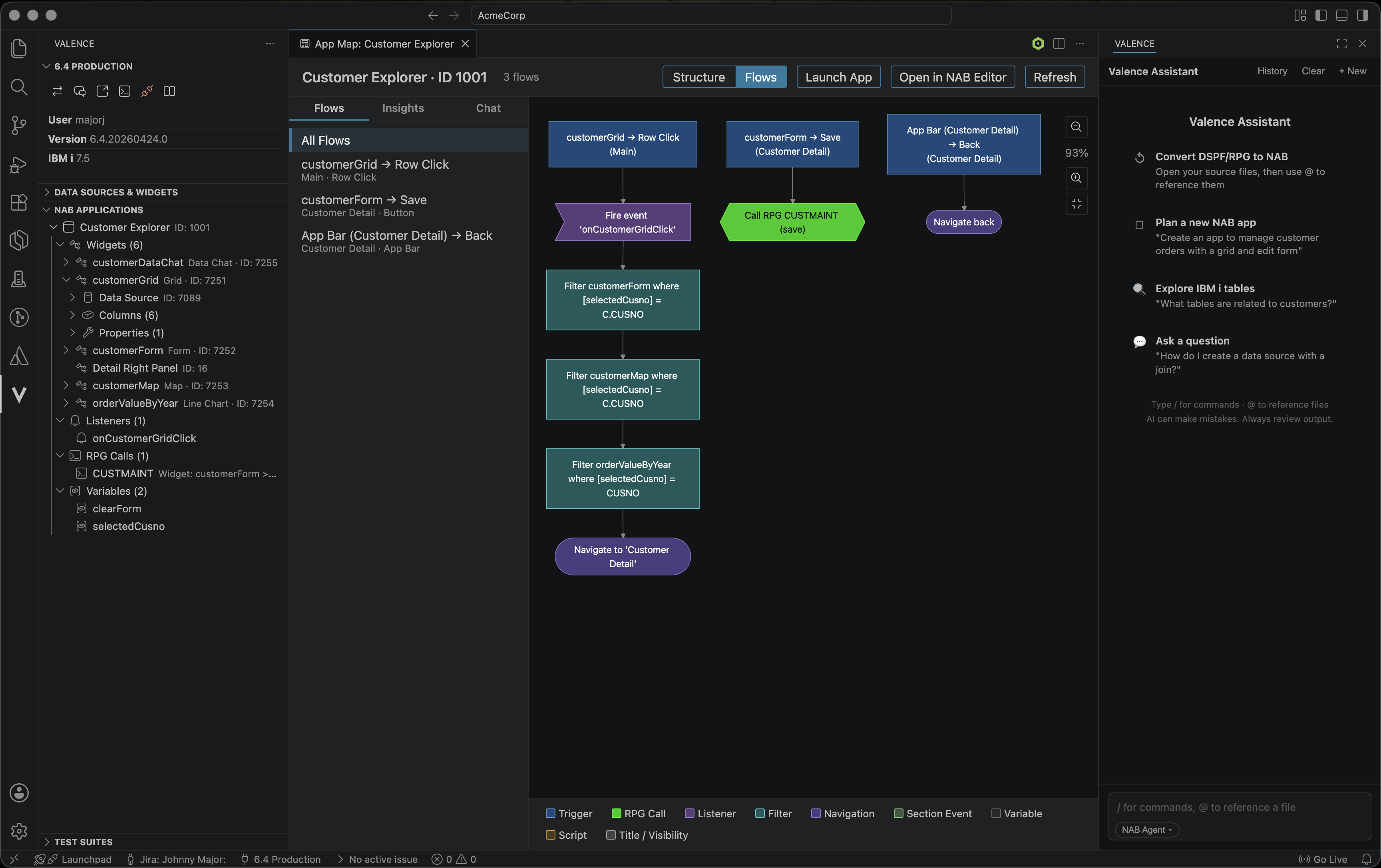
Valence connects VS Code to your Valence server so IBM i teams can modernize and extend their applications from a single place. Browse and manage your NAB (Nitro App Builder) apps, convert legacy DSPF/RPG green screens into modern web applications, design new apps from a plain-language description, and validate them with built-in regression testing — all backed by Valence Assistant, which works with your IBM i source and your NAB environment.
Features at a glance
- AI Chat (Valence Assistant) — Ask about your code and apps,
@-reference open files, and attach images. As the NAB Agent, it can also inspect and build widgets, data sources, and full applications.
- Plan new apps — Design a complete application from a plain-language description, then review and refine it before anything is built.
- Browse & explore — A rich tree of your NAB apps, widgets, data sources, variables, listeners, and RPG calls, plus a read-only SQL viewer.
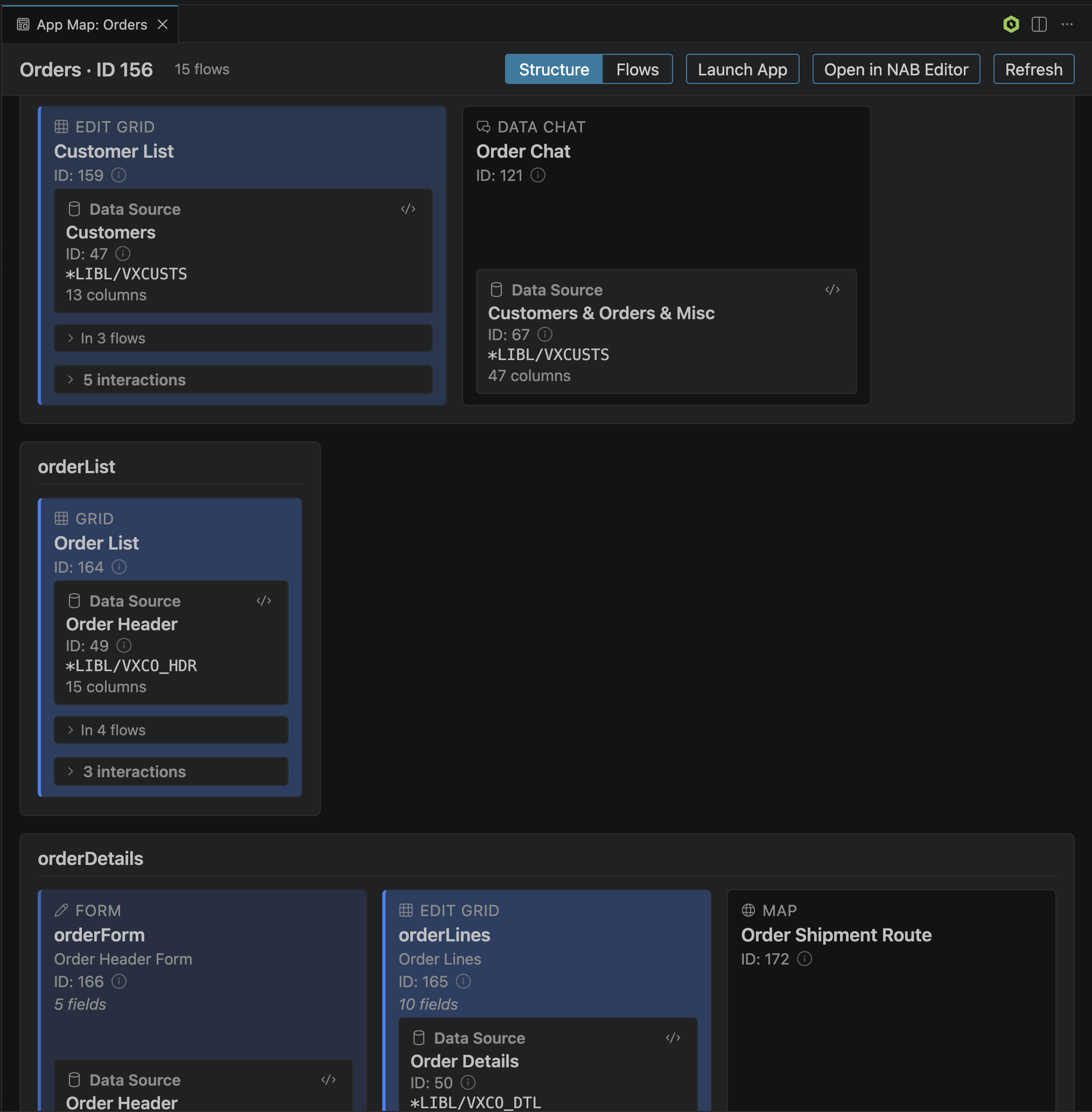
- Visualize with App Map — See any app's section layout, widgets, and interaction flows in a single interactive diagram.
- Update existing apps — Load a live NAB application and make AI-driven changes to it through chat.
- Regression testing — Validate that a NAB app loads and behaves correctly, batch apps into reusable test suites, and compare across environments with visual screenshot diffing.
- Convert legacy apps (Beta) — Turn a DSPF + RPG green-screen program into a modern NAB web application, preserving master-detail flow and business logic.
- Generate documentation — Produce styled, themeable technical docs from your source programs and export to PDF.
Build applications with AI
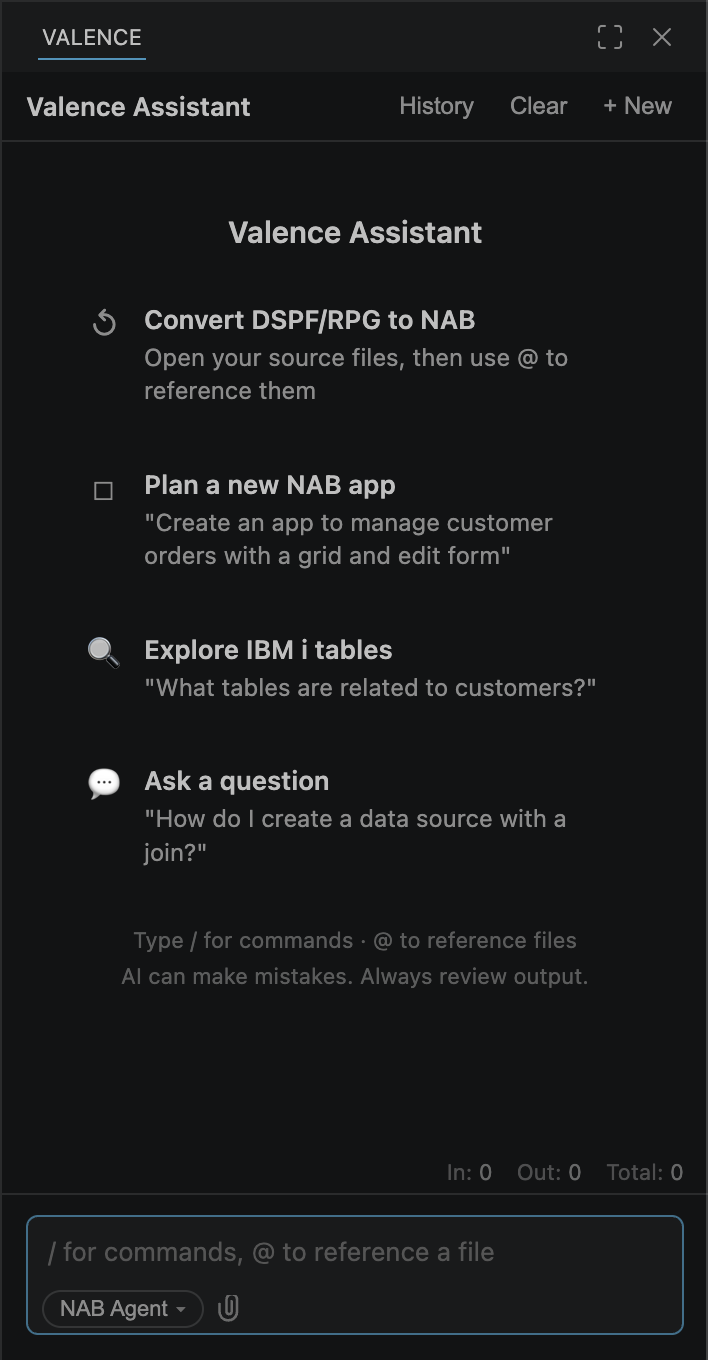
The Valence Assistant chat panel works alongside your code. @-reference any open file to bring its contents into the conversation, attach screenshots or diagrams, and ask questions in plain language.
Choose how the assistant works from its mode menu — NAB Agent and Agent for conversation, and the task modes Plan, Convert to NAB (Beta), and Update App for building. (Each task mode also has a slash-command shortcut — /plan, /convertToNAB, /updateApp — if you prefer typing.) The NAB Agent can inspect your environment and build real artifacts — widgets, data sources, and entire applications — while the plain Agent focuses on general IBM i and SQL questions.
Browse and explore
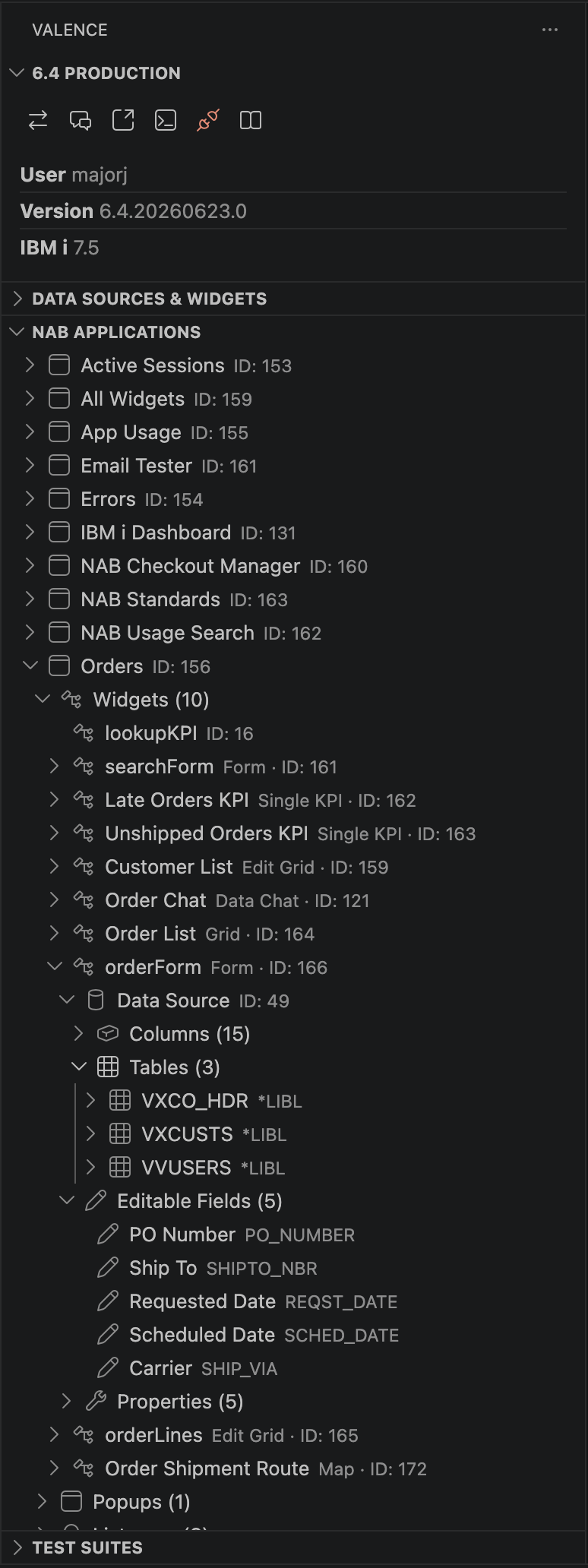
A connected sidebar gives you a rich, navigable tree of your NAB applications — widgets, data sources, columns, editable fields, variables, listeners, and RPG calls — plus a read-only SQL viewer for any data source. Search for any app or widget, and copy IDs and names straight to your clipboard.
See how an app works with App Map
The App Map renders an entire application as an interactive diagram — its section layout, widget cards, and tab containers — alongside the interaction flows that tie them together: row clicks, button actions, navigation between sections, and the data relationships behind them. This helps you understand how an unfamiliar app behaves before you change it.
Regression testing
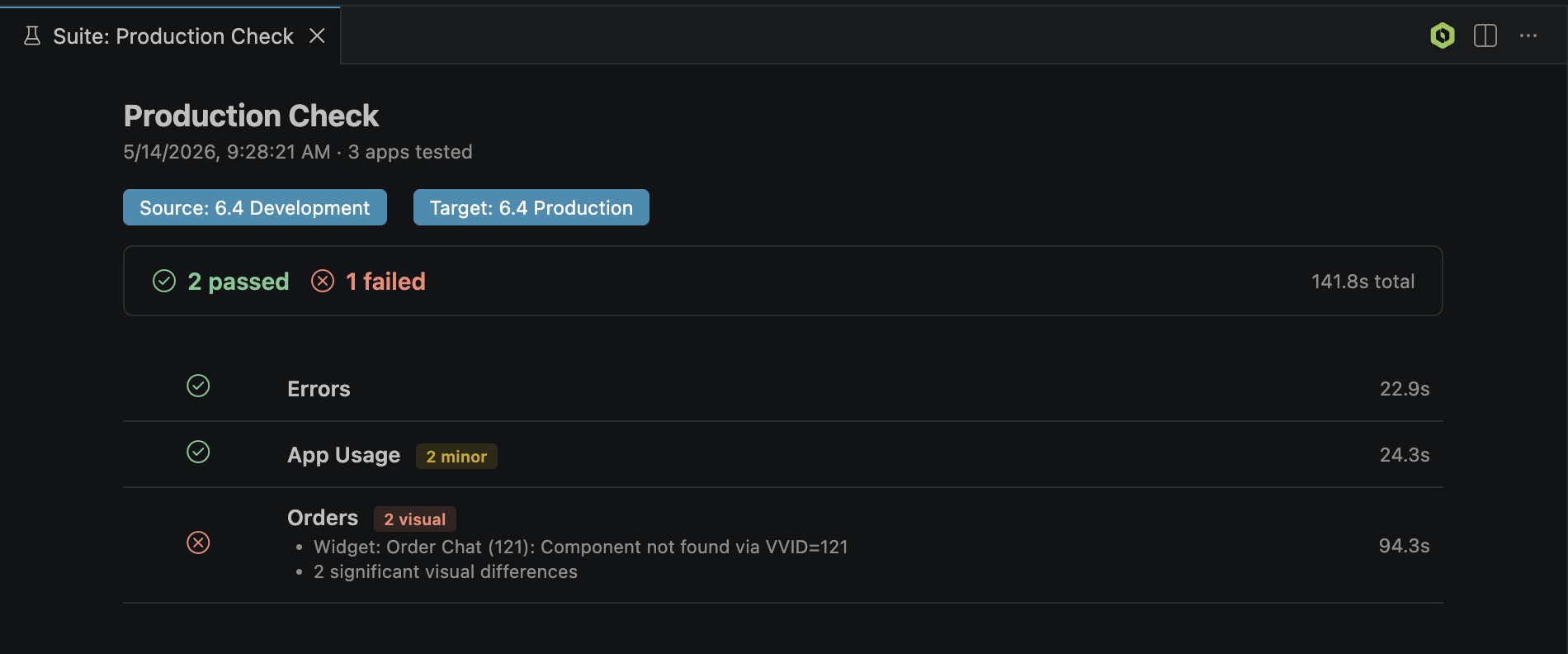
Validate that a NAB application loads and behaves correctly, and batch multiple apps into reusable test suites with a per-app pass/fail report you can drill into. For deeper checks, visual mode compares an app across environments with pixel-level screenshot diffing.
Convert legacy apps to the web (Beta)
Convert to NAB turns a DSPF + RPG green-screen program into a modern NAB web application. Valence Assistant analyzes the screen layout, data flows, and business logic, then produces a complete conversion plan — data sources, widgets, master-detail wiring, and navigation — for you to review and refine before anything is built. The output is a first draft to review, not a finished app — simpler screens come out closer to complete than complex ones.

Generate documentation
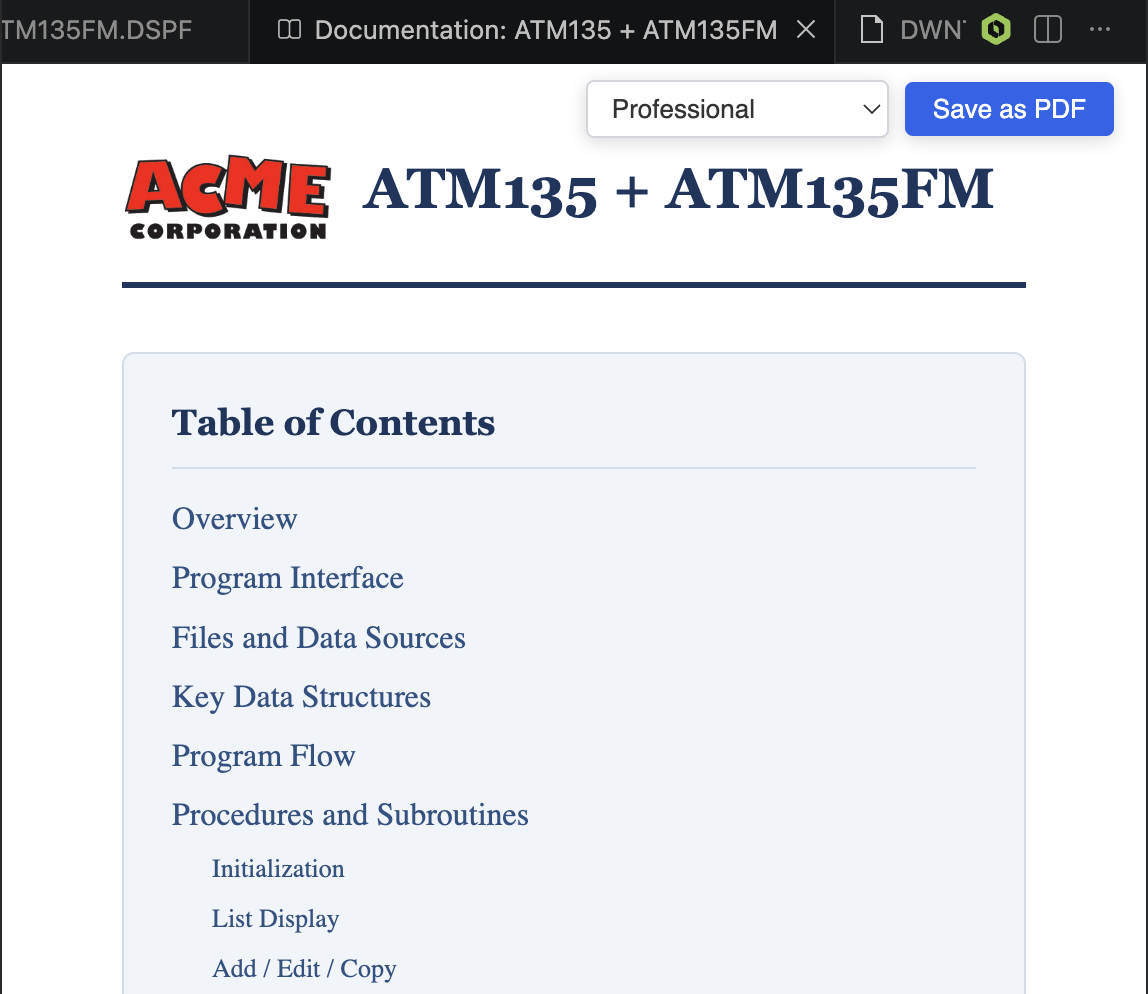
The Document mode generates clear, professional technical documentation from your source programs — with multiple visual themes, custom branding, and one-click PDF export. Useful for sharing program details with others without writing documentation by hand.
Requirements
- A Valence server you can reach over HTTP(S). Your Valence user must have NAB (Nitro App Builder) access to connect.
- Valence 6.4.20260623 or later to use the newer features — AI Chat / Valence Assistant and regression testing. Everyday browsing, SQL, and the App Map work on any supported server. (AI Chat also requires the Valence Assistant to be enabled on the server.)
- For visual regression comparison only: a Chromium-based browser (Google Chrome, Microsoft Edge, or Brave) installed locally. Quick Scan and structure checks need no browser.
Quick Start
- Install the extension.
- Click the V icon in the Activity Bar to open the Valence sidebar.
- Click + Add to create a connection (name, server URL, username), then Connect. Enter your password (and 2FA code if required) — your password is stored securely in your OS credential manager.
- Your NAB applications appear in the sidebar — expand them to start browsing, or open the Chat panel to work with AI.
Documentation & Support
Full, searchable documentation is built into the extension. Open the Command Palette (Cmd+Shift+P / Ctrl+Shift+P) and run Valence: Open Documentation, or follow the interactive walkthrough from the Quick Start page.
Privacy & Data
- Credentials — Your Valence password is stored in your operating system's credential manager (macOS Keychain, Windows Credential Manager, or Linux Secret Service). It is never written to disk or logged.
- AI Chat — Nothing is sent unless you actively use the chat. When you do, your message is sent to your Valence server, which forwards it to CNX Corp's cloud services for processing. A file's contents are included only when you attach it yourself with
@ (or select code and choose Ask AI About This Code) — the extension never reads or sends files you haven't explicitly referenced, and never scans your workspace on its own. The assistant may also fetch supporting details it needs for a task (such as a table's schema) from your connected Valence server. Click the Info Button in the chat header to inspect exactly what was included in any conversation.
- Data retention — AI requests run under a Zero-Data-Retention (ZDR) configuration. Your prompts, code, and file contents are used only to generate that response — they are not retained by the AI providers and are never used to train models.
- Telemetry — This extension collects no telemetry, analytics, or usage data. No information is sent to CNX Corp or any third party beyond the Valence server you configure.
Valence is an IBM i modernization platform by CNX Corporation (an IzziSoftware Company).

