ClikCode for VS Code
Every coding agent in one chat. ClikCode signs in Claude Code,
Codex, Gemini CLI, GitHub Copilot, OpenCode, Cursor, Amp, Qwen and other supported agents — plus ClikDeploy Gateway
and models on your own machine with ClikCode Local — and keeps one conversation you can move between
them. This extension is ClikCode in VS Code: the same conversations, accounts and settings as the
clikcode terminal, in a panel beside your code.
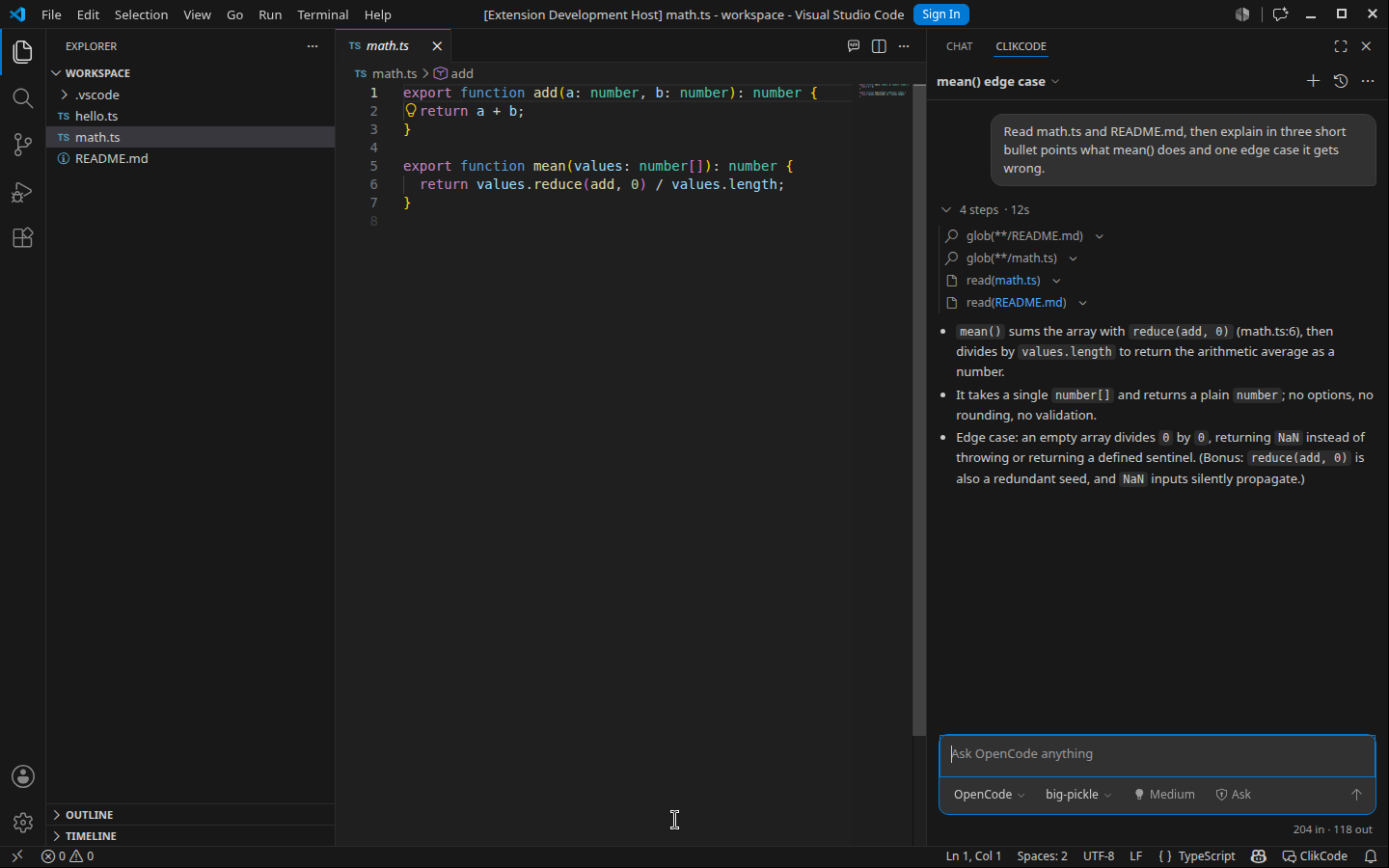
Where it is
- The secondary side bar (the right-hand one), like Claude Code and Codex. Click the ClikCode
button at the top right of any editor, or press
Ctrl+Esc (Cmd+Esc on macOS) — press it again to
go back to your code.
- More chats: Open in New Tab and Open in New Window (the
… menu in the chat, or the command
palette) open another chat with a conversation of its own; open as many as you like.
What you can do
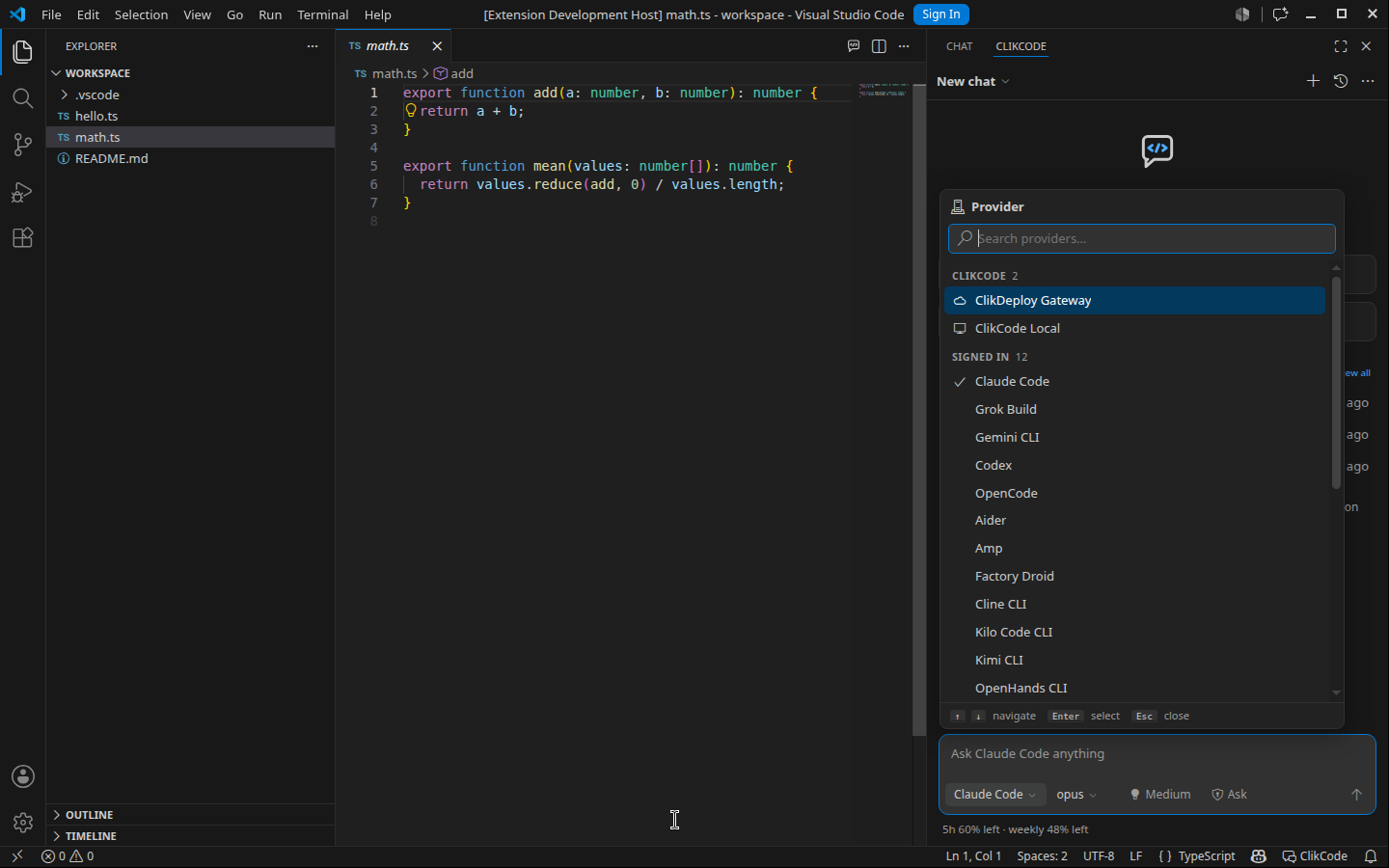
Pick any agent, then its model, from the message box. The Provider button under the message
box lists every harness — signed in, installed, and available to install — with a search; choosing one
that is not installed installs it, with progress in the chat. The Model button beside it lists the
models of the provider you are on, so it changes with the provider. Reasoning effort and permissions
(Ask, Auto, Bypass, and plan mode) sit beside them.
Work the way you do in an editor. Type @ to mention a file, / for commands, paste images.
Copy lines from a file and paste them into the chat: they arrive as a reference to the file and lines,
not as a wall of text. Copied files paste as references too (images attach as images). Alt+K in an
editor (or right-click → Add to ClikCode Chat) adds the selection directly. Nothing is attached on
its own: what you select stays yours until you paste or add it. Tool activity streams as compact rows that link to the files they touch; type while a
turn runs to steer it (or queue it for after the turn: /send), Enter again on an empty box to stop and
send what is waiting, Esc to stop.
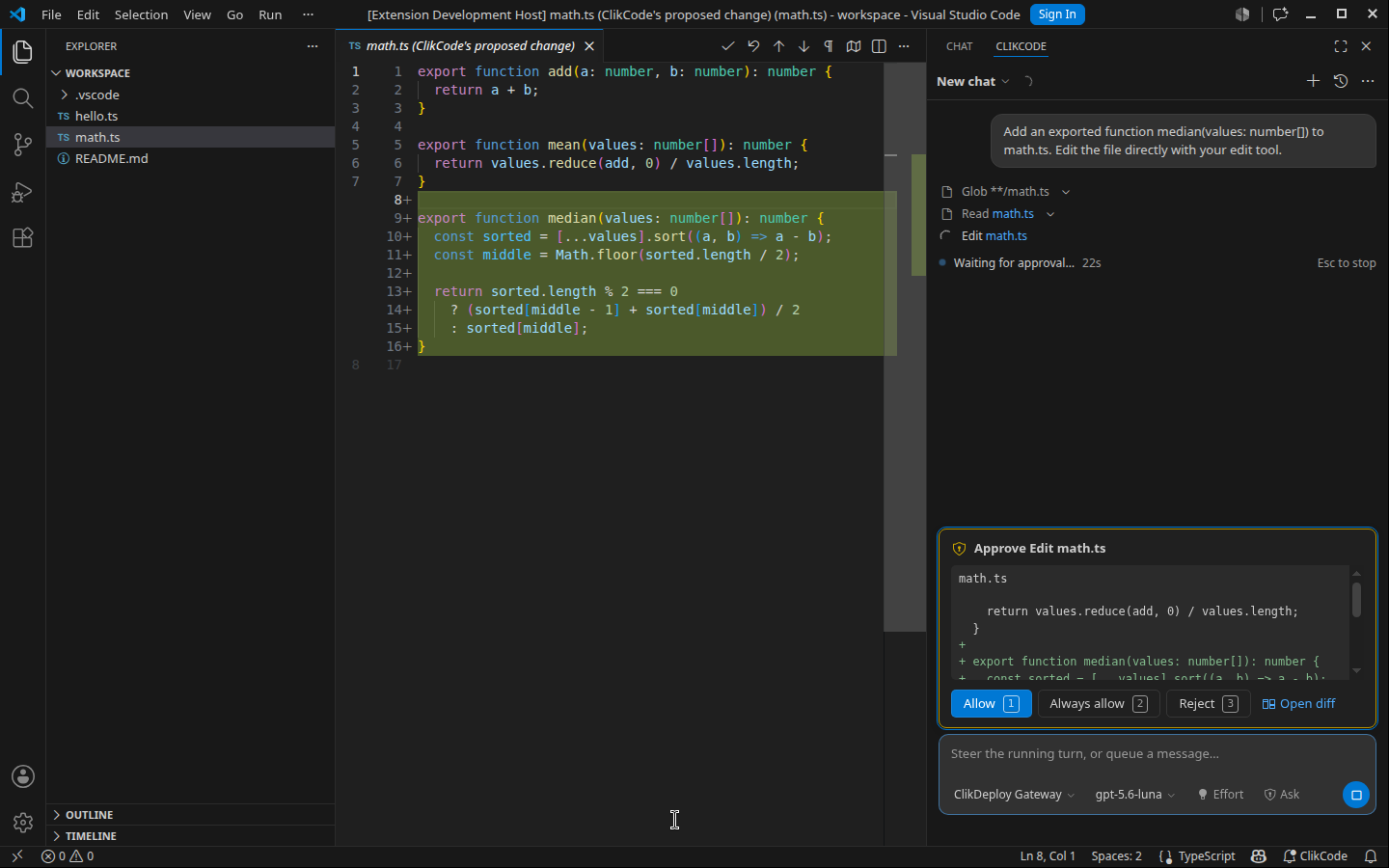
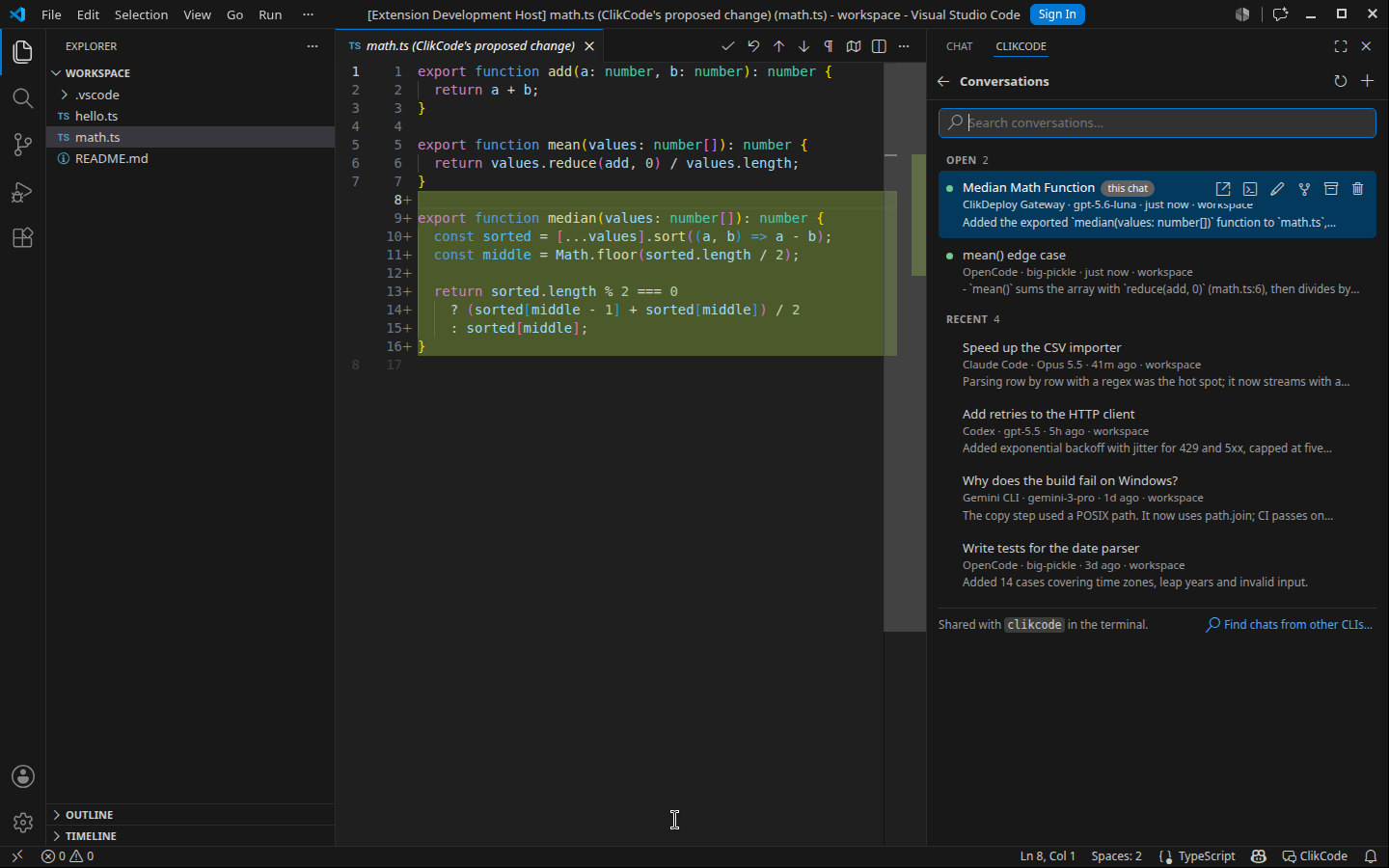
Review every change. When an agent asks to edit a file, the approval appears above the message box
(1 Allow, 2 Always allow, 3 Reject) and the proposed change opens in a diff editor with
Accept and Reject in its title bar.
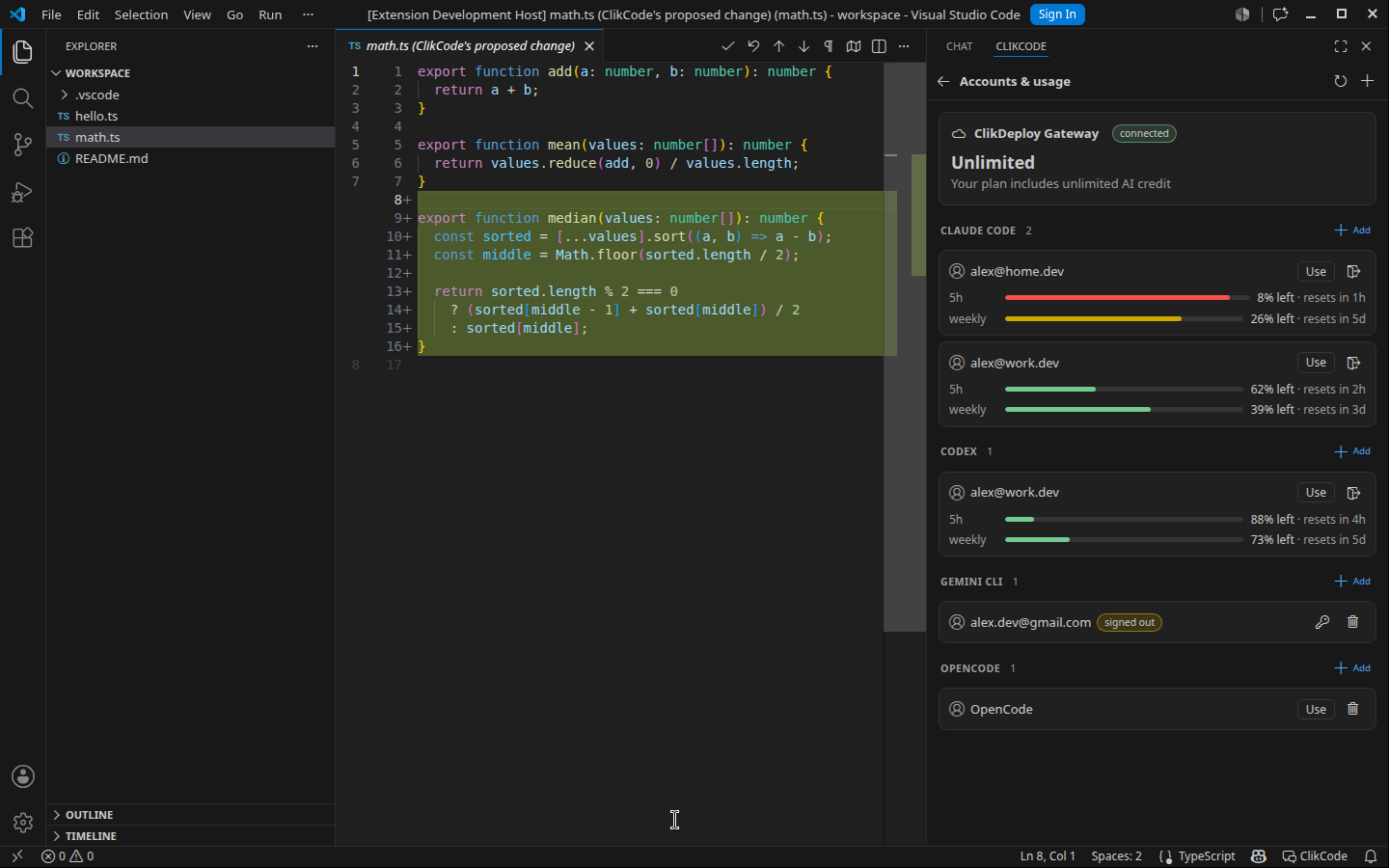
Keep going when a limit hits. Add several accounts per provider. The account under the message
box lists the provider's accounts, with Switch accounts automatically: when the chat's account runs
out, ClikCode moves to the next one with room. All accounts & usage shows each one's 5-hour and
weekly usage. On ClikDeploy Gateway the same menu shows the credit balance; a click buys more.
Pick up any conversation. Conversations (the clock button) is the same list as the terminal:
running chats first, then recent ones, with search, rename and delete (fork and archive are /fork
and /archive). Open one here, in a new tab, or continue it in the terminal.
Everything else ClikCode has. Chat settings opens ClikCode's own Settings screen in the panel —
provider, account, model, effort, permissions, plan mode, the harness's own options,
and its tools and MCP servers. Every slash command works from the message box.
Keys
| Key |
Does |
Ctrl+Esc (Cmd+Esc) |
Focus the chat; from the chat, back to the editor |
Ctrl+Shift+Esc (Cmd+Shift+Esc) |
Open a chat in a new tab |
Alt+K in an editor |
Add the selection (or the file) to the chat |
Ctrl+N (Cmd+N) in the chat |
New chat |
Enter / Shift+Enter |
Send / new line |
Enter on an empty box, a message waiting |
Stop the running turn and send what is waiting now |
Esc in the chat |
Stop the running turn |
@, / |
Mention a file, run a command |
1 2 3 on an approval |
Allow, always allow, reject |
Ctrl+Alt+Q (Ctrl+Cmd+Q) with a selection |
Ask about the selection |
Requirements
Nothing else to install. The extension ships with its own copy of ClikCode and runs it when
there is no clikcode on your PATH.
If you do have ClikCode installed (npm install -g clikcode), the extension runs yours
instead, so the editor and the terminal share one version, one set of accounts and one history.
An installed ClikCode that is too old for this extension is reported in the chat, with
Update ClikCode (npm install -g clikcode@latest; without the npm registry:
npm install -g https://github.com/Jgracier/ClikCode/releases/latest/download/clikcode.tgz).
Node.js 22.12 or newer for ClikCode. The extension uses node from your PATH, or VS Code's
built-in Node.js when that is new enough, or the clikcode.nodePath setting.
An account with at least one provider — or none: OpenCode's free models need no sign-in. The chat
offers the sign-in when a provider needs one, in a VS Code terminal running the vendor's own login.
Settings
| Setting |
Default |
|
clikcode.path |
(PATH) |
The clikcode executable or its dist/index.js. |
clikcode.nodePath |
(PATH, then VS Code's) |
Node.js 22.12+ to run ClikCode with. |
clikcode.openDiffOnApproval |
true |
Open a proposed change to one file in a diff editor (several files: the approval's diff button). |
clikcode.startWith |
continue |
Continue the workspace's latest chat, or start a new one. |
What stays in the terminal
A few ClikCode features are about the terminal itself and have no place in an editor: /select
(handing the mouse to the terminal's own selection), /redraw, and the full-page conversation board
(the panel's Conversations screen is its editor form). A vendor's own sign-in and its interactive
tools (for example a harness's MCP manager) run in a VS Code terminal, because the vendor asks its own
questions there.
Privacy
The extension talks only to the ClikCode process it starts on your machine. Your prompts go to the
agent you choose, exactly as when you use it in a terminal; credentials stay with each vendor's own
CLI. The panel loads nothing from the network: its script, styles and icons ship with the extension,
under a strict content security policy. Model output is rendered without running any of it: raw HTML
is shown as text, images are not loaded, and links open in your browser only when you click them.
How it works
Each chat starts clikcode ide-bridge and talks to it over a private IPC channel. The bridge is the
same client the terminal uses: it attaches to the conversation's session worker (one background
process per conversation, shared with any terminal that has it open), loads what a turn needs, sends
queued messages when a turn ends, and answers the panel's menus with the data the terminal's pickers
read.
Feedback
Issues and ideas: https://github.com/Jgracier/ClikCode/issues.

