Amber CRT Spectrum




🟠 A warm phosphor-inspired VS Code theme with vivid syntax highlighting.
Amber CRT Spectrum brings a darker glass-and-phosphor workbench to VS Code: deep brown-black panels, bright amber chrome, and colorful syntax that still stays readable during long coding sessions. Think retro terminal energy with enough contrast to stay productive. ⚡
🧠 What this theme is built for
- Amber-first workbench styling instead of default black fallback surfaces
- Readable code contrast for daily editing, not just a novelty retro palette
- Colorful syntax with intent so functions, strings, keywords, operators, and types stay easy to scan
- Cohesive UI chrome across the explorer, tabs, menus, terminal, extension pages, and common editor widgets
📸 Screenshot gallery
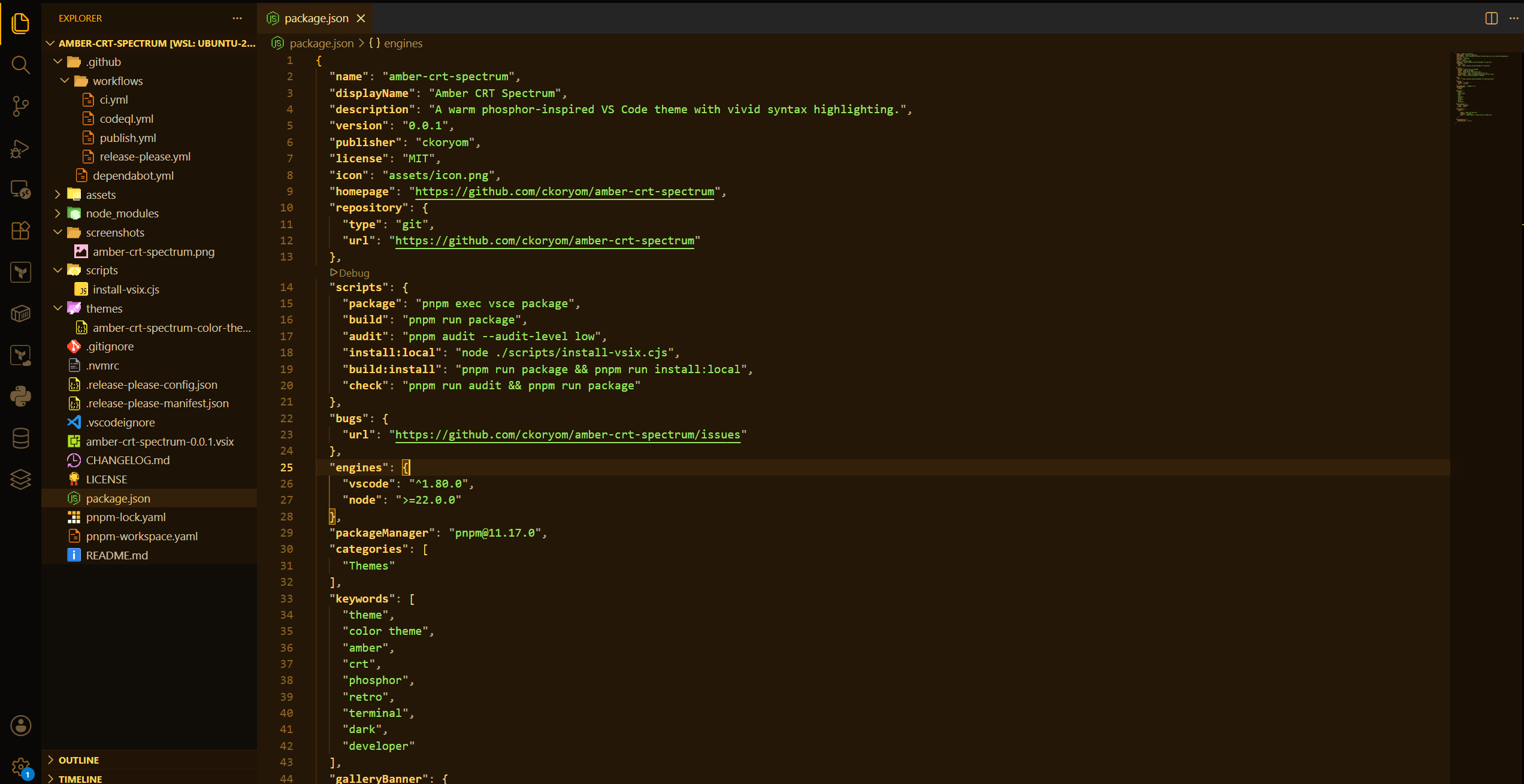
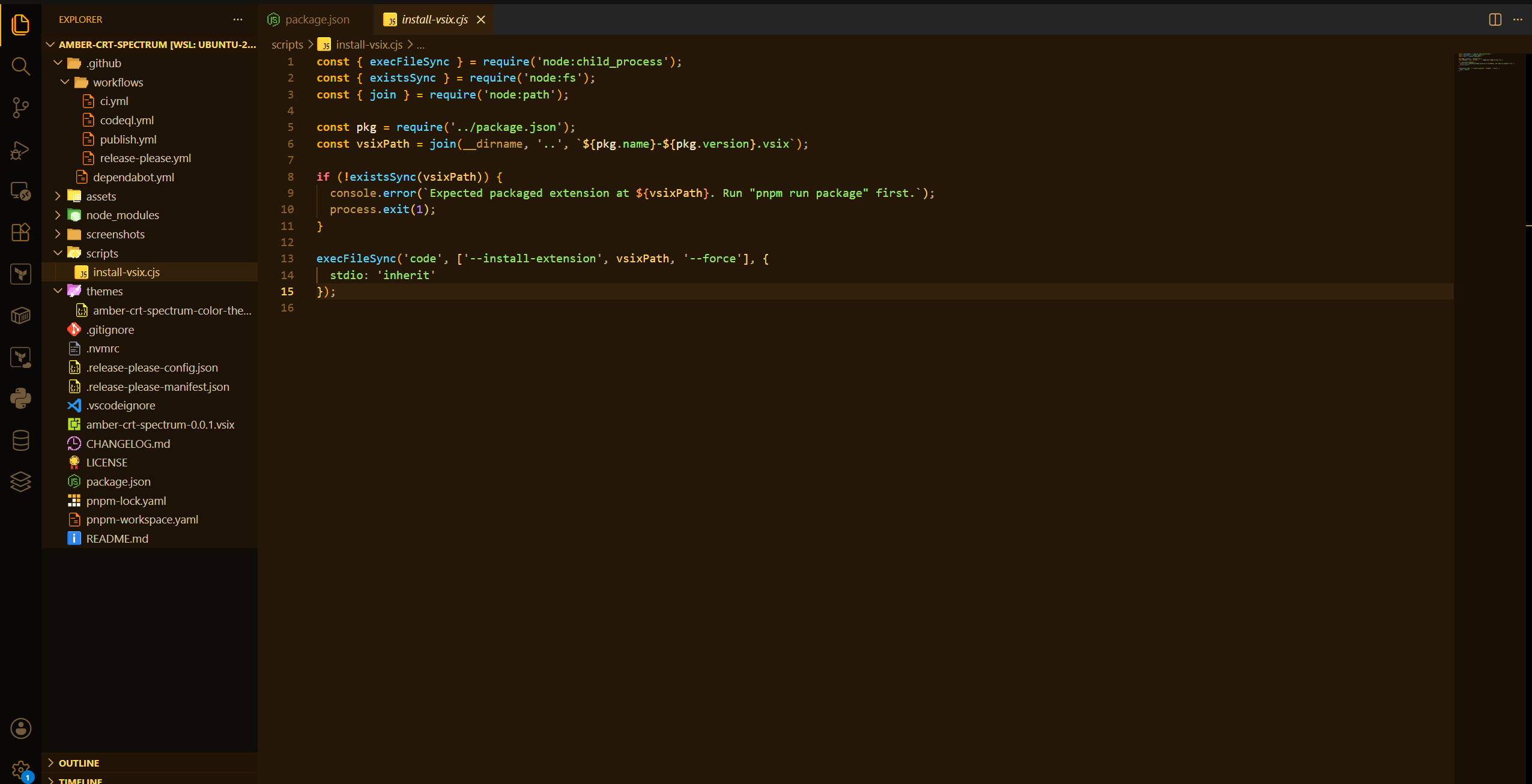
✨ Highlights
- CRT-style workbench coverage across the editor, sidebar, tabs, terminal, menus, quick pick, panels, notifications, and common widgets
- Readable syntax contrast with amber keywords, cyan functions, green strings, magenta operators, and violet constants
- One-command local install with
pnpm run build:install
- Automated release flow with Release Please and a Marketplace publish workflow
🎨 Feature breakdown
UI and workbench
- Warm amber treatment for explorer, activity bar, tabs, title bar, status bar, panel, command palette, menus, and extension details surfaces
- Reduced black fallback areas so the theme feels consistent across VS Code, not just inside the editor
- CRT-inspired contrast with darker glass tones and bright phosphor accents
Syntax and editing
- Keywords: amber
- Functions and methods: cyan
- Strings: green
- Operators and control flow: magenta
- Types and classes: golden yellow
- Constants and enums: violet
Terminal and coding flow
- Matching terminal palette for a cohesive editor + shell experience
- Bright cursor and ANSI colors tuned to fit the amber CRT direction
- Designed to stay readable for real development sessions, not just screenshots
🚀 Install
From the Marketplace
Search for Amber CRT Spectrum in the VS Code Extensions Marketplace, then activate it from Preferences: Color Theme.
Local development install
corepack enable
pnpm install
pnpm run build:install
That command packages the extension and installs the generated VSIX into your local VS Code instance.
🛠️ Development
Requirements
- Node.js
24 (see .nvmrc)
corepack enabled so pnpm resolves from the pinned package manager version- VS Code's
code CLI on your PATH for pnpm run build:install
Scripts
| Command |
What it does |
pnpm install |
Installs dependencies from pnpm-lock.yaml |
pnpm run audit |
Fails on any reported dependency vulnerability |
pnpm run package |
Builds a .vsix with vsce |
pnpm run build |
Alias for pnpm run package |
pnpm run install:local |
Installs the current version's packaged .vsix into VS Code |
pnpm run build:install |
Packages and installs the extension in one step |
pnpm run check |
Runs the audit and packages the extension |
🔄 Publishing and releases
GitHub Actions
- CI installs with pnpm, audits dependencies, and validates packaging.
- Release Please manages release PRs, version bumps, and changelog updates.
- Test Entra OIDC validates the Azure Entra federation configured for this repository.
- Publish Extension publishes tagged releases to the VS Code Marketplace using the repo's OIDC/trusted publishing setup.
Release flow
- Open PRs with conventional commit titles and prefer Squash and merge.
- Release Please opens or updates a release PR with the next version and changelog.
- Merge that release PR.
- The release workflow creates a GitHub release.
- The publish workflow packages the extension and publishes it to the VS Code Marketplace.
What gets updated automatically?
- Version bump: yes — Release Please updates
package.json.
- Changelog: yes — Release Please updates
CHANGELOG.md.
- Publish to Marketplace: yes — after the GitHub release is published, the publish workflow runs.
One-time publish setup
This repository no longer needs a VSCE_PAT secret.
Before the workflow can publish:
- Configure the Entra app / federated credential for this repository.
- Add
AZURE_CLIENT_ID and AZURE_TENANT_ID as GitHub Actions secrets.
- Configure trusted publishing for your extension publisher in the Visual Studio Marketplace and allow this repository/workflow to publish.
- Optionally run Test Entra OIDC from Actions to confirm the Azure login succeeds.
The publish workflow also uses the marketplace GitHub environment.
After that, the workflow publishes with:
pnpm exec vsce publish --azure-credential
That uses the Entra-authenticated Azure session from azure/login instead of a long-lived PAT.
ℹ️ Notes
- The Features tab in VS Code is mostly auto-generated from the extension manifest. For a theme extension, that tab will stay fairly minimal and mainly list the contributed color theme.
- The full product explanation, screenshots, and usage details live in this README, which is what users will rely on most in the extension details view and Marketplace page.
- For cleaner release notes and fewer Release Please parse warnings, use Squash and merge on PRs and keep PR titles in conventional commit format.
📜 License
MIT
| |

