CodeSnap Next
English | 简体中文
A standalone VS Code extension derived from CodeSnap.
It uses SnapDOM, revisioned PNG caching, and acknowledged native clipboard backends for Windows and Wayland.
Independently maintained, with a focus on faster image generation, reliable copying, and long code screenshots.
Measured in headless Chromium on Linux. Median total time until the clipboard write completes
(2× output, 20 samples per scenario):
| Selection |
Original 1.3.4 |
Next: render and copy |
Next: reuse prepared PNG |
| 200 lines / 552 × 5104px |
1378.4ms |
185.6ms |
18.7ms |
| 450 lines / 552 × 11104px |
2311.2ms |
394.0ms |
37.0ms |
Cached timings exclude the earlier PNG preparation. Uncached P95 at 200 lines was 224.1ms,
which does not yet meet the 200ms optimization target. These are not end-to-end measurements
of Windows / Wayland native backends or the VS Code Webview. See the benchmark report for
the environment, P95, and raw samples.
Marketplace display name: CodeSnap Next (chumeng).
Extension ID: chumeng.codesnap-next-chumeng. Command: CodeSnap Next 📸 (codesnapNext.start).
Settings use codesnapNext.*; existing codesnap.* settings are not imported. Both extensions can
be installed together.
For a local VSIX, run npm ci, then npx @vscode/vsce package, and use Extensions: Install from VSIX.
Features
- SnapDOM rendering with reusable PNG caching
- Browser clipboard copying, with native Windows and Wayland backends
- Explicit selection capture, progress feedback, and retries
- Full-size long screenshots with a choice of 1× or 2× resolution
- Configurable line numbers, colours, shadows, padding, and window controls
Usage Instructions
- Open the command palette (Ctrl+Shift+P on Windows and Linux, Cmd+Shift+P on OS X) and search for
CodeSnap Next.
- Select code before opening CodeSnap Next, or select code and click Update selection in the preview.
- Long lines wrap automatically at a default width of 960 CSS pixels. Drag the preview narrower or change
codesnapNext.maxWidth for a different limit. Eligible images are prepared in the background.
- Click Copy image or Save image. The shutter button follows
codesnapNext.shutterAction.
Changing the editor selection does not automatically update the preview. Click Update selection
to capture it. Capturing highlighted code uses and replaces the system clipboard; resizing, changing
settings, and preparing images do not. After changing the editor theme, update the selection to
capture its new syntax colours. Reopening an existing preview preserves its captured code.
Tips:
- You can also start CodeSnap Next by selecting code, right clicking, and clicking CodeSnap Next 📸
- If you'd like to bind CodeSnap Next to a hotkey, open up your keyboard shortcut settings and bind
codesnapNext.start to a custom keybinding.
- If you'd like to copy to clipboard instead of saving, click the image and press the copy keyboard shortcut (defaults are Ctrl+C on Windows and Linux, Cmd+C on OS X), or set
codesnapNext.shutterAction to copy in your settings
Examples
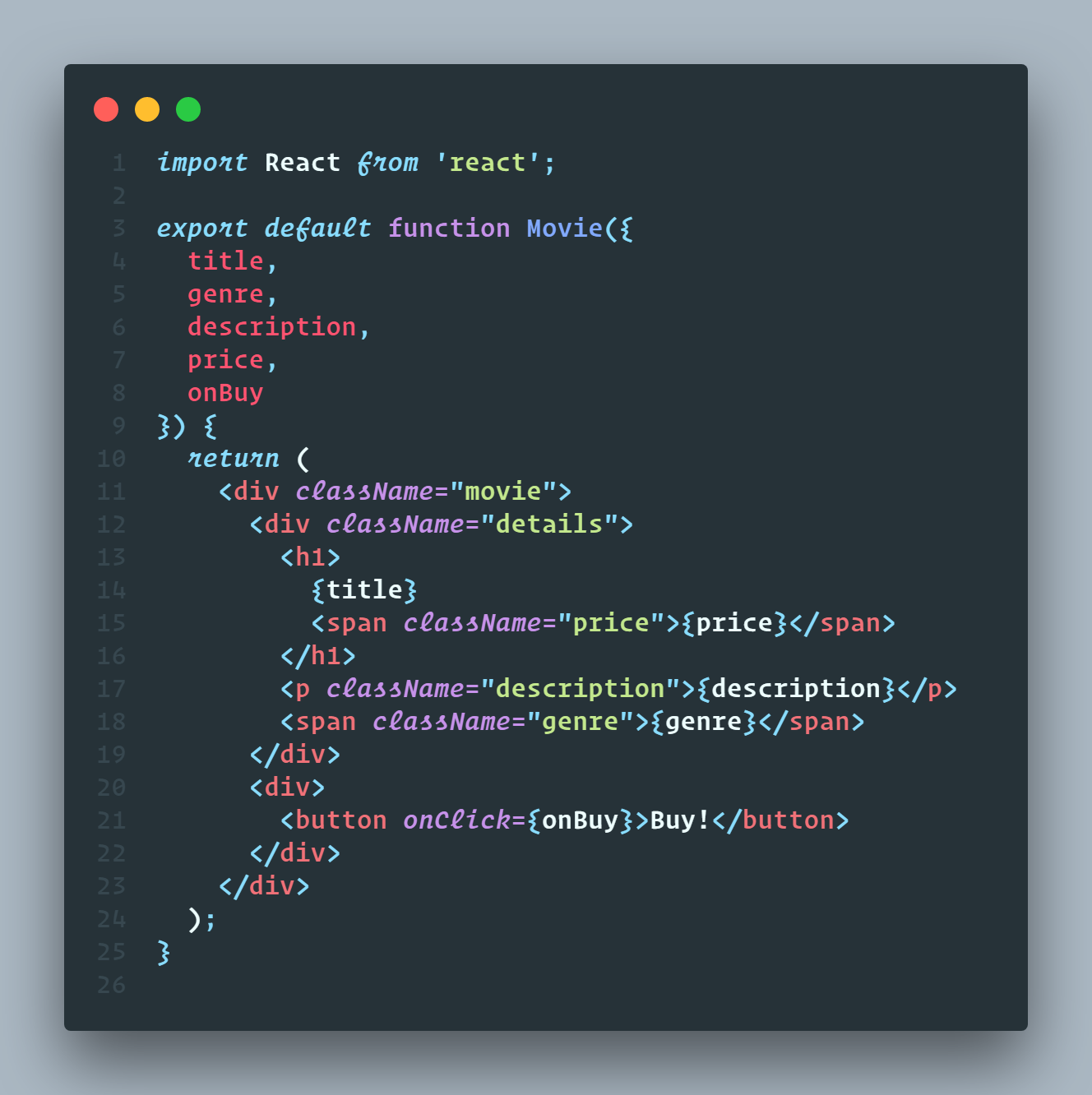
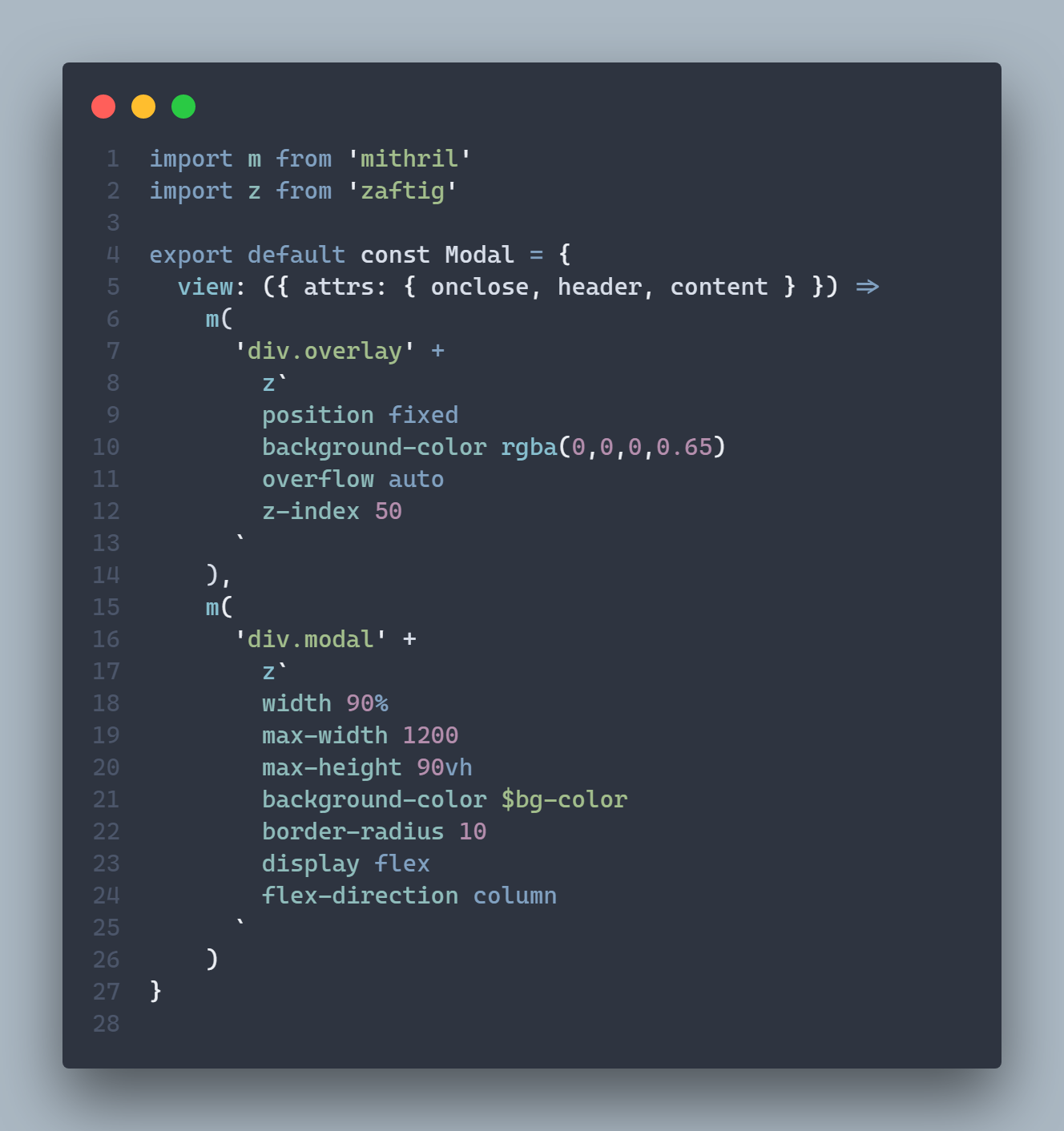
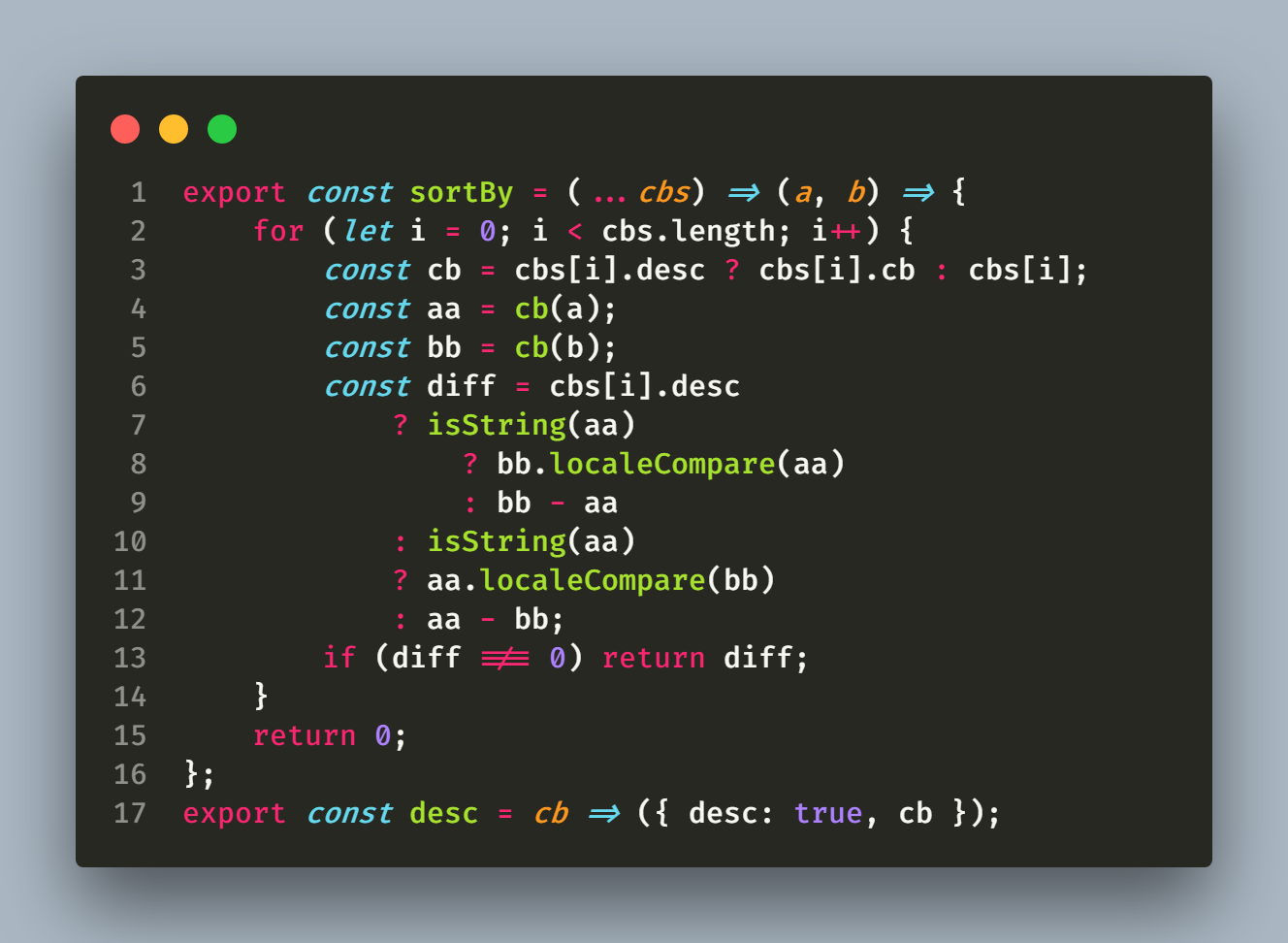
These examples are inherited from the original CodeSnap project.
Material Theme + Operator Mono
Nord + Cascadia Code
Monokai + Fira Code
Configuration
CodeSnap Next is highly configurable. Here's a list of settings you can change to tune the way your screenshots look:
codesnapNext.backgroundColor: The background color of the snippet's container. Can be any valid CSS color.
codesnapNext.boxShadow: The CSS box-shadow for the snippet. Can be any valid CSS box shadow.
codesnapNext.containerPadding: The padding for the snippet's container. Can be any valid CSS padding.
codesnapNext.maxWidth: Maximum width of the code area including line numbers, in CSS pixels (default: 960, minimum: 100). Long lines wrap without changing the source or its line numbers. Window and container padding add to the exported image width; 2× resolution doubles the output dimensions.
codesnapNext.roundedCorners: Boolean value to use rounded corners or square corners for the window.
codesnapNext.showWindowControls: Boolean value to show or hide OS X style window buttons.
codesnapNext.showWindowTitle: Boolean value to show or hide window title folder_name - file_name.
codesnapNext.showLineNumbers: Boolean value to show or hide line numbers.
codesnapNext.realLineNumbers: Boolean value to start from the real line number of the file instead of 1.
codesnapNext.transparentBackground: Boolean value to use a transparent background when taking the screenshot.
codesnapNext.target: Either container to take the screenshot with the container, or window to only take the window.
codesnapNext.shutterAction: Either save to save the screenshot into a file, or copy to copy the screenshot into the clipboard.
Image preparation and copying
Images use SnapDOM, at a default 2× resolution independent of
display scaling. Use Resolution to explicitly select 1× for larger selections. Output dimensions
and pixel count are displayed below the toolbar; changing resolution preserves the full selection.
A prepared PNG Blob is reused until the code, appearance, dimensions, or resolution change.
Copying fixes the preview state at the moment of the action, even if settings change while it runs.
The flash occurs only after the clipboard write succeeds. Failed exports show a retry action;
Save image is always an explicit alternative.
On Linux Wayland, a denied browser write falls back to the local wl-copy command when available.
The extension waits for its result before reporting success and reuses that working backend for
subsequent copies. CodeSnap Next runs in the local UI extension host, including for remote workspaces;
it refuses to run the native fallback on a remote host. If wl-copy is unavailable, the failure is
reported explicitly; nothing is installed automatically. macOS retains the browser path.
On Windows, both auto and browser use the Webview browser clipboard. The extension does not
start PowerShell or use a Windows-specific clipboard helper. If browser clipboard permission is
denied, focus the preview and retry, or use Save image. You can explicitly lock the setting to
the browser path with:
{
  "codesnapNext.clipboardMode": "browser",
  "codesnapNext.showTiming": true
}
Preparing and clipboard-writing stages are always visible. showTiming additionally shows the
preparation and clipboard durations after success; failures do not report success.
Background preparation covers up to 200 lines and 4 million output pixels. Larger images are
generated on demand. There are no extension-imposed pixel-count, side-length, or PNG payload-size
caps. Large PNG exports use SnapDOM's windowed PNG export when supported by the browser. Images
are never silently resized or cropped; a renderer warning about downscaling is reported as an
error. Available memory, the browser, the operating system and the receiving application still
determine what can actually be rendered or pasted. Resolution remains an explicit choice: 2×
doubles both dimensions and uses four times as many pixels as 1×.
Use Performance for cache hit rate and cached/uncached copy P95. Developer Tools contains the
last 200 timing samples, including DOM capture, PNG encoding, output size and export failures.
Native Windows samples also include the helper's clipboard-only and total helper timings.
These measurements stay in memory and contain no code or image data. writeMs includes waiting
for the promised PNG on an uncached copy; it is not a measurement of the compositor alone.
The performance targets are cached copy P95 ≤50ms and uncached copy P95 ≤200ms for selections
within the background preparation limits. They are targets, not guarantees. End-to-end Wayland,
other operating systems, fonts and remote-development windows require platform validation.
Development checks
npm ci
npx playwright install chromium
npm run check
npm test
Set PLAYWRIGHT_CHROMIUM_EXECUTABLE to test with an existing Chromium-based browser. The tests
exercise native-host message handling with a VS Code API mock, real browser PNG clipboard writes
and reads from another page, permission-denied native fallback, stale snapshots, retries, large exports, transparency and pixel comparison
against browser paint. The native rich-text clipboard acquisition still needs a VS Code smoke test.
On Windows, npm test also runs the real helper with -CheckOnly to verify PNG and Bitmap data
preparation and the original PNG hash without changing the clipboard. That test is skipped on
other operating systems. Windows end-to-end paste compatibility and actual timings still require
testing on Windows; Linux browser tests and mocked process tests cannot establish them.
Acknowledgements
CodeSnap by Adrien Pyke and its contributors, for the original extension.
CodeSnap Fast, for the Windows clipboard helper.
See LICENSE and third-party notices for attribution and licensing.
The great Polacode, for the initial concept.
Carbon for some design inspiration.

