Skip to content
| Marketplace
Sign in
Visual Studio Code>Visualization>ServalNew to Visual Studio Code? Get it now.
Serval

Serval

Chikurin1014

|
1 install
| (0) | Free
Cross-Platform Serial Visualizer
Installation
Launch VS Code Quick Open (Ctrl+P), paste the following command, and press enter.
Copied to clipboard
More Info

Serval for VS Code

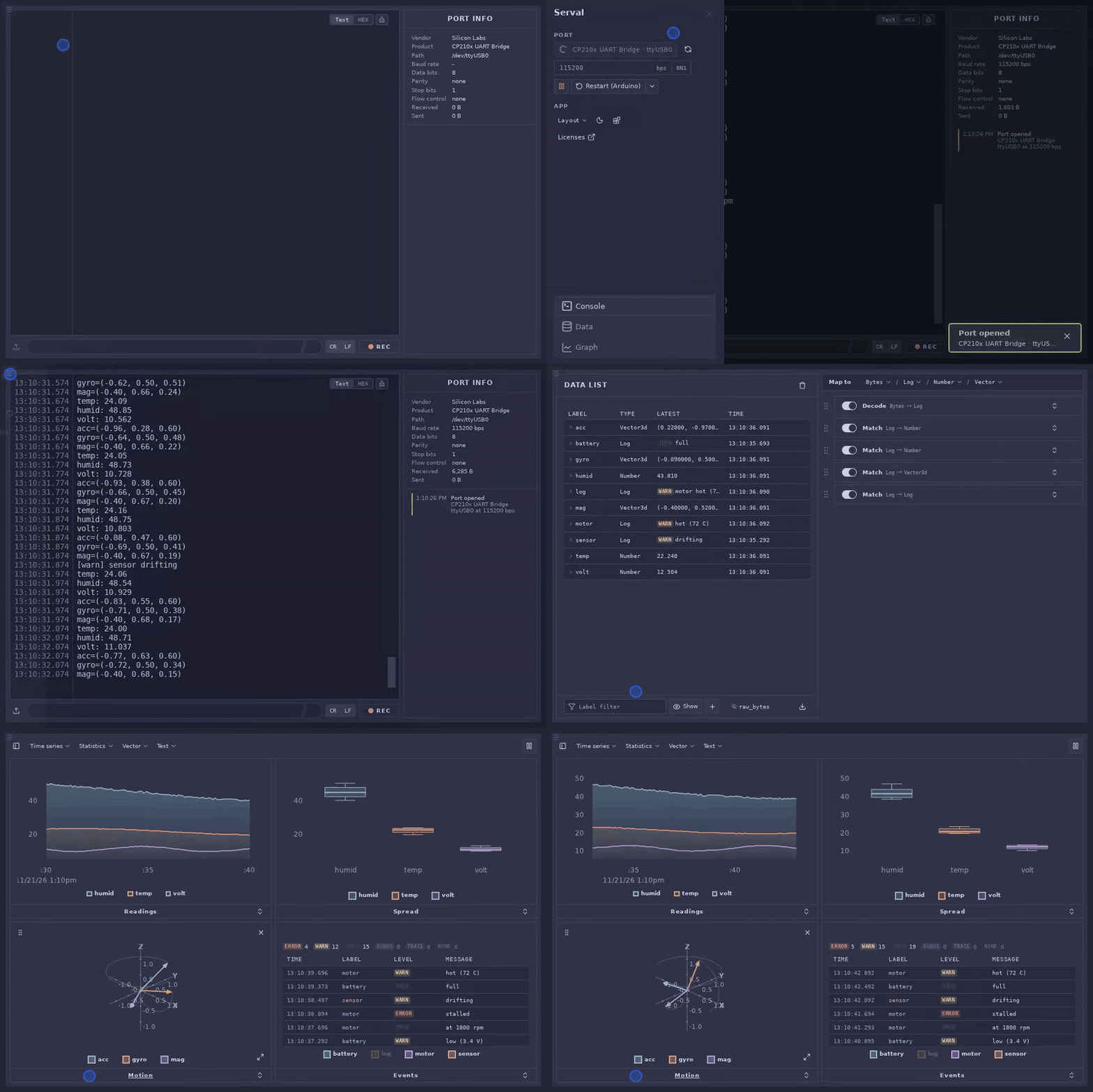
Serval, the serial visualizer, in a panel of VS Code. It shows what a serial port receives as text, data and graphs, and sends to it.

Serval in a panel: the port opened from the menu, then the data and the graphs

Run Serval: Open from the Command Palette. Where the panel is narrow, the port and the tabs are in the menu, at its top left.

A panel's page may not use Web Serial, so the extension comes with a program, serial-bridge, that opens the ports for it. If the program is missing or stops, VS Code shows why. Close the panel and open it again to restart it.

Building

Build the web app and the program, and put them in the extension:

dx build --platform web --release --debug-symbols false
cp -r target/dx/web/release/web/public packages/vscode/media
cargo build --release -p serial-runtime --features serial-bridge --bin serial-bridge
mkdir -p packages/vscode/bin && cp target/release/serial-bridge packages/vscode/bin/

To try it, open VS Code with it:

code --extensionDevelopmentPath=packages/vscode

To make a package of it for this OS (here, Linux on x64):

cp LICENSE packages/vscode/
cd packages/vscode && npx @vscode/vsce package --no-dependencies --target linux-x64
  • Contact us
  • Jobs
  • Privacy
  • Manage cookies
  • Terms of use
  • Trademarks
  • Your Privacy Choices
  • Consumer Health Privacy
© 2026 Microsoft