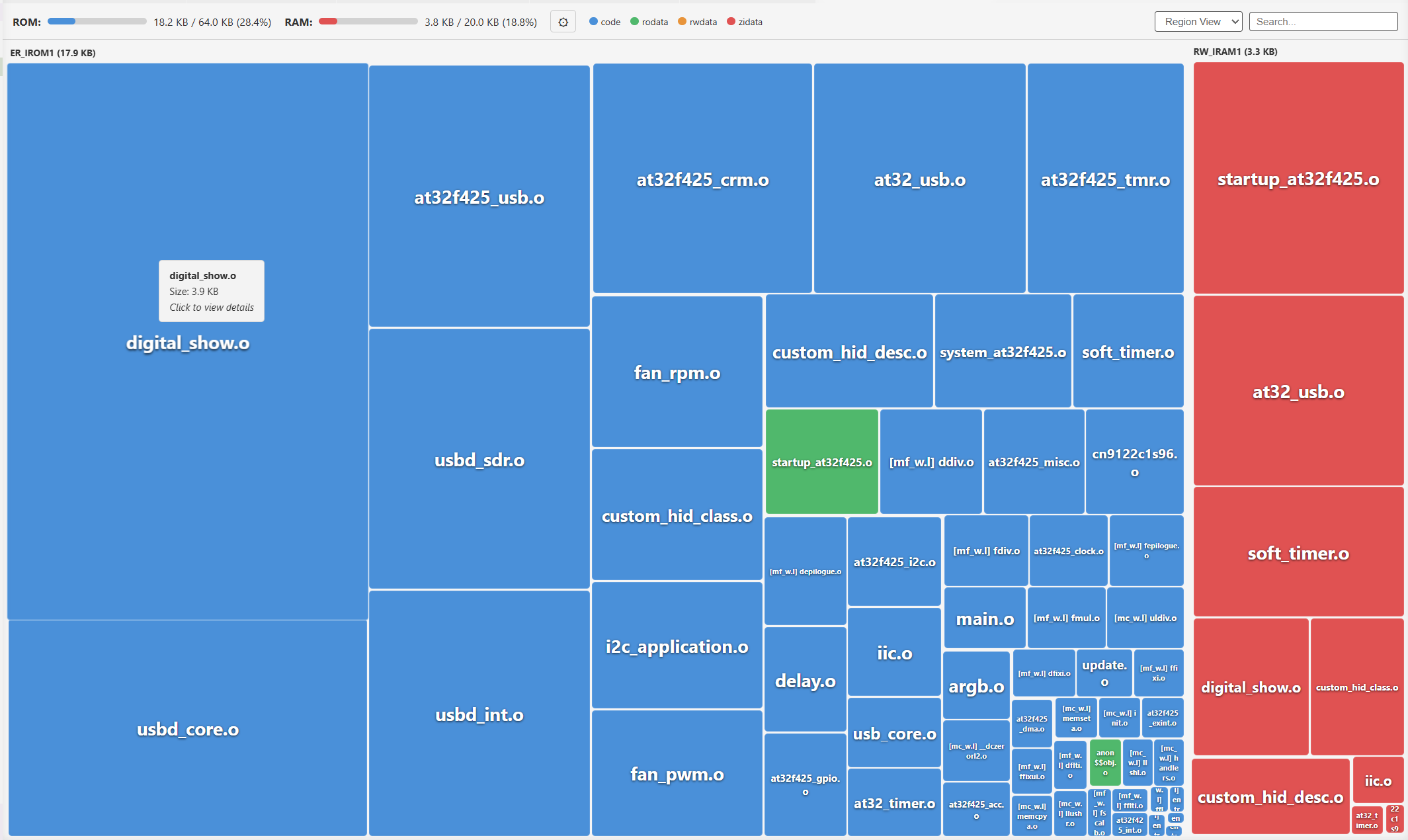
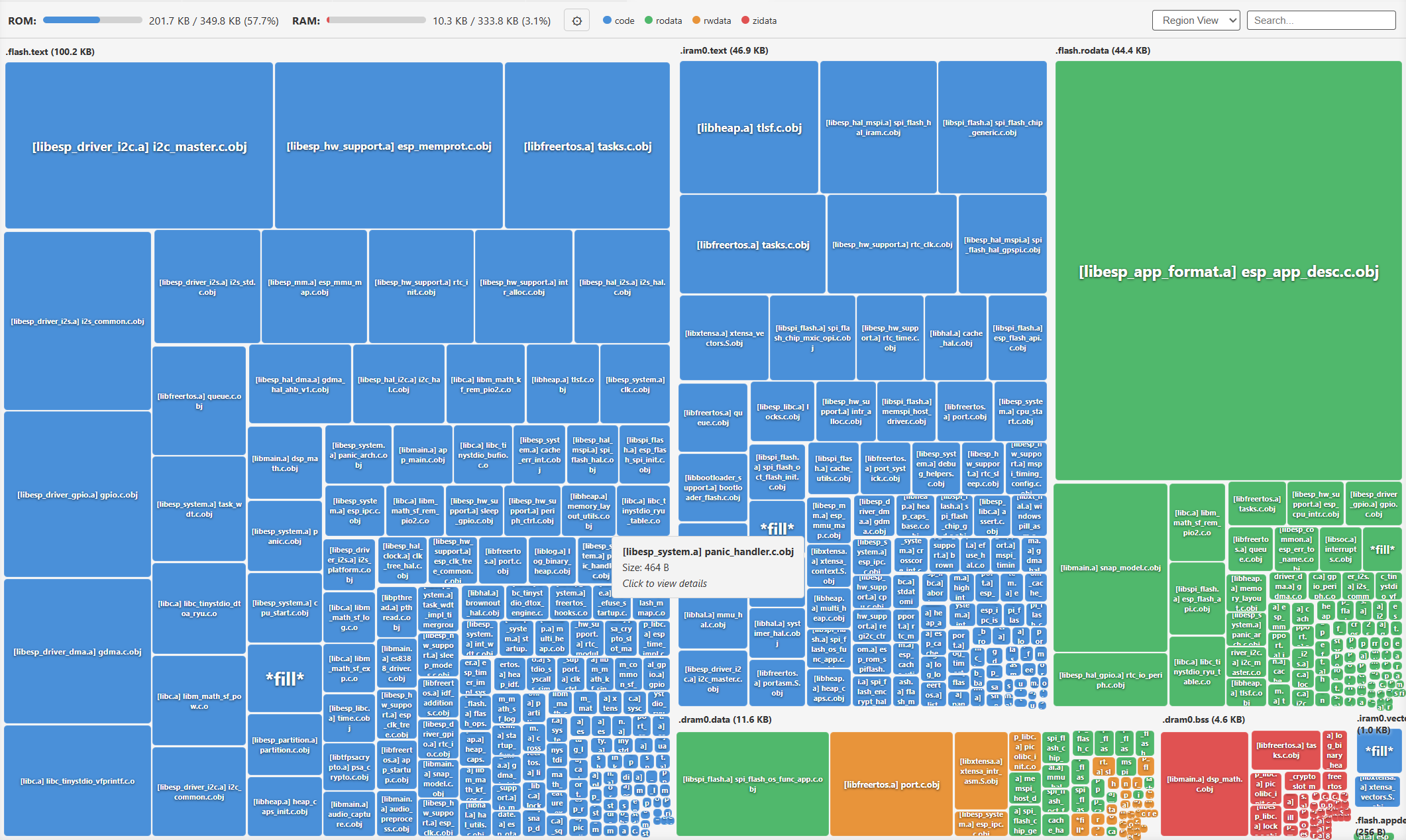
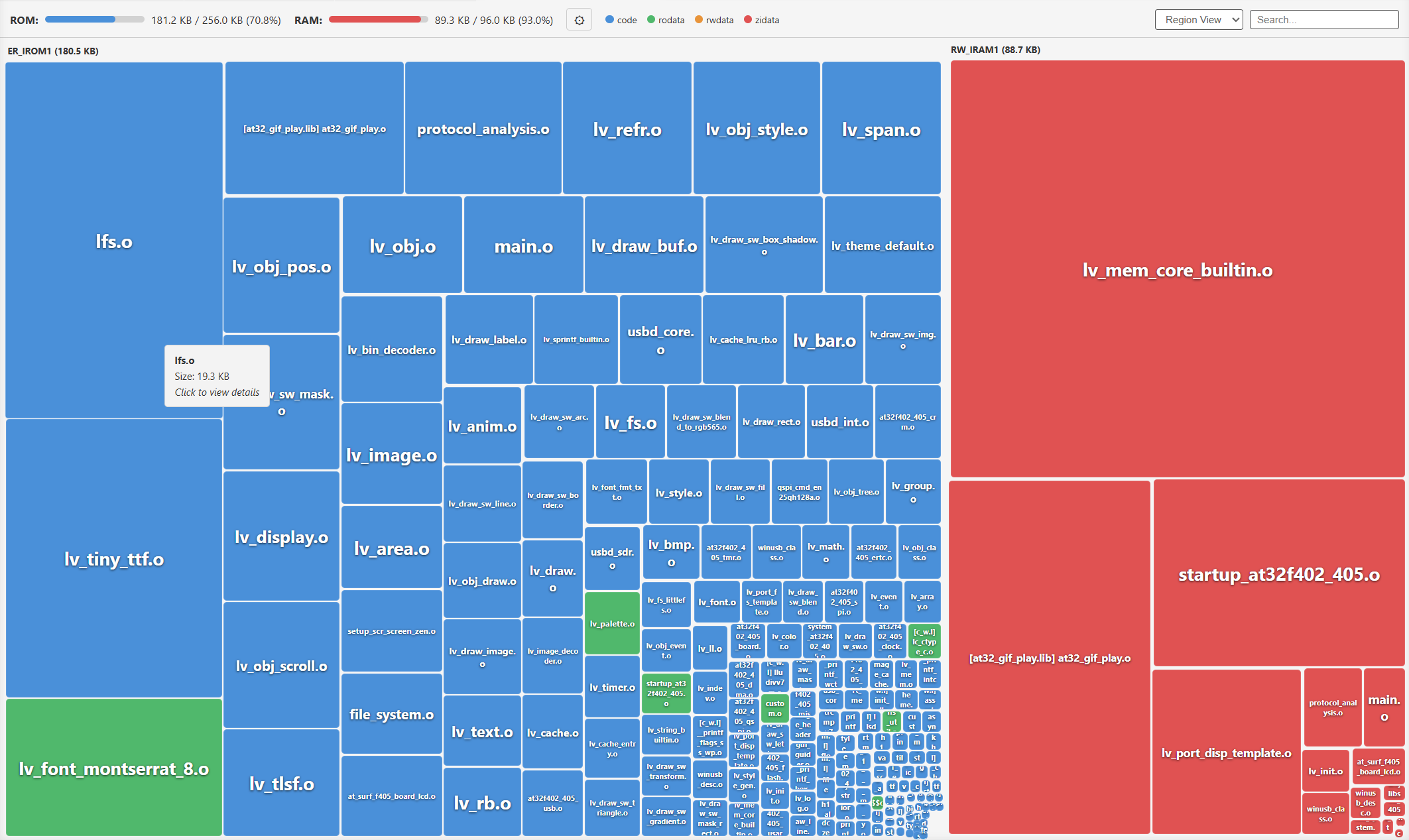
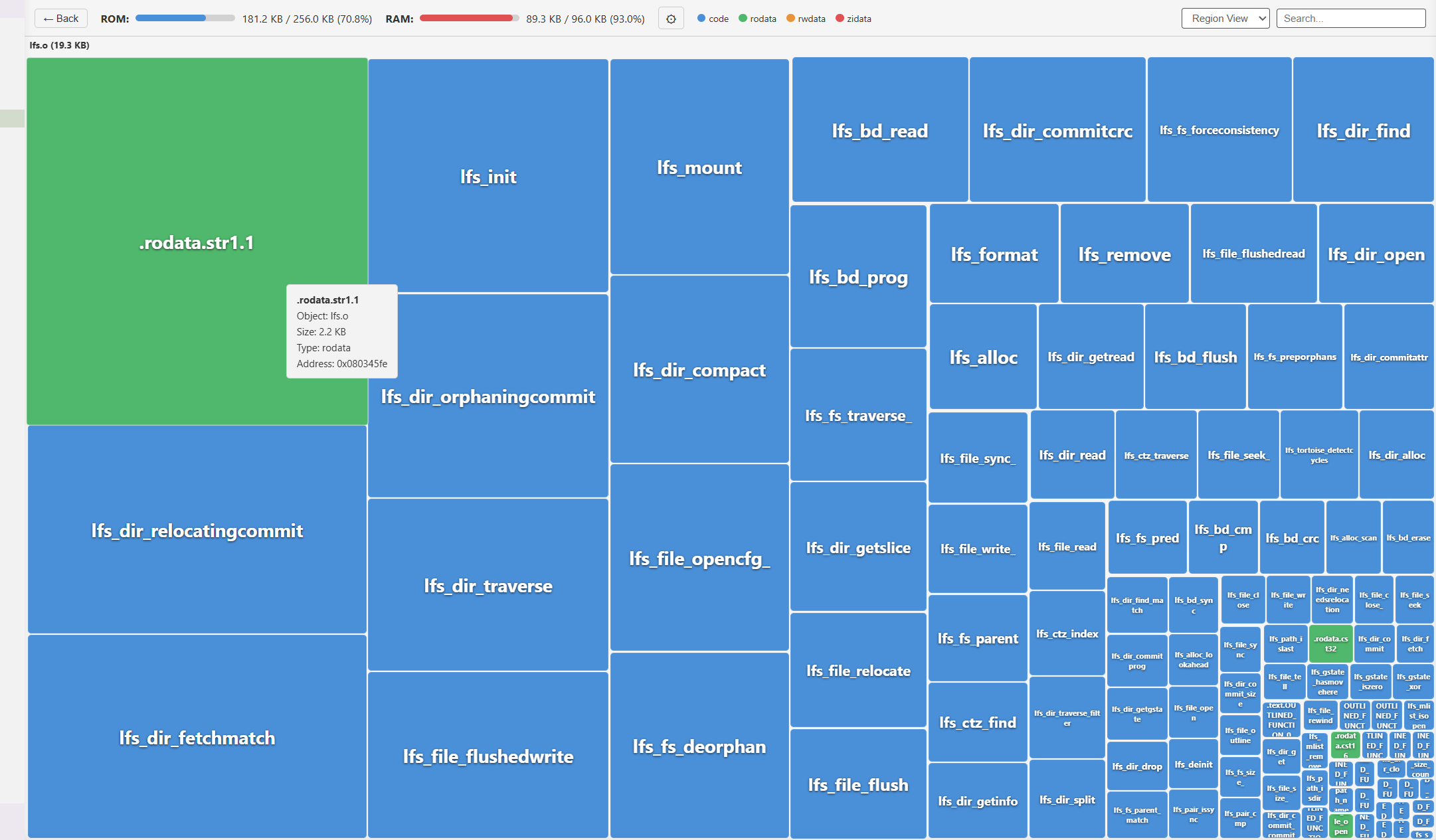
Color-coded categories — instantly distinguish Code, RO-Data, RW-Data, and ZI-Data
Search — find any symbol, module, or library across the entire map
Configurable memory size — set actual ROM/RAM totals for accurate percentage display
Zero dependencies — pure TypeScript, no external runtime libraries
Supported Formats
Toolchain
Compiler
Example Chips
Keil MDK
ARMCC / ARM Compiler 6
STM32, AT32, GD32
GCC (GNU ld)
arm-none-eabi-gcc, riscv-gcc
Any ARM/RISC-V with ld
ESP-IDF
xtensa-gcc, riscv32-gcc
ESP32, ESP32-S3, ESP32-C3
ArtInChip
riscv64-unknown-elf-gcc
D13x, D12x
Configuration
Click the gear icon in the toolbar to set ROM/RAM sizes (in KB) for accurate usage percentages. Settings are stored per-file in .vscode/settings.json.
Install
Open VS Code
Go to Extensions (Ctrl+Shift+X)
Search for "Map View Embedded"
Click Install
Quick Start
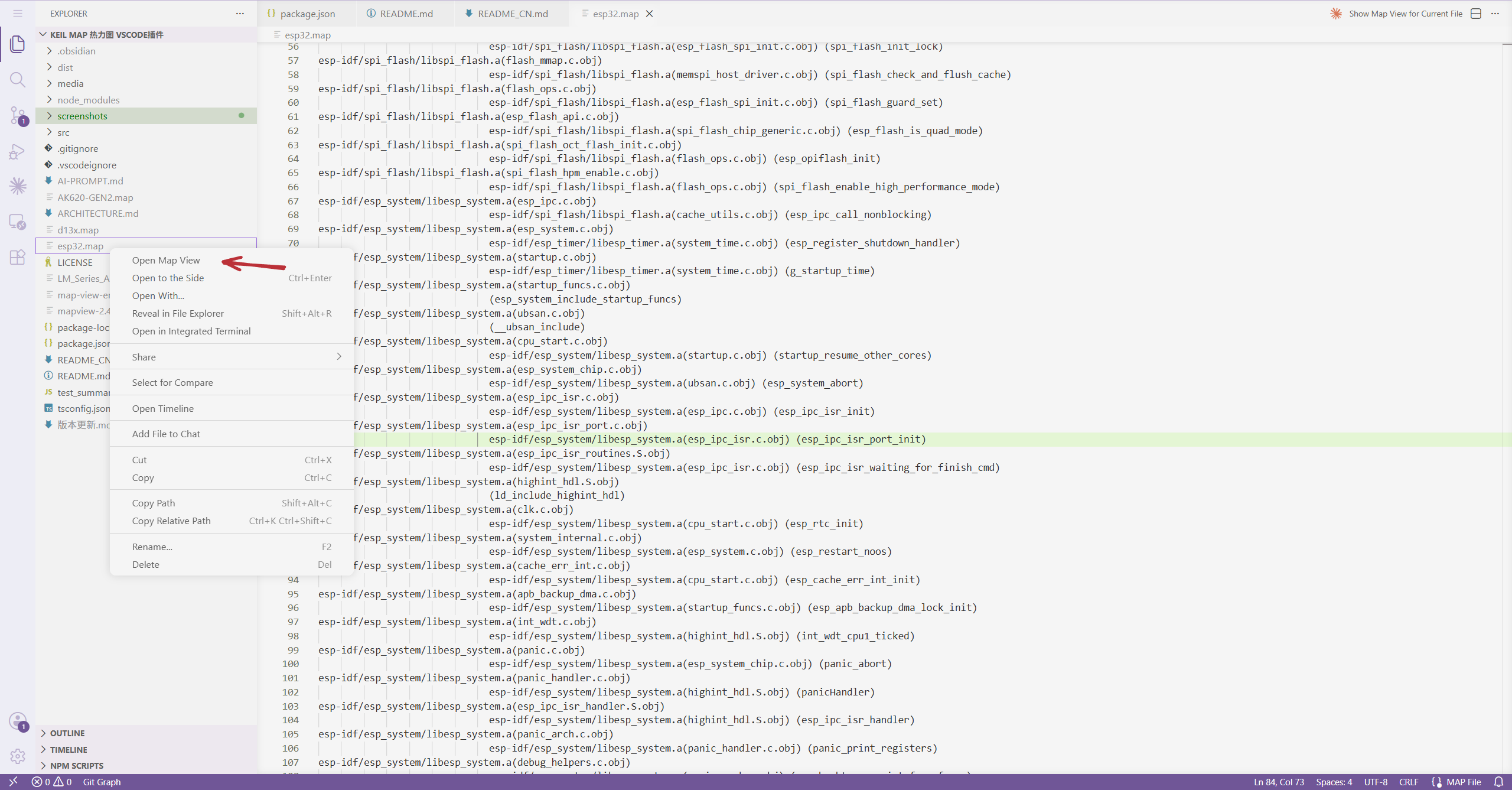
Use Ctrl+P to search and locate the map file in your project
Right-click → Open Map View
Click modules to drill down, click "Back" to navigate up
Notes
The ROM/RAM usage shown is based solely on what the .map file contains. External memory (e.g., off-chip Flash, external SRAM) or regions not reported by the linker will not appear automatically.
If the displayed totals seem inaccurate, click the gear icon to manually configure the actual ROM/RAM sizes for your target hardware.