



A standalone VS Code extension for managing AWS S3 buckets and objects directly from your IDE. No backend required — communicates directly with AWS S3 using the AWS SDK.
Screenshots
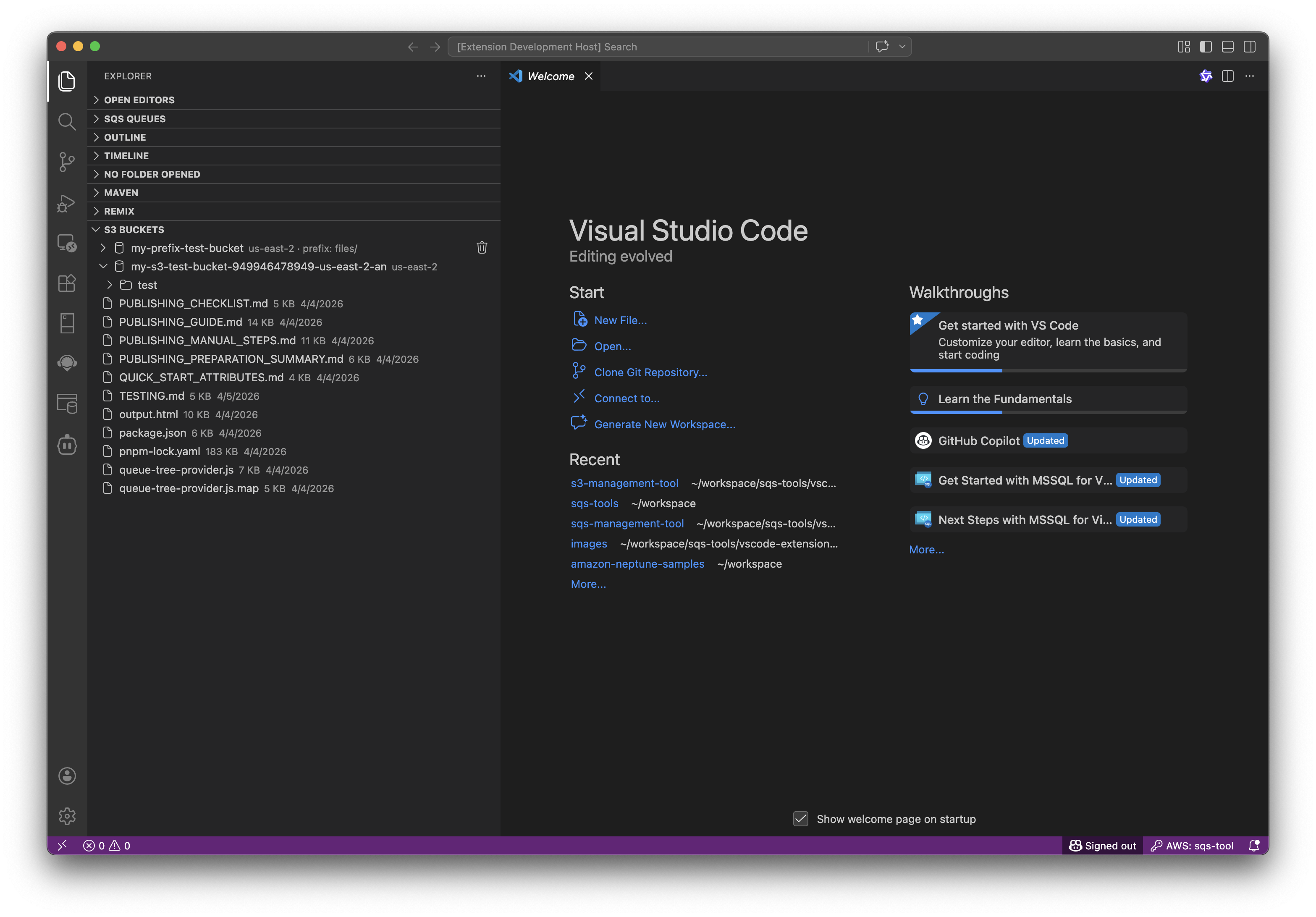
Main Tree View
Browse S3 buckets and objects in a hierarchical tree view with inline actions.
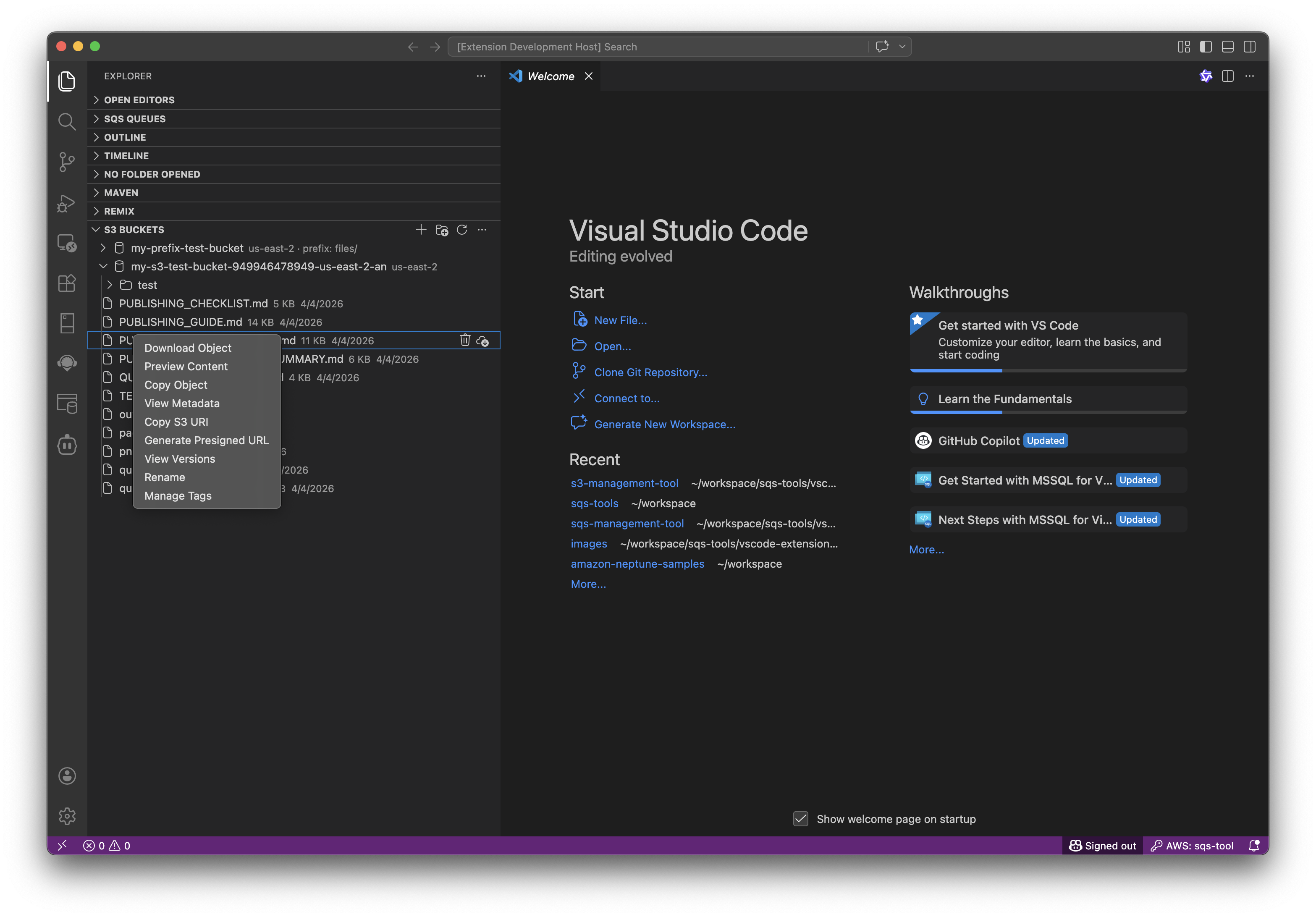
Access object operations via right-click context menu.
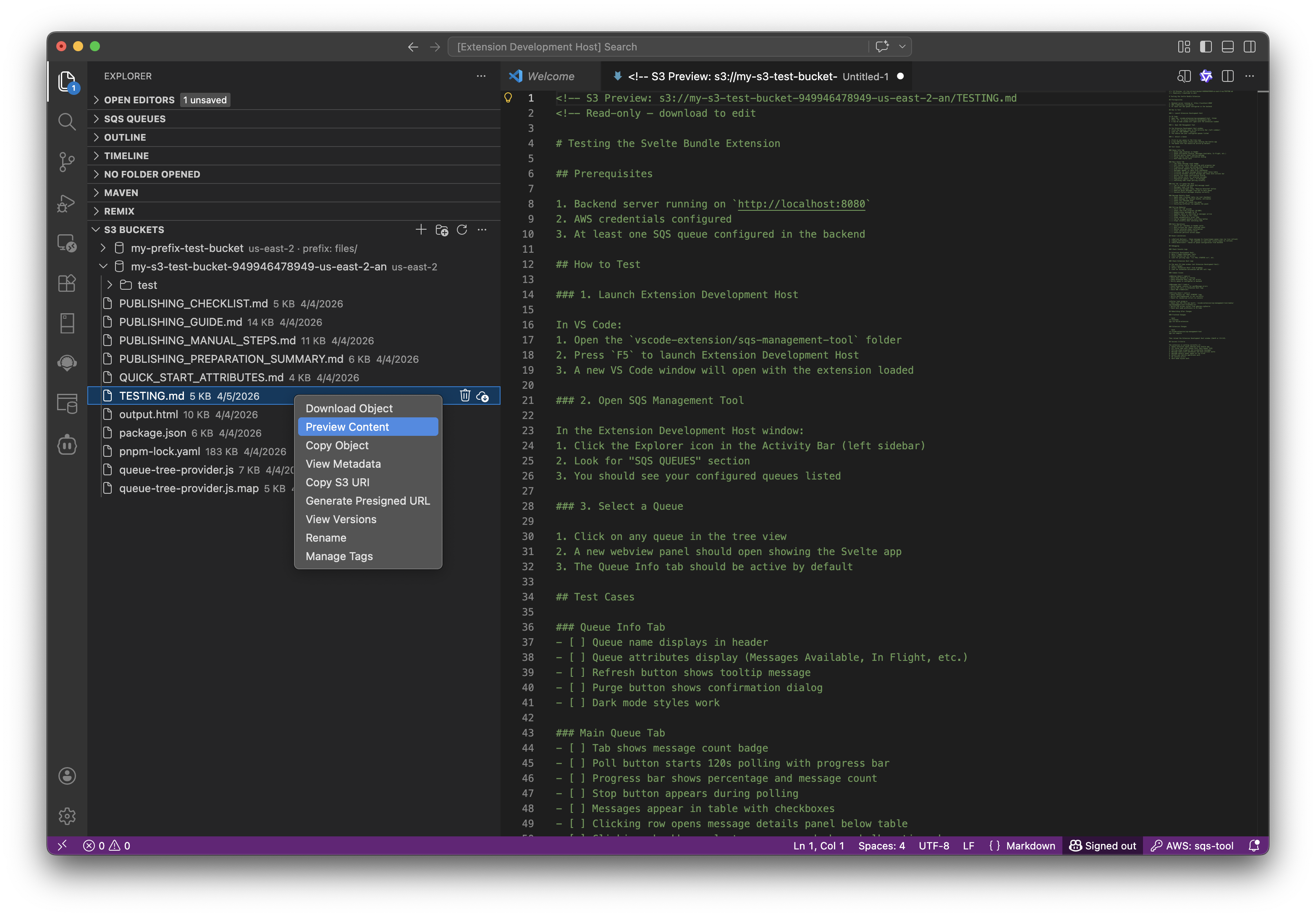
Object Preview
Preview file contents directly from the S3 bucket.
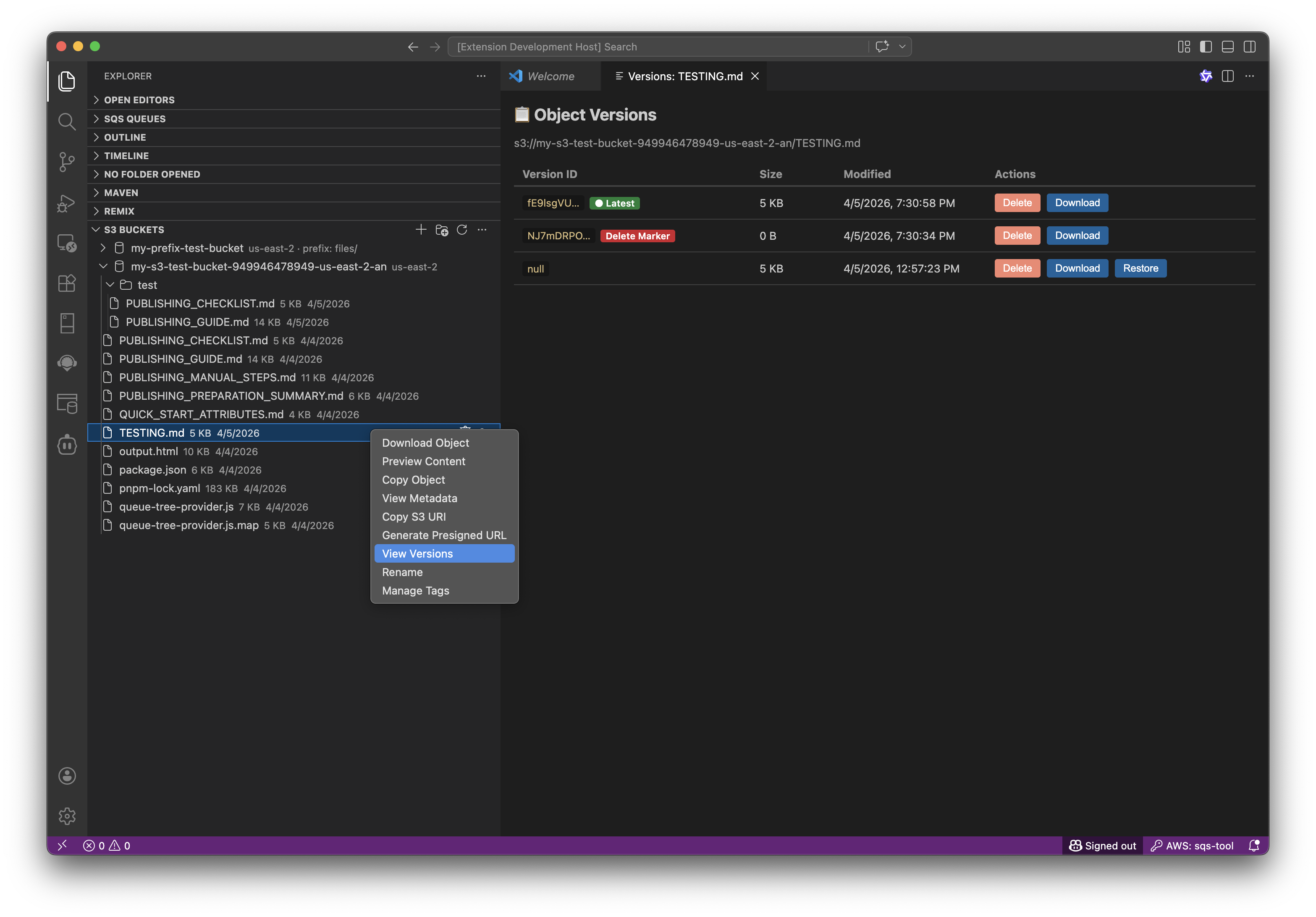
Version Management
List, restore, and delete object versions for versioned buckets.
View bucket details including region, versioning status, and policies.
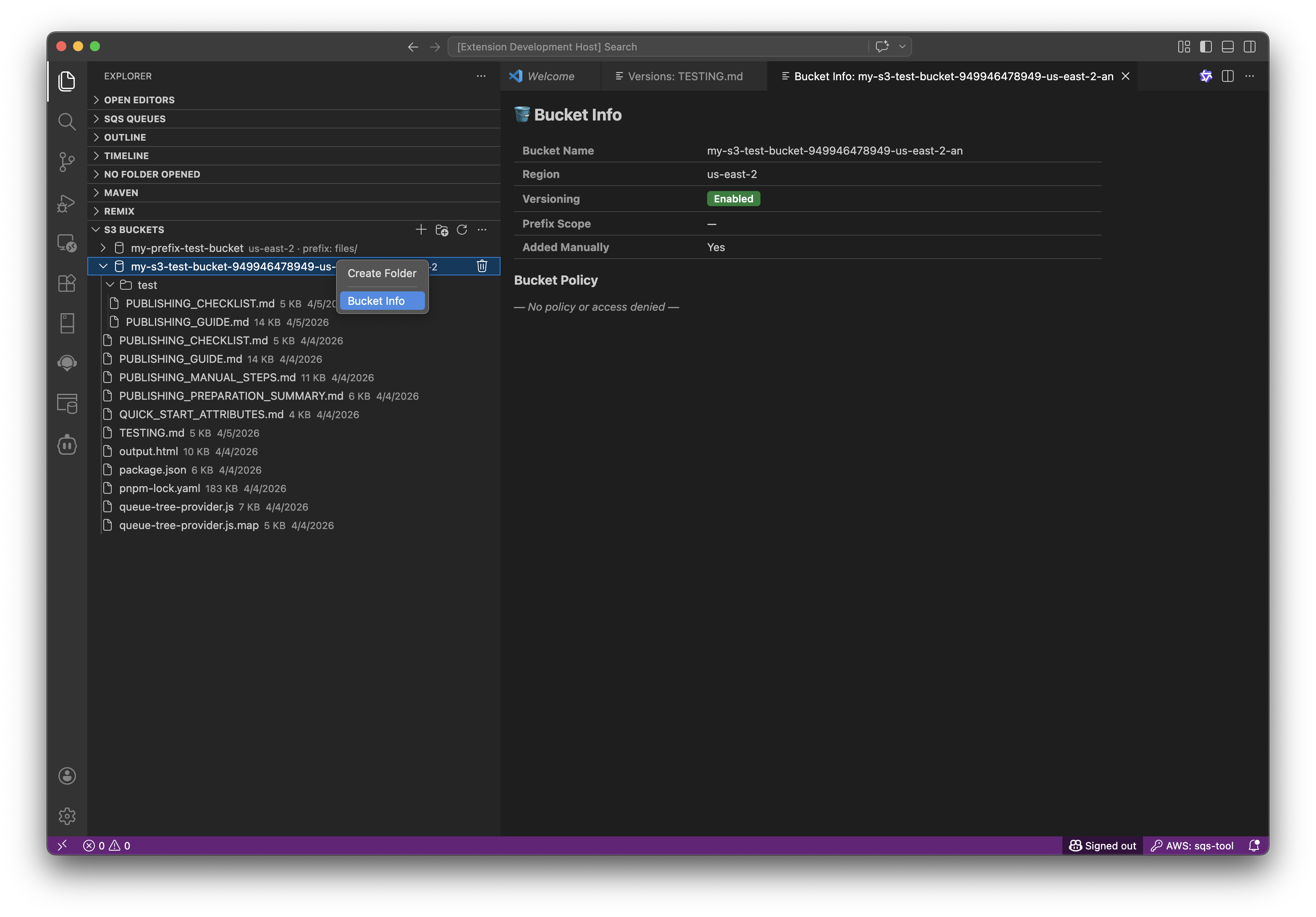
Multi-Select Operations
Select multiple items and perform batch operations like delete or download.
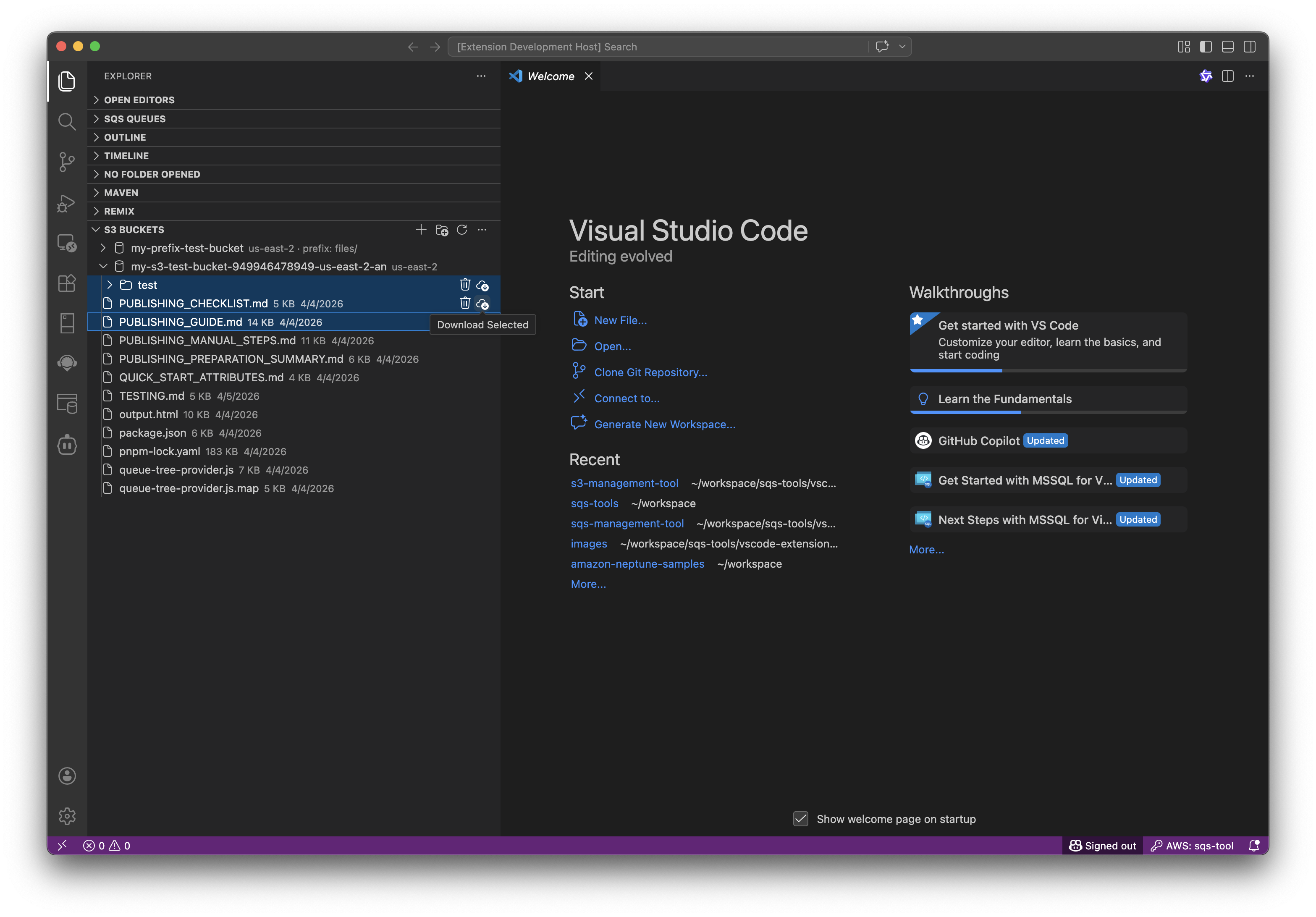
Key Features
- Bucket Management — Add by name, ARN, or prefix scope
- Drag & Drop — Drag local files into buckets/folders to upload
- Recursive Operations — Upload/download/rename/delete entire folder trees
- Multi-Select — Ctrl+Click to select multiple items, then batch delete or download
- Sync — Local ↔ S3 incremental and bidirectional sync with profiles
- Watch Mode — Auto-upload local file changes to S3 in real-time
- Versioning — List, restore, and delete object versions
- Tag Management — View and edit S3 object tags
- Rename — Rename files and folders (copy + delete under the hood)
- Prefix-Level Access — Works in shared buckets with restricted prefixes
How Multi-Select Works
| Action |
Single Item Selected |
Multiple Items Selected |
| Delete (inline button) |
Deletes the clicked item |
Deletes all selected items |
| Download Selected (inline button) |
Downloads the clicked item |
Downloads all selected items |
| Preview, Rename, Copy, Metadata, Tags, etc. (context menu) |
Operates on the clicked item |
Operates only on the right-clicked item (other selections are ignored) |
Important: When multiple items are selected and you right-click to open the context menu, actions like Preview, Rename, Copy Object, View Metadata, View Versions, Manage Tags, Copy S3 URI, and Generate Presigned URL will only operate on the item you right-clicked — not all selected items. This is a VS Code platform limitation: the extension does not receive the list of selected items for most context menu commands.
For batch operations, use the inline buttons:
- 🗑️ Delete — batch deletes all selected items
- ⬇️ Download Selected — batch downloads all selected items
Files (right-click):
- Preview · Rename · Download · Copy Object · View Metadata · Copy S3 URI · Presigned URL · View Versions · Manage Tags
Folders (right-click):
- Create Folder · Download Folder · Upload · Copy S3 URI · Rename
Inline buttons (files & folders):
- 🗑️ Delete — batch-deletes all selected items
- ⬇️ Download Selected — batch-downloads all selected items
Large Folders & Preview Behavior
Browsing Large Folders
When opening a folder (prefix) in S3, the extension loads objects in pages to maintain performance:
- Initial Load: Up to 10,000 items are loaded immediately
- Load More: If the folder contains more than 10,000 items, a "Load more files…" button appears at the bottom of the list
- Shows how many items have been loaded so far (e.g., "10 KB loaded so far")
- Click to load the next batch of up to 10,000 items
- Previously loaded items are preserved — new items are appended
- Repeat until all items are loaded
- Reset: Collapsing and re-expanding the folder resets the pagination and starts fresh
This prevents the extension from hanging or becoming unresponsive when browsing folders with hundreds of thousands of files.
Note: S3's ListObjectsV2 API returns a maximum of 1,000 objects per request. The extension automatically paginates through these requests until it reaches the 10,000 item limit or exhausts all objects.
Previewing Object Content
The Preview Content command opens text-based files directly in VS Code:
Supported Formats:
- Text files:
.txt, .log, .md, .csv, .ini, .cfg, .conf, .properties, .env, .plist
- Code:
.js, .ts, .jsx, .tsx, .py, .sh, .bash, .zsh, .sql
- Markup:
.html, .xml, .yaml, .yml, .toml, .svg, .graphql, .proto, .tf, .hcl
- MIME Types: Any file with a
text/* MIME type is also supported
Size Limits:
Read-Only: All previews open in read-only mode. Download the file to make edits.
Installation
From Source (Development)
cd s3-management-tool
pnpm install
pnpm run compile
Then press F5 to run the Extension Host.
From VSIX
- Open VS Code → Extensions → ⋯ → Install from VSIX...
- Select the
.vsix file
Commands
All commands are available via Command Palette (Ctrl+Shift+P), prefixed with "S3:".
Bucket Management
- Add Bucket by Name — Add a bucket by name
- Add Bucket by ARN — Add a bucket by ARN
- Add Bucket with Prefix — Add a bucket scoped to a specific prefix
- Remove Bucket — Remove from UI (does not delete from AWS)
- Refresh Buckets — Reload the tree view
- Bucket Info — View region, versioning, policy
- Select AWS Profile — Switch credentials
Object Operations
- Upload Object — Upload files or folders to a bucket/prefix
- Download Object — Download a single file
- Download Folder — Download an entire prefix recursively
- Delete Object — Delete files or folders (recursive)
- Rename — Rename a file or folder
- Preview Content — Open text files in a read-only editor
- View Metadata — Inspect object properties
- Copy Object — Copy to another bucket/prefix
- Copy S3 URI — Copy
s3://bucket/key to clipboard
- Generate Presigned URL — Create a temporary access link
- View Versions — List, restore, or delete object versions
- Manage Tags — View and edit object tags
Sync
- Sync Local to S3 — Upload local directory to S3
- Sync S3 to Local — Download S3 to local directory
- Bidirectional Sync — Two-way sync with conflict resolution
- Create/Run/Edit/Delete Sync Profile — Save and manage sync configurations
- Start/Stop Watch Mode — Auto-upload local changes to S3
- View Sync Results — Review last sync outcome
IAM Permissions
Minimum (Core Functionality)
{
  "Effect": "Allow",
  "Action": ["s3:GetObject", "s3:PutObject", "s3:DeleteObject", "s3:ListBucket"],
  "Resource": ["arn:aws:s3:::bucket-name", "arn:aws:s3:::bucket-name/*"]
}
Optional (Enhanced Functionality)
{
  "Effect": "Allow",
  "Action": ["s3:ListAllMyBuckets", "s3:GetBucketVersioning", "s3:GetBucketPolicy",
             "s3:GetObjectTagging", "s3:PutObjectTagging"],
  "Resource": "*"
}
Testing
pnpm test          # Unit + property tests
pnpm run test:e2e  # E2E tests (requires LocalStack)
Architecture
See WALKTHROUGH_GUIDE.md for a detailed walkthrough.
License
MIT License — See LICENSE for details.

