This is no longer actively developed. If you're interested in taking this over, please reach out.

Newman the cli Companion for Postman
** Not an official task **
Using Newman, one can effortlessly run and test a Postman Collections directly from the command-line. Now in a task!
How to
You can include this task in a build or release pipeline. Here's a quick 'How To'
Requisites
Add a npm task to install Newman before execution.
Set a display name (eg : 'Install Newman').
Set custom as command
As 'Command and arguments' set install newman -g. Note that if the task version doesn't yet support the latest Newman version, an older version can be used, e.g. install newman@4.6.1 -g.
Execution
Configure this task as per your requirements. (see here and here for options)
Report
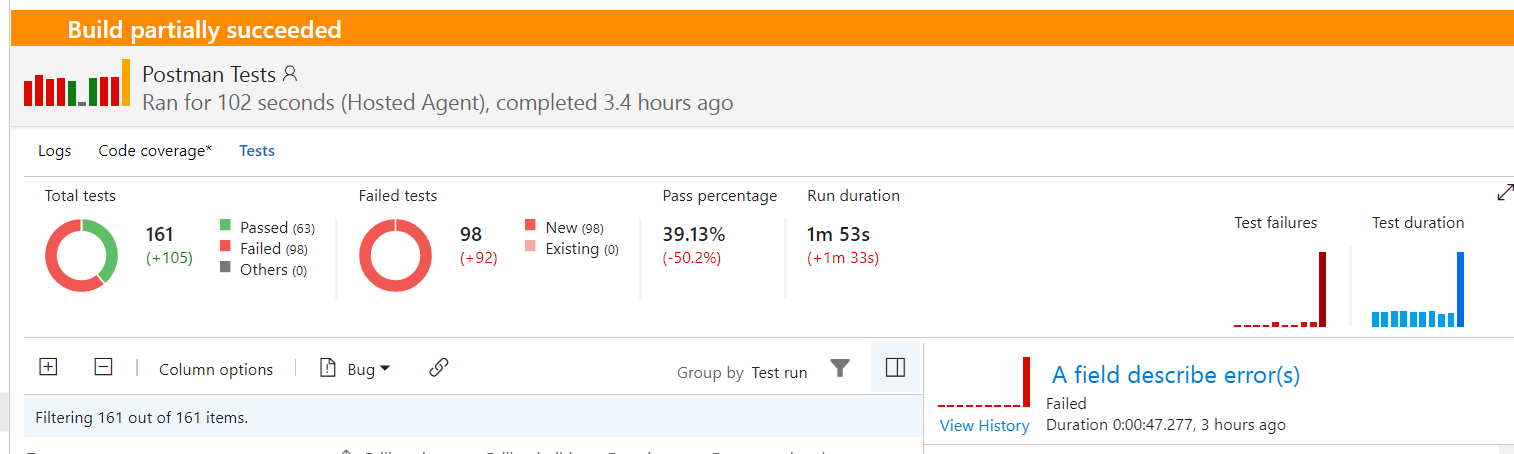
Test report can be integrated in Team Services.
To do so :
- Select at least
junit as a reporter option (others can be added).
- Optionaly specify path to export junit report.
- Add a 'Publish Test Result' task, to process generated Junit report. Specify format (JUnit) and path and to xml file.
Execution is now reported with test statistics.
Add a npm task to install Newman-reporter-htmlextra before execution.
Set a display name (eg : 'Install Newman-reporter-htmlextra').
Set custom as command
As 'Command and arguments' set install -g newman-reporter-htmlextra
Select "htmlextra" from the reports list
Accessing reports as build artifacts
The cli, json, html, htmlextra, and junit reporters write to the build agent's filesystem. Once the agent is recycled the files are gone, so to keep them you need to publish them as artifacts in the same pipeline run. Two pieces:
Point the reporter export at the agent's staging directory. For example, set Reporter Junit Export to $(Build.ArtifactStagingDirectory)/newman/results.xml and Reporter Html Extra Export to $(Build.ArtifactStagingDirectory)/newman/report.html. (When Collection File Source points at a directory and matches multiple collections, the task suffixes each export filename with the collection name so per-collection results don't overwrite each other.)
Add a Publish step after this task:
- task: PublishBuildArtifacts@1
  condition: succeededOrFailed()
  inputs:
    PathtoPublish: '$(Build.ArtifactStagingDirectory)/newman'
    ArtifactName: 'newman-reports'
condition: succeededOrFailed() makes sure the artifact is uploaded even when test assertions fail (which causes the Newman task itself to fail). The reports then appear under the run's Artifacts page; HTML reports can be downloaded and opened locally.
For JUnit specifically, the more idiomatic flow is to keep Reporter Junit Export under $(Build.ArtifactStagingDirectory) and hand the same path to a PublishTestResults@2 step (see Report), so the results show up under the run's Tests tab instead.
Viewing test output in pipeline logs
The Newman cli reporter is what prints the run summary table, per-request status, and any assertion failures into the pipeline log. If your Reporters field has only junit (or only html/json) the log will look almost empty — the test results are real, they're just in the file you exported, not in stdout.
To see test output in the pipeline log:
- Make sure
cli is included in the Reporters field (e.g. cli,junit). cli is selected by default in the UI but easy to drop accidentally when editing YAML.
- For per-request request/response details, enable the Show detailed information input (Advanced group) — this forwards Newman's
--verbose flag.
Note About Failed Tests
If your tests are failing, then you will not see the results in the test tab. You can read more about it here, but to resolve that you can:
- On the task for the Postman tests mark the checkbox for Continue on Error.
- Add a Publish Test Results task and have it search for the following test file *\newman-.xml.
Realize that this will then NOT fail your pipeline because your tests failed. There is currently no documented way around this.
Limitations
Following command line options are not supported:
-x,--suppress-exit-code-color--ssl-client-passphrase- None of the CLI option
Breaking change(s)
Version 4.x
- The
sslStrict parameter is renamed as sslInsecure in order to better match with the actual behavior of the parameter: setting it to true will use newman --insecure option to disable the strict SSL verification.
Known issue(s)
Learn More
The source to this extension is available. Feel free to take, fork, and extend.
View Notices for third party software included in this extension.
If you use a Postman Enterprise account workspace check out this task to use in a pipeline. Here's the post explaining it from the tasks author.
Minimum supported environments
- Azure DevOps Services
- Team Foundation Server
Contributors
We thank the following contributor(s) for this extension:
Feedback

