BBC micro:bit MicroPython
Build and flash a MicroPython project to a BBC micro:bit, connect to the device
serial and REPL, or run your code in the built-in simulator 🐍🤖.
Works on VS Code and its web versions (vscode.dev), in
compatible editors, without any additional local dependencies.
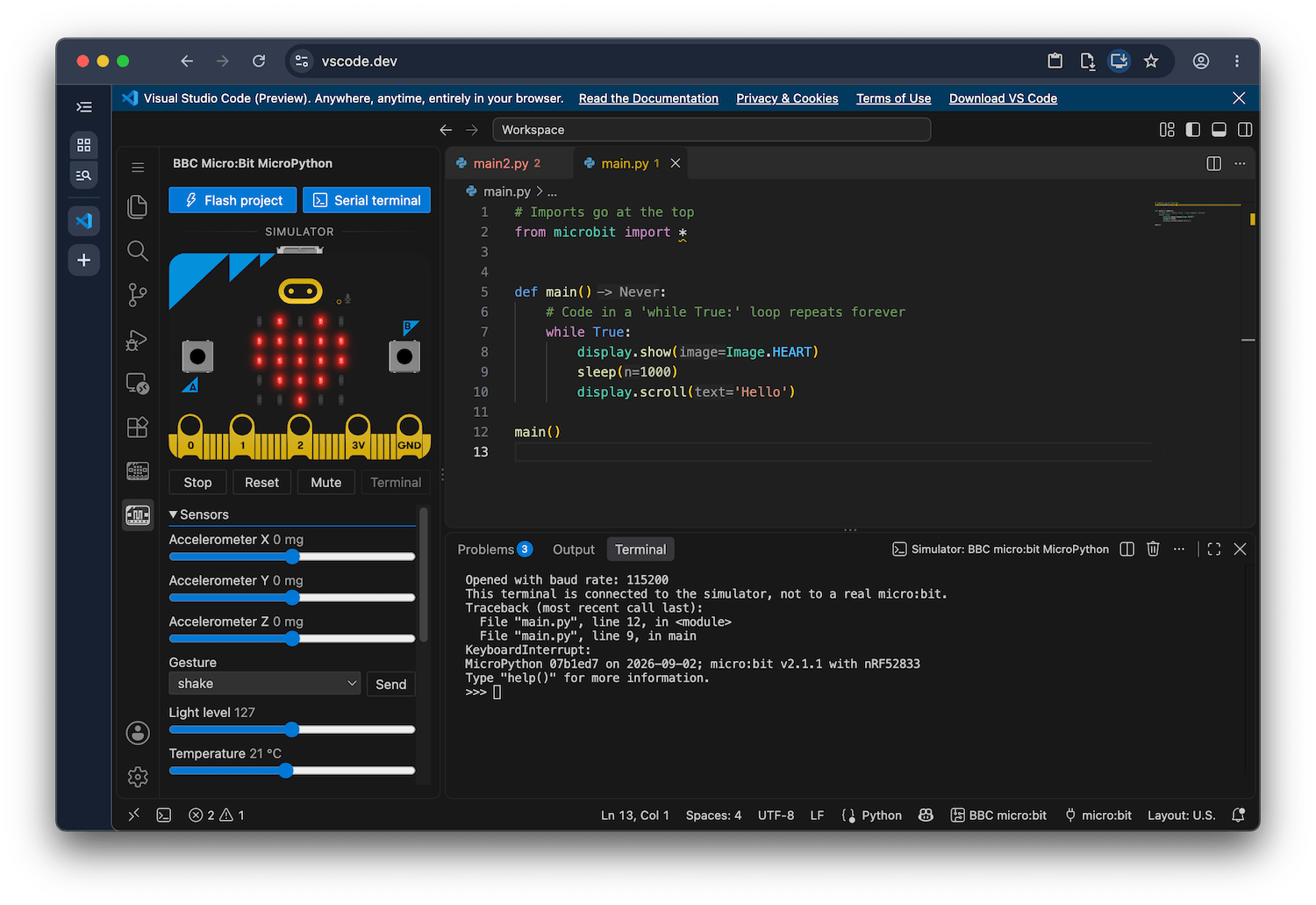
🚧 Extension still under construction. Most features are implemented and should
be usable, if you find any issues please raise a bug, it'll be very appreciated!
https://github.com/carlosperate/vscode-microbit-micropython/issues
How to use it
- Write your code in
main.py (or any file in your project folder).
- Click the BBC micro:bit MicroPython icon in the activity bar on the side and
press play on the board there, your code will run on the simulator.
- To run it on a real board, plug in your micro:bit with a USB cable.
- Click the Flash MicroPython project button, at the top of the same side
bar.
- Using non-Chromium browsers? Click on the micro:bit icon in the status bar
at the bottom and choose Save Hex instead, then drag the saved
file onto the
MICROBIT drive that appears when you plug in the board.
- To talk to the board, click Open serial terminal below it, or choose
Open Serial Terminal from the status bar menu.
Press
Ctrl+C to interrupt the running program and get a MicroPython prompt.
- Every other command is one click away: hover over the buttons and click the
Show All Actions icon at the right of their header.
What it does
- Run in Simulator: Run your project on a simulated micro:bit in the side
bar.
- Flash project: Build a MicroPython hex from your project folder and send
it to a connected micro:bit.
In a Chromium based browser this goes over WebUSB, in desktop VS Code it uses
the
MICROBIT USB drive.
- Serial terminal: Access the MicroPython REPL from the board, inside a
VS Code terminal.
- Save Hex: Builds a hex from your workspace and MicroPython, the same way
the micro:bit's online Python editor does, and saves it. You can copy this
file onto the
MICROBIT drive to run your code.
The BBC micro:bit Manager
extension is installed automatically with this one. It owns the connection to
the board and the micro:bit menu in the status bar, which lists this
extension's commands too. It has its own icon in the activity bar, beside this
extension's.
Your project folder
Every file in your micro:bit project folder goes on the board, not only
main.py and not only .py files. The default exceptions are: files inside
folders, dot files, and .hex or .map files.
The micro:bit internal filesystem is flat, so it cannot contain folders.
Add further exclusions in Settings with bbcmicrobit-micropython.files.exclude,
using patterns such as *.md or notes.txt. This list defaults to empty;
the built-in exclusions always apply.
The project folder is the whole workspace by default. If your code lives in a
subfolder, run the Select MicroPython Project Folder command to select it.
What works where
|
Simulator |
Flash project |
Serial REPL |
Save Hex |
| Desktop VS Code |
✅ |
✅ copies to the MICROBIT drive |
✅ native serial port |
✅ |
| Chrome, Edge and other Chromium browsers |
✅ |
✅ WebUSB |
✅ WebUSB |
✅ |
| Firefox 151+ (desktop) |
✅ |
❌ no WebUSB, use Save Hex |
❓ Web Serial (theoretically, known issue present) |
✅ |
| Safari |
✅ |
❌ no WebUSB, use Save Hex |
❌ no WebUSB or Web Serial |
✅ |
The simulator is the one column that is a tick everywhere: it needs no board, no
cable and no browser device API, only WebAssembly.
Requirements
- VS Code desktop, or if used in the browser, a Chromium-based browser for
WebUSB flashing and Serial Terminal.
- Firefox also supports the Serial Terminal, using Web Serial instead.
- Desktop VS Code needs no WebUSB: it copies to the
MICROBIT drive.
- The BBC micro:bit Manager extension
is installed automatically with this extension. It owns the connection to
the board and the shared micro:bit panel.
- The Eclipse Serial Monitor extension
is installed automatically with this extension, used to open a serial
terminal.
- The MicroPython & CircuitPython IntelliSense extension
is installed automatically for autocomplete, type checking, and inline
documentation.
Licence
MIT, see LICENSE.
The bundled MicroPython firmware images come from
bbcmicrobit/micropython (V1) and
microbit-foundation/micropython-microbit-v2
(V2), both MIT licensed.
The MicroPython logo used in the extension icon comes from the
MicroPython project under the
MIT License.
The micro:bit simulator is built from
micropython-microbit-v2-simulator,
under the MIT License.

