PlainText+ — A little more useful.
Plain text, plus lightweight outlines and simple highlights — all without changing how you write.
Marketplace の事情により、この拡張機能は新しいパブリッシャー(Capplicorn Works)から再公開しました。
5,500名のすでにご利用中の方は、この新しいバージョンをインストールしていただくことで、引き続きアップデートを受け取れます。
ご不便をおかけします🙇♂️
This extension has been re-published under a new publisher (Capplicorn Works) due to a Marketplace issue. Existing 5,500 users can safely install this version to continue receiving updates.
Sorry for the inconvenience!
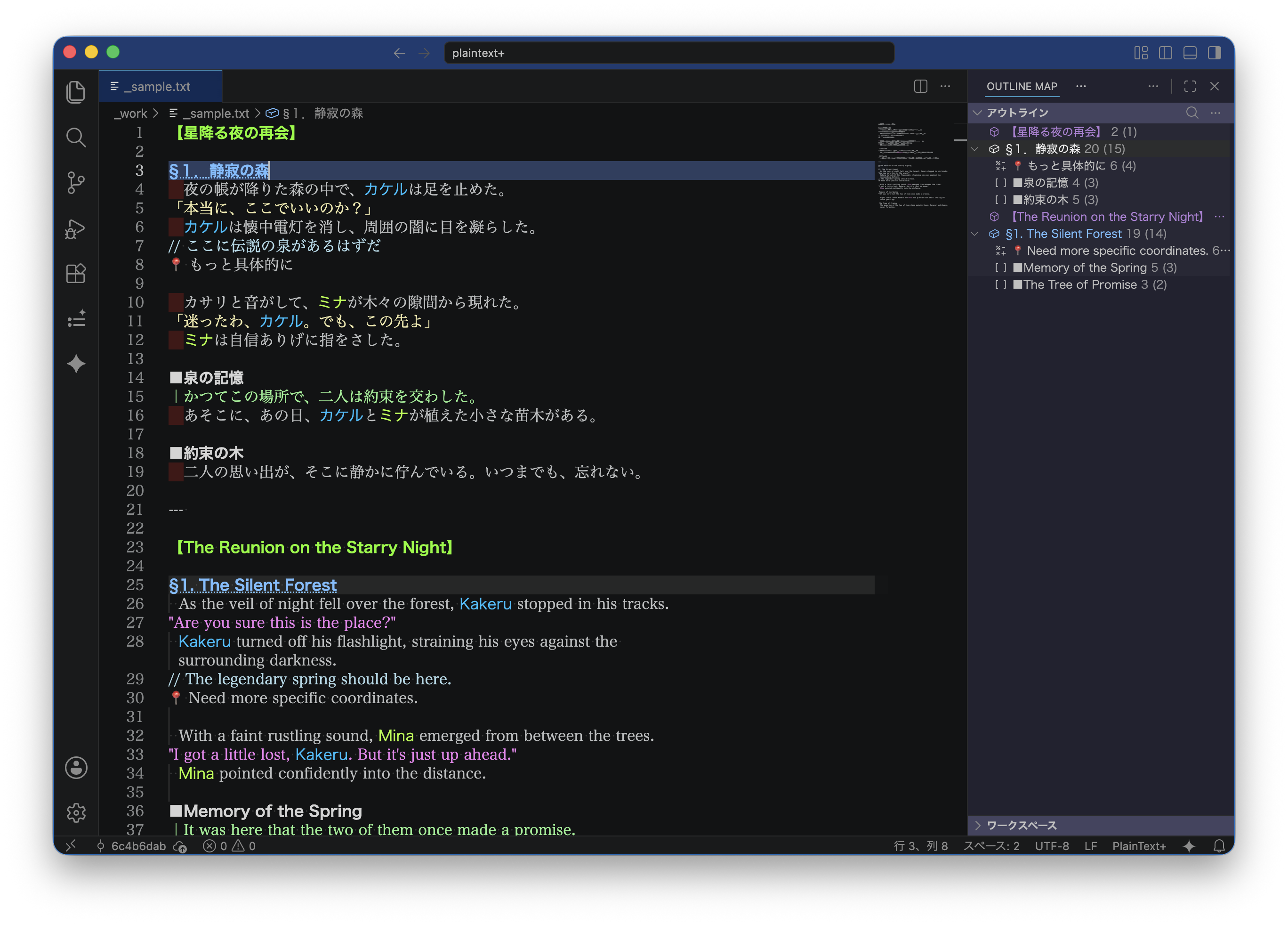 フルサイズで開く
主な用途 / Main Uses
- メモ / Notes
- 日記 / Diaries
- 小説 / Novels etc.
主な機能 / Features
- アウトライン / Outline
行頭の記号(【、▼、■など)から即座にアウトラインを生成
Instantly generate outlines from symbols at the start of a line (e.g., 【, ▼, ■)
- ハイライト / Highlighting
キーワード・行・コメント・囲み記号を柔軟に装飾。入れ子構造の囲みにも対応
Flexible highlight styling for keywords, lines, comments, and nested delimiters, so you can make important text stand out or blend in
- 辞書補完 / Dictionary Completion
「@」を入力すると、登録した文字列を補完候補として表示。選択して入力
Typing "@" displays registered strings as completion candidates. Selected strings are inserted
- ナビゲーション / Navigation
次・前のシンボルへジャンプする独自コマンド搭載
Equipped with unique commands to jump to the next/previous symbols
- 折りたたみ / Folding
アウトラインの項目ごとに折りたたむことができます。「現在位置以外を折りたたむ」コマンドも搭載
Includes a "Fold Others" command to keep focus on the current position path
Recent Update (v2-)
- v2.2.0 Add the virtual nodes
“– START –” and “– END –” (Document Edges)
to the top and bottom of the outline.
- v2.1.2 re-published
- v2.1.1 Added Unfold All command (wrapper for VS Code’s unfoldAll)
- v2.1.0 — Folding update
- Added Folding Range support for outline levels 1-8
- Level 9 remains a lightweight marker (no folding / no Sticky Scroll target)
- Added the "Fold Others" command (fold everything except the current position path)
- v2.0.0 — Celebrating 5,000 Downloads!
- Structural parsing is now fully handled on the client side
- Startup time is roughly 1/10 compared to earlier versions
- General responsiveness has improved as well
- The look and behavior remain exactly the same
For the English version, please scroll down to the section titled About PlainText+.
PlainText+ について
「プレーンテキストのまま、ちょっと便利に」
新しい記法を覚えたり、プレビューと行ったり来たりすることはありません。
目の前でストレスフリーに書いたテキストが、そのままでも見やすい記号でアウトラインに展開、登録したキーワードや会話文のハイライトもできるVS Code拡張機能です。
ざっくり言うと、入力するのは単なるプレーンテキストで、アウトラインにしたいところに記号を入れるだけ、キーワードは設定しておけば勝手にハイライト、を実現する非常にシンプルなものです。
どうして作ったのか
プレーンテキストを構造化にしたいときにまず候補に挙がるのは Markdown ですが、そこまで高機能でなくていいのでプレーンテキストのままでアウトラインが表現できたらというところから、以前から区切りに日本語フォントにあるいろいろな記号を置くだけの記法を使っていました。
それをアウトラインに抽出してジャンプしたり、目立たせたいキーワードをハイライトするだけ、ちょっと便利にするために作ったのが PlainText+ です。
「日本語フォントの記号って言われても入力できない」という方には、「-- 」「** 」みたいな、IMEなしでも入力しやすいものを使ってもいいですし、「## 」にすることも可能です。
最近では絵文字も当たり前に使えるので、目立つ絵文字を使うのも見やすいと思います😊
Extensionの機能
アウトライン抽出
PlainText+ では、設定した記号や文字列を先頭や行内に入力するだけで、VS Codeのアウトラインビューに表示されます。レベルの設定をすると階層構造にすることも可能です。
各アウトライン項目には配下となる部分の行数が表示されます。カッコ内は空行を除いた行数が表示されます。
また、Sticky Scrollにも対応しています。
ハイライト
マッチしたキーワードの高速なハイライトと、コメント囲み、行全体装飾などを行うことができます。
入れ子構造の「あああ(いいい)あああ」みたいなものにも対応しています。
辞書補完(@トリガー)
@キーを押すことで本文中や設定に登録した文字列を補完候補として表示します。
登場人物や頻出するキーワードなどを登録しておくと便利です。
ナビゲーション
次・前のシンボルへジャンプする独自コマンド搭載しています。
キーボードショートカットに登録すると便利です。
折りたたみ
アウトラインの項目は行番号左の > で折りたたむことができます。
「現在位置以外を折りたたむ」コマンドも搭載しているので、長文を編集する際などにはスクロール量を減らすことができます。
「すべてを展開」コマンドで折りたたまれた部分を展開することも可能です。
コマンド
シンボルジャンプ
- Next Symbol (次のシンボルへ) 例:opt+]
- Prev Symbol (前のシンボルへ) 例:opt+[
アウトラインに抽出されたシンボルを元にジャンプするコマンドです。
keybindings.jsonでショートカットキーを設定するとかんたんに使えます。
日付入力
- Insert Date (日付入力) 例:opt+^
日記を書いたりするときに便利な、今日の日付を入力するコマンドです。
keybindings.jsonでショートカットキーを設定するとかんたんに使えます。
ハイライトリセット
- Reset Highlights (ハイライトを再適用)
現在の装飾を一度消して、最新のハイライトを再適用するコマンドです。
ステータスバーの wand アイコン、またはコマンドパレットから実行できます。
wand アイコンは、ハイライトがきれいに適用済みの状態では光り、編集中は消えるようになっています。
自動リセット
ハイライトが複雑な入れ子になったりするとどうしても想定通りの装飾にならない場合が発生するので、自動でReset Highlightsを実行する自動リセット機能も搭載しています。
設定でオン/オフと編集停止からの遅延時間を変更できます。
デフォルトでオン、5,000ミリ秒(5秒)に設定しています。
折りたたみ
- Fold Others (現在位置以外を折りたたむ)
- Unfold All (すべてを展開)
現在位置以外をアウトライン項目に基づいて折りたたむコマンドです。
長文を編集する際などにたまに実行するようにするとスクロール量が減らせて便利です。
「すべてを展開」コマンドは、VS CodeのunfoldAllコマンドをラップしたものです。
設定(settings.json)
デフォルト設定をあえて用意していませんので、サンプル(最下部参照)をベースに settings.json に追加してください。
ユーザー共通のアウトラインやハイライトの設定はユーザー設定に置いて、作品単位のキーワードなどは対象フォルダーの .vscode/settings.json に置くと管理しやすくなります。
同じキーが対象フォルダー側にもある場合は、そちらが優先になります。
アウトライン設定(plaintextplus.outline)
記号や文字列をキーとして、レベル、シンボル種別を設定します。
同じレベルに複数文字を設定する場合は「|(パイプ)」で区切ってください。
※ 絵文字を使っても便利かも☺️
※ # とか ## とかを設定するとMarkdownっぽくもできます
ここで設定したキーで VS Code のアウトラインに抽出され、シンボルジャンプ機能が使えます。
上位階層(レベルの数字が小さいもの)の後ろに下位階層(数字が大きいもの)があると、ネストして配置されます。
今の階層より上位のシンボルが来ると、その階層までネストが上がります。
レベル1のシンボルは必ず最上位階層にリセットされます。
レベルは1〜9まで割り当て可能です。
アウトラインに関する装飾の設定もここで行います。設定がない場合は自動的にアウトラインシンボルに準じた装飾(VS Code準拠)が自動的に行われます。
※ 同じ階層でもキーを分けると別の装飾にしたりできます🙆♂️
level: 1 ~ 9 数字が大きいほど下位symbolKind: Operator / Method / Array / Field などmatch: head / inline (抽出方法)- ハイライト設定は共通です
文書両端ノード表示 (plaintextplus.outline.showDocumentEdges)
アウトラインの先頭と末尾に、ジャンプ用の仮想ノード — START — と — END — を表示するかどうかを設定します。
true(デフォルト): — START — / — END — を表示false: 通常のアウトライン項目のみ表示
開始終了がある場合は、「|」で区切ってください(例: "「|」")。
「|」がなく単体の場合は、行コメントとして扱います(例: "//")。
※ 「|」を設定すると会話文だけフォントや色を変えたりできます
※ 《|》を設定すると青空文庫のルビにも使えます
キーワードハイライト(plaintextplus.keywords)
キーワードをハイライトします。
設定したキーワードだけを装飾したり、行全体やキーワード以降を行末まで装飾したりすることができます(range)。
マッチの方法は、「head(行頭)」または「inline(行内)」のいずれかが選べます。
※ 登場人物名などを色分けすると登場頻度がパッと把握できてバランスが取りやすかったりします。
match: head / inline (抽出方法)- ハイライト設定は共通です
共通ハイライト設定
color: 文字色(色名、#ff0000など)backgroundColor: 背景色fontFamily: フォントファミリー(例: "'Noto Sans JP'")fontWeight: 太さfontStyle: スタイルtextDecoration: 装飾(下線など)range: match, line(行全体), after(行末まで)
辞書補完(plaintextplus.dictionary)
のように登録します。複数行の登録も可能です。
補完時には登録順でリストに表示されます。
また、本文中の@@始まりの行についても候補に表示されます。
並び順の優先順位は、本文中 > settings.json です。
自動リセット(plaintextplus.autoReset)
enabled: true / false
自動リセットを実行するかどうかdelayMs: 0〜 (デフォルトは5000)
編集停止後、自動リセットを実行するまでの遅延時間(ミリ秒)。
参考
アウトライン用記号の例
以前から使っている自分記法からの例。あくまでも一例です。
実際にはお好きな記号や文字列を設定してください。
- 第1階層(レベル1)チャプター(章)…【 , §
- 第2階層(レベル2)パラグラフ(項)…▼, ▲, ▽, △
- 第3階層(レベル3)ディビジョン(目)…■, □, ●, ○, ◎
- 第4~8階層(レベル4~8)必要に応じて設定してください
- 第9階層(レベル9)タグ、目印…†, 📍
最終階層です。
いつでも最下層に位置するので目印に使うと便利です。
アイコンについて
アイコンのヤギさんは作者のマスコットです。
バージョン履歴
- v1.0.0 新規公開
- v1.0.1 スクリーンショット追加
- v1.0.2 スクリーンショット不具合修正、README.md更新
- v1.0.3 スクリーンショット不具合修正
- v1.0.4 アイコン、README.md更新
- v1.0.5 スクリーンショット不具合修正
- v1.0.6 タグ整理、バナー色変更
- v1.0.7 タグの整理
- v1.1.0 辞書補完追加
- v1.1.1 コメントハイライトの同種記号での入れ子がうまくできていなかったので修正
- v1.2.0 Reset Highlightsコマンド追加
ハイライト用設定項目backgroundをbackgroundColorに変更
使っていなかったSemantic Tokens機能を廃止
- v1.3.0 自動リセット機能と設定を追加
ウィンドウ右下にwandインジケーターを追加
- v1.3.1 autoResetの設定値を1項目にまとめる
- v1.3.2 起動時の余分な装飾リクエストを削減
リセット時に他のタブの装飾が一部消える不具合を修正
リセット完了後に Sticky Scroll 行の装飾が消えるのを回避
Sticky Scrollを自動有効化からユーザー設定に準じるよう変更
- v2.0.0 構造解析をすべてクライアント側に統合
起動が従来の約 1/10 に高速化
全体的なレスポンスも向上
見た目・挙動は従来のまま(完全維持)
- v2.1.0 折りたたみ機能を追加
レベル9は軽量マーカーとして範囲を持たないため、折りたたみ、行数表示、Sticky Scrollの対象外としました
「現在位置以外を折りたたむ」コマンドを追加
- v2.1.1 「すべてを展開」コマンド追加
VS CodeのunfoldAllをラップしたものです
- v2.1.2 再公開
- v2.2.0 アウトラインの先頭と末尾に「-- START --」と「-- END --」の仮想ノード(Document Edges) を追加
ライセンス
本拡張機能のソースコードおよびアセットは著作権法により保護されています。
Copyright (c) 2026 capp. All Rights Reserved.
本拡張機能のインストールおよび利用(VS Code Marketplace を通じた配布)は許可されていますが、ソースコードやアセットの無断転載・再配布・改変を禁止します。
About PlainText+
"Make your plain text a little more convenient"
No need to learn new syntax or switch back and forth with a preview.
PlainText+ is a VS Code extension that lets you write stress-free plain text while automatically expanding symbols into outlines and applying highlights to registered keywords or dialogue.
In short: write plain text, place symbols where you want structure, and configured keywords get highlighted automatically.
Why I Created This
When people want to structure plain text, Markdown is usually the first choice. But I did not need that much functionality. I wanted to keep writing plain text and still get outline structure, so I had been using a simple notation with symbols from Japanese fonts as separators.
PlainText+ was created to make that workflow easier: extract those symbols into an outline for quick jumping, and highlight important keywords.
If "I cannot type those symbols" is your concern, you can use easy IME-free markers like -- or ** , and you can also use ## .
Emojis are also common now, so visible emoji markers can work very well too 😊
Extension Features
In PlainText+, entering configured symbols or strings at line head or inline is enough to show them in the VS Code outline view. By setting levels, you can build hierarchical structure.
Each outline item shows line counts for the underlying section; the value in parentheses excludes empty lines.
Sticky Scroll is also supported.
Highlighting
Provides fast keyword highlighting, comment enclosure highlighting, and whole-line decoration.
Nested patterns like "aaa (bbb) aaa" are also supported.
Dictionary Completion (@ Trigger)
Typing @ shows completion candidates from document text and settings.
Useful for character names and frequently used keywords.
Navigation
Includes custom commands to jump to next/previous symbols.
It is convenient to bind them in keybindings.json.
Folding
Outline items can be folded using the gutter marker (> at the line-number area).
The extension also includes a "Fold Others" command, useful for reducing scroll distance while editing long texts.
You can also expand collapsed sections with the "Unfold All" command.
Commands
Symbol Jump
- Next Symbol (jump to next symbol) e.g.
opt+]
- Prev Symbol (jump to previous symbol) e.g.
opt+[
These commands jump based on symbols extracted into the outline.
They are easiest to use with shortcut keys in keybindings.json.
A convenient command to insert today's date (useful for diary-style writing).
You can also bind it in keybindings.json.
Reset Highlights
Clears current decorations once, then reapplies the latest highlights.
You can run it from the status-bar wand icon or command palette.
The wand icon glows when highlights are fully applied, and turns off while editing.
Auto Reset
When highlights become deeply nested, decorations may occasionally look different from expected, so PlainText+ also provides Auto Reset to run Reset Highlights automatically.
You can configure on/off and delay after editing stops.
Default: enabled, 5,000 ms (5 seconds).
Folding
- Fold Others (except current position)
- Unfold All
Fold Others folds outline sections except the current position path, which helps reduce scrolling during long-text editing.
Unfold All expands every folded section.
The "Unfold All" command is just a wrapper around VS Code's unfoldAll command.
Configuration (settings.json)
Default settings are intentionally not bundled, so please start from the sample at the bottom.
For maintainability, put common outline/highlight settings in User settings, and project-specific keywords in .vscode/settings.json for each folder.
If the same key exists in folder settings, that value takes precedence.
Outline Settings (plaintextplus.outline)
Use symbols/strings as keys and configure level and symbol type.
To assign multiple characters to the same level, separate with | (pipe).
- Emojis can also be convenient ☺️
- You can configure
# or ## for Markdown-like structure
Keys configured here are extracted into the VS Code outline and used by symbol-jump commands.
If a lower hierarchy (larger level number) follows a higher hierarchy (smaller level number), it is nested under that higher node.
If a symbol higher than the current hierarchy appears, nesting climbs back to that level.
Level 1 symbols always reset to the top-most hierarchy.
Levels can be assigned from 1 to 9.
Outline-related decoration is also configured here. If omitted, default decoration based on outline symbol (VS Code-style) is applied automatically.
- Even at the same level, separating keys allows different decorations 🙆♂️
level: 1 to 9 (larger = lower hierarchy)symbolKind: Operator / Method / Array / Field, etc.match: head / inline (extraction method)- Highlight settings are shared
Document Edge Nodes (plaintextplus.outline.showDocumentEdges)
Controls whether virtual navigation nodes — START — and — END — are shown at the top and bottom of the outline.
true (default): show — START — / — END —false: show only regular outline items
When start/end delimiters exist, separate them with | (e.g. "「|」").
Without | (single token), it is treated as a line comment (e.g. "//").
- Using
"「|」" lets you style only dialogue text
- Using
"《|》" works well for ruby-style notation
- Highlight settings are shared
Keyword Highlighting (plaintextplus.keywords)
Highlights configured keywords.
You can decorate only the keyword, the entire line, or from keyword to line end (range).
Matching can be head (line start) or inline (anywhere in line).
- Color-coding character names can make appearance frequency easier to grasp at a glance.
match: head / inline (extraction method)- Highlight settings are shared
Shared Highlight Settings
color: text color (named color, #ff0000, etc.)backgroundColor: background colorfontFamily: font family (e.g. "'Noto Sans JP'")fontWeight: weightfontStyle: styletextDecoration: decoration (underline, etc.)range: match, line (whole line), after (to line end)
Dictionary Completion (plaintextplus.dictionary)
Register entries like:
Multiple lines are supported. Candidates are shown in registration order.
Lines starting with @@ in the document are also included as candidates.
Priority order: document text > settings.json.
Auto Reset (plaintextplus.autoReset)
enabled: true / false
Whether to run auto resetdelayMs: 0+ (default: 5000)
Delay in milliseconds before auto reset runs after editing stops.
Reference
Example Symbols for Outline
Examples from the author's own notation (just examples).
In practice, set symbols/strings you prefer.
- Level 1 (chapter): 【 , §
- Level 2 (paragraph): ▼, ▲, ▽, △
- Level 3 (division): ■, □, ●, ○, ◎
- Level 4-8: configure as needed
- Level 9 (tag/marker): †, 📍
This is the final level.
Because it is always treated as the bottom level, it is useful as a marker.
About the Icon
The goat in the icon is the creator's mascot.
Version History
- v1.0.0 Initial Release
- v1.0.1 Add Screenshot
- v1.0.2 Fix Screenshot, Update README.md
- v1.0.3 Fix Screenshot
- v1.0.4 Update Icon and README.md
- v1.0.5 Fix Screenshot
- v1.0.6 Tag cleanup, banner color update
- v1.0.7 Tag organized
- v1.1.0 Add Dictionary completion
- v1.1.1 Fixed an issue where nesting of similar symbols in comment highlighting was not working correctly.
- v1.2.0 Reset Highlights command added.
Renamed the highlight key from background to backgroundColor.
Removed the unused semantic‑tokens feature.
- v1.3.0 Added automatic highlight reset after editing stops.
Plus a wand status-bar indicator that reflects reset completion.
- v1.3.1 Consolidated autoReset settings into a single configuration object.
- v1.3.2 Reduce redundant decoration requests on startup
Fix decorations partially disappearing in other tabs during reset
Prevent Sticky Scroll line decorations from disappearing after reset completion
Sticky Scroll settings now follow user preferences
- v2.0.0 Structural parsing is now fully handled on the client side
Startup time is roughly 1/10 compared to earlier versions
General responsiveness has improved as well
The look and behavior remain exactly the same
- v2.1.0 Added folding features
Level 9 has no range as a lightweight marker, so it is excluded from folding, line-count display, and Sticky Scroll
Added the "Fold Others (except current position)" command
- v2.1.1 Added the “Unfold All” command
This wraps VS Code’s built‑in editor.unfoldAll command.
- v2.1.2 Re‑published the extension
(Recovery release after the Marketplace issue.)
- v2.2.0 Add the virtual nodes
“– START –” and “– END –” (Document Edges)
to the top and bottom of the outline.
License
The source code and assets of this extension are protected by copyright law.
Copyright (c) 2026 capp. All Rights Reserved.
Installation and use of this extension (distribution through the VS Code Marketplace) are permitted, but unauthorized reproduction, redistribution, or modification of the source code and assets is prohibited.
設定サンプル / Configuration Sample
初期設定時は下記を settings.json に追記するか、対象フォルダーの .vscode/settings.json に追加してください。
When setting up for the first time, please add the following to settings.json or to the target folder's .vscode/settings.json.
{
  "plaintextplus.outline": {
    "【": {
      "level": 1,
      "symbolKind": "Method",
      "match": "head",
      "color": "lawngreen",
      "fontWeight": "bold",
      "range": "line"
    },
    "§": {
      "level": 1,
      "symbolKind": "Field",
      "match": "head",
      "fontWeight": "bold",
      "textDecoration": "underline dotted",
      "range": "line"
    },
    "▼|▽": {
      "level": 2,
      "symbolKind": "Class",
      "match": "head",
      "fontWeight": "bold",
      "range": "line"
    },
    "■|□|●|○": {
      "level": 3,
      "symbolKind": "Array",
      "match": "head",
      "fontWeight": "bold",
      "range": "line"
    },
    "†|📍": {
      "level": 9,
      "symbolKind": "Operator",
      "match": "inline"
    }
  },
  "plaintextplus.comment": {
    "//": {
      "color": "lightblue"
    },
    "|": {
      "color": "lightgreen"
    },
    "<!--|-->": {
      "color": "lightgreen",
      "fontFamily": "'Noto Sans JP', 'BIZ UDPGothic'"
    },
    "/*|*/": {
      "color": "lightgreen"
    },
    "\"|\"": {
      "color": "violet"
    },
    "(|)": {
      "color": "aquamarine"
    },
    "「|」": {
      "color": "palegoldenrod"
    }
  },
  "plaintextplus.keywords": {
    // 要注意文字
    " |―|@": {
      "match": "inline",
      "color": "#ff0000",
      "backgroundColor": "#ff000033"
    },
    "capp|カプ": {
      "match": "inline",
      "color": "lime",
      "fontFamily": "'Noto Sans JP', 'BIZ UDPGothic'"
    },
    "カケル|Kakeru": {
      "match": "inline",
      "color": "deepskyblue",
      "fontFamily": "'BIZ UDPGothic'",
      "fontWeight": "normal"
    },
    "ミナ|Mina": {
      "match": "inline",
      "color": "greenyellow",
      "fontFamily": "'BIZ UDPGothic'",
      "fontWeight": "normal"
    },
  },
  "plaintextplus.dictionary": [
    "@@太郎|Taro",
    "@@花子|Hanako"
  ],
}
keybindings.json サンプル / keybindings.json Sample
[
    {
        // opt + ^
        "key": "alt+[Equal]",
        "command": "extension.insertdate"
    },
    {
        // opt + ]
        "key": "alt+]",
        "command": "extension.nextsymbol"
    },
    {
        // opt + [
        "key": "alt+[",
        "command": "extension.prevsymbol"
    },
    {
        // opt + 1
        "key": "alt+1",
        "command": "type",
        "args": {
            "text": "§"
        },
        "when": "editorTextFocus"
    },
    {
        // opt + 2
        "key": "alt+2",
        "command": "type",
        "args": {
            "text": "▼"
        },
        "when": "editorTextFocus"
    },
    {
        // opt + 3
        "key": "alt+3",
        "command": "type",
        "args": {
            "text": "■"
        },
        "when": "editorTextFocus"
    },
    {
        // opt + 4
        "key": "alt+4",
        "command": "type",
        "args": {
            "text": "・"
        },
        "when": "editorTextFocus"
    }
]

