CIM/RDF Lens
A VS Code extension that makes visible, inside RDF/XML files, which objects
point at one another. The relationship lives in the UUID:
<cim:Breaker rdf:about="urn:uuid:...c0de00000001">        <- definition
...
<cim:Measurement.PowerSystemResource rdf:resource="urn:uuid:...c0de00000001"/>
                                                          ^- reference to it
The extension registers .rdf, .rdfs and .owl with the built-in XML
language -- so these files also get XML syntax highlighting, which VS Code does
not otherwise offer for them.
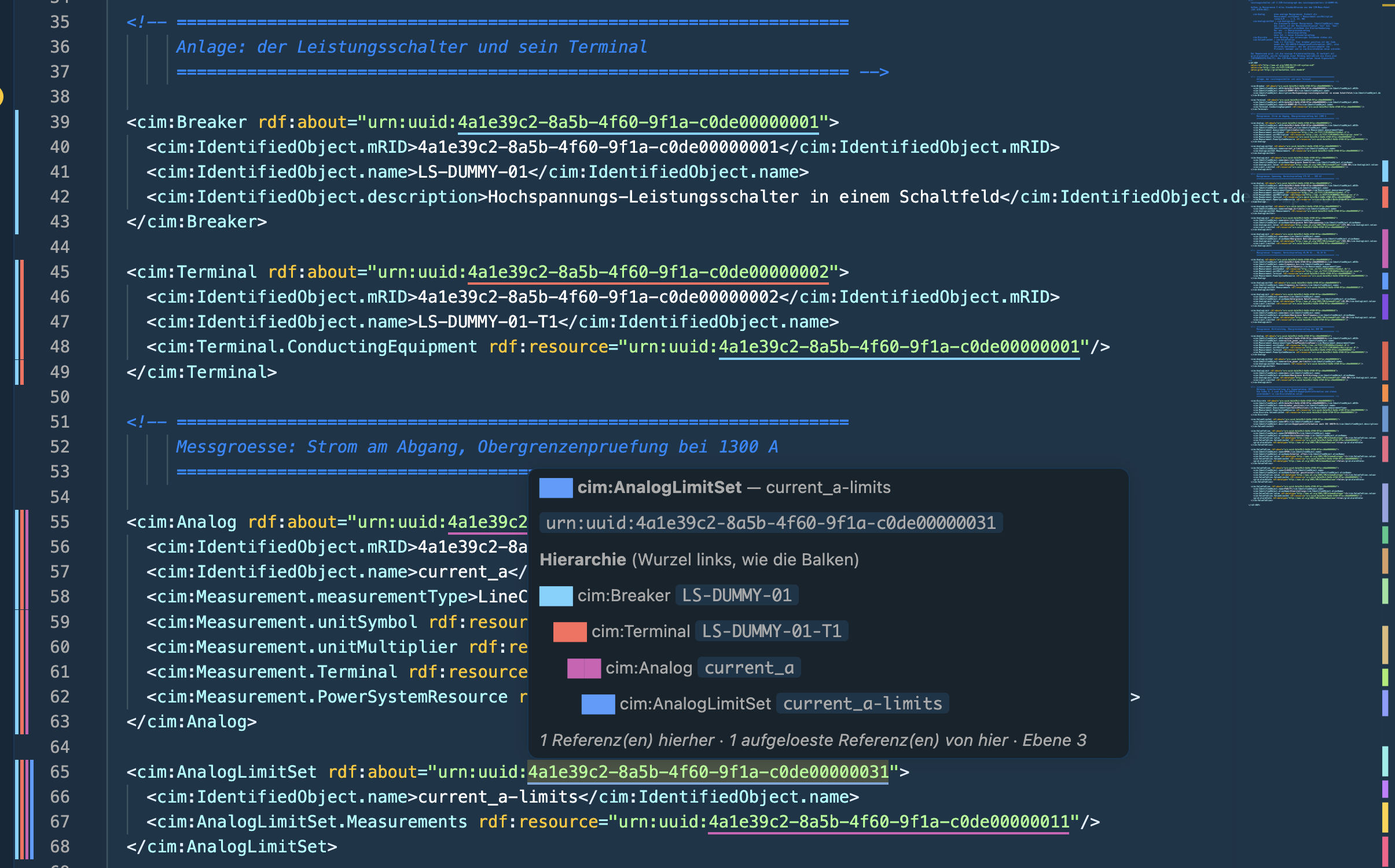
Both get the same colour -- as a bar in the gutter (the code margin) and as a
coloured underline beneath the UUID itself. The XML syntax highlighting stays
untouched: no token is recoloured, no background is tinted, only the underline is
added.
How to read the bars
The bars show only the nesting, and they run through the whole block: one bar
per hierarchy level, root on the left, then descending to the right, the
outermost one being the block itself. Every line of a block carries the same
sequence -- no bar starts or ends in the middle of a block.
All bars are fully opaque. An ancestor bar has exactly the colour of the
block it belongs to; that is the only way it stays recognisable. A faded colour
mixes with the editor background and becomes a different hue from the original --
losing precisely the mapping that matters here. If you want it anyway, set
cimRdfLens.ancestorOpacity.
The column width applies document-wide, so that equal levels line up under one
another across all lines.
Underlines
Where a single line points is told not by the bars but by the underline: every
UUID in the text is underlined in the colour of the object it means -- the
rdf:about just as much as every rdf:resource that points at it. Only the
identifier is underlined, not the urn:uuid: prefix and not the quotation marks.
In leistungsschalter.rdf that is 47 spots; the Breaker UUID, for instance,
appears seven times and is underlined the same way all seven times.
This way each device has exactly one job: bars = hierarchy across the whole
block, underline = the reference in this line. The unitSymbol line is the
counter-test: UnitSymbol.A points out of the file and therefore gets no
underline.
Can be switched off via cimRdfLens.underlineIds.
cimRdfLens.markReferences additionally shows a single bar on
rdf:resource lines. The default is off: it breaks the continuous block bars
and merely repeats what the underline already shows.
How the hierarchy is built
An rdf:resource edge points from child to parent: AnalogLimit names its
LimitSet, the set its Measurements, the measurement its
PowerSystemResource. Follow the edges and you walk to the root; an object with
no resolvable reference is a root.
That yields a DAG, not a tree -- cim:Analog hangs off the Terminal and
directly off the equipment. The bar order needs a single path, so the longest one
wins: Breaker > Terminal > Analog rather than Breaker > Analog. That way you
see the deepest nesting and not the one that happened to come first. Cycles are
detected and capped.
In addition
- Hover over a UUID: class, name, the whole hierarchy with colour swatches,
the count of incoming references.
- Go to definition (F12 / Ctrl+click) from an
rdf:resource line to the
matching rdf:about block.
- Find all references (Shift+F12) on an object.
Settings
The bars need the glyph margin. If nothing appears:
"editor.glyphMargin": true (the default).
| Setting |
Default |
Effect |
cimRdfLens.enabled |
true |
Show the bars |
cimRdfLens.fileExtensions |
[".rdf"] |
Which files get coloured |
cimRdfLens.palette |
12 colours |
Base palette; if it runs short, it is extended along the golden angle |
cimRdfLens.ancestorOpacity |
1 |
Opacity of the ancestor bars. Smaller values mix with the background and make the mapping harder |
cimRdfLens.barWidth |
0.66 |
Bar width relative to its column |
cimRdfLens.maxColumns |
8 |
Maximum number of bars side by side; deeper chains are truncated in the middle |
cimRdfLens.underlineIds |
true |
Underline UUIDs in the text in colour |
cimRdfLens.underlineWidth |
2 |
Underline thickness in pixels |
cimRdfLens.markReferences |
false |
Extra bar on rdf:resource lines; breaks the continuous block bars |
cimRdfLens.overviewRuler |
true |
Marker next to the scroll bar |
Commands: CIM/RDF Lens: Toggle bars, CIM/RDF Lens: Recolour.
Development
node --test "test/*.test.js"                              # 15 tests, no dependencies
node scripts/preview.js leistungsschalter.example.rdf
preview.js draws the same bars with ANSI colours into the terminal -- for a
quick look without starting an extension host.
Layout: parser.js (RDF/XML -> definitions + references with positions),
graph.js (hierarchy, colour assignment, underline spots), svg.js (the bar
image), decorations.js (decoration management), extension.js (wiring). The
first three do not know about vscode and are therefore testable without an
editor.
Known limits
- VS Code draws one gutter icon per line. Stacked bars therefore have to
live in a single SVG; accordingly one decoration type is created per occurring
bar sequence (not per line).
- The parser reads attributes, not a DOM.
rdf:nodeID, nested anonymous nodes
and relationships via rdf:parseType="Collection" are not captured -- for CIM
instance graphs, which use rdf:about/rdf:resource throughout, that is
enough.
- Relationships across file boundaries are not resolved; a reference to an
object in another file stays colourless.

