vNext Forge Studio
Workflow design and management tool for the vNext engine ecosystem, delivered as a VS Code extension. Provides a visual workflow designer, component editors, an integrated C# script editor with IntelliSense, Quick Run runtime testing, and project scaffolding — all within your editor.
Features
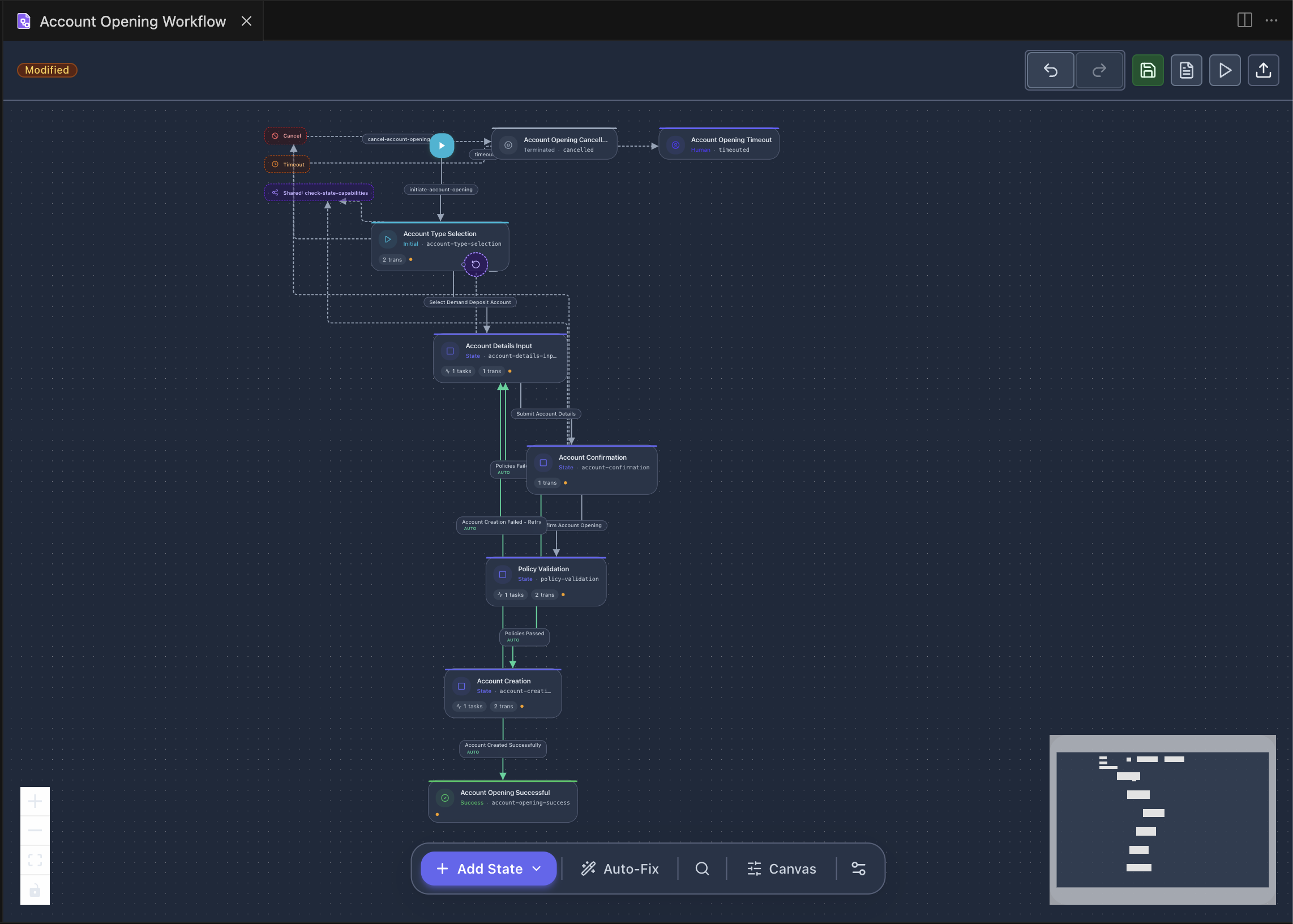
Visual Workflow Designer
Design state-machine workflows on a zoomable, pannable canvas. States are represented as nodes and transitions as directed edges.
- Drag-and-drop state creation (Initial, Intermediate, Success, Error, Terminated, Suspended, SubFlow)
- Visual transition editing with connection handles
- Two auto-layout engines: Dagre (fast) and ELK (advanced edge routing)
- Configurable flow direction (top-to-bottom / left-to-right) and edge styles (smooth step / curved / straight)
- State property panel with General, Tasks, Transitions, and Error Boundary tabs
- Searchable state/transition list with canvas navigation
- Undo / Redo, Save / Save As, single-file Publish
Component Editors
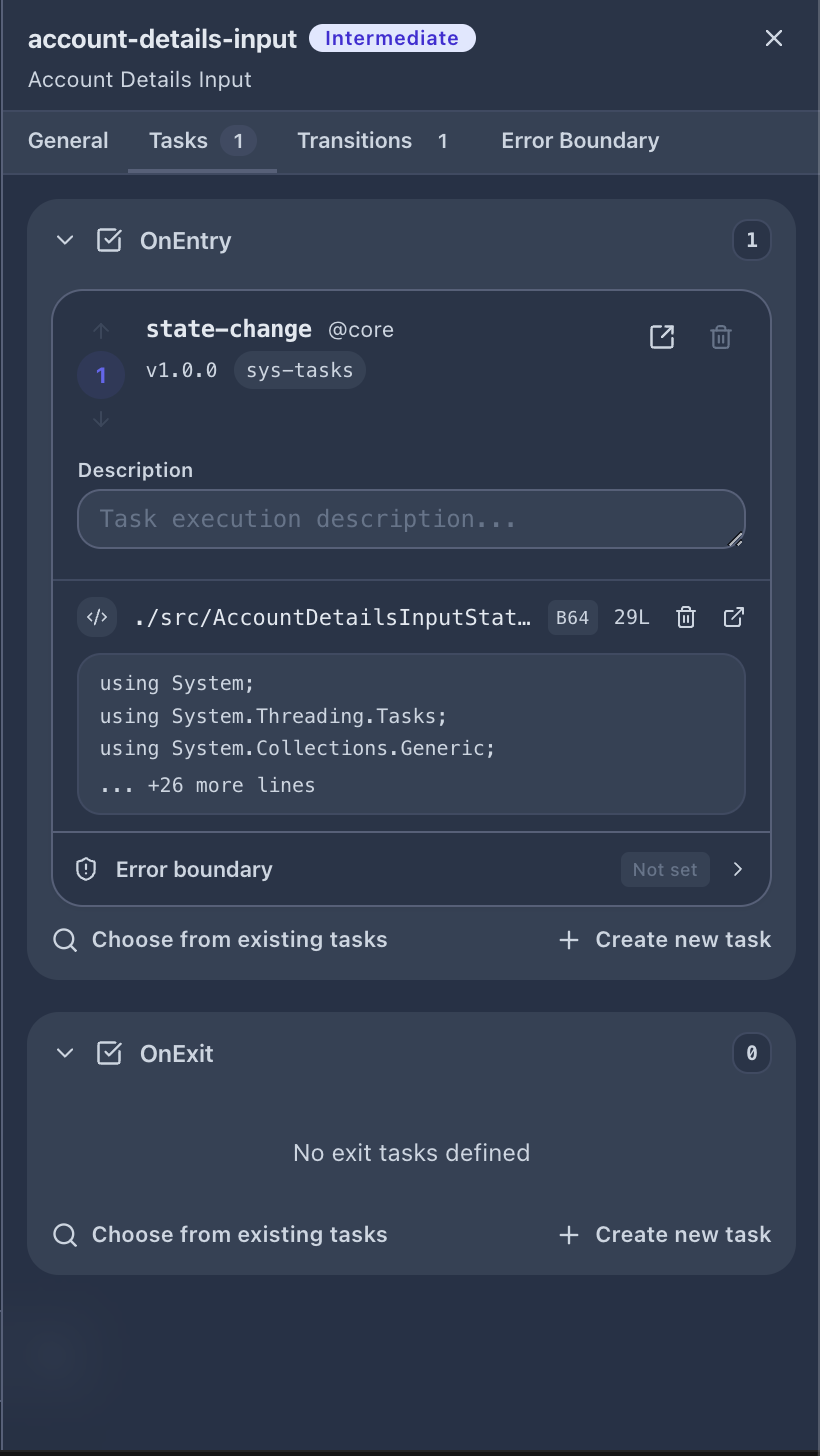
Dedicated visual editors for every vNext component type, each opening as a VS Code editor tab:
- Task Editor — Form-based task configuration with support for HTTP Request, Script (C#), Dapr Binding, Dapr PubSub, Dapr Service Invocation, Direct Trigger, SubProcess, Start Workflow, Get Instance Data, and Get Instances
- Schema Editor — Visual property editor with type dropdowns and a real-time "Validate Payload" tester; toggle to raw JSON source mode
- View Editor — UI view definitions for runtime form layouts
- Function Editor — Reusable C# script function definitions
- Extension Editor — Cross-cutting extension definitions with lifecycle hooks
CSX Mapping Editor (C# Script)
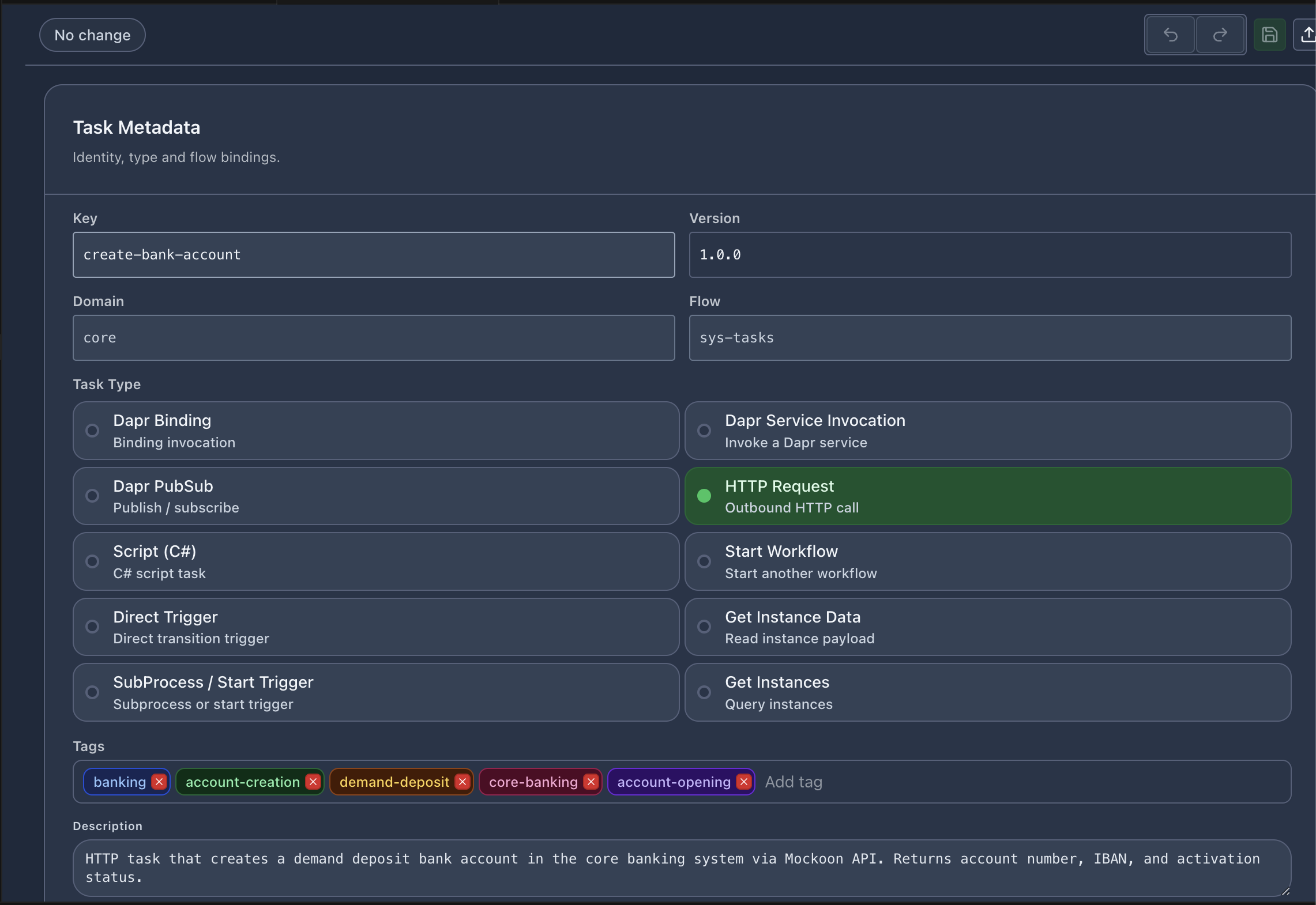
Embedded Monaco editor for editing mapping, condition, and rule scripts:
- C# syntax highlighting with IntelliSense powered by OmniSharp (completions, hover info, signatures)
- Real-time diagnostics (errors and warnings in the status bar)
- Snippet quick bar for common patterns (HTTP setup, response parse, error handling, config access, PubSub, Dapr service calls, and more)
- Searchable C# API reference panel with one-click copy for all
ScriptBase, ScriptContext, and ScriptResponse methods
- Open in a full-size VS Code tab for larger edits
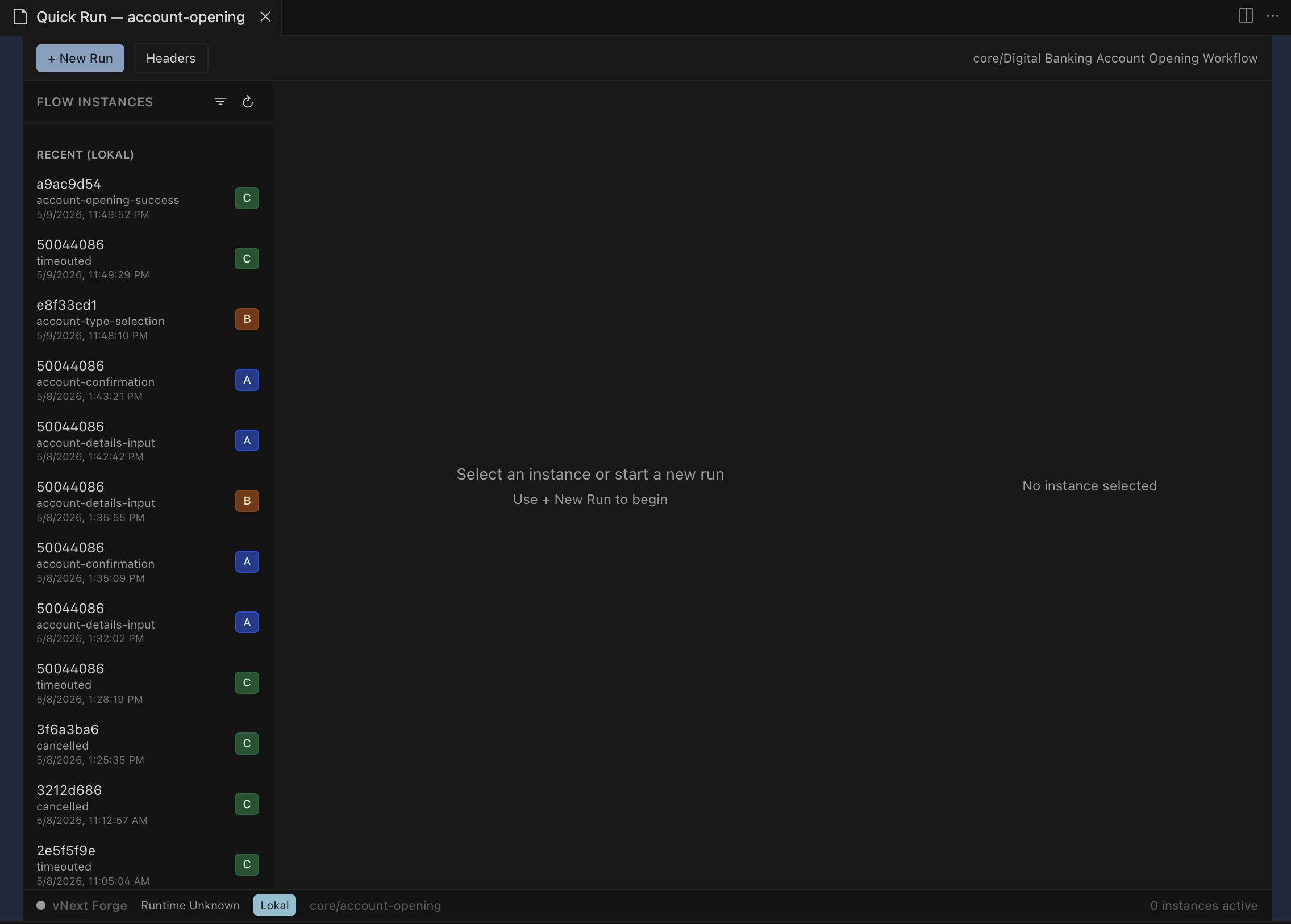
Quick Run — Runtime Testing
Test workflows against a live vNext runtime without leaving VS Code:
- Start instances with custom keys, stages, tags, attributes, and headers
- Fire transitions using schema-driven forms or raw JSON input
- Inspect instance data — View, Data, History, and Correlations tabs
- Monitor history — Chronological transition log with duration, trigger type, and source→target mapping
- SubFlow tracking — Correlations tab shows related child workflow instances
- Filtering — Filter instances by status, fields, or custom attributes with sortable results
- Global headers — Persistent headers sent with every request (with secret masking)
- Retry state — Re-execute a state with modified headers
- Multi-tab — Run multiple instances concurrently in separate tabs
Project Scaffolding
Create new vNext projects with a guided wizard:
- Run Forge: Create vnext Project from the Command Palette or Forge Tools sidebar
- Enter a domain name, optional description, and folder location
- The extension scaffolds the project using
@burgan-tech/vnext-template
- Open in a new window or add to the current workspace

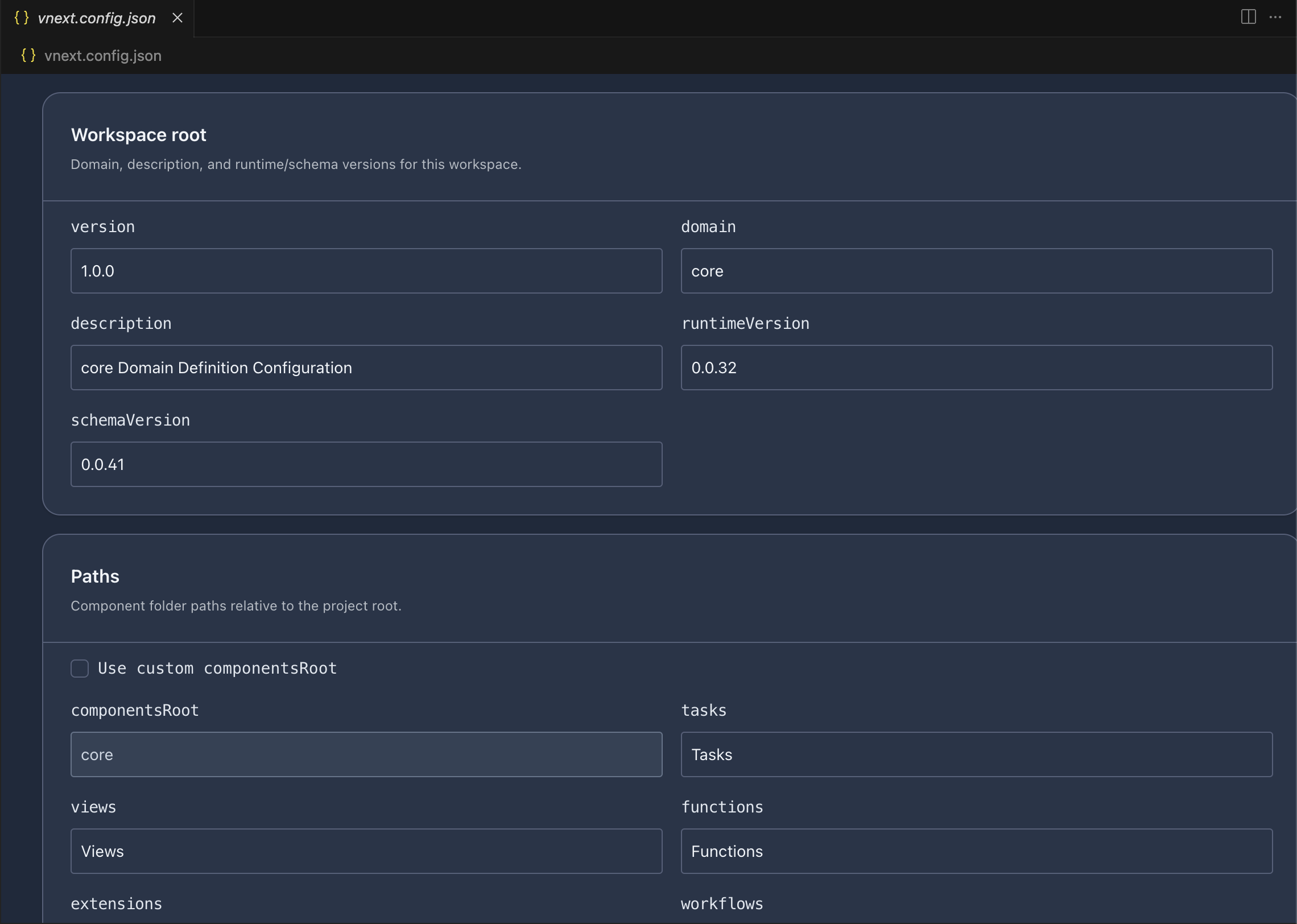
Workspace Configuration Editor
Visual editor for vnext.config.json — manage project identity, runtime/schema versions, component folder paths, exports, and cross-project dependencies without editing raw JSON.
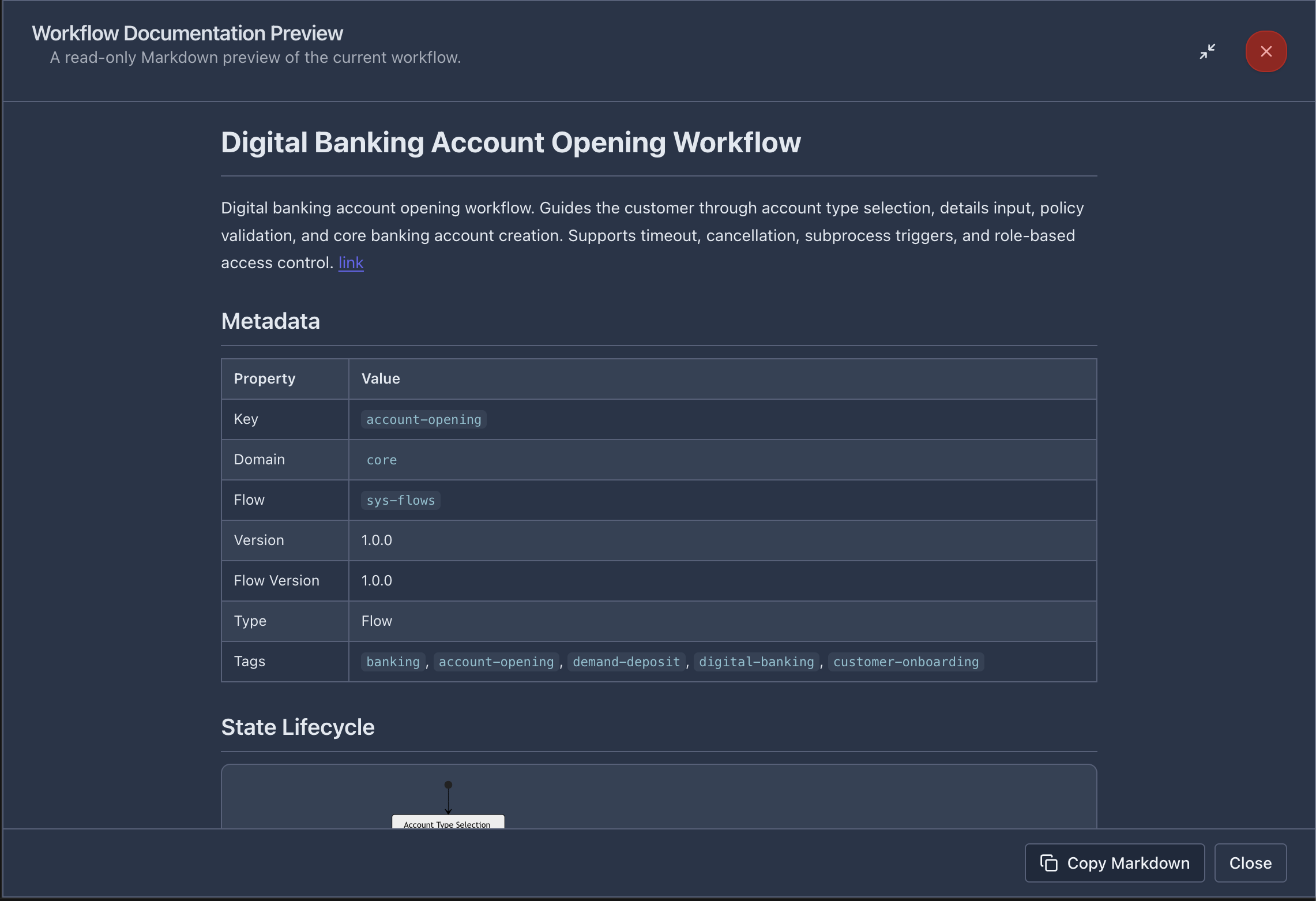
Documentation & Deployment
- Workflow documentation preview — Live Markdown preview with Mermaid state diagrams, one-click copy
- Generate Documents — Project-wide Markdown documentation for all components (workflows, tasks, schemas, views, functions, extensions, dependency tree)
- Package Deploy — Deploy workflows (
wf update --all, wf update, wf csx --all) from the sidebar or per-file from the designer toolbar; multi-domain workspaces pick a domain (--domain) or run all solutions (Workflow CLI ≥ 1.0.13 recommended)
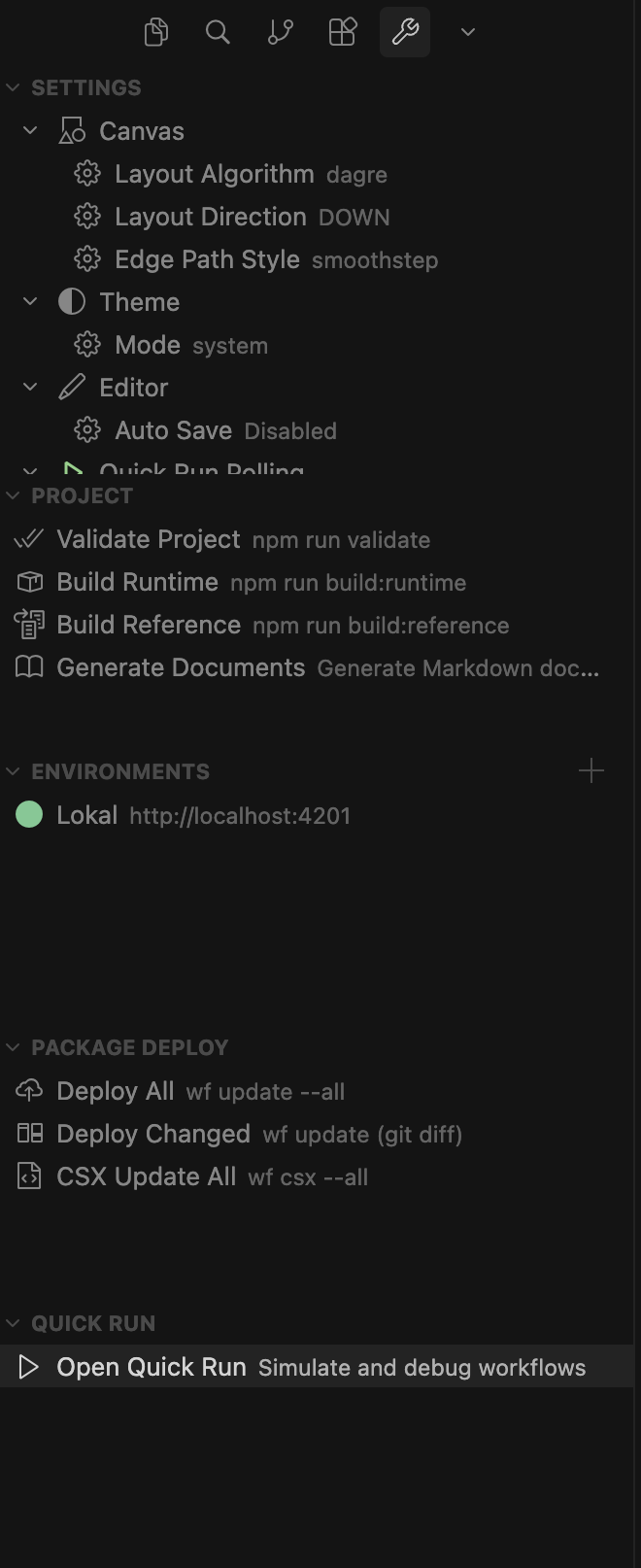
The vNext Forge Tools panel in the Activity Bar provides:
- Settings — Canvas layout, theme, editor, and Quick Run polling preferences
- Project — Validate, Build Runtime, Build Reference, Generate Documents
- Environments — Add/edit/delete runtime environments with health monitoring
- Package Deploy — One-click deployment commands
- Quick Run — Workflow launcher
Getting Started
- Install the extension from the VS Code Marketplace or from a
.vsix file
- Open a folder containing a
vnext.config.json file — the extension activates automatically
- Right-click any component
.json file and select Forge: Open with vNext Forge, or use the Command Palette (Ctrl+Shift+P / Cmd+Shift+P) and type Forge
Prerequisites
- VS Code 1.85 or later
- A vNext project folder (or use Forge: Create vnext Project to scaffold one)
Commands
| Command |
Description |
| Forge: Open Designer |
Open the designer panel |
| Forge: Open with vNext Forge |
Open a file in the visual designer |
| Forge: Create vnext Project |
Scaffold a new vNext project |
| Forge: Create vnext Component |
Create a component (workflow, task, schema, view, function, extension) |
| Forge: Open Quick Run |
Open Quick Run panel |
| Forge: Generate Documents |
Generate project documentation |
| Forge: Deploy All |
Deploy all workflows to runtime |
| Forge: Deploy Changed |
Deploy changed workflows (git diff) |
| Forge: Validate Project |
Run schema validation |
See all commands →
Extension Settings
All settings are under the vnextForge namespace:
| Setting |
Default |
Description |
vnextForge.lsp.autoInstall |
true |
Auto-install C# Language Server on activation |
vnextForge.lsp.enableNativeEditor |
true |
Enable IntelliSense for .csx files |
vnextForge.vnextRuntimeUrl |
"" |
Default runtime base URL |
vnextForge.runtimeAllowedBaseUrls |
[] |
Additional allowed base URLs for runtime proxy |
vnextForge.quickRun.pollingRetryCount |
3 |
Quick Run polling retry count |
vnextForge.quickRun.pollingIntervalMs |
2000 |
Quick Run polling interval (ms) |
Code Snippets
When editing .csx files in the VS Code text editor, type a prefix and press Tab:
| Prefix |
Description |
vnext-mapping |
Full mapping class scaffold |
vnext-condition |
Condition script template |
vnext-http |
HTTP request setup |
vnext-trycatch |
Try/catch error handling |
vnext-config |
Configuration access |
vnext-pubsub |
PubSub event publish |
vnext-service |
Dapr service invocation |
See all snippets →
Troubleshooting
| Issue |
Solution |
| Extension does not activate |
Verify vnext.config.json exists at workspace root; reload window |
| Runtime connection failed |
Check environment URL in Forge Tools → Environments; verify runtime is running |
| C# IntelliSense not working |
Ensure vnextForge.lsp.autoInstall is true; check vnext-forge-studio:csx-native-lsp Output channel |
| Canvas not rendering |
Reload webviews; verify workflow JSON is valid |
Diagnostic logs are available in VS Code Output channels: vnext-forge-studio, vnext-forge-studio-core, vnext-forge-studio:webview, and vnext-forge-studio:csx-native-lsp.
Full troubleshooting guide →
Documentation
For the complete usage guide, see the full documentation.
License
See LICENSE for details.
| |

