Live Wallpaper for VSCode



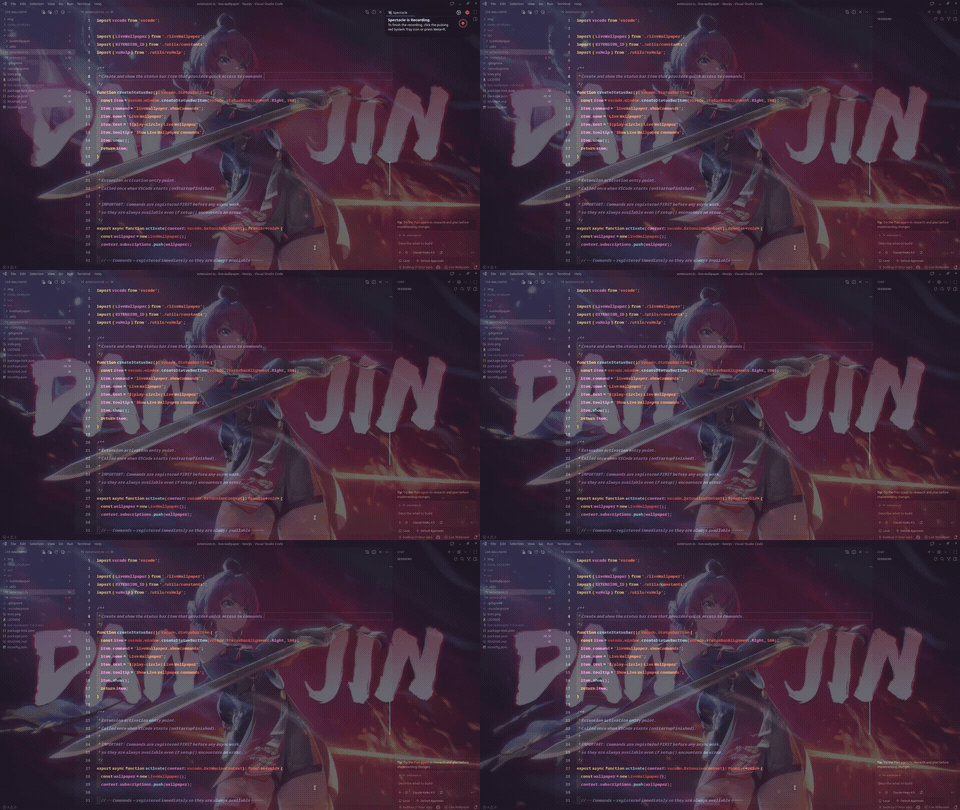
Bring your VSCode window to life by setting an MP4 video as your editor background wallpaper. Choose your favorite live wallpapers, loop them, adjust their opacity, and enjoy a more fun and enjoyable coding experience. Works seamlessly on Windows, macOS, and Linux!
📸 Preview
✨ Features
- 🎥 MP4 Video Backgrounds: Supports local MP4 video files (H.264 encoded).
- 🎨 Interactive Sidebar UI: Easily configure your wallpaper with a visual menu in the Activity Bar — includes a native file browser button to pick videos without manual typing!
- 🎛️ Adjustable Opacity: Modify opacity from
0.1 to 1.0 — the value is scaled so 1.0 renders at 80% CSS opacity to always keep your UI readable.
- 📐 Sizing Modes: Configure video rendering size (
cover, contain, fill, or auto).
- 🔁 Continuous Loop: Toggle video looping on or off.
- 🐧 Cross-Platform Support: Fully compatible with VSCode installations on Linux, Windows, and macOS.
- 🧼 Clean Uninstall: Automatically restores VSCode's original files and clears all settings when disabling or uninstalling the extension.
🚀 Getting Started
1. Generate the Setup Template
Instead of manually typing the configuration, let the extension generate it for you:
Press Ctrl + Shift + P (or Cmd + Shift + P on macOS) to open the Command Palette.
Select Live Wallpaper: Create Template Setup.
This automatically adds the configuration block to your User settings.json and opens it:
"liveWallpaper": {
    "videoPath": "/absolute/path/to/your/wallpaper.mp4",
    "opacity": 0.1,
    "size": "cover",
    "enabled": true,
    "loop": true
}
Replace /absolute/path/to/your/wallpaper.mp4 with the actual path to your MP4 file and save.
Example Path Formats:
| Platform | Example |
| :--- | :--- |
| Linux / macOS | /home/budi/Videos/wallpaper.mp4 |
| Windows | C:/Users/budi/Videos/wallpaper.mp4 |
| file:// URL | file:///home/budi/Videos/wallpaper.mp4 |
2. Apply and Reload
- Open the Command Palette (
Ctrl + Shift + P / Cmd + Shift + P).
- Select
Live Wallpaper: Apply and Reload.
- Note (Linux & macOS): Because VSCode installation files are protected, you may be prompted with an Admin/Sudo authorization dialog. Click Retry with Admin / Sudo and enter your password.
- VSCode will prompt you to reload the window. Click Reload to see your wallpaper.
🛠️ Configuration Settings
All settings live under the "liveWallpaper" object in your settings.json:
| Key |
Type |
Default |
Description |
videoPath |
string |
"" |
Absolute file path or file:// URL to the MP4 (H.264) video. |
opacity |
number |
0.1 |
Opacity of the background video (0.1 – 1.0). Internally scaled so 1.0 = 80% CSS opacity. |
size |
string |
"cover" |
Sizing mode relative to the window: cover, contain, fill, or auto. |
enabled |
boolean |
true |
Toggle the video background on or off without removing it. |
loop |
boolean |
true |
Whether the video loops continuously. |
⌨️ Command Palette Actions
All commands are available via the Command Palette (Ctrl + Shift + P / Cmd + Shift + P) with the prefix "Live Wallpaper", or through the ▶ Live Wallpaper status bar item in the bottom-right corner:
| Command |
Description |
| Open Settings Sidebar |
Opens the visual Live Wallpaper configuration sidebar. |
| Create Template Setup |
Generates the configuration block in your settings.json. |
| Apply and Reload |
Applies current settings and patches the wallpaper. |
| Enable and Reload |
Sets enabled: true, applies the patch, and reloads. |
| Disable and Reload |
Removes the wallpaper and restores your VSCode interface. |
| Reset to Defaults |
Clears all settings to defaults and removes the patch. |
| Uninstall Extension |
Removes the patch, clears all settings, and uninstalls the extension. |
❓ FAQ & Troubleshooting
Why does VSCode say "Your installation is corrupt"?
Because this extension patches VSCode's core HTML file (workbench.html), VSCode detects a change in its installation integrity.
- Do not worry! This is completely safe and only changes the background styling.
- This extension automatically suppresses the default warning popup to keep your workflow clean.
Only MP4 (H.264 codec) is supported. High-efficiency formats like H.265/HEVC or WebM may not render correctly due to VSCode's built-in Chromium rendering limitations.
How do I completely remove the extension?
Run Live Wallpaper: Uninstall Extension from the Command Palette. This will:
- Remove the patch from
workbench.html
- Delete the
"liveWallpaper" block from your settings.json
- Uninstall the extension from VSCode
What is the difference between "Apply and Reload" and "Enable and Reload"?
- Apply and Reload — Forces the patch to be re-applied with the latest settings (useful after a VSCode update resets
workbench.html).
- Enable and Reload — Sets
enabled: true and applies the patch; most useful after previously disabling the wallpaper.
🐛 Report Bugs & Issues
If you encounter any bugs, issues, or have feature requests, please open an issue on the GitHub Issues page.
📄 License
This extension is licensed under the MIT License.

