Browsitory for VSCode
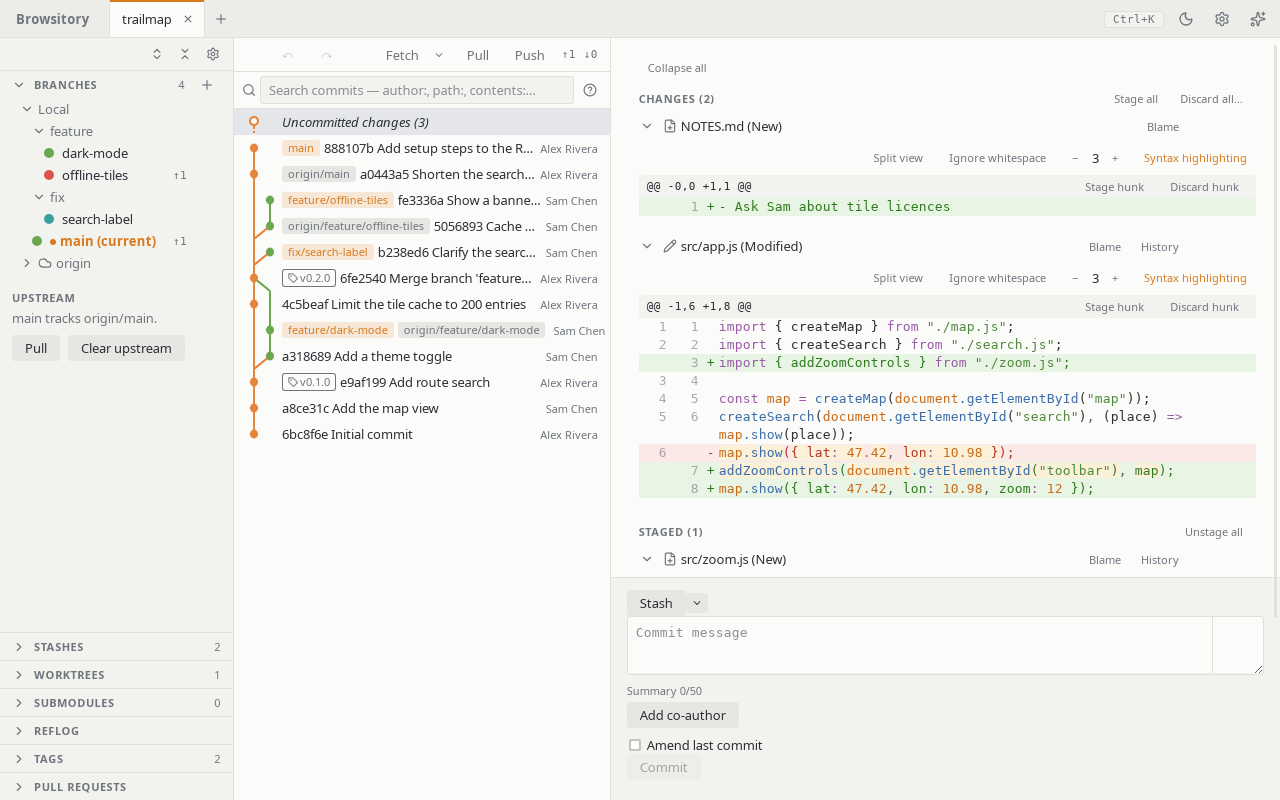
A full Git client in a VSCode editor tab. Browsitory shows your history as a commit graph and
lets you stage, commit, branch, merge, rebase, stash and tag without leaving the editor, with
undo for most of it. It is the same app as the
Browsitory desktop client, running inside VSCode.
Pre-release. Browsitory is new. If the Marketplace lists it as a pre-release, choose
Install Pre-Release Version (or Switch to Pre-Release Version) to get it. Please
report problems on GitHub.
Features
- Commit graph. Browse history newest first, with branches and tags on their commits.
Choose which branches the graph shows, search commits, compare two commits or branches, and
follow one file's history.
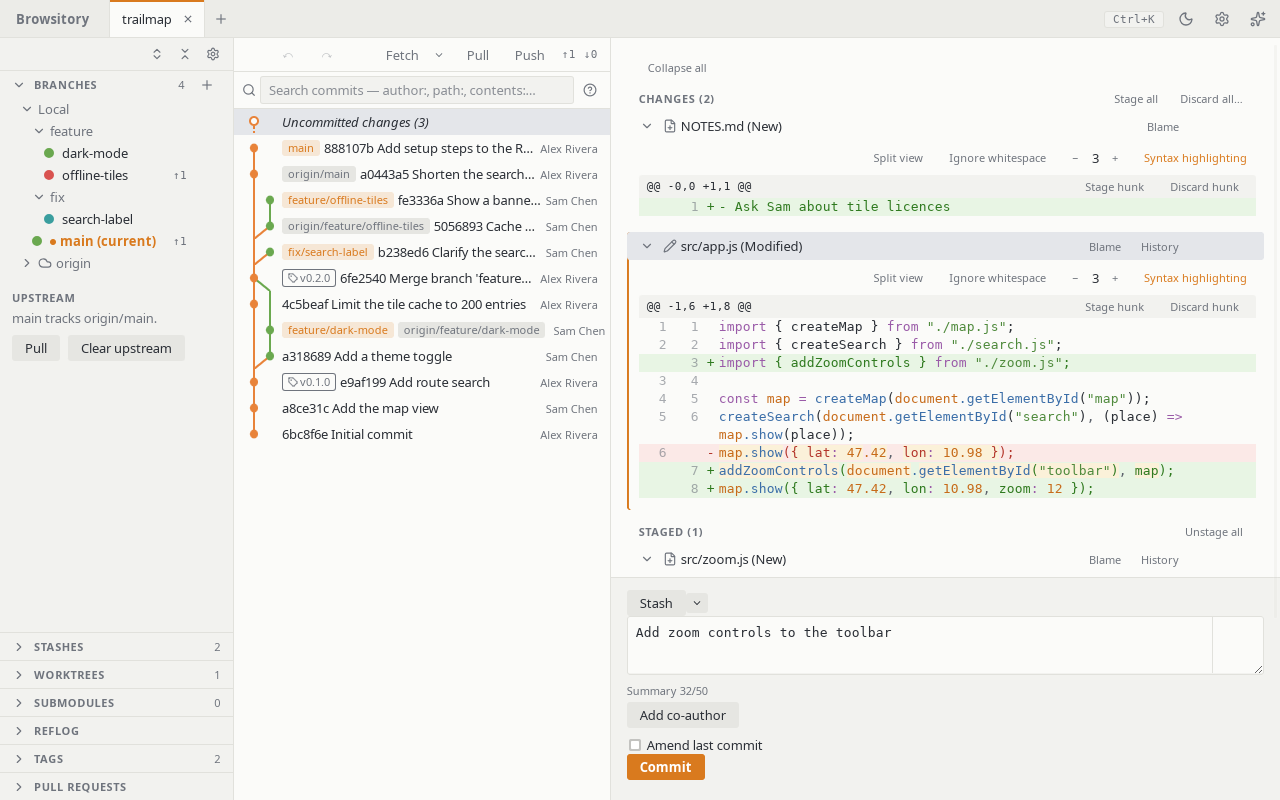
- Staging and committing. Stage whole files, single hunks or single lines. Discard or
ignore files. Amend, add co-authors, sign commits, and run your commit hooks.
- Branches and remotes. Create, check out, rename, merge and delete branches. Fetch,
pull and push. Set upstreams and manage remotes.
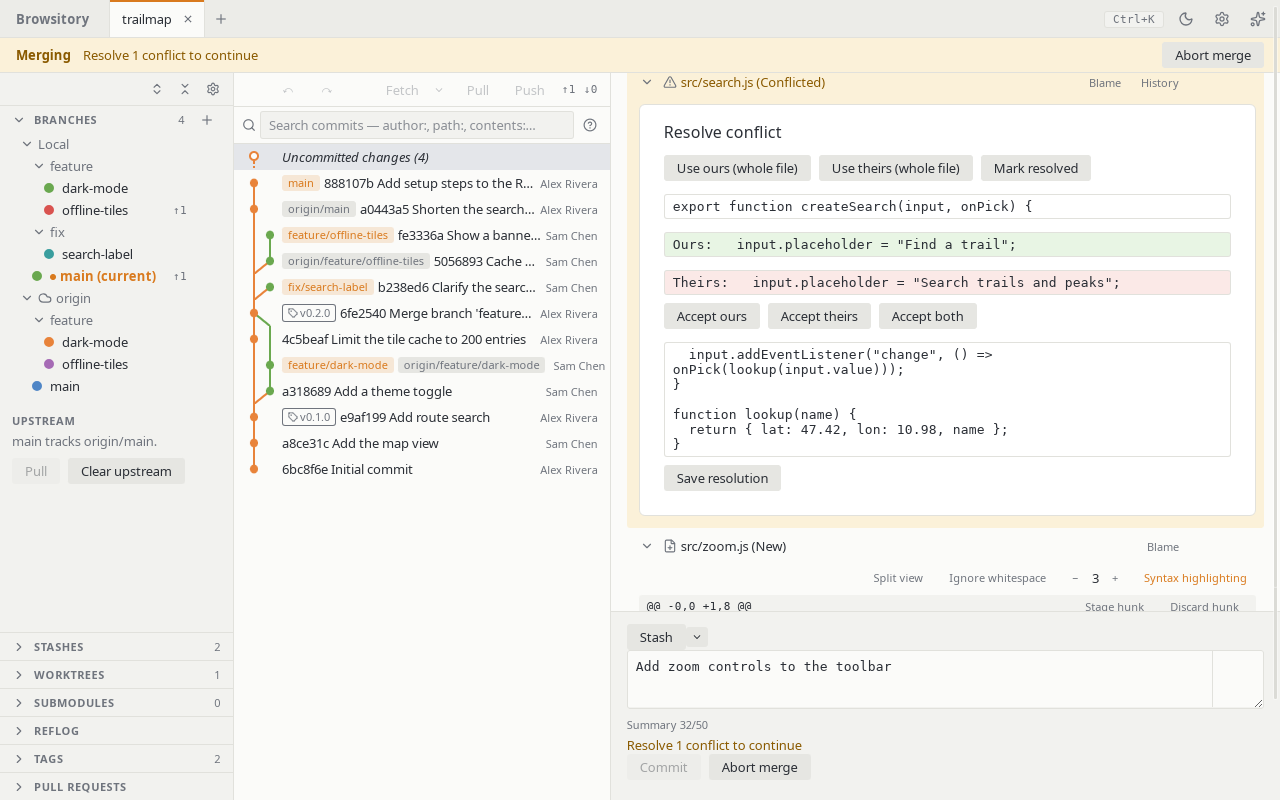
- Rebase and history rewriting. An interactive rebase planner, cherry-pick, revert, reset,
squash and reorder commits. Resolve conflicts in Browsitory or in VSCode's merge editor.
- Undo and redo for most Git actions, discards included, and a reflog view.
- Stashes, tags, worktrees and submodules, each in its own sidebar section.
- Pull requests for GitHub and Bitbucket remotes: list them and open new ones.
- Command palette (Ctrl+K, or Cmd+K on macOS) with almost every action, and keyboard
shortcuts for the rest.
- VSCode integration. Files open in VSCode's editor, diffs in its diff view, conflicts in
its merge editor, and terminals in its integrated terminal.
Getting started
- Install Browsitory from the Extensions view.
- Run Browsitory: Open from the Command Palette (Ctrl+Shift+P, or Cmd+Shift+P on macOS).
- Pick a repository folder.
To clone or create a repository, use VSCode's own Git: Clone and Git: Initialize
Repository, then open it in Browsitory.
The user guide describes every feature. Inside
Browsitory, run Open user guide from its command palette.
Requirements
- VSCode 1.134 or newer, on desktop.
- One of these platforms: Linux x64, macOS (Intel or Apple silicon), Windows x64. Each
platform gets its own package with a matching native helper program, so you don't need Git
or any other tool installed.
- Browsitory does not run in vscode.dev or GitHub Codespaces in the browser.
Install from a VSIX file
Each GitHub release also has one
.vsix file per platform. Download the one for your platform and run:
code --install-extension browsitory-<version>-<platform>.vsix
A .vsix install doesn't update itself.
Links
Licence
Browsitory is MIT-licensed. The native helper program links libgit2 (GPL-2.0 with a linking
exception) and other libraries; see THIRD_PARTY_NOTICES.md in the package.
| |

