Agent Worktrees
Run and monitor several Claude Code agents across your git worktrees, from one side panel.
Each worktree is an isolated checkout, so parallel agents never step on each
other's files. This panel puts every worktree, its git state, its pull request
and its running agents in one view.
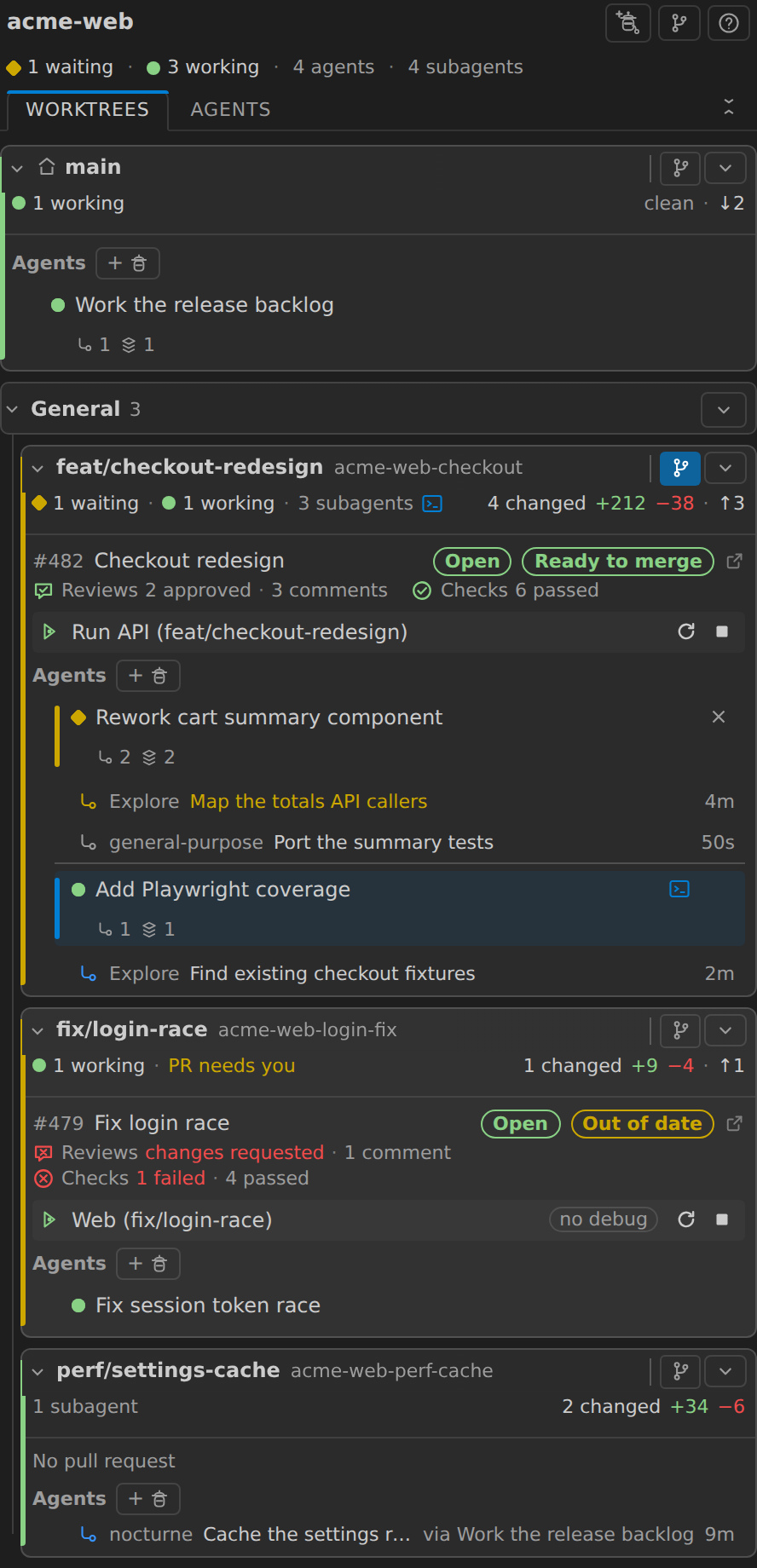
- Every worktree at once: a stripe that says whether it needs you, and changed
files,
+/- lines and ahead/behind in the same place on every card.
- Start a Claude agent in any worktree in one click, or create a worktree and an
agent together.
- Live agent status: active, waiting, idle. Activity Bar badge when one is
blocked on you, and a notification with an Open terminal button when one
starts waiting while you are in another app. Two agents prompting at once
raise two, each opening its own terminal.
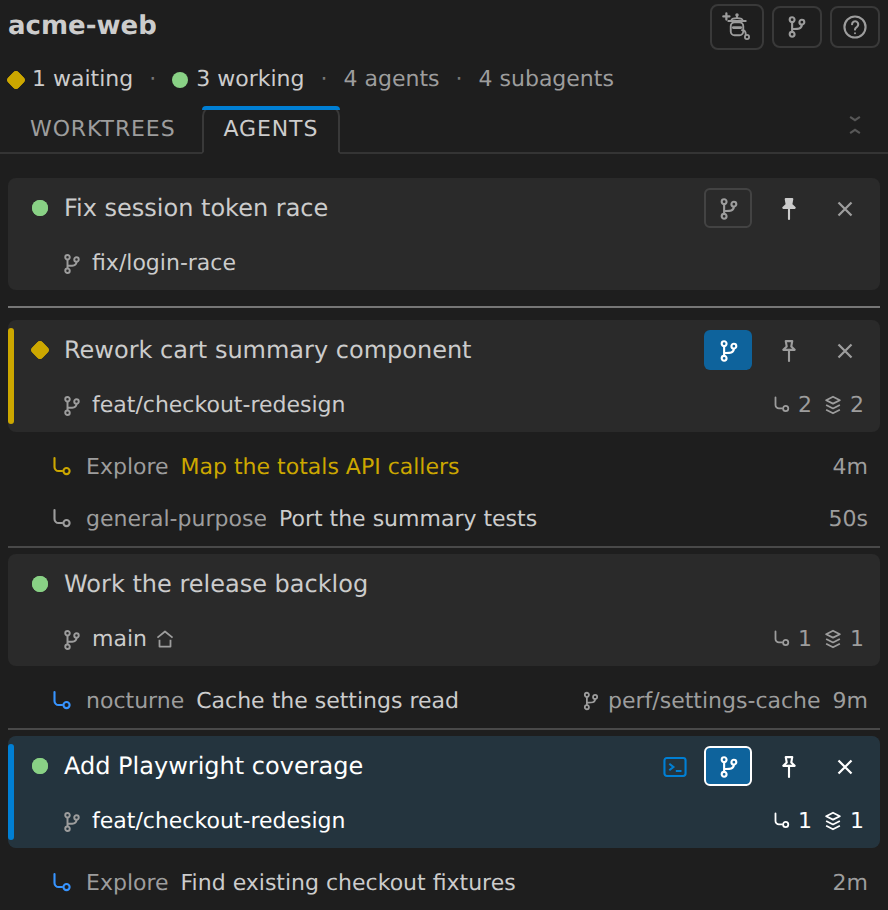
- Switch the panel to an agents view: every agent in the repo in one list,
waiting ones first, each row naming the branch it is working on. Pin the one
you are shepherding and it stays at the top, or point Source Control at the
worktree it is working in without leaving the list.
- PR state, CI checks and reviews on the card. No browser tab.
- Run or debug a worktree's launch configuration without opening a second window.
- Search a worktree, or open a file from it, in your current window.
- Group the worktrees you are done with into your own collapsible sections.
- A Branches tab for every branch in the repo.
- Four worktrees in the height one card used to take.
Agents
- A Claude CLI session in any worktree, each in its own terminal.
- Agent & Worktree creates a worktree with
claude -w and starts an agent in
it in one step. The card appears with the agent already on it.
- Reveal or stop any session, including agents you started by hand in a terminal.
Rows find their terminal by which one the process is actually in, so Reveal and
Stop hit the right session. One in another VS Code window says so.
- The agent whose terminal is open is highlighted, so you never type to the wrong
one.
- In the agents list, pin the sessions you are watching: they hold the top of the
list however busy the rest of it gets, and unpin themselves when they end.
- Terminal tabs are titled by Claude Code itself and track each session's current
topic. Background tabs included, and the tab you are reading is never pulled
away.
- Live subagents are listed under their agent with what each is doing and for how
long, and clear themselves when they finish.
- Fan-out across worktrees: a subagent working in another worktree is listed on
that worktree's card, naming the agent that sent it. Clicking it opens the
parent's terminal.
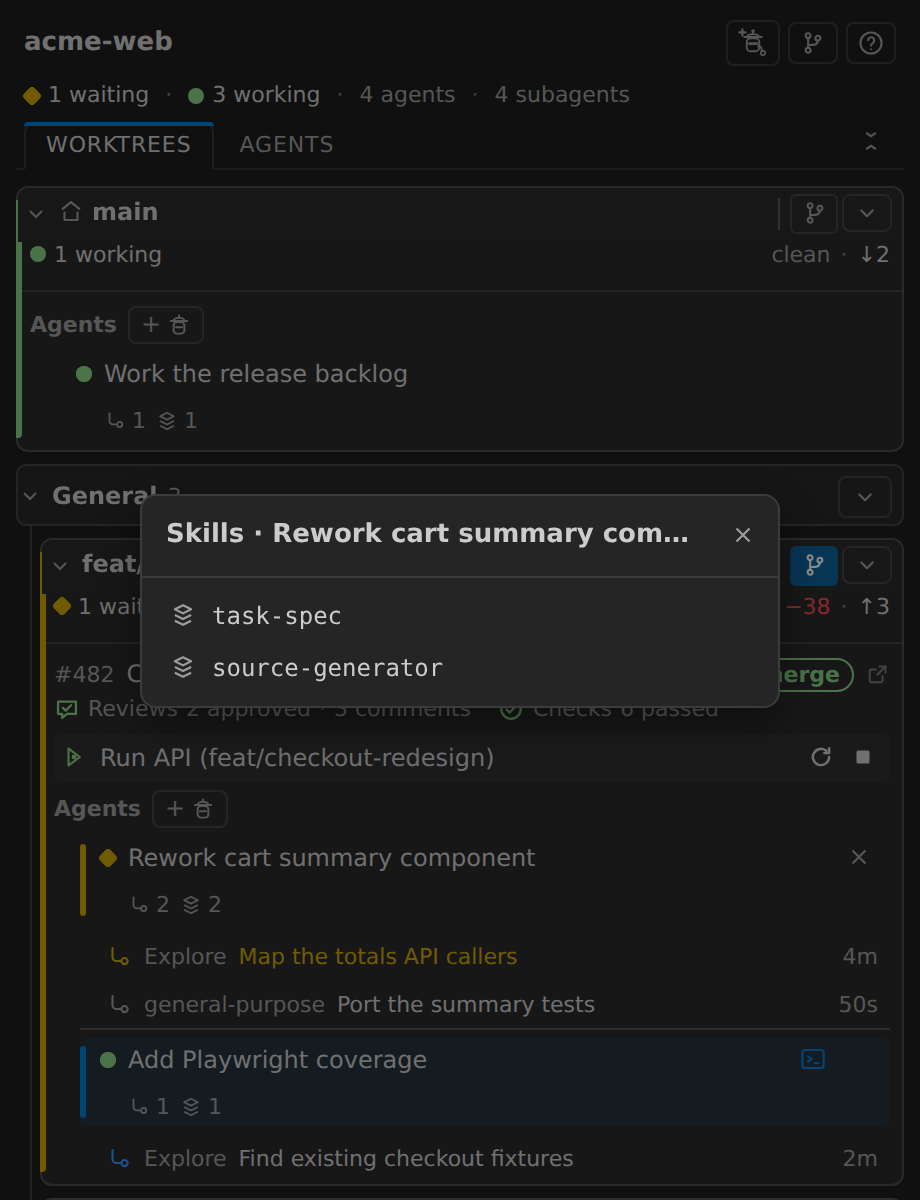
- Skill chips show which Claude skills an agent has used.
- Dead sessions retire themselves, so reopening a window shows agents that are
actually running.
All of them in one list
Two tabs at the foot of the panel header, Worktrees and Agents, switch
between the worktree cards and an agents view: every agent in the repository as
one list, whatever worktree it is in, with the waiting ones at the top.
Each row names the branch it is working on, so two agents with similar summaries
are still easy to tell apart, and keeps everything the card row has - click to
reveal its terminal, stop it, see its subagents and skills. Subagents hang under the
agent that spawned them, each naming its own worktree when it was given one.
A row also carries the Source Control button the cards have, so "show me what
this one is changing" is one click on the agent you are reading rather than a
trip back to its card. The worktree the Source Control view is currently on is
filled in, on whichever view you are looking at.
Rows are grouped by status, waiting first out of the box. That order is yours:
Settings → Preferences moves the statuses up and down, so if you would rather
watch what is running than what is blocked, put active on top. The panel
remembers which view you were in.
The pin on a row beats the grouping. Pin the one or two sessions you are actually
shepherding and they hold the top of the list, whatever they are doing and
however busy the rest of it gets, with a rule marking where the pinned ones end.
Click the pin again to let a row drop back into its group; an agent that ends
takes its pin with it.
| Every agent in one list |
Choosing the order |
 |
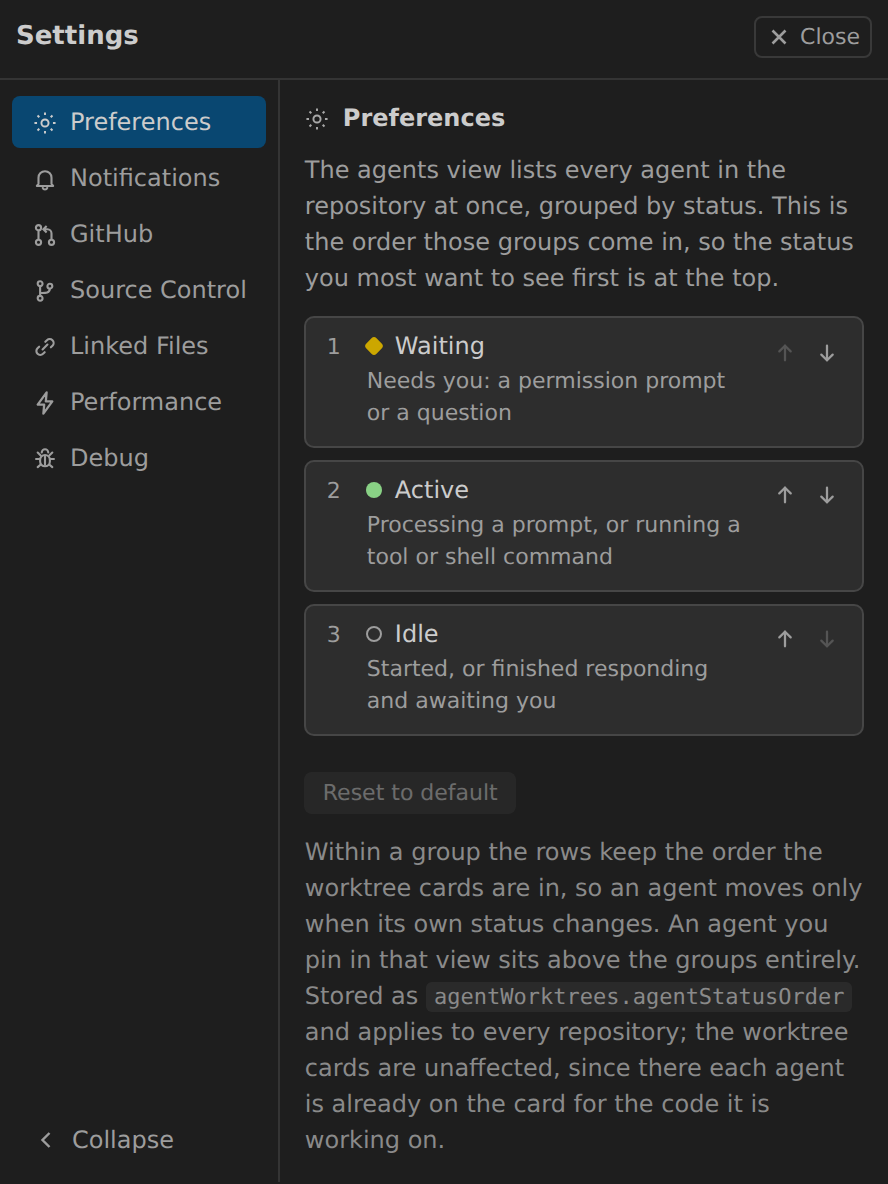 |
Status
| Status |
When |
| idle |
started, or finished responding and awaiting you |
| active |
processing a prompt, or running a tool or shell command |
| waiting |
needs you: a permission prompt or a question |
Status comes from the session files Claude Code already keeps. Nothing to set up,
nothing to approve, nothing sent over the network, and nothing written to your
Claude settings. Hooks that earlier versions asked you to install are removed
automatically; hooks you added yourself are left alone.
The Activity Bar badge counts waiting agents only, so it always means an agent
needs you.
When you are not looking at VS Code
The badge and the pulsing dot only reach you while the panel or the Activity Bar
is on screen. When an agent starts waiting and you have switched to a browser or
a terminal, the panel raises a notification naming that agent and the
worktree it is in, with an Open terminal button that takes you straight to
it.
Two agents can stop and ask you at the same time, so you get one notification
per agent, side by side, each with its own button. It is raised once per time
an agent starts waiting, never repeated while it sits there, and never for
agents that were already waiting when you opened the window.
You also get a notification when GitHub auto-merges one of your pull
requests, with an Open PR button. It is only raised for a PR the panel saw
open with auto-merge on, so a PR you merge yourself, or one that was already
merged when you opened the window, stays quiet.
Each one has its own switch under Settings → Notifications, with a choice
of showing it only while VS Code is in the background (the default), only while
you are in VS Code (for when the panel is hidden behind another view), or
always.
The same values live in agentWorktrees.notifyWaiting and
agentWorktrees.notifyPrMerged.
Pull requests
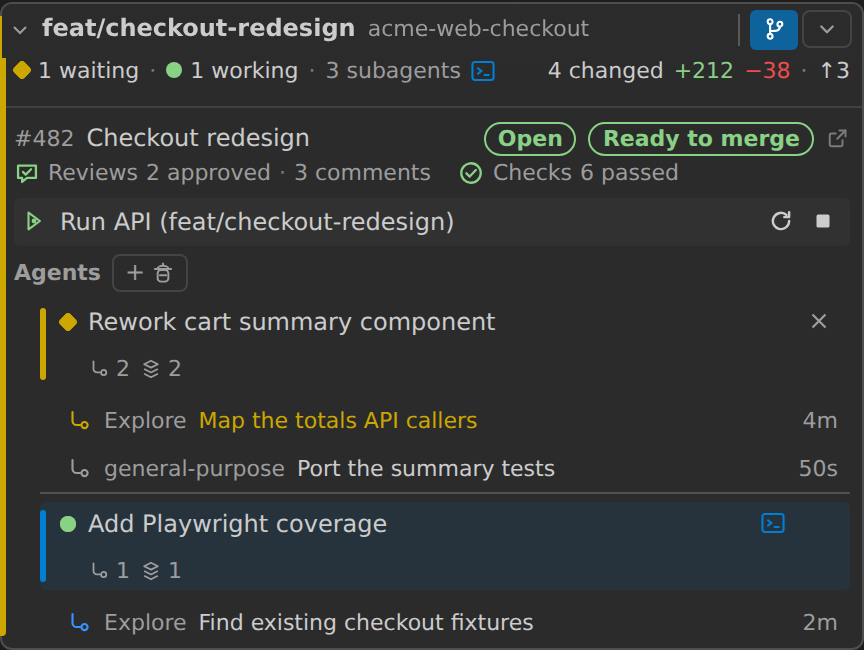
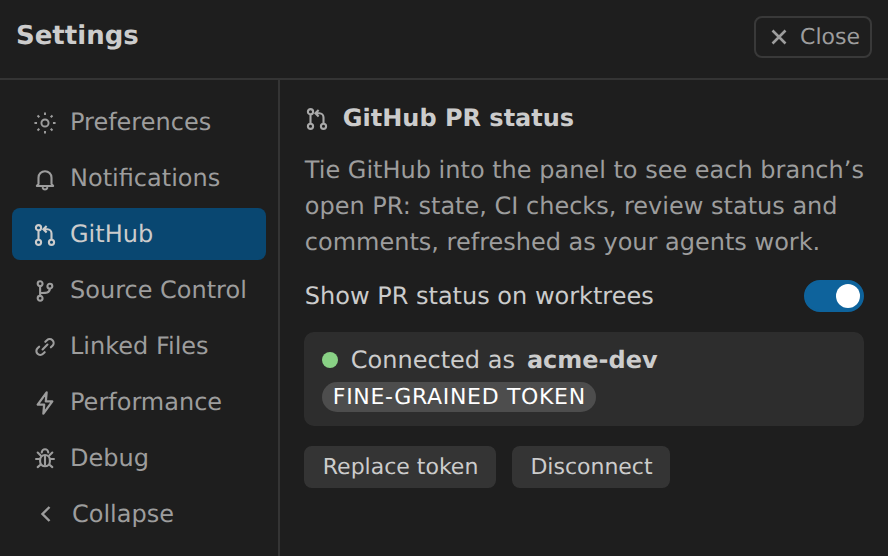
Every card links its branch to GitHub with no token and no setup. Connect a token
and the card grows a PR rollup:
- Number, title, state, and the reviews and checks spelled out in words.
- A Ready to merge flag, straight from GitHub: every required review and
check has passed and the branch is current with its base, so the merge button
is live. Also Out of date and Auto-merge flags.
- A collapsed card keeps the PR number and two glyphs, a circle for CI and a
speech bubble for the review, so you can see whether checks passed and whether
it is approved without opening the card. The
? button in the toolbar opens
the key.
- Refreshed as your agents work, plus a per-card refresh.
- Refresh never blocks the panel. The worktrees repaint straight away and
the PR badges fill in as GitHub answers, with a progress line above the
cards while it does.
- Always the PR for the branch checked out right now, so a merged branch's PR
clears instead of lingering.
| On the worktree card |
Connecting a token |
 |
 |
Branches view
A full editor tab listing every branch in the repo, local and remote-only.
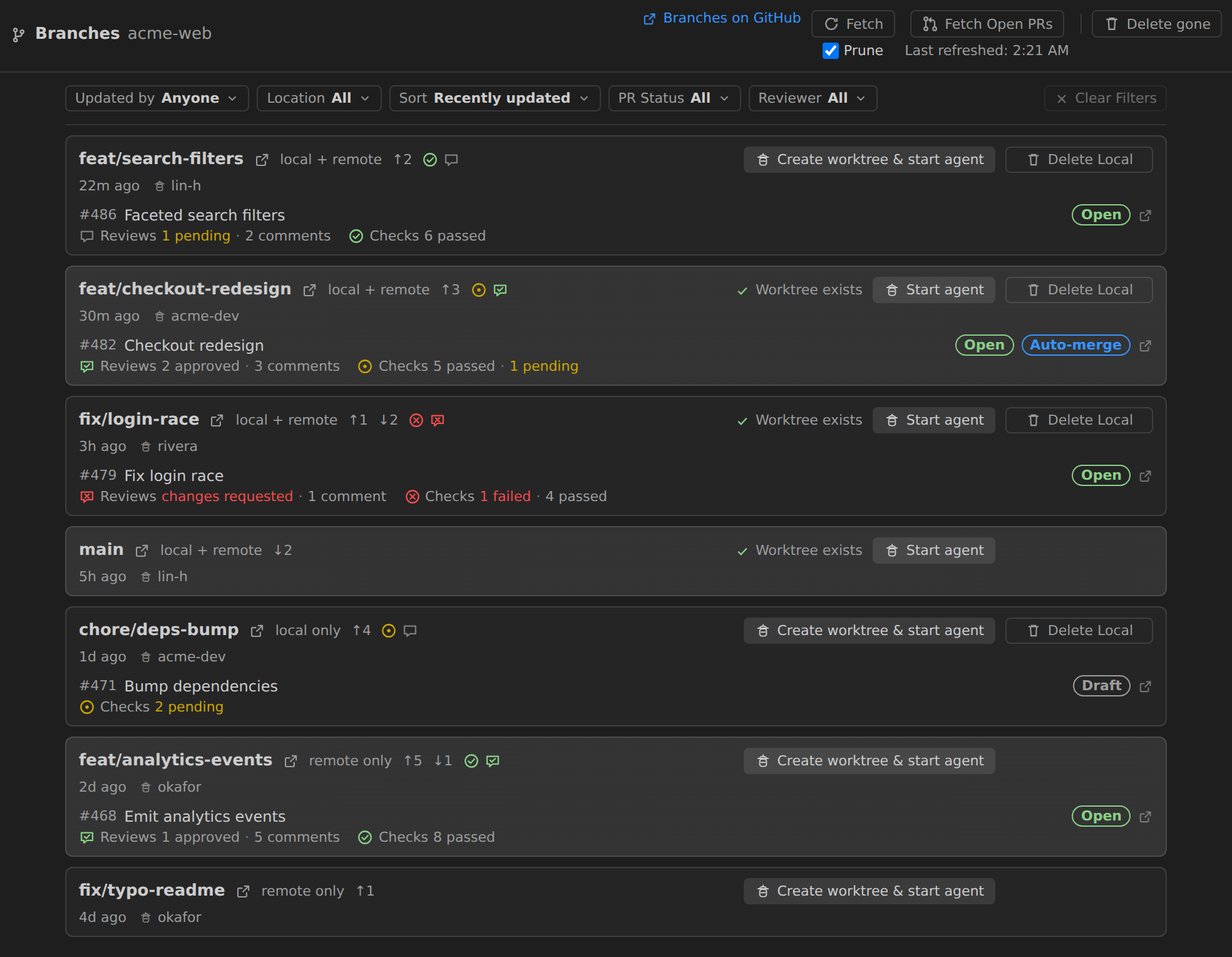
- Start agent on branches with a worktree, Create worktree & start agent
on the rest. A remote-only branch is checked out as a new local tracking branch.
- Last-updated time, author, location and ahead/behind, all from local git
with no token.
- The same PR block as the panel, with the checks and review glyphs on the name
line, so a branch whose PR needs you stands out down the list.
- Filter and sort by updater, location, PR status, or review-requested-from-you.
Your choices are remembered.
- Fetch and prune to refresh ahead/behind and drop dead refs.
- Delete Local never touches the remote. It warns about unpushed commits and
handles squash-merged branches without asking you to force it.
- Delete gone clears every local branch whose remote is gone, in one
confirmation.
New worktrees land in .claude/worktrees/, the same place claude -w puts them.
Linked files
A new worktree only gets the files git tracks, so the gitignored local config your
build or tests need is missing and they fail.
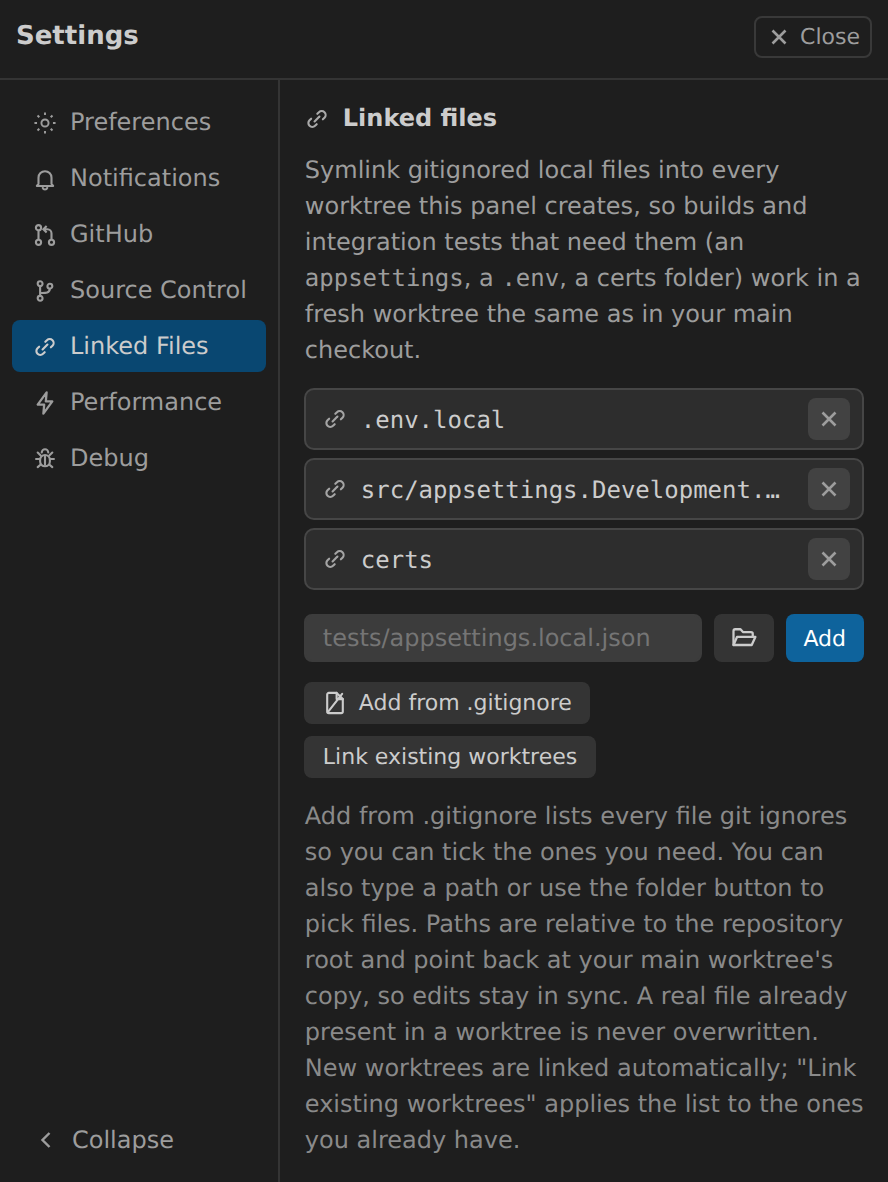
- List the paths once per repository; every worktree gets them symlinked in,
including worktrees the panel did not create.
- The list belongs to the repository, so it reads the same from any worktree.
- Add from .gitignore lists what git ignores so you can tick what you need.
Whole folders like
node_modules collapse to one row.
- Links point at your main worktree's copy, so editing once updates everywhere.
- Link existing worktrees applies the list to the ones you already have.
- A file a worktree genuinely owns is never overwritten, and neither is a link
you pointed somewhere else yourself.
- Windows works without Developer Mode or admin rights (junctions, then hard
links).
Run and Debug a worktree
VS Code always launches out of your main folder. Each card gets a Run and
Debug entry in its menu instead, shown only on worktrees that have launch
configurations.
- Any configuration from that worktree's own
launch.json, so a branch that
added one offers it.
- The list opens as a menu right where you clicked, not as a picker at the top of
the window.
- Run with the debugger, or click the play icon on a row to run without
breakpoints. Compounds work too.
${input:...} prompts work, from the worktree's own inputs, and a compound
asks once for a shared input.${workspaceFolder}, the working directory and any preLaunchTask all point at
the worktree, so you debug what you just changed. A failed build launches
nothing.- Stop or restart it from the same card: each session gets a row on the worktree
it runs in. Restart rebuilds the worktree and launches the same configuration
again, without asking the prompts a second time, so a code change is one click
away from running.
Groups
Half the worktrees in a busy repo are finished: pushed, waiting on a review, and
still taking up the list. File them into a section and fold it.
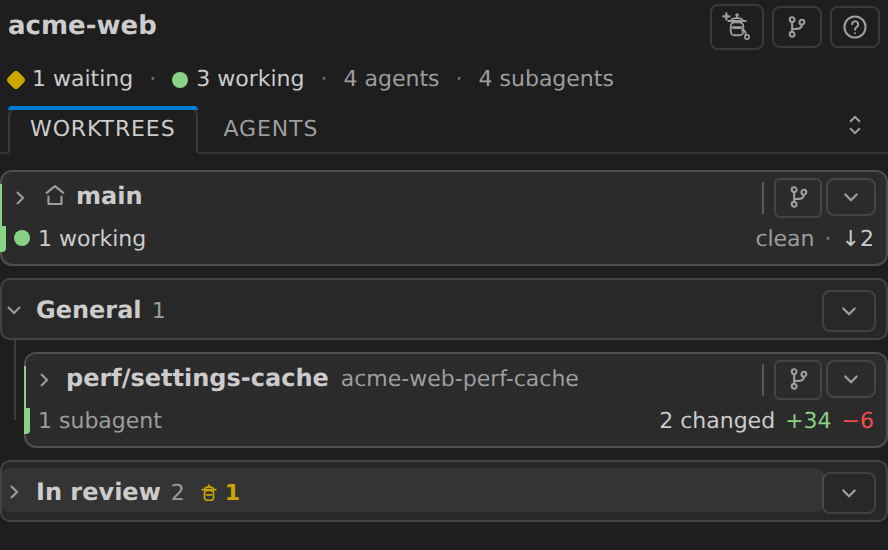
- Your main worktree stays on top, outside the sections. It is the one every
other worktree hangs off, so it is not something you file away.
- Name your own sections. Make as many as you want, and drag them into the
order you want (or move them a place at a time from the header menu).
- General is the default section, always there, and cannot be renamed or
removed. New worktrees land in it, anything you have not filed stays in it, and
so does anything left over when you delete a group.
- Named in the header itself, not in a box at the top of the window. A new
group opens its own name field the moment you make one;
F2 renames an
existing one, Enter keeps it, Escape drops it.
- Move a worktree from its card menu. The list of groups sits at the top of
the menu, with a check beside the one it is in now.
- Right-click a card or a section header for the same menu its caret opens,
right where you clicked.
- Fold what you are done with. Collapse state is remembered, so the panel
comes back the way you left it.
- Section headers stay put while you scroll, with each card's own header
pinned underneath, so a card is never separated from the group it is in.
- A folded section still tells you when an agent needs you, with a count on
its header, so putting work away is never the same as losing track of it.
- Deleting a group never deletes a worktree. Its cards move back to General.
Cards built to be scanned
Every card is two lines at rest, and one click shuts them all.
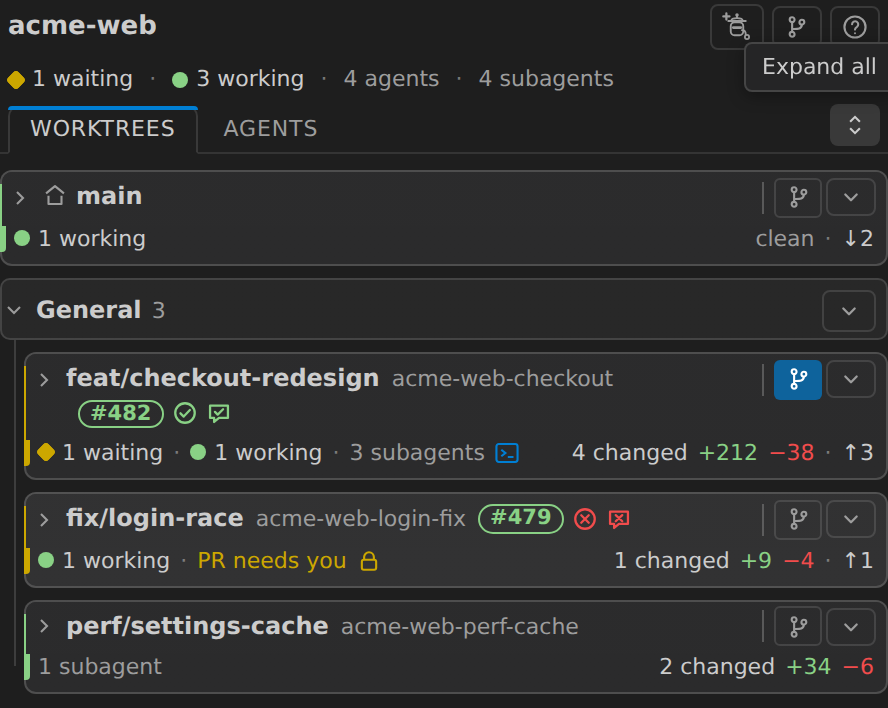
- One stripe per worktree. Yellow down the left edge means it needs you: an
agent is waiting, or the PR has changes requested, a failed check, or is out of
date. Green means work is running. No stripe means idle. Changes alone never
colour a card.
- Nothing is dropped at two lines: the branch, the PR number with its checks
and review glyphs, then the agent counts in words and the git cell.
- Counts are words.
1 waiting · 2 working · 3 subagents, on the card and in
the summary under the repository name, with zero counts left out.
- The PR is a line, not a box. Number, title and state on one line, reviews
and checks in words on the next, and
No pull request where there is none yet
so every card has the same shape.
- Names stay put while you scroll: a card's header pins above its own agent
rows, so you never reveal a terminal from the card below the one you meant.
- Click the name to open a card, not the whole line. A vertical rule marks
where the toggle stops, and the hover highlight shows exactly what the click
will hit. Cards no longer light up as a whole, so what highlights is what is
actually clickable.
- The name line stays a name line. Past that rule: the Source Control scope
pill and a caret menu holding switch branch, refresh, search, find file, run or
debug, open in a new window, view on GitHub and delete. New agent sits
beside the Agents heading.
- The worktree's own directory sits muted beside the branch name, with the
full path on hover. Cards are titled by branch, which is what you scan for.
- Glyphs instead of pills for your primary working directory (a house) and for
locked or detached worktrees.
- The agent you are typing into carries a blue bar down its row, and one
waiting on you a yellow one; rows are lines of the card, not boxes inside it.
- A
? in the toolbar opens the key to all of it.
- A repo-wide agent summary under the repository name, so "is anything waiting
on me" is one glance.
- The agent list scrolls instead of folding, so a busy worktree cannot push
every card below it off screen.
- One button opens or shuts every card and says which it will do. Your open
cards are remembered.
Search and find files without leaving your window
A worktree is not part of your open workspace, so Find in Files and
Ctrl/Cmd+P never see it. Two buttons per card fix that.
- Search this worktree opens the search view already scoped to it.
- Find file in this worktree lists its files and opens the one you pick, right
here.
- The list matches what
Ctrl/Cmd+P would show: tracked and untracked, nothing
gitignored.
- Your workspace is untouched: no Explorer entry, no reload, no agent disturbed.
Also included
- Open in a new window, focusing an existing one rather than duplicating it.
- Switch a worktree's branch from a list that opens where you click, filtered
as you type, most recently updated first - or create a new branch from the same
list.
- Delete a worktree in one confirmation that says upfront what it touches
(agents, uncommitted changes, unpushed commits) and can delete the branch too.
Leftover folders git could not remove are cleaned up.
- Stale lock cleanup for dead sessions. Locks you placed are never touched.
- Source Control scoping, so the SCM view follows the worktree you pick -
from a worktree's card or from any agent row in the agents view.
- A Performance tab: git's
status accelerators for this repo, with a switch
for each, plus how often the panel rechecks worktrees.
- A Preferences tab: the order the agents view groups its statuses in, moved
with an up/down control per status.
- Buttons that show their work: slow actions swap their icon for a spinner.
- A settings nav that folds to icons on a narrow sidebar, on its own once
there is no room for labels.
- Usable from the keyboard. Arrow keys, Home and End move through the card
and group menus; Escape and Tab close one and put you back on the button you
opened it from; dialogs keep Tab inside them and hand focus back on close.
Tooltips open on focus as well as hover, so the readings that only live in one
are not mouse-only.
- Announces the agents that need you, once, as the count rises, for anyone
who cannot see the badge or the colour.
- High-contrast themes get real borders instead of the translucent hairlines
that wash out in them, and everything that moves respects Reduced Motion.
Requirements
- The Claude Code CLI (
claude) on
your PATH.
git on your PATH.- A workspace whose first folder is inside a git repository.
Getting started
- Install the extension and open a folder that is a git repository.
- Open Agent Worktrees from the Activity Bar.
- Click Agent on any worktree, or Agent & Worktree to create both at once.
Troubleshooting
Panel slow or empty? Settings, Debug tab, turn on Debug tracing. Every
git command and GitHub request is logged with its duration and result to the
"Agent Worktrees" output channel. Off by default, and request headers, which carry
your token, are never logged.
Slow on a big repository, especially on Windows? Per-worktree git status is
usually the cost. Settings, Performance tab shows whether this repository has
git's untracked cache and filesystem monitor on, with a switch for each. Both make
git status skip work it has already done.
Each switch writes one of this repository's own git settings
(core.untrackedCache, core.fsmonitor). Nothing global, nothing committed, and
turning it off puts it back. A switch you cannot move says why on its own row: an
unsuitable filesystem, a git older than 2.37, an unsupported platform, or a
monitor you already run yourself.
The same tab has Recheck every, how often git status re-runs for a worktree
an agent is working in. It applies only to worktrees not open in the Source
Control view, which refresh on VS Code's own git events instead.
Privacy
Runs entirely on your machine, collects no telemetry. It reads local git state and
the session files Claude Code keeps for itself, and writes nothing to your
~/.claude tree. The only network requests it makes are to the GitHub API, and
only once you connect a token.
| |

