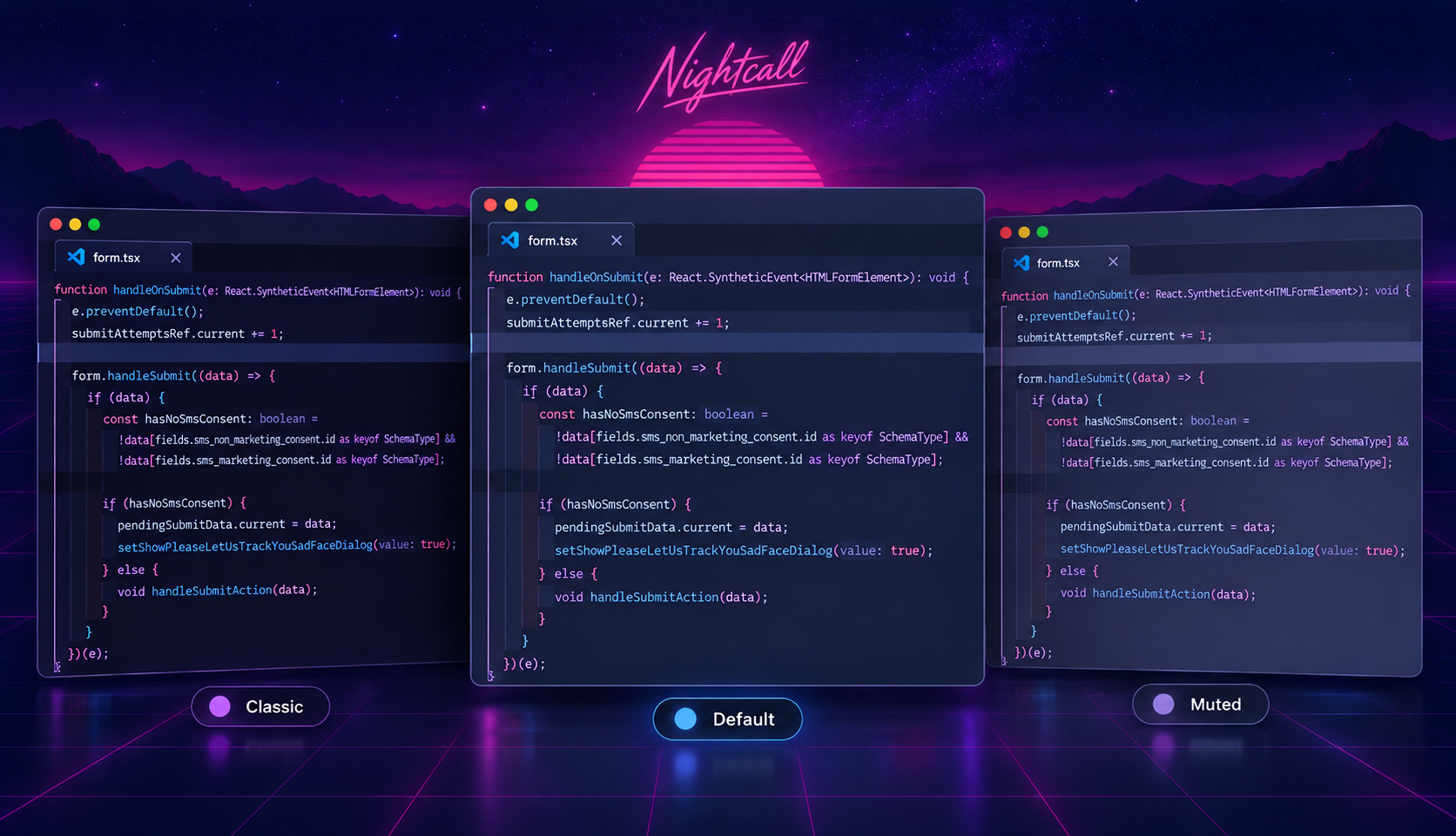
NightcallA mellow yet colorful Visual Studio Code theme built around vibrant shades of pink, purple, and blue. Installation Launch VS Code Quick Open ( Ctrl+P), paste the following command, and press enter.Copied to clipboard |

Nightcall ✨A mellow yet colorful Visual Studio Code theme built around vibrant shades of pink, purple, and blue. Designed for productive coding sessions spent ~~reviewing 1,000 lines of AI-generated abstractions to fix the one-line problem I started with~~ building exciting and personally fulfilling things, completely unbothered by the state of the industry or your future employment prospects.
Installation
Theme VariantsChoose between the balanced default theme, the lighter and softer Muted theme, and the darker Classic theme, with optional typography and layout variations. Nightcall (Default)The balanced default color palette.
Nightcall MutedThe lighter, muted color palette.
Nightcall ClassicThe darker, mostly original Nightcall color palette.
The italic variants use italics selectively for comments, control flow, imports and exports, declarations, and contextual keywords such as Focused and actively selected list rows use bright lavender backgrounds with dark text and match highlights. Floating suggestions and hover widgets retain light text on dark backgrounds. Recommended SettingsI personally use Dank Mono. I've tried other fonts, but I always come back to this one. After installing it, add the following to your VS Code settings: Optional: Indent RainbowThese colors pair well with the Indent Rainbow extension: iTerm2 Color PresetsColor presets for each theme variant are also available: In iTerm2, open Settings, select a profile, open Colors, then choose Color Presets... and Import.... Zed ThemesNightcall is available as a theme for Zed.
FeedbackThis is mostly a fun creative outlet for me, and I’m trying not to take it too seriously. VS Code also has an absurd number of languages, syntax rules, UI states, and obscure little corners I may never encounter, so despite my best efforts, I may have missed some things. If you see anything that looks unintentional, or insufficiently Nightcall-y, please open an issue. Including the language or file type and, when possible, a screenshot. Also, it is not lost on me that, here in the year of our Lord 2026, most people are either rotating between the same two or three Very Popular Themes™ or have moved on to the latest Very Popular Non-VS Code Editor™. If you’re still here, reading this and installing Nightcall, just know that I love you. 🫶 |