Console Session ResumePreviewSeparate, reboot-persistent command history for native Bash, Zsh, Fish, and PowerShell terminals. Installation Launch VS Code Quick Open ( Ctrl+P), paste the following command, and press enter.Copied to clipboard |

Console Session Resume
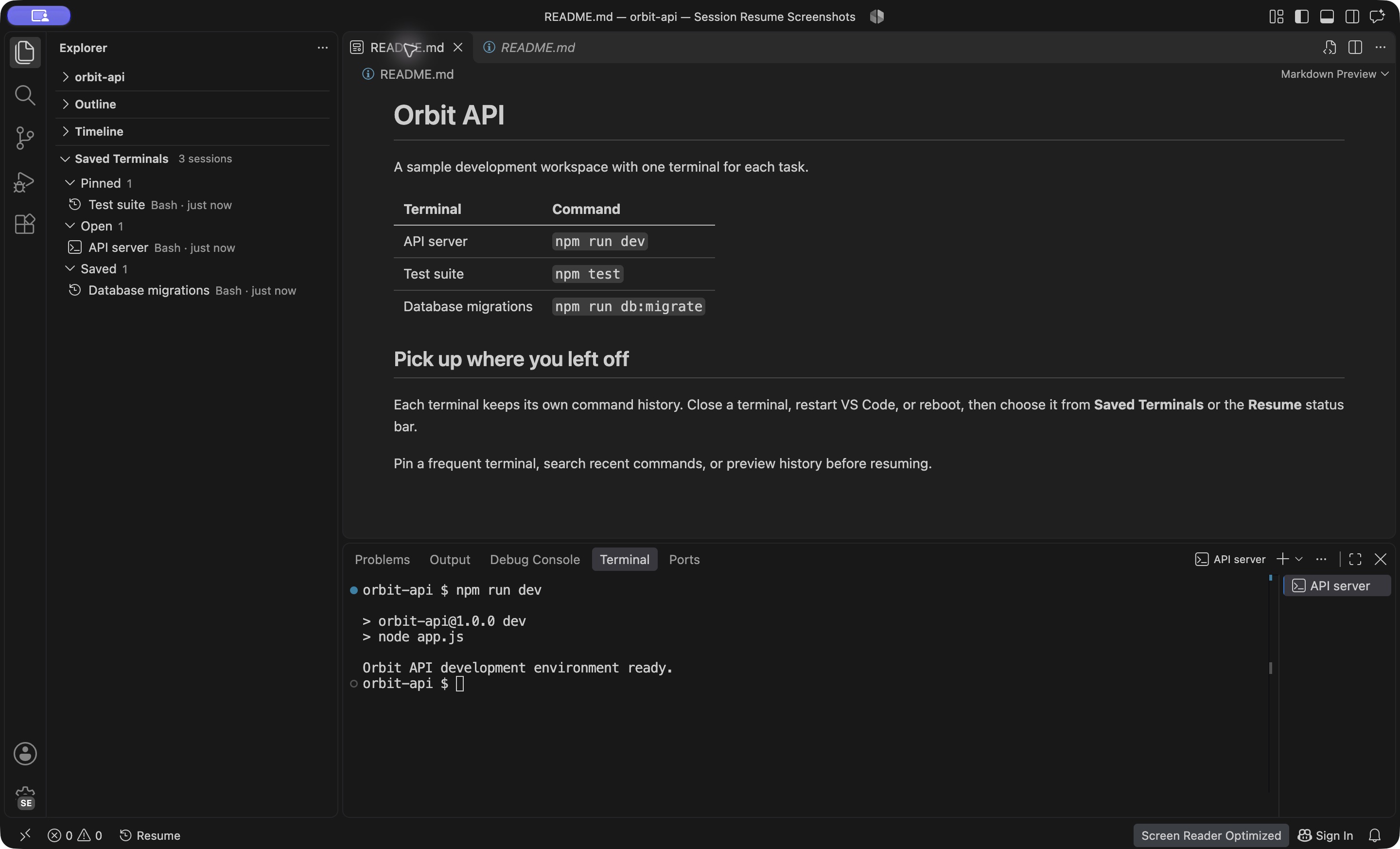
Separate command history for each native VS Code terminal, across project closes, editor restarts, and computer reboots. Uses the shell's normal Up/Down and history search. No terminal multiplexer or replacement terminal UI. Pick up where you left offKeep an API terminal, a test terminal, and a database terminal with their own histories. Give them names, pin the ones you use most, and return to the right commands after closing the project or rebooting.
Install and usePublisher: Requires: VS Code 1.93 or later and an installed supported shell. This is a preview.
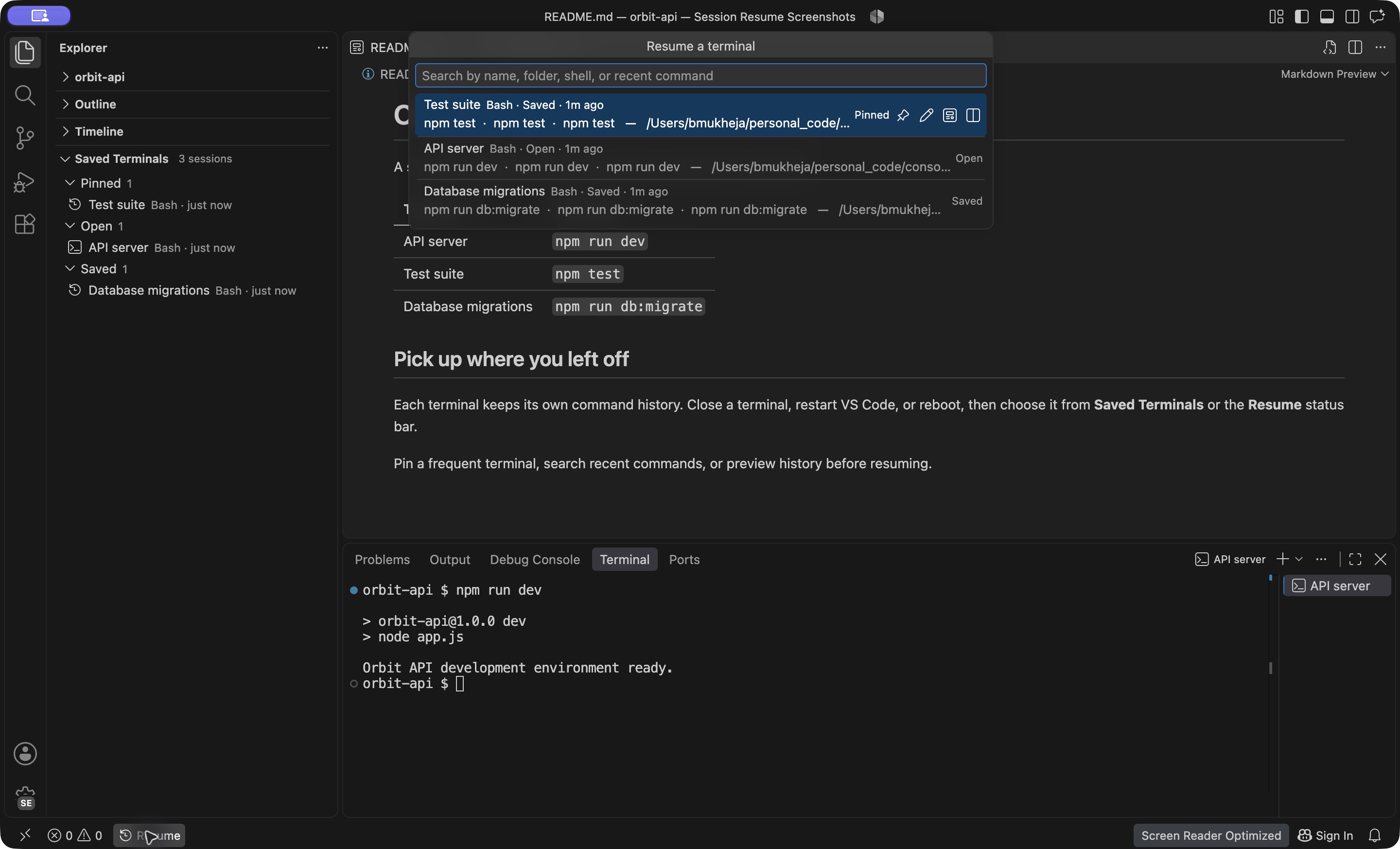
Only managed terminals are recorded. Commands from before installation cannot be separated retrospectively from a previously merged global history. Finding and resuming terminalsClick Resume in the status bar, or run Session Resume: Resume Saved Terminal. The native picker searches terminal names, folders, shells, and the last three recorded commands. Sessions are grouped as Pinned, Open, and Saved and show when they were last used. Press Enter to resume a saved terminal or focus a terminal that is already open. The Saved Terminals section in Explorer provides the same sessions as a native tree. Click a session to open it. Its context menu offers Rename, Pin/Unpin, Preview Recent Commands, and Resume in Split. The view's menu also includes Resume All Saved Terminals, which skips sessions that are already open.
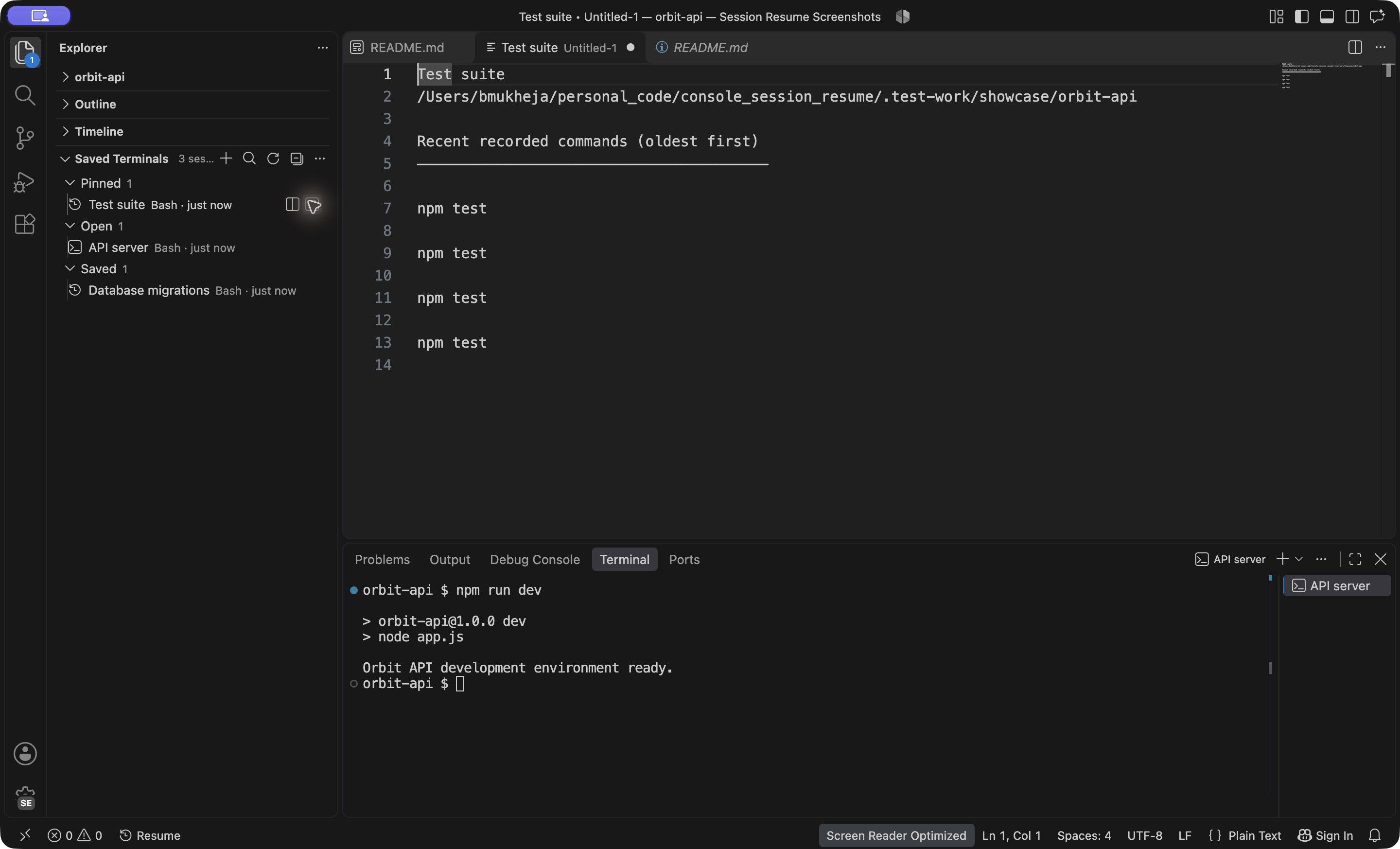
The picker provides the same actions as buttons on each row. Pinning or renaming keeps the current search text. A history preview opens a copy of the last 30 recorded commands in an editor; editing that copy does not change shell history. Previews read existing native history files and preserve the shell's history exclusion rules. They do not execute commands or create a second command log.
New terminals get names such as Upgrading from a local VSIXThe Marketplace extension uses the publisher How it worksThe extension assigns a UUID before launching a terminal. That UUID and the history location are in the native terminal's launch environment. When VS Code preserves that launch configuration, a fresh shell process reuses the same history. Some VS Code versions/platforms recreate profile terminals with new configurations; the saved-session picker restores the original UUID and history in that case. Recovery metadata is stored on disk independently of VS Code's tab snapshot.
PowerShell's Startup profiles and native editing/completion remain available. Existing shell history exclusion rules still apply. A shell profile that replaces the shell, disables history, or installs another history manager can require adjustment. The shell must be installed on the terminal host. Native Windows supports
PowerShell and Git Bash; Zsh/Fish run in a WSL or Remote SSH window. Install the
extension on the remote side for Remote SSH / WSL / containers. Classic Storage and scopeSession metadata and Bash/Zsh/PowerShell history are stored in this extension's
VS Code global storage directory, outside your projects and outside extension
version directories. On Unix, session directories use mode The saved-session picker is scoped to the workspace file, or to the set of folder URIs for a folder workspace. Separate projects, worktrees, and remote authorities remain distinct. Renaming/moving a project changes this lookup scope; existing revived terminals still refer to their original saved histories. History is local plaintext, just like ordinary shell history. No network service, telemetry, command replay, or automatic execution of previous commands is used. What survives
Running processes, shell variables, activated environments, and unsaved input do not survive reboot. Bash saves when the prompt returns: a command still running at a sudden shutdown may not yet be saved. VS Code's tab restoration can itself fail or recreate a fresh profile terminal; the saved-session picker does not depend on that snapshot. Automatic restoration was observed to vary in hosted Windows and macOS runs of VS Code 1.146.0. Use Resume to select the original session. Settings
To undo the default selection, run Terminal: Select Default Profile and choose your previous profile. Uninstalling the extension does not delete saved histories. No shell startup files are edited by installing this extension. DevelopmentThe extension runs as plain JavaScript with no runtime npm dependencies. Development and packaging require Node.js 22 or later and the pinned dev tools. The shell tests use temporary homes and PTYs. They kill the original processes, start fresh processes, and verify independent histories and native Up-arrow recall without modifying your actual shell history. The VS Code test uses a separate Verified behaviorAll seven jobs passed on the release candidate, covering unit tests, VSIX contents, native terminal creation/splits, editor restart, separate histories, command previews, names, pins, keyboard selection, and resume into a native split.
The Windows restart check recovered the original histories through Saved Terminals. Linux and macOS restored them automatically in the final run. Automatic revival also varied in earlier macOS runs; the saved-session recovery path is independent of VS Code's tab snapshot. See validation evidence. All 16 Node tests passed on Windows, Linux, and macOS. POSIX PTY checks exercised separate shell processes, forced termination, native Up-arrow recall, multiline Bash commands, and unchanged shared histories. The native tests used temporary shell homes and separate VS Code profiles. Remote hosts have not been validated. The physical host was not rebooted; shells and editors were ended and reopened from their saved files. Privacy and supportHistory stays on the terminal host as plaintext shell history. The extension sends no commands or telemetry to a server. Shell exclusion rules still apply; avoid putting credentials in commands you would not want saved. Read Privacy, Support, and Changes. Use the extension's Marketplace Q & A tab for support. Licensed under the MIT license. |