Context ClippingsCapture selected text from the editor button, right-click menu, or Command Palette into a daily workspace Markdown log with its source and timestamp. Installation Launch VS Code Quick Open ( Ctrl+P), paste the following command, and press enter.Copied to clipboard |

Context ClippingsContext Clippings captures selected text from the editor button, right-click menu, or Command Palette and saves it with its source and timestamp in a dated Markdown file at the root of the active workspace. Use
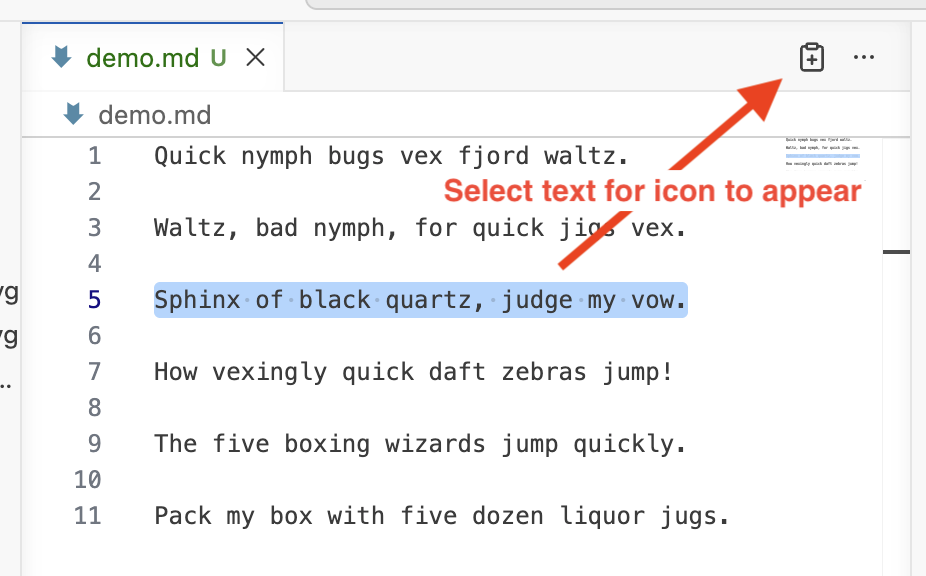
The editor button appears only while a non-empty selection is active in a local file. DemoEditor buttonSelect text to reveal the clipboard-plus button in the editor title bar.
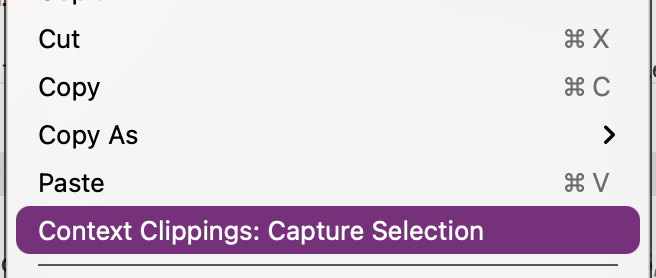
Right-click menuRight-click selected text and choose Context Clippings: Capture Selection.
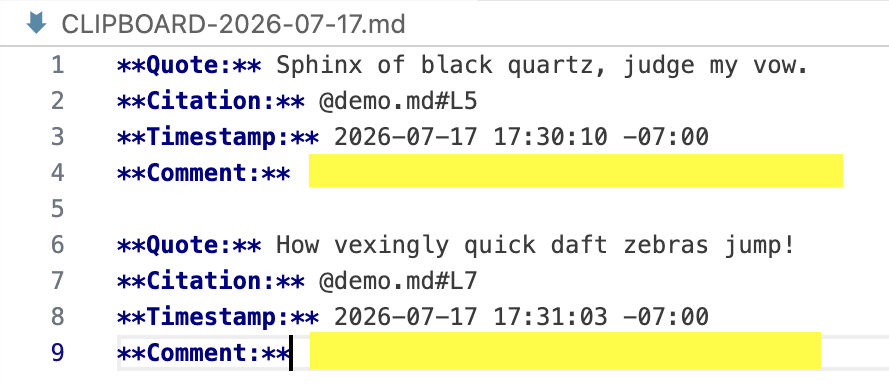
Daily Markdown fileEach clipping is appended with its quote, workspace-relative citation, timestamp, and an empty Comment field.
The extension creates or appends to Existing entries are preserved. The command rejects empty or oversized selections, files outside the workspace, non-file workspaces, symbolic-link capture targets, and untrusted workspaces. Local VSIX installation
Installing a VSIX makes local executable code available to the editor. Install only an artifact you trust and verify its checksum when one is supplied. Scope and limitations
|